This chapter summarizes configuration and administration best-practices information for CXFS:
For the latest information and a matrix of supported CXFS and operating system software, see http://support.sgi.com/content_request/838562/index.html on Supportfolio.
This section discusses the following configuration topics:
If there are any network issues on the private network, fix them before trying to use CXFS. A stable private network is important for a stable CXFS cluster network. Ensure that you understand the information in “Hostname Resolution and Network Configuration Rules” in Chapter 6.
After establishing your configuration and before making any modifications, you should save the current configuration information so that you can return to it later in case of failure:
Before making significant changes to an existing CXFS configuration, run the the build_cmgr_script command to create a copy of the current database. If needed, you can then use the generated script to recreate the cluster database after performing a cdbreinit. See “Creating a cmgr Script Automatically” in Appendix F.
Occasionally, XVM labels can become corrupted. You should perform a backup of your XVM configuration using xvm dump any time it is changed so that you will be able to recover from potential problems. You should save the xvm dump output into an XFS (not CXFS) filesystem. For example, the following will dump all xvm_labels to the file /var/xvm_config:
xvm dump -topology -f /var/xvm_config phys/'*' vol/'*' |
For more information, see the section about saving and regenerating XVM configurations in the XVM Volume Manager Administrator's Guide. If repair is required, contact SGI Support.
You are required to use a private network for CXFS metadata traffic:
The private network is used for metadata traffic and should not be used for other kinds of traffic.
A stable private network is important for a stable CXFS cluster environment.
Two or more clusters should not share the same private network. A separate private network switch is required for each cluster.
The private network should contain at least a 100-Mbit network switch. A network hub is not supported and should not be used.
All cluster nodes should be on the same physical network segment (that is, no routers between hosts and the switch).
Use private (10.x.x.x, 176.16. x.x, or 192.168.x.x) network addresses (RFC 1918).
The private network must be configured as the highest priority network for the cluster. The public network may be configured as a lower priority network to be used by CXFS network failover in case of a failure in the private network.
When administering more than one CXFS cluster, use unique private network addresses for each cluster. If you have multiple clusters connected to the same public network, use unique cluster names and cluster IDs.
A virtual local area network (VLAN) is not supported for a private network.
When NFS or Samba serving from a CXFS cluster, the network used for remote fileserving cannot be a backup private network for CXFS. Using the fileserving network as a backup private network for CXFS private network may result in heartbeat timeouts, which will cause a severe drop in CXFS and fileserving performance.
All server-capable administration nodes within the cluster must have similar capabilities. You must use all Altix ia64 systems or all Altix XE x86_64 systems. See also “Provide Enough Memory”.
There should be at least 2 GB of RAM on the system. A server-capable administration node must have at least 1 processor and 1 GB of memory more than what it would need for its normal workload (work other than CXFS). In general, this means that the minimum configuration would be 2 processors and 2 GB of memory. If the metadata server is also doing NFS or Samba serving, then more memory is recommended (and the nbuf and ncsize kernel parameters should be increased from their defaults). CXFS makes heavy use of memory for caching.
If a very large number of files (tens of thousands) are expected to be accessed at any one time, additional memory over the minimum is recommended to avoid throttling memory. Estimate the maximum number of inodes that will be accessed during a 2-minute window and size the server-capable administration node memory for that number. (The inode references are not persistent in memory and are removed after about 2 minutes of non-use.)
Use the following general rule to determine the amount of memory required (where #inodes is the maximum number of open files at any one time):
2 KB x #inodes = server-capable_administration_node_memory
In addition, about half of a CPU should be allocated for each Gigabit Ethernet interface on the system if it is expected to be run a close to full speed.
To avoid problems during metadata server recovery/relocation, all potential metadata servers should have as much memory as the active metadata server.
The GUI provides a convenient display of a cluster and its components through the view area. You should use it to see your progress and to avoid adding or removing nodes too quickly. After defining a node, you should wait for it to appear in the view area before adding another node. After defining a cluster, you should wait for it to appear before you add nodes to it. If you make changes too quickly, errors can occur. For more information, see “Starting the GUI” in Chapter 10.
Do not attempt to make simultaneous changes using cxfs_admin and the GUI. Use one tool at a time.
The cluster database membership quorum must remain stable during the configuration process. If possible, use multiple windows to display the fs2d_log file for each server-capable administration node while performing configuration tasks. Enter the following:
server-admin# tail -f /var/cluster/ha/log/fs2d_log |
Check the member count when it prints new quorums. Under normal circumstances, it should print a few messages when adding or deleting nodes, but it should stop within a few seconds after a new quorum is adopted. If not enough machines respond, there will not be a quorum. In this case, the database will not be propagated.
If you detect cluster database membership quorum problems, fix them before making other changes to the database. Try restarting the cluster administration daemons on the node that does not have the correct cluster database membership quorum, or on all nodes at the same time.
Enter the following on server-capable administration nodes:
server-admin# service cxfs stop server-admin# service cxfs_cluster stop server-admin# service cxfs_cluster start server-admin# service cxfs start |
 | Note: You could also use the restart option to stop and start. |
Please provide the fs2d log files when reporting a cluster database membership quorum problem.
Be consistent in configuration files for all nodes and when configuring networks. Use the same names in the same order. See Chapter 8, “Postinstallation Steps”.
Create a new cluster using server-capable administration nodes that have the same version of the OS release and the same version of CXFS installed.
All nodes should run the same level of CXFS and the same level of operating system software, according to platform type. To support upgrading without having to take the whole cluster down, nodes can temporarily run different CXFS releases during the upgrade process.
 | Caution: You must upgrade all server-capable administration nodes before upgrading any client-only nodes (servers must run the same release as client-only nodes or a later release.) Operating a cluster with clients running a mixture of older and newer CXFS versions will result in a performance loss. Relocation to a server-capable administration node that is running an older CXFS version is not supported. |
For details, see the platform-specific release notes and “CXFS Release Versions and Rolling Upgrades” in Chapter 12.
Server-capable administration nodes must be dedicated to CXFS and filesystems work (such as DMF, Samba, or NFS). Standard services (such as DNS and NIS) are permitted, but any other applications (such as analysis, simulation, and graphics) must be avoided.
Only dedicated nodes are supported as CXFS server-capable administration nodes. Running a server-capable administration node in a nondedicated manner will void the support contract. If the use of an application is desired on a server-capable administration node, SGI will provide a quotation to perform the following work:
Audit the solution
Design a supportable configuration
Implement the changes
A statement of work will be created and implementation will begin after mutual agreement with the customer.
If additional products are required from SGI, the customer will be responsible for obtaining a quote and providing a purchase order before any corrective action begins. SGI will not correct unsupported configurations without compensation and reserves the right to terminate or suspend the support agreement.
Use an odd number of server-capable administration nodes with CXFS services running. See “Use a Client-Only Tiebreaker”.
Before adding or removing a server-capable administration node, you must first unmount any filesystems for which the node is a potential metadata server.
You should define most nodes as client-only nodes and define just the nodes that may be used for CXFS metadata as server-capable administration nodes.
The advantage to using client-only nodes is that they do not keep a copy of the cluster database; they contact a server-capable administration node to get configuration information. It is easier and faster to keep the database synchronized on a small set of nodes, rather than on every node in the cluster. In addition, if there are issues, there will be a smaller set of nodes on which you must look for problem.
See “Transforming a Server-Capable Administration Node into a Client-Only Node” in Chapter 12.
SGI recommends that you always define a stable client-only node as the CXFS tiebreaker for all clusters with more than one server-capable administration node and at least one client-only node.
Having a tiebreaker is critical when there are an even number of server-capable administration nodes. A tiebreaker avoids the problem of multiple-clusters being formed (a split cluster) while still allowing the cluster to continue if one of the metadata servers fails.
As long as there is a reliable client-only node in the cluster, a client-only node should be used as tiebreaker. Server-capable administration nodes are not recommended as tiebreaker nodes because these nodes always affect CXFS kernel membership.
The tiebreaker is of benefit in a cluster even with an odd number of server-capable administration nodes because when one of the server-capable administration nodes is removed from the cluster, it effectively becomes a cluster with an even-number of server-capable administration nodes.
Note the following:
If exactly two server-capable administration nodes are configured and there are no client-only nodes, neither server-capable administration node should be set as the tiebreaker. (If one node was set as the tiebreaker and it failed, the other node would also shut down.)
If exactly two server-capable administration nodes are configured and there is at least one client-only node, you should specify the client-only node as a tiebreaker.
If one of the server-capable administration nodes is the CXFS tiebreaker in a two-server-capable-node cluster, failure of that node or stopping the CXFS services on that node will result in a cluster-wide forced shutdown. If you use a client-only node as the tiebreaker, either server-capable administration node could fail but the cluster would remain operational via the other server-capable administration node.
If there are an even number of servers and there is no tiebreaker set, the fail policy must not contain the shutdown option because there is no notification that a shutdown has occurred. See “Data Integrity Protection” in Chapter 1.
SGI recommends that you start CXFS services on the tiebreaker client after the server-capable administration nodes are all up and running, and before CXFS services are started on any other clients. See “Restart the Cluster In an Orderly Fashion”.
All nodes must be configured to protect data integrity in case of failure. System reset or I/O fencing is required to ensure data integrity for all nodes.
SGI recommends that you use a system reset configuration on server-capable administration nodes in order to protect data integrity and improve server reliability. I/O fencing (or system reset when available) must be used on client-only nodes.
See also “Data Integrity Protection” in Chapter 1.
You should configure system reset for all server-capable administration nodes in order to protect data integrity. (I/O fencing is appropriate for client-only nodes.)
| Note: If the failure hierarchy contains reset or fencereset, the reset might be performed before the system kernel core-dump can complete, resulting in an incomplete core-dump. |
System reset is recommended because if a server hangs, it must be rebooted as quickly as possbile to get it back in service, which is not available with I/O fencing. In addition, filesystem corruption is more likely to occur with a rogue metadata server, not a rogue client. (If fencing were to be used on a metadata server and fail, the cluster would have to either shutdown or hang. A fencing failure can occur if an administrator is logged into the switch.)
System reset may be either serial reset or, for a system with an L2 system controller or a baseboard management controller (BMC), over the network.
The system reset can use the following methods:
reset simulates the pressing of the reset button on the front of the machine
NMI (nonmaskable interrupt) performs a core-dump of the operating system kernel, which may be useful when debugging a faulty machine
Note: NMI should only be used when directed to by SGI Service personnel. When used on SGI Altix nodes, the node will not restart automatically, but will stop in the kdb debugger, which requires human intervention to perform debugging and reset the node manually. (See SGI Bulletin TIB 200908 for information on debugging with kdb.) This mode is not applicable to SGI Altix XE nodes, which use BMC system controllers.
You would want to use reset for I/O protection on a client-only node that has a system controller when CXFS is a primary activity and you want to get it back online fast; for example, a CXFS fileserver.
Nodes without system reset capability require I/O fencing. I/O fencing is also appropriate for nodes with system controllers if they are client-only nodes.
You should use the admin account when configuring I/O fencing. On a Brocade switch running 4.x.x.x or later firmware, modify the admin account to restrict it to a single telnet session. For details, see “Limiting telnet Sessions” in Chapter 4.
If you use I/O fencing, SGI recommends that you use a switched network of at least 100baseT.
You should isolate the power supply for the switch from the power supply for a node and its system controller. You should avoid any possible situation in which a node can continue running while both the switch and the system controller lose power. Avoiding this situation will prevent the possibility of forming split clusters.
You must put switches used for I/O fencing on a network other than the primary CXFS private network so that problems on the CXFS private network can be dealt with by the fencing process and thereby avoid data or filesystem corruption issues. The network to which the switch is connected must be accessible by all server-capable administration nodes in the cluster.
If you manually change the port status, the CXFS database will not be informed and the status output by the cxfs_admin command will not be accurate. To update the CXFS database, run the following command:
server-admin# hafence -U |
I/O fencing does the following:
Preserves data integrity by preventing I/O from nodes that have been expelled from the cluster
Speeds the recovery of the surviving cluster, which can continue immediately rather than waiting for an expelled node to reset under some circumstances
To support I/O fencing, platforms require a Fibre Channel switch; for supported switches, see the release notes.
When a node joins the CXFS kernel membership, the worldwide port name (WWPN) of its host bus adapter (HBA) is stored in the cluster database. If there are problems with the node, the I/O fencing software sends a message via the telnet protocol to the appropriate switch and disables the port.
| Caution: You must keep the telnet port free in
order for I/O fencing to succeed; do not perform
a telnet to the switch and leave the session connected.
Brocade switches running 4.x.x.x or later firmware by default permit multiple telnet sessions. However, in the case of a split cluster, a server-capable administration node from each side of the network partition will attempt to issue the fence commands, but only the node that is able to log in will succeed. Therefore, on a Brocade switch running 4.x.x.x or later firmware, you must modify the admin account to restrict it to a single telnet session. See “Keep the telnet Port Open on the Switch” and the release notes. |
The switch then blocks the problem node from communicating with the storage area network (SAN) resources via the corresponding HBA. Figure 2-1 describes this.
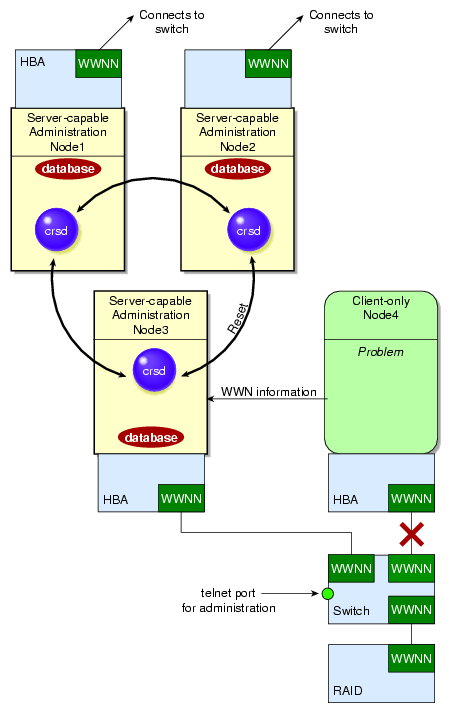
If users require access to nonclustered LUNs or devices in the SAN, these LUNs/devices must be accessed or mounted via an HBA that has been explicitly masked from fencing. For details on how to exclude HBAs from fencing for server-capable administration nodes, see:
For nodes running other supported operating systems, see CXFS 5 Client-Only Guide for SGI InfiniteStorage .
To recover, the affected node withdraws from the CXFS kernel membership, unmounts all filesystems that are using an I/O path via fenced HBA(s), and then rejoins the cluster. This process is called fencing recovery and is initiated automatically. Depending on the fail policy that has been configured, a node may be reset (rebooted) before initiating fencing recovery. For information about setting the fail policy, see:
In order for a fenced node to rejoin the CXFS kernel membership, the current kernel membership leader must lower its fence, thereby allowing it to reprobe its XVM volumes and then remount its filesystems. If a node fails to rejoin the CXFS kernel membership, it may remain fenced. This is independent of whether the node was rebooted; fencing is an operation that is applied on the switch, not on the affected node. In certain cases, it may therefore be necessary to manually lower a fence. For instructions, see “Lower the I/O Fence for a Node with the GUI” in Chapter 10, and “Switch Manipulation Using hafence” in Chapter 12.
| Caution: When a fence is raised on an HBA, no further
I/O is possible to the SAN via that HBA until the fence is lowered.
This includes the following:
|
On client-only nodes with system reset capability, you would want to use Fence for data integrity protection when CXFS is just a part of what the node is doing and therefore losing access to CXFS is preferable to having the system rebooted. An example of this would be a large compute server that is also a CXFS client. However, Fence cannot return a nonresponsive node to the cluster; this problem will require intervention from the system administrator.
For more information, see “Switches and I/O Fencing Tasks with the GUI” in Chapter 10 , “Create or Modify a Node with cxfs_admin” in Chapter 11, and “Switch Tasks with cxfs_admin” in Chapter 11.
You should only use the shutdown fail policy for client-only nodes that use static CXFS kernel heartbeat.
If you use dynamic heartbeat monitoring, you must not use the shutdown fail policy for client-only nodes; it can be slower to recover because failure detection may take longer if no operations are pending against a node that fails. shutdown is not allowed as a fail policy because of the dynamic nature and potentially asymmetric heartbeat monitor between two nodes. For example, the server may begin monitoring heartbeat for a client, but that client may not currently be monitoring heartbeat of the server, and therefore the nodes may not discover they have lost membership in a timely manner.
In the case of a cluster with no tiebreaker node, it is possible that using the shutdown setting on server-capable administration nodes could cause a network partition in which split clusters could be formed and data could therefore be corrupted.
Suppose this configuration of server-capable administration nodes:
AdminNodeA AdminNodeB ---------- ----- fence fence reset reset shutdown shutdown |
If the CXFS private network between AdminNodeA and AdminNodeB fails, the following could occur:
Each node will try to fence the other. (That is, AdminNodeA will try to fence AdminNodeB, and AdminNodeB will try to fence AdminNodeA ).
If the fence fails, each node will try to reset the other.
If the system reset fails, each assumes that the other will shut itself down. Each will wait for a few moments and will then try to maintain the cluster.
This will result in two clusters that are unaware of each other (a split cluster) and filesystem corruption will occur.
Suppose another configuration, in which neither server-capable administration node has shutdown set:
AdminNodeA AdminNodeB ---------- ---------- fence fence reset reset |
If the CXFS private network between AdminNodeA and AdminNodeB fails in this situation, each node would first try to fence the other and then try to reset the other, as before. However, if both of those actions fail, each would assume that the state of the other node is unknown. Therefore, neither node would try to maintain the cluster. The cluster will go down, but no filesystem corruption will occur.
The split cluster problem may be avoided by using a tiebreaker node or by not using the shutdown setting on any server-capable administration node. You must not use shutdown if you use dynamic CXFS kernel heartbeat.
The worst scenario is one in which the node does not detect the loss of communication but still allows access to the shared disks, leading to filesystem corruption. For example, it is possible that one node in the cluster could be unable to communicate with other nodes in the cluster (due to a software or hardware failure) but still be able to access shared disks, despite the fact that the cluster does not see this node as an active member.
In this case, the reset will allow one of the other nodes to forcibly prevent the failing node from accessing the disk at the instant the error is detected and prior to recovery from the node's departure from the cluster, ensuring no further activity from this node.
In a case of a split cluster, where an existing CXFS kernel membership splits into two halves (each with half the total number of server-capable administration nodes), the following will happen:
If the CXFS tiebreaker and system reset or I/O fencing are configured, the half with the tiebreaker node will reset or fence the other half. The side without the tiebreaker will attempt to forcibly shut down CXFS services.
If there is no CXFS tiebreaker node but system reset or I/O fencing is configured, each half will attempt to reset or fence the other half using a delay heuristic. One half will succeed and continue. The other will lose the reset/fence race and be rebooted/fenced.
If there is no CXFS tiebreaker node and system reset or I/O fencing is not configured, then both halves will delay, each assuming that one will win the race and reset the other. Both halves will then continue running, because neither will have been reset or fenced, leading to likely filesystem corruption.
To avoid this situation, you should configure a tiebreaker node, and you must use system reset or I/O fencing. However, if the tiebreaker node (in a cluster with only two server-capable administration nodes) fails, or if the administrator stops CXFS services, the other node will do a forced shutdown, which unmounts all CXFS filesystems.
If the network partition persists when the losing-half attempts to form a CXFS kernel membership, it will have only half the number of server-capable administration nodes and be unable to form an initial CXFS kernel membership, preventing two CXFS kernel memberships in a single cluster.
For more information, contact SGI professional or managed services.
CXFS uses the following methods to isolate failed nodes. You can specify up to three methods by defining the fail policy. The second method will be completed only if the first method fails; the third method will be completed only if both the first and second methods fail. The possible methods are:
Fence, which disables a node's Fibre Channel ports so that it cannot access I/O devices and therefore cannot corrupt data in the shared CXFS filesystem. When fencing is applied, the rest of the cluster can begin immediate recovery. See “I/O Fencing”.
Reset, which performs a system reset via a system controller. See “System Reset”.
FenceReset, which fences the node and then, if the node is successfully fenced, performs an asynchronous system reset; recovery begins without waiting for reset acknowledgment. If used, this fail policy should be specified first. If the fencing action fails, the reset is not performed; therefore, reset alone is also required for all server-capable administration nodes (unless there is a single server-capable administration node in the cluster). See “I/O Fencing” and “System Reset”.
Shutdown, which tells the other nodes in the cluster to wait for a period of time (long enough for the node to shut itself down) before reforming the CXFS kernel membership. (However, there is no notification that the node's shutdown has actually taken place.) See “Shutdown”.
Caution: You must not use the shutdown setting in either of the following circumstances: If you have a cluster with no tiebreaker, you must not use the shutdown setting for any server-capable administration node in order to avoid split clusters being formed. (This is because there is no notification that a shutdown has occurred.) See “Shutdown”.
On client nodes if you choose dynamic monitoring.
The following are valid fail policy sets:
| Note: If the failure hierarchy contains reset or fencereset, the reset might be performed before the system kernel core-dump can complete, resulting in an incomplete core-dump. |
Server-capable administration nodes:
FenceReset, Reset (Preferred) FenceReset Reset Reset, Fence (none, using the cmgr command) Client-only nodes with static CXFS kernel heartbeat monitoring:
Fence, Shutdown (Preferred) Fence Fence, Reset Fence, Reset, Shutdown FenceReset FenceReset, Reset FenceReset, Reset, Shutdown FenceReset, Shutdown Reset Reset, Fence Reset, Fence, Shutdown Reset, Shutdown Shutdown (none, using the cmgr command) Client-only nodes with dynamic CXFS kernel heartbeat monitoring:
Fence (Most common) Fence, Reset FenceReset FenceReset, Reset Reset Reset, Fence (none, not recommended)
For more information, see “Use the Appropriate CXFS Kernel Heartbeat Monitoring”.
| Note: If you choose no method, or if the fail policy does not include Shutdown and all of the other actions fail, CXFS will stall membership until the failed node either attempts to join the cluster again or until the administrator intervenes by using cms_intervene . Objects held by the failed node stall until membership finally transitions and initiates recovery. For more information, see the cms_intervene(1M) man page. |
The rest of this section provides more details. See also “Protect Data Integrity on All Nodes”. For more information about setting the policies, see:
Having a single L2 attached to two server-capable administration nodes may cause both nodes to be rebooted. You should use a separate L2 for each node. For more information, see “L2 System Controller” in Appendix D.
To avoid CXFS kernel heartbeat issues on large SGI Altix systems (those with more than 64 processors), do the following:
Keep current on maintenance levels (especially patches related to xpmem).
Set the CXFS kernel heartbeat timeout to a large value cluster-wide. See “mtcp_hb_period” in Appendix E.
Use cpusets (for more information, see Linux Resource Administration Guide
On large systems, you generally need 4-8 CPUs in the bootcpuset.
The bootcpuset can consist of nonconsecutively numbered CPUs as long as each group is allocated on a node boundary.
Set cpu_exclusive ( but not memory_exclusive).
Batch cpuset, used to schedule work (usually consists of the CPU and nodes that remain after defining the bootcpuset):
Set cpu_exclusive and memory_exclusive .
Per-job cpusets (children of the batch cpuset that are generally dynamically allocated by the batch scheduler) :
Allocated per-job cpusets on a node boundary.
Allocate per-job cpusets that are large enough to meet both the CPU and memory requirements of the job for which they are created. Jobs that exceed available resources should be killed via an automated means.
Set memory_spread_{page,slab} if specific nodes within a per-job cpuset are being oversubscribed.
Remember the following when setting kernel memory parameters in /etc/sysctl.conf:
The kernel (kswapd) can lock out other activities on a CPU or the entire system if it is thrashing about, trying to maintain free memory pages to meet unrealistic default kernel tuning specifications on large systems.
Consider job's I/O requirements when estimating a job's memory; buffer cache comes from the same pool of memory.
For example, you could set the following
Note: The following tunable recommendations are generic. They should be evaluated to match a specific system's intended workload. vm.min_free_kbytes= [ Number0fNodes*64*pagesize/1024] # printf "%d\n64\n16\n**p" `ls /sys/devices/system/node/ | wc -l` | dc vm.dirty_ratio=10 vm.dirty_background_ratio=5
Pin interrupt processing for NICs used for CXFS private networks to CPUs in the bootcpuset.
Configure the I/O subsystem to meet job requirements for throughput and responsiveness:
Maintain the I/O subsystem at peak efficiency. This includes CXFS filesystems as well as locally attached storage where job and system I/O occurs.
Maintain the failover2.conf file across the cluster to maximize I/O performance.
Flush dirty pages at the maximum possible speed. Uncontrolled growth in the number of dirty pages stresses the kernel's memory management functions (for example, kswapd) and increases the chance of lengthy kernel lockouts impacting CXFS heartbeat functionality.
Set the mtcp_hb_local_options system tunable parameter to specify a heartbeat generation routine that avoids some memory allocation problems for nodes with large CPU counts that run massively parallel jobs (0x3). See “mtcp_hb_local_options” in Appendix E.
Use dynamic heartbeat monitoring. A cluster defined with dynamic heartbeat starts monitoring only when a node is processing a message from another node (such as for token recall or XVM multicast) or when the client-only node monitors the server-capable administration node because it has a message pending (for example, a token acquire or metadata operation). Once monitoring initiates, it monitors at 1-second intervals and declares a timeout after a given number of consecutive missed seconds (specified by mtcp_hb_period) , just like static monitoring. The intent of dynamic heartbeat monitoring is to avoid inappropriate loss of membership in clusters that have client-only nodes with heavy workloads. However, it may take longer to recover a client's tokens and other state information when there is an actual problem. Dynamic heartbeat monitoring also does not resolve any of the issues noted above if they occur during periods of active heartbeat monitoring.
See also “Inappropriate Node Membership Loss” in Chapter 15.
CXFS fencing operations are more efficient with a smaller number of large switches rather than a large number of smaller switches.
Ensure that you follow the instructions in “Preliminary Cluster Configuration Steps” in Chapter 9.
For large clusters, SGI recommends that you first form a functional cluster with just server-capable administration nodes and then build up the large cluster in small groups of client-only nodes. This method makes it easier to locate and fix problems, should any occur. See “Configuring a Large Cluster” in Chapter 9.
Configure filesystems properly:
Use a filesystem block size that is common to all CXFS OS platforms. Each CXFS OS platform supports a unique range of filesystem block sizes, but all of them support a filesystem block size of 4096 bytes. For this reason, SGI recommends 4-KB filesystems for compatibility with all CXFS platforms. For details on the filesystem block sizes supported by each CXFS OS platform, see the “Filesystem and Logical Unit Specifications” appendix in the CXFS 5 Client-Only Guide for SGI InfiniteStorage.
Determine whether or not to have all filesystems served off of one metadata server or to use multiple metadata servers to balance the load, depending upon how filesystems will be accessed. The more often a file is accessed, the greater the stress; a filesystem containing many small files that are accessed often causes greater stress than a filesystem with a few large files that are not accessed often. CXFS performs best when data I/O operations are greater than 16 KB and large files are being accessed. (A lot of activity on small files will result in slower performance.)
If you are using NFS or Samba, you should have the NFS or Samba server run on the active metadata server.
Do not use nested mount points. Although it is possible to mount other filesystems on top of a CXFS filesystem, this is not recommended.
Perform reconfiguration (including but not limited to adding and deleting filesystems or nodes) during a scheduled cluster maintenance shift and not during production hours. You should stop CXFS services on a server-capable administration node before performing maintenance on it.
Normally, an unmount operation will fail if any process has an open file on the filesystem. The forced unmount feature allows the unmount to proceed regardless of whether the filesystem is still in use.
If you enable the forced unmount feature for CXFS filesystems (which is turned off by default), you may be able to improve the stability of the CXFS cluster, particularly in situations where the filesystem must be unmounted. However, be aware that forced unmount will kill running processes to unmount a filesystem, which is potentially destructive.
This function is performed with the fuser -m -k command and the umount command. See:
All nodes send CXFS kernel heartbeat messages once per second. If a node does not receive a heartbeat within a defined period, that node loses membership and is denied access to the cluster's filesystems. The defined period is one of the following:
static: Monitors constantly at 1-second intervals and declares a timeout after 5 consecutive missed seconds (default).
dynamic: Starts monitoring only when the node is processing a message from another node (such as for token recall or XVM multicast) or when the client monitors the server because it has a message pending (for example, a token acquire or metadata operation). After monitoring initiates, it monitors at 1-second intervals and declares a timeout after 5 consecutive missed seconds, just like static monitoring. Dynamic heartbeat monitoring is appropriate for clusters that have clients with heavy workloads; using it avoids inappropriate loss of membership. However, it may take longer to recover a client's tokens and other state information when there is an actual problem.
You can set the CXFS kernel heartbeat monitor period for the entire cluster by using the cxfs_admin command. See “Create or Modify a Cluster with cxfs_admin” in Chapter 11.
You should always run the following command after any significant configuration change or whenever problems occur in order to validate the configuration:
server-admin# /usr/cluster/bin/cxfs-config -xfs -xvm |
The CXFS GUI and cxfs_admin do not always prevent poor configurations. The status command in cxfs_admin will indicate some potential problems and the cxfs-config tool can detect a large number of potential problems.
The recovery timeout mechanism prevents the cluster from hanging and keeps filesystems available in the event that a node becomes unresponsive.
When recovery timeout is enabled, nodes are polled for progress after a recovery has begun. If recovery for a node is not making progress according to the specified polls, the recovery is considered stalled and the node will shut down or panic. For example, to enable the recovery timeout to begin monitoring after 5 minutes, monitor every 2 minutes, declare a node's recovery stalled after 15 minutes without progress, and panic the node with stalled recovery, you would set the following:
cxfs_recovery_timeout_start 300 cxfs_recovery_timeout_period 120 cxfs_recovery_timeout_stalled 900 cxfs_recovery_timeout_panic 1 |
For details about the parameters, see “Dynamic Parameters for Debugging Purposes Only” in Appendix E.
| Caution: These parameters are provided for debugging purposes. You should only reset these parameters if advised to do so by SGI support. |
You should configure storage management hardware and software according to its documentation and use proper storage mangement procedures, including the following:
Assign IP addresses to all storage controllers and have them network-connected (but not on the private CXFS metadata network) and manageable via out-of-band management
Note: Do not use in-band management (which can cause problems if there is a loss of Fibre Channel connectivity). Keep a copy of the array configuration
Monitor for read errors that do not result in drive strikes
Keep a copy of the XVM volume configuration
If you are using Samba, you should have the Samba server run on the active metadata server. You must not use multiple Samba servers to export the same CXFS filesystem. For more information, see “Samba Differences” in Chapter 1.
If DMF is managing a CXFS filesystem, DMF will ensure that the filesystem's CXFS metadata server is the DMF server and will use metadata server relocation if necessary to achieve that configuration (see "Configure DMF Appropriately with CXFS" in Chapter 3). With the Parallel Data Mover Option, DMF must always run in a CXFS environment.
For more information about DMF, see “Using the Data Migration Facility (DMF)” in Chapter 12 and DMF Administrator's Guide for SGI InfiniteStorage.
This section discusses the following administration topics:
“Do Not Run User Jobs on Server-Capable Administration Nodes”
“Reboot a Removed Node Before Returning it to the Cluster Definition ”
“Use the Appropriate Version of lcrash for SGI Foundation Software”
“Avoid Memory-Mapped I/O for DMF Filesystems in Clusters with Clients Other Than IRIX”
“After Restart, Verify that All Nodes Use the Preferred XVM Path ”
If you are prompted to change the Brocade switch password, you should do so in order to make logins to the switch faster.
Do not run user jobs on any server-capable administration nodes. These systems must be dedicated to CXFS services for maximum stability. See “Use Server-Capable Administration Nodes that are Dedicated to CXFS Work”.
SGI recommends that you perform backups on the active metadata server.
Do not run backups on a client node, because it causes heavy use of non-swappable kernel memory on the metadata server. During a backup, every inode on the filesystem is visited; if done from a client, it imposes a huge load on the metadata server. The metadata server may experience typical out-of-memory symptoms, and in the worst case can even become unresponsive or crash.
Jobs scheduled with cron can cause severe stress on a CXFS filesystem if multiple nodes in a cluster start the same filesystem-intensive task simultaneously.
Because CXFS filesystems are considered as local on all nodes in the cluster, the nodes may generate excessive filesystem activity if they try to access the same filesystems simultaneously while running commands such as find or ls. You should build databases for rfind and GNU locate only on the active metadata server.
Any task initiated using cron on a CXFS filesystem should be launched from a single node in the cluster, preferably from the active metadata server. Edit the nodes' crontab file to only execute the find command on one metadata server of the cluster.
Always contact SGI technical support before using xfs_repair on CXFS filesystems. You must first ensure that you have an actual case of filesystem corruption and retain valuable metadata information by replaying the XFS logs before running xfs_repair.
Only use xfs_repair on server-capable administration nodes and only when you have verified that all other cluster nodes have unmounted the filesystem. Make sure that xfs_repair is run only on a cleanly unmounted filesystem. If your filesystem has not been cleanly unmounted, there will be uncommitted metadata transactions in the log, which xfs_repair will erase. This usually causes loss of some data and messages from xfs_repair that make the filesystem appear to be corrupted.
If you are running xfs_repair right after a system crash or a filesystem shutdown, your filesystem is likely to have a dirty log. To avoid data loss, you MUST mount and unmount the filesystem before running xfs_repair. It does not hurt anything to mount and unmount the filesystem locally, after CXFS has unmounted it, before xfs_repair is run.
The xfs_fsr tool is useful when defragmenting specific files but not filesystems in general.
Using xfs_fsr to defragment CXFS filesystems is not recommended except on read-mostly filesystems because xfs_fsr badly fragments the free space. XFS actually does best at maintaining contiguous free space and keeping files from being fragmented if xfs_fsr is not run as long as there is a moderate (10% or more) free space available on the filesystem.
Use relocation and recovery only to a standby node that does not currently run any applications (including NFS and Samba) that will use that filesystem. The node can run applications that use other filesystems. See “Node Types, Node Functions, and the Cluster Database” in Chapter 1.
Rebooting the metadata server without first shutting down CXFS services can cause the metadata server to panic. Use the proper procedures for shutting down nodes. See “Cluster Member Removal and Restoration” in Chapter 12.
When you shut down a server-capable administration node, it is unable to unmount the filesystems for which it is the active metadata server and is therefore unable to shut down gracefully. See “Relocation Error” in Chapter 15
When shutting down, resetting, or restarting a CXFS client-only node, do not stop CXFS services on the node. Rather, let the CXFS shutdown scripts on the node stop CXFS when the client-only node is shut down or restarted. (Stopping CXFS services is more intrusive on other nodes in the cluster because it updates the cluster database. Stopping CXFS services is appropriate only for a server-capable administration node.)
If you are going to perform maintenance on a potential metadata server, you should first shut down CXFS services on it. Disabled nodes are not used in CXFS kernel membership calculations, so this action may prevent a loss of quorum.
As long as a server-capable administration node remains configured in the cluster database, it counts against cluster database quorum. However, the way it impacts the cluster depends upon the actual node count.
If a server-capable administration node is expected to be down for longer than the remaining mean-time to failure (MTTF) of another server-capable administration node in the cluster, you should remove it from the cluster and the pool in order to avoid problems with cluster database membership and CXFS membership quorum. See the following sections:
You should leave a client-only node in the cluster database unless you are permanently removing it.
You should also remove the definitions for unused objects such as filesystems and switches from the cluster database. This will improve the cluster database performance and reduce the likelihood of cluster database problems.
If you want to use the file alteration monitor (fam), you must remove the /dev/imon file from CXFS nodes. Removing this file forces fam to poll the filesystem. For more information about the monitor, see the fam(3) man page.
Do the following when upgrading the software:
Save the current CXFS configuration as a precaution before you start an upgrade and acquire new CXFS server-side licenses (if required). See Chapter 13, “Cluster Database Management”, and Chapter 5, “CXFS License Keys”.
Read the release notes and any late-breaking caveats on Supportfolio before installing and/or upgrading CXFS. These contain important information needed for a stable install/upgrade.
Do not make any other configuration changes to the cluster (such as adding new nodes or filesystems) until the upgrade of all nodes is complete and the cluster is running normally.
SGI recommends the following for server-capable administration nodes in a production cluster:
Run the latest CXFS release.
Run a release that is the same or later than the release run by client-only nodes. (The only exception is if the release in question does not apply to the server-capable administration nodes.)
Run the same minor-level release (such as 4.0.3) on all server-capable administration nodes.
You can use the cxfscp command to quickly copy large files (64 KB or larger) to and from a CXFS filesystem. It can be significantly faster than the cp command on CXFS filesystems because it uses multiple threads and large I/Os to fully use the bandwidth to the storage hardware.
Files smaller than 64 KB do not benefit from large direct I/Os. For these files, cxfscp uses a separate thread using buffered I/O, similar to cp.
The cxfscp command is available on AIX, IRIX, Linux, and Windows platforms. However, some options are platform-specific, and other limitations apply.
By default, cxfscp uses direct I/O. To use buffered I/O, use the --bi and --bo options; for more information and a complete list of options, see the cxfscp(1) man page.
You should not change the names of the log files. If you change the names of the log files, errors can occur. If the disk is filling with log messages, see “Log File Management” in Chapter 12.
Periodically, you should rotate log files to avoid filling your disk space; see “Log File Management” in Chapter 12. If you are having problems with disk space, you may want to choose a less verbose log level; see “Configure Log Groups with the GUI” in Chapter 10.
To avoid a loss of connectivity between the metadata server and the CXFS clients, do not oversubscribe the metadata server or the private network connecting the nodes in the cluster. Avoid unnecessary metadata traffic.
If the amount of free memory is insufficient, a node may experience delays in CXFS kernel heartbeat and as a result will be kicked out of the CXFS membership. Examine the /proc filesystem for more information and use the commands found in the Linux procps RPM to monitor memory usage, in particular:
| free |
| slabtop |
| vmstat |
See also:
If you want to change a node ID or the cluster ID, do the following:
Remove the current cluster definition for the node and/or cluster.
Reboot the node in order to clear the original values for node ID and cluster ID. (If you do not reboot before redefining, the kernel will still have the old values, which prohibits a CXFS membership from forming.) To change the cluster ID, you must reboot all nodes in the cluster.
Redefine the node ID or cluster ID
If you use cdbreinit on a server-capable administration node to recreate the cluster database, you must reboot it before changing the node IDs or the cluster ID.
If you remove a node from the cluster definition (the list of nodes that are eligible to be members of the cluster), you must reboot it before adding it back into the cluster definition in order to avoid cell-ID issues.
If you perform an administrative CXFS stop (forced CXFS shutdown) on a node, you must perform an administrative CXFS start on that node before it can return to the cluster. If you do this while the database still shows that the node is in the cluster and is activated, the node will restart the CXFS membership daemon. Following a forced CXFS shutdown, the node can be prevented from restarting the CXFS membership daemon when CXFS is restarted by stopping CXFS services. (A forced CXFS shutdown alone does not stop CXFS services. A forced CXFS shutdown stops only the kernel membership daemon. Stopping CXFS services disables the node in the cluster database.)
For example, enter the following cxfs_admin command on the local node you wish to start:
cxfs_admin:mycluster> start_cxfs |
See:
SGI recommends that you do the following to restart the cluster in an orderly fashion if you have previously taken the entire cluster down for maintenance or because of server instability. This procedure assumes all nodes have been disabled.
Restart CXFS services (using the CXFS GUI or cxfs_admin) for the potential metadata servers. Do the following for each potential metadata server if you are using the cxfs_admin command:
cxfs_admin:clustername> enable node:admin1_nodename
cxfs_admin:clustername> enable node:admin2_nodename
...
Restart CXFS services on the client-only tiebreaker node:
cxfs_admin:clustername> enable node:tiebreaker_nodename
Restart CXFS services on the remaining client-only nodes: =
cxfs_admin:clustername> enable node:client1_nodename
cxfs_admin:clustername> enable node:client2_nodename
...
Repeat this step for each client-only node.
You should disable a CXFS server-capable administration node or a client-only tie-breaker node before shutting it down for maintenance or otherwise taking it offline because these types of nodes will affect the CXFS kernel membership quorum calculation as long as they are configured as enabled in the cluster database. See “Disable a Node with cxfs_admin” in Chapter 11.
When reset is enabled, CXFS requires a reset successful message before it moves the metadata server. Therefore, if you have the reset capability enabled when you must remove the reset lines for some reason, you must first disable the reset capability before removing the reset lines. See the following:
When you define a filesystem, you can specify whether unwritten extent tracking is on (unwritten=1) or off ( unwritten=0); it is on by default.
In most cases, the use of unwritten extent tracking does not affect performance and you should use the default to provide better security. However, unwritten extent tracking can affect performance when both of the following are true:
A file has been preallocated
Preallocated extents are written for the first time with records smaller than 4MB
For optimal performance with CXFS when both of these conditions are true, it may be necessary to build filesystems with unwritten=0 (off).
| Caution: There are security issues with using unwritten=0 . |
For proper performance, CXFS should not obtain exclusive write tokens. Therefore, use the following guidelines:
Preallocate the file.
Set the size of the file to the maximum size and do not allow it to be changed, such as through truncation.
Do not append to the file. (That is, O_APPEND is not true on the open.)
Do not mark an extent as written.
Do not allow the application to do continual preallocation calls.
If you want to use lcrash for troubleshooting on an SGI Foundation Software node, you must use the version of lcrash that is available from Supportfolio. Use the -x option to load the CXFS kerntypes:
# lcrash -x /boot/sgi-cxfs-kerntypes-kernelversion-architecturetype |
| Note: Do not use the version of lcrash that is shipped with SLES. |
Approved media customers can use the XFS filestreams mount option with CXFS to maximize the ability of storage to support multiple real-time streams of video data. It is appropriate for workloads that generate many files that are created and accessed in a sequential order in one directory.
| Caution: SGI must validate that your RAID model and RAID configuration can support the use of the filestreams mount option to achieve real-time data transfer and that your application is appropriate for its use. Use of this feature is complex and is reserved for designs that have been approved by SGI. |
For more information, see “Disk Layout Optimization for Approved Media Customers” in Chapter 12.
You should use care when changing system tunable parameters. Do not change restricted system tunable parameters unless directed to do so by SGI support. For details, see Appendix E, “System Tunable Parameters”.
There are several configuration files that you can use to set a tunable automatically. SGI recommends that you use the /etc/modprobe.conf.local file. This file specifies options for modules and can be used to set options that cannot be set with sysctl. To set an option, add a line of the following format to /etc/modprobe.conf.local :
options modulename tunablename=value |
In this guide, the modulename value to be used is given in the "Location" entry in Appendix E, “System Tunable Parameters”. For example, sgi-cxfs is the module name for the tunable rhelpd_max. Therefore, to set the value of rhelpd_max to 128, you would add the following line to /etc/modprobe.conf.local:
options sgi-cxfs rhelpd_max=128 |
There should be only one options line per module; if you want to specify multiple parameters, you must place them all on that single line.
| Note: SGI does not recommend using /etc/sysctl.conf because it is a global configuration file that might be affected by upgrades of non-related software. |
If there are problems with a node, the I/O fencing software sends a message via the telnet protocol to the appropriate Fibre Channel switch. The switch only allows one telnet session at a time; therefore, if you are using I/O fencing, you must keep the telnet port on the Fibre Channel switch free at all times.
| Caution: Do not perform a telnet to the switch and leave the session connected. |
To solve problems efficiently, understand the information in “Troubleshooting Strategy” in Chapter 15 and gather the information discussed in “Reporting Problems to SGI” in Chapter 15.
For best performance, keep your CXFS filesystems under 98% full. This is also a best practice for a local filesystem, but is even more important for a CXFS filesystem because of fragmented files and increased metadata traffic.
Some CXFS operations apply a client timestamp to a file and other operations apply a metadata server timestamp, even if a file is only accessed by a single client. If the system clocks on nodes in a CXFS cluster are not synchronized, timestamps on shared files may appear to change erratically and be unreliable. Therefore, SGI highly recommends that you use a time synchronization application such as Network Time Protocol (NTP).
If you do not have a local XVM volume on your Linux system, you should turn off the boot.lvm script to avoid unnecessarily probing all of the disks and lun0 LUNs to which the machine has access. Do the following:
# chkconfig boot.lvm off |
If you are running DMF in your CXFS cluster and you have any CXFS client nodes other than IRIX clients, you should not use memory-mapped I/O on files within DMF filesystems on those clients because the results are unpredictable.
Specifically, if an application uses mmap (2) to memory-map a file within a DMF filesystem and DMF subsequently makes the file offline, the application could see zeros instead of its data for subsequent pages faulted in. Similarly, if a file in a DMF filesystem is memory-mapped and then changed, it is possible for those changes to be lost if DMF subsequently makes the file offline.
On Linux clients, memory-mapping an offline file in a DMF filesystem may cause other processes such as ps(1) to block while DMF is making the file online.
On Windows clients, using memory-mapped files can be unavoidable because a file can become memory-mapped by many different methods, such as by moving the mouse over the file's icon or viewing the folder that contains the file. Windows does not notify the filesystem that the file is memory-mapped, and Windows will keep a file memory-mapped until it is forced to relinquish the file.
You should therefore use memory-mapped I/O in a CXFS cluster that has the following characteristics:
Does not have Windows clients
Is running DMF only on IRIX clients, on the metadata server, or in non-DMF filesystems
After restarting a node or after any failures in the fabric, you should verify that all nodes in the cluster are using the preferred XVM path. To perform the verification, you must use the following command on each node:
xvm show -v phys | grep preferred |
If the preferred path is being used, the string <currentpath> are displayed):
node# xvm show -v phys | grep preferred /dev/xscsi/pci0002:00:02.0/node20000011c61dd801/port1/lun0/disc <dev 2272> affinity=3 preferred <current path> /dev/xscsi/pci0002:00:02.1/node20000011c61e1a65/port1/lun0/disc <dev 16816> affinity=4 preferred <current path> |
The following shows that neither LUN is using the preferred path (because <current path> is not displayed):
node# xvm show -v phys | grep preferred /dev/xscsi/pci0002:00:02.0/node20000011c61dd801/port1/lun0/disc affinity=4 preferred |
Do not use both the dmi mount option for DMF and the filestreams mount options for the filestreams allocator. DMF is not able to arrange file extents on disk in a contiguous fashion when restoring offline files. This means that a DMF-managed filesystem most likely will not maintain the file layouts or performance characteristics normally associated with filesystems using the filestreams mount option.