This chapter discusses the following topics:
See also Chapter 13, “Cluster Database Management”.
You will use one of the following commands for CXFS administration:
CXFS GUI connected to any server-capable administration node. See Chapter 10, “CXFS GUI”.
cxfs_admin: for most commands, from any node in the cluster network that has administrative permission (see “Setting cxfs_admin Access Permissions” in Chapter 11). See Chapter 11, “cxfs_admin Command”.

Note: A few cxfs_admin commands, such as stop_cxfs, must be run from a server-capable administration node.
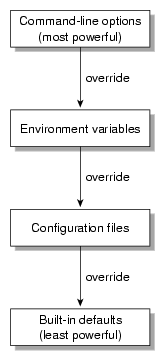
Figure 12-1 shows the order in which CXFS programs take their configuration options.
SGI lets you upgrade of a subset of nodes from X.anything to X.anything within the same major-release thread (X). This policy lets you to keep your cluster running and filesystems available during the temporary upgrade process.
To identify compatible CXFS releases, see the CXFS MultiOS Software Compatibility Matrix that is posted on Supportfolio:
https://support.sgi.com/content_request/139840/index.html
After the upgrade process is complete, all nodes should be running the same major-level release X.Y (such as 4.0), or any minor-level release with the same major level X.Y.anything (such as 4.0.3).
 | Caution: You must upgrade all server-capable administration nodes
before upgrading any client-only nodes (server-capable administration
nodes must run the same or later release as client-only nodes.) Operating
a cluster with clients running a mixture of older and newer CXFS versions
will result in a performance loss. Relocation to a server-capable administration
node that is running an older CXFS version is not supported.
Although clients that are not upgraded might continue to function in the CXFS cluster without problems, new CXFS functionality may not be enabled until all clients are upgraded; SGI does not provide support for any CXFS problems encountered on the clients that are not upgraded. |
Using the 3.4.2 release as an example, a production cluster could contain server-capable administration nodes running 3.4.2 and client-only nodes running 3.4, 3.4.1, and 3.4.2; it could contain client-only nodes running 3.4.3 only because there was no server platforms included in 3.4.3. It should not contain any nodes running 3.3.
This section discusses the following:
CXFS 5.X requires 5.0 licenses. To upgrade from a 4.X release to 5.X, do the following:
Obtain and install CXFS 5.0 licenses from SGI. These are available to all customers with current support contracts; contact your SGI support person. For more information, see Chapter 5, “CXFS License Keys”.
Delete all old 4.X server-side and all client-side licenses from all nodes in the cluster.
Caution: Failure to delete the old license from a node may result in failed cluster membership. Follow the steps in “General Upgrade Procedure”.
To upgrade a CXFS cluster, do the following:
Ensure all server-capable administration nodes are running the same previous software release.
Upgrade the standby node (say admin2), which is a server-capable administration node that is configured as a potential metadata server for a given filesystem. See the release notes and Chapter 7, “Server-Capable Administration Node Installation”.
Reboot the standby node (admin2).
For the first server-capable administration node that is an active metadata server (say admin1), move all CXFS filesystems running on it to the standby node ( admin2), making the standby node now the active metadata server for those filesystems. Do the following:
admin1# /sbin/chkconfig grio2 off (if using GRIO)
admin1# /sbin/chkconfig cxfs off
admin1# /sbin/chkconfig cxfs_cluster off
admin1# reboot
Note: When performing upgrades, you should not make any other configuration changes to the cluster (such as adding new nodes or filesystems) until the upgrade of all nodes is complete and the cluster is running normally. Upgrade the server-capable administration node (admin1). See the release notes and Chapter 7, “Server-Capable Administration Node Installation”.
Return the upgraded server-capable administration node (admin1) to the cluster. Do the following:
admin1# /sbin/chkconfig cxfs_cluster on
admin1# /sbin/chkconfig cxfs on
admin1# /sbin/chkconfig grio2 on (if using GRIO)
admin1# reboot
For the next server-capable administration node that is an active metadata server (say admin3 ), move all CXFS filesystems running on it to the standby node (making the standby node now the active metadata server for those filesystems). Do the following to force recovery:
admin3# /sbin/chkconfig grio2 off (if using GRIO)
admin3# /sbin/chkconfig cxfs off
admin3# /sbin/chkconfig cxfs_cluster off
admin3# reboot
Upgrade the server-capable administration node (admin3). See the release notes and Chapter 7, “Server-Capable Administration Node Installation”.
Return the upgraded server-capable administration node (admin3) to the cluster. Do the following:
admin3# /sbin/chkconfig cxfs_cluster on
admin3# /sbin/chkconfig cxfs on
admin3# /sbin/chkconfig grio2 on (if using GRIO)
admin3# reboot
If your cluster has additional server-capable administration nodes, repeat steps 7 through 9 for each remaining server-capable administration node.
Return the first CXFS filesystem to the server-capable administration node that you want to be its metadata server (making it the active metadata server, say admin1). Do the following:
Enable relocation on the current active metadata server (admin2) by using the cxfs_relocation_ok system tunable parameter. See “Relocation” in Chapter 1.
For each filesystem for which admin2 is the now the active metadata server, manually relocate the metadata services back to the original metadata server (admin1 ) by using the CXFS GUI or cxfs_admin. For example:
cxfs_admin:mycluster> relocate fs1 server=admin1
Disable relocation. See “Relocation” in Chapter 1.
Return the next CXFS filesystem to the server-capable administration node that you want to be its metadata server (make it the active metadata server, say admin3). Repeat this step as needed for each CXFS filesystem.
Upgrade the client-only nodes. See the release notes for each platform and the CXFS 5 Client-Only Guide for SGI InfiniteStorage.
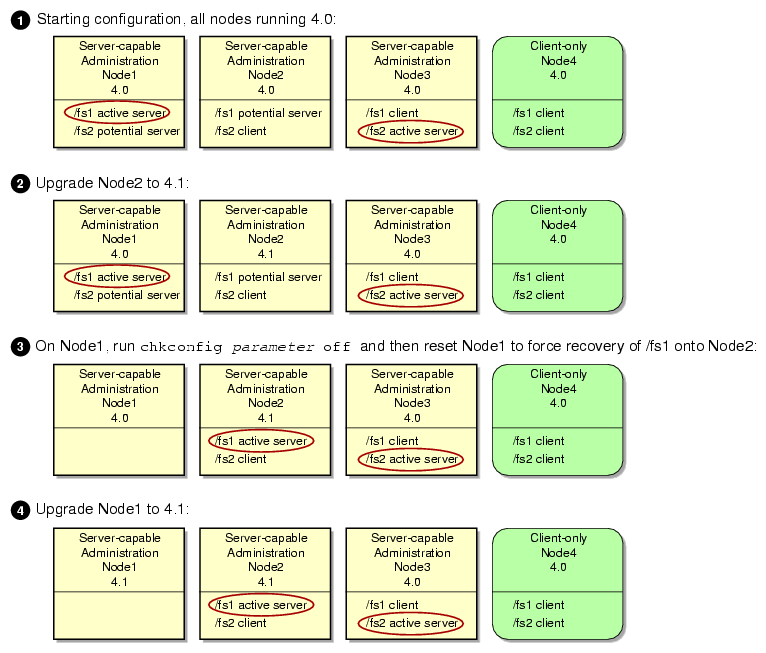
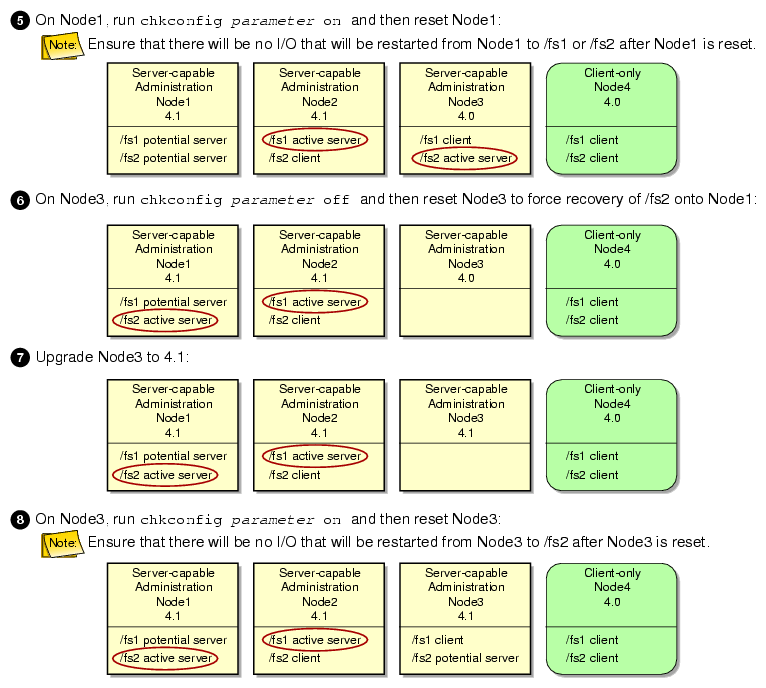
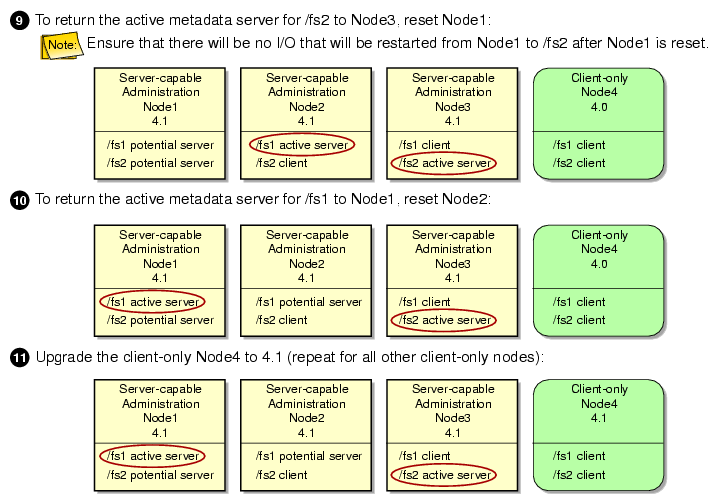
The following figures show an example upgrade procedure for a cluster with three server-capable administration nodes and two filesystems ( /fs1 and /fs2), in which all nodes are running CXFS 4.0 at the beginning and Node2 is the standby node.
To use relocation, you must enable relocation on the active metadata server. To enable relocation, reset the cxfs_relocation_ok parameter as follows:
Enable at run time:
MDS# sysctl -w fs.cxfs.cxfs_relocation_ok=1
Enable at reboot by adding the following line to /etc/modprobe.conf.local:
options sgi-cxfs cxfs_relocation_ok=1
To disable relocation, do the following:
Disable at run time:
MDS# sysctl -w fs.cxfs.cxfs_relocation_ok=0
Disable at reboot by adding the following line to /etc/modprobe.conf or /etc/modprobe.conf.local:
options sgi-cxfs cxfs_relocation_ok=0
See also “Relocation” in Chapter 1.
Table 12-1 summarizes the /etc/init.d initialization commands used for the CXFS control daemon and the cluster administration daemons. For more information about commands, see “CXFS Tools” in Chapter 1.
Table 12-1. Initialization Commands
Command | Arguments | Description | ||||
|---|---|---|---|---|---|---|
service cxfs_client |
| Starts, stops, restarts (stops and then starts), or gives the status (running or stopped) of cxfs_client daemon (the client daemon) on the local node | ||||
service cxfs_cluster |
| Starts, stops, restarts, or gives the status of fs2d, cmond, cad, and crsd (the cluster administration daemons) on the local node | ||||
service cxfs |
| Starts, stops, restarts, or gives the status of clconfd (the CXFS server-capable administration node control daemon) on the local node | ||||
service grio2 |
| Starts, stops, restarts, or gives the status of ggd2 (the GRIOv2 daemon) on the local node |
To add or modify a switch, run the following commands on a server-capable administration node:
server-admin# /usr/cluster/bin/hafence -a -s switchname -u username -p password -m mask [-L vendorname] |
To raise the fence for a node:
server-admin# /usr/cluster/bin/hafence -r nodename |
To lower the fence for a node:
server-admin# /usr/cluster/bin/hafence -l nodename |
To query switch status:
server-admin# /usr/cluster/bin/hafence -q -s switchname |
Usage notes:
-a adds or changes a switch in the cluster database.
-l lowers the fence for the specified node.
-L specifies the vendor name, which loads the appropriate plug-in library for the switch. If you do not specify the vendor name, the default is brocade.
-m specifies one of the following:
A list of ports in the switch that will never be fenced. The list has the following form, beginning with the # symbol, separating each port number with a comma, and enclosed within quotation marks:
"#port,port,port..."
Each port is a decimal integer in the range 0 through 1023. For example, the following indicates that port numbers 2, 4, 5, 6, 7, and 23 will never be fenced:
-m "#2,4,5,6,7,23"
A hexadecimal string that represents ports in the switch that will never be fenced. Ports are numbered from 0. If a given bit has a binary value of 0, the port that corresponds to that bit is eligible for fencing operations; if 1, then the port that corresponds to that bit will always be excluded from any fencing operations. For an example, see Figure 10-5.
Server-capable administration nodes automatically discover the available HBAs and, when fencing is triggered, fence off all of the Fibre Channel HBAs when the Fence or FenceReset fail policy is selected. However, masked HBAs will not be fenced. Masking allows you to prevent the fencing of devices that are attached to the SAN but are not shared with the cluster, to ensure that they remain available regardless of CXFS status. You would want to mask HBAs used for access to tape storage, or HBAs that are only ever used to access local (nonclustered) devices.
-p specifies the password for the specified username.
-q queries switch status.
-r raises the fence for the specified node.
-s specifies the hostname of the Fibre Channel switch; this is used to determine the IP address of the switch.
-u specifies the user name to use when sending a telnet message to the switch.
For example, the following defines a QLogic switch named myqlswitch and uses no masking:
server-admin# /usr/cluster/bin/hafence -a -s myqlswitch -u admin -p *** -L qlogic |
| Note: Vendor plugin libraries should be installed in a directory that is in the platform-specific search path of the dynamic linker, typically the same location as the fencing library, libcrf.so. The above command line will attempt to load the libcrf_qlogic.so library. |
The following masks port numbers 2 and 3:
server-admin# /usr/cluster/bin/hafence -a -s myqlswitch -u admin -p *** -m "#2,3" -L qlogic |
The following lowers the fence for client1:
server-admin# /usr/cluster/bin/hafence -l client1 |
The following raises the fence for client1:
server-admin# /usr/cluster/bin/hafence -r client1 |
The following queries port status for all switches defined in the cluster database:
server-admin# /usr/cluster/bin/hafence -q |
For more information, see the hafence(1M) man page. See the release notes for supported switches.
CXFS uses the following ports:
The fs2d daemon is RPC-based and is dynamically assigned on a TCP port in the range of 600-1023. The instance of fs2d that determines the cluster database membership also uses TCP port 5449.
The crsd daemon defaults to UDP port 7500 and is set in /etc/services:
sgi-crsd 7500/tcp
The CXFS kernel uses ports 5450 through 5453 (TCP for ports 5450 and 5451, UDP for ports 5052 and 5053).
The server-capable administration node that is the quorum master uses UDP port 5449. (See “Determine the Quorum Master” in Chapter 15.)
The cad daemon defaults to TCP port 9000 and is set in /etc/services:
sgi-cad 9000/tcp
For more information, see Appendix B, “IP Filtering for the CXFS Private Network”.
Table 12-2 summarizes the CXFS chkconfig arguments for server-capable administration nodes. These settings can be modified by the CXFS GUI or by the administrator. These settings only control the processes, not the cluster. Stopping the processes that control the cluster will not stop the cluster (that is, will not drop the cluster membership or lose access to CXFS filesystems and cluster volumes), and starting the processes will start the cluster only if the CXFS services are marked as activated in the database.
The following shows the settings of the arguments on server-capable administration nodes:
server-admin# chkconfig --list | grep cxfs fam cxfs_cluster 0:off 1:off 2:on 3:on 4:on 5:on 6:off cxfs 0:off 1:off 2:on 3:on 4:on 5:on 6:off fam 0:off 1:off 2:on 3:on 4:on 5:on 6:off |
Table 12-2. chkconfig Arguments for Server-Capable Administration Nodes
Argument | Description | ||
|---|---|---|---|
cxfs_cluster | Controls the cluster administration daemons (fs2d, crsd, cad , and cmond). If this argument is off, the database daemons will not be started at the next reboot and the local copy of the database will not be updated if you make changes to the cluster configuration on the other nodes. This could cause problems later, especially if a majority of nodes are not running the database daemons. If the database daemons are not running, the cluster database will not be accessible locally and the node will not be configured to join the cluster. | ||
cxfs | Controls the clconfd daemon and whether or not the cxfs_shutdown command is used during a system shutdown. The cxfs_shutdown command attempts to withdraw from the cluster gracefully before rebooting. Otherwise, the reboot is seen as a failure and the other nodes must recover from it.
| ||
fam | Starts the file alteration monitoring (fam) service, which is required to use the CXFS GUI on Linux nodes. |
The CXFS GUI lets you grant or revoke access to a specific GUI task for one or more specific users. By default, only root may execute tasks in the GUI. Access to the task is only allowed on the node to which the GUI is connected; if you want to allow access on another node in the pool, you must connect the GUI to that node and grant access again.
| Note: You cannot grant or revoke tasks for users with a user ID of 0. |
GUI tasks operate by executing underlying privileged commands that are normally accessible only to root. When granting access to a task, you are in effect granting access to all of its required underlying commands, which results in also granting access to the other GUI tasks that use the same underlying commands. The cxfs_admin command provides similar functionality with the allow|deny subcommands.
For instructions about granting or revoking GUI privileges, see “Privileges Tasks with the GUI” in Chapter 10.
To see which tasks a specific user can currently access, select View: Users. Select a specific user to see details about the tasks available to that user.
To see which users can currently access a specific task, select View: Task Privileges. Select a specific task to see details about the users who can access it and the privileged commands it requires.
You should install a node as a server-capable administration node only if you intend to use it as a potential metadata server. All other nodes should be installed as client-only nodes. See “Make Most Nodes Client-Only” in Chapter 2.
To transform a server-capable administration node into a client-only node, do the following:
Ensure that the node is not listed as a potential metadata server for any filesystem.
Stop the CXFS services on the node.
Modify the cluster so that it no longer contains the node.
Delete the node definition.
Remove the packages listed in “CXFS Software Products Installed on Server-Capable Administration Nodes” in Chapter 1 from the node.
Reboot the node to ensure that all previous node configuration information is removed.
Install client-only software as documented in the CXFS 5 Client-Only Guide for SGI InfiniteStorage.
Define the node as a client-only node.
Modify the cluster so that it contains the node if you are using the GUI. (This step is handled by cxfs_admin automatically.)
Start CXFS services on the node.
For more information about these tasks, see:
On server-capable administration nodes, the following scripts are provided for execution by the clconfd daemon prior to and after a CXFS filesystem is mounted or unmounted:
| /var/cluster/clconfd-scripts/cxfs-pre-mount |
| /var/cluster/clconfd-scripts/cxfs-post-mount |
| /var/cluster/clconfd-scripts/cxfs-pre-umount |
| /var/cluster/clconfd-scripts/cxfs-post-umount |
The following script is run when needed to reprobe the Fibre Channel controllers on server-capable administration nodes:
/var/cluster/clconfd-scripts/cxfs-reprobe |
You can customize these scripts to suit a particular environment. For example, an application could be started when a CXFS filesystem is mounted by extending the cxfs-post-mount script. The application could be terminated by changing the cxfs-pre-umount script.
On server-capable administration nodes, these scripts also allow you to use NFS to export the CXFS filesystems listed in /etc/exports if they are successfully mounted.
The appropriate daemon executes these scripts before and after mounting or unmounting CXFS filesystems specified in the /etc/exports file. The files must be named exactly as above and must have root execute permission.
| Note: The /etc/exports file describes the filesystems that are being exported to NFS clients. If a CXFS mount point is included in the exports file, the empty mount point is exported unless the filesystem is re-exported after the CXFS mount using the cxfs-post-mount script. |
The following arguments are passed to the files:
cxfs-pre-mount: filesystem device name and CXFS mounting point
cxfs-post-mount: filesystem device name, CXFS mounting point, and exit code
cxfs-pre-umount: filesystem device name and CXFS mounting point
cxfs-post-umount: filesystem device name, CXFS mounting point, and exit code
Because the filesystem device name is passed to the scripts, you can write the scripts so that they take different actions for different filesystems; because the exit codes are passed to the -post- files, you can write the scripts to take different actions based on success or failure of the operation.
The clconfd or cxfs_client daemon checks the exit code for these scripts. In the case of failure (nonzero), the following occurs:
For cxfs-pre-mount and cxfs-pre-umount , the corresponding mount or unmount is not performed
For cxfs-post-mount and cxfs-post-umount , clconfd will retry the entire operation (including the -pre- script) for that operation
This implies that if you do not want a filesystem to be mounted on a host, the cxfs-pre-mount script should return a failure for that filesystem while the cxfs-post-mount script returns success.
| Note: After the filesystem is unmounted, the mount point is removed. |
For information about the mount scripts on client-only nodes, see the CXFS 5 Client-Only Guide for SGI InfiniteStorage.
DMF must make all of its DMAPI interface calls through the CXFS active metadata server. The CXFS client nodes do not provide a DMAPI interface to CXFS mounted filesystems. A CXFS client routes all of its communication to DMF through the metadata server. This generally requires that DMF run on the CXFS metadata server. If DMF is managing a CXFS filesystem, DMF will ensure that the filesystem's CXFS metadata server is the DMF server and will use metadata server relocation if necessary to achieve that configuration.
| Note: DMF data mover processes must only run on the DMF server node and any parallel data mover nodes. Do not run data mover processes on CXFS standby metadata server nodes. |
DMF requires independent paths to tape drives so that they are not fenced by CXFS. The ports for the tape drive paths on the switch should be masked from fencing in a CXFS configuration.
The SAN must be zoned so that XVM does not failover CXFS filesystem I/O to the paths visible through the tape HBA ports when Fibre Channel port fencing occurs. Therefore, either independent switches or independent switch zones should be used for CXFS/XVM volume paths and DMF tape drive paths.
To use DMF with CXFS, do the following:
For server-capable administration nodes, install the sgi-dmapi and sgi-xfsprogs packages from the SGI InfiniteStorage Software Platform (ISSP) release. These are part of the DMF Server and DMF Parallel Data Mover YaST patterns. The DMF software will automatically enable DMAPI, which is required to use the dmi mount option.
For CXFS client-only nodes, no additional software is required.
When using the Parallel Data Mover Option, install the DMF Parallel Data Mover software package, which includes the required underlying CXFS client-only software. (From the CXFS cluster point of view, the DMF parallel data mover node is a CXFS client-only node but one that is dedicated to DMF data mover activities.)
Use the dmi option when mounting a filesystem to be managed.
Start DMF on the CXFS active metadata server for each filesystem to be managed.
To avoid token thrashing between the CXFS client and server, which can result in poor I/O transfer rates, consider setting the DMF configuration file parameter RECALL_NOTIFICATION_RATE to 0 if you are using the Parallel Data Mover Option; see the “Best Practices” chapter in the DMF administrator's guide for details.
For more information about DMF, see the DMF 4 Administrator's Guide for SGI InfiniteStorage.
This section discusses how to discover the active metadata server using various tools:
To discover the active metadata server for a filesystem by using the GUI, do the following:
Select View: Filesystems
In the view area, click the name of the filesystem you wish to view. The name of the active metadata server is displayed in the details area to the right.
Figure 12-5 shows an example.

To discover the active metadata server for a filesystem by using the cxfs_admin, do the following:
To show information for all filesystems, including their active metadata servers:
show server
For example:
cxfs_admin:mycluster> show server
Event at [ Jan 21 16:14:19 ]
filesystem:concatfs:status:server=mds1
filesystem:mirrorfs:status:server=mds1
filesystem:stripefs:status:server=mds2
To show the active metadata server for a specific filesystem:
show [filesystem:]filesystem:status:server
In the above, you could abbreviate status to *. For example, if concatfs is a unique name in the cluster database:
cxfs_admin:mycluster> show concatfs:*:server
Event at [ Jan 21 16:14:20 ]
filesystem:concatfs:status:server=mds1
You can use the clconf_info command to discover the active metadata server for a given filesystem. For example, the following shows that cxfs7 is the metadata server:
cxfs6 # clconf_info Event at [2004-04-16 09:20:59] Membership since Fri Apr 16 09:20:56 2004 ____________ ______ ________ ______ ______ Node NodeID Status Age CellID ____________ ______ ________ ______ ______ cxfs6 6 up 0 2 cxfs7 7 up 0 1 cxfs8 8 up 0 0 ____________ ______ ________ ______ ______ 1 CXFS FileSystems /dev/cxvm/concat0 on /concat0 enabled server=(cxfs7) 2 client(s)=(cxfs8,cxfs6) |
This section tells you how to perform the following:
For more information about states, Chapter 14, “Monitoring Status”. If there are problems, see Chapter 15, “Troubleshooting”.
A cluster database shutdown terminates the following user-space daemons that manage the cluster database:
| cad |
| clconfd |
| cmond |
| crsd |
| fs2d |
After shutting down the database on a node, access to the shared filesystems remains available and the node is still a member of the cluster, but the node is not available for database updates. Rebooting of the node results in a restart of all services (restarting the daemons, joining cluster membership, enabling cluster volumes, and mounting CXFS filesystems).
To perform a cluster database shutdown, enter the following on a server-capable administration node:
server-admin# killall -TERM clconfd server-admin# service cxfs_cluster stop |
If you also want to disable the daemons from restarting at boot time, enter the following:
server-admin# /sbin/chkconfig grio2 off (If running GRIOv2) server-admin# /sbin/chkconfig cxfs off server-admin# /sbin/chkconfig cxfs_cluster off |
For more information, see “chkconfig Arguments”.
A cluster database shutdown is appropriate when you want to perform a maintenance operation on the node and then reboot it, returning it to ACTIVE status (as displayed by the GUI) or stable status (as displayed by cxfs_admin).
If you perform a cluster database shutdown, the node status will be DOWN in the GUI or inactive in cxfs_admin, which has the following impacts:
The node is still considered part of the cluster, but unavailable.
The node does not get cluster database updates; however, it will be notified of all updates after it is rebooted.
Missing cluster database updates can cause problems if the kernel portion of CXFS is active. That is, if the node continues to have access to CXFS, the node's kernel level will not see the updates and will not respond to attempts by the remaining nodes to propagate these updates at the kernel level. This in turn will prevent the cluster from acting upon the configuration updates.
| Note: If the cluster database is shut down on more than half of the server-capable administration nodes, changes cannot be made to the cluster database. |
You should perform a normal CXFS shutdown in the GUI or disable a node in cxfs_admin when you want to stop CXFS services on a node and remove it from the CXFS kernel membership quorum.
A normal CXFS shutdown in the GUI does the following:
Unmounts all the filesystems except those for which it is the active metadata server; those filesystems for which the node is the active metadata server will become inaccessible from the node after it is shut down.
Terminates the CXFS kernel membership of this node in the cluster.
Marks the node as INACTIVE in the GUI and disabled in cxfs_admin.
The effect of this is that cluster disks are unavailable and no cluster database updates will be propagated to this node. Rebooting the node leaves it in the shutdown state.
If the node on which you shut down CXFS services is an active metadata server for a filesystem, then that filesystem will be recovered by another node that is listed as one of its potential metadata servers. The server that is chosen must be a filesystem client; other filesystem clients will experience a delay during the recovery process.
If the node on which the CXFS shutdown is performed is the sole potential metadata server (that is, there are no other nodes listed as potential metadata servers for the filesystem), then you should unmount the filesystem from all nodes before performing the shutdown.
The GUI task can operate on all nodes in the cluster or on the specified node; the cxfs_admin disable command operates on just a single specified node.
To perform a normal CXFS shutdown, see
You should not stop CXFS services under the following circumstances:
If CXFS services are running on the local node (the server-capable administration node on which cxfs_admin is running or the node to which the CXFS GUI is connected)
If stopping CXFS services on the node will result in loss of CXFS kernel membership quorum
If the node is the only available potential metadata server for one or more active CXFS filesystems
To achieve a CXFS shutdown under these conditions, you must perform a forced CXFS shutdown. See “Forced CXFS Shutdown: Revoke Membership of Local Node”.
A forced CXFS shutdown (or administrative CXFS stop) is appropriate when you want to shutdown the local node even though it may drop the cluster below its CXFS kernel membership quorum requirement.
CXFS does the following:
Shuts down all CXFS filesystems on the local node. Any attempts to access the CXFS filesystems will result in an I/O error (you may need to manually unmount the filesystems).
Removes this node from the CXFS kernel membership.
Marks the node as DOWN in the GUI or inactive in cxfs_admin.
Disables access from the local node to cluster-owned XVM volumes.
Treats the stopped node as a failed node and executes the fail policy defined for the node in the cluster database. See “Fail Policies” in Chapter 2.
| Caution: A forced CXFS shutdown may cause the cluster to fail if the cluster drops below CXFS kernel membership quorum. |
If you do a forced CXFS shutdown on an active metadata server, it loses membership immediately. At this point, another potential metadata server must take over (and recover the filesystems) or quorum is lost and a forced CXFS shutdown follows on all nodes.
If you do a forced CXFS shutdown that forces a loss of quorum, the remaining part of the cluster (which now must also do an administrative stop) will not reset the departing node.
To perform an administrative stop, see
After a forced CXFS shutdown, the node is still considered part of the configured cluster and is taken into account when propagating the cluster database and when computing the cluster database (fs2d) membership quorum. (This could cause a loss of quorum for the rest of the cluster, causing the other nodes to do a forced CXFS shutdown). The state is INACTIVE in the GUI or inactive in cxfs_admin.
It is important that this node stays accessible and keeps running the cluster infrastructure daemons to ensure database consistency. In particular, if more than half the nodes in the pool are down or not running the infrastructure daemons, cluster database updates will stop being propagated and will result in inconsistencies. To be safe, you should remove those nodes that will remain unavailable from the cluster and pool.
After a forced CXFS shutdown, the local node will not resume CXFS kernel membership until the node is rebooted or until you explicitly allow CXFS kernel membership for the local node. See:
If you perform a forced CXFS shutdown on a server-capable administration node, you must restart CXFS on that node before it can return to the cluster. If you do this while the cluster database still shows that the node is in the cluster and is activated, the node will restart the CXFS kernel membership daemon. Therefore, you may want to do this after resetting the database or after stopping CXFS services.
For more information about resets, see “System Reset” in Chapter 2.
If the following chkconfig arguments are turned off, the clconfd and cxfs_client daemons on server-capable administration nodes and client-only nodes, respectively, will not be started at the next reboot and the kernel will not be configured to join the cluster:
Server-capable administration nodes: cxfs
Client-only nodes: cxfs_client
It is useful to turn these arguments off before rebooting if you want to temporarily remove the nodes from the cluster for system or hardware upgrades or for other maintenance work.
For example, do the following on a server-capable administration node:
server-admin# /sbin/chkconfig grio2 off (If running GRIOv2) server-admin# /sbin/chkconfig cxfs off server-admin# /sbin/chkconfig cxfs_cluster off server-admin# reboot |
For more information, see “chkconfig Arguments”.
CXFS log files should be rotated at least weekly so that your disk will not become full.
A package that provides CXFS daemons also supplies scripts to rotate the log files for those daemons via logrotate. SGI installs the following scripts on server-capable administration nodes:
/etc/logrotate.d/cluster_admin /etc/logrotate.d/cluster_control /etc/logrotate.d/cxfs_cluster /etc/logrotate.d/grio2 |
To customize log rotation, edit these scripts..
For information about log levels, see “Configure Log Groups with the GUI” in Chapter 10.
Although filesystem information is traditionally stored in /etc/fstab, the CXFS filesystems information is relevant to the entire cluster and is therefore stored in the replicated cluster database instead.
As the administrator, you will supply the CXFS filesystem configuration by using the CXFS GUI or cxfs_admin. The information is then automatically propagated consistently throughout the entire cluster. The cluster configuration daemon mounts the filesystems on each node according to this information, as soon as it becomes available.
A CXFS filesystem will be automatically mounted on all the nodes in the cluster. You can add a new CXFS filesystem to the configuration when the cluster is active.
Whenever the cluster configuration daemon detects a change in the cluster configuration, it does the equivalent of a mount -a command on all of the filesystems that are configured.
| Caution: You must not modify or remove a CXFS filesystem definition while the filesystem is mounted. You must unmount it first and then mount it again after making the modifications. |
This section discusses the following:
You supply mounting information with the CXFS GUI or cxfs_admin.
| Caution: Do not attempt to use the mount command to mount a CXFS filesystem. Doing so can result in data loss and/or corruption due to inconsistent use of the filesystem from different nodes. |
When properly defined and mounted, the CXFS filesystems are automatically mounted on each node by the local cluster configuration daemon, clconfd, according to the information collected in the replicated database. After the filesystems configuration has been entered in the database, no user intervention is necessary.
Mount points cannot be nested when using CXFS. That is, you cannot have a filesystem within a filesystem, such as /usr and /usr/home.
To unmount CXFS filesystems, use the CXFS GUI or cxfs_admin. These tools unmount a filesystem from all nodes in the cluster. Although this action triggers an unmount on all the nodes, some might fail if the filesystem is busy. On active metadata servers, the unmount cannot succeed before all of the CXFS clients have successfully unmounted the filesystem. All nodes will retry the unmount until it succeeds, but there is no centralized report that the filesystem has been unmounted on all nodes.
To verify that the filesystem has been unmounted from all nodes, do one of the following:
Check the SYSLOG files on the metadata servers for a message indicating that the filesystem has been unmounted.
Run the CXFS GUI or cxfs_admin on the metadata server, disable the filesystem from the server, and wait until the GUI shows that the filesystem has been fully disabled. (It will be an error if it is still mounted on some CXFS clients; the GUI will show which clients are left.)
To grow a CXFS filesystem, do the following:
Unmount the CXFS filesystem using the CXFS GUI or cxfs_admin.
Change the domain of the XVM volume from a cluster volume to a local volume using the XVM give command. See the XVM Volume Manager Administrator's Guide.
Mount the filesystem as an XFS filesystem using the mount command.
Use the xfs_growfs command or the CXFS GUI task; see “Grow a Filesystem with the GUI” in Chapter 10.
Unmount the XFS filesystem.
Change the domain of the XVM volume back to a cluster volume using the give command. See the XVM Volume Manager Administrator's Guide .
Mount the filesystem as a CXFS filesystem by using the GUI or cxfs_admin
You must perform the backup of a CXFS filesystem from the active metadata server for that filesystem. The xfsdump and xfsrestore commands make use of special system calls that will only function on the active metadata server. The filesystem can have active clients during a dump process.
In a clustered environment, a CXFS filesystem may be directly accessed simultaneously by many CXFS clients and the active metadata server. A filesystem may, over time, have a number of metadata servers. Therefore, in order for xfsdump to maintain a consistent inventory, it must access the inventory for past dumps, even if this information is located on another node. SGI recommends that the inventory be made accessible by potential metadata server nodes in the cluster using one of the following methods:
Relocate the inventory to a shared filesystem. For example, where shared_filesystem is replaced with the actual name of the filesystem to be shared:
On the server-capable administration node currently containing the inventory, enter the following:
inventoryadmin# cd /var/lib
inventoryadmin# cp -r xfsdump /shared_filesystem
inventoryadmin# mv xfsdump xfsdump.bak
inventoryadmin# ln -s /shared_filesystem/xfsdump xfsdump
On all other server-capable administration nodes in the cluster, enter the following:
otheradmin# cd /var/lib
otheradmin# mv xfsdump xfsdump.bak
otheradmin# ln -s /shared_filesystem/xfsdump xfsdump
Export the directory using an NFS shared filesystem. For example:
On the server-capable administration node currently containing the inventory, add /var/lib/xfsdump to /etc/exports and then enter the following:
inventoryadmin# exportfs -a
On all other server-capable administration nodes in the cluster, enter the following:
otheradmin# cd /var/lib
otheradmin# mv  xfsdump  xfsdump.bak
otheradmin# ln -s /net/hostname/var/lib/xfsdump  xfsdump
| Note: It is the /var/lib/xfsdump directory that should be shared, rather than the /var/lib/xfsdump/inventory directory. If there are inventories stored on various nodes, you can use xfsinvutil to merge them into a single common inventory, prior to sharing the inventory among the nodes in the cluster. |
If you use I/O fencing and then make changes to your hardware configuration, you must verify that switch ports are properly enabled so that they can discover the WWPN of the HBA for I/O fencing purposes.
You must check the status of the switch ports involved whenever any of the following occur:
An HBA is replaced on a node
A new node is plugged into the switch for the first time
A Fibre Channel cable rearrangement occurs
Note: The affected nodes should be shutdown before rearranging cables.
To check the status, use the following command on a server-capable administration node:
server-admin# hafence -v |
If any of the affected ports are found to be disabled, you must manually enable them before starting CXFS on the affected nodes:
Connect to the switch using telnet.
Use the portenable command to enable the port.
Close the telnet session.
After the port is enabled, the metadata server will be able to discover the new (or changed) WWPN of the HBA connected to that port and thus correctly update the switch configuration entries in the cluster database.
This section provides an example of modifying a cluster to provide private network failover by using the cxfs_admin command.
Create the failover network subnets. For example:
cxfs_admin:mycluster> create failover_net network=192.168.0.0 mask=255.255.255.0
cxfs_admin:mycluster> create failover_net network=192.168.1.0 mask=255.255.255.0
Disable all nodes (which shuts down the cluster):
cxfs_admin:mycluster> disable *
Update each node to include a private network. For example:
cxfs_admin:mycluster> modify red private_net=192.168.0.1,192.168.1.1
cxfs_admin:mycluster> modify yellow private_net=192.168.0.2,192.168.1.2
Enable all nodes:
cxfs_admin:mycluster> enable *
For more information, see Chapter 11, “cxfs_admin Command”.
This section discusses removing and restoring cluster members for maintenance:
These procedures are the safest way to perform these tasks but in some cases are not the most efficient. They should be followed if you have been having problems using standard operating procedures (performing a stop/start of CXFS services or a simple host shutdown or reboot).
On server-capable administration nodes, the service cxfs_cluster script will be invoked automatically during normal system startup and shutdown procedures. (On client-only nodes, the path to the cxfs_client script varies by platform; see CXFS 5 Administration Guide for SGI InfiniteStorage.) This script starts and stops the processes required to run CXFS.
To start up CXFS processes manually on a server-capable administration node, enter the following commands:
server-admin# service grio2 start (if running GRIOv2) server-admin# service cxfs_cluster start server-admin# service cxfs start |
To stop CXFS processes manually on a server-capable administration node, enter the following commands:
server-admin# service grio2 stop (stops GRIOv2 daemons) server-admin# service cxfs stop (stops the CXFS server-capable administration node control daemon) server-admin# service cxfs_cluster stop (stops the cluster administration daemons) |
| Note: There is also a restart option that performs a stop and then a start. |
If you have a cluster with multiple active metadata servers and you must perform maintenance on one of them, you must stop CXFS services on it.
To remove an active metadata server (admin1 for example) from the cluster, do the following:
Enable relocation by using the cxfs_relocation_ok system tunable parameter. See “Relocation” in Chapter 1.
For each filesystem for which admin1 is the active metadata server, manually relocate the metadata services from admin1 to one of the other potential metadata servers by using the CXFS GUI or cxfs_admin. For example:
cxfs_admin:mycluster> relocate fs1 server=node2
Disable relocation. See “Relocation” in Chapter 1.
Note: If you do not perform steps 1-3 in a system reset configuration, admin2 will be reset shortly after losing its membership. The machine will also be configured to reboot automatically instead of stopping in the PROM. This means that you must watch the console and intervene manually to prevent a full reboot.
In a fencing configuration, admin2 will lose access to the SAN when it is removed from the cluster membership.Stop CXFS services for admin1 by using the CXFS GUI or cxfs_admin running on another metadata server. For example:
cxfs_admin:mycluster> disable admin1
Shut down admin1.
If you do not want the cluster administration daemons and the CXFS control daemon to run during maintenance, execute the following commands:
admin1# /sbin/chkconfig grio2 off (if running GRIOv2) admin1# /sbin/chkconfig cxfs off admin1# /sbin/chkconfig cxfs_cluster off |
If you do an upgrade of the cluster software, these arguments will be automatically reset to on and the cluster administration daemons and the CXFS control daemon will be started.
For more information, see “chkconfig Arguments”.
To restore a metadata server to the cluster, do the following:
Allow the cluster administration daemons, CXFS control daemon, and GRIOv2 daemon (if using GRIOv2) to be started upon reboot:
admin1# /sbin/chkconfig cxfs on
admin1# /sbin/chkconfig cxfs_cluster on
admin1# /sbin/chkconfig grio2 on (if using GRIOv2)
Immediately start cluster administration daemons on the node:
exMD# service cxfs_cluster start
Immediately start the CXFS control daemon on the node:
admin1# service cxfs start
Immediately start the GRIOv2 daemon on the node (if using GRIOv2):
admin1# service grio2 start
Start CXFS services on this node from another server-capable administration node:
otheradmin# cmgr -c "start cx_services on node admin1 for cluster clustername force"
To remove a single client-only node from the cluster, do the following:
Verify that the configuration is consistent among active metadata servers in the cluster by running the following on each active metadata server and comparing the output:
MDS# /usr/cluster/bin/clconf_info
If the client is not consistent with the metadata servers, or if the metadata servers are not consistent, then you should abort this procedure and address the health of the cluster. If a client is removed while the cluster is unstable, attempts to get the client to rejoin the cluster are likely to fail. For this reason, you should make sure that the cluster is stable before removing a client.
Flush the system buffers on the client you want to remove in order to minimize the amount of buffered information that may be lost:
client# sync
Stop CXFS services on the client. For example:
client# service cxfs_client stop
client# chkconfig cxfs_client off
Verify that CXFS services have stopped:
Verify that the CXFS client daemon is not running on the client (success means no output):
client# ps -ef | grep cxfs_client
client#
Monitor the cxfs_client log on the client you wish to remove and look for filesystems that are unmounting successfully. For example:
Apr 18 13:00:06 cxfs_client: cis_setup_fses Unmounted green0: green0 from /cxfs/green0
Monitor the SYSLOG on the active metadata server and look for membership delivery messages that do not contain the removed client. For example, the following message indicates that cell 2 (client), the node being shut down, is not included in the membership:
Apr 18 13:01:03 5A:o200a unix: NOTICE: Cell 2 (client) left the membership
Apr 18 13:01:03 5A:o200a unix: NOTICE: Membership delivered for cells 0x3
Apr 18 13:01:03 5A:o200a unix: Cell(age): 0(7) 1(5)
Use the following command to show that filesystems are not mounted:
client# df -hl
Verify that the configuration is consistent and does not contain the removed client by running the following on each active metadata server and comparing the output:
mds# /usr/cluster/bin/clconf_info
To restore a single client-only node to the cluster, do the following:
Verify that the configuration is consistent among active metadata servers in the cluster by running the following on each active metadata server and comparing the output:
MDS# /usr/cluster/bin/clconf_info
If the client is not consistent with the metadata servers, or if the metadata servers are not consistent, then you should abort this procedure and address the health of the cluster. If a client is removed while the cluster is unstable, attempts to get the client to rejoin the cluster are likely to fail. For this reason, you should make sure that the cluster is stable before removing a client.
Start CXFS on the client-only node:
client# chkconfig cxfs_client on
client# service cxfs_client start
Note: The path to cxfs_client varies across the operating systems supported by CXFS. For more information, see CXFS 5 Client-Only Guide for SGI InfiniteStorage . Verify that CXFS has started:
Verify that the CXFS client daemon is running on the client-only node:
client# ps -ef | grep cxfs_client
    root        716          1  0 12:59:14 ?       0:05 /usr/cluster/bin/cxfs_client
Monitor the SYSLOG on the active metadata server and look for a cell discovery message for the client and a membership delivered message containing the client cell. For example (line breaks added for readability):
Apr 18 13:07:21 4A:o200a unix: WARNING: Discovered cell 2 (woody)
 [priority 1 at 128.162.240.41 via 128.162.240.34]
Apr 18 13:07:31 5A:o200a unix: NOTICE: Cell 2 (client) joined the membership
Apr 18 13:07:31 5A:o200a unix: NOTICE: Membership delivered for cells 0x7
Apr 18 13:07:31 5A:o200a unix: Cell(age): 0(9) 1(7) 2(1)
Monitor the cxfs_client log on the client you restored and look for filesystem mounts that are processing successfully. For example:
Apr 18 13:06:56 cxfs_client: cis_setup_fses Mounted green0: green0 on /cxfs/green0
Use the following command to show that filesystems are mounted:
client# df -hl
Verify that the configuration is consistent and contains the client by running the following on each active metadata server and comparing the output:
MDS# /usr/cluster/bin/clconf_info
To stop CXFS for the entire cluster, do the following:
Stop CXFS services on a client-only node:
client# service cxfs_client stop
Repeat this step on each client-only node.
Stop GRIOv2 services on each server-capable administration node that is running GRIOv2:
server-admin# service grio2 stop
Repeat this step on each server-capable administration node that is running GRIOv2.
Stop CXFS services on a server-capable administration node:
server-admin# service cxfs stop
Repeat this step on each server-capable administration node.
Stop the cluster daemons on a server-capable administration node:
server-admin# service cxfs_cluster stop
Repeat this step on each server-capable administration node.
To restart the entire cluster, do the following:
Start the cluster daemons on a server-capable administration node:
server-admin# service cxfs_cluster start
Repeat this step on each server-capable administration node.
Start CXFS services on a server-capable administration node:
server-admin# service cxfs start
Repeat this step on each server-capable administration node.
Start GRIOv2 services on a each server-capable administration node (if running GRIOv2):
server-admin# service grio2 start
Repeat this on each server-capable administration node (if running GRIOv2).
Start CXFS services on a client-only node:
client# service cxfs_client start
Repeat this step on each client-only node.
The cxfs-enumerate-wwns script enumerates the worldwide names (WWNs) on the host that are known to CXFS. You can use the cxfs-enumerate-wwns script on a server-capable administration node to map XVM volumes to storage targets:
server-admin# /var/cluster/clconfd-scripts/cxfs-enumerate-wwns | grep -v "#"| sort -u |
This section discusses the following:
The example in Figure 12-6 shows two RAID controllers and the LUNs they own. All LUNs are visible from each controller, therefore, each LUN can be accessed by each path. However, the controller for RAID A is preferred for LUN 0 and LUN 2, and the controller for RAID B is preferred for LUN 1 and LUN 3.
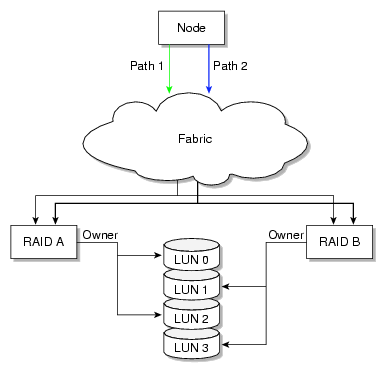
| Note: The Mac OS X platform provides dynamic load balancing between all paths to the same RAID controller. In this case, the system will only show one path per controller to each LUN with local HBA ports or individual paths not visible. |
XVM failover V2 stores path information in the failover2.conf file. You must configure the failover2.conf file for each node. The entries in this file define failover attributes associated with a path to the storage. Entries can be in any order.
The failover2.conf file uses the following keywords:
preferred indicates the best path for accessing each XVM physvol. This is the path that will be used at startup barring failure. There is no default preferred path.
affinity groups all of the paths to a particular RAID controller that can be used in harmony without causing LUN ownership changes for a LUN between RAID controllers, which would result in poor disk performance. An affinity group for a LUN should not contain paths that go to different RAID groups. The affinity value also determines the order in which these groups will be tried in the case of a failure, from lowest number to highest number. The valid range of affinity values is 0 (lowest) through 15 (highest). The path used starts with the affinity of the currently used path and increases from there. For example, if the currently used path is affinity=2, all affinity=2 paths are tried, then all affinity=3, then all affinity=4, and so on; after affinity=15 , failover V2 wraps back to affinity=0 and starts over. Before you configure the failover2.conf file, the initial value for all paths defaults to affinity=0 .
SGI recommends that the affinity values for a particular RAID controller be identical on every node in the CXFS cluster.
You may find it useful to specify affinities starting at 1. This makes it easy to spot paths that have not yet been configured because they are assigned a default of affinity=0. For example, if you added a new HBA but forgot to add its paths to the failover2.conf file, all of its paths would have an affinity=0, which could result in LUN ownership changes if some paths point to controller A and others point to controller B. Using this convention would not avoid this problem, but would make it easier to notice. If you use this convention, you must do so for the entire cluster.
Note: If you use the method where you do not use affinity=0 and you do not define all of the paths in the failover2.conf file, you will have a affinity group using an unknown controller. If in the example where you are using affinity=1 and affinity=2, if you are using affinity=2 as your current path and there is a failover, you will failover to affinity=0, which could use the same RAID controller and thus fail again or might use the other RAID controller. If there are multiple unspecified paths in the affinity=0 group, you might be mixing different RAID controllers in the same affinity group. This is only a performance issue, but you should fix any paths using the default affinity=0 value by adding them to the failover2.conf file and using an appropriate affinity value.
You can use the affinity value in association with the XVM foswitch command to switch an XVM physvol to a physical path of a defined affinity value.
For more information, see:
The example file installed in /etc/failover2.conf.example
The comments in the failover2.conf file
Platform-specific examples of failover2.conf in the CXFS 5 Client-Only Guide for SGI InfiniteStorage
XVM Volume Manager Administrator's Guide
The easiest method to generate a failover2.conf file is to run the following command on platforms other than Windows:[1]
MDS# xvm show -v phys | grep affinity > templatefile |
The entries in the output only apply to already-labeled devices. Values within < > angle brackets are comments; you can delete them or ignore them.
If all nodes have correctly configured failover2.conf files, an affinity change in one node will signal all other nodes in the cluster that the node has changed affinity for a LUN, allowing the other nodes to change to the same affinity (the same RAID controller). You can also use the foswitch -cluster command to cause all nodes in a cluster to either return to their preferred paths or move to a specific affinity. See “XVM Commands Related to Failover V2”.
XVM failover V2 stores path information in the failover2.conf This section provides the following examples:
The following example groups the paths for lun3 and the paths for lun4:
/dev/xscsi/pci0004:00:01.1/node200900a0b813b982/port1/lun3/disc affinity=1 /dev/xscsi/pci0004:00:01.1/node200900a0b813b982/port2/lun3/disc affinity=1 /dev/xscsi/pci0004:00:01.0/node200900a0b813b982/port1/lun3/disc affinity=1 /dev/xscsi/pci0004:00:01.0/node200900a0b813b982/port2/lun3/disc affinity=1 preferred /dev/xscsi/pci0004:00:01.1/node200800a0b813b982/port1/lun3/disc affinity=3 /dev/xscsi/pci0004:00:01.0/node200800a0b813b982/port1/lun3/disc affinity=3 /dev/xscsi/pci0004:00:01.1/node200800a0b813b982/port2/lun3/disc affinity=3 /dev/xscsi/pci0004:00:01.0/node200800a0b813b982/port2/lun3/disc affinity=3 /dev/xscsi/pci0004:00:01.1/node200900a0b813b982/port1/lun4/disc, affinity=1 /dev/xscsi/pci0004:00:01.1/node200900a0b813b982/port2/lun4/disc, affinity=1 /dev/xscsi/pci0004:00:01.0/node200900a0b813b982/port1/lun4/disc, affinity=1 /dev/xscsi/pci0004:00:01.0/node200900a0b813b982/port2/lun4/disc, affinity=1 /dev/xscsi/pci0004:00:01.1/node200800a0b813b982/port1/lun4/disc, affinity=3 /dev/xscsi/pci0004:00:01.1/node200800a0b813b982/port2/lun4/disc, affinity=3 preferred /dev/xscsi/pci0004:00:01.0/node200800a0b813b982/port1/lun4/disc, affinity=3 /dev/xscsi/pci0004:00:01.0/node200800a0b813b982/port2/lun4/disc, affinity=3 |
The order of paths in the file is not significant. Paths to the same LUN are detected automatically. Without this file, all paths to each LUN would have affinity=0 and there would be no preferred path. Setting a preferred path ensures that multiple paths will be used for performance. If no path is designated as preferred, the path used to the LUN is arbitrary based on the order of device discovery. There is no interaction between the preferred path and the affinity values.
This file uses affinity to group the RAID controllers for a particular path. Each controller has been assigned an affinity value. It shows the following:
There is one PCI card with two ports off of the HBA ( pci04.01.1 and pci04.01.0)
There are two RAID controllers, node200800a0b813b982 and node200900a0b813b982
Each RAID controller has two ports that are identified by port1 or port2
Each LUN has eight paths (via two ports on a PCI card, two RAID controllers, and two ports on the controllers)
There are two affinity groups for each LUN, affinity=1 and affinity=3
There is a preferred path for each LUN
Failover will exhaust all paths to lun3 from RAID controller node200900a0b813b982 (with affinity=1 and the preferred path) before moving to RAID controller node200800a0b813b982 paths (with affinity=3)
The following example uses four affinities to associate the two HBA ports with each of the available two ports on the RAID's two controllers:
/dev/xscsi/pci0004:00:01.1/node200900a0b813b982/port1/lun4/disc affinity=1 /dev/xscsi/pci0004:00:01.1/node200900a0b813b982/port2/lun4/disc affinity=2 /dev/xscsi/pci0004:00:01.0/node200900a0b813b982/port1/lun4/disc affinity=1 /dev/xscsi/pci0004:00:01.0/node200900a0b813b982/port2/lun4/disc affinity=2 /dev/xscsi/pci0004:00:01.1/node200800a0b813b982/port1/lun4/disc affinity=4 /dev/xscsi/pci0004:00:01.1/node200800a0b813b982/port2/lun4/disc affinity=3 preferred /dev/xscsi/pci0004:00:01.0/node200800a0b813b982/port1/lun4/disc affinity=4 /dev/xscsi/pci0004:00:01.0/node200800a0b813b982/port2/lun4/disc affinity=3 |
Each affinity associates the two host adapter ports with a single RAID controller port. The declaration of these eight associations completely defines all of the available paths to a single RAID LUN.
These eight associations also represent the order in which the paths are tried in a failover situation. Failover begins by trying the other paths within the current affinity and proceeds in a incremental manner through the affinities until either a working path is discovered or all possible paths have been tried. The paths will be tried in the following order:
affinity=3 (the affinity of the current path), which is associated with RAID controller A port 2
affinity=4, which is associated with RAID controller A port 1
affinity=1, which is associated with raid controller B port 1
affinity=2, which is associated with raid controller B port 2
The following example for IRIX shows two RAID controllers, 200800a0b818b4de and 200900a0b818b4de for lun4vol:
/dev/dsk/200800a0b818b4de/lun4vol/c2p2 affinity=1 preferred /dev/dsk/200800a0b818b4de/lun4vol/c2p1 affinity=1 /dev/dsk/200900a0b818b4de/lun4vol/c2p2 affinity=3 /dev/dsk/200900a0b818b4de/lun4vol/c2p1 affinity=3 |
The following are useful XVM commands related to failover V2:
xvm help -verbose foconfig xvm help -verbose foswitch xvm help -verbose show xvm foconfig -init xvm foswitch -cluster -preferred physvol/name (switch phys/name in all nodes in cluster to preferred path) xvm foswitch -preferred physvol xvm foswitch -affinity 1 physvol xvm foswitch -dev newdev xvm foswitch -cluster -affinity 1 phys xvm foswitch -cluster -setaffinity X phys/name (switch phys/name in cluster to affinity "X") xvm show -verbose physvol xvm show -verbose physvol | fgrep affinity > templatefile |
For details, see the XVM Volume Manager Administrator's Guide.
| Note: The xvm command is provided on all CXFS platforms. However, client-only nodes support only read-only commands. |
This section discusses the following:
For more information about firmware levels, see “RAID Firmware” in Chapter 3.
The TP9100 and RM610/660 RAID units do not have any host type failover configuration. Each LUN should be accessed via the same RAID controller for each node in the cluster because of performance reasons. These RAIDs behave and have the same characteristics as the SGIAVT mode discussed below.
TP9100 1 GB and 2 GB SGIAVT mode requires that the array is set to multitid.
The TP9300, TP9500, and TP9700 RAID SGIAVT mode has the concept of LUN ownership by a single RAID controller. However, LUN ownership change will take place if any I/O for a given LUN is received by the RAID controller that is not the current owner. The change of ownership is automatic based on where I/O for a LUN is received and is not done by a specific request from a host failover driver. The concern with this mode of operation is that when a node in the cluster changes I/O to a different RAID controller than that used by the rest of the cluster, it can result in severe performance degradation for the LUN because of the overhead involved in constantly changing ownership of the LUN.
Failover V2 requires that you configure TP9300, TP9500, TP9700, and S330 RAID units with SGIAVT host type and the 06.12.18. xx code or later be installed.
TP9700 use of SGIAVT requires that 06.15.17 xx. code or later be installed.
To generate streaming workload for SD/HD/2K/4K formats of video streams, you can use the frametest(1) command. Each frame is stored in a separate file. You can also use this tool to simulate the reading and writing video streams by streaming applications. The tool also generates the performance statistics for the reading and writing operation, so it can be very useful for performance analysis for streaming applications.
For example, to do a multithreaded (4 threads) write test of 20,000 HD frames, as fast as possible (the dir directory should contain 20,000 HD frames created by a previous write test):
# frametest -t4 -w hd -n20000 -x frametest_w_t4_hd_20000_flatout.csv dir |
To use 24 frames per second using a buffer of 24 frames:
# frametest -t4 -n20000 -f24 -q24 -g frametest_r_t4_hd_20000_24fps_24buf.csv dir |
For details about frametest and its command-line options, see the frametest(1)
| Note: Using the frametest command on AIX requires that the posix_aio0 device is available. For more information, see the Solaris chapter in CXFS 5 Client-Only Guide for SGI InfiniteStorage. |
The framesort utility provides easy file-layout analysis and advanced file-sequence reorganization:
File-layout analysis shows the following:
How well the specified files are allocated
How many same-sized files are interleaved
The number of runs where files are allocated in consecutive order or in reverse consecutive order
File-sequence reorganization makes files with consecutive filenames be placed consecutively in storage. It can also align files to their stripe-unit boundary. After rearrangement, files can can gain higher retrieval bandwidth, which is essential for frame playback.
For example, the following command line will do analysis and rearrangement recursively starting from directory movie1. It also displays the progress status and verbose information. If the percentage of poorly organized files is equal to or greater than 15%, the rearrangement is triggered:
# framesort -rdgvva 15 movie1 |
For details about command-line arguments, see the framesort(1) man page.
This section discusses the following:
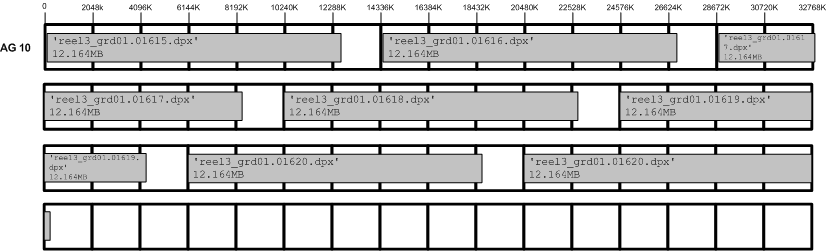
An ideal frame layout is one in which frames for each stream are written sequentially on disk to maximize bandwidth and minimize latency:
Minimize seek times while reading and writing
Maximize RAID prefetch into cache for reads
Maximize RAID coalescing writes into larger writes to each disk
Figure 12-7 shows an ideal frame layout
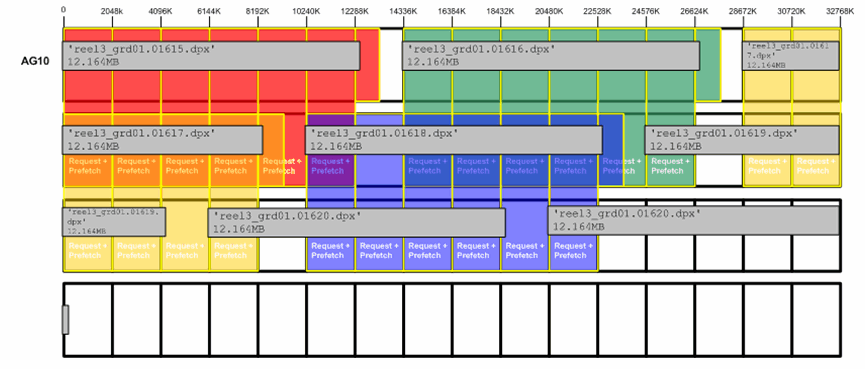
With multithreaded applications (such as frametest), there will be multiple requests in flight simultaneously. As each frame is requested, data from upcoming frames will be prefetched into cache. Figure 12-8 shows an example of a 4-thread frametest read (2-MB stripe unit / 1-GB cache size/ prefetch = x1 / 16 slices).
When there are multiple streams of real-time applications, frames from each stream are interleaved into the same region. Frames are not written sequentially but will jump forwards and backwards in the filesystem. The RAID is unable to support many real-time streams and is unable to maintain frame rates due to additional back-end I/O. Filesystems allocate files based on algorithms to utilize free space, not to maximize RAID performance when reading streams back. Figure 12-9 shows an example.
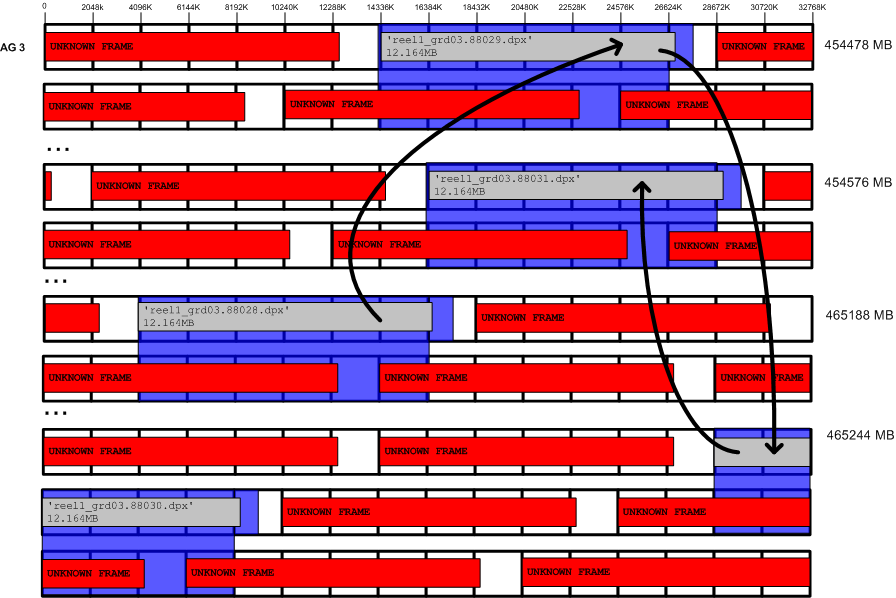
Figure 12-10 shows an example of poor cache utilization.

Approved media customers can use the XFS filestreams mount option with CXFS to maximize the ability of storage to support multiple real-time streams of video data. It is appropriate for workloads that generate many files that are created and accessed in a sequential order in one directory.
| Caution: SGI must validate that your RAID model and RAID configuration can support the use of the filestreams mount option to achieve real-time data transfer and that your application is appropriate for its use. Use of this feature is complex and is reserved for designs that have been approved by SGI. |
The filestreams mount option changes the behavior of the XFS allocator in order to optimize disk layout. It selects an XFS disk block allocation strategy that does the following:
Identifies streams writing into the same directory and locks down a region of the filesystem for that stream, which prevents multiple streams from using the same allocation groups
Allocates the file data sequentially on disk in the order that the files are created, space permitting
Uses different regions of the filesystem for files in different directories
Using the filestreams mount option can improve both bandwidth and latency when accessing the files because the RAID will be able to access the data in each directory sequentially. Therefore, multiple writers may be able to write into the same filesystem without interleaving file data on disk. Filesystem can be filled up to approximately 94% before performance degrades. Deletion of projects does not fragment filesystem, therefore there is no need to rebuild filesystem after each project.
You can safely enable the filestreams mount option on an existing filesystem and later disable it without affecting compatibility. (The mount option affects where data is located in the filesystem; it does not change the format of the filesystem.) However, you may not get the full benefit of filestreams due to preexisting filesystem fragmentation.
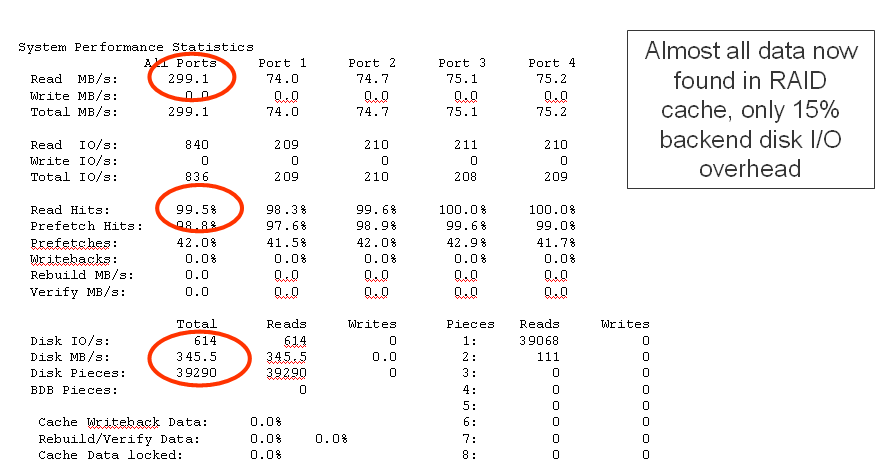
Figure 12-11 shows an example of excellent cache utilization that allows for more streams.
For more information, contact SGI Support.
CXFS has limited support for case-insensitive filesystems:
In ASCII filenames, lowercase and uppercase are treated as equal. This means the filesystem treats names that differ only in case as equivalent.
Note: It is not possible to rename a file to a name that only differs in case. For example, the following will not work: # mv /cxfs/tp91/tmp/TST /cxfs/tp91/tmp/tst mv: `/cxfs/tp91/tmp/TST' and `/cxfs/tp91/tmp/tst' are the same file
The filesystem is case-preserving. This means the filesystem remembers the exact name that was used to create the file. This means that if a file was created with the name "File", it can be referenced using the name "FILE" or " file", but the reported name will always be "File".
Case-insensitive CXFS filesystems are not supported on Linux clients. A Linux client will fail to mount the filesystem with messages such as the following:
Preparing to mount CXFS file system "/dev/cxvm/tp91"
XFS: bad version
XFS: SB validate failed
| Note: Be aware that some applications rely on the case of filenames and will be confused when used with a case-insensitive filesystem. |
Whether a CXFS filesystem is case-insensitive is determined when the filesystem is created. To create a case-insensitive filesystem, provide the following option to mkfs.xfs:
-n version=ci |
For example:
# mkfs.xfs -n version=ci /dev/cxvm/tp91
meta-data=/dev/cxvm/tp91         isize=256    agcount=16, agsize=2746480 blks
         =                       sectsz=512   attr=2
data     =                       bsize=4096   blocks=43943680, imaxpct=25
         =                       sunit=16     swidth=32 blks
naming   =version 2              bsize=4096   ascii-ci=1
log      =internal log           bsize=4096   blocks=21472, version=2
         =                       sectsz=512   sunit=16 blks, lazy-count=0
realtime =none extsz=4096 blocks=0, rtextents=0 |
[1] For information about generating a failover2.conf file for Windows, see the CXFS 5 Client-Only Guide for SGI InfiniteStorage.