 | Note: On SGI Altix and SGI Altix XE hardware platforms running SGI Foundation Software, CPU count is the number of processor sockets. On all other hardware platforms, or SGI Altix XE hardware running any other operating system, CPU count is the number of processor cores. |
The licensing used for server-capable administration nodes is based on the SGI License Key (LK) software. Only server-side licensing is supported.
For the purposes of licensing, hyperthreaded CPUs are counted as a single processor, while multicore processors are counted as multiple processors. Therefore, a dual-core processor will be counted as 2 CPUs for the purposes of licensing with CXFS. A hyperthreaded CPU or hyperthreaded core would only be counted as a single CPU for licensing purposes.
This section discusses the following:
See also “Upgrading Licenses from 4.X to 5. X” in Chapter 12.
CXFS 5.0 and later requires server-side licensing and CXFS 5.0 licenses. These are available to all customers with current support contracts; contact your SGI support person.
CXFS server-side licensing uses license keys on the CXFS server-capable administration nodes; it does not require node-locked license keys on CXFS client-only nodes. The license keys are node-locked to each server-capable administration node and specify the number and size of client-only nodes that may join the cluster membership.
Server-side licensing provides flexibility when changing the CXFS cluster configuration, such as the following: adding nodes, changing the number of CPUs in one host, or using a license key part-time from different nodes connected to the cluster.
This section discusses the following:
Server-side licensing requires the following license keys on each server-capable administration node:
CXFS_SS (Altix ia64) or CXFS_SSX (Altix XE x86_64) feature license key. The CPU count in the server license key specifies the maximum number of sockets on the server. This license key is node-locked to the server.
Client license keys, which specify the number and/or size of client-only nodes that may join the cluster. See “Server-Side Client License Keys”.
No license keys are required on the client-only nodes themselves.
There are two classes of server-side client license keys:
Workstation client license keys specify the number of nodes with as many as 16 CPUs running one of the following platforms:
Mac OS X Windows For example, an 8-node workstation client license key will allow up to eight nodes running any combination of the supported workstation platforms to join CXFS membership. On Monday, you could have eight Windows 16-CPU nodes, on Tuesday you could have four Mac OS X nodes and four Windows 16-CPU nodes.
Enterprise client license keys specify the total number of CPUs running one of the following platforms:
AIX IRIX Linux on x86_64 or ia64 architecture SGI Foundation Software (CPU count is the number of sockets, not cores) Solaris Windows (more than 16 CPUs) For example, a 32-CPU enterprise license key will allow sixteen 2-CPU nodes, eight 4-CPU nodes, or one 32-CPU node to join membership. If your cluster contained an SGI Foundation Software node with 4 sockets (4 dual-core CPUs), it would use 4 of the licenses.
The purchase of a workstation or enterprise license entitles you to generate a license key on each server-capable administration node in the cluster. Every server-capable administration node in the cluster should install a set of client license keys. A server will generate warnings in the system log if the license keys on one server-capable administration node are not equivalent to other server-capable administration nodes in the cluster.
| Note: Server-side licensing does not introduce a point-of-failure in the CXFS cluster. If the metadata server fails and the cluster recovers to a backup server that has fewer/smaller client license keys, the client-only nodes that are currently in the cluster membership will remain in the membership. However, additional client-only nodes that attempt to join membership will fail until the membership count is reduced to below the license key entitlement on the active metadata server. |
The number of client license keys is cumulative. To add more client-only nodes, you can purchase additional workstation or enterprise licenses as appropriate (you do not have to upgrade existing license keys).
For example, if you already have a 32-CPU enterprise license key and want to add another 32-CPU enterprise-class machine, you purchase another 32-CPU enterprise license. You must install this new license key key on every server-capable administration node in the cluster.
The following figures show examples of the license keys that are required for cluster changes.

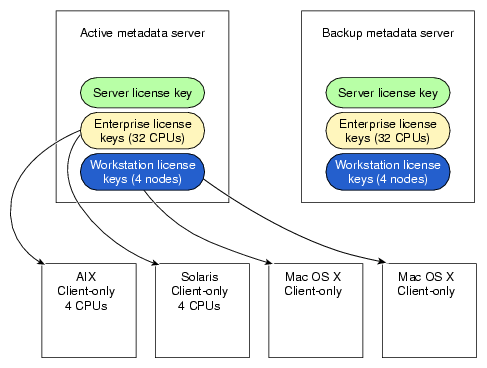
The following table further illustrates the progressive changes in license keys required by a cluster as nodes are added and removed.
Table 5-1. Examples of License Keys Required for Cluster Changes
Action | Resulting Configuration | Licensing |
|---|---|---|
Initial configuration | 1 x 4-socket server-capable administration node 4 x 2-CPU Windows clients | Purchase one 4-CPU CXFS_SS server license key and one 5-node workstation license key.
Generate the 5-node workstation license key (CXFS_SS_CLIENT_WRK) for the server-capable administration node (the extra license is for future expansion). |
Add a 2-CPU Solaris client | 1 x 4-socket server-capable administration node 4 x 2-CPU Windows clients 1 x 2-CPU Solaris client | No change, the 5-node workstation license key is now fully utilized. |
Add an 8-socket SGI Foundation Software client | 1 x 4-socket sever-capable administration node 4 x 2-CPU Windows clients 1 x 2-CPU Solaris client 1 x 8-socket SGI Foundation Software client | Purchase an 8-CPU enterprise license key.
Generate the 8-CPU enterprise license key (CXFS_SS_CLIENT_ENT) for the server-capable administration node. |
Add another 4-socket server-capable administration node | 2 x 4-socket server-capable administration node 4 x 2-CPU Windows clients 1 x 2-CPU Solaris client 1 x 4-socket SGI ProPack client | Purchase another 4-CPU server license.
Generate both workstation and enterprise client license keys for the new server-capable administration node from the original license keys. |
Add an 8-CPU Solaris node | 2 x 4-socket server-capable administration nodes 4 x 2-CPU Windows clients 1 x 2-CPU Solaris client 1 x 4-socket SGI ProPack client 1 x 8-CPU Solaris client | Purchase an 8-CPU enterprise client license key.
Generate the 8-CPU enterprise license key on each server-capable administration node. |
Add a 4-CPU Mac OS X client for occasional use in the cluster | 2 x 4-socket server-capable administration nodes 4 x 2-CPU Windows clients 1 x 2-CPU Solaris client 1 x 4-socket SGI ProPack client 1 x 4-CPU Mac OS X client | No change if one of the other workstation-class clients is dropped out of the cluster when the Mac OS X client is required. |
When you order CXFS, you will receive an entitlement ID. You must submit the system host ID, host name, and entitlement ID when requesting your permanent CXFS license key.
To obtain the host information for a server-capable administration node, execute the following command (assuming that the lkSGI RPM from SGI Foundation Software has been installed):
/usr/sbin/lk_hostid |
For example, the following shows that the serial number is 000423d5fd92 and the license ID is 23d5fd92:
server-admin# lk_hostid 000423d5fd92 23d5fd92 socket=1 core=2 processor=2 #----------------------------------------------------------------------------- #The above is the default selected by lk_hostid. See below for additional #hostid pairs. #----------------------------------------------------------------------------- #Interface SN LI Driver ( Comment ) #----------------------------------------------------------------------------- eth0 000423d5fd92 23d5fd92 e1000 eth1 000423d5fd93 23d5fd93 e1000 |
To obtain your CXFS and XVM license keys, see information provided in your customer letter and the following web page:
This section discusses the following:
For information about verifying the XVM mirror licenses on client-only nodes, see the CXFS 5 Client-Only Guide for SGI InfiniteStorage.
You can use the lk_verify -A command to verify LK licenses. To see more output, use the v option. For example:
# lk_verify -A -vvv
lk_check        All     All : total found=10

  1 /etc/lk/keys.dat:004        product=CXFS_SSX, version=5.000, count=0, begDate=1200496489, \
         expDate=1208321999, licenseID=23d5fd92, key=BAYJ2caAnmOga5Z6G4GwRMmXwizlSek1, \
         info='CXFS SVR XE 8 CPU',attr='CPU 8', vendor='Silicon Graphics, Inc.', \
         ref_id='071446'
                Verdict:         SUCCESS. Nodelock.
                                 Available since 16 days on 16-Jan-2008 09:14:49.
                                 Will expire in 74 days on 15-Apr-2008 23:59:59

                Attribute 1 of 4 : info=CXFS SVR XE 8 CPU
                Attribute 2 of 4 : attr=CPU 8
                Attribute 3 of 4 : vendor=Silicon Graphics, Inc.
                Attribute 4 of 4 : ref_id=071446


  2 /etc/lk/keys.dat:009        product=CXFS_SS_CLIENT_WRK, version=5.000, count=0, begDate=1200496705, \
         expDate=1208321999, licenseID=23d5fd92, key=9Nge+ausgoJkP4Pabv0XuH9C7ybhVA4C, \
         info='CXFS WRK 50 NODE',attr='NODE 50', vendor='Silicon Graphics, Inc.', \
         ref_id='071822'
                Verdict:         SUCCESS. Nodelock.
                                 Available since 16 days on 16-Jan-2008 09:18:25.
                                 Will expire in 74 days on 15-Apr-2008 23:59:59

                Attribute 1 of 4 : info=CXFS WRK 50 NODE
                Attribute 2 of 4 : attr=NODE 50
                Attribute 3 of 4 : vendor=Silicon Graphics, Inc.
                Attribute 4 of 4 : ref_id=071822


  3 /etc/lk/keys.dat:014        product=CXFS_SS_CLIENT_ENT, version=5.000, count=0, begDate=1200496795, \
         expDate=1208321999, licenseID=23d5fd92, key=Q0EHNvcpIxiTq4lKUevxQluKFpu6SJBb, \
         info='CXFS ENT 256 CPU',attr='CPU 256', vendor='Silicon Graphics, Inc.', \
         ref_id='071952'
                Verdict:         SUCCESS. Nodelock.
                                 Available since 16 days on 16-Jan-2008 09:19:55.
                                 Will expire in 74 days on 15-Apr-2008 23:59:59

                Attribute 1 of 4 : info=CXFS ENT 256 CPU
                Attribute 2 of 4 : attr=CPU 256
                Attribute 3 of 4 : vendor=Silicon Graphics, Inc.
                Attribute 4 of 4 : ref_id=071952

...

lk_check All All : total matched=9 |
To verify that the license keys have been installed properly, use the cxfslicense -d command after installing the CXFS software (see Chapter 7, “Server-Capable Administration Node Installation”). Licensing errors will be reported to the fs2d log.
For example, the following output shows that the licenses are in place for XVM and CXFS (the XVM_SNAP_LINUX license is only required if you are using XVM snapshot):
serveradmin# /usr/cluster/bin/cxfslicense -d Found 1 XVM_STD_LINUX license(s) of version 5.0 for XVM. Found 1 XVM_PLEX_LINUX license(s) of version 5.0 for XVM. Found 1 XVM_PLEX_CLUSTER license(s) of version 5.0 for XVM. Didn't find XVM_SNAP_LINUX license of version 5.0 for XVM. License(s) found: 1 Found 'CPU 8' serial 092039 Found 8 CPU version 5.0 license for CXFS_SS Server-side licensing is available License(s) found: 1 Found license for 50 of CXFS_SS_CLIENT_WRK 5.0 serial 092042 License(s) found: 1 Found license for 256 of CXFS_SS_CLIENT_ENT 5.0 serial 092045 |
If no valid license is found, cxfslicense -d will report:
server-admin# /usr/cluster/bin/cxfslicense -d Didn't find XVM_STD_LINUX license of version 5.0 for XVM. Didn't find XVM_PLEX_LINUX license(s) of version 5.0 for XVM. Didn't find XVM_PLEX_CLUSTER license of version 5.0 for XVM. Didn't find XVM_SNAP_LINUX license of version 5.0 for XVM. Cannot find valid version 5.0 license for CXFS_SS No CXFS server-side license, any server-side client licenses will be ignored. No licenses available for CXFS_SS_CLIENT_WRK 5.0. No licenses available for CXFS_SS_CLIENT_ENT 5.0. Error: No valid CXFS licenses found for this server. |
If you do not have the CXFS license key properly installed, you will see the following error on the console when trying to run CXFS:
Starting CXFS services> .... CXFS not properly licensed for this host. Run "/usr/cluster/bin/cxfslicense -d" for detailed failure information. After fixing the license, please run "/usr/cluster/bin/cxfs_cluster restart". |
An error such as the following example will appear in the SYSLOG file (line breaks added here for readability):
Jan 25 10:24:03 ncc1701:Jan 25 10:24:03 cxfs_client: cis_main FATAL: cxfs_client failed the CXFS license check. Use the cxfslicense command to diagnose the license problem |
Message similar to the following will appear in the client-log file:
Successful:
Server license key granted, regardless of local client license key:
date CXFS_Client: cis_license_apply successfully reapplied for server-based license
date CXFS_Client: cis_license_apply allocated 1 "license_type" license(s).
Unsuccessful (CXFS will not start):
Server denies a license key, regardless of local license key presence:
date CXFS_Client: cis_license_apply ERROR: No license available
On an administration node, the error will appear in the clconfd log.
The cxfs_admin status command displays the number of server-side license keys that have been issued to clients. See “cxfs_admin and Status” in Chapter 14.
You can use the cxfs_admin command to display license information after installing the CXFS software (see Chapter 7, “Server-Capable Administration Node Installation”).
For example, the following is output from the show licenses command for the clusterOne cluster:
cxfs_admin:clusterOne > show licenses
Event at [ Jan 26 11:45:15 ]
status:licenses:
    cxfs_client:
        enterprise:
            valid=256
        workstation:
            allocated=2
valid=50 |
For example, the following is output from the status command for the clusterOne cluster:
cxfs_admin:clusterOne > status
Event at [ Jan 26 11:48:12 ]
Cluster         : clusterOne
Tiebreaker      :
Client Licenses : enterprise   allocated 0 of 256
                  workstation  allocated 2 of 50
------------------  --------  --------  ---------------------------------------------
Node                Cell ID   Age       Status
------------------  --------  --------  ---------------------------------------------
bert *              1         5         Stable
cxfsxe5 *           0         26        Stable
cxfs3               4         0         Disabled
penguin17           2         1         Stable
pg-27               3         12        Stable

------------------  ------------------  ---------------------------------------------
Filesystem          Server Name         Status
------------------  ------------------  ---------------------------------------------
zj01s0              cxfsxe5             Mounted [4 of 5 nodes]
zj01s1              N/A                 Unmounted
zj0ds2              cxfsxe5             Mounted [2 of 3 nodes]

------------------  ----------  -----------------------------------------------------
Switch              Port Count  Known Fenced Ports
------------------  ----------  -----------------------------------------------------
brocade26cp0        192         24, 25, 223
|
To request software keys or information about software licensing, see the following web page:
http://www.sgi.com/support/licensing
If you do not have access to the web, please contact your local Customer Support Center.