This chapter discusses the features and capabilities of the Tree Visualizer. It provides an overview of this visualization tool, discusses ways of invoking it, then explains the Tree Visualizer's functionality when working with the following elements.
main window
external controls
pulldown menus
overview window
Finally, this chapter lists and describes the sample files provided for this tool.
The Tree Visualizer is a graphical interface that displays data as a three-dimensional “landscape.” It presents your data as clustered, hierarchical blocks (nodes) and bars with disks through which you can dynamically navigate, viewing part, or all, of the dataset.
As shown in Figure 5-1, the Tree Visualizer displays quantitative and relational characteristics of your data by showing them as hierarchically connected nodes. Each node contains bars whose height, color and disk correspond to aggregations of data values. The lines connecting nodes show the relationship of one set of data to its subsets.

Values in subgroups can be summed and displayed automatically in the next higher level. The base under the bars can provide information about the aggregate value of all the bars. Bars representing negative values are shown below the top of the base. You can see negative value bars more clearly by disabling the base height (see “The Display Menu”, or the “Base Height Statements” section in Appendix B, “Creating Data and Configuration Files for the Tree Visualizer”).
The Tree Visualizer requires the following files:
A data file consisting of rows of tab-separated fields. This file is easily created using the Tool Manager (see Chapter 3). If you are generating this file yourself, see Appendix B, “Creating Data and Configuration Files for the Tree Visualizer” for the required file format.
Data files are generated by extracting data from a source (such as an Oracle, INFORMIX, or Sybase database) and formatting it specifically for use by the Tree Visualizer. Data files have user-defined extensions (the sample files provided with the Tree Visualizer have a .data extension).
A configuration file describing the format of the input data and how these are converted to a hierarchy. This file also is easily created using the Tools Manager (see Chapter 3). You also can use an editor (such as jot, vi, or Emacs) to produce this file (see Appendix B, “Creating Data and Configuration Files for the Tree Visualizer”).
Configuration files must have a .treeviz extension. When starting the Tree Visualizer, or when opening a file, specify the configuration file, not the data file.
There are five ways to start the Tree Visualizer:
Use the Tool Manager to configure and start the Tree Visualizer. (See Chapter 3 first for details on most of the Tool Manager's functionality, which is common to all MineSet tools; see below for details about using the Tool Manager in conjunction with the Tree Visualizer.)
Double-click the Tree Visualizer icon, which is in the MineSet page of the icon catalog. The icon is labeled treeviz. Since no configuration file is specified, the start-up screen requires you to select one by using File|Open.
Starting the Tree Visualizer without specifying a configuration file causes the main window to show the copyright notice for this tool. Only the File and Help pulldown menus can be used. For the main window to be fully functional, open a configuration file by selecting File|Open (Figure 5-2).
If you know what configuration file you want to use, double-click the icon for that file. This starts the Tree Visualizer and automatically loads the file you specified. This only works if the filename ends in .treeviz (which is always the case for configuration files created for the Tree Visualizer via the Tool Manager).
Drag the configuration file icon onto the Tree Visualizer icon. This starts the Tree Visualizer and automatically loads the file you specified. This works even if the filename does not end in .treeviz.
Start the Tree Visualizer from the UNIX shell command line by entering this command at the prompt:
treeviz [ configFile ]
where configFile is optional and specifies the name of the configuration file to use. If you don't specify a configuration file, you must use File > Open to specify one (see Figure 5-2).
There are a two options that affect how this tool is invoked:
-warnexecute indicates that if you attempt to execute a command specified in an execute statement, a warning is displayed and you are given the option to execute the command or not. This is intended for an insecure environment, such as files obtained from the Web, and is used automatically when commands are executed via mtr files.
You can enable this option permanently by adding the line
*minesetWarnExecute:TRUE
to the user's .Xdefaults file, or by setting the environment variable
MINESET_WARN_EXECUTE
-quiet eliminates the dialogs that popup to indicate progress. You can enable this option permanently by adding the line
*minesetQuiet:TRUE
to your .Xdefaults file.
This section describes how the Tree Visualizer can be configured using the Tool Manager. Although the Tool Manager greatly simplifies the task of configuring the Tree Visualizer, you can construct a configuration file manually for this tool using an editor (see Appendix B, “Creating Data and Configuration Files for the Tree Visualizer”).
For the Tree Visualizer, the Tool Manager does not support the following:
Non-aggregated hierarchies where the data is displayed directly without aggregating it.
Real-time monitoring.
A number of very rarely used options (skip missing, overview, shrinkage, root label, speed, climb speed, leaf margin, root leaf margin, leaf edge margin, initial position, initial angle, bar label size, base label size, and lod). See Appendix B.
Variable-length arrays.
Expressions computed after creating the hierarchy. For example, if you are computing a percentage, the percentage must be computed after the hierarchy aggregation takes place, since it is not possible to aggregate the percentages.
Note that the steps required to connect to a data source are described in Chapter 3.
Select the Viz Tools tab in the Data Destination panel of the Tool Manager's main screen (Figure 5-3). From the popup list of tools, select Tree Visualizer. The mapping requirements for the Tree Visualizer are displayed in the window on the right side of this panel. Items in the Visual Elements: list that are preceded by an asterisk are optional.

Key - Bars lets you define what the bars shown in the Tree Visualizer main window represent. For example, in a table representing the budget of the 50 United States, the keys could be state names. If the first key is associated with Alabama, the first bar represents the values for Alabama.
Height - Bar lets you specify what the bar heights represent. Typically, the higher the bar, the greater the value represented.
Sort By lets you specify a column, the values of which are used to sort the layout of the nodes. The sort order defaults to ascending from left to right.
Hierarchy Root Level lets you specify how the table from your data source is converted into a hierarchy. The Visual Elements list defaults to six hierarchical levels. If you specify a sixth hierarchy level, the Tree Visualizer automatically adds a seventh. With every extra level you specify, the Tree Visualizer adds another one. You can specify as many hierarchy levels as necessary.
Height - Disk—lets you specify what the heights represent for optional disks placed at the same location as the bar. If no mapping is specified, no disks are displayed.
Height - Base—lets you specify what the base heights represent. If no mapping is specified, the bar height mapping is used.
Color - Bar—lets you specify what the bar colors represent. The specific colors must be assigned via the Tool Manager's Tool Options panel (see “Choosing Colors” and “Using the Color Browser” in Chapter 3).
Color - Disk—lets you specify what the disk colors represent. This option has an effect only if the disk height is specified (see “Choosing Colors” and “Using the Color Browser” in Chapter 3).
Color - Base—lets you specify what the base colors represent. If no mapping is specified, the bar color mapping is used (see “Choosing Colors” and “Using the Color Browser” in Chapter 3).
To undo any mapping, select that mapping in the Requirements: window, then click the Clear Selected button. To undo all mappings, click the Clear All button.
Clicking the Tool Options button causes a new dialog box to be displayed (Figure 5-4). This lets you change some of the Tree Visualizer options from their default values.

The top of the dialog box has three columns: Bars, Node Bases, and Disks.
This option lets you normalize heights across each level of the hierarchy (or across all levels) of bars, node bases, and disks. Normalizing the heights determines the maximum value of the height variable; it normalizes all values relative to that height. Thus, if the maximum value is 30.0, and the maximum bar height was set to 1.0 (in arbitrary units), a value of 15.0 would be mapped to a value of 0.5.
Normalizing across each level independently normalizes each level of the hierarchy. This option is most useful if data has been summed up the hierarchy, and prevents the top level of the hierarchy from dwarfing items at the lowest level. Normalizing across all levels normalizes everything together, regardless of the level in the hierarchy. If neither box is checked for bars, no normalization takes place.
Node Bases are normalized independently of Bars. If no boxes are checked, the same normalization method used for bars is used for node bases, although the values are normalized independently.
If disks are present and normalize with bars is checked, the disks are normalized in conjunction with the bars: a disk and a bar representing the same value have the same height. If one of the other normalize boxes is checked in the Disks column, disks are normalized independently of the bars: the highest disk and the tallest bar have the same height, regardless of the actual values represented by them.
This option lets you specify the height of the tallest bars and node bases. The default is 1.0 (in arbitrary units). If after looking at the view, you see that the heights are too low or too high, use this field to adjust them. For example, entering 2 in the field causes all bars to be doubled in height; entering .5 makes all bars half as big.
If normalization was specified, this value represents the height of the tallest bar or base. If normalization was not specified, all values are scaled by this amount. The latter can be useful when comparing views of two different datasets.
This option lets you filter out nodes containing only short bars. First, the tallest bar in the scene is calculated (if heights are normalized by level, then the tallest bar in each level). Then only those nodes that contain at least one bar that is the appropriate percentage of the tallest bar are shown. For example, if you enter 5% in this field, then only those nodes containing at least one bar that is at least 5% of the height of the tallest bar are shown. (Also shown are ancestors of such bars). This option is intended as a coarse way to filter out small, uninteresting nodes. It is not intended as an exact mechanism of identifying specific nodes of a certain value. Use of this option can accelerate the rendering of slow, complex scenes, or reduce clutter resulting from many bars near zero height.
Although small nodes are filtered out, they are nonetheless counted in any cumulation up the hierarchy.
By default, the height of the bars of the parent node is the sum of the height of all the bars of the children; however, these heights can be average, max, min, count, or any of the values that appear. This aggregation can be used for the values of the bar heights, base heights, and disk heights.
This set of options lets you
specify the list of colors to use
specify the kind of mapping
map colors to bars, node bases, and disks
To use these Colors options, you must have mapped a column to the *Color - Bar, *Color - Disk, or *Color - Base requirements of the Data Destination panel. See “Choosing Colors” and “Using the Color Browser” in Chapter 3 for a more detailed explanation of how to choose and change colors.
Color list to use lets you specify the color list using the + button next to the color list label. This brings up a color editor that lets you specify a color to be added to the list.
Kind of mapping lets you specify whether the color change that is shown in the graphic display is Continuous or Discrete. If you choose Continuous, the color values (of the bars, node bases, or disks) shift gradually between the colors entered in the Color list to use field as a function of the values that are mapped to those colors in the Color mapping field. If you choose Discrete, the colors change only at the specified boundaries.
Color mapping lets you specify values to which the colors are mapped.
If you
used the Color Browser to apply red and green to bars
selected Discrete for the Kind of mapping
entered the values 0 100
then the display shows all bars (or node bases or disks) with values of less than 100 in red, and all those with values greater than or equal to 100 in green.
If you
used the Color Browser to apply red and green to bars
selected Continuous for the Kind of mapping
entered the values 0 100
then the display shows all bars (or node bases or disks) with values less than or equal to 0 as completely red, those as greater than or equal to 100 as completely green, and those between 0 and 100 as shadings from red to green.
By default, the values of the colors of the bars of the parent node are the sum of the values of all the bars of the children; however, these colors can be average, max, min, or any of the values that appear. This aggregation can be used for the values of the bar colors, base node colors, and disk colors.
This option lets you automatically color the bars by their key value. This option is ignored if another coloring was specified. If you specify no color list, or specify insufficient colors, additional colors are chosen at random. If extra colors are specified, they are ignored.
By default, this option places all bars across one row. This option allows changing the number of rows or columns. If neither rows nor columns are selected, or the number is set to 0, then neither rows nor columns are fixed, and the closest approximation to a square is displayed.
This option lets you type in any message you want. The message statement specifies the message displayed when the pointer is moved over an object or when an object is selected. By default, the same message is used for the base as for the bars. If no message is specified, a default message containing the names and values of all the columns is used.
The format of the message must match the type of data being used:
Strings must use %s.
Ints must use integer formats (like %d).
Floats and doubles must used floating-point formats (like %f).
For a detailed description of the message field, see “Message Statements” in Appendix B.
These options let you type in a UNIX command that is executed when double-clicking on a bar or base. If only the Execute field is filled in, it applies to both bars and bases. If both are filled in, Execute applies to bars, and Base Execute applies to bases. The format is similar to the message statement. If no execute statement appears, double-clicking has no effect.
For a detailed description of the Execute field, see “The Execute Statement” in Appendix B.
You can specify either one or two colors. If only one color is specified, the sky is solid. If two colors are specified, the sky is shaded between the colors. When specifying two colors, the first color is for the top of the sky, the second for the bottom.
You can specify either one or two colors. If only one color is specified, the ground is solid. If two colors are specified, the ground is shaded between the colors. For the ground, the first color is for the far horizon, the second is for the near ground.
If you select the Sort by Key checkbox, the nodes in the display are in sorted order. The menu next to the checkbox lets you specify whether to sort in ascending or descending order.
The Tool Manager stores information for the Tree Visualizer in several files, all sharing the same prefix:
<prefix>.treeviz.data contains data.
<prefix>.treeviz.schema describes the data file.
<prefix>.treeviz contains information needed by the Tree Visualizer.
<prefix>.mineset contains all the information needed to create the other files.
To specify a prefix, use the Save Current Session As ... menu option in the File menu of the Tool Manager's main window. If you do not specify a prefix, it is based on the data source.
When you use the Invoke Tool button, the .data, .schema, and .treeviz files are updated, if necessary.
A file's hierarchy is visible only after a valid configuration file is specified. For example, specifying store.treeviz results in Figure 5-5.

The root node of the hierarchy is at the front of the scene, near the bottom of the Tree Visualizer's main window. In back of the root node are its descendents; each one consists of a base with bars on it. You can change what the heights and colors of the bars represent via the Tool Manager or by manually changing the .treeviz configuration file; usually, the base represents the aggregate of all the bars. Bases are connected with lines representing the connection of the nodes to their descendents.
To highlight an object, move the mouse over that object (either a base or a bar). This causes information about that object to appear over the top left of the view area, under the Pointer is over: label (Figure 5-6). To highlight a node and obtain information about that node, place the pointer over a line leading to that node. This information appears in the same place as that for an object.
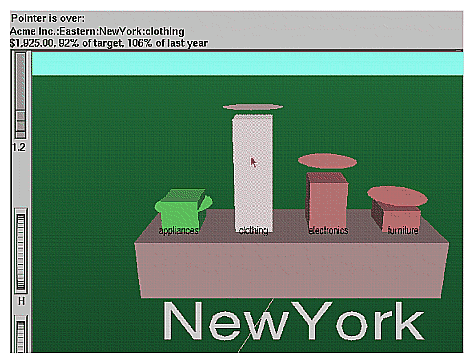
To select an object and zoom to it, left-click the mouse on that object. Hold the Ctrl key down while clicking to select the object without zooming to it. At the top of the window, under the label “Selection:”, you see information about a selected object. The information is the same as that shown when highlighting an object. As long as the object is selected, the information is displayed. This lets you compare information about two objects by selecting one, then highlighting the other. Using the mouse, you can cut and paste selection information into other applications, such as reports or databases.
If you hold the Shift key while left-clicking on an object, the selection of that object is toggled. If the object is currently not selected, it then is selected; conversely, if it is currently selected, it then is deselected. Using this technique, it is possible to select multiple objects simultaneously. While the information under the “Selection:” label only shows the information on the last object selected, it is possible to see the values for all selections by using Selections > Show Values or by drilling through to the original data behind the selections (see “The Selections Menu”).
If an execute statement was specified via Tool Manager or the configuration file, then double clicking on an object executes the appropriate command. If the -warnexecute option was specified when invoking the Tree Visualizer, a warning is given first.
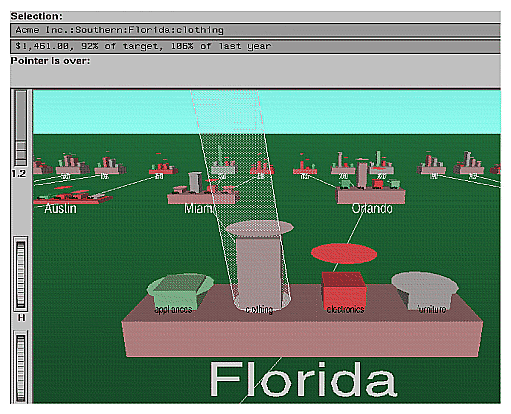
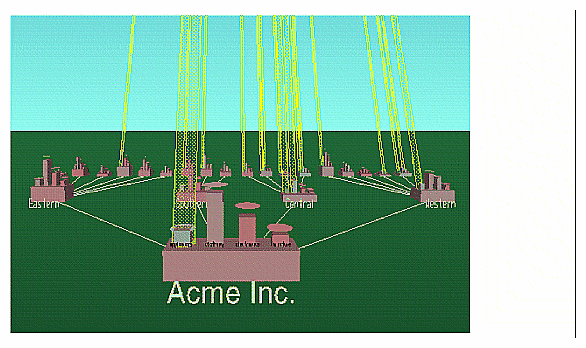
When you select an object, a white spotlight appears on it (Figure 5-7). A yellow spotlight appears when you are searching (see “The Search Panel”). Spotlights are visible even if the selected object is a descendent node in the far background.
The edges of spotlights are surrogates for an object: when you move the pointer over the edge of a spotlight, the associated object is highlighted, and information about that object appears above the top left of the view. Left-click the edge of a spotlight to select the associated object and (if the Ctrl key is not held down) to zoom to it. The spotlight is active only on the solid lines along the edges, not the translucent section in the center. This lets you select objects behind the spotlight.
When the cursor is in the main window, clicking the right mouse button (or, if the mouse has been reconfigured, the third button) brings up a menu that lets you select the children of a node. If you click on a node with children, it provides you with a list of the children. This list is displayed as long as you hold the mouse button down. If you do not click on a node, but one is selected, it provides you with a list of children of the selected node. If nothing is selected, or if the selected node has no children, no menu is displayed.
To navigate over the scene in the main window, use the middle mouse button. You also can use external controls to perform all middle mouse button functions (see the “External Controls”).
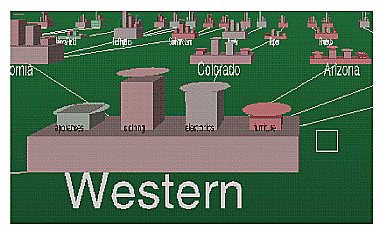
To move through the main window, click the middle mouse button. A small square appears (see Figure 5-8). Move the cursor out of this square while pressing the mouse to move your point of reference dynamically through the 3D landscape. The farther the cursor is from the square, the faster your viewpoint moves. To move the viewpoint forward, move the mouse up. To move the viewpoint back, move the mouse down. Moving the mouse left and right causes the viewpoint to shift accordingly. You can move in any direction as long as a part of your data is visible.
To move the viewpoint up and down, hold the Shift key down when pressing the middle mouse button. To move the viewpoint up, move the mouse up. To move the viewpoint down, move the mouse down. You cannot move below ground level.
To combine horizontal and vertical motion (that is, to move the viewpoint back and forth, as well as up and down), hold the Alt key down when pressing the middle mouse button. Note that while moving forward, the viewpoint also moves down, based on the current tilt. Similarly, while moving backward, the viewpoint moves up, based on the tilt.
 | Note: You cannot turn from side to side. Tilting the viewpoint requires using external controls. |
Several external controls surround the graphics window. These consist of buttons and thumbwheels.
At the top right of the image area are eleven buttons as shown in Figure 5-9.
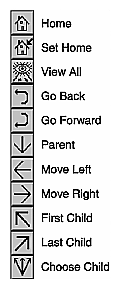
Home takes you to a designated location. Initially, this location is the first viewpoint shown after invoking the Tree Visualizer and specifying a configuration file. If you have been working with the Tree Visualizer and have clicked the Set Home button, then clicking Home returns you to the viewpoint that was current when you last clicked Set Home.
Set Home makes your current location the Home location. Clicking the Home button returns you to the last location where you clicked Set Home.
View All lets you view the whole hierarchy, keeping the tilt of the camera. To get an overhead view of the scene, tilt the camera to point straight down, then click the View All button. To tilt the camera, see the description of the Tilt thumbwheel (see “Thumbwheels”).
Go Back lets you return to the previous location. If you have just started the Tree Visualizer and have not moved from the home view, this button is grayed out.
Go Forward lets you proceed to the location from which you clicked the Go Back button. If you have not clicked the Go Back button, the Go Forward button is grayed out.
Parent is active only when you have an object selected. If a bar is selected, clicking this button selects the base containing the bar. If a base is selected, clicking this button moves up the hierarchy to the parent node. Once the root node has been reached (highest level of the hierarchy), the Parent button is grayed out. Note that when using Parent, the selected node is changed to the parent of the previously selected one.
Move Left lets you select the next sibling to the left. If a bar is selected, the bar to the left of it is selected. If a base is selected, then, if the parent has another child to the left, that is selected. This button is grayed out if nothing is selected, or if the current selection has no sibling to the left.
Move Right lets you select he next sibling to the right. If a bar is selected, the bar to the right of it is selected. If a base is selected, then, if the parent has another child to the right, that is selected. This button is grayed out if nothing is selected, or if the current selection has no sibling to the right.
First Child lets you select the first child of the current node. This button is grayed out if there is no selection, if a bar is selected, or if the current selection has no children.
Last Child lets you select the last child of the current node. This button is grayed out if there is no selection, if a bar is selected, or if the current selection has no children.
Choose Child produces a popup menu that lists all the children of the current node. This button is grayed out if there is no selection, if a bar is selected, or if the current selection has no children.
You also can perform these functions using the Go menu (see “The Go Menu”.)
Four thumbwheels appear around the lower part of the graphics window border (see Figure 5-10). They let you dynamically move the viewpoint.
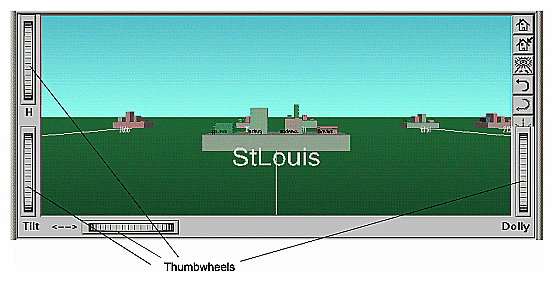
The vertical H (height) thumbwheel, on the upper left, moves the camera up and down. You cannot move the viewpoint below ground level.
The vertical Tilt thumbwheel, at the bottom left, tilts the camera. You can tilt the viewpoint to any position from straight ahead and straight down. You cannot tilt the viewpoint to look up.
The horizontal <--> (pan) thumbwheel, at the bottom left, moves the viewpoint from left to right and back. You cannot rotate the viewpoint.
The vertical Dolly thumbwheel, on the right, moves the viewpoint forward and backward.
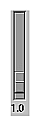
A slider to the top left of the main window (Figure 5-11) lets you rescale all objects in the window. Pushing the slider up to a value of 2.0 doubles the size of all objects in the main window. Pulling the slider back down to a value of 1.0 returns the objects in the window to their original heights.
You also can access all of the Tree Visualizer's functions via five pulldown menus. These are labeled File, Show, Display, Go, and Help.
If you start the Tree Visualizer without specifying a configuration file, only the File and the Help menus are available. The Show, Display, and Go menus are available after a graph is loaded.
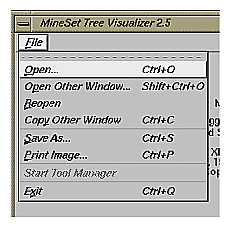
The File menu (Figure 5-12) contains nine options.
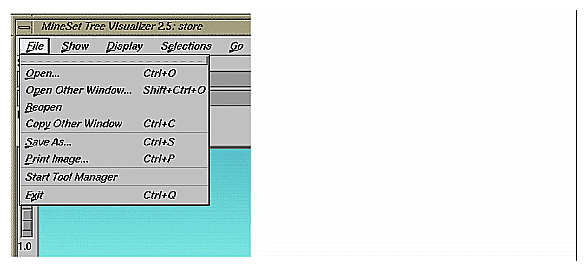
Open loads and opens a configuration file, displaying it in the main window. Previously displayed data is discarded. Use Open to view a new dataset, or to view the same dataset after changing its configuration.
Open Other Window opens a configuration file, but displays its results in a different window. The current dataset remains open.
Reopen reopens the currently opened file. This can be used after the configuration or data file has been updated.
Copy Other Window opens a new window that displays the same view of the current dataset. You can interact with these windows independently.
Save As saves the state of the current Tree Visualizer window into an image file. The user specifies both the file name (default is treeviz.rgb), format (default is rgb), and whether to save the entire window, including any legends, or just the main scene with the graphical objects (default is the full window).
Print Image outputs the state of the current Tree Visualizer window to a printer. You can specify the output printer using a Print dialog panel (default is your system's default printer) and, like the Save As dialog, choose whether to print the entire window or just the main scene window.
Start Tool Manager starts the Tool Manager (if not already running), and restores it to the state it was in when the Tree Visualizer was invoked.
Close closes the current window (and all panels associated with it). If no other windows are open, Close exits the application.
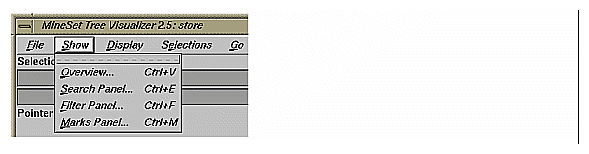
The Show menu (Figure 5-13) contains four options:
Overview
Search Panel
Filter Panel
Marks Panel
Each of these options brings up another dialog box for interacting with the data.
Select Overview in the Show menu to bring up a new window with an overhead view of the complete hierarchy (Figure 5-14). If you want the Overview to be brought up automatically each time the scene is viewed, set the Overview option in the configuration file (see “Overview”).
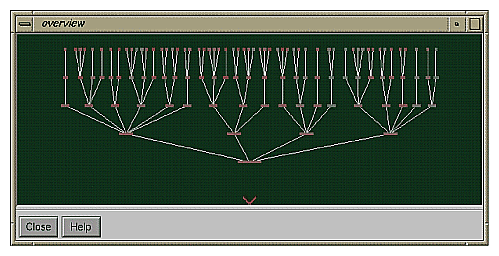
The “X” in the Overview window shows your current location. The Overview helps you keep track of your location and viewpoint in the entire scene. It can also help you quickly go to a specific node.
To select an object in the Overview and have the main view zoom to it, left-click that object. This is similar to left-clicking the object in the main view. Middle-clicking anywhere in the overview zooms your viewpoint to that location, even if no object is at that point.
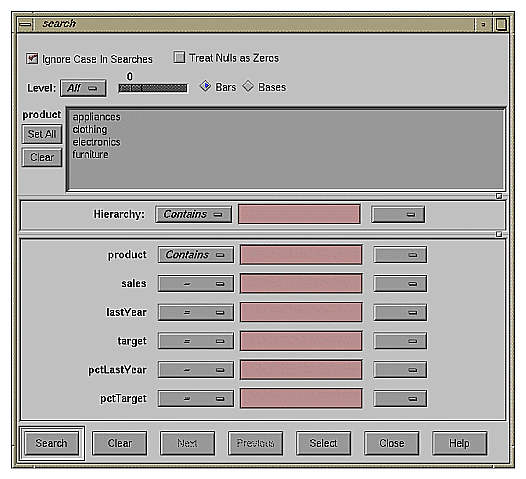
Select Search in the Show menu to bring up a dialog box that lets you specify criteria to search for objects (Figure 5-15).
Once the search is complete, yellow spotlights highlight objects matching the search criteria (see Figure 5-16). To display information about an object under a yellow spotlight, move the pointer over that spotlight; the information appears in the upper left corner, under the label Pointer is over:. To select and zoom to an object under a yellow spotlight, left-click the spotlight; if you press the Ctrl key while clicking, zooming does not occur.
To specify whether a search is case-sensitive, click the Ignore Case In Searches checkbox, at the top of the Search panel. For example, if this toggle is on (a check mark appears on that button), the string “hello” is the same as “HellO.”
To the right of the case sensitivity checkbox is another, labeled Treat Nulls as Zeros. If this checkbox is off (the default), comparisons involving nulls cannot return TRUE in a search. If the it is on, nulls are treated as equal to zero.
Below the case-sensitivity checkbox are controls that let you specify the parts of the hierarchy to be searched. By default, the whole hierarchy is searched. To limit the levels searched, select a relational operator (such as <=) from the option menu that lets you specify the operand for the level. Then use the slider to select the level to be searched. Level 0 is the root of the hierarchy, level 1 is the level below that, and so forth. To search the root and the two levels below that, for example, choose <= 2.
Checkboxes also let you choose whether to search the bars or the bases.
When searching through bars, the default is that all bars are searched. To search only a specific list of bars, you must select them. The Set All button turns on all bars; this is useful if most of the bars are to be searched, and only a few are to be turned off. The Clear button turns off all bars. If no bar is selected, the bar list is ignored, and all bars are searched.
Below the panel for bar labels is a Hierarchy field that lets you specify nodes to search (Figure 5-17). Below the Hierarchy field are fields that let you specify search criteria for individual columns (defined in the Current Columns: window of the Tool Manager's Table Processing pane, see “Selecting the Tree Visualizer Tool”).
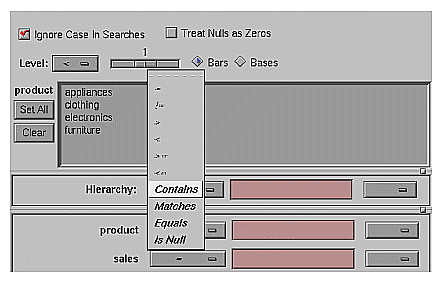
To search for numeric values, enter the value, and select a relational operation (=, !=, >, <, >=, <=). To search for alphanumeric values, enter the string for which you want to search. You can use any of three types of string comparisons:
“Contains” indicates that it contains the appropriate string. For example, California contains the strings Cal and forn.
-
An asterisk (*) represents any number of characters.
A question mark (?) represents one character.
Square braces ([ ]) enclose a list of characters to match.
For example, California matches Cal*, Cal?fornia, and Cal[a-z]fornia.
In some cases (usually associated with binning in the Tool Manager), an option menu of values appears, instead of a text field. To ignore that variable, select Ignored in the Option menu. You can use relational operators (such as >=) with these options. This means that the specified value as well as subsequent ones are selected.
In addition to numeric and string comparison operations, you can specify Is Null, which is true if the value is null.
To the right of each search field is an additional option menu that lets you specify “And” or “Or” options. For example, you could specify “sales > 20 And < 40.” You can have any number of And or Or clauses for a given column, but cannot mix And and Or in a single column.
Note that if different levels of the hierarchy are keyed by different types of data (for example, the top level is selected by strings, while the second level is selected by integers), then the “Hierarchy” search field is treated as a string and provides string operations, not number operations.
If the Ignore Case In Searches checkbox is checked, the comparisons of all string searches are case-insensitive.
Six buttons are placed across the bottom of the Search panel:
Search causes the search to be started. This button is automatically activated if the Enter key is pressed and the panel is active.
Clear turns off all search spotlights and erases the values from the search fields.
Next selects and zooms to the next matched object, in left-to-right order. After the last matched object is selected, clicking Next returns the view to the Home position. Next is valid only after a search that has found matches.
Previous selects and zooms in the opposite order from that of the Next button.
Select causes all objects that matched the search criteria to be selected. The Selections menu can then interact with these objects.
Close closes the search window and turns off the search spotlights. If the Search panel is reopened, it is in the same state as it was before the last Close; clicking Search again repeats the last search.
The Filter panel filters out selected information, thus fine-tuning the displayed hierarchy. You can use the Filter panel to emphasize specific information, or to shrink the amount of data for better performance. Figure 5-18 shows a sample Filter panel.

To specify whether a filter is case-sensitive, click the Ignore Case In Filter checkbox, at the top of the Filter panel. For example, if this toggle is on (a check mark appears on that button), the string “hello” is the same as “HellO.”
To the right of the case sensitivity checkbox is another, labeled Treat Nulls as Zeros. If this checkbox is off (the default), comparisons involving nulls cannot return TRUE in a filter. If the it is on, nulls are treated as equal to zero.
Below the case-sensitivity checkbox are controls that let you specify the parts of the hierarchy to be filtered. By default, the whole hierarchy is filtered. To limit the levels filtered, select a relational operator (such as <=) from the option menu that lets you specify the operand for the level. Then use the slider to select the level to be filtered. Level 0 is the root of the hierarchy, level 1 is the level below that, and so forth. To filter the root and the two levels below that, for example, choose <= 2.
Checkboxes also let you choose whether to filter the bars or bases.
When filtering bars, the default is that all bars are filtered. To filter only a specific list of bars, you must select them. The Set All button turns on all bars; this is useful if most of the bars are to be filtered, and only a few are to be turned off. The Clear button turns off all bars. If no bar is selected, the bar list is ignored.
Filtering bars does not affect the information in the base, which continues to include the summary of all bars.
Below the panel for bar labels is a Hierarchy field, which lets you specify nodes to filter. Below the Hierarchy field are fields that let you specify filter criteria for individual columns (defined in the Current Columns: window of the Tool Manager's Table Processing pane, see “Selecting the Tree Visualizer Tool”).
To filter for numeric values, enter the value, and select a relational operation (=, !=, >, <, >=, <=). To filter for alphanumeric values, enter the string for which you want to filter. You can use any of three types of string comparisons:
“Contains” indicates that it contains the appropriate string. For example, California contains the strings Cal and forn.
-
An asterisk (*) represents any number of characters.
A question mark (?) represents one character.
Square braces ([ ]) enclose a list of characters to match.
For example, California matches Cal*, Cal?fornia, and Cal[a-z]fornia.
In some cases (usually associated with binning in the Tool Manager), an option menu of values appears, instead of a text field. To ignore that variable, select Ignored in the Option menu. You can use relational operators (such as >=) with these options. This means that the specified value as well as subsequent ones are selected.
In addition to numeric and string comparison operations, you can specify Is Null, which is true if the value is null.
To the right of each filter field is an additional option menu that lets you specify “And” or “Or” options. For example, you could specify “sales > 20 And < 40.” You can have any number of And or Or clauses for a given column, but cannot mix And and Or in a single column.
Note that if different levels of the hierarchy are keyed by different types of data (for example, the top level is selected by strings, while the second level is selected by integers), then the “Hierarchy” filter field is treated as a string and provides string operations, not number operations.
If the Ignore Case In Filters checkbox is checked, the comparisons of all string filters are case-insensitive.
If a node does not meet the filter criteria, has no bars that meet the criteria, and has no children that meet the criteria, the node is not shown. There can be, however, cases in which a specific object meets the filter criteria, but its ancestors up the tree do not. Also, other bars in the same node might not meet the criteria. Since position is important in interpreting context, it might not be good to eliminate those bars. Consequently, you are given an option of selecting one of three radio buttons that control how these objects should be drawn: Solid, Outline, and Hidden. Note, however, that if objects are drawn in a less solid form due to the Display Zeros or Display Null menu, they are displayed appropriately. For example, if Nulls are to be hidden, they are always hidden, regardless of the filter criteria.
The exception to this is when filtering to specific bars. In such a case, the other bars are eliminated and don't take up space, regardless of the radio button settings.
The Height Filter slider lets you filter out those nodes containing only short bars. The size of a value is shown as a percentage of the maximum height. First, the tallest bar in the scene is calculated (if heights are normalized by level, then the tallest bar in each level). Then only those nodes that contain at least one bar that is the appropriate percentage of the tallest bar are shown.
For example, if you enter 5% in this field, then only those nodes containing at least one bar that is at least 5% of the height of the tallest bar are shown. (Also shown are ancestors of such bars). This option is intended as a coarse way to filter out small, uninteresting nodes. It is not intended as an exact mechanism of identifying specific nodes of a certain value; use the search panel for that purpose. Use of this option can accelerate the rendering of slow, complex scenes, or reduce clutter resulting from many bars near zero height. You can also set this filtering option in the configuration file by using the Height Filter command.
Although small nodes are filtered out, they are nonetheless counted in any cumulation up the hierarchy.
The Depth slider, which is under the Height Filter slider, lets you display the hierarchy so that only a given number of levels are displayed at any given time. When you are at the top of the hierarchy, only the number of hierarchical levels specified by the slider is seen. The nodes in the rows are arranged to optimize their visibility. When navigating to nodes lower in the hierarchy, additional rows are made visible automatically. The nodes above them automatically adjust their locations to accommodate the newly added nodes; thus, some nodes might seem to move. Note that the overview shows all nodes in the hierarchy, not just the top nodes; thus, the layout of the overview might not match the layout of the main view. The X in the overview approximates the corresponding location in the main view; there is no exact mapping between the two layouts.
Click the Filter button to start filtering. If the Enter key is pressed while the panel is active, filtering automatically starts.
Click the Close button to close the panel.
The Marks panel, from the Tree Visualizer's Show Pulldown Menu (Figure 5-13,) lets you name and store important locations (viewpoints) so that you can easily and quickly return to them (see Figure 5-19). The location is stored relative to the currently selected object. If no object is selected, the absolute location is recorded.
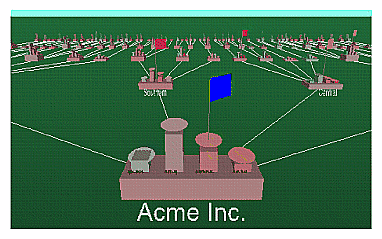
All marks can be indicated by colored flags in the main view. If the mark represents a selected object, the flag is placed on that object. If it represents an absolute position, the flag is placed at that position. To go to the mark, click the flag. All flags can be turned on and off using the Mark Flags menu entry in the Display menu. (See Mark Flags in “The Display Menu”).
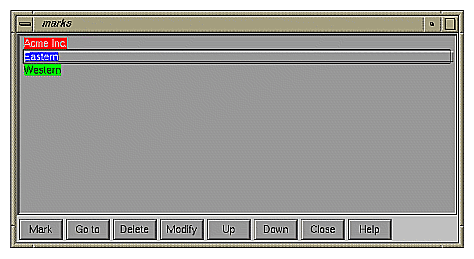
Click the Mark button to mark the current location. Another dialog box appears (in Figure 5-20) to prompt you for the name and color of the mark. The default name is that of the currently selected object. The color controls the color of the flag appearing in the main window and represents the mark. If you do not want a flag to represent the mark, click the button with the “Not” symbol (slash through a circle). To add another color to the palette, click the button with the plus symbol (+) to bring up a color chooser.
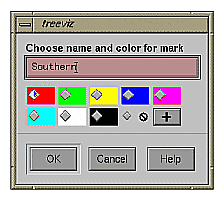
Figure 5-21 shows a sample main window with flags representing the created marks.
Click the Go to button to go to the current location associated with the selected mark in the panel. Double-clicking a mark has the same effect. If the object selected by that mark no longer exists (because it was filtered out, or the data was changed since the mark was created), the location shown is close to where the object would have been.
Click the Delete button to delete the selected mark in the panel.
Click the Modify button to change the name or color of the selected mark in the panel.
Click the Up button to move the selected mark in the panel up the listing order.
Click the Down button to move the selected mark in the panel down the listing order.
The file storing the marks information has the same name as the configuration file, with a .marks suffix appended. Whenever a mark is changed, all marks are saved to that file. If all marks are deleted, the .marks file is removed. If mark changes cannot be saved (because of a permission error, for instance), a warning appears; this warning is not repeated when subsequent mark changes are attempted.
The Tree Visualizer's Display menu lets you control several display parameters.
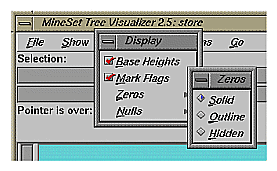
Base Heights is a checkbox that lets you turn the heights of the bases on and off. To see negative numbers, or to make it easier to compare the bar heights, turn this option off. Turning it on provides summary information about all the bars. The initial value of this toggle can be changed with the “base height” statement in the configuration file.
Mark Flags is a toggle option that lets you turn on or off the flags representing marks (also see “The Marks Panel”).
Zeros is a submenu that controls how objects with zero height are displayed. By default, they are shown like other objects: a solid cube of height zero (a plane). The submenu lets you specify them to be displayed as outlines (appearing as a hollow square), or to be hidden completely (not drawn). The initial value of this of this can be changed using the “zero” option in the configuration file (see “Zero”).
Nulls is a submenu that controls how objects of null height are displayed. It has the same options as the zero menu; however, the default for null options is to display the objects as an outline. The initial value can be changed using the “null” option in the configuration file (see “Null”).
The Selections menu lets you drill through to the underlying data. This menu has five items (see Figure 5-23).
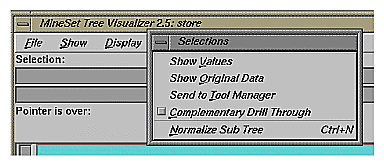
Show Values displays a table (Record Viewer) of the values for all selected objects.
Show Original Data retrieves and displays the records corresponding to what has been selected. The resulting records are shown in a table viewer.
Send To Tool Manager inserts a filter operation, based on the current box selection(s), at the beginning of the Tool Manager history. The actual expression used to do the drill through is determined by extents of the current box selection(s). If nothing is selected, a warning message appears.
Complementary Drill Through causes the Show Original Data and Send To Tool Manager selections, when used, to fetch all the data that are not selected.
Normalize Subtree determines the maximum height of the elements in the subtree, and normalizes all values relative to that height.
For further details on drill-through, see Chapter 18, “Selection and Drill-Through.”
The Go menu duplicates the functions of the buttons on the upper right-hand side of the main window (see Figure 5-24). It also identifies keyboard shortcuts for some functions.
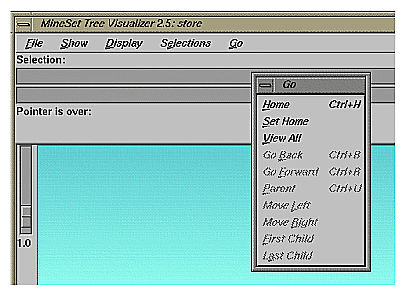
Home takes you to a designated location. By default, this location is the initial view point of the scene. Initially, this location is the first viewpoint shown after invoking the Tree Visualizer and specifying a configuration file. If you have been working with the Tree Visualizer and have clicked the Set Home menu item, then clicking Home returns you to the viewpoint that was current when you last clicked Set Home. The keyboard shortcut for this function is Ctrl+H.
Set Home changes the Home location to your current location. Clicking the Home menu item then returns you to the viewpoint that was current when you last clicked Set Home.
View All shows the whole hierarchy, keeping the tilt of the camera. To get an overhead view of the scene, tilt the camera to point straight down, then click the View All menu item. (To tilt the camera, see the description of the Tilt thumbwheel in “Thumbwheels”.)
Go Back lets you return to the previous location. If you have just started the Tree Visualizer and have not moved from the home view, this menu item is grayed out. The keyboard shortcut for this function is Ctrl+B.
Go Forward lets you proceed to the location from which you clicked the Go Back menu item. If you have not clicked the Go Back menu item, the Go Forward menu item is grayed out. The keyboard shortcut for this function is Ctrl+R.
Parent is active only when an object is selected. If a bar is selected, clicking this menu item selects the base containing the bar. If a base is selected, clicking this menu item moves up the hierarchy to the parent node. Once the root node has been reached (highest level of the hierarchy), the Parent menu is grayed out. The keyboard shortcut for this function is Ctrl+U.
Move Left lets you select the next sibling to the left. If a bar is selected, the bar to the left of it is selected. If a base is selected, then, if the parent has another child to the left, that is selected. This button is grayed out if nothing is selected, or if the current selection has no sibling to the left.
Move Right lets you select the next sibling to the right. If a bar is selected, the bar to the right of it is selected. If a base is selected, then, if the parent has another child to the right, that is selected. This button is grayed out if nothing is selected, or if the current selection has no sibling to the right.
First Child lets you select the first child of the current node. This button is grayed out if there is no selection, if a bar is selected, or if the current selection has no children.
Last Child lets you select the last child of the current node. This button is grayed out if there is no selection, if a bar is selected, or if the current selection has no children.
The Help menu (see Figure 5-25) provides access to six help functions.
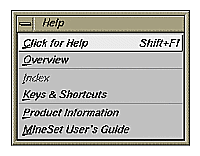
Click for Help turns the cursor into a question mark. Placing this cursor over an object in the main window and clicking the mouse causes a help screen to appear; this screen contains information about that object. Closing the help window restores the cursor to its arrow form and deselects the help function. The keyboard shortcut for this function is Shift+F1. (Note that it also is possible to place the arrow cursor over an object and press the F1 function key to access a help screen about that object.)
Overview provides a brief summary of the major functions of this tool, including how to open a file and how to interact with the resulting view.
Index provides an index of the complete help system. This option is currently disabled.
Keys & Shortcuts provides the keyboard shortcuts for all of the Tree Visualizer's functions that have accelerator keys.
Product Information brings up a screen with the version number and copyright notice for the Tree Visualizer.
MineSet User's Guide invokes the IRIS Insight viewer with the online version of this manual.
Nulls represent unknown data (see Appendix J, “Nulls in MineSet”).
In the Tree Visualizer, nulls can occur in the following cases:
The database or data file contains a null value.
The skipMissing option is not present in the configuration file (see skipMissing in Appendix B,) and data is present for the key value in one node of the hierarchy, but not in another. For example, in a representation of state budgets, if there is no record for state income tax for Texas, Texas would have an income tax of null. This is different than for the case where there is a record showing 0 as the income tax for Texas, in which case it would show a tax of 0.
When the Tool Manager is used to make an array based on bins and no data falls into a specific bin, the value for that bin is null. For example, if there is no data for 30-40 year olds, that bin is null.
When making an array in the Tool Manager and the null enum option is specified, an extra array entry, corresponding to the first bar in each bar chart, is created to represent the aggregation of all the values where the bin value is null (see “Aggregations in the Presence of Nulls” in Appendix J). This bar is labeled with a question mark (?), representing null. If there is no data for that null bin, the values associated with it are null as well.
Note: if all values throughout the data associated with the null bin are null, the Tree Visualizer ignores the null bin and does not display it. Expressions and aggregations of nulls can generate nulls (see Appendix J).
When a null value is mapped to a visual attribute, special representations are used in the Tree Visualizer. If null is mapped to height, the object is normally drawn in outline mode (although this is configurable through the Display menu (see the “The Display Menu” section) or the configuration file (see “Null” in Appendix B). For a bar or a base, this looks like an empty square. (It does not look like a cube, since it has no height.) For a disk, it looks like a circle. If a null value is mapped to a color, it is drawn in a dark grey (see Figure 5-26).
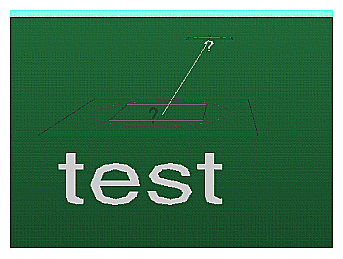
When selecting an object with a null value, it is shown as a question mark (?) in the selection field.
The provided sample configuration and data files demonstrate the Tree Visualizer's features and capabilities. The following files are in the directory /usr/lib/MineSet/treeviz/examples:
store.data and store.treeviz
When graphically displayed, these files show hypothetical sales data for a store chain. The hierarchy includes the entire chain, regions, states, cities, and individual stores. Four products are shown for each level in the hierarchy. In this configuration, heights represent sales in dollars; colors represent the percentage of the target dollar amount.stateRevenue.data and stateRevenue.treeviz
When graphically displayed, these files show the revenue components of every state's budgets for 1992, as obtained from the United States Census Bureau (from http://www.census.gov/govs/state/stfin92.dat). Heights represent the dollar amounts in taxes. The descendent nodes in the background show the contribution of various taxes to the total revenues shown in the root node.beer.data and beer2.data, and beer.treeviz and beer2.treeviz
When graphically displayed, these files show fictitious data based on consumer research of beer purchases. The hierarchy contains three levels:The first is category (for example, beer or ale).
The second level is brand codes (randomly assigned).
The third is the individual product codes; for example, twelve-pack versus six-pack (randomly assigned).
Each chart contains seven bars, representing seven age groups. Bar height represents the total dollars spent by that age group. Colors represent the percentage of dollars spent by males and females. Brands, products, and data used in these files are samples only.
Both beer.treeviz and beer2.treeviz produce the same graphical output, but they have been constructed differently. In beer.treeviz, each type of beer is represented by a single record, with values for male and for female consumption; these values are stored in an enumerated array (explained in Appendix B, “Creating Data and Configuration Files for the Tree Visualizer”).
In beer2.treeviz, there are seven records for each beer, with each record representing one age group. Note that in the beer file, the age groups are represented in the configuration file; in the beer2 file, they are included in the data file.
The beer file requires less storage space than the beer2 file; however, the configuration file is a little more complicated. In some cases, it might be easier to produce data in the form used by the beer2 file.
Additional examples of the Tree Visualizer to visualize a Decision tree are provided in Chapter 11.