| Note: LiveArc AE is an optional future offering. |
LiveArc Archive Edition (AE) digital asset management is an optional component of the SGI InfiniteStorage Gateway. This chapter discusses the following:
If you have LiveArc AE, it requires that I/O operations from NFS clients arrive in a timely fashion through the NFS server. A long lag between write I/O operations may cause LiveArc AE to prematurely convert a new file into a permanent asset. Subsequent writes to that new file will result in unintended creation of an additional asset version, with each new copy consuming additional disk space.
To ensure that LiveArc AE operates properly, you should use correct NFS client settings. Use one of the following methods:
To tune NFS clients for LiveArc AE, you can use the sync mount option for the virtual memory (VM) subsystem in the /etc/fstab file on each client.
For example, to export /dmfusr1 for a client NFS server with an IP address of 192.168.1.50, and a mountpoint of /LiveArc1:
192.168.1.50:/dmfusr1 /LiveArc1 nfs rw,sync,hard,intr 0 0 |
| Note: This method can result in slower I/O. |
To tune NFS clients for LiveArc AE, you can set the dirty_writeback_centisecs and dirty_expire_centisecs VM system tunable parameters:
Set the parameters temporarily by using the sysctl(8) command:
mis# sysctl -w "vm.dirty_writeback_centisecs=value"
mis# sysctl -w "vm.dirty_expire_centisecs=value"
Set the parameters permanently upon reboot by adding the following lines to the /etc/sysctl.conf file:
vm.dirty_writeback_centisecs = value
vm.dirty_expire_centisecs = value
| Note: These parameters are global. With this method, every filesystem (including non-NFS filesystems) on the NFS client will be affected. |
For more information, see the sysctl(8) and sysctl.conf(5) man pages and the /usr/src/linux/Documentation/sysctl/vm.txt file.
To manage the LiveArc AE digital asset management capabilities, you will use the following tools:
| Note: The Arcitecta™ Desktop requires Java 1.6 and the latest version of Firefox or Internet Explorer® 9. |
The Arcitecta Desktop lets you manage LiveArc AE. To access the Arcitecta Desktop, do the following:
Access the Arcitecta Desktop by pointing your browser to the following URL:
http://MIS_server_IPaddress/desktop
Enter the LiveArc AE password at the prompt:
Domain: system User: manager Password: change_me (default) Note: You should change the password and only provide it to those persons who you want to access the LiveArc AE configuration. See “Changing the LiveArc AE Password”. Select Run to run the application.
Double-click the icon for the tool that you want to use.
Figure 6-1 shows the introductory screen of the Arcitecta Desktop, highlighting the Asset Finder.

To access the LiveArc AE configuration interface, do the following:
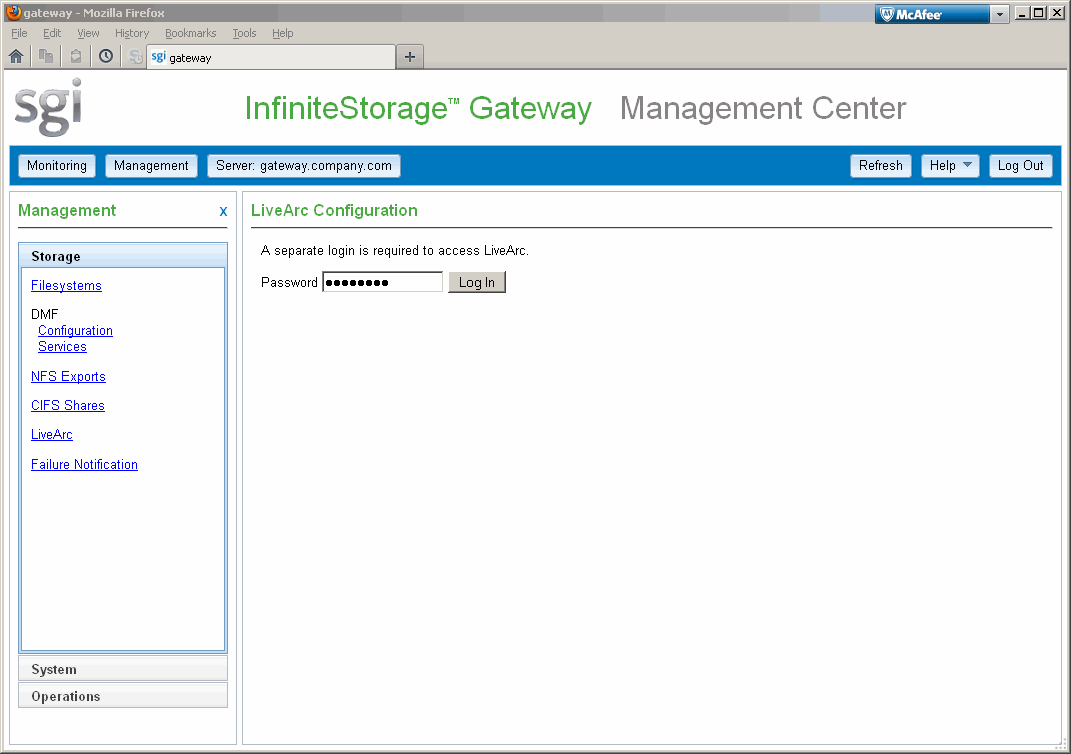
Open LiveArc Configuration page, shown in Figure 6-2, which is available from the following selection:
Management -> Storage -> LiveArc
Enter the LiveArc AE system password, which by default is change_me.
Note: You should change the password and only provide it to those persons who you want to access the LiveArc AE configuration. See “Changing the LiveArc AE Password”.
When you enter the LiveArc AE password in the interface, you have 10 minutes to make changes. Operations submitted after the 10-minute permission period has elapsed will result in a UUID expired message.
If another user logs in during your 10-minute period, any further operations you make will result in an Invalid UUID message.Click the LiveArc AE feature you want to configure and provide the required information:
Replication, see “Submitting a Replication Job”
Analyzers, see “Analyzing Data”
Indexes, see “Indexing Data”
WORM (write-once, read-many), see “Using WORM”
For more information about LiveArc AE, click Documentation to see the following:
| Mediaflux Release Notes |
| Mediaflux Administration Guide |
| Mediaflux Command User and Developer Guide |
To access the services available from the LiveArc AE command line, do the following:
Do one of the following to open the Mediaflux terminal:
Access an xterm on the MIS server and run the following command:
mis# java -jar /opt/livearc/bin/aterm.ajar &
Note: Do not use this method if you are updating LiveArc AE packages. Copy the /opt/livearc/bin/aterm.ajar file from the MIS server to a remote desktop that has Java 1.6 installed and execute the file on that desktop.
Note: Do not use X11 to remotely display aterm from the MIS server back to your desktop.
Enter the following information in the Login window:
Server: MIS_IPaddress Transport: HTTP Port: 80 (default, or number selected in network.tcl) Domain: system User: manager Password: change_me (default) Click Login.
Figure 6-3 shows an example.

| Note: If the Mediaflux terminal is idle for more than a minute, you will be logged out. |
LiveArc AE provides a large number of command-line services, some of which are similar to Linux commands. For example:
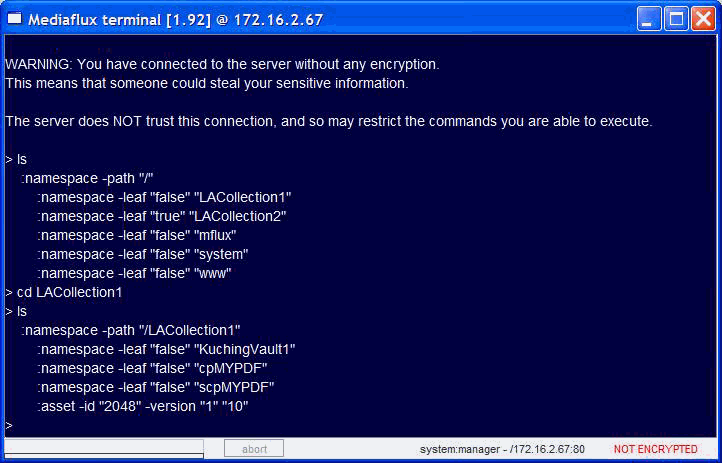
To list the contents of a collection and navigate through the collections, use the ls and cd commands, as shown in Figure 6-4.
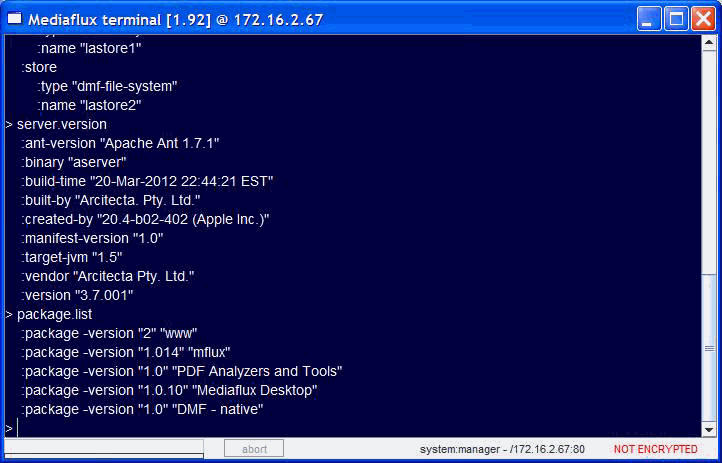
To see the version of LiveArc AE and the packages that are installed, use the server.version and package.list commands, as shown in Figure 6-5.
To change display characteristics for the current login session (changes are not persistent), use the display command.
For more information about command-line services, you can do the following:
For a list of all available services, enter the following:
> help
To get help about a specific command:
> help commandname
For example, for more information about the display command:
> help display
Press the tab key after entering a command name for brief help about command format.
Also see Mediaflux Command User and Developer Guide .
If you are logged on remotely to the MIS server and do not have X11 capabilities, you can use the mflogon and mfcommand commands to access the Mediaflux command-line services:
mis# mflogon LiveArc_password mis# mfcommand service_name |
For example, to view the list of installed packages:
mis# mfcommand package.list
    :package -version "2" "www"
    :package -version "1.014" "mflux"
    :package -version "1.0" "PDF Analyzers and Tools"
    :package -version "1.0.10" "Mediaflux Desktop"
:package -version "1.0" "DMF - native" |
To get a list of all available services, redirect the output of the help command to a text file. For example, to send the help text to a file named service.txt :
mis# mfcommand help > service.txt |
To change the LiveArc AE password, do the following:
Access the Mediaflux command-line terminal as described in “Command-Line Services in the Mediaflux Terminal”.
Enter the following in the Mediaflux terminal:
> authentication.user.password.set: domain system :password newpassword :user manager
For more information, see “Command-Line Services in the Mediaflux Terminal”.
Change the password in the following file:
/etc/.mediaflux
One instance of LiveArc AE resides on the MIS server. As data is ingested, LiveArc AE will analyze and index the content and metadata.
To search using LiveArc AE, do the following:
Open the Arcitecta Desktop as directed in “Arcitecta Desktop”.
Double-click the orange AF icon to open the Asset Finder window.
Select the type of data you want to search and drill down as needed. For a directory, you can toggle between a deep or shallow search by clicking the spyglass icon:
As you type in the search field, the tool will suggest terms that match. You can type a single letter to view a pop-up window of suggestions; you can highlight one to make it appear in the search window, then press Enter to make it appear in the middle panel.
For example, Figure 6-6 shows that LiveArc AE will search for entered terms in only the MyHTML directory, which is part of the LACollection1 on the lastore1 data store.
To change the way LiveArc AE parses data, see:

The LiveArc AE replication feature creates a copy of a namespace on a LiveArc AE system that is outside of this SGI InfiniteStorage Gateway configuration, using the location created in “Creating a Replication Vault”. You can use replication to do the following:
Synchronize data sets between mobile or regional repositories and central enterprise repositories
Manually initiate replication or you can configure it to occur automatically
Replicating data has two parts:
To create a replication vault, do the following:
Find the name of the collection on the source node that holds the namespace you want to replicate:
Open the Arcitecta Desktop, as directed in “Arcitecta Desktop”, on the source node, such as server1.
Double-click the orange AF icon to open the Asset Finder window.
Browse through the tree, expanding as necessary by clicking on the + symbol next to a collection name.
Find the namespace that you want to replicate.
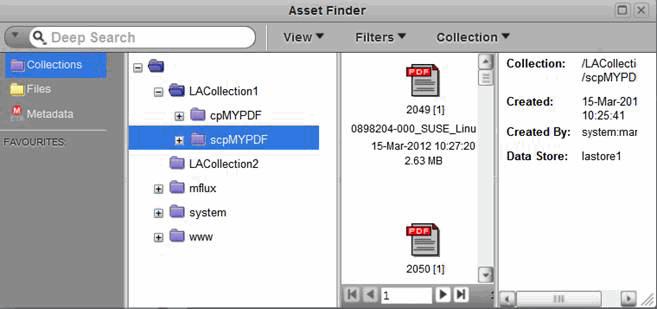
For example, Figure 6-7 shows that the namespace scpMyPDF is in the LACollection1 collection.
You will use this information when entering the source Namespace field in the LiveArc AE UI Replication panel. See “Submitting a Replication Job”.
Open the Arcitecta Desktop on the destination node, such as server2:
Highlight the namespace of the collection that corresponds to the collection where you want the new vault to reside.
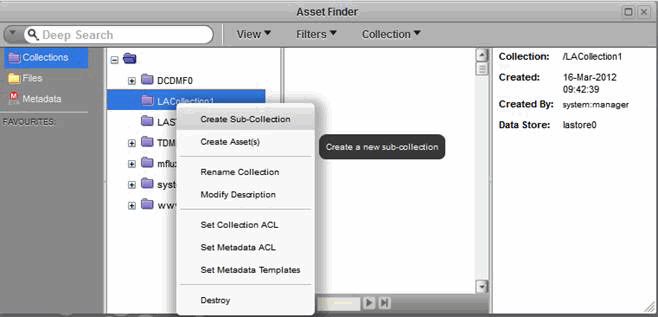
Confirm that the Data Store field displayed in the right-most panel is on an appropriate data RAID set, such as lastore0 shown in Figure 6-8.

Caution: Never select a namespace that has a Data Store field of db, which is only for use by LiveArc AE software. Right-click and select Create Sub-Collection , as shown in Figure 6-8.
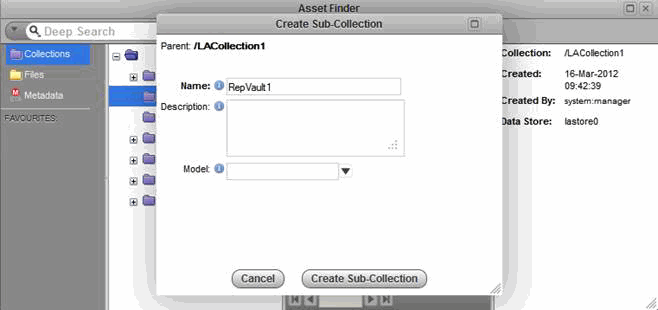
Enter the name of the replication vault. For ease of association, you might want to use a name that corresponds to the collection name, such as RepVault1 for the LACollection1 collection, as shown in Figure 6-9. You can optionally enter notes in the Description field and then click Create Sub-Collection.
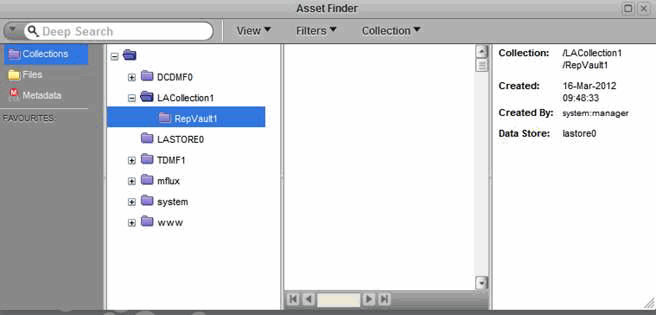
The result will be a replication vault named RepVault1 in the LACollection1 collection on server2, as shown in Figure 6-10.
Use the Replication tab in the LiveArc AE UI to create a replication job. See “Submitting a Replication Job”.
The Replication feature on the LiveArc Configuration page in the Management Center displays active jobs. To open the Management Center, see “Accessing the Management Center After Initial Installation” in Chapter 2.
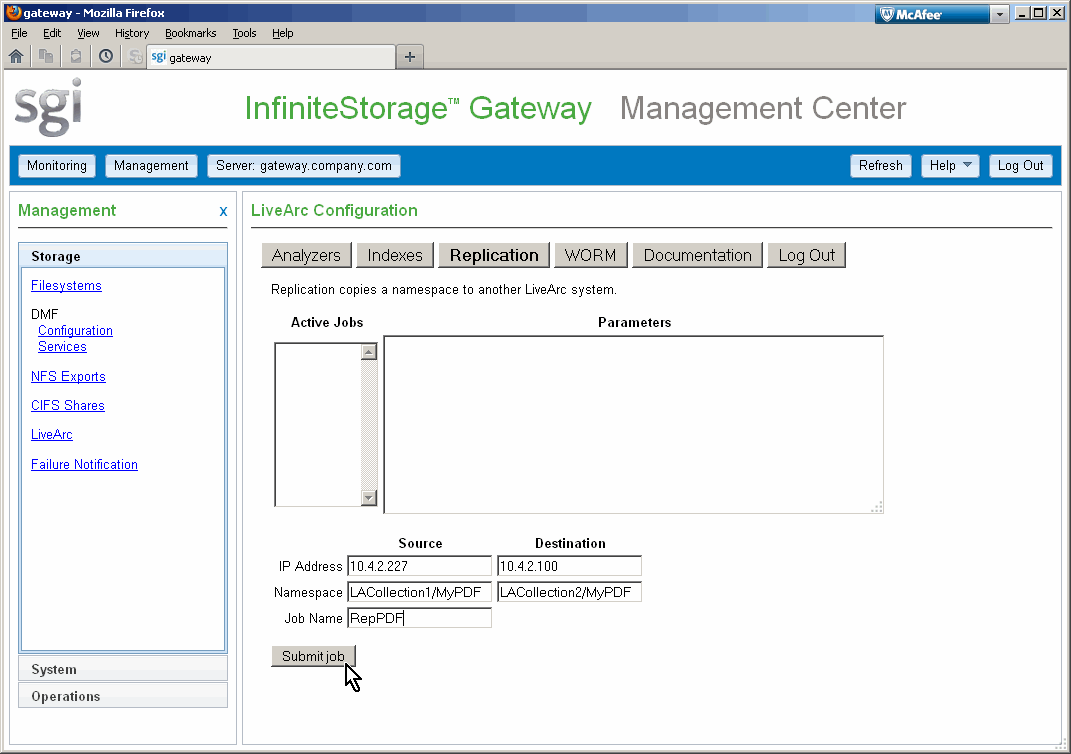
To submit a new job, enter the following:
IP addresses of the source and the destination
Namespace at the source (see step 1 of “Creating a Replication Vault”)
Namespace at the destination
Name of the job
You can select and copy text from the Parameters field and paste it into the input fields. Click Submit job to submit the new replication job.
For example, Figure 6-11 shows a new job named RepPDF that will replicate information from LACollection1 to LACollection2 on the node with an IP address of 10.4.2.100.
The Analyzers feature on the LiveArc Configuration page in the Management Center extracts metadata and content from assets. To open the Management Center, see “Accessing the Management Center After Initial Installation” in Chapter 2.
| Note: The analyzers are application-aware and as such they do not log formatting and control-like characters. |
The analyzer will decode the following:
:mime-type "text/plain"
:extension "bas"
:extension "c"
:extension "cc"
:extension "gcc"
:extension "h"
:extension "txt"
:extension "vb"
Single image/video/audio file dimensions and the following metadata:
Any extensions that follow the specification are included, for example:
:extension "jpeg"
:extension "png"
:extension "tiff"
:extension "wav"
Portable document format (PDF):
:extension "pdf"
Extensible markup language (XML) formatted text:
:extension "xml"
By default, LiveArc AE searchs all of the above. (Icon search is reserved for later use.)
You can also add other extensions (for example, .bash for plain text) by using the LiveArc AE services. If you need to use the LiveArc AE command-line interface, take note of the class and type information so that you can select the appropriate data. For more information, see “Command-Line Services in the Mediaflux Terminal”, and the Mediaflux documentation.
To find out which analyzers are installed on your system, execute the following commands:
mis# mflogon LiveArc_password mis# mfcommand asset.content.analyzer.describe |
For example, the following shows that XML text, plain text, and PDF text will be searched (the output you see for your system may differ):
mis# mflogon LiveArc_password
mis# mfcommand asset.content.analyzer.describe
     :analyzer -type "builtin" -class "arc.oX"
         :type "text/xml"
         :type "application/xml"
         :type "application/xhtml+xml"
         :metadata "false"
         :text -enabled "true" "true"
         :icon "false"
     :analyzer -type "builtin" -class "arc.oW"
         :type "text/plain"
         :metadata "false"
         :text -enabled "true" "true"
         :icon "false"
     :analyzer -type "builtin" -class "arc.oV"
         :type "image"
         :metadata -enabled "true" "true"
         :text "false"
         :icon "false"
     :analyzer -type "plugin" -class "arc.mf.pdf.analyzer.PDFAnalyzer"
         :type "application/pdf"
         :metadata -enabled "true" "true"
         :text -enabled "true" "true"
:icon "false" |
For more information about entering commands, see “Remote Access to Command-Line Services”.
| Note: If you are using aterm, no mflogon
is needed and you do not need the mfcommand
prefix. For example, at the > prompt in the
aterm window, you would enter the following:
|
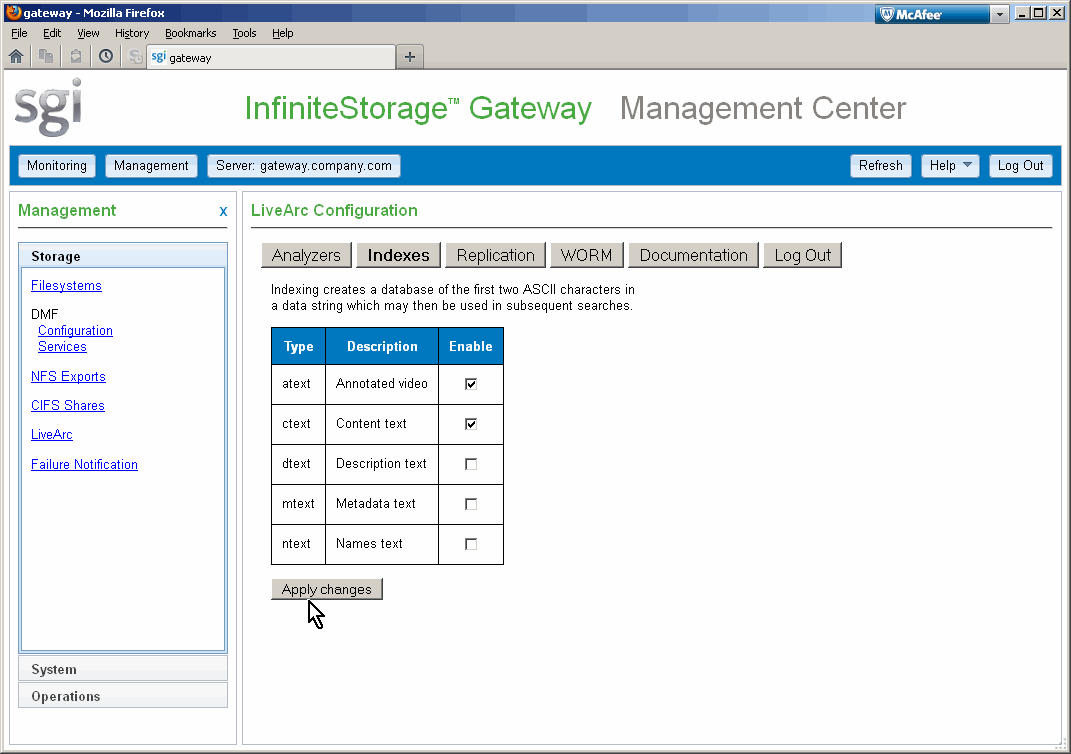
The Indexes feature in the Management Center creates a database of the first two ASCII characters in data strings of the enabled type. (To open the Management Center, see “Accessing the Management Center After Initial Installation” in Chapter 2.)
The database allows the Arcitecta Desktop Asset Finder to provide suggestions that match text you enter in the search window.
| Caution: Depending upon the data indexed, the Index database can become almost as large as the data. |
You can specify that an index is created for any combination of the following types of text:
| Type | Description |
| atext | |
| ctext | |
| dtext | |
| mtext | |
| ntext |
Click on a check box to select or deselect it, then click Apply changes, as shown in Figure 6-12.
The WORM (write-once, read-many) feature allows namespaces to set a policy that forces assets into a read-only state.
Using the Management Center, you can select either of the following WORM modes for a given namespace:
(To open the Management Center, see “Accessing the Management Center After Initial Installation” in Chapter 2.)
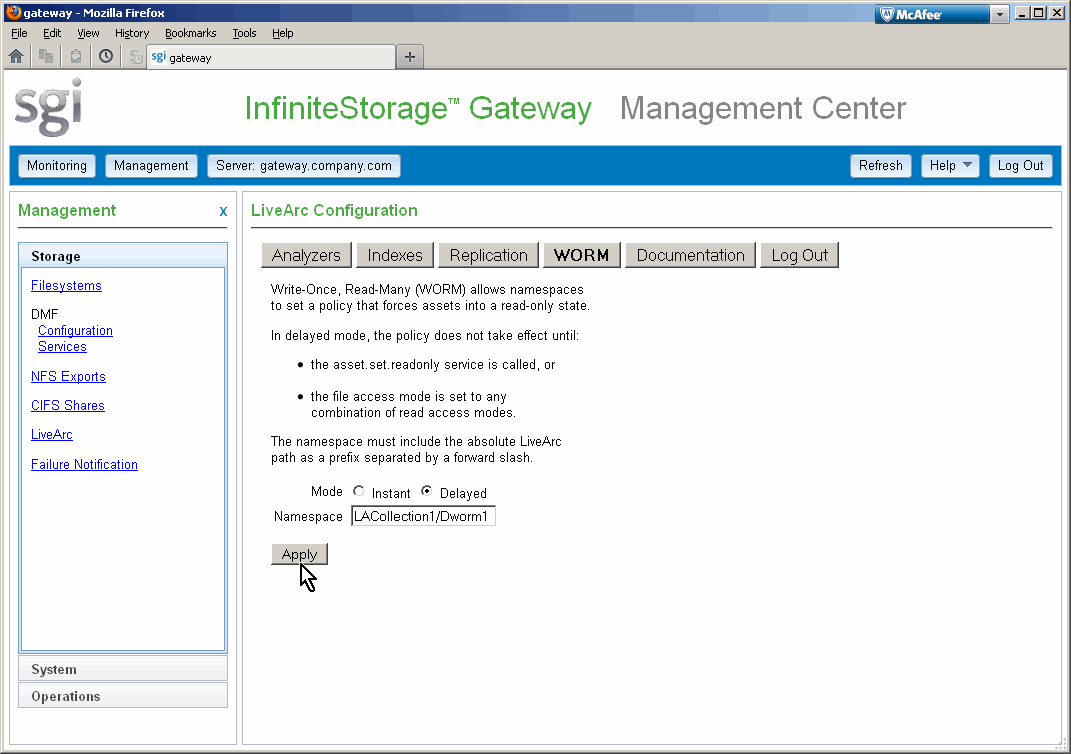
You must enter the namespace, which must include the absolute LiveArc AE path as a prefix separated by a forward slash. If you intend to use both forms of WORM, SGI recommends that you use namespace names that clearly identify the form. For example, you could use LACollection1/Worm1 for an instant WORM and LACollection1/Dworm1 for a delayed WORM. Figure 6-13 shows an example.
| Caution: Never use the mflux, system , or www collections, which contain the LiveArc AE software and are stored in the db data store. You must never use this data store for your site's data. |