This section discusses the following:
To access DMF Manager, do the following:
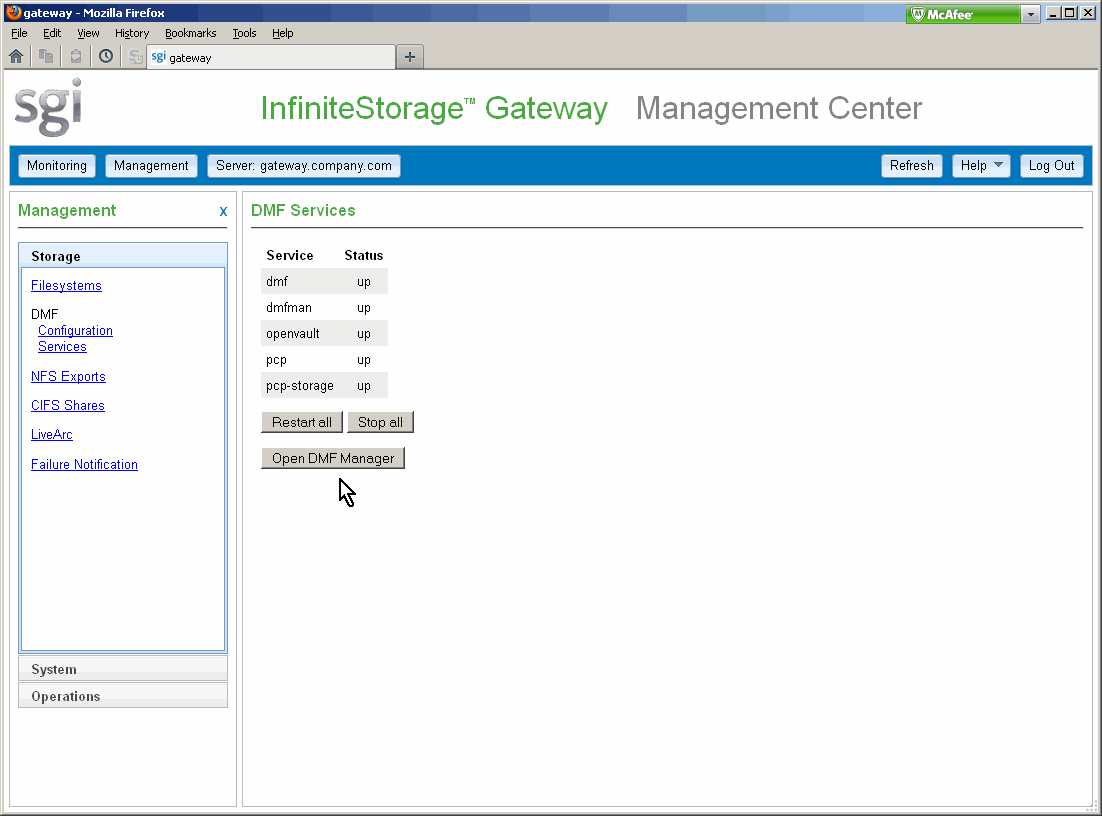
Click the Open DMF Manager button in the DMF Services page, shown in Figure 5-1, which is available from the following selection:
Management -> Storage -> DMF Services
If necessary, accept the DMF Manager security certificate.

Note: The certificate warning is safe to ignore because DMF Manager generates its own SSL certificates, rather than having the SSL certificates signed by a commercial certificate authority.
If you need help using DMF Manager, select the following from the DMF Manager menu bar:
Help -> Getting Started
When you initially open DMF Manager, you will see the Overview page, which displays a high-level logical view of the SGI InfiniteStorage Gateway environment, including the relationships and status of components.
With a glance at the DMF Manager Overview page, you can see if the system is operating properly. An icon in the upper-right corner indicates if DMF is up (green) or down (upside down and red). If DMF requires attention, DMF Manager makes actions available to identify and resolve problems. The tool volunteers information and provides context-sensitive online help. DMF Manager also displays performance statistics, allowing you to monitor DMF activity, filesystems, and hardware.
Figure 5-2 is an example of the Overview page. It shows that DMF is up (green icon), there are some informational messages, and there are some unacknowledged alerts.

If you suspect a problem with DMF, see “Contacting SGI Support and Collecting Data for Problem Analysis ” in Chapter 7.
For more information, access the DMF 6 Administrator Guide for SGI InfiniteStorage by selecting the following in DMF Manager:
Help -> Admin Guide
To determine the available space on the secondary storage, do the following:
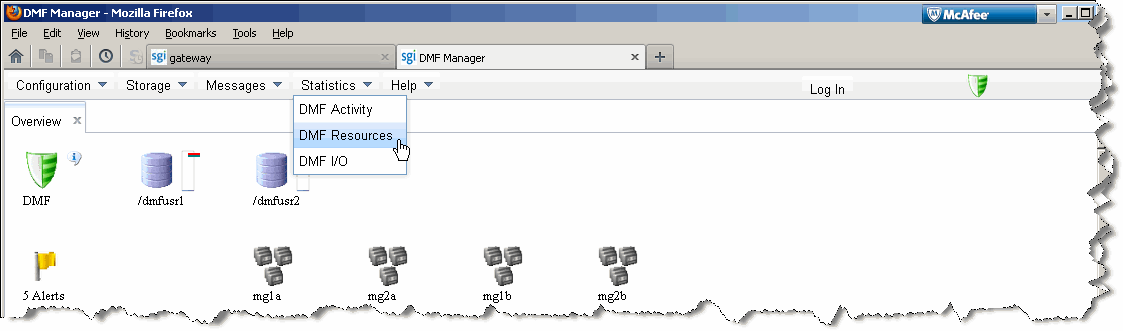
Select the following DMF Manager menu, as shown in Figure 5-3:
Statistics -> DMF Resources
Select Volume Groups and the particular volume group that you want to monitor.
Examine the display.
Figure 5-4 shows an example.

To acknowledge DMF alerts, log in as the DMF Manager admin user and choose the following from the menu bar:
Messages -> Alerts
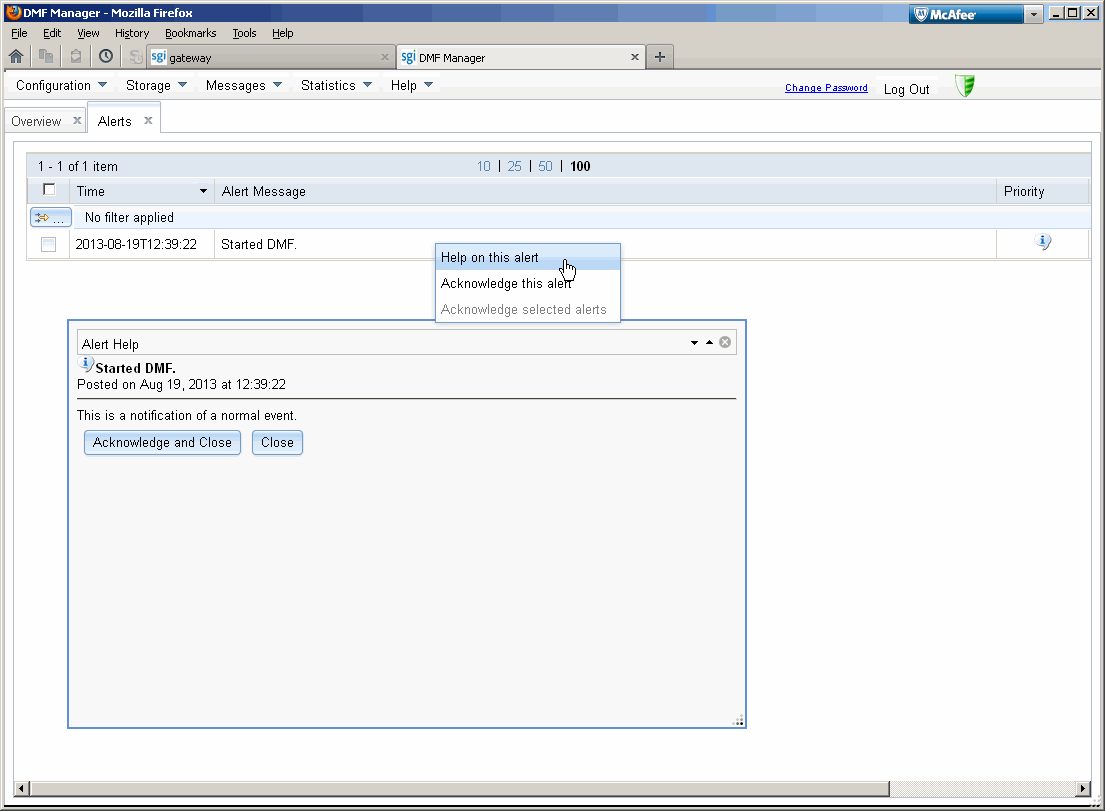
For more information about an alert, select it and choose Help on this alert, as shown in Figure 5-5.
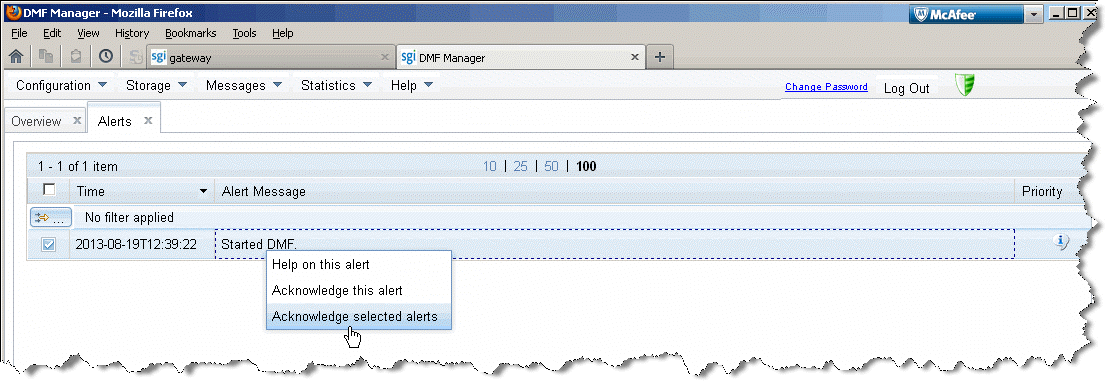
To acknowledge one or more alerts, select them and choose Acknowledge selected alerts, as shown in Figure 5-6. For more information about filtering, sorting, and acknowledging alerts, see the chapter about DMF Manager in DMF 6 Administrator Guide for SGI InfiniteStorage.
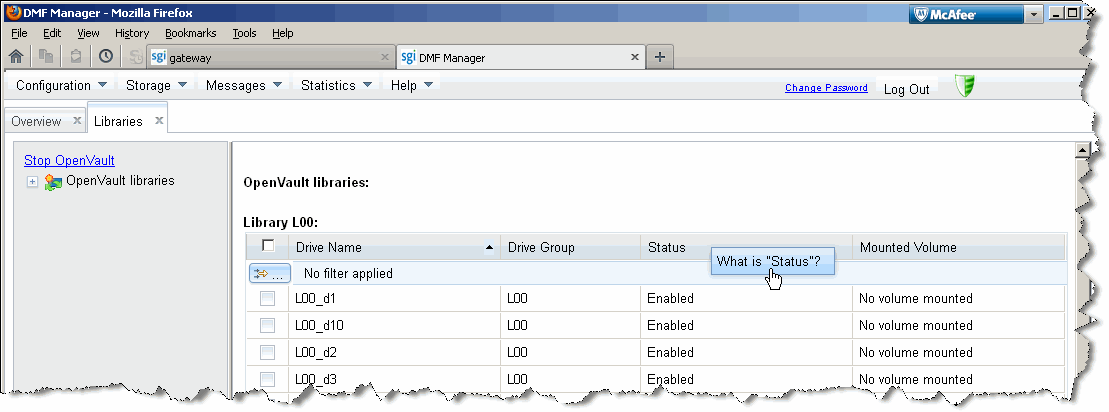
To determine the status of the OpenVault libraries on a physical/logical library or COPAN MAID shelf, do the following:
Select the following DMF Manager menu:
Storage -> Libraries
Select the particular library that you want to monitor or use the scroll bars.
Examine the display.
For more information about status, right-click in the Status column header and select What is “Status”, as shown in Figure 5-7.
To determine the migration state of a given file, do the following:
For example, the following command displays the files in the /dmi4/abc directory:
mis# dmls -l /dmi4/abc total 68584 -rw-r--r-- 1 abc sys 16373855 2006-07-22 15:01 (OFL) dmf_tst.00005 -rw-r--r-- 1 abc sys 26362860 2006-07-22 15:02 (OFL) dmf_tst.00015 -rw-r--r-- 1 abc sys 36199305 2006-07-22 15:03 (OFL) dmf_tst.00025 -rw-r--r-- 1 abc sys 39310090 2006-07-22 15:04 (OFL) dmf_tst.00035 -rw-r--r-- 1 abc sys 51488786 2006-07-22 15:06 (OFL) dmf_tst.00045 -rw-r--r-- 1 abc sys 16373855 2006-07-22 15:52 (OFL) dmf_tst.00163 -rw-r--r-- 1 abc sys 36199305 2006-07-22 15:53 (UNM) dmf_tst.00183 -rw-r--r-- 1 abc sys 39310090 2006-07-22 15:55 (OFL) dmf_tst.00193 -rw-r--r-- 1 abc sys 17829904 2006-07-22 15:59 (UNM) dmf_tst.00223 -rw-r--r-- 1 abc sys 14572782 2006-07-22 16:06 (UNM) dmf_tst.00233 -rw-r--r-- 1 abc sys 16373855 2006-07-22 16:08 (OFL) dmf_tst.00246 -rw-r--r-- 1 abc sys 27294750 2006-07-22 17:12 (DUL) dmf_tst.00606 -rw-r--r-- 1 abc sys 72121722 2006-07-22 17:17 (OFL) dmf_tst.00616 -rw-r--r-- 1 abc sys 22807602 2006-07-22 17:24 (DUL) dmf_tst.00636 |
DMF regards files as being of one of the following types:
Regular files (REG) are user files residing only on the DMF-managed primary filesystem on MIS disk.
Migrating files (MIG) are files whose copies in secondary storage are in progress.
Migrated files are files that have one or more complete migrated copies and no pending or incomplete migrated copies. Migrated files are one of the following types:
Dual-state files (DUL) are files where the data resides both on primary filesystem on MIS disk and on the secondary storage
Offline files ( OFL) are files where the data is no longer on the DMF-managed primary filesystem on MIS disk (however, the data is always available online from the user perspective)
Unmigrating files (UNM) are previously offline files in the process of being recalled to the DMF-managed primary filesystem on MIS disk
Partial-state files (PAR) are files with some combination of dual-state, offline, and/or unmigrating regions
Like a regular file, a migrated file has an inode. An offline file or a partial-state file requires the intervention of DMF to recall its offline data; a dual-state file is accessed directly from the DMF-managed primary filesystem on MIS disk.
The operating system informs the DMF daemon when a migrated file is modified. If anything is written to a migrated file, the offline copy is no longer valid, and the file becomes a regular file until it is migrated again.
For more information, see the man pages and the DMF 6 Administrator Guide for SGI InfiniteStorage.