At the factory, SGI preinstalls the required software and preconfigures the required administrative filesystems.
If you have purchased the standard installation services, SGI Support personnel will install the SGI InfiniteStorage Gateway hardware, connect the appropriate storage, and (when using storage that supports the DMF simplified configuration) create your user filesystems and configure DMF using information that you provide.
 | Note: If you want to use secondary storage that does not support the DMF simplified configuration or require other modifications, contact SGI Professional Services. |
This chapter discusses the following tasks:
The customer must do the following to prepare for the installation:
Configure the site network to assign the MIS hostname and management IP address.
Ensure that your secondary storage meets the requirements listed in “Secondary-Storage Requirements for DMF Simplified Configuration ” in Chapter 1.
Determine the number of user filesystems to create on the MIS server and the number of LUNs each filesystem will consume.
Determine the names of the user filesystems.
If using network bonding, determine the maximum transmission unit (MTU) size in bytes.
Provide a keyboard-video-mouse (KVM) console for use during the initial installation.
In most cases, the customer must provide the above information to the SGI Support person who will perform the hardware installation and the DMF simplified configuration for Spectra Logic, Oracle, or COPAN MAID secondary storage listed in “Secondary-Storage Requirements for DMF Simplified Configuration ” in Chapter 1.
| Note: The SGI InfiniteStorage Gateway also supports manual configuration of any secondary-storage device supported by DMF. For configuration assistance with those devices, contact SGI Professional Services. |
Hardware will normally be installed by SGI personnel, who will install the SGI Modular InfiniteStorage (MIS) server according to the directions in the following:
SGI InfiniteStorage Gateway Quick Start
SGI Modular InfiniteStorage (MIS) Platform Installation Guide
SGI Modular InfiniteStorage (MIS) 1.5 Platform User Guide
This section discusses the following:
The SGI InfiniteStorage Gateway Management Center is a web-based interface that lets you monitor and manage your system. It is an enhanced version of the SGI Management Center for InfiniteStorage (SMC IS). The Management Center requires the following:
Also note the following:
The Management Center is only available on eth0, which is the bottom 1-Gbit Ethernet port on the MIS server.
If you are running a browser on Windows, you must install the Arial Unicode MS font (or an equivalent) in order to display check marks for acknowledged alerts.
If your system depends on /etc/udev/rules.d/70-persistent-net.rules for network interface configuration, make sure that an entry for eth0 exists.
You will use the Management Center to initially configure the system. To access the interface at initial configuration, do the following:
Log in to the system console as root using the default system password ( INSECURE):
MYHOST login: root
password: INSECURE
misconsole# startx
Start Firefox from the icon or enter the following:
misconsole# firefox
Access the following secure (https) website:
Note: You must type in the https. https://192.168.1.1:1178
(This IP address is set in the factory and is only for initial installation. To access the interface later, see “Accessing the Management Center After Initial Installation”.)
Accept the security certificate. (It is safe to ignore the warning because the Management Center generates its own SSL certificates, rather than having the SSL certificates signed by a commercial certificate authority.) In Firefox, this will require a series of steps to add an exception and get the certificate.
To access the Management Center features, click one of the buttons displayed across the top of the screen. For example, select the following to view this guide or the product release notes:
Help -> Documentation
This displays the Documentation page, shown in Figure 2-1.
| Note: The Documentation page is accessible before you install any licenses. |
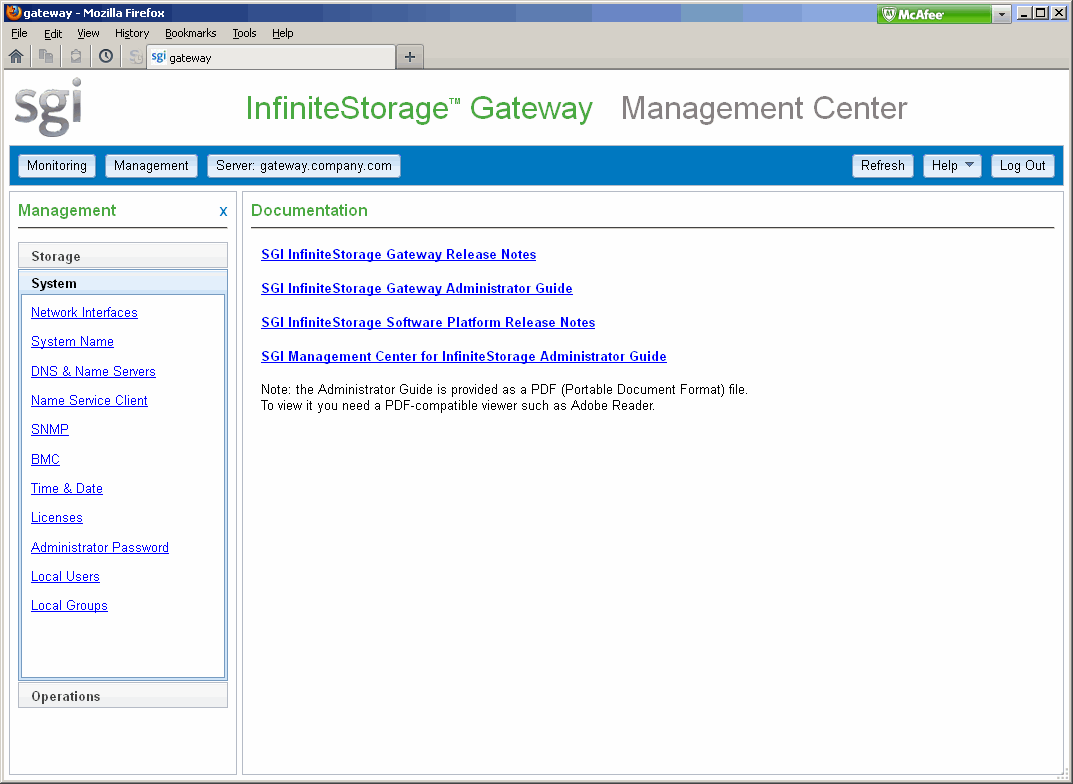
If you click on the Monitoring or Management buttons, the interface will display a set of expandable tabs (such as Storage) in the left-hand pane; click a tab to expand it and display a list of features.
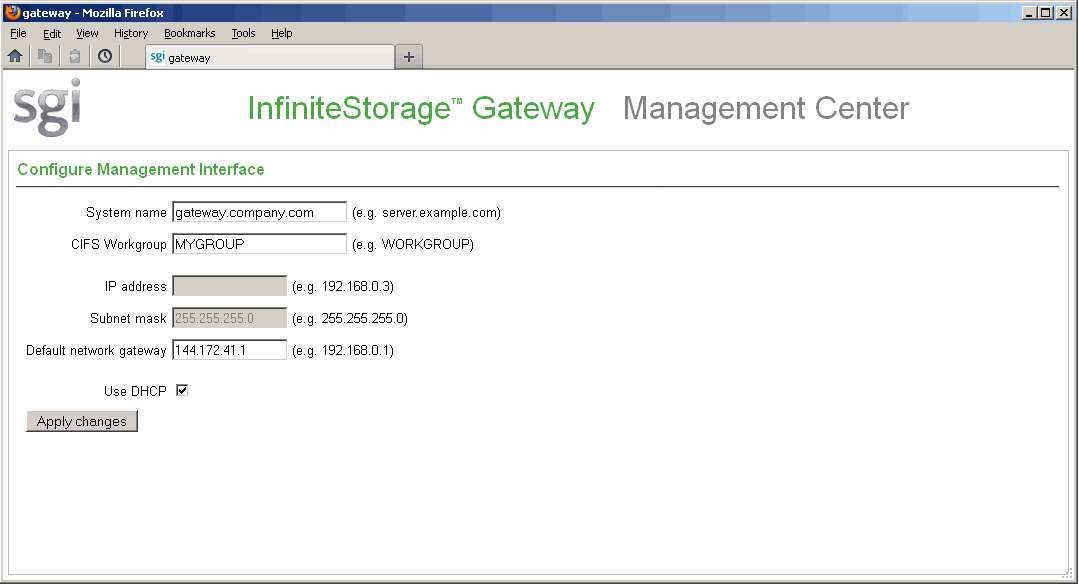
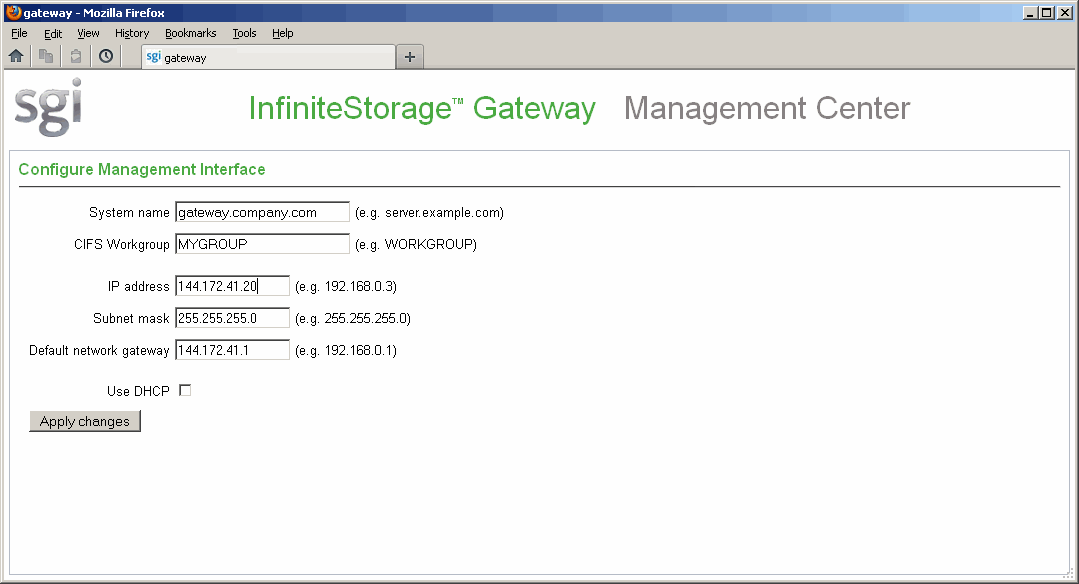
When you first invoke the Management Center, you will be prompted to set the fully qualified domain name of the MIS server and public IP address. You should specify an address on the public network so that you can obtain your licenses. You must also program the domain name system (DNS) as appropriate for the site. Change the CIFS workgroup default only as needed.
Figure 2-2 shows an example for a server named gateway.company.com that uses a dedicated Dynamic Host Configuration Protocol (DHCP) address. Figure 2-3 shows an example using a static IP address.
After this process completes, the system will automatically reboot.
After the reboot, move to a terminal with public internet access and open the Management Center via the new fully qualified domain name (if DNS is configured) or IP address of the MIS server using the following secure ( https) website:
https://FQDN_of_the_MIS_Server:1178 |
| Note: You could perform these steps at the MIS console by logging in as root, restarting the X Window system, and restarting Firefox. (By default, Firefox will attempt to access the last URL used. You must supply the URL for the renamed machine.) However, it is easier to access and copy the licenses if you use a terminal that has public internet access. |
This section discusses the following:
When you reopen the Management Center after naming the host, you will see the Unlicensed page, shown in Figure 2-4.
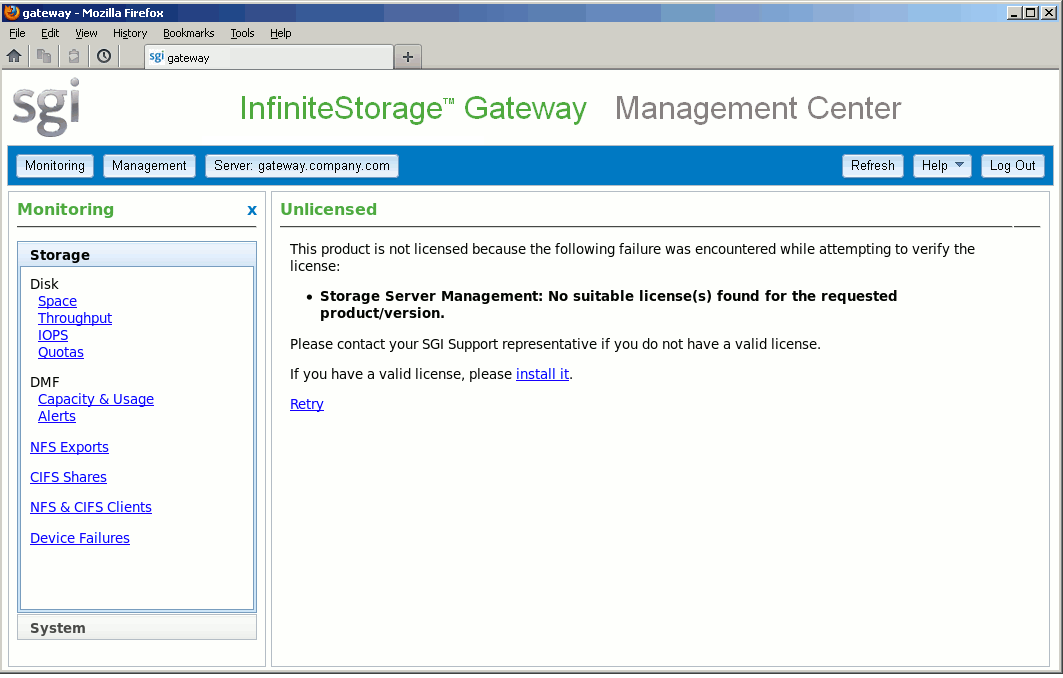
To install the required licenses, click the install it link or click the Management button, the System tab in the Management pane, and then the Licenses feature, which is represented in this guide using the following format:
Management -> System -> Licenses
Before you can use the Licenses page, you must set the Management Center password, as described in the next section.
| Note: You are prompted to perform this step when you install the licenses. |
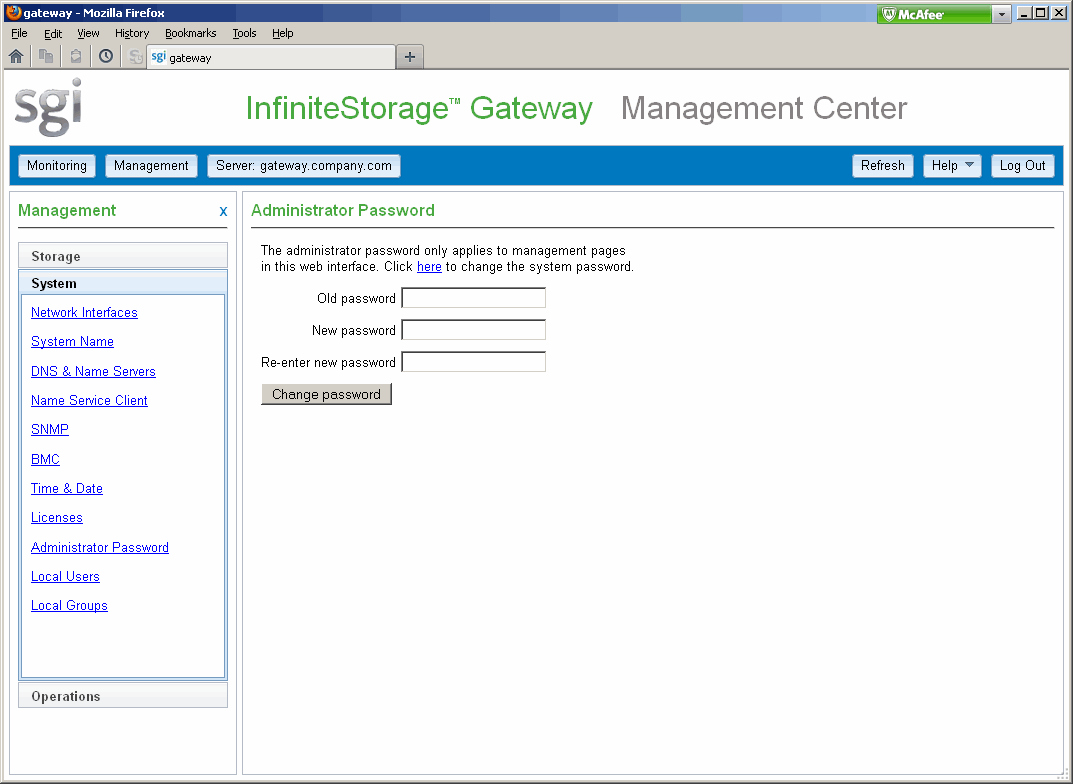
Change the Management Center interface password to a secure password that is appropriate for your site by using the Administrator Password page shown in Figure 2-5. This page is also available from the following menu:
Management -> System -> Administrator Password
Enter the old password for the Management Center interface (the default is INSECURE) and the new password. If you are prompted to enable cookies, enter the new Management Center interface administrator password.
Your packet of materials includes entitlement IDs that allow you to request your permanent license keys for the SGI InfiniteStorage Gateway software. To obtain your permanent keys, use the information displayed on the Licenses page and visit the SGI software licensing website:
To install the required Management Center license and Data Migration Facility (DMF) capability and capacity licenses, copy one key into the text area of the Licenses page and click Add new license, repeating for each key.
| Note: You must paste and add the keys individually. |
This action copies the key into the /etc/lk/keys.dat file on the SGI MIS server. Figure 2-6 shows the page with the licenses installed.

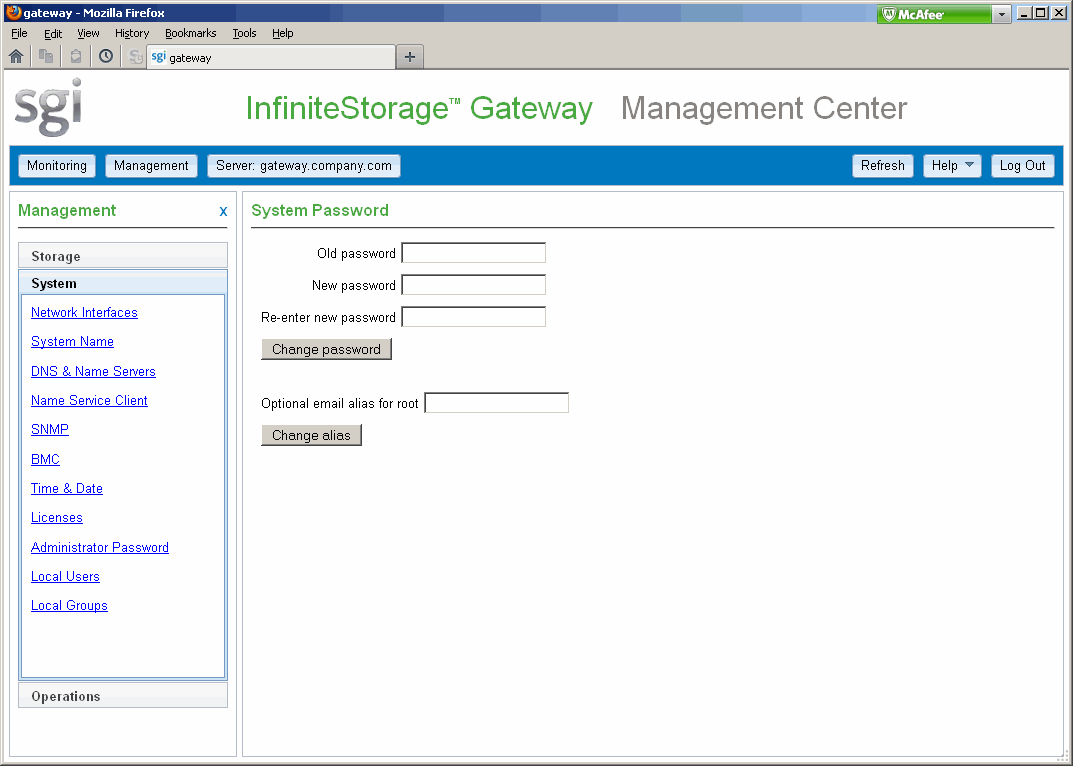
Set the MIS system (root user) password to a secure site-specific value and optionally set the root email address to an appropriate address. To do this, open the Administrator Password page, which is available from the following selection:
Management -> System -> Administrator Password
Then click the here link, highlighted in Figure 2-7.

This will display the System Password page, as shown in Figure 2-8. The default initial system (root) password is INSECURE.
 | Caution: Ensure that you remember the new root password. |
Configure the baseboard management controller (BMC) by accessing the following page:
Management -> System -> BMC
Do the following:
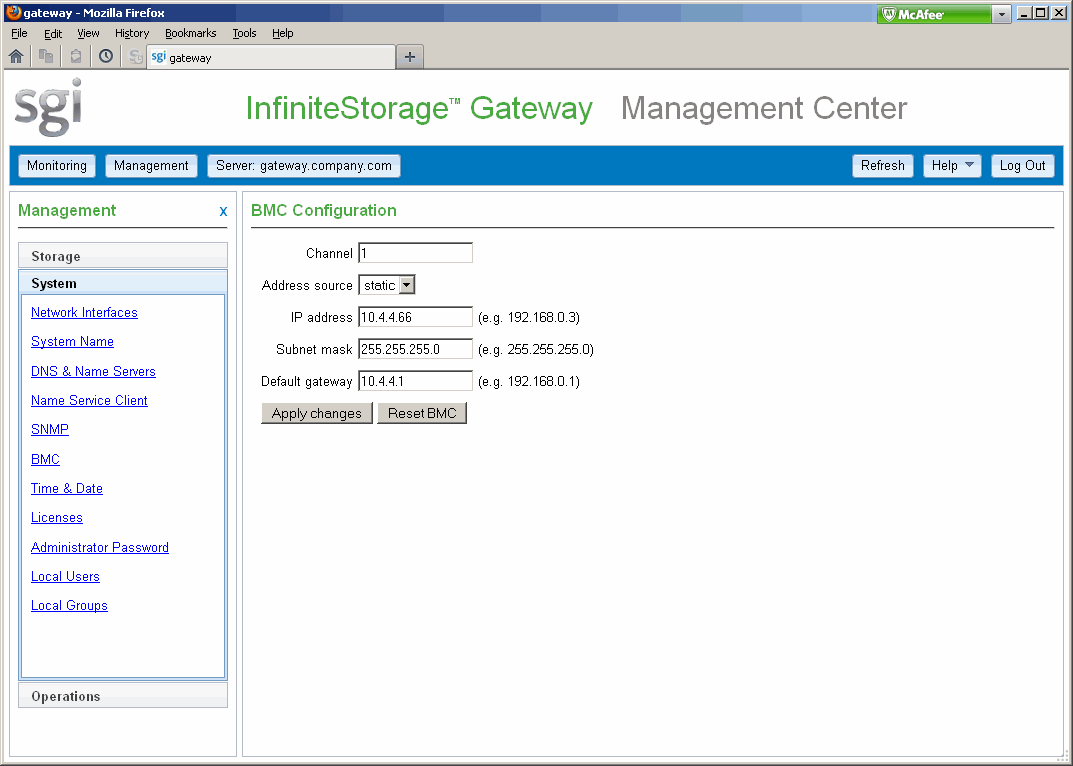
Set the channel to 1 (which equates to NIC 0 on the motherboard)
Set the IP address source to one of the following, as appropriate for your site:
none for no source, which effectively disables access to the BMC
static for a manually configured IP address
dhcp for an IP address obtained by via DHCP
bios for an IP address that will be loaded by the Basic Input/Output System (BIOS) or system software
If you selected a static source, enter the IP address, subnet mask, and default gateway address.
Click Apply changes.
For example, Figure 2-9 shows an example using static addresses.
Do the following to create and mount your user filesystems:
Access the Filesystems page:
Management -> Storage -> Filesystems
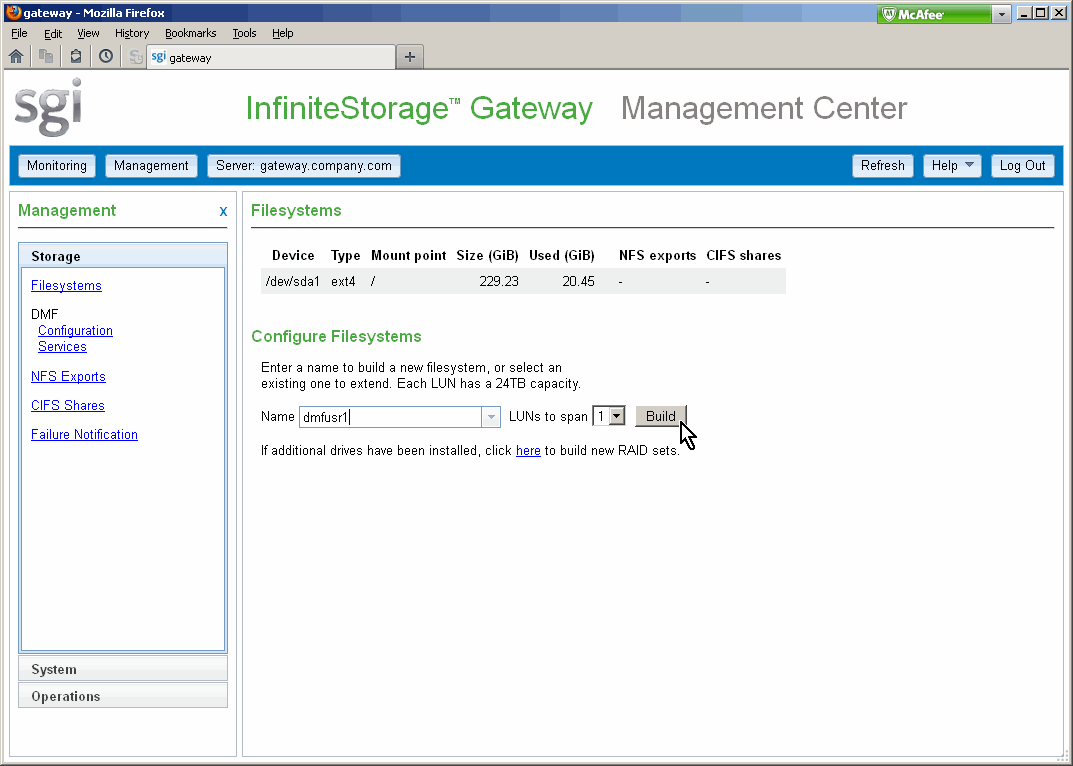
Enter a filesystem name. For example, enter dmfusr1 for a filesystem that should have a mount point of /dmfusr1.
Select the number of LUNs that the filesystem will span.
Click Build. The system will take a few moments to build the new filesystem over the selected number of LUNs.
Repeat as needed for each filesystem.
Figure 2-10 shows an example of adding a user filesystem named dmfusr1 that will use a single LUN.
Each new user filesystem will automatically be mounted with the appropriate options. Figure 2-11 shows the Filesystems page after building two user filesystems ( dmfusr1 using one LUN and dmfusr2 using two LUNs).
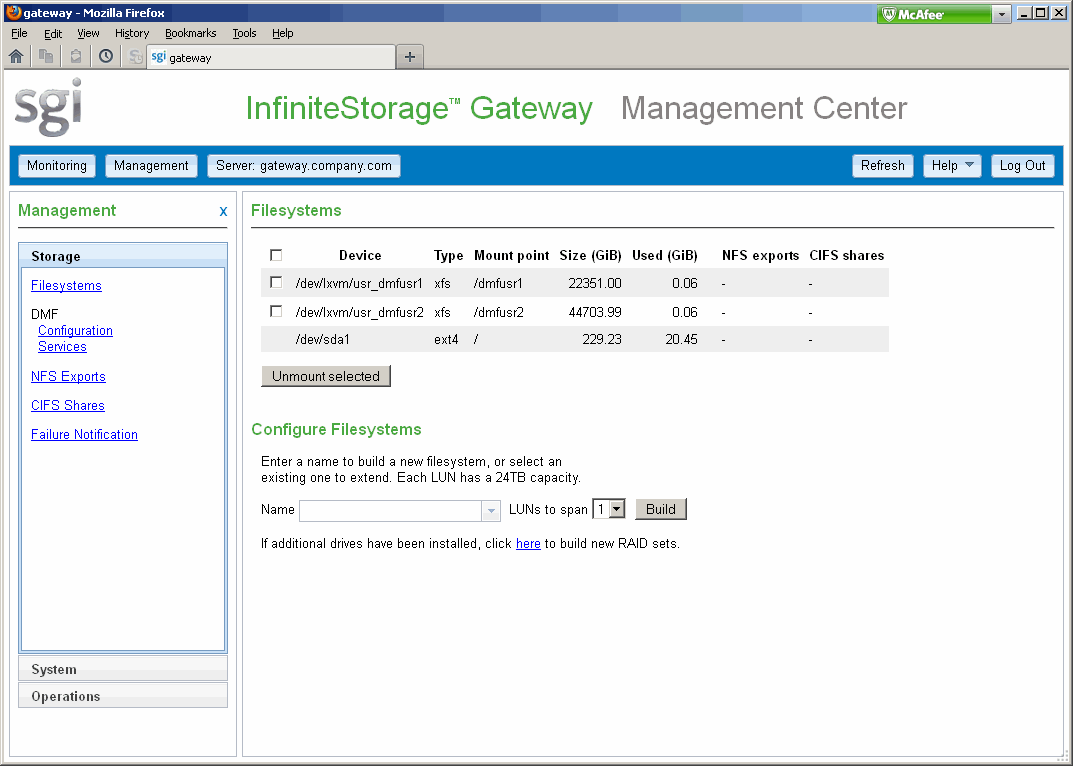
To increase the size of a mounted filesystem, see “Extend a Filesystem” in Chapter 3.
To begin configuration, use the DMF Configuration page shown in Figure 2-12, which is available from the following selection:
Management -> Storage -> DMF Configuration
At initial configuration, accessing this page will automatically probe the connected hardware in order to discover and display the available physical/logical libraries, COPAN MAID shelves, and user filesystems. (If there was a problem with the hardware installation, the page will display an error. In this case, you must correct the hardware connection and then select Probe Hardware.)
This section discusses the following areas of the DMF Configuration page:
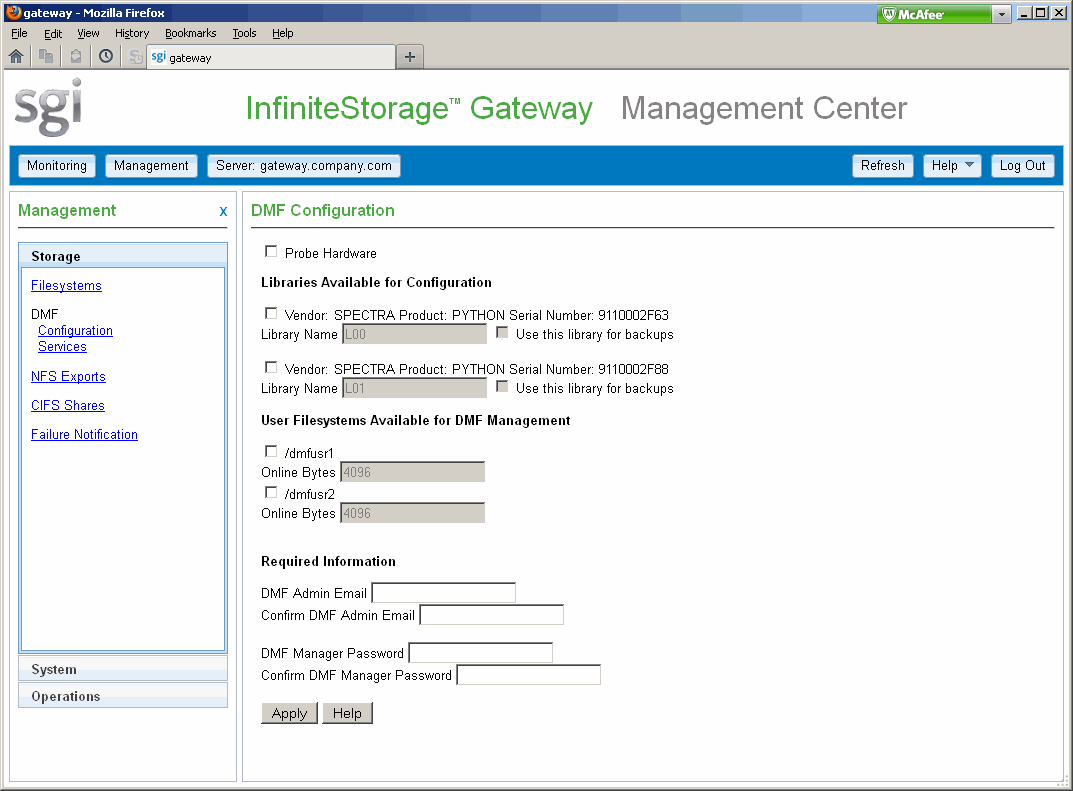
Select the physical/logical libraries that you want to use as secondary storage. Give each library a unique name that is 8 or fewer characters.
If a library should be used for backups of metadata and DMF administrative filesystems, select it.
| Note: The DMF configuration process will divide a given library into two migration targets, known as volume groups (VGs). |
Select the unformatted COPAN MAID shelves that you want to use as secondary storage. Each shelf is a single migration target, therefore you must configure shelves in pairs in order to have the required two migration targets.
Do the following:
Determine the available devices on the COPAN MAID shelves that are visible on the SCSI bus:
Log in to the Platform Service Manager (PSM) GUI for the COPAN MAID cabinet, where ipaddress is the IP address of the PSM server:
http://ipaddress:8180/psmweb/
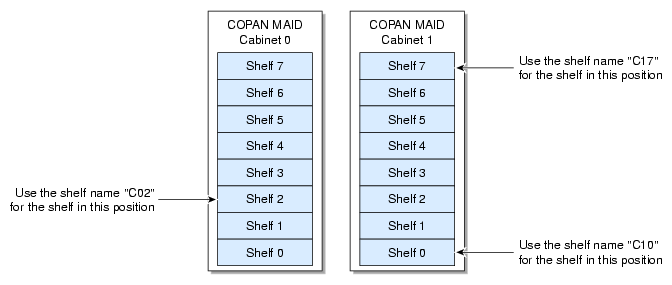
The MAID shelves will be displayed in order from shelf 7 (top) through shelf 0 (bottom), as applicable.
Drill down to the shelf details and note the WWPN of both ports on each shelf.
For example, suppose the port numbers for shelf 2 are as follows:
Port 0 WWPN:  50:00:ED:5E:35:C3:43:03
Port 1 WWPN:  50:00:ED:5E:35:C3:43:04
You will look for numbers similar to the above (but using lowercase and without colon delimiters) in the output shown on the Configure DMF System page. Only one of the port WWPNs will be found, even if both ports are connected to the system, because the discover operation chooses one as the primary port.
For more information about PSM, see the Platform Service Manager Online Help available from the PSM Help menu.
Match the device WWPN shown on Configure DMF System page with the shelf WWPN obtained in step 1b. For example, the /dev/sg4 WWPN 5000ed5e35c34303 corresponds to the shelf 2 port 0 WWPN of 50:00:ED:5E:35:C3:43:03. Therefore, in this example, device /dev/sg4 equates to shelf 2.
Give each shelf a unique 3-character name in the format Cnn , where nn corresponds to the cabinet number and physical position of the shelf within that cabinet, such as C02 for the third shelf from the bottom (shelf 2) of cabinet 0, as shown in Figure 2-13.
Note: It is important that you name a shelf appropriately (corresponding to its physical location) so that it can be easily identified if service is required.
If a shelf should be used for backups of metadata and DMF administrative filesystems, select it.
Select the user filesystems that you want DMF to manage. When configured for use with DMF, the data in these filesystems will be monitored by DMF and be migrated to secondary storage as appropriate.
If you select a filesystem, you can specify the minimum number of bytes at the beginning of each user file that will always remain online after migration, (for use by file managers, in order to avoid unnecessary recall of a file due to directory browsing); the default is the filesystem block size.
Set and confirm the following:
| Note: If you later want to change the DMF admin email address or change the DMF Manager admin password, you can do so via DMF Manager. See Chapter 3, “Configuration Changes”. |
To apply your selections, click Apply, as shown in Figure 2-14.
Depending upon your site's implementation, configuration can be a lengthy process. The configuration status is displayed using a status bar and a series of steps, as shown in Figure 2-15. When the process finishes, a message will be sent to the DMF admin email address that you specified on the configuration page.
After the configuration is complete, DMF and the OpenVault mounting service will be configured and the volumes on the secondary storage will be ready to hold migrated data. The selected libraries/shelves will be configured to store backups and DMF will be running and ready to migrate data. This process will send two informational DMF alerts, confirming that the configuration has completed and that DMF has been started.


To configure other features, such as NFS exports or CIFS shares, use the features available from the Management pane in the Management Center. For details about basic monitoring and management features, see the SGI Management Center for InfiniteStorage Administrator Guide, which is available from the following selection:
Help -> Documentation -> SGI Management Center for InfiniteStorage Administrator Guide
This section provides an overview of the following basic Management Center features:
To access the Management Center after initial installation, do the following:
Launch a web browser to the following secure ( https) website, where FQDN_of_the_MIS_Server is the fully qualified domain name or IP address of the eth0 interface for your MIS system:
https://FQDN_of_the_MIS_Server:1178
Note: At initial installation, the interface uses a default IP address. See “Access the Management Center for Initial Configuration” Accept the security certificate. In Firefox, this will require a series of steps to add an exception and get the certificate.
Note: The certificate warning is safe to ignore because Management Center generates its own SSL certificates, rather than having the SSL certificates signed by a commercial certificate authority.
This section discusses the following monitoring features:
The Storage tab provides access to the following monitoring features:
Disk Throughput displays the amount of data that is transferred to and from the disks.
Disk IOPS displays a bar graph of disk I/O per second (IOPS) for each active filesystem.
Disk Quotas displays the disk user/group quotas that provide limits on the number of files and the amount of disk space a user/group is allowed to consume on each filesystem. If you log in, you can modify the settings for user and group quotas.
DMF Capacity & Usage displays the capacity of the DMF-managed filesystems on the MIS server. See “DMF Capacity & Usage” in Chapter 4.
DMF Alerts displays the unacknowleged alerts sent by DMF. See “DMF Alerts” in Chapter 4.
NFS Exports displays statistics about Network File System (NFS) exports.
Note: Reverse lookup for NFS clients must be properly configured in the DNS server because the NFS server will always try to do a reverse lookup on client IP addresses. Improper configuration will cause delays. CIFS Shares displays statistics about Common Internet File System (CIFS) shared files.
NFS & CIFS Clients displays various I/O criteria by which to display information about the storage server's clients.
Device Failures displays details about failed storage devices.
The System tab provides access to the following monitoring features:
Alerts displays messages from the system logs. If you log in, you can acknowledge alerts.
Network Throughput displays the amount of data transferred through each network interface card (NIC).
Hardware Inventory shows a summary of the hardware configuration, including the CPUs, memory, network controllers, and SCSI disks.
Software Versions displays the installed operating system level and the version numbers of key software packages. If updates are available, a link will be displayed.
Note: The display of updates requires an update repository. See “Create a Software Update Repository” in Chapter 3.
This section discusses the following management features:
The Storage tab provides access to the following management features:
Filesystems displays a brief description of the available local filesystems and lets you do the following:
DMF Configuration provides access to DMF configuration tasks. See:
DMF Services displays the current status and lets you stop or restart all of the services related to DMF. See “DMF Services” in Chapter 4.
Caution: Always stop services via the Management Center. Do not manually stop services via the command line. NFS Exports lets you configure filesystems so that they are available for network clients by means of the NFS network protocol.
CIFS Shares lets you configure filesystems so that they are available for network clients by means of the CIFS network protocol.
LiveArc (if installed) lets you configure LiveArc AE digital asset management. See Chapter 6, “Using LiveArc AE Digital Asset Management”.
Failure Notification lets you configure notification of failed devices.
The System tab provides access to the following management features:
Network Interfaces configures the network interfaces for the system.
System Name sets the hostname and management IP address for the server.
DNS & Name Servers specifies how to map hostnames to IP addresses for the system.
Name Service Client specifies various directory services that manage information associated with the network users, such as mapping user names with user IDs and group names with group IDs.
SNMP enables Simple Network Management Protocol (SNMP) access.
Time & Date sets the local time and enables automatic time synchronization with NTP.
Licenses provides information about the installed licenses and lets you add and delete licenses.
Administrator Password changes the Management Center administrator password.
The Operations tab provides access to the following management features:
Save/Restore Configuration saves the files in the /etc directory or restores those saved files.
Gather Support Data collects copies of the storage server's software and hardware configuration and log files, which may be needed by SGI Support for troubleshooting purposes.
Gather DMF Data collects details about DMF and the OpenVault mounting service (including core files, logs, journals, configuration information, and file listings), which may be needed by SGI Support for troubleshooting purposes. See “Gathering DMF Data” in Chapter 4.
Shut Down System lets you reboot or power down the system after a specified number of minutes.
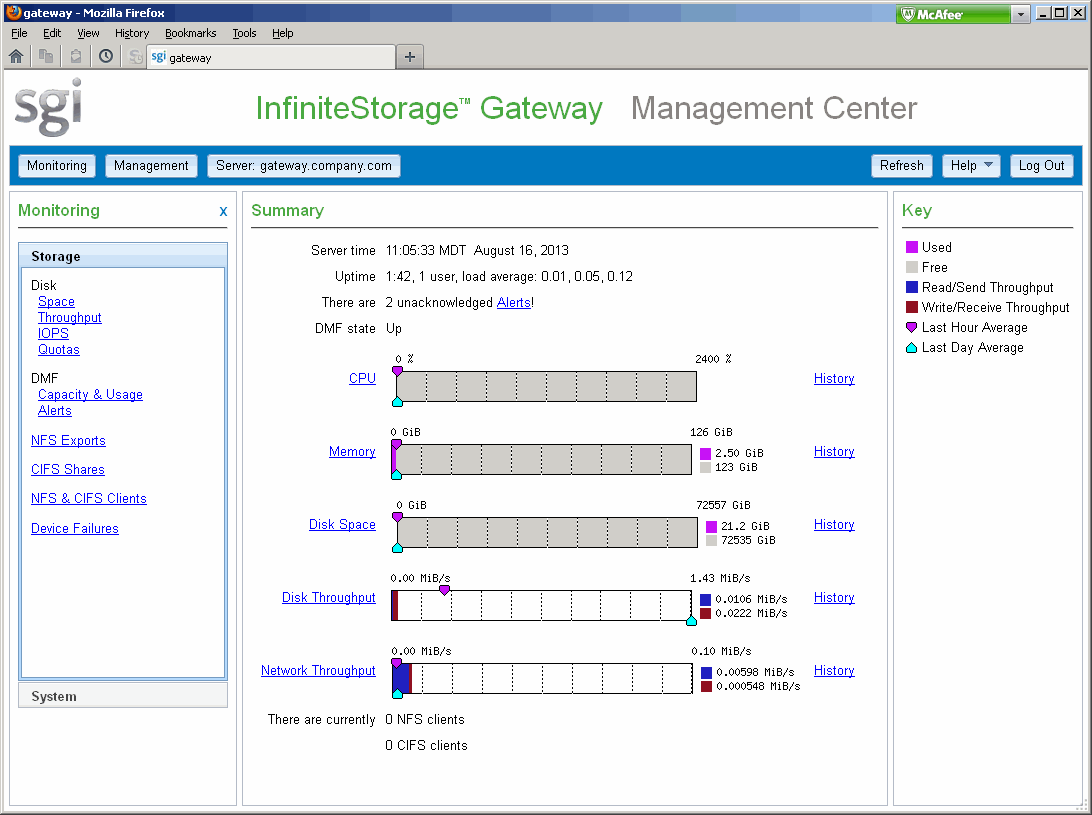
The Server button displays a Summary page that contains the following:
Current time as reported by the server
DMF state (see “DMF State” in Chapter 4)
The ticks along the status bars represent the average value over the past day or hour, rather than the immediate value that is shown by the graph. You can drill down to more detailed status by clicking the headings to the left of the graphs. Click History to view the historical status of a parameter. Click other links, such as Alerts, to access other pages.
Figure 2-16 shows an example Summary page.
For information about DMF status, see “DMF State” in Chapter 4.