This chapter discusses the following tasks you will perform with the SGI InfiniteStorage Gateway Management Center:
To open the Management Center, see “Accessing the Management Center After Initial Installation” in Chapter 2.
Also see Chapter 5, “Advanced DMF Monitoring and Management”.
This section discusses the following basic DMF monitoring tasks:
For information about other monitoring tasks (such as monitoring disk space, NFS/CIFS exports, and system alerts), see SGI Management Center for InfiniteStorage Administrator Guide.
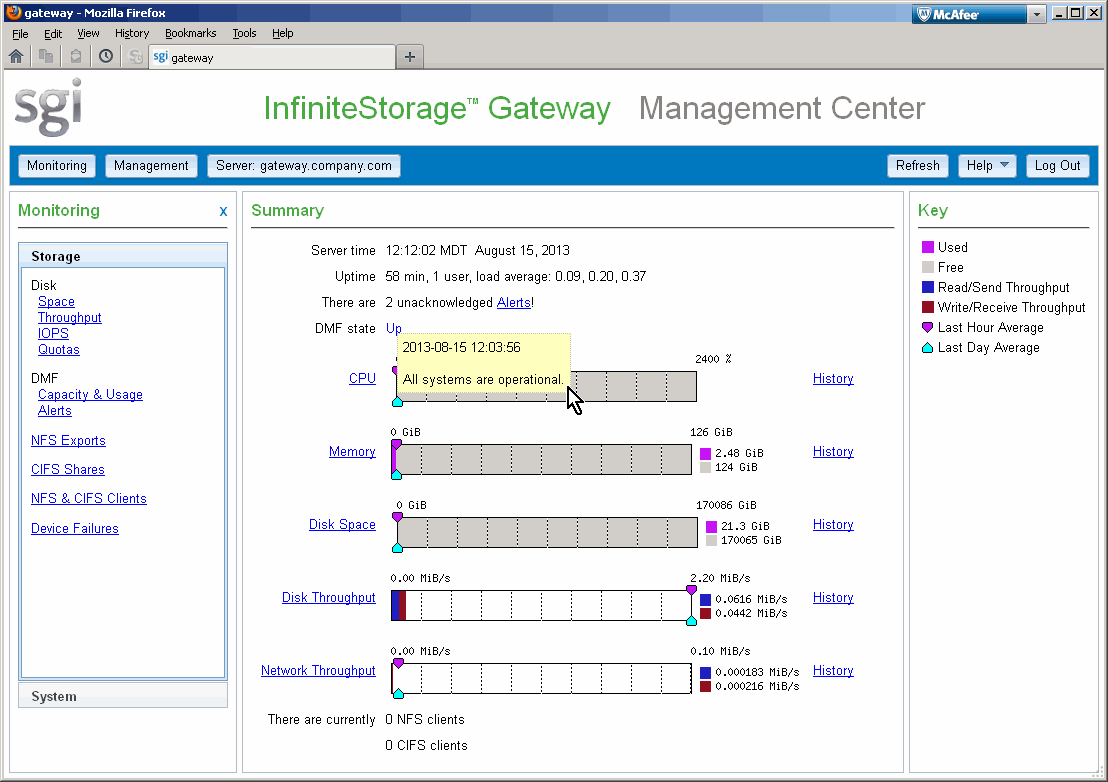
To determine the overall DMF status, look at the DMF state output in the Summary page available when you click the Server MIS_servername button. The possible DMF states are:
If you click on the DMF state, you will see a summary of the current status, as shown in Figure 4-1.
To restart the services associated with DMF, see “DMF Services”.
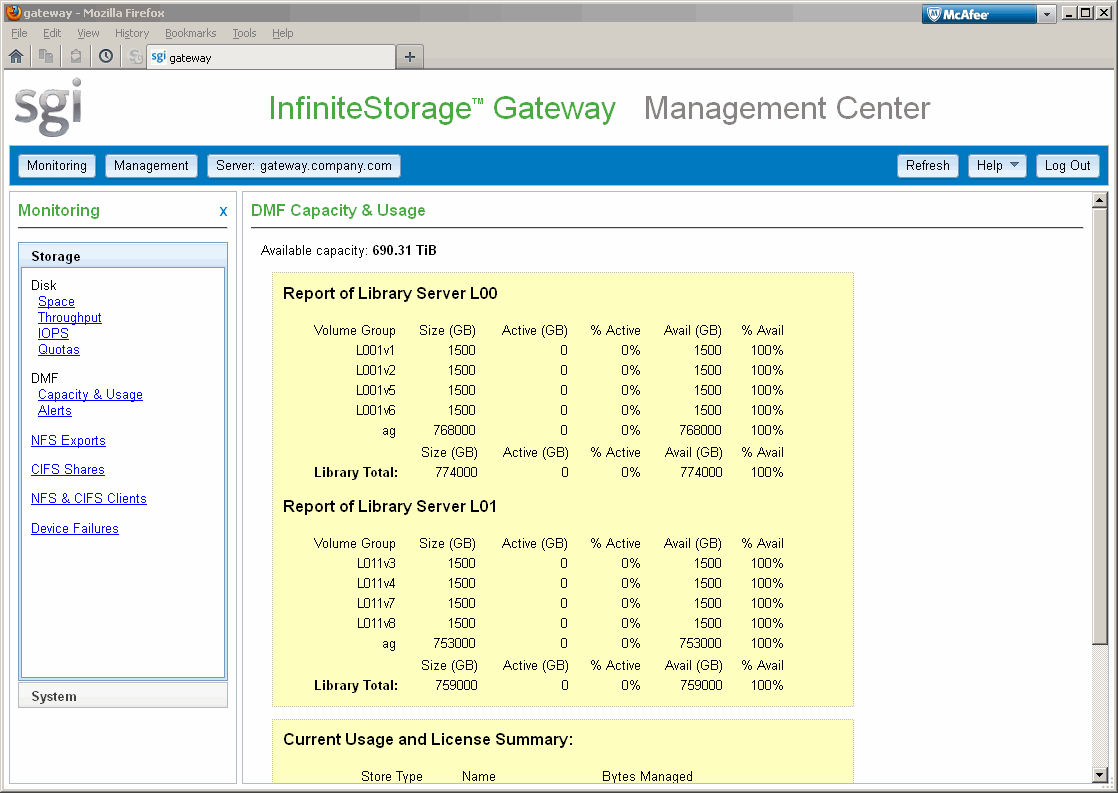
To determine the capacity of the DMF-managed primary filesystem on the MIS disk, view the DMF Capacity & Usage page, shown in Figure 4-2, which is available from the following selection:
Monitoring -> Storage -> DMF Capacity & Usage
This page provides the following information:
Volume Group is the name of the DMF volume group (VG) that applies to the specified library server on the physical/logical library or the COPAN MAID shelf
Size is the total capacity of the filesystem in megabytes (MB)
Active is the total amount of migrated data (in MB) that may be recalled (also represented as a percentage)
Avail is the total migrated data (in MB) on all volumes within the VG (also represented as a percentage)
 | Note: Some of the space will not be available for migration because it has been reserved. |
The Alerts page is available from the following selection:
Monitoring -> Storage -> Alerts
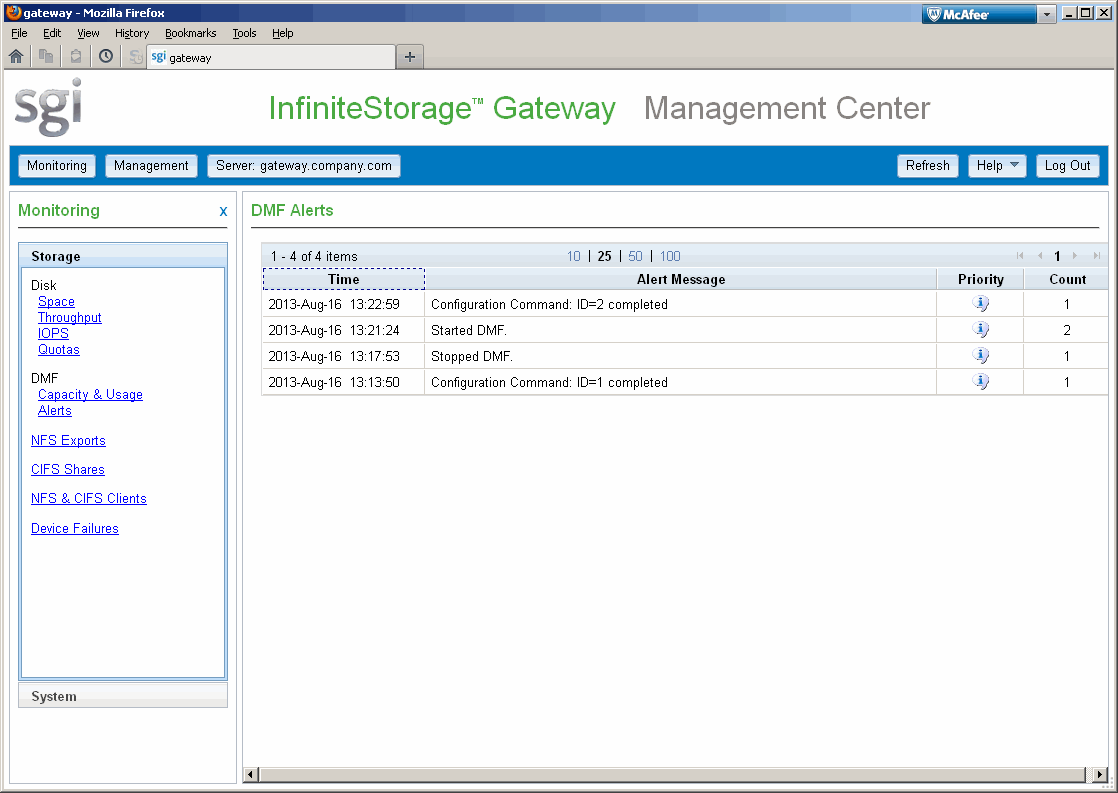
The Alerts page displays the unacknowledged alerts (by default, grouped by date and message), and has the following sortable fields:
Time is the date and time at which a particular alert was issued (by default, alerts are sorted by time from most recent to oldest)
Alert Message is the notice, warning, or critical error reported during the operation of DMF
Priority is an icon (as shown in Figure 4-3) that represents the severity of the alert
Count is the number of times this particular alert has been issued within one calendar day
Note: Identical alerts are grouped and only the time that the last alert was issued is displayed. To view all alerts and their corresponding time stamps, view the Alerts page via DMF Manager ; see Chapter 5, “Advanced DMF Monitoring and Management”.

Figure 4-4 shows an example DMF Alerts page. For more details about a given alert or to acknowledge DMF alerts, you must open DMF Manager; see “Accessing DMF Manager” in Chapter 5, and “Acknowledging DMF Alerts” in Chapter 5.
This chapter discusses the following basic DMF management tasks:
For information about other management tasks (such as managing filesystems, network interfaces, and system shutdown), see SGI Management Center for InfiniteStorage Administrator Guide.
The DMF Services page is available from the following selection:
Management -> Storage -> DMF Services
The DMF Services page shown in Figure 4-5 displays the current status and lets you stop or restart all of the services related to DMF:
This page also lets you access the DMF Manager graphical user interface, where you can change the DMF admin email and get more details about DMF. To open the GUI, click Open DMF Manager; for more information, see “Accessing DMF Manager” in Chapter 5.

If there is a problem with DMF, SGI Support may request DMF data in order to find and resolve the problem. The Gather DMF Data page lets you collect details about DMF and the OpenVault mounting service, including core files, logs, journal, configuration information, and file listings. Existing archives will be listed with their date and size; you can remove or upload them.
| Note: If you have opened a case with SGI Support, please contact your representative and request an upload directory on shell.sgi.com before proceeding. |
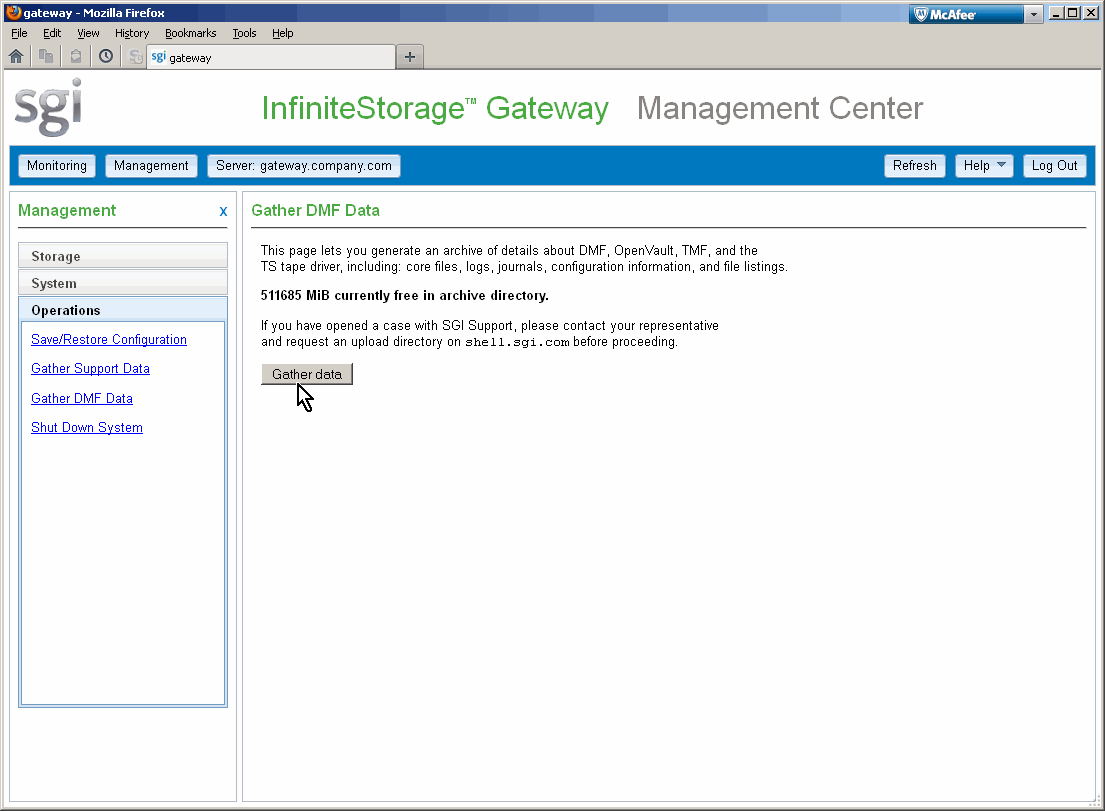
To collect the DMF data, click the Gather data button. Figure 4-6 shows an example.