This chapter discusses the steps you should perform to update the software, change the secondary-storage hardware, or manage additional user filesystems with DMF:
This section discusses the following:
To receive software updates, you must first set up an update repository according to the instructions in the ISSP release notes, available from the following selection in the Management Center:
Help -> Documentation -> SGI InfiniteStorage Software Platform Release Notes
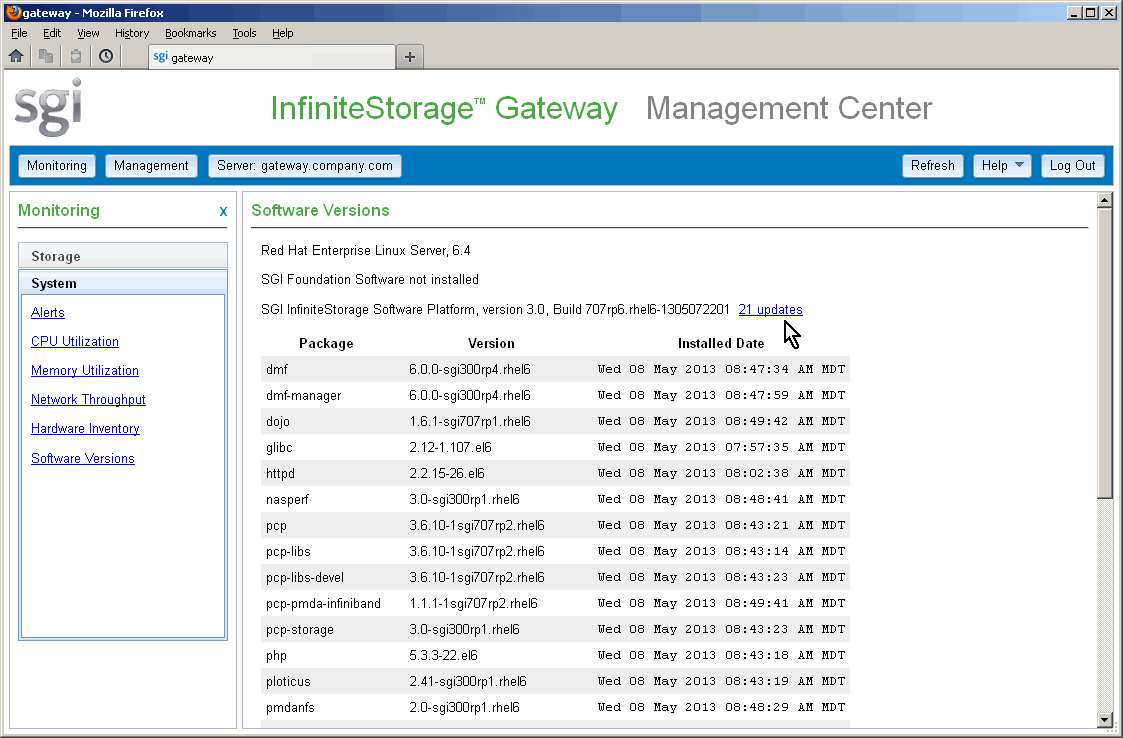
When updates are available, a notice will be displayed on the Software Versions page, available from the following selection in the Management Center:
Monitoring -> System -> Software Versions
Click the updates link to list the updates; Figure 3-1 shows the location of this link.
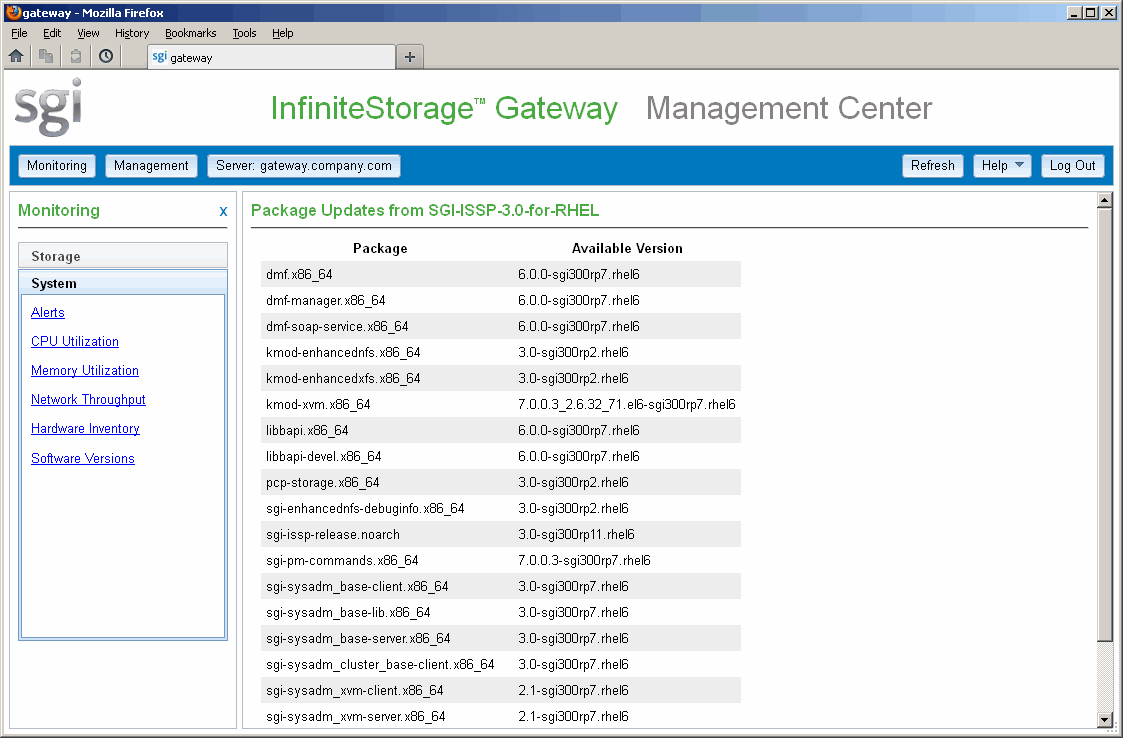
After you click the updates link, you will see a list of the available updates, such as the example shown in Figure 3-2.
Install the new physical/logical library or new COPAN MAID shelf.
If you are using COPAN MAID, take note of the physical position of the shelf within the cabinet so that you can appropriately name the shelf in a later step. Shelves are numbered from 0 (bottom) to 7 (top).
 | Note: It is important that you name a shelf appropriately (corresponding to its physical location) so that it can be easily identified if service is required. See Figure 2-13. |
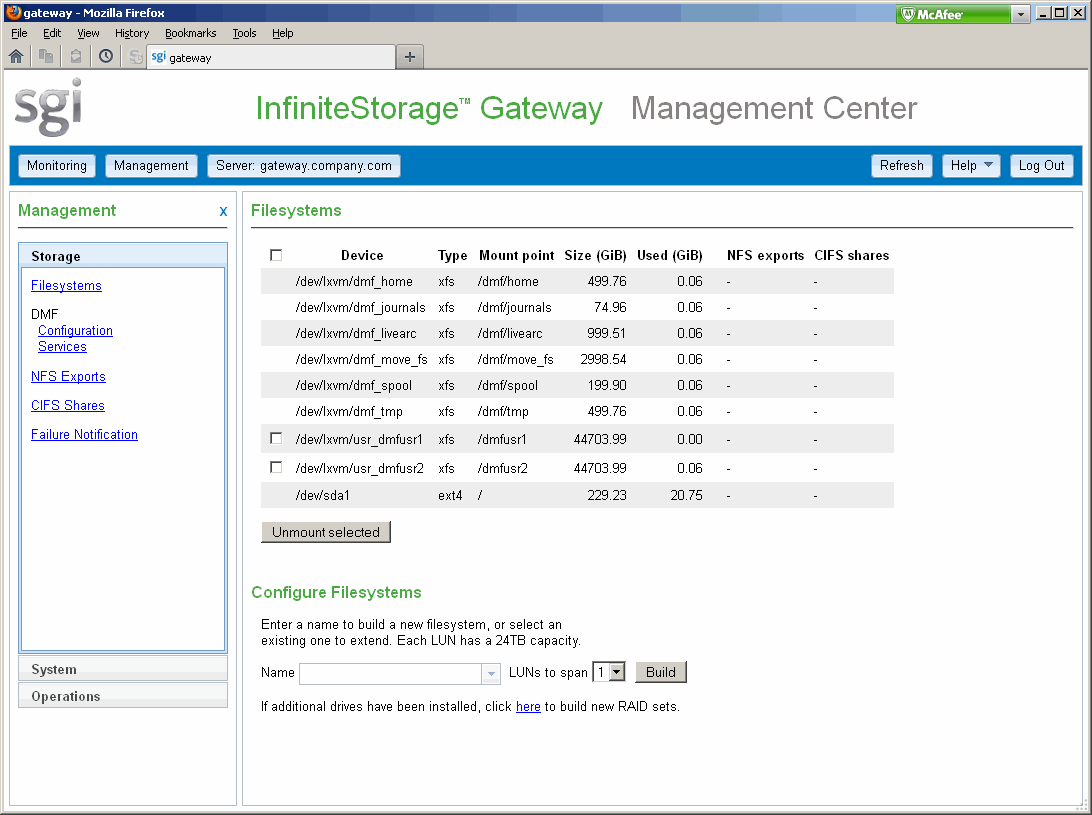
To extend a mounted filesystem, do the following:
Open the Filesystems page available from the following:
Management -> Storage -> Filesystems
Select the name of an existing filesystem from the pull-down list in the Configure Filesystems section.
Select the number of LUNs that you want to add to the filesystem.
Click Extend.
Figure 3-3 and Figure 3-4 show this process.

You can upgrade the SGI InfiniteStorage Gateway in 8-drive increments, up to a maximum system with 72 drives. Each 8-drive increment is configured as a single 6+2 RAID 6.
Do the following:
Install the drive hardware as directed.
Open the SGI InfiniteStorage Gateway Management Center, as described in “Accessing the Management Center After Initial Installation” in Chapter 2.
Management -> Storage -> Filesystems
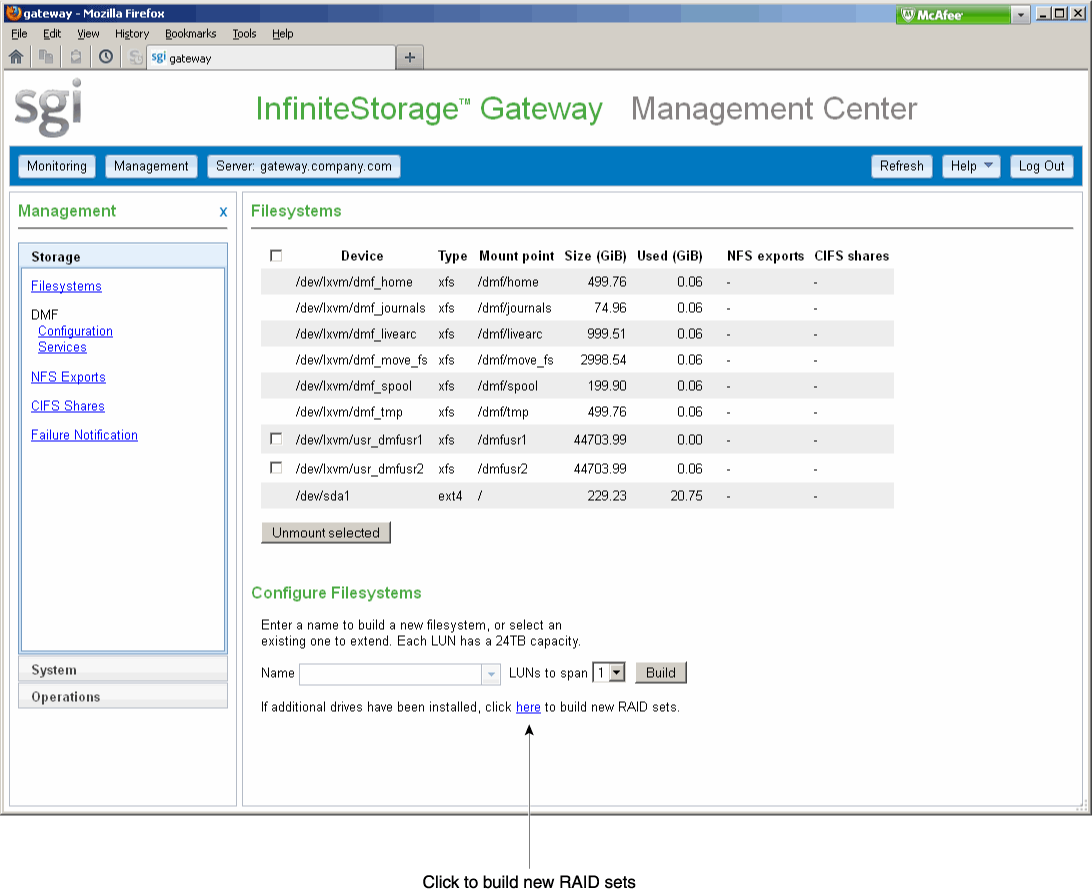
Click the link to build the new RAID sets, shown in Figure 3-5.
Note: I/O performance will be degraded until the RAID is fully initialized. Create filesystems, as described in “Create and Mount the User Filesystems” in Chapter 2.
Open the Management Center, as described in “Accessing the Management Center After Initial Installation” in Chapter 2.
Management -> Storage -> DMF Configuration
If you made hardware changes that are not discovered, click Probe Hardware and Apply.
Note: Probe will discover changes and make them available for configuration. Because the probe request can cause an interruption of current DMF activity, you should only use this feature when DMF is inactive. See “DMF Services” in Chapter 4. Select the new storage or filesystems, as described in “Configure DMF” in Chapter 2.
Click Apply.
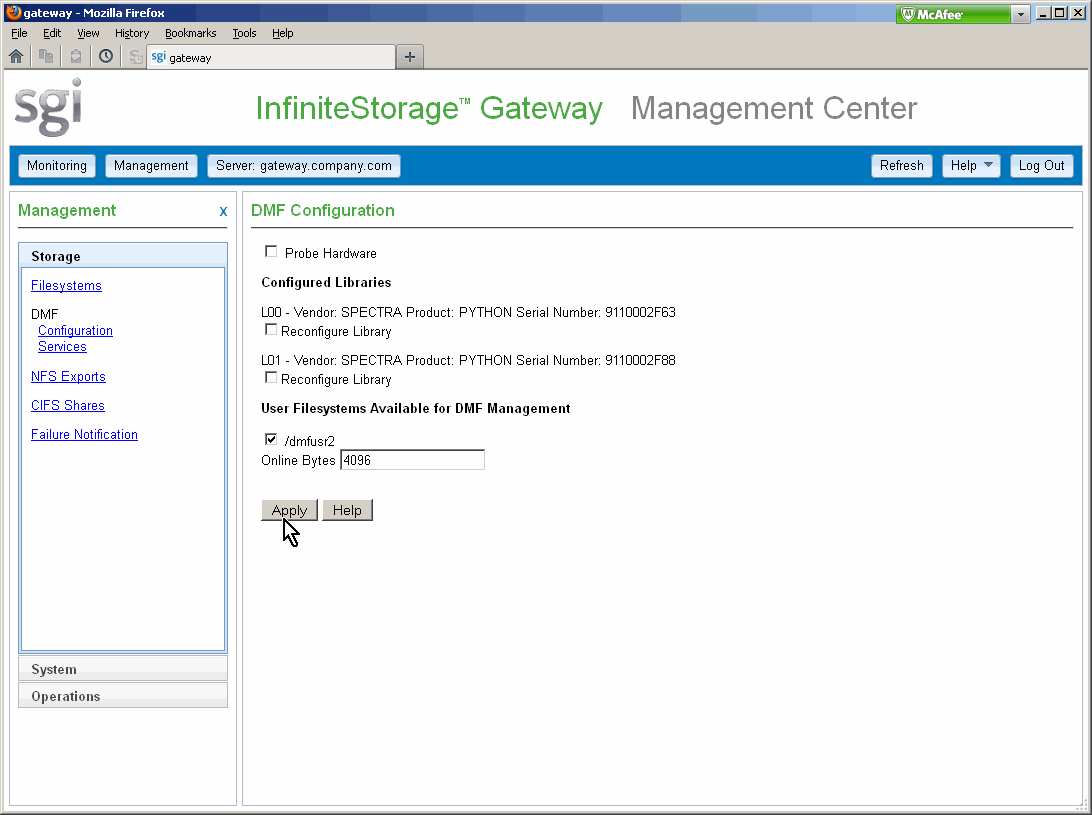
Figure 3-6 shows an example of adding the user filesystem /dmfusr2 to the configuration so that it can be managed by DMF.
Before applying your changes, DMF will make a backup copy of the DMF configuration file. Depending upon your changes, the configuration update can be a lengthy process. Whenever you want to see the progress, click Configuration Status to refresh the output on the page.
When the configuration update is complete, DMF will be up and ready to migrate data. When the process finishes, a message will be sent to the DMF admin email address and appropriate informational DMF alerts will appear.
Before changing the MIS server hostname, all traffic to the DMF-managed filesystem must have completed migrating or recalling files because when you change the hostname of the MIS server, all DMF services will be terminated and the system will be rebooted after successful renaming.
| Note: You must assign an IP address that will remain constant, either a static IP address or a dedicated DHCP address. |
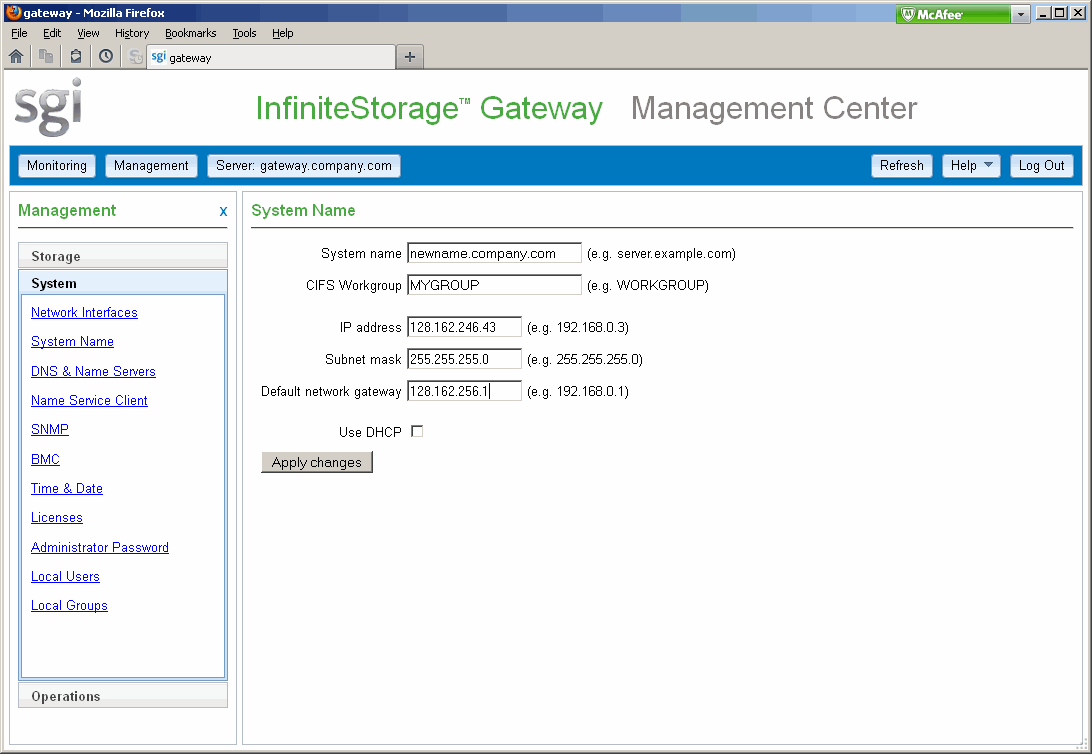
To change the hostname, access the System Name page:
Management -> System -> System Name
| Note: If you change the IP address and then attempt to access the Management Center from a remote location using the hostname, you must ensure that the new IP address will resolve to the hostname on that remote system. Otherwise, the browser will be unable to reload the page using the hostname. |
Figure 3-7 shows an example.
To change the DMF administrative email address, use DMF Manager:
Open DMF Manager. See Chapter 5, “Advanced DMF Monitoring and Management”.
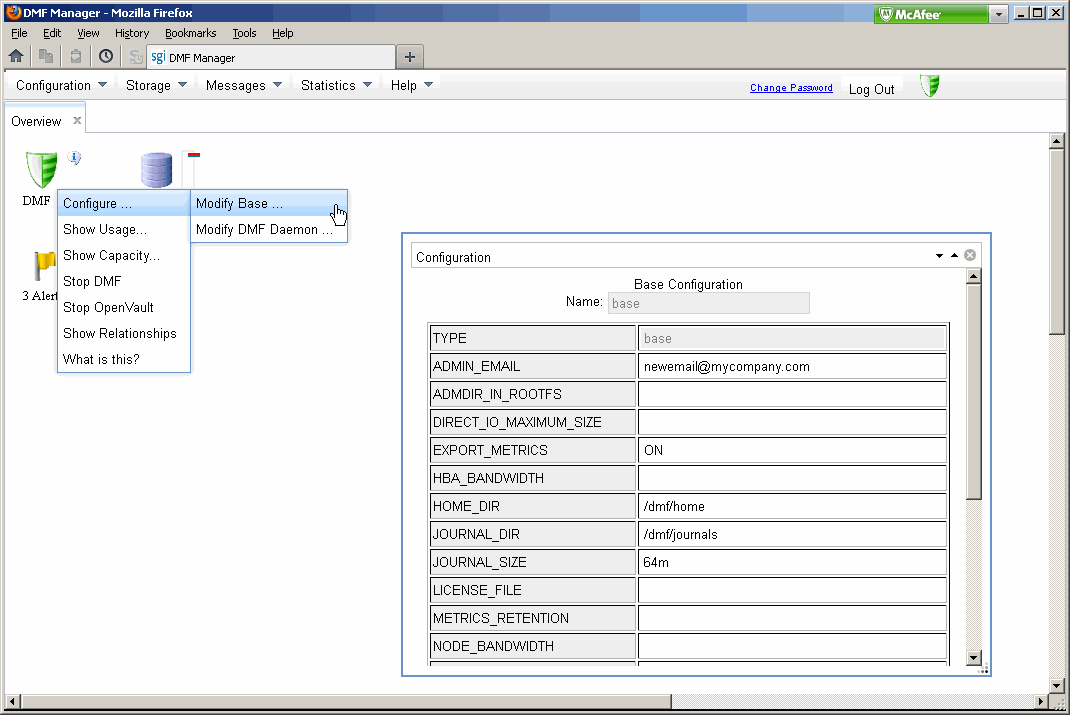
Right-click on the DMF shield icon and select the following:
Configure -> Modify Base . . .
Enter the new email address for the ADMIN_EMAIL value. Figure 3-8 shows an example.
 | Caution: It is safe to use DMF Manager to change the admin email
address. It is possible that you might also want to modify parameters
such as those that relate to when tasks are run and those that relate
to the amount of free space that is maintained in the DMF-managed filesystems.
However, making other configuration changes via DMF Manager may restrict your ability to reconfigure DMF via the simplified configuration process that is available in the Management Center. |
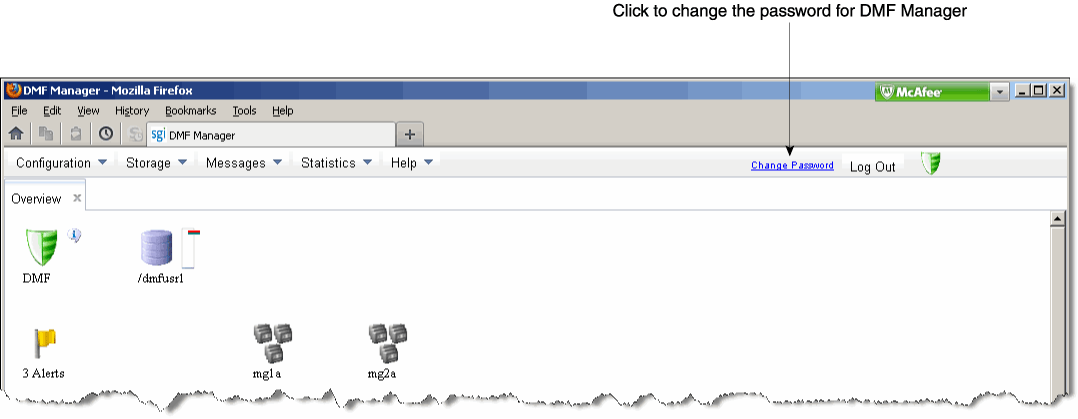
To reset the DMF Manager interface's administrative password, clicking on the change password link in DMF Manager, as shown in Figure 3-9.