This guide tells you how to configure an SGI® 400 virtual tape library (VTL) system for use with the SGI InfiniteStorage Data Migration Facility (DMF) and the OpenVault™ mounting service using IBM® Ultrium-TD4 virtual tapes. It supports the both 4.5 and 7.5 versions of the VTL software.
This chapter discusses the following:
 | Note: This guide documents the supported procedure for configuring DMF with SGI 400 VTL. If you deviate from this procedure, DMF may not function. |
This section discusses the following:
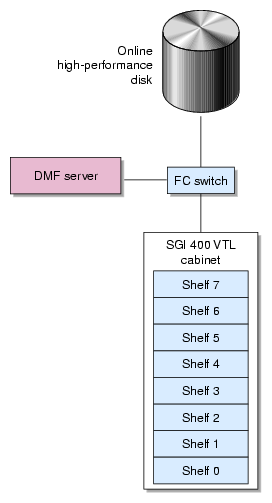
An SGI 400 VTL cabinet has up to eight shelves, shelf 0 (bottom) through shelf 7 (top). A site can have multiple cabinets with differing numbers of shelves. Each cabinet has up to two VTL application servers (referred to in this guide as VTL0 and VTL1 ) that control the shelves. VTL0 controls shelves 0-3, VTL1 controls shelves 4-7.
Figure 1-1 shows a conceptual drawing of DMF using SGI 400 VTL with eight shelves as permanent storage.
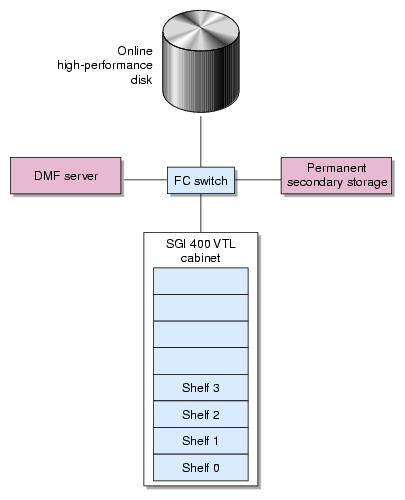
If you use SGI 400 VTL in a fast-mount cache configuration, you would also need a permanent migration target, such as physical tape. Figure 1-2 shows a conceptual drawing of DMF using SGI 400 VTL with four shelves as fast-mount cache.
For users with higher throughput requirements, the Parallel Data Mover Option allows additional data movers on dedicated nodes to operate in parallel with the integrated data mover functionality on the DMF server, increasing data throughput and enhancing resiliency. The dedicated function of a parallel data mover node is to move data from the filesystem to secondary storage or from secondary storage back into the primary filesystem. Offloading the majority of I/O from the DMF server improves I/O throughput performance.
| Note: For complete details about DMF, see the DMF administrator guide. |
When DMF migrates or recalls files, it issues a mount request to the OpenVault mounting service. OpenVault mounts the correct SGI 400 VTL archive filesystem and DMF performs I/O to the appropriate volume on that filesystem.
DMF continuously monitors the managed user filesystem according to the policies established in the DMF configuration file. Only the most timely data resides on the higher performance primary filesystem; less timely data is automatically migrated to the archive tiers. However, data always appears to be online to end users and applications, regardless of its actual location.
DMF moves file data to secondary storage on the SGI 400 VTL disk, but it leaves critical metadata (such as index nodes, or inodes, and directories) in the primary filesystem. A user retrieves a file simply by accessing it normally through NFS; DMF automatically recalls the file's data from the secondary storage, caching it on the primary filesystem. From a user's perspective, all content is visible all of the time.
You can use SGI 400 VTL as either of the following:
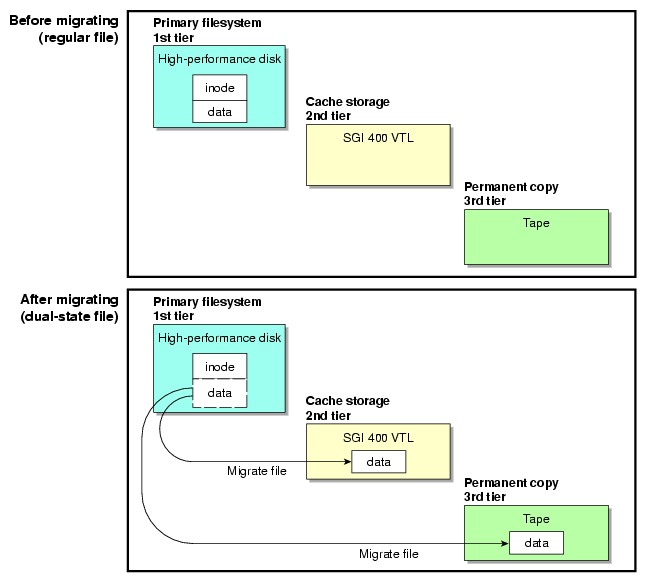
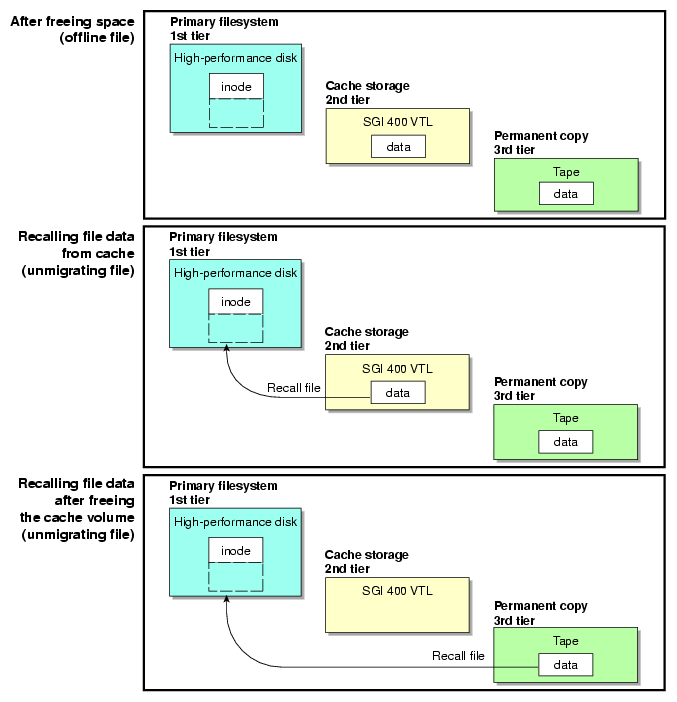
Figure 1-3 and Figure 1-4 show the concepts of migrating and recalling file data when using SGI 400 VTL as permanent storage.
| Note: For simplicity, these diagrams do not address a second copy. Data will be recalled from a second copy only if necessary. |
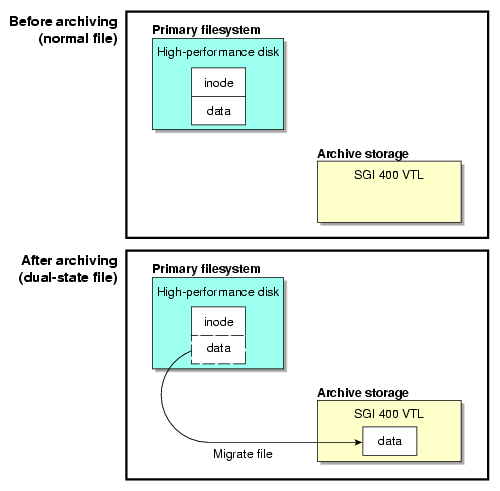
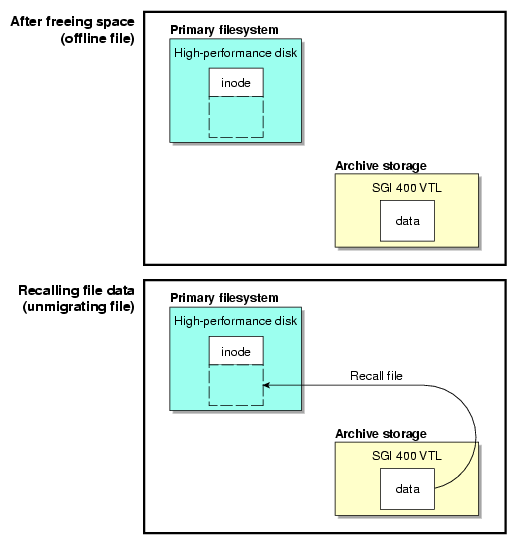
The figures describe the archiving concept, showing that data is removed from the primary filesystem after migrating (represented by the dashed lines) and moved to the archive on VTL, but the inode remains in place in the primary filesystem. During the period when the file data has been copied to the secondary storage on VTL but has not yet been deleted from the primary filesystem, the file is considered to be dual-state. After the file data has been deleted from the primary filesystem, the file is considered to be offline. SGI recommends that you migrate two copies of a file to prevent file data loss in the event that a migrated copy is lost.
Because the inodes and directories remain online, users and applications never need to know where the file data actually resides; archived files remain cataloged in their original directories and are accessed as if they were still online. In fact, when drilling into directories or listing their contents, a user cannot determine whether a file is online or offline; determining the data's actual residence requires special commands or command options. The only difference users might notice is a slight delay in access time. Therefore, DMF allows you to oversubscribe your online disk in a manner that is transparent to users.
The fast-mount cache configuration migrates data simultaneously to SGI 400 VTL as a temporary cache and to permanent storage on another migration target (such as physical tape). Volumes on the cache can be freed immediately when the fullness threshold is reached. SGI always recommends that you migrate at least two copies to permanent storage targets in order to prevent file data loss in the event that a migrated copy is lost. When using a fast-mount cache, SGI therefore recommends that you migrate at least three copies (one to the temporary cache and two to permanent storage targets).
Figure 1-5 and Figure 1-6 show the concepts of migrating and recalling file data when using SGI 400 VTL as a fast-mount cache in conjunction with permanent storage , in this case on physical tape.
| Note: For simplicity, these diagrams do not address a second permanent storage copy. Data will be recalled from a second permanent storage copy only if necessary. |
DMF moves only the data associated with files, not the file inodes or directories. Therefore, you must still perform regular backups to protect files that have not been migrated, as well as inodes and directory structures. You must store the backups on physical tape or in a filesystem that is not managed by DMF.
DMF uses a volume serial number (VSN) to uniquely identify a specific volume at your site. The volumes may be distributed throughout the SGI 400 VTL cabinet. All VSNs that are managed by a single OpenVault instance must be unique.
SGI recommends that you use an SGI 400 VTL naming convention where SGI-C00 represents C for Cabinet, 0 (zero) for cabinet 0, and 0 for shelf 0. SGI also recommends that you use a similar name but varying case to maintain a correspondence between the SGI 400 VTL view of the library (such as SGI-C00) and OpenVault's view of the library (such as c00). The names used in this guide are recommended and are also used in the sample DMF configuration file for SGI 400 VTL.
You will use the ov_admin(8) command to add the DMF application to OpenVault. See “Configure OpenVault for the Library” in Chapter 3.
As an example, the procedures in this guide will lead you through the process of configuring a single cabinet with multiple shelves. You must adjust the procedures and the DMF configuration file to fit your site-specific situation.
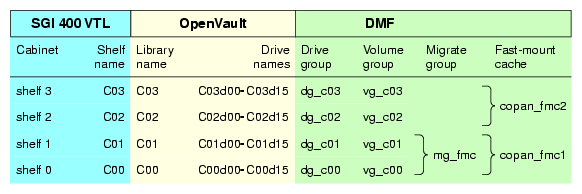
After you complete the procedures in this guide, the cabinet will have up to eight independent OpenVault libraries, C00 through C07, and a set of up to sixteen drives per shelf, such as C00d00 through C00d15 for shelf 0. Each library will be used with a corresponding volume group, such as vg_c00 through vg_c07. The volume groups will be managed as two DMF migrate groups (mg0 and mg1 for SGI 400 VTL as permanent storage or fmc1 and fmc2 for fast-mount cache).
Figure 1-7 and Figure 1-8 describe the parts of the configuration that relate to SGI 400 VTL.

Before you configure the virtual library and DMF, do the following:
You must ensure that the DMF server and the SGI 400 VTL system are on the network and zoned appropriately. SGI 400 VTL disk drives must be visible only from the active DMF server, the passive DMF server (if applicable), and the parallel data mover nodes; the drives must not be visible to any other nodes. You must also install the required software for SGI 400 VTL and DMF.
For more information, see: the hardware documentation for your systems, your SGI 400 VTL system administration documentation, the SGI InfiniteStorage Software Platform release note (see the Preface for the location), and DMF 6 Administrator Guide for SGI InfiniteStorage.
You must ensure that OpenVault is not actively being used by other applications. For example, verify that no processes are displayed by the ov_procs(8) command, as in the following example:
dmfserver# ov_procs PID PPID COMMAND dmfserver# |
| Note: For simplicity and efficiency, the procedures in this guide stop OpenVault at various points. If you have other applications that are currently running OpenVault, those applications will be affected. |
If this is a new DMF installation, you must use the ov_admin(8) command to do the following:
Initially configure the OpenVault server
Add a privileged and an unprivileged instance of the dmf application
For more information, see the chapter about mounting service configuration tasks in DMF 6 Administrator Guide for SGI InfiniteStorage.
You must copy all of the files in the /usr/lib/dmf/support/copan directory on the DMF server to a new /usr/local/dmf directory on each of the VTL application servers (VTL0 and VTL1). [1]
For example, for application server VTL0 and DMF server mynode:
[root@VTL0 vtl]# pwd /usr/local/dmf [root@VTL0 vtl]# mkdir dmf [root@VTL0 vtl]# cd dmf [root@VTL0 dmf]# scp mynode.mycompany.com:/usr/lib/dmf/support/copan/* . Password: dmreadycopantapes 100% 5251 1.3KB/s 00:00 dmreadycopantapesV1 100% 1900 1.3KB/s 00:00 iscli_copan_cmd 100% 3367 2.0KB/s 00:00 xslt3_copan 100% 1992 2.0KB/s 00:00 [root@VTL0 dmf]# ls -l -rwxr-xr-x 1 root sys 5251 2012-02-24 13:41 dmreadycopantapes -rwxr-xr-x 1 root sys 1900 2012-02-24 13:41 dmreadycopantapesV1 -rwxr-xr-x 1 root sys 3367 2012-02-24 13:41 iscli_copan_cmd -rwxr-xr-x 1 root sys 1992 2012-02-24 13:41 xslt3_copan |
Use the information about configuring DMF administrative directories appropriately in the “Best Practices” chapter of the DMF administrator's guide to create the required filesystems and directories of the appropriate size on a general-purpose RAID storage system.
In a production system, SGI in most cases recommends that you restrict these directories to DMF use and make them the mountpoint of a filesystem, in order to limit the loss of data in the case of a filesystem failure.
You specify the location of these directories by using parameters in the DMF configuration file. The following lists show the directory names used by the sample configuration file (using these names will minimize the number of changes you must make):
Required to be dedicated to DMF use and to be a filesystem mountpoint:
(If used) /dmf/move for the scratch filesystem that is used to move files between volume groups
Note: You must specify a scratch filesystem if you intend to use the dmmove(8) command. The scratch filesystem should be dedicated to the dmmove function. You must use the dmi,mtpt=/dmf/move option. Recommended to be dedicated to DMF use and to be a filesystem mountpoint:
/dmf/cache for storing chunks of data while merging them from sparse volumes
/dmf/home for directories in which the DMF daemon database, library server (LS) database, and related files reside
/dmf/journals for directories in which the journal files for the daemon database and LS database will be written
/dmf/tmp for directories in which DMF puts temporary files for its own internal use
Additional directories:
You can choose to use different locations by modifying the DATABASE_COPIES configuration parameter in step 6c of Chapter 2, “Configure DMF”.
You can use the df(1) command to verify that the filesystems required for the DMF administrative directories and the DMF-managed filesystems are mounted.
This section discusses the following:
The backup requirements depend upon a number of very site-specific factors, including the following:
The amount of data that is not migrated at the time a dump takes place
The size of the DMF databases, which is a function of the number of migrated files and the number of DMF copies of each file
The number of full and/or partial backups to retain, as determined by the frequency of backups and the dump retention period
For more details, see the information about configuring DMF administrative filesystems and directories appropriately in the “Best Practices” chapter of the DMF 6 Administrator Guide for SGI InfiniteStorage, particularly the information about HOME_DIR size.
The sample DMF configuration file for SGI 400 VTL does the following:
Performs a full backup once a week (Sundays at 00:00) and a partial backup the remaining days (Monday--Saturday at 00:00), creating dumps of the following filesystems:
/dmf/home
/dmf/journals
All DMF-managed filesystems
Causes all of the file data in the DMF-managed filesystems to be migrated before the dumps take place (except for files that do not meet the site migration policy).
Removes the bit-file identifiers from the DMF databases for permanently deleted files.
Retains the dumps for four weeks (28 days). The backup each day requires at least one dump tape. The dumps for each day's backup will be put on a single tape if possible. Tapes are recycled after the retention period is completed.
If you want to change these backup policies, you must modify the DMF configuration file and the procedures in this guide accordingly. For more information, see the DMF 6 Administrator Guide for SGI InfiniteStorage.
You must determine the following:
The amount of space that will be required by your site for the dumps created by each day's backup depends upon the information discussed in “Site-Specific Factors to Consider for Backups”. This amount is the Dump_Space_Needed_Per_Day value, which you will use later in step 1a and step 2 of “Free Space in Library SGI-C00 for Dump Tapes” in Chapter 3.
In general, a smaller size is better for dump tapes in order to use space efficiently, so long as all of the dumps for each day's backup can fit onto one tape. (However, if the dumps for day's backup require more than one tape, it will increase the complexity and time requirements of restores.)
The number of dump tapes that will be used depends upon the retention period and the information in “Site-Specific Factors to Consider for Backups”.
Tapes are recycled only after the retention period is completed, therefore you must have more dump tapes than are required to fulfill the retention period (at least one extra tape). Assuming that dumps are done daily, the minimum number of tapes required is:
Retention_Period_In_Days + 1 = #_Dump_Tapes |
For example, using the retention period of 4 weeks (28 days) in the DMF sample configuration file for SGI 400 VTL:
28 + 1 = 29 tapes |
So long as the dumps for each day's backup can fit onto one dump tape, this means that at a minimum 29 dump tapes are required for dumps, assuming that backups are performed each day. You will use the #_Dump_Tapes value in step 1b of “Free Space in Library SGI-C00 for Dump Tapes” in Chapter 3.
| Note: You should monitor the dump report daily to verify that there are sufficient tapes available for future dumps. |
This guide leads you through the following steps, which you will perform as the root user:
 | Caution: You must successfully complete each step before moving on to the next step. If you encounter an error, fix the problem before continuing. |
Configure DMF:
Install the DMF license.
Set up the environment for DMF.
Create the DMF configuration file by using DMF Manager.
Create and configure each virtual library in turn, beginning with shelf 0, which will be configured as library SGI-C00:
Invoke the VTL Console graphical user interface and attach to the appropriate VTL server.
Determine the size of migration tapes for the library.
Create the library.
Note: If your site's data would benefit from software compression, you can enable SGI 400 VTL compression mode (and therefore DMF compression) for each application server (VTL0 and VTL1 ). See the optional Appendix B, “Enabling Compression ”. However, compression carries an overhead CPU penalty and is not appropriate in all cases. Configure virtual migration tapes for the library:
Create migration tapes.
Relabel the barcode (known as the VSN in DMF ) for the migration tapes.
Note: The DMF library server uses the barcode when selecting tapes. A script relabels the barcode so that it indicates the specific RAID set in which the tape is stored, allowing DMF to optimize I/O to and from the shelf.
Free space in the library on shelf 0 (SGI-C00) for dump tapes. You will do this only for shelf 0.
Note: All of the dump tapes must be on a single shelf. The sample DMF configuration file defines this to be shelf 0. If you want to use a different shelf, you must modify the DMF configuration file drive group and the procedures in this guide accordingly. Export library access to the DMF server.
Configure OpenVault for the library:
Add a library control program (LCP) for the library.
Add the set of drive control programs (DCPs) per library (one for each drive).
Import the migration tapes for the library.
Test that OpenVault can mount a migration tape from the library.
After completing these steps for library SGI-C00, repeat them for shelf 1 and library SGI-C01, and so on until you have completed the last library (such as SGI-C07 ).
Reuse the space freed from migration tapes in step 2e above to create virtual dump tapes:
Create the dump tapes.
Relabel the barcode for the dump tapes.
Import the dump tapes into OpenVault.
Test that OpenVault can mount a dump tape.
Test DMF:
Validate the DMF configuration by using DMF Manager or the dmcheck(8) command.
Verify the DMF-managed filesystems by using the dmaudit(8) command.
Test the DMF configuration.
| Caution: After your system is configured and running, you should not stop the disks in a SGI 400 VTL shelf if those disks are currently being used by an OpenVault LCP. First view the output from dmstat(8) or ov_stat(8) to ensure that DMF is not using the disks in that shelf, then stop the OpenVault LCP associated with that shelf, and finally stop the disks. For more information, see the “Best Practices” chapter of the DMF 6 Administrator Guide for SGI InfiniteStorage |
[1] For historic reasons, the SGI 400 VTL is sometimes referred to as COPAN in literals and the graphical user interfaces.