Console Manager is a graphical user interface for the SGIconsole remote management and console server used to monitor and control multiple nodes. A node can be a stand-alone server or a partitioned system. Each node is a managed host with a unique name and Internet Protocol (IP) address. SGI Origin 3000, SGI Altix 350, and SGI Altix 3000 systems can be partitioned to contain multiple nodes. You can manage and monitor up to 64 nodes with the Console Manger.
For an overview of SGIconsole, see “SGIconsole Overview”, and the SGIconsole 2.x Start Here.
This chapter introduces the operational features and capabilities of Console Manager software and contains the following sections:
SGIconsole, as shown in Figure 1-1, lets you manage multiple SGI servers (including partitioned systems), and large, single-system image servers. For the list of systems supported by the SGIconsole, see the SGIconsole Hardware Connectivity Guide. SGIconsole 2.x consists of a software suite that includes the Console Manager, the system administration server (sysadmd), the VA cluster management server (vacm) package and Performance Co-Pilot. SGIconsole provides access to common remote management tools. It also employs the use of X Window system, the Apache web server, OpenSSL (via mod_ssl) and OpenSSH for additional SGIconsole features, particularly in relation to security.
 | Note: SGIconsole 2.x is a software only product. It requires a hardware platform and may require a serial multiplexer or Ethernet hub. For a list of recommended hardware to use with SGIconsole, see the SGIconsole Hardware Connectivity Guide. |
You can configure SGIconsole to use a network information services (NIS) password. See the SGIconsole software package README file for instructions on how to configure NIS on your SGIconsole machine.
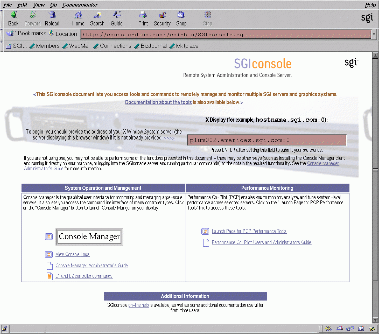
For location information and procedures for using the SGIconsole user interface to access SGIconsole software, see the SGIconsole 2.x Start Here.
For information on how to connect the machine that will run SGIconsole to the SGI servers and graphics systems, see the SGIconsole Hardware Connectivity Guide.
The SGIconsole startup script sets up dynamic host configuration protocol (DHCP) configuration for the L2 controller such that L2 controller is configured with same IP address. This IP address is specified by the user when startup script is run. Console Manager assumes that the IP address of the L2 controller never changes and node configuration has to be changed if the IP address is changed.
If L2 controller is rebooted, or the network connection to the L2 controller otherwise interrupted, it may be necessary to close all console connections to the L2 controller and open new ones.
For more information on the SGIconsole startup script, see the SGIconsole 2.x Start Here.
You need to install Red Hat Linux and SGIconsole 2.x packages. The SGIconsole 2.x Start Here document describes the latest Linux and SGIconsole software requirements and shows how to install the software from the CD and reinstall it if necessary.
| Note: The SGIconsole reinstallation procedure is the same as the installation procedure described in the SGIconsole 2.x Start Here manual, after you have removed the SGIconsole rpms. |
For information on the L1 and L2 controller commands, see the SGI L1 and L2 Controller Software User's Guide.
For information on Performance Co-Pilot (PCP) see the following manuals:
Performance Co-Pilot ReadMe First
Performance Co-Pilot for IRIX User's and Administrator's Guide
Performance Co-Pilot Programmer's Guide
Performance Co-Pilot for IRIX Advanced User's and Administrator's Guide
Performance Co-Pilot for IA-64 Linux User's and Administrator's Guide
This section contains information about getting Console Manager running on your system and covers the following topics:
This section contains links to information about Console Manager requirements, restrictions, and workarounds described throughout this manual as follows:
For information on remote displays supported, see “Systems Supported”.
The default terminal type for logging into SGI IRIX and Linux systems using SGIconsole is vt100. For more information, see “Default Terminal Type”.
Make sure that xterm connections work properly for NIS user accounts when launched by SGI console by following the configuration instructions in “Configuring Xterm Connections for SGIconsole”.
When you add new hardware to Console Manager, you must upgrade the system controller firmware of your SGI Origin 300, SGI Origin 3000, or SGI Altix 3000 series system with the latest firmware from the SGI Supportfolio website. The latest firmware images at the time SGIconsole shipped is provided on the CD in the RPM snxsc_firmware-1.22.2-1.i386.rpm . For more information, see “SGIconsole Hardware Configuration”.
For information on requirements for running Console Manager on a client machine instead of on the SGI server machine, see “Requirements” in Chapter 2.
The minimum value of a UID assigned to a new user is 500 in Console Manager. For a workaround for NIS users and more information, see “Adding a Console User” in Chapter 2.
For the L1 and Multimode System (MMSC) controller types, system and controller console logging should not be activated simultaneously. For more information, see “Enabling and Disabling Console Logging” in Chapter 4.
For information on installing the Console Manager for SGIconsole, see SGIconsole 2.x Start Here.
For information on starting Console Manager, see “Starting the Console Manager”, and “Starting the Console Manager GUI on the SGIconsole Server” in Chapter 2.
For more information on SGIconsole, see “SGIconsole Overview”.
You can use Console Manager to configure your system to add nodes to your site. You can also use it to add users and groups of users. Console Manager automatically updates the nodes , users, and groups files located in the /var/lib/SGIconsole directory.
| Note: You should not edit the directories under /var/lib/SGIconsole/. These configuration files are generated by Console Manager software. Any changes to these files might be lost during upgrades to future releases of SGIconsole. |
The default terminal type for logging into SGI systems using SGIconsole is vt100 for both IRIX and Linux systems. On IRIX systems, vt100 is the default terminal type when logging into /dev/ttyd1 . The remote terminal type is the same as your local terminal type (as given in your TERM environment variable). The TERM value iris-ansi is converted to iris-ansi-net when sent to the host (see rlogin(1C).
If the TERM setting for an xterm connection launched from SGIconsole does not work correctly, make sure that the user account on the SGIconsole server has a .telnetrc file. If it does not, remove the account that caused the problem to occur and re-create the account again. For local users, the .telnetrc file resides in /home/username . For NIS users, the .telnetrc file resides in /usr/people/username.
For NIS users, SGIconsole may fail to automatically create the .telnetrc file. If this is the case, you need to manually create the file with these entries as follows:
# automatically generated by SGIconsole
# do not edit
localhost
         set crlf off
mode character |
You can invoke Console Manager from the SGIconsole webpage or from the command line on the server itself. The command that invokes the Console Manager GUI follows:
%/usr/bin/scmgr |
For more information about starting Console Manager, see “Starting the Console Manager GUI on the SGIconsole Server” in Chapter 2.
The most recent Red Hat Linux releases supports the OpenSSH suite of software that encrypts all traffic (including passwords) to effectively eliminate eavesdropping, connection hijacking, and other network-level attacks. Additionally, OpenSSH provides a myriad of secure tunneling capabilities, as well as a variety of authentication methods.
The ssh (SSH client) is a program for logging into a remote machine and for executing commands on a remote machine. It replaces rlogin and rsh and provides secure encrypted communications between two untrusted hosts over an insecure network. X11 connections and arbitrary TCP/IP ports can also be forwarded over the secure channel.
The OpenSSH suite of software provides encryption for services that SGIconsole provides to users as follows:
Access to console services through the Console Manager client software.
Access to console services using tscm(1).
Access to logging services through the Apache Web server.
This section describes how to secure these services using the OpenSSH suite of software and covers the following topics:
In Red Hat Linux, sshd(8) is installed as part of the server installation and begins running when the system is booted. You can use the ssh(1) command on a workstation to initiate a connection to it. The ssh(1) command (or other Secure Shell facilities compatible with OpenSSH) needs to be started at the workstation to establish one endpoint of the secure connection; the other endpoint is at the sshd(8) daemon running on the SGIconsole server itself.
Once you have logged into the SGIconsole server using ssh(1), you can start (or the system has automatically started for you) tcsm(1), for accessing SGIconsole services through a text-based interface. Optionally, you can start scmgr(1) in order to access the Console Manager, which provides additional administrative functions over the text-based interface. If the main menu for SGIconsole appears upon login, you can start a shell (using the sh command) in order to start the Console Manager manually.
In order to use the text-based interface to SGIconsole securely, you need ssh(1) (or Secure Shell facilities compatible with OpenSSH) installed on your workstation. To use Console Manager securely, you need both an OpenSSH client and an X Window System server installed on your workstation.
If your workstation does not have an X Window System server, but does have a Java 1.4.1 Runtime Environment installed, you can install a copy of the Console Manager client software (cmgr(1)) and log into an SGIconsole server using that (with the help of an OpenSSH client which you use to start a secure session with the SGIconsole server). From there, you can securely log in and administer an SGIconsole server.
To obtain console access securely, you need to use the OpenSSH client directly to log into the SGIconsole server and use the text-based user interface to open console sessions.
If you do not have OpenSSH installed on your workstation, you cannot use SGIconsole securely. But you can still log into an SGIconsole server using the Console Manager and a telnet client, but without the security of an encrypted network connection.
The SGIconsole server itself uses ssh(1) in order to connect to nodes on the network in order to obtain system logs using the View System Log command of Console Manager. If OpenSSH is not prepared between the SGIconsole server itself and nodes from where logs may be obtained, SGIconsole will not be able to log in and obtain the required log data for view because SGIconsole assumes that it has access to nodes without the use of a password (instead, using RSA encryption keys to establish a secure connection and authenticate hosts for "passwordless" access).
In this case, the use of ssh(1) is mandatory, even if Console Manager has established an insecure connection to the SGIconsole server.
SGIconsole provides access to console logs recorded by the Switch State of Console Logging command of Console Manager (or the log function of the scons and ccons commands in the text-based user interface to SGIconsole) using a Web server. However, while SGIconsole does not actively involve itself with secure access to console logs, Red Hat Linux provides the Apache Web Server with mod_ssl installed and running by default, allowing browsers to connect to the server using the HTTPS protocol.
However, the Apache installation includes a self-generated certificate which browsers may complain about, because the authoritive host and domain name listed on the certificate would most probably not match the hostname and domain name of the SGIconsole server running Apache.
You can tell the browser to bypass this issue and log into the SGIconsole Web server anyway, or you can install your own RSA certificates for use with Apache. Please consult the Apache On-Line Manual (http:///manual/) on how to do this (and search for entries relating to mod_ssl on Apache).
The Console Manager Server includes security features that ensure that only authorized administrators can manage or monitor systems. The administrator for the Console Manager server is root. The Console Manager Server password for the root user should be the same as the UNIX password for the root user. Only the root user can create or delete other console users. Non-root users can peform all other Console Manager tasks.
| Note: The Console Manager GUI does not encrypt its communication with the server. The transfer of passwords is visible to other users of your network. Do not use the Console Manager GUI to administer computers over the Internet. |
When you invoke the Console Manager, the Login in to Server dialog box appears, as shown in Figure 1-2.
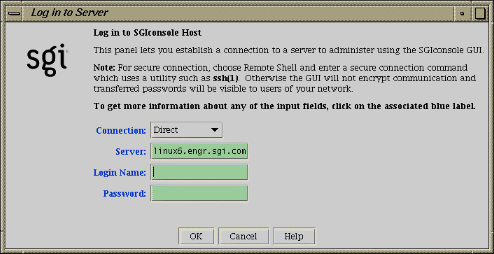
The Console Manager security window allows you to establish a connection to a server to administer using the Console Manager GUI. To log in, perform the following steps:
From the Connection field pull-down menu, choose Direct connection. For a description of connection types, see “Starting the Console Manager GUI on the SGIconsole Server” in Chapter 2.
In the Server field, type the name of the server running Console Manger.
In the Login Name field, type your login ID.
In the Password field, type your password.
Click the Ok button.
If you cannot connect to a node running Console Manager, an error message appears.
For information about using the Console Manager GUI to add a Console Manager user, see “Adding a Console User” in Chapter 2.
For information about the Console Manager access control mechanism, see “Access Controls in Console Manager” in Chapter 2.
This section describes the various ways you can log into SGIconsole and contains the following topics:
To initiate a secure connection to Console Manager you need to have an OpenSSH client (ssh(1)) and an X Window System server installed on your workstation. If this software is available to you, perform the following procedure:
Log into the SGIconsole server via ssh(1) under your username (the same username you will use to log in via Console Manager), as follows:
# ssh -X -l username sgiconsoleserver
Note: To properly resolve any issues with authenticating hosts, it is recommended that you use fully-qualified domain names when logging into the SGIconsole server (sgiconsoleserver). The server name you enter as an argument to ssh(1) will be used to populate the ~/.ssh/known_hosts file.
If you see the SGIconsole Main Menu, select the shell command (option 6), and run scmgr(1) when you obtain a shell prompt, as follows:
      ==============================================================

       Welcome to SGIconsole 2.1

       To learn about the SGIconsole 2.1 release, its new features,
       changes, known problems, and workarounds, read this file:
         /usr/share/doc/SGIconsole-2.1/README

       If configuring the system for the first time, refer to
       SGIconsole Start Here for guidance.

     ==============================================================

     Automatically starting SGIconsole (to get to a shell,
     enter 6 at the command line prompt).

     SGIconsole 2.1 Main Menu

     1. scons [func] [node]          Connect to System Console
     2. ccons [func] [node]          Connect to Controller Console
     3. reset [node]                 Hardware Reset
     4. nmi [node]                   Generate NMI
     5. pwr [func] [node]            Power On or Off
     6. shell                        Escape to Shell
     7. help [command]               Help
     8. quit                         Quit

     SGIconsole> 6
     [admin@krelly admin]$ scmgr -l $USER -s $HOSTNAME &
     [admin@krelly admin]$ _
If you do not get the SGIconsole Main Menu, just start scmgr(1) as it appears here ( scmgr -l $USER -s $HOSTNAME &). The Console Manager appears on your display.

Warning: As you use the Console Manager under a secure connection, the Display field of all dialog boxes should be set to something like localhost:n, where n is a value greater than 9. This indicates that the display is set to contact the X display proxy established by sshd(1), not a real X display. Do not change the value of the Display field, otherwise, the Console Manager command will either send the results to an X server insecurely, or connection to an X server will fail.
Starting the Console Manager this way will ensure that all X client windows that appear on your workstation will be created via secure network connections from the SGIconsole server.
If you have installed the Console Manager as a Java application on your workstation (as opposed to having an X Window System server running on your workstation), you can start the Console Manager directly and make a connection either directly or via a remote shell connection type. Using one or the other depends on the following:
Whether or not you have OpenSSH client software installed on your workstation, or
Whether or not you wish to connect using an encrypted network connection
In either case, starting Console Manager as a Java application is the same. To initiate a secure connection to Console Manager, perform the following steps:
Follow the instructions in “Installing and Running Console Manager” in Chapter 2 in Chapter 2 to install the Console Manager client software on your client machine.
To run the Console Manager on the client machine, change to the ConsoleManager-Client directory as follows:
% cd ConsoleManager-Client
% ./cmgr -l username -s sgiconsoleserver -s &
where username and sgiconsoleserver are your login name and the SGIconsole server name, respecively.Note: The use of the -l and -s options are indeed optional if you wish to make an insecure connection to the SGIconsole server. If you wish to use a secure connection, there is no need to use these options.
Under Windows, there is no need to use the ampersand (&) symbol in the command above, otherwise, the commands are identical.
The Console Manager login window appeas, with the Login Name and Server fields filled in if you used the -l and -s options. You can perform one of the following:
Enter your password and click on the OK button, or
Select the Remote Shell connection type and enter the following in the Remote Shell field:
ssh -l username sgiconsoleserver
Note: If you do not have RSA public keys exchanged between your user account and the SGIconsole server account into which you are logging, Console Manager returns an error indicating that login has failed. Console Manager assumes that login can succeed without the use of a password.
Users can log into an SGIconsole server using a terminal emulator. To log into the SGIconsole server using a text-based user interface, log into the server with your user account as required, as follows:
% telnet -e '' sgiconsoleserver |
Login securely, as follows:
% ssh -l username sgiconsoleserver |
The same issues that apply with starting Console Manager also apply to using the text-based user interface.
If you are logging in as root, you may need to start the text-based user interface manually, as follows:
# tscm SGIconsole 2.1 Main Menu 1. scons [func] [node] Connect to System Console 2. ccons [func] [node] Connect to Controller Console 3. reset [node] Hardware Reset 4. nmi [node] Generate NMI 5. pwr [func] [node] Power On or Off 6. shell Escape to Shell 7. help [command] Help 8. quit Quit SGIconsole> _ |
In this version of SGIconsole, the only reason for logging into the SGIconsole web server securely using the the following URL is to display and download console logs using the View Console Logs link on the SGIconsole home page:
https://sgiconsoleserver |
Apart from looking at console log data, SGIconsole can start the Console Manager and PCP tools from the Web site itself, but it is important to remember that regardless of whether you use HTTPS protocol to view the web site or not, tools started from the SGIconsole web Site will not make a secure connection to your X display. This is because the tools are started using the X display provided on the Web page, which point directly to a display managed by your local X server.
You cannot use the SGIconsole web site to start the Console Manager or PCP tools securely. While PCP tools do not transfer sensitive information across the network, Console Manager does, and the only way to protect Console Manager is to make a secure network connection to the SGIconsole server using a secure shell, as explained in this section.
The Console Manager graphical user interface (GUI) enables you to set up, administer, and monitor all the nodes in a site from a single point. A node can be an SGI server running the IRIX operating system.
The Console Manager GUI provides these advantages:
You can click any blue text to get more information about that concept or input field. Online help is also provided with the Help button.
The existance of nodes, users, and groups are shown visually.
All inputs are checked for correct syntax before attempting to change the node configuration information. In every task, changes will not take effect until you click OK.
Tasks take you step-by-step through configuration and management operations.
Note: You should not edit the directories under/var/lib/SGIconsole/nodes. These configuration files are generated by Console Manager software. Any changes to these files might be lost during upgrades to future releases of SGIconsole.
The graphical tools can be run on any computer that supports both a supported Java2 runtime and an X Window System server.
| Note: You can also access Console Manager using a command line interface called tscm(1). For more information, see “Command Line Interface to Console Manager”. |
Figure 1-3, shows the Console Manager main window. The menu bar shows the following pulldown menus:
File
Tasks
Help

Figure 1-4, shows the File pulldown menu.

The File pulldown menu allows you to perform the following actions:
New Console Manager
Clone this Console Manager
Show SALog
Close
Exit
| Note: The SAlog log shows what command are executed by the GUI and is used for debugging Console Manager software. |
Figure 1-5, shows the Tasks pulldown menu.
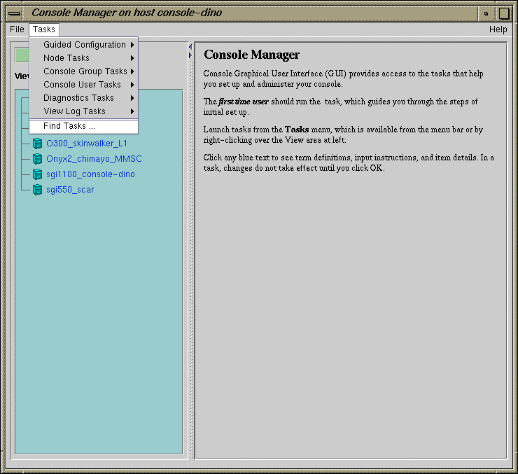
The Tasks pulldown menu allows you to perform the following actions:
Guided Configuration
Node Tasks
Management Group Tasks
Console User Tasks
Diagnostics Tasks
View Log Tasks
Find Tasks
For more information on the tasks accessed from the Tasks pulldown menu, see “Console Manager Tasks and Functions”.
Figure 1-6, shows the Help pulldown menu.

The Help pulldown menu allows you to get:
Console Manager description
Overview of Console Manager tasks
Help for each Console Manager task
The Console Manager provides access to the tasks that help you set up and administer nodes at a site. The Tasks menu contains various pulldown menu tasks. For example, the Console User Tasks menu expands to Add console user, Modify console user, and Delete console user.
The Console Manager has the following tasks:
Guided Configuration, which allows you to:
Set up Console Nodes, Groups, and Users
Node Tasks, which allow you to:
Add a Node
Modify a Node Configuration
Delete Nodes
Get/Steal/Spy Console
Reset/NMI/Power Up/Power Down
Connect to a System Controller
Note: If your connection type is L1 or MMSC, you can get either system console or the system controller console for a node at a time. For more information, see “Adding a Node” in Chapter 3. Switch State of Console Logging
Delete Console Log Files
For a view of the Node Tasks pulldown menu and more information on these tasks, see “Adding a Node” in Chapter 3.
Management Group Tasks, which allow you to:
Add a Management Group
Modify a Management Group
Delete a Management Group
For a view of the Console Group Tasks pulldown menu and more information on these tasks, see “Adding a Management Group” in Chapter 3.
Console User Tasks, which allow you to:
Add a new Console User
Modify a Console User
Delete a Console User
Change a Console User Password
Add Console Users
For a view of the Console Users Tasks pulldown menu and more information on these tasks, see “Adding a Console User” in Chapter 2.
Diagnostics Tasks, which allow you to:
Reset Console Backend Software
For a view of the Diagnostics Tasks pulldown menu and more information on these tasks, see “Restarting the Console Manager Daemon” in Chapter 4.
View LogTasks, which allow you to:
View System Log
View System Controller Logs
For a view of the View Log Tasks pulldown menu and more information on these tasks, see “Viewing System Logs” in Chapter 4.
Find Tasks, which lets you use keywords to search for a specific task.
The Console Manager View panel provides the following capabilities:
Shows the results when a task has been completed. For example, when the Add node task is done, you will see the new node show up in the Console Manager View.
Allows you to select to view nodes configured at a site, the Console Manager users, or the Console management groups.
Allows you to find and select items in the View panel.
The Console Manager View pulldown menu allows you to view the Nodes, Users, and Management Groups configured for SGIconsole.
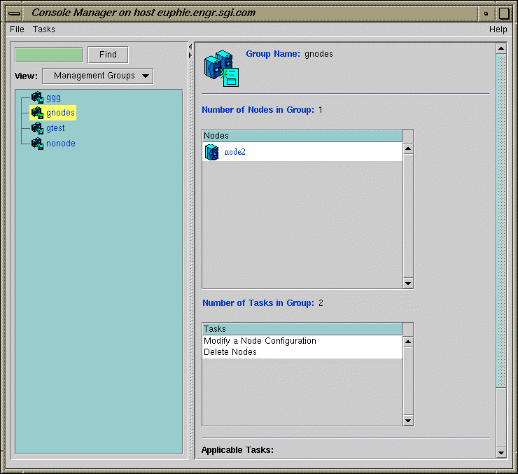
From the Console Manager View panel, you can click on a node, user, or management group to display key information. When an item is selected, the panel on the right shows the detailed information of the item with a list of applicable tasks. Clicking on a task brings up the task window with the item selected.
Figure 1-7, shows an example of the Console Manager View panel.
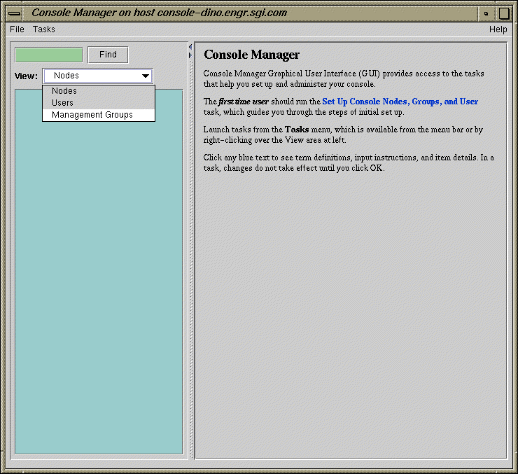
Figure 1-8, shows an example when a node in the View panel is selected.
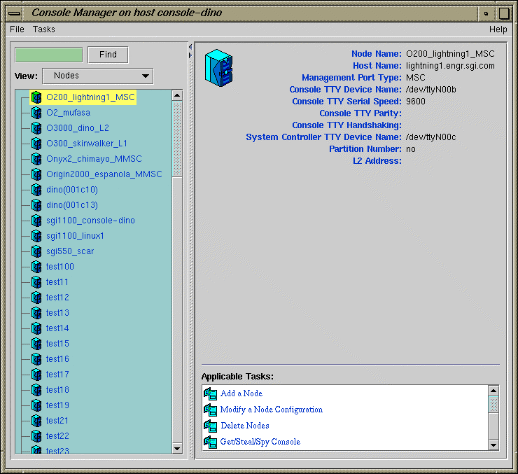
Figure 1-9, shows an example when a user in the View panel is selected.
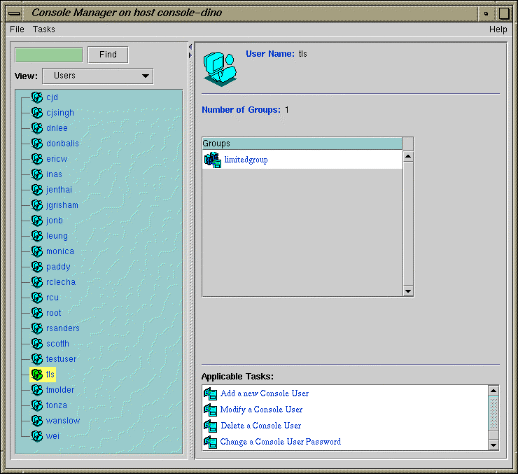
Figure 1-10, shows an example when a group in the View panel is selected.
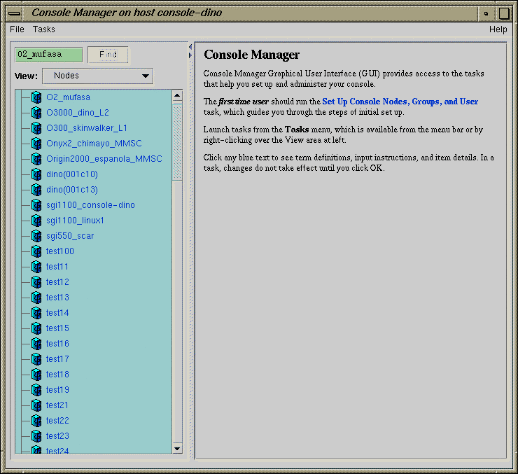
The Find button helps you to find node and user objects quickly. Figure 1-11, shows an example of the Find button selected for Nodes and the O2_mufasa node name is entered in the Find button field to the left.
SGIconsole 2.x is a software only product. It requires a hardware platform and may require a serial multiplexer or Ethernet hub. For a list of recommended hardware to use with SGIconsole, see the SGIconsole Hardware Connectivity Guide.
| Note: SGIconsole ships with the latest snxsc_firmware version available at release. If you later want to connect any new hardware to SGI console, you have to upgrade your snxsc firmware from the SGI Supportfolio website. |
The tscm(1) command is a command line interface to Console Manager. It provides an interactive, menu-driven environment for performing console, logging, and power control operations on nodes configured in Console Manager.
SGIconsole automatically invokes the tscm (1) command when you successfully log into the SGIconsole server as follows:
% telnet -e '' sgiconsole_server |
or, if the login service is reenabled, as follows:
% rlogin sgiconsole_server |
| Note: You can also start
the command line interface (tscm(1)) under
SSH by using the following command:
For non-root users, the tscm(1) inferface starts automatically. For root users, at the shell prompt you can run /usr/bin/tscm. For more information on secure console connections, see “SGIconsole and Security Under OpenSSH”. |
| Note: The rlogin(1) service
is disabled by the SGIconsole_startup script by changing
the /etc/inetd.conf file.
|
If you are logging into an SGIconsole server as root, telnet or rlogin leads you directly to a shell prompt. To run the text-based interface as root, simply enter:
[root@sgiconsole_server /root]# tscm |
The following menu appears:
SGIconsole 2.1 Main Menu 1. scons [func] [node] Connect to System Console 2. ccons [func] [node] Connect to Controller Console 3. reset [node] Hardware Reset 4. nmi [node] Generate NMI 5. pwr [func] [node] Power On or Off 6. shell Escape to Shell 7. help [command] Help 8. quit Quit |
When exiting from the Console Manager user interface, the telnet(1) or rlogin(1) session used to log into the SGIconsole server is closed automatically, logging you out of the system.
Commands can be entered as follows:
An ordinal number representing a choice in the menu displayed, for example, 7 for help.
The name of the command itself, in full, for example, scons
The first letter of the command, for example, r for reset.
The tscm(1) command also supports limited recognition of command-line shortcuts as follows:
You can specify a subcommand (func) along with the command on the command line without having the tscm(1) interface provide another menu, for example, scons open.
You can specify the node argument of the command along with the command on the command line without having the tscm(1)interface provide another menu, for example, pwr up eunice.
You can specify the first letter of every command word instead of specifying entire words on the command line, for example, p u eunice.
If you use the first letter of command words, you can concatenate the letters together on the command line, for example, pu eunice
If you do not use these shortcuts, the tscm(1) command provides additional menus for the scons and ccons commands as follows:
SGIconsole> scons SGIconsole 2.1 Console Menu 1. open [node] Open a Console Connection 2. view [node] Open a Read-Only Console Connection 3. steal [node] Steal an Open Console Connection 4. log [node] Activate Console Logging 5. nolog [node] De-activate Console Logging 6. return Return to Main Menu |
The tscm(1) command also provides an additional menu for the pwr command as follows:
SGIconsole> pwr

 SGIconsole 2.1 Power Menu

 1. up [node]                    Power Up (On)
 2. down [node]                  Power Down (Off)
 3. return                       Return to Main Menu

Power> |
The command entry specification for the sub-menus are the same as the main menu. The console menu is the same for the scons and ccons commands.
The shell command is the only command which does not follow these conventions. It has a special shortcut, sh.
There are additional special shortcuts to the scons open and ccons open commands. The following table shows these special shortcuts.
Special Shortcut | Full command | Standard Shortcut |
|---|---|---|
s | scons open | so |
c | ccons open | co |
sh | shell |
|
When specifying nodes, you can either specify nodes along with commands in the command line, or let the tscm(1) command produce a node menu as follows:
Please select from the list of available nodes, or the return option:

 1. liz
 2. surly
 3. snort
 4. grunt
 5. return                       Return to Main Menu

Node> |
The list of nodes produced in this menu is context sensitive to:
The user running tscm(1)
The command that is about to be applied
The tscm(1) command enforces the access controls that are configured by the root user using the Console Manager GUI. If you are not permitted to apply a particular command to a node, the node is not displayed in the node menu. Only the nodes for which you can execute a particular command are displayed.
If there is a long list of nodes displayed in the Node Menu, the menu is piped through the more(1) command to allow you to see the list of nodes without having to use a scrollable terminal. Press the space bar to see more nodes in the menu, or press q to stop listing the nodes and get to a Node>prompt to specify a node.
The tscm(1) command checks its commands and menu selections to ensure that a node specified is one that you can select. If you attempt to select a node that cannot be a target for a given command, one of the following messages appears:
Node> flip
                                Node "flip" is not selectable; the node is not defined.
Node> |
or
Node> liz
                                Node "liz" is not selectable;
                                you do not have enough privileges
                                to use the command on this node.
Node> |
The tscm(1) command relies on the SGIconsole server to report errors and other status messages. These messages are displayed by tscm(1) when an error condition or other status condition worthy of attention has been detected, but the messages are determined by the SGIconsole server itself, not by the tscm(1) command. Usually, these are the same messages that the Console Manager GUI would produce. Errors may appear because of connection failures to nodes or other connection issues that SGIconsole needs to alert you to.