Console Manager is a graphical user interface for the SGIconsole management and monitoring tool used to control multiple nodes. A node can be a server or a partitioned system. Each node is a managed host with a unique name and Internet Protocol (IP) address. An SGI Origin 3000 system can be partitioned to contain multiple nodes. Each partition is a node with a unique hostname and IP address.
You can manage and monitor up to 32 nodes with the Console Manger.
You can use the Console Manager interface to consolidate information about multiple sever nodes in a compact space.
The Console Manager is part of the SGIconsole system, which is used to control and monitor multiple SGI servers. For an overview of SGIconsole, see “SGIconsole Overview”, and the SGIconsole Start Here.
This chapter introduces the operational features and capabilities of Console Manager software. This chapter contains the following sections:
This section contains information about getting Console Manager running on your system.
For information on installing the Console Manager for SGIconsole, see SGIconsole Start Here.
For information on starting Console Manager, see “Starting the Console Manager”, and “Starting the Console Manager Graphical User Interface” in Chapter 2.
For more information on SGIconsole, see “SGIconsole Overview”.
You can use Console Manager to configure your system to add nodes to your site. You can also use it to add users. Console Manager automatically updates the nodes and users files located in the var/lib/SGIconsole directory.
 | Note: You should not edit the /var/lib/SGIconsole/nodes and /var/lib/SGIconsole/users files. These configuration files are generated by SGIconsole software. Any changes to these files might be lost during upgrades to future releases of SGIconsole. |
For a list of the systems supported, see the SGIconsole Hardware Connectivity Guide. For more information on server (node) types, see “Adding a Node” in Chapter 3.
The Console Manager graphical user interface (GUI) enables you to set up, administer, and monitor all the nodes in a site from a single point. A node can be an SGI server running the IRIX operating system.
The Console Manager GUI provides these advantages:
You can click any blue text to get more information about that concept or input field. Online help is also provided with the Help button.
The existance of nodes and users are shown visually.
All inputs are checked for correct syntax before attempting to change the node configuration information. In every task, the node configuration will not update until you click OK.
Tasks take you step-by-step through configuration and management operations, making actual changes to the sgiconsole_configuration file as you complete a task.
Note: You should not edit the /var/lib/SGIconsole/nodes and /var/lib/SGIconsole/users files. These configuration files are generated by SGIconsole software. Any changes to these files might be lost during upgrades to future releases of SGIconsole.
The graphical tools can be run on any computer that supports a Java-enabled X window system.
Figure 1-1, shows the Console Manager. The menu bar shows the following pulldown menus:
File
Tasks
Help

Figure 1-2, shows the File pulldown menu.

The File pulldown menu allows you to perform the following actions:
New Console Manager
Clone this Console Manager
Show SALog
Close
Exit
| Note: The SAlog log shows what command are executed by the GUI and is used for debugging Console Manager software. |
Figure 1-3, shows the Tasks pulldown menu.
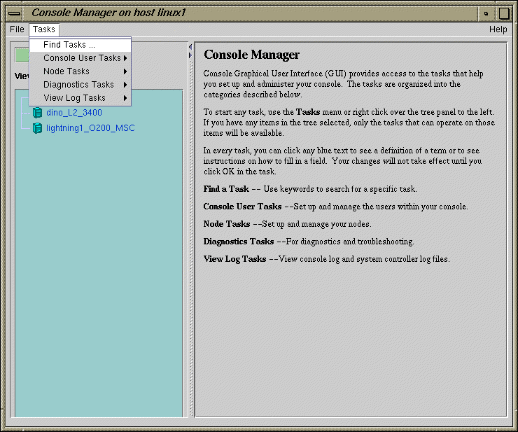
The Tasks pulldown menu allows you to perform the following actions:
Find Tasks
Console User Tasks
Node Tasks
Diagnostic Tasks
View Log Tasks
For more information on the tasks accessed from the Tasks pulldown menu, see “Console Manager Tasks and Functions”.
Figure 1-4, shows the Help pulldown menu.

The Help pulldown menu allows you to get:
Console Manager description
Overview of Console Manager tasks
Help for each Console Manager task
The Console Manager provides access to the tasks that help you set up and administer nodes at a site. The Tasks menu contains various pulldown menu tasks. For example, the Console User Tasks menu expands to Add console user, Modify console user, and Delete console user.
The Console Manager has the following functions:
Find Tasks, which lets you use keywords to search for a specific task.
Console User Tasks, which allow you to:
Add a new Console User
Change a Console User Password
Delete a Console User
For a view of the Console Users Tasks pulldown menu and more information on these tasks, see “Adding a Console User” in Chapter 2.
Node Tasks, which allow you to:
Add a Node
Modify a Node Configuration
Delete Nodes
Reset SGIconsole Software
Reset/NMI/Power Up/Power Down Nodes
Get/Steal/Spy console
Connect to a System Controller
Note: Console users can get either system console or the system controller console for a node at a time. For a view of the Node Tasks pulldown menu and more information on these tasks, see “Adding a Node” in Chapter 3.
Diagnostic Tasks, which allow you to:
Reset Console Backend Software
For a view of the Diagnostic Tasks pulldown menu and more information on these tasks, see “Restarting the Console Manager Daemon” in Chapter 4.
View LogTasks, which allow you to:
View System Log
View System Controller Logs
For a view of the View Log Tasks pulldown menu and more information on these tasks, see “Viewing System Logs” in Chapter 4.
The Console Manager View provides the following capabilities:
Shows the results when a task has been completed. For example, when the Add node task is done, you will see the new node show up in the Console Manager View.
Select to view nodes configured at a site or the Console Manager users.
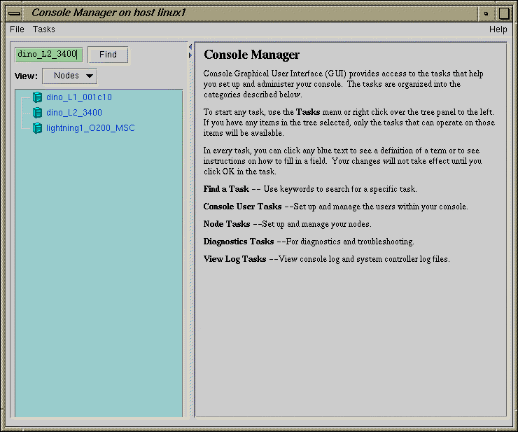
Find and select items in the view panel.
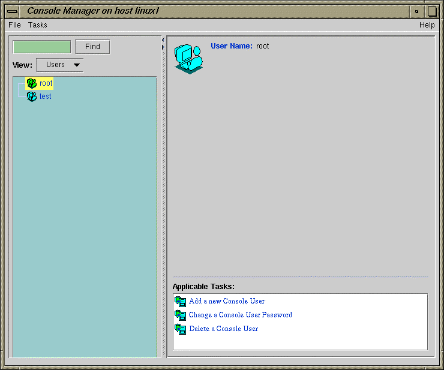
From the Console Manager View, you can click on a node or a user to display key information. When an item is selected, the panel on the right shows the detailed information of the item with a list of applicable tasks. Clicking on a task brings up the task window with the item selected.
Figure 1-5, shows an example of the Console Manager View window.
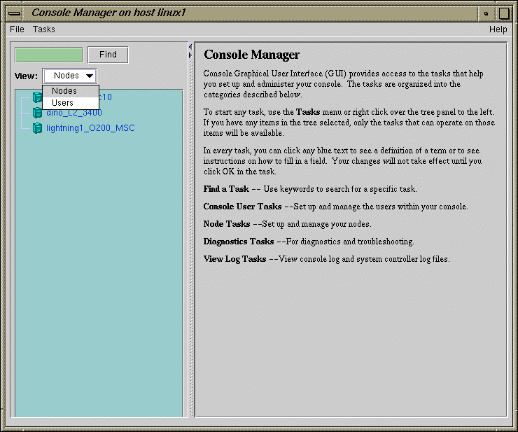
Figure 1-6, shows an example when a node in the View window is selected.

Figure 1-7, shows an example when a user in the View window is selected.
The Find button helps you to find node and user objects quickly. Figure 1-8, shows an example of the Find button selected for Nodes and the dino_L2_3400 node name is entered in the Find button field to the left.
You can invoke Console Manager from the SGIconsole window or from the command line. The command that invokes the Console Manager GUI follows:
%/usr/bin/scmgr |
For more information about starting Console Manager, see “Starting the Console Manager Graphical User Interface” in Chapter 2.
The Console Manager Server includes security features that ensure that only authorized administrators can manage or monitor systems. The administrator for the SGIconsole server is root. The SGIconsole Server password for the root user should be the same as the UNIX password for the root user. Only the root user can create or delete other console users. Non-root users can peform all other Console Manager tasks.
| Note: The SGIconsole GUI does not encrypt its communication with the server. The transfer of passwords is visible to other users of your network. Do not use the SGIconsole GUI to administer computers over the Internet. |
When you invoke the Console Manager, the window appears, as shown in Figure 1-9.
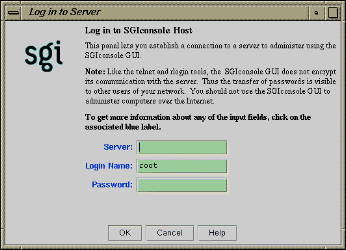
The Console Manager security window allows you to establish a connection to a server to administer using the Console Manager GUI. To log in perform the following steps:
In the Server field, type the name of the server running Console Manger.
In the Login Name field, type your login ID.
In the Password field, type your password.
Click the Ok button.
If you cannot connect to a node running Console Manager, an error message appears.
For information about using the Console Manager GUI to add a Console Manager user, see “Adding a Console User” in Chapter 2.
SGIconsole, as shown in Figure 1-10, lets you manage multiple SGI servers, SGI partitioned systems, and large, single-system image servers.
It consists of an SGI 1100 platform, a serial multiplexer or Ethernet hub, and a software suite, including the Console Manager/VACM package and Performance Co-Pilot (PCP). SGIconsole provides access to common remote management tools.
You can configure SGIconsole to use a Network Information Services (NIS) password. See the SGIconsole software package README file for instructions on how to configure NIS on your SGIconsole machine.
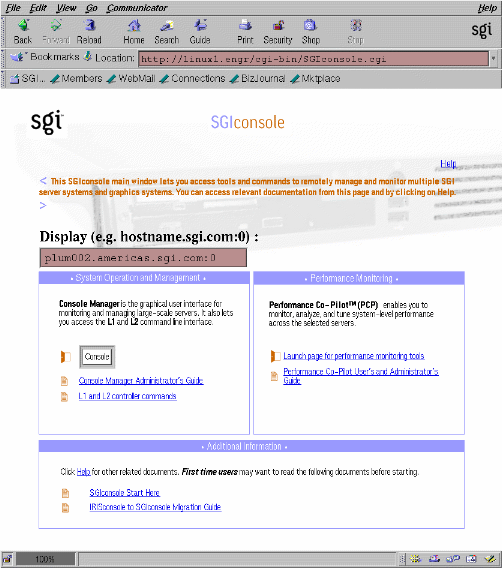
For location information and procedures for using the SGIconsole user interface to access SGIconsole software, see the SGIconsole Start Here.
For information on how to connect the SGIconsole to the SGI servers and graphics systems, see the SGIconsole Hardware Connectivity Guide.
Your SGI machine probably comes with Red Hat 6.2 and the SGIconsole 1.0 software preinstalled. The SGIconsole Software CD document describes how to install the software from the CD if at some time you need to reinstall it.
| Note: The SGIconsole reinstallation procedure is the same as the installation procedure described in the SGIconsole 1.0 Start Here manual, after you have removed the SGIconsole rpms. |
For information on the L1 and L2 controller commands, see Appendix B of the SGI Origin 3000 Series Owner's Guide.
For information on how to install the SGI Ethernet serial port server (also know as the EL serial port server and as EtherLite, see the EL Serial Port Server Installation Guide and the EL Serial Port Server Installation Guide Errata.
For information on Performance Co-Pilot (PCP) see the following manuals:
Performance Co-Pilot ReadMe First
Performance Co-Pilot IRIX Base Software Administrator's Guide
Performance Co-Pilot Programmer's Guide
Performance Co-Pilot User's and Administrator's Guide