This chapter describes various tasks you must perform to install and configure Console Manager software. It contains the following sections:
For information on how to install the Console Manager and the rest of SGIconsole software, see SGIconsole 1.0 Start Here.
To start the Console Manager GUI, follow these steps:
Make sure the SGIconsole machine, in which Console Manager resides, the servers and graphics systems supported by SGIconsole, and the Silicon Graphics Ethernet serial port server are cabled as described in the SGIconsole Hardware Connectivity Guide.
Make sure all systems are powered on.
If you are running as root, to set your DISPLAY variable enter the following command:
export DISPLAY=hostname.engr.sgi.com:0.0
If you are not running as root, to set your DISPLAY variable enter the following command:
setenv DISPLAY hostname.engr.sgi.com:0.0
To start the Console Manager graphical user interface (GUI), you can use the SGIconsole web page interface or enter the following command in any window:
%/usr/bin/scmgr

To quit the Console Manager GUI, perform these steps:
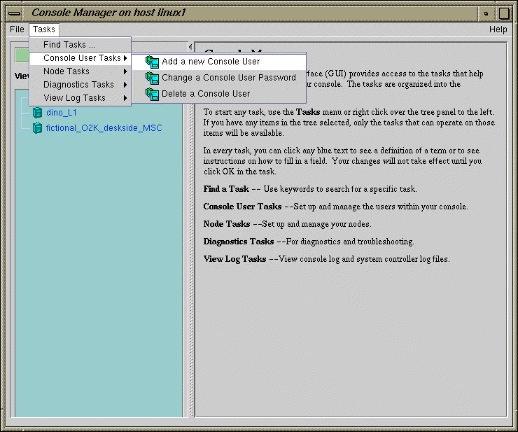
From the File pulldown menu, choose Exit, as shown in Figure 2-2.
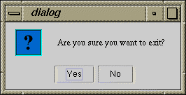
A confirmation message dialog box appears, as shown in Figure 2-3.
Click the Yes button.

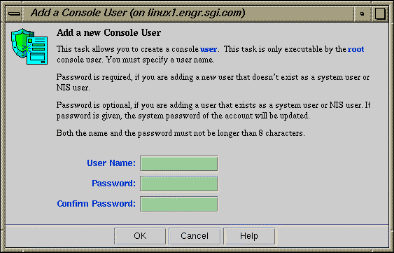
This task allows you to create a console user. This task is only executable by the root console user. You must specify a user name.
If you are adding a new user that does not exist as a system user or NIS user, a password is required.
If you are adding a user that exists as a system user or NIS user, a password is optional.
Both the name and the password must not be longer than 8 characters.
To add a Console user, follow these steps:
From the Tasks menu, choose the following, as shown in Figure 2-4.
Console Users Tasks -> Add a new Console User
The Add a new Console User dialog box appears, as shown in Figure 2-5.
Enter the new user's login and password.
Click the OK button.
You will get an error message if the task fails.
The user icon entry appears on the View panel.
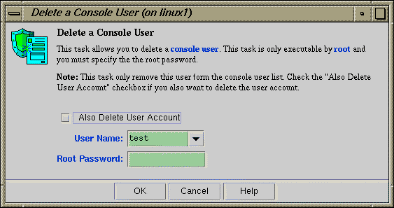
This task allows you to delete a user. The task is executable only by the root console user and you must specify the root password. This task only removes this user from the Console user list. If you select the Also Delete User Account, you also delete the user account.
To delete a Console Manager user, follow these steps:
From the Tasks menu, choose the following:
Console Users Tasks -> Delete a Console User
The Delete a Console User dialog box appears, as shown in Figure 2-6.
Enter the user name.
Click the Also Delete User Account button is you also want to remove the user account
Enter the root password.
Click the OK button.
You will get an error message if the task fails.
The user icon entry is removed from the View panel.
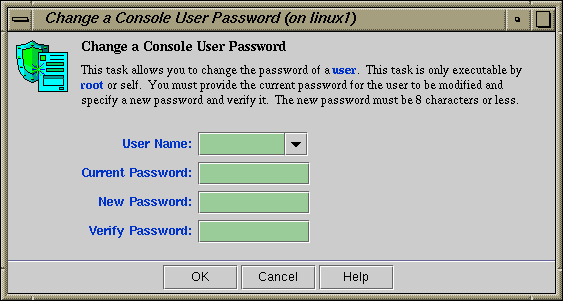
This task allows you to change a console user password. It can be executed by any console user.
To change a console user password, follow these steps:
From the Tasks menu, choose the following:
Console Users Tasks -> Change a Console User Password
The Change a Console User Password dialog box appears, as shown in Figure 2-7.
Enter the your user name, your current password , and your new password.
Click the OK button.
An error message appears if the task fails.