This chapter describes how to run SoftWindows, and how to quit from SoftWindows.
SoftWindows initially runs in a separate X Windows window, and you can run PC applications at the same time as your Unix applications.
SoftWindows is set up to launch MS-DOS automatically.
To start Windows from MS-DOS, type "win" at the C:\> prompt.
Type the following command from a Unix shell:
win3
SoftWindows will come up and go directly to the Windows welcome screen. For more information about the Windows desktop refer to Chapter 6, “Using Windows”.
If necessary, double-click the Program Manager icon to display the Program Manager window.
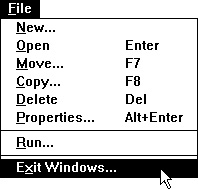
Choose Exit Windows… from the Program Manager File menu.
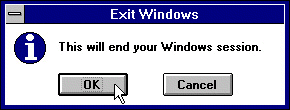
The following dialog box appears:
Choose OK to exit from Windows to the SoftWindows MS-DOS window.

 | Tip: Press the Alt and F4 keys at the same time to exit from Windows. |
For more information about the MS-DOS window refer to Chapter 7, “Using MS–DOS”.


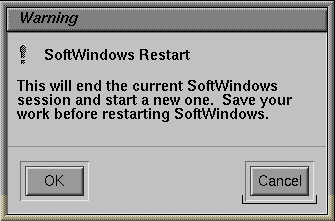
If you are switching between SoftWindows and Unix applications, you can either manually freeze SoftWindows or set SoftWindows to automatically freeze when it loses window focus. This lets you optimize your use of the available CPU resources on your system.
When Freeze is selected, you will not be able to use MS-DOS or Windows. You can still reposition the SoftWindows window on your desktop, and the SoftWindows menu itmes "File," and "Actions" are still available.
Select Freeze again from the Actions menu to resume your MS-DOS or Windows session.
The checkmark disappears next to the Freeze menu item when Freeze is not active.
If you want SoftWindows to freeze automatically whenever its window does not have focus, choose Auto Freeze from the Options menu. SoftWindows will unfreeze as soon as focus is returned to its window.
 | Note: You should not use Freeze or Auto Freeze if you are using network resources or are connected to a LAN server, as any network connections could time out. |
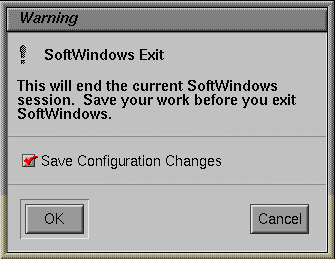
Choose Exit from the File menu.
This dialog box warns you that work can be lost if you quit without exiting from PC applications or saving files:
Save Configuration Changes is selected by default. This saves any changes you have made using the Options menu items in SoftWindows.
If you do not want to save any changes, deselect the Save Configuration Changes option before selecting OK. For more information refer to "SoftWindows configuration" in the SoftWindows for Unix Administrator's Guide.
Choose OK to exit from SoftWindows or Cancel to cancel the exit.