This chapter describes the configuration files the server uses. When you use the Server Manager, the forms act as an interface to the configuration files. The changes you make in the Server Manager are saved in these configuration files. You can use these files to configure the server manually.
You might need to configure the server manually for various reasons. If you accidentally lock your hosts out of the administrative forms or if you forget your administrative password, you'll have to change information manually in the server's configuration files.
 | Note: Before you can edit any of the configuration files, you must have permission to read and write the files. This probably means you need to log in as root. |
The server configuration files are kept in the directory httpd-80/config (https-443/config for the Commerce Server) in your server root directory. These files are described in more detail in the rest of this chapter.
magnus.conf is the server's main technical configuration file. It controls aspects of the server operation not related to documents, such as hostname and port.
obj.conf is the server's object configuration file. It controls access to the server and manages the files and directories that the server can send to clients.
mime.types is the file that the server uses to convert filename extensions such as .GIF into a MIME type like image/gif.
admpw is the administrative password file. Its format is user:password. The password is DES-encrypted just like /etc/passwd.
The technical configuration file, called magnus.conf, controls all server operations not related to handling of documents or directories—the obj.conf file handles these. All of the items in the magnus.conf configuration file are global and apply to the entire server, as opposed to affecting only one document or set of documents.
Every command line in the file has the format:
Directive Value |
Comment lines begin with a # character with no leading white space.
Directive lines can contain white space at the beginning of the line and between the directive and value, but trailing white space after the value might confuse the server. Long lines (which should occur only with the Init directive) can be continued with a \ character before the linefeed.
 | Warning: If you are using the Administration forms, you shouldn't use continuation lines in the magnus.conf file. Instead, put each Init configuration entirely on a single line. If you are absolutely sure you will never use the Administration form, you can use the backslash character. |
# Sample magnus.conf file for Netscape server 1.1 # The server's home--it's root directory #ServerRoot /usr/ns-home/https-443 # Which port? Port 443 # This tells the server to get its objects from obj.conf, and use # the "default" object as the default. LoadObjects obj.conf RootObject default # The logfile for errors, and the file where it should keep # the pid of the master server process. ErrorLog /usr/ns-home/https-443/logs/errors PidLog /usr/ns-home/https-443/logs/pid # Which user should the server run as? This is the Unix user # account name. User http # The server's name ServerName www.sgi.com # Use DNS? (turn this off for performance reasons) DNS on # Processes - maximum and minimum to spawn MinProcs 16 MaxProcs 32 # How many requests should a process serve before being respawned? ProcessLife 512 # Security directives: is security on, where is my keyfile, # which ciphers should I support (Ciphers directive is on the # US version only) Security on Keyfile ServerKey.der Certfile ServerCert.der Ciphers +rc4, +des, +rc4export # Initializations, such as log files and loading NSAPI libraries Init fn=load-types mime-types=mime.types Init fn=init-clf global=/usr/ns-home/https-443/logs/access |
This section defines the directives and describes their characteristics, including the directive name and description, format for the value string, default value if the directive is omitted, and how many instances of the directive should be in the file. The directives are described below.
ServerName defines the server hostname.
Port defines the TCP port that the server listens to.
User specifies the server's IRIX user account.
MaxProcs sets the maximum number of active processes.
MinProcs sets the minimum number of active processes.
ProcessLife specifies the number of requests each child process serves during its lifetime.
ErrorLog specifies the directory where the server logs its errors.
PidLog specifies a file to record the server's main process ID (PID).
LoadObjects specifies a start-up object configuration file.
RootObject defines the default server object.
Chroot lets the server be placed into a jail (for security reasons.)
Init (a special directive) initializes server subsystems.
DNS specifies if the server does DNS lookups on clients who access the server.
Security specifies the type of security the server has. This is available only for the Commerce server, and some functions are available only in the US version of the Commerce server.
ServerName tells the server what to put in the hostname section of any URLs it sends to the client. This affects URLs that the server automatically generates; it doesn't affect the URLs for directories and files stored in the server. This name is what all clients use to access the server; they need to combine this name with the port number if the port number is anything other than 80.
This name should be the alias name if your server uses an alias. You can't have more than one ServerName directive in magnus.conf.
SYNTAX
ServerName host
host is a fully-qualified domain name such as myhost.sgi.com.
DEFAULT
If ServerName isn't in magnus.conf, the server attempts to derive a hostname through system calls. If they don't return a qualified domain name (for example, it gets myhost instead of myhost.sgi.com), the server won't start, and you'll get a message telling you to set this value manually.
EXAMPLES
ServerName server.sgi.com
ServerName www.server.anycompany.com
ServerName www.agency.gov
Port controls which TCP port the server listens to. If you choose a port number less than 1024, the server must be started as root. There should be only one Port directive in magnus.conf.
| Note: The port you choose can affect how users configure their navigators. Users must specify the port number when accessing the server if the port number is anything other than 80 or 443. |
SYNTAX
Port number
number is a whole number between 0 and 65535.
DEFAULT
If no port is specified, the server assumes 80.
EXAMPLES
Port 80
Port 8080
Port 8000
| Warning: If you change the default HTTP port number from 80, you must edit the /etc/init.d/netsite file (/etc/init.d/netsite_commerce for the Commerce Server) to reflect the change. |
User specifies the IRIX user account for the server. If the server is started by the superuser or root user, the server binds to the Port you specify, and then switches its user ID to the user account specified with the User directive. This directive is ignored if the server isn't started as root.
The user account you specify should have read permission to the server's root and subdirectories. The user account should have write access to the logs directory and execute permissions to any CGI programs. The user account should not have write access to the configuration files. This ensures that in the unlikely event someone compromises the server, they won't be able to change configuration files and gain broader access to your host.
Although you can use the nobody user, it isn't recommended.
SYNTAX
User name
name is the 8-character (or less) login name for the IRIX user account.
DEFAULT
If there is no User directive, the server runs with the user account it was started with. If the server was started as root or superuser, you'll see a warning message after startup.
EXAMPLES
User http
User server
User nobody
MaxProcs sets the maximum number of processes the server can have active. The server keeps the number of active processes between the number specified in MaxProcs and the number in MinProcs. If there is no MinProcs directive, then the MaxProcs number specifies the constant number of processes the server keeps active.
Choose a number that is appropriate for the type of access you expect for the server. If this number is too small, clients will experience delays. If the number is too large, you might run out of memory and get an error such as “could not fork new process.”
SYNTAX
MaxProcs number
number is a whole number between 1 and the size of your system's process table.
DEFAULT
MaxProcs 50
EXAMPLES
MaxProcs 20
MaxProcs 40
MaxProcs 80
MinProcs sets the minimum number of processes the server can have active. The server regulates the number of processes between MinProcs and MaxProcs. If MinProcs isn't specified, a constant number of processes (specified with MaxProcs) will run.
SYNTAX
MinProcs number
number is a whole number between 1 and the number specified in MaxProcs.
DEFAULT
There is no default; if this directive is missing, the server uses the MaxProcs number to specify a constant number of processes.
EXAMPLES
MinProcs 10
MinProcs 20
ProcessLife specifies the number of requests each of the server's child processes serves before the processes exit and are respawned (this is set to 64 by default). When the processes are stopped and restarted, the memory they use is freed and then reused.
By stopping and restarting a process, the server ensures that memory isn't wasted by “lost” processes. For example, on rare occasions, there might be resource “leaks” in operating system libraries or in the server itself (though none are currently known). By specifying a lifespan, a process answers a certain number of requests before exiting and respawning.
ErrorLog specifies the directory where the server logs its errors. You can also use the syslog facility. If errors are reported to a file (instead of syslog), then the file and directory in which the log is kept must be writable by whatever user account the server runs as.
SYNTAX
ErrorLog logfile
logfile can be either a full path and filename or the keyword SYSLOG (it must be in all capital letters).
DEFAULT
There is no default error log.
EXAMPLES
ErrorLog /var/ns-server/logs/errors
ErrorLog SYSLOG
PidLog specifies a file in which to record the process ID (PID) of the base server process. Some of the server support programs assume that the PID log is in the server root, in logs/pid.
To shut down your server, kill the base server process listed in the PID log file by using a -TERM signal. To tell your server to reread its configuration files and reopen its log files, use kill with the -HUP signal.
If the PidLog file isn't writable by the user account that the server uses, the server does not log its process ID anywhere.
SYNTAX
PidLog file
file is the full pathname and filename where the process ID (PID) is stored.
DEFAULT
There is no default.
EXAMPLES
PidLog /var/ns-server/logs/pid
PidLog /tmp/ns-server.pid
LoadObjects specifies one or more object configuration files to use on startup; these files tell the server where to find documents.
| Note: Although you can have more than one object configuration file, the server's Administration forms work only with one file and assume that it is in the server root in admin/config/obj.conf. If you use the Administration forms (or plan to), don't put the obj.conf file in any other directory and don't rename it. |
SYNTAX
LoadObjects filename
filename is either the full pathname or a relative pathname. Relative pathnames are resolved from the directory specified with the -d command line flag. If no -d flag was given, the server looks in the current directory.
DEFAULT
There is no default.
EXAMPLES
LoadObjects obj.conf
LoadObjects /var/ns-server/admin/config/local-objs.conf
RootObject tells the server which object loaded from an object file is the server default. The default object is expected to have all of the name translation directives for the server; any server behavior that is configured in the default object affects the entire server.
If you specify an object that doesn't exist, the server doesn't report an error until a client tries to retrieve a document. The Administration forms assume the default to be the default named object. Don't deviate from this convention if you use (or plan to use) the Administration forms.
SYNTAX
RootObject name
name is the name of an object defined in one of the object files loaded with a LoadObjects directive.
DEFAULT
There is no default.
EXAMPLES
RootObject default
RootObject server1
Chroot lets the IRIX system administrator place the server into a jail where it has access only to files in a given directory. This is useful if the server's security is ever compromised. For example, if an intruder somehow obtains shell access on the server host, the intruder could affect only a very limited set of files on the server host.
The server must be started as the superuser to use the Chroot directive. CGI programs must be linked statically, and any binaries (perl or /bin/sh) must be copied to the Chroot directory.
The user public information directory feature isn't available unless a copy of /etc/passwd is kept in the Chroot directory and all of the users home directories are exactly mirrored within the Chroot directory.
A server using Chroot can't be restarted with the -HUP signal.
Logs and server configuration files should be kept outside the Chroot directory.
| Note: All paths in magnus.conf must be absolute; paths in obj.conf must be relative to the Chroot directory. |
SYNTAX
Chroot directory
directory is the full pathname to the directory used as the server's root directory.
DEFAULT
There is no default.
EXAMPLES
Chroot /d/ns-httpd
Chroot /www
Init is a special directive that initializes certain server subsystems such as access logging and user public directories. The functions referenced with the Init directive load data for specific subsystems once on server startup and keep that data internally until the server is shut down. You can specify zero or more Init directives.
SYNTAX
Init fn=function-name [parm1=value1]…[parmN=valueN]
function-name identifies the server initialization function to call. These functions shouldn't be called more than once.
parm=value pairs are values for function-specific parameters. The number of parameters depends on the function you use. The order of parameters doesn't matter.
Init functions are described in detail in the following sections. Brief descriptions appear below.
load-types maps file extensions to MIME types.
init-clf initializes the Common Log subsystem.
init-uhome loads user home directory information.
cindex-init sets global characteristics for fancy indexing.
The function load-types scans a file that tells it how to map filename extensions to MIME types. MIME types are essential for network navigation software like Netscape Navigator to tell the difference between file types. For example, they are used to tell an HTML file from a GIF file. See “The mime.types File” for more detailed information.
Calling this function is crucial if you use the Administration forms.
PARAMETERS
mime-types specifies either the full path to the global MIME types file or a filename relative to the server configuration directory. The server comes with a default file called mime.types.
local-types is an optional parameter to a file with the same format as the global MIME types file, but it is used to maintain types that are applicable only to your server.
EXAMPLES
Init fn=load-types mime-types=mime.types Init fn=load-types mime-types=/tp/mime.types \ local-types=local.typesThe function init-clf initializes the Common Log subsystem. It opens the log files whose names are given as parameters. The log files stay open until the server is shut down or until the base server process is sent the -HUP signal (at which time the logs are closed and re-opened).
Note: Initializing this function is required if you are using the common log features. You use this function to specify which log files the server uses to record transactions. Then, you use the AddLog directive in the obj.conf file to specify the log file where the server stores the transaction record.
For example, you use init-clf to specify a name that refers to a log file, (such as http-log=/var/ns-server/loghttp). Then you use the name with the AddLog function in obj.conf to add a log entry to the file (such as AddLog fn=server-log name=http-log). If you ever change the path or filename of the log file, you do it only once—in magnus.conf—instead of multiple times in obj.conf.
Note: You also can use AddLog to store transactions in more than one log file. See “AddLog” for more information about the AddLog function. If you move, remove, or change the log file without shutting down or restarting the server, client accesses might not be recorded. To save or back up a log file, you need to rename the file and then send the -HUP signal to restart the server. The server uses the inode number, but when you do a soft restart, the server first looks for the filename. If it doesn't find the log file, it creates a new one (the renamed original log file is left for you to use).
PARAMETERS
At least one log file should be given. The parm part of the parm=value pair should be a unique name for the log file. You will use this name later on, as a parameter to the server-log function.
EXAMPLES
Init fn=init-clf global=/var/ns-server/logs/access
Init fn=init-clf global=/tmp/server-access
init-uhome
The function init-uhome loads information about the system's user home directories into internal hash tables. This increases the shared memory size slightly, but saves CPU cycles for servers that have a lot of traffic to home directories.
PARAMETERS
“pwfile” (optional) specifies the full filesystem path to a file other than /etc/passwd. If not listed, the default (NIS or /etc/passwd) is used.
EXAMPLES
Init fn=init-uhome
Init fn=init-uhome pwfile=/etc/passwd-http
cindex-init
The function cindex-init configures fancy indexing. You must use fancy indexing for this function to work. See “Directory Indexing” for more information on directory indexing.
DEFAULT
Init fn=cindex-init widths=22,1,1,33
PARAMETERS
“opts” (optional) specifies options to activate for indexing. You specify a string of letters, one for each option to activate:
i makes all icons links.
s makes the server scan HTML files in the directory it's indexing in order to place their titles in the description field.
“widths” specifies the width for each column in the indexing printout. A zero width disables the column. The string should be a comma-separated list of numbers that specify the column widths according to name, last modified date, size, and description.
“ignore” specifies a wildcard pattern for filenames the server can ignore while indexing. Filenames starting with a dot are automatically ignored.
“icon-uri” specifies the prefix the server uses for icons. By default, this is /mc-icons/. The server looks in this directory for the GIF files to use in fancy indexing.
EXAMPLES
Init fn=cindex-init widths=50,1,1,0
Init fn=cindex-init widths=50,1,1,30 opts=s
Init fn=cindex-init widths=22,0,0,50 opts=is
The object configuration file, called obj.conf, uses objects to control how the server handles documents.
Objects (also referred to as resources) are settings that tell the server how to treat all documents, CGI programs, directories, imagemap files, and so on. You can define objects in two ways:
Use wildcard patterns. Anything that matches a specified wildcard pattern belongs to the same object. This object grouping can then be used to control (in fine detail) the behavior of the server.
Using this object grouping scheme, you can specify single resources with their complete URL, whole “directories” with the path followed by /*, and various other groups such as *.html. You can then configure the settings you want to use for that object (for example, caching or denying access based on the server's hostname or a string within a URL).
Create a template. You create a template with specific settings, and apply that template to directories or files. You then use name translation functions to tell the server which directories or files use the template.
Using templates makes it easy to configure scattered directories. For example, if user home directories appear in several places, you use one template instead of configuring each directory separately.
Also, with cgi-bin directories, all files are treated as programs and are run rather than sent. If you create a CGI template and assign the template to CGI programs (using name translation), then you can have any number of CGI directories and they all use the template configuration.
The obj.conf file must have four specific objects in it (see “Required Objects for obj.conf” for a description of the objects). You can add other objects to this file. To specify an object, use the following format:
<Object ppath=wildcardpattern>
Directives
…
  <Client dns=wildcardpattern>
    Directives
   …
  </Client>
</Object>
<Object name=cgi>
Directives
…
</Object>
|
You use wildcard patterns (see “Understanding Wildcard Patterns”) to control what is grouped in the object, or you use a name to create a template. You then specify one or more directives to control what the server does when it encounters anything that uses the template or that matches the wildcard pattern specified with ppath.
You can also set options for specific client hosts. This is a powerful feature because, unlike other servers where a host either can or cannot access a document, you make the server act differently for a client depending on the document they access. Although you don't need any <Client> sections in an object section, you can specify more than one—so the server acts differently based both on who requests something and what they request.
Each directive line (regardless of where it appears) has the format:
Directive fn=function [parameter1=value1]…[parameterN=valueN] |
Directive identifies an aspect of server operation. This string is case insensitive and must appear at the beginning of a line.
function is a function and parameters given to the directive. Its format depends on the directive.
Comment lines begin with a # character with no leading white space.
Directive lines cannot contain white space at the beginning of the line and between the directive and value, but trailing white space after the value might confuse the server. Long lines (which should only occur with the Init directive) can be continued with a \ character before the linefeed.
The following sample object applies to a directory called user/public/.
<Object ppath="/user/public/*"> PathCheck fn=deny-existence Service fn=server-retrieve </Object> |
When the server receives a request for a document in this directory, it doesn't send the document. Instead, it denies the existence of any files or subdirectories and displays the “not found” error message.
The Service directive tells the server to get the documents by default.
# # Sample obj.conf file for Netscape server 1.1. # # This file was automatically generated by the server. # Edit at your own risk. # The default object. This is what the server uses if none of the other # objects fit. # # This one has a CGI directory specified in /usr/local/bin/cgi, # a directory mapping to a bigger disk in /gig-drive/sales, # and a document root of /usr/http-docs # <Object name="default"> NameTrans fn="pfx2dir" from="/mc-icons" dir="/usr/ns-home/mc-icons" NameTrans fn="pfx2dir" from="/cgi-bin" dir="/usr/local/bin/cgi" name="cgi" NameTrans fn="pfx2dir" from="/sales" dir="/gig-drive/sales" NameTrans fn="document-root" root="/usr/http-docs" PathCheck fn="unix-uri-clean" PathCheck fn="find-pathinfo" PathCheck fn="find-index" index-names="index.html,home.html" ObjectType fn="type-by-extension" ObjectType fn="force-type" type="text/plain" Service fn="imagemap" method="(GET|HEAD)" type="magnus-internal/imagemap" Service fn="index-common" method="(GET|HEAD)" type="magnus-internal/directory" Service fn="send-cgi" type="magnus-internal/cgi" Service fn="send-file" method="(GET|HEAD)" type="*~magnus-internal/*" AddLog fn="common-log" </Object> # All CGI directories have these configuration options set <Object name="cgi"> ObjectType fn="force-type" type="magnus-internal/cgi" Service fn="send-cgi" </Object> # This is a directory that requires authentication to enter, and uses server # parsed HTML <Object ppath="/usr/http-docs/private/*"> AuthTrans fn="basic-ncsa" dbm="/usr/ns-home/userdb/users" auth-type="basic" <Client dns="*~*.sgi.com> PathCheck fn="deny-existence" </Client> PathCheck realm="Confidential Documents" fn="require-auth" auth-type="basic" Service fn="parse-html" method="(GET|HEAD)" type="magnus-internal/parsed-html" </Object> |
There are certain objects that must be in the obj.conf file to make the Administration forms work for your server. These functions control local file access and CGI execution.
The following sections describe the objects that must be in obj.conf.
<Object name="default">
NameTrans fn="pfx2dir" from="/mc-icons" dir="/usr/home/mc-icons"
NameTrans fn="document-root" root="/usr/http-docs"
PathCheck fn="unix-uri-clean"
PathCheck fn="find-pathinfo"
ObjectType fn="type-by-extension"
ObjectType fn="force-type" type="text/plain"
Service fn="imagemap" method="(GET|HEAD)"
        type="magnus-internal/imagemap"
Service fn="index-common" method="(GET|HEAD)"
        type="magnus-internal/directory"
Service fn="send-file" method="(GET|HEAD)"
        type="*~magnus-internal/*"
</Object>
|
The Netscape server design breaks down the process of responding to an information request. Each step in the process is done once for all objects, then another step is done for all objects, and so on. The process steps are as follows:
Authorization translation. Translate any authorization information given by the client into a user and group. If necessary, decode the message to get the actual request. Also, server authorization is available.
Name translation. Before anything else is done, a URL can be translated into a filesystem-dependent name (an administration URL), a redirection URL or a mirror site URL. It might also be kept intact and retrieved as is (the normal server case).
Path checks. Perform various tests on the resulting path, largely used to make sure that it's safe for the given client to retrieve the document (only for local access).
Object types. Determine the MIME type information for the given document. MIME types can be registered document types such as text/html and image/gif, or they can be internal document identification types. Internal types always begin with magnus-internal/, and are used to select a server function to use to decode the document. (Only used for local access; the server system calls these routines automatically when necessary.)
Service. Select an internal server function that should be used to send the result back to the client. This function can be the normal server-service routine, or local file blast, or a CGI execution for admin forms.
Log. Select a function to record information about the transaction that just finished.
These steps map directly to six of the configuration directives allowed for each object. There is a seventh configuration directive (send-error) that controls how the server responds to the client when it encounters an error.
This section defines the directives and describes their characteristics, including the directive name and description, format for the function string, default value if the directive is omitted, and how many instances of the directive can be in the file. The directives are described below.
AuthTrans protects server resources from specific users.
NameTrans maps URLs to mirror sites and the local filesystem.
PathCheck checks URLs after NameTrans.
ObjectType tags additional information to requests.
Service sends data and completes the requests.
AddLog adds log entries to any log files.
Error sends customized error messages to clients.
AuthTrans stands for Authorization Translation. Server resources can be protected so that accessing them requires the client to provide certain information about the person using the client program. This authorization information is encoded to prevent clients from authorizing themselves as different users.
The server analyzes the authorization of client users into two steps. First, it translates authorization information sent by the client, and then it requires that such authorization information be present. This is done in the hope that multiple translation schemes can be easily incorporated, as well as providing the flexibility to have resources that record authorization information but do not require it.
If there is more than one AuthTrans directive in an object, all functions are applied.
Basic NCSA
DESCRIPTION
basic-ncsa translates authorization information provided through the basic server authorization scheme. This scheme is similar to the HTTP authorization scheme, but doesn't interfere with it, so using server authorization doesn't prevent authentication with the remote server.
This function is usually used in conjunction with the PathCheck function require-server-auth.
PARAMETERS
auth-type specifies the type of authorization to be used. This should always be basic.
dbm specifies the full path and base filename of the user database in the server's native format. The native format is a system DBM file, which is a hashed file format allowing instantaneous access to billions of users. If you use this parameter, don't use userfile as well.
userfile specifies the full pathname of the user database in the NCSA-style httpd user file format. This format consists of name:password lines where password is encrypted. If you use this parameter, don't use the next one.
grpfile (optional) specifies the NCSA-style httpd group file to be used. Each line of a group file consists of group:user1 user2…userN where each user is separated by spaces. See “PathCheck” for more information on group files.
EXAMPLES
AuthTrans fn=basic-ncsa auth-type=basic
  dbm=/var/ns-server/userdb/rs
AuthTrans fn=basic-ncsa auth-type=basic
  userfile=/var/ns-server/.htpasswd
  grpfile=/var/ns-server/.grpfile
NameTrans stands for Name Translation. This directive maps URLs to physical directories on your server. For example, the URL http://www.test.com/some/file is a virtual path that could map to the real directory called /docs/http/files/.
NameTrans directives should appear in the root object (the “default” object), although you can put them elsewhere. If there is more than one NameTrans directive in an object, the server applies functions until one succeeds.
-
DESCRIPTION
pfx2dir looks for a directory prefix in the path and replaces the prefix with a real directory name. Don't use trailing slashes in either the prefix or the directory.
PARAMETERS
from is the prefix to map.
dir is the directory that the prefix is mapped to.
name (optional) gives a named object (template) from which to derive configuration for this mirror site.
EXAMPLES
NameTrans fn=pfx2dir from=/cgi-bin dir=/httpd/cgi-bin name=cgi
NameTrans fn=pfx2dir from=/icons dir=/httpd/mc-icons
Public information directories
DESCRIPTION
The unix-home function lets your internal users provide information to external users. You specify a URL prefix that corresponds to the user directories. Any request that begins with the prefix is translated to the user's home directory.
You specify the list of users with either the /etc/passwd file or a file with a similar structure. Each line in the file should have this structure (the elements in the passwd file that aren't needed are indicated with *):
username:*:*:groupid:*:homedir:*
If you want the server to scan the password file only once at startup, use the Init function init-uhome.
PARAMETERS
from is the URL prefix to translate.
subdir is the subdirectory of the user's directory that contains their documents.
pwfile is the full path and filename of the password file you want to use, if it's different from /etc/passwd or the NIS database.
name (optional) specifies a named object that configures this directory.
EXAMPLES
NameTrans fn=unix-home prefix=/~ subdir=public_html name=userhome
NameTrans fn=unix-home prefix=/u subdir=public_html name=userhome
Document root
DESCRIPTION
The document-root function specifies the directory that contains all of your documents. This directory is prepended to the virtual path that the client sends to form the full pathname of the file or directory. For example, the client sends /home/file.html, which is translated to <docroot>/home/file.html.
PARAMETERS
root specifies the document directory.
EXAMPLES
NameTrans fn=document-root root=/netscape/docs
Redirection
DESCRIPTION
The redirect function lets you change URLs and send the updated URL to the client. When a client accesses your server with an old path, they are told to use the new URL you provide.
PARAMETERS
from specifies the old path.
url specifies a complete URL to return to the client. If you use this parameter, don't use url-prefix (and vice-versa).
url-prefix is the new URL to pass to the client. The “from” prefix is simply replaced by this URL prefix.
EXAMPLES
NameTrans fn=redirect from=/ url-prefix=http://tmpserver
nameTrans fn=redirect from=/toopopular
   url=http://bigger/better/stronger/morepopular/new.html
Home page
DESCRIPTION
The home-page function specifies the home page for your server. Whenever a user doesn't specify a path, they'll get an index file for the document root directory. If you use this function, you specify the HTML file they see instead. This file must be on the server's local filesystem.
PARAMETERS
path is the path and name of the home page .HTML file.
EXAMPLES
NameTrans fn=home-page path=homepage.html
NameTrans fn=home-page path=/httpd/docs/home.html
PathCheck directives check the full filesystem path that is returned after all of the NameTrans directives finish running. The paths are checked for things such as CGI path info and for dangerous elements such as /./and /../ and //, and then any access restriction is applied.
If there is more than one PathCheck directive in an object, all of the directives are applied in the order they appear.
URI cleaning
DESCRIPTION
The unix-uri-clean function denies access to any requested URL that contains /./, /../ or // (these URLs are potential security problems). If you use scripts with these elements in paths, use the find-pathinfo function (described in the next section) before unix-uri-clean.
PARAMETERS
None.
EXAMPLES
PathCheck fn=unix-uri-clean
Find index files for directories
DESCRIPTION
The find-index function determines if the requested path is a directory. If it is, the function searches for an index file in the directory, and then changes the path to point to the index file. If no index file is found, the server generates a directory listing.
PARAMETERS
index-names is a comma-separated list of index filenames to look for. Use spaces only if they are part of a filename.
EXAMPLES
PathCheck fn=find-index index-names=index.html,home.html
Require authorization
DESCRIPTION
The require-auth function allows access to objects only if the user or group is authorized. You must use the AuthTrans directive before using the PathCheck directive with this function.
PARAMETERS
auth-type is the type of HTTP authorization to use. This currently can be set only to basic.
realm is a string (enclosed in double-quotation marks) sent to the client application so users can see what object they need authorization for.
auth-user (optional) specifies a list of users who get access. The list should be enclosed in parentheses with each user name separated by the | character.
auth-group (optional) specifies a list of groups that get access. Groups are listed in the password-type file.
EXAMPLES
PathCheck fn=require-auth auth-type=basic realm="Marketing Plans"
          auth-group=mktg auth-users=(jdoe|johnd|janed)
Deny path's existence
DESCRIPTION
The deny-existence function sends a not found message when a client tries to access a specified path. If this function appears in a <client> region, then it performs access control. Note that not found is sent instead of forbidden, which means the user can't tell if the path exists or not.
PARAMETERS
path (optional) is a wildcard pattern of the path to hide. If no paths are specified, then all paths are hidden.
bong-msg specifies a file to send instead of the not found message. The file should be an HTML file specified as an absolute path.
EXAMPLES
PathCheck fn=deny-existence path=*/~
<client>
PathCheck fn=deny-existence bong-msg=/svr/msg/go-away.html
</client>
Find filesystem links
DESCRIPTION
The find-links function searches the current path for symbolic or hard links to other directories or filesystems. If any are found, the server returns an error. Usually you use this function in directories you don't trust (such as user home directories). This prevents someone from pointing to information that you don't want made public.
PARAMETERS
disable is a character string of links to disable:
dir is the directory to begin checking. If you specify an absolute path, any request to that path and it's subdirectories is checked for symlinks. If you specify a partial path, any request containing that partial path is checked for symlinks. For example, if you use /user/ and a request comes in for some/user/directory, then that directory is checked for symlinks.
EXAMPLES
PathCheck fn=find-links disable=sh dir=/foreign-dir
PathCheck fn=find-links disable=so dir=public_html
Find path information
DESCRIPTION
The find-pathinfo function uses extra path information if it can't find a file in a specified path. Extra path information is included after the path and file in the URL.
PARAMETERS
None.
EXAMPLES
PathCheck fn=find-pathinfo
ObjectType directives determine the MIME type of the file sent to the client. This type is usually sent back to the client to let the client decide what to do. MIME attributes currently sent are type, encoding, and language.
If there is more than one ObjectType directive in an object, all of the directives are applied in the order they appear. If a directive sets an attribute and a later directive tries to set that attribute to something else, the first setting is used and the subsequent ones ignored.
-
DESCRIPTION
The type-by-extension function uses file extensions to determine information about files. (Extensions are strings after the last period in a filenamefilename.) This matches an incoming request to extensions in the mime.types file. The MIME type is added to the “content-type” header sent back to the client. The type can be set to internal server types that have special results when combined with the functions you write using the NSAPI (see the Netscape Servers Programmer's Guide for more information.)
PARAMETERS
None.
EXAMPLES
ObjectType fn=type-by-extension
File typing by wildcard pattern
DESCRIPTION
The type-by-exp function matches the current path with a wildcard expression. If the two match, the type parameter information is applied to the file. This is the same as type by extension, except you use wildcard patterns for the files or directories specified in the URLs.
PARAMETERS
exp is the wildcard pattern of files or directories that the information is applied to.
type (optional) is the type to assign to any matching files.
enc (optional) is the encoding given to matching files (the “content-encoding” header).
lang (optional) is the language assigned to matching paths.
EXAMPLES
ObjectType fn=type-by-exp exp=*.test type=application/html
Forcing file types
DESCRIPTION
The force-type function assigns a type to objects. This is used to specify a default object type.
PARAMETERS
type is the type to assign to matching files.
enc (optional) is the encoding given to matching files.
lang (optional) is the language assigned to matching paths.
EXAMPLES
ObjectType fn=force-type type=text/plain
ObjectType fn=force-type lang=en_US
-
DESCRIPTION
The shtml-hacktype function provides backward compatibility with server-side includes.
Server-side includes require a different MIME type than HTML. This means that your parsed documents must have different file extensions than nonparsed documents. If this is a problem, this function can be used as a solution. Another is to have the server parse all HTML, but this can have detrimental performance effects. You can also check for the execute bit on the file. If it's there, the file is parsed; otherwise, it isn't. None of these solutions is recommended. See the Netscape Server Programmer's Guide for more information on server-parsed HTML.
PARAMETERS
exec-hack (optional) checks if the execute bit is enables for the file. If you don't specify this parameter, all files are marked as parsed.
EXAMPLES
ObjectType fn=shtml-hacktype exec-hack=true
Once the other directives have done all the necessary checks and translations, the Service class of functions sends the data (first receiving it from a remote server when necessary) and completes the request.
Service directives support the following optional parameters to help determine whether the directive is used or not:
type (not with server-retrieve) specifies a wildcard pattern of MIME types to apply the directive to. The server defines several MIME types internally that are used only to select a Service function that translates the internal type into a form presentable to the client.
method specifies a wildcard expression of HTTP methods that the client must be using to have the directive applied. Valid HTTP methods are GET, HEAD, and POST. Multiple values are enclosed in parentheses and separated by the pipe (|) symbol.
query specifies a wildcard pattern of search queries that must be present for the directive to run.
If an object contains more than one Service function, the first is one is used and all subsequent ones are ignored.
Send a plain file
DESCRIPTION
The send-file function sends the contents of a plain text file to the client. If this function finds any extra path information, it doesn't send the text file to the client.
PARAMETERS
None.
EXAMPLES
Service type=*~magnus-internal/* method=(GET|HEAD) fn=send-file
Send an error message
DESCRIPTION
The send-error function sends an HTML file to the client regardless of the path the client requested. This is used mainly for error messages.
PARAMETERS
path specifies the full filesystem path of the HTML file.
EXAMPLES
Service fn=send-error path=/popular/service/we-moved.html
Service fn=send-error path=/http/errors/no-post.html
Append a trailer to HTML documents
DESCRIPTION
The append-trailer function appends text to the end of every HTML document from the object. This is mainly used for author information and copyright text. The date the file was last modified can automatically be included.
If there is extra path information, the request is flagged as “not found” and the document isn't sent to the client.
PARAMETERS
trailer is the text you want to append to all HTML documents. The text can contain HTML tags and can be approximately 700 characters long. The string :LASTMOD: is substituted with the date the file was last modified; you must also specify a time format with timefmt.
timefmt is a time string in the strftime(3C) function format.
EXAMPLES
Service fn=Service type=text/html fn=append-trailer
        trailer="<hr><img scr=/logo,gif> Copyright 1995"
Service fn=Service type=text/html fn=append-trailer timefmt="%D"
        trailer="<hr>File last updated on: :LASTMOD:"
Run a CGI program
DESCRIPTION
The send-cgi function runs a file as a CGI program and sends the results to the client.
PARAMETERS
None.
EXAMPLES
Service fn=send-cgi
Service type=magnus_internal/cgi fn=send-cgi
Set a default query handler
DESCRIPTION
The query-handler function runs a CGI program instead of referencing the path requested. This is used mainly to support the obsolete ISINDEX tag. If possible, use a FORM instead.
PARAMETERS
path is the full path and filename of the CGI program to run.
EXAMPLES
Service query=* fn=query-handler path=/http/cgi/do-grep
Service query=* fn=query-handler path=/http/cgi/proc-info
Use an imagemap
DESCRIPTION
The imagemap function includes imagemap files.
PARAMETERS
None.
EXAMPLES
Service type=magnus_internal/imagemap method=(GET|HEAD) fn=imagemap
Simple directory indexing
DESCRIPTION
The index-simple function scans a directory and produces an HTML file of a bulleted list of files in the directory. Each file appears as a link.
If this function encounters a subdirectory, the link redirects the user to the subdirectory. In directories with subdirectories, use fancy indexing as described in the following section.
PARAMETERS
None.
EXAMPLES
Service type=magnus-internal/directory fn=index-simple
Fancy directory indexing
DESCRIPTION
The index-common function scans a directory and produces an HTML file of a bulleted list of files in the directory. Each file appears as a link. This function produces a format common to the CERN and NCSA HTTP servers. It includes more information than simple indexing and references icon files.
PARAMETERS
header is a file to prepend to the indexing that introduces the contents of the directory. If you specify a filename for this parameter, the server looks for the filename as an .HTML file, and then incorporates the file in the directory list as HTML; otherwise, the file is included as plain text.
readme is a file (HTML or plain text) to append to the indexing. This gives more information about the contents of the directory.
EXAMPLES
Service type=magnus_internal/directory method=(GET|HEAD) fn=index-common header=hdr.html readme=end-text.txt
Parsed HTML (server-side includes)
DESCRIPTION
The parse-html function parses an HTML document, scanning for embedded server directives. These server directives provide certain information only the server has, or they include the contents of other files. Parsing lots of HTML documents can reduce server performance.
PARAMETERS
opts are parsing options. The no-exec option is the only currently available option—it disables the exec directive.
EXAMPLES
Service type=magnus_internal/parsed-html method=(GET|HEAD) fn=parse-html
After the request is finished and the server has stopped talking to the client, the server logs the transaction. The server records information about every access clients make, and it records information about the client making the request.
If there is more than one AddLog directive in an object, all are used.
-
DESCRIPTION
server-log is an AddLog function that records request-specific data in the common log format (used by most HTTP servers). There is a log analyzer in the /extras directory. There are also a number of free statistics generators for the common format.
The log format is specified by the init-server function call.
PARAMETERS
name (optional) gives the name of a log file, which must have been given as a parameter to the init-clf Init function. If no name is given, global is assumed.
iponly (optional) instructs the server to skip looking up the hostname of the remote client and records the IP address instead. The value of iponly has no significance, as long as it exists; the Administration forms set iponly="1".
EXAMPLES
# Log all accesses to the central log file
AddLog fn=server-log
# Log non-local accesses to another log file
<Client ip=*~198.93.9[2345].*>
AddLog fn=server-log name=nonlocal
</Client>
Record the client software name
DESCRIPTION
The record-useragent function records the IP address of each client, followed by their User-Agent HTTP header. This tells the server what version of Netscape Navigator (or what other browser) the client used for this transaction.
PARAMETERS
name (optional) gives the name of the log file where the log is recorded—it must have been specified with the init-clf function. If no name is listed, the log is recorded in global.
EXAMPLES
AddLog fn=record-useragent name=browsers-used
At any time during a request, conditions can occur that stop the server from fulfilling a request and then return an error to the client. When these conditions occur, the server can send a short HTML page to the client telling them in very general terms about the error.
In order to make error handling more friendly, the server lets you intercept certain errors and send a file of your choosing instead of the server's default error message.
Table 4-1 lists the errors returned by the server. Each error shows the 3-digit HTTP code and the error with a short description.
Error Code | Meaning |
|---|---|
401 Unauthorized | (For Administration forms only). The server requires HTTP user authorization to allow access to the Administration forms, and either the client provided none or its HTTP authorization was insufficient. |
403 Forbidden | The server tried to access a file or directory, and found that the user it was running as didn't have sufficient permission to access the file. |
404 Not Found | The client asked for a filesystem path that doesn't exist or the server was configured to tell the client that it doesn't exist. If you use access control, changing the response to this error allows you to tell people nicely that they don't have that access to your server. |
500 Server Error | Server errors mean that an error has occurred within the server that prevents it from finishing the request. Server errors happen mainly because of misconfiguration or because host resources such as swap space are exhausted. |
You can call most Service functions from Error directives.
PARAMETERS
reason gives one of the above strings (the text in bold, such as unauthorized or forbidden).
code sends the three-digit number, such as 401 or 407.
EXAMPLES
Error fn=send-error code=401 path=/var/ns-server/errors/401.html |
The mime.types file tells the server how to convert files with certain extensions (such as .GIF) into a Multipurpose Internet Mail Extensions type (such as image/gif). MIME files are compact files and transfer quickly. Also, MIME is needed by browsers (like the Netscape Navigator); without MIME they couldn't tell the difference between an HTML page and a graphics file. The mime.types file contains the global file extensions for all servers. The first line in the file identifies the file format and must read:
#--Netscape Communications Corporation MIME Information |
Other non-comment lines have the format
type=type/subtype exts=[file extensions] icon=icon |
type/subtype
exts are the file extensions associated with this type. When the server transfers a file with one of these extensions, it uses the MIME type you specified in type.
icon is the name of the icon that the browser displays. Netscape Navigator keeps these images internally. If you use a browser that doesn't have these icons, the server delivers them. Figure 4-1 illustrates the internal icons for MIME types.
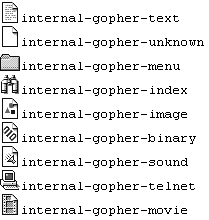
Example 4-3 provides a sample mime.types file.
#--Netscape Communications Corporation MIME Information # Don't delete the above line. It identifies this file's type. # # This is a simple MIME types file for the Netscape server. Most # of the MIME types are already compiled in the server. Types that # are part of the Administration forms (HTML and GIF) must appear # here, or they won't be known to the part of the server that # manages the Administration interface calls. # # Icons (internal-gopher-…) are references to Netscape's # internal icons. If a client doesn't support these icons, the # server will provide them. type=application/oda exts=oda type=application/pdf exts=pdf type=application/x-mif exts=mif type=application/x-dvi exts=dvi type=application/x-hdf exts=hdf type=application/x-netcdf exts=nc,cdf type=application/x-texinfo exts=texinfo,texi icon=internal-gopher-text type=application/zip exts=zip type=application/x-tar exts=tar type=application/x-macbinary exts=bin type=application/x-stuffit exts=sit type=image/gif exts=gif icon=internal-gopher-image type=image/jpeg exts=jpeg,jpg,jpe icon=internal-gopher-image type=image/x-xwindowdump exts=xwd icon=internal-gopher-image type=text/html exts=htm,html,shtml icon=internal-gopher-text type=text/plain exts=txt icon=internal-gopher-text type=text/richtext exts=rtx icon=internal-gopher-text type=text/tab-separated-values exts=tsv icon=internal-gopher-text type=text/x-setext exts=etx icon=internal-gopher-text type=application/x-tar enc=x-gzip exts=tgz enc=x-gzip exts=gz enc=x-compress exts=z |
The admpw file contains the Administration password. If you forget your password, there is no way to find out what it was. You must encrypt a new one and replace the old version with it. The file has the format user:password.
You can create multiple Administration users by creating an NCSA-type of user database, and then rename that file to replace admpw.
If you forget your Administration password, you can edit the admpw file and delete the password section (everything after the semicolon). When you go to the Server Manager, you don't need to enter a new password—but you should immediately go to the Administration Manager and set a new one.
| Warning: Because you can do this, it is very important to keep secure the server's IRIX account and to ensure that only that server account and the root account have full (write) access to the server root directory. This way, only someone running as root or with the server's user account can enter the <ServerRoot>/admserv directory and edit the file. |