This appendix describes the basic elements of HTML documents when they are stored on your computer as ASCII text. If you use a WYSIWYG Web authoring tool such as WebMagic™ Author, you do not need to know HTML. If you do not have such a tool, or want to learn HTML anyway, the information contained in this appendix can help you understand the actual ASCII construction of the HTML documents. Choose “Help/How to Create Web Services” on your Netscape Navigator to jump to a page containing more information about HTML. In addition, there are many other books and HTML documents that define the language.
HyperText Markup Language defines how documents are written for the HyperText Transport Protocol (HTTP)—the protocol for the World Wide Web. HTML documents contain plain text and marker tags.
Tags describe the type of text embedded in them. HTML is not a WYSIWYG language. That is, you don't specify the format (font, size, position) of the text. Instead, you use tags to describe the organization and typeface of the text. For example, you designate what is a title, what is body text, and what is hypertext (or links to other pages) by using tags.
Because there are many different Web browsers for various platforms, HTML documents look different depending on the browser you use. For this reason, HTML provides structure for your text instead of layout.
The structure of HTML documents is hierarchical. You begin with tags for the entire document, then move to heading tags and paragraph tags.
Because HTML documents are plain text, you can use any text editor from the IRIX vi editor to complex word processors. There are also many good document conversion tools that let you convert documents to HTML. For example, you can convert a PostScript file to HTML.
This appendix describes plain HTML and assumes you're using a simple text editor.
Netscape Navigator lets you view the HTML source of any page you view with it. While viewing a page, choose “View/Source” from the menu. The navigator then displays the HTML tags and text.
While you're learning to create HTML documents, you might find it helpful to view the source of another file to see how the author marked the text.
When you write HTML documents, you use tags to mark the beginning and ending of text elements. Tags are enclosed in angle brackets. To specify a header, you type <H1> at the beginning of the header text and </H1> at the end (note that ending tags always begin with the forward slash). For example, to mark a heading, you would type
<H1>This is a heading</H1> |
Figure A-1 shows a basic HTML page in Netscape Navigator.

Below, in Example A-1 is the HTML source for the web page shown in Figure A-1.
Example A-1. The HTML Source For Figure A-1
There are many different types of tags. Some are used for headings, others for body text. You might want to create an HTML document that uses many tags—then use the Navigator to see how the tags look. The following table describes the most common HTML tags.
Table A-1. HTML Tags in Hierarchical Order
Tag name | Description |
|---|---|
Defines the file as a hypertext markup language document. | |
Defines the heading for the document. This usually includes the TITLE tag. | |
Defines the title of the document. This text is used to reference the page in history lists (such as the Go menu in Netscape Navigator). | |
Defines where the body text of the file begins. | |
Defines six levels of headings. | |
P | Defines a paragraph. |
Defines an ordered (numbered) list. Use LI to define items in the list. | |
Defines an unordered (bulleted) list. Use LI to define items in the list. | |
Defines individual items in a list. Each list item appears preceded with either a number or a bullet (or hyphen in some browsers). | |
Emphasizes characters, usually with italic type. | |
Strongly emphasizes characters, usually with bold type. | |
Displays text in a fixed-width font, usually Courier. | |
Displays text in bold type. | |
Displays text in italic type. | |
Displays text in a typewriter-like font. This is often the same as CODE. | |
Inserts an image (graphic) in the document. | |
Separates the page with a horizontal rule line. | |
Inserts a line break. | |
Defines attributes with links to other pages (HREF=) or sections of the current page (NAME=). |
Tags are case-insensitive. <HEAD> is the same as <head> and <Head>, but most authors use all capital letters to make tags stand out from the text.
Tags can appear on the same line as the embedded text or they can appear on separate lines. The line
<H1> HTML is fun to write! </H1> |
is the same as
<H1> HTML is fun to write! </H1> |
There are some special characters in HTML. Because the Web is multiplatform, only a reduced set of keyboard characters is available. You can use any standard, lower ASCII character. These usually include all the characters on your keyboard (unless you have a special, non-English keyboard).
You can't use upper ASCII characters directly. For example, in the word processor you use to write your HTML, you might use a sequence of commands to type é. However, on another computer platform, this character might translate to a different character or no character at all. To use these special characters, you need to type character references or entity references.
HTML also has reserved characters. For example, what if you want to use an angle bracket in text? How does a browser know the bracket doesn't mean the start or end of a tag? Table A-2 shows a list of reserved characters.
Table A-2. Reserved Characters
Character | Decimal | Entity |
|---|---|---|
" | " | |
& | & | & |
< | < | < |
> | > | &rt; |
Table A-3 lists character references and entity references.
Table A-3. Special Characters in HTML
Character | Decimal | Entity |
|---|---|---|
ª | ª |
|
« | « |
|
¬ | ¬ |
|
- | ­ |
|
® | ® |
|
¯ | ¯ |
|
˚ | ° |
|
\xb1 | ± |
|
\xb7 | ² |
|
\xb8 | ³ |
|
´ | ´ |
|
\xb5 | µ |
|
¶ | ¶ |
|
· | · |
|
¸ | ¸ |
|
\xb6 | ¹ |
|
º | º |
|
» | » |
|
\xb9 | ¼ |
|
\xba | ½ |
|
\xbd | ¾ |
|
¿ | ¿ |
|
À | À | À |
Á | Á | Á |
 |  |  |
à | à | à |
Ä | Ä | Ä |
Å | Å | Å |
Æ | Æ | Æ |
Ç | Ç | Ç |
È | È | È |
É | É | É |
Ê | Ê | Ê |
Ë | Ë | Ë |
Ì | Ì | Ì |
Í | Í | Í |
Î | Î | Î |
Ï | Ï | Ï |
\xc3 | Ð | Ð |
Ñ | Ñ | Ñ |
Ò | Ò | Ò |
Ó | Ó | Ó |
Ô | Ô | Ô |
Õ | Õ | Õ |
Ö | Ö | Ö |
\xb0 | × |
|
Ø | Ø | Ø |
Ù | Ù | Ù |
Ú | Ú | Ú |
Û | Û | Û |
Ü | Ü | Ü |
\xc5 | Ý | Ý |
\xd7 | Þ | Þ |
ß | ß | ß |
à | à | à |
á | á | á |
â | â | â |
ã | ã | ã |
ä | ä | ä |
å | å | å |
æ | æ | æ |
ç | ç | ç |
è | è | è |
é | é | é |
ê | ê | ê |
ë | ë | ë |
ì | ì | ì |
í | í | í |
î | î | î |
ï | ï | ï |
\xb2 | ð | ð |
ñ | ñ | ñ |
ò | ò | ò |
ó | ó | ó |
ô | ô | ô |
õ | õ | õ |
ö | ö | ö |
\xd6 | ÷ |
|
\xbf | ø | ø |
ù | ù | ù |
ú | ú | ú |
û | û | û |
ü | ü | ü |
\xc6 | ý | ý |
\xca | þ | þ |
ÿ | ÿ | ÿ |
There are two ways to include images (graphics) in an HTML document: inline and external. You'll usually use inline images, which appear directly in the HTML page. External images are downloaded when a user clicks a link to the image.
Because not all browsers can view various types of image files, your images should be .GIF files. There are lots of shareware products that create GIFs or translate one type of image (for example, BMP) to GIF.
To include an image in your HTML document, use the <IMG> tag.
<IMG SRC="some.gif"> |
The previous line includes the file some.gif in your HTML document. This assumes that the file is in the same directory as your HTML document. If the file is in another directory, use either the relative or absolute path.
You can include images on separate lines, or you can include them in text in headings, body paragraphs, and even lists.
The image tag has several attributes that control the graphic. The first is SRC. This defines the source for the graphic—the GIF image file.
You can control where the image is positioned relative to the text of the line it appears in by using the ALIGN attribute. You can set ALIGN to top, middle, or bottom. This positions the top, middle, or bottom of the image with the baseline of the text. If you don't specify alignment, it defaults to bottom.

 | Note: Text does not wrap around an image. |
Some browsers can't display images. You can include a text string that describes the image by using the ALT attribute.
The following example displays an image whose middle is aligned with the text baseline. The example includes the descriptive text for browsers that can't display images:
<IMG SRC="icon.gif" ALIGN=middle ALT="This is my icon"> |
You can use graphics as links to other pages by embedding the image tag in a link. The following example adds a circle graphic and links it to the HTML document called circles.
<A HREF="circles.html"><IMG SRC="circle.gif"></A> |
You can combine graphics and text in one link. This means that you can click either the graphic or the text to jump to the corresponding page:
<A HREF="icons.html"><IMG SRC="myicon.gif">My icon is cool</A> |
An image map is a graphic that has clickable regions that link to different pages. For example, you can have an image with a square and a circle where a click in the square takes you to one page and a click in the circle takes you to a different page.
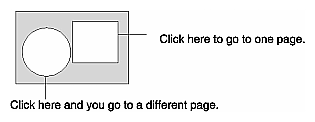
To create an imagemap, you need a graphic file and a map file. The map file contains coordinates that define the clickable regions in the graphic.
You create an ASCII text file with the .map extension that contains the coordinates for the areas you want to link. Coordinates are specified from the upper left corner of the image. There are several good imaging applications that will give you the coordinates for a point in an image.
Each line in the map file specifies a clickable region. Lines have the format
method URL coordinate1 coordinate2 … |
method defines the shape the coordinates specify. Methods can be:
point URL x,y specifies a clickable point in the image. This is useful if you click an undefined area because the click is then sent to the closest point to the clicked area.
circle URL x,y x,y specifies a circle. Circles need two coordinates—the circle center and any point on the circle's edge.
rect URL x,y x,y specifies a rectangle by its upper left and lower right corners.
poly URL x,y x,y... specifies a polygon of up to 100 sides. Each x,y pair is the point where two sides of the polygon meet. The last x,y pair is connected to the first to enclose the polygon.
default URL defines the URL to jump to when someone clicks in an area not specified by any regions. If you use a point in the map file, then the default is never used.
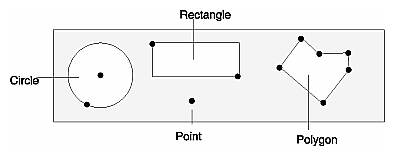
Coordinates are measured from the top left corner of the image.
# sample map file image # This is the top left circle circle http://www.sgi.com/funstuff 37,39 32,62 # This is the rectangle in the middle rect http://www.sgi.com/fabulous 75,7 150,39 # This is the point point http://www.sgi.com/homepage 125,62 # This is that weird polygon poly http://w3.sgi.com/ 175,35 190,5 200,10 220,9 219,37 203,62 |