This chapter provides the following sections to help you troubleshoot your system:
Table 14-1 lists recommended actions for problems that can occur. To solve problems that are not listed in this table, use the SGI Electronic Support system or contact your SGI system support engineer (SSE). For more information about the SGI Electronic Support system, see the “SGI Electronic Support”.
Table 14-1. Troubleshooting Chart
Recommended Action | |
|---|---|
The system will not power on. | Ensure that the power cord of the PDU is seated properly in the power receptacle. Ensure that the PDU circuit breaker is on. If the power cord is plugged in and the circuit breaker in on, contact your SSE. |
An individual brick will not power on. | Ensure that the power switch (if applicable) at the rear of the brick is on (1 position). View the L1 display; see Table 14-2 if an error message is present. If the L1 controller is not running, contact your SSE. Check the connection between the brick and its power source. |
The system will not boot the operating system. | Contact your SSE. |
The Service Required LED illuminates on a CR-brick, an R-brick, an IX-brick, or a PX-brick. | View the L1 display of the failing brick; see Table 14-2 for a description of the error message. |
The Failure LED illuminates on a CR-brick, an R-brick, an IX-brick, or a PX-brick. | View the L1 display of the failing brick; see Table 14-2 for a description of the error message. |
The green or yellow LED of a NUMAlink port (rear of R-brick) is not illuminated. | Ensure that the NUMAlink cable is seated properly on the R-brick and the destination brick. |
The PWR LED of a populated PCI slot is not illuminated. | Reseat the PCI card. |
The Fault LED of a populated PCI slot is illuminated (on). | Reseat the PCI card. If the fault LED remains on, replace the PCI card. |
The System Status LED of the TP900 is amber. | Contact your SSE. |
The Power Status LED of the TP900 is amber. | Contact your SSE to replace the power supply module. The power supply module also has an amber LED that indicates a fault. |
The Cooling Status LED of the TP900 is amber. | Contact your SSE to replace the cooling module. The cooling module also has an amber LED that indicates a fault. |
The amber LED of a disk drive is on. | Replace the disk drive. |
Table 14-2 lists error messages that the L1 controller generates and displays on the L1 display. This display is located on the front of the XG2N modules, CPU expansion modules, CR-bricks, R-bricks, IX-brick, and PX-bricks. For serial-number related errors, check with your service provider for documentation on prevention and solutions.
The serial number error messages listed at the end of Table 14-2 are messages that will come across the L1 console (at the L1 or optional L2 prompt). The log being referenced is the L1 log. Users can get the contents by using the log command from an L1 prompt, or l1 log command from an optional L2 prompt.
Actions that could cause serial number error messages include:
Moving a module or brick from one system to another.
Replacing the interface board of a system module.
L1 NVRAM memory failure.
Incorrect serial number setting on an optional L2 system controller.

Note: In Table 14-2, a voltage warning occurs when a supplied level of voltage is below or above the nominal (normal) voltage by 10 percent. A voltage fault occurs when a supplied level is below or above the nominal voltage by 20 percent.
Table 14-2. L1 Controller Messages
L1 System Controller Message | Message Meaning and Action Needed |
|---|---|
Internal voltage messages: |
|
ATTN: x.xV high fault limit reached @ x.xxV | 30-second power-off sequence for the module. |
ATTN: x.xV low fault limit reached @ x.xxV | 30-second power-off sequence for the module. |
ATTN: x.xV high warning limit reached @ x.xxV | A higher than nominal voltage condition is detected. |
ATTN: x.xV low warning limit reached @ x.xxV | A lower than nominal voltage condition is detected. |
ATTN: x.xV level stabilized @ x.xV | A monitored voltage level has returned to within acceptable limits. |
Fan messages: |
|
ATTN: FAN # x fault limit reached @ xx RPM | A fan has reached its maximum RPM level. The ambient temperature may be too high. Check to see if a fan has failed. |
ATTN: FAN # x warning limit reached @ xx RPM | A fan has increased its RPM level. Check the ambient temperature. Check to see if the fan stabilizes. |
ATTN: FAN # x stabilized @ xx RPM | An increased fan RPM level has returned to normal. |
Temperature messages: low alt. |
|
ATTN: TEMP # advisory temperature reached | The ambient temperature at the module's air inlet has exceeded 30 ºC. |
ATTN: TEMP # critical temperature reached | The ambient temperature at the module's air inlet has exceeded 35 ºC. |
ATTN: TEMP # fault temperature reached | The ambient temperature at the module's air inlet has exceeded 40 ºC. |
Temperature messages: high alt. |
|
ATTN: TEMP # advisory temperature reached | The ambient temperature at the module's air inlet has exceeded 27 ºC. |
ATTN: TEMP # critical temperature reached | The ambient temperature at the module's air inlet has exceeded 31 ºC. |
ATTN: TEMP # fault temperature reached @ xxC xxF | The ambient temperature at the module's air inlet has exceeded 35 ºC. |
Temperature stable message: |
|
ATTN: TEMP # stabilized @ xxC/xxF | The ambient temperature at the module's air inlet has returned to an acceptable level. |
Power off messages: |
|
Auto power down in xx seconds | The L1 controller has registered a fault and is shutting down. The message displays every five seconds until shutdown. |
Base module appears to have been powered down | The L1 controller has registered a fault and has shut down. |
Serial number messages: |
|
Brick Serial Number mismatch | See L1 log for details. |
System Serial Number mismatch | See L1 log for details. |
Invalid System Serial Number format | See L1 log for details. |
No assigned System Serial Number | See L1 log for details. |
Under certain circumstances a system software or hardware error can occur prior to the graphics console's ability to display information. In this case you can see the error only on the L1 controller panel or from an optional system console connected to the Console serial port on the back of the system. In these cases an error message is displayed on the L1 display of the form <geoid> ERR <error code> or <geoid> POD <error code>. Most of the time, these errors indicate a serious problem and customer service should be called (please provide the error code to the service representative). See Table 14-3 for a partial list of the L1 Hexadecimal boot error codes.
Table 14-3. L1 Controller Hexadecimal Boot Error Codes
Error code | Message Meaning or Action Needed |
|---|---|
0x80 | The unit has no DIMM memory — insure that DIMM group 0 is fully populated. See the information in “Removing and Replacing Memory DIMMs” in Chapter 13 . |
0x81 | Write to system controller timed out. |
0x82 | Request for system reset failed. |
0x83 | Local master arbitration failed. |
0x84 | No memory available to allocate hardware configuration structure. |
0x85 | Can't initialize klconfig. |
0x87 | Disabled by environment variable. |
0x88 | Call to unimplemented chip specific function. |
0x89 | System controller communication initialization failed. |
0x8b | Nasid assignment failed. |
0x8c | Route calculation failed. |
0x8d | Critical system controller transaction failed. |
0xb0 | PAL early self test failed. |
0xb1 | SAL entered with invalid function code. |
0xb2 | SAL invoked for firmware recovery. |
0xb3 | SAL_RESET called with bad parameters. |
0xb4 | main () returned |
0xb5 | PAL_CACHE_INFO failed looking for cache to reload. |
0xb6 | Cache preloading PAL call failed. |
0xb7 | Scratch area overflowed the CPU's caches. |
0xb8 | PAL_MEM_FOR_TEST failed. |
0xb9 | Bad address calculated for PAL_TEST_PROC |
0xba | PAL_COPY_INFO failed. |
0xbb | Bad PAL shadow address calculated |
0xbc | PAL_COPY_PAL failed. |
0xbd | SDA transfer area overflowed. |
0xbe | No PROM segment (eg. EFI) found. |
0xbf | PROM segment (eg. EFI) exited. |
0xc0 | Out of SAL->EFI handoff memory. |
0xc1 | Cache tests failed. |
0xc2 | Error flashing PROM. |
0xc3 | Could not write new value to cr.lid |
0xd8 | This unit has illegal DIMM population. Check and replace memory, see “Removing and Replacing Memory DIMMs” in Chapter 13 . |
0xf0 | Waiting for primary lock. |
Use the LED located on the front (towards the top) of the XG2N power supply to read the condition of the power supply. Table 14-5 shows the LED status and the power supply condition that LED status indicates. See “Removing and Replacing Power Supplies” in Chapter 13 for information on removing and replacing a power supply.
Table 14-4. LED Status and Power Supply Condition
LED Status | Power Supply Condition Indicated |
|---|---|
Off | If your system has one power supply, it indicates that the power supply is not receiving AC power. If your system has two power supplies, the LED on both power supplies would be Off, and it would indicate that both power supplies are not receiving AC power. Power supplies will not be receiving AC power because either the module is not plugged into power, or an electrical fuse has blown. |
Amber | Indicates a fault condition for one of the following reasons: - The temperature limit has been exceeded. - The current limit has been exceeded. |
Blinking Green | The power supply is receiving AC power, but the main primary DC power has not yet activated. |
Green | The power supply is operating properly. |
Use the LED located on the front (towards the top) of the XG2N and CPU Expansion module power supplies to read the condition of the power supplies. Table 14-5 shows the LED status and the power supply condition that LED status indicates. See “Removing and Replacing Power Supplies” in Chapter 13 for information on removing and replacing a power supply.
Table 14-5. XG2N & CPU Expansion Module LED Status and Power Supply Condition
LED Status | Power Supply Condition Indicated |
|---|---|
Off | If your system has one power supply, it indicates that the power supply is not receiving AC power. If your system has two power supplies, the LED on both power supplies would be Off, and it would indicate that both power supplies are not receiving AC power. Power supplies will not be receiving AC power because either the module is not plugged into power, or an electrical fuse has blown. |
Amber | Indicates a fault condition for one of the following reasons: - The temperature limit has been exceeded. - The current limit has been exceeded. |
Blinking Green | The power supply is receiving AC power, but the main primary DC power has not yet activated. |
Green | The power supply is operating properly. |
SGI Electronic Support provides system support and problem-solving services that function automatically, which helps resolve problems before they can affect system availability or develop into actual failures. SGI Electronic Support integrates several services so they work together to monitor your system, notify you if a problem exists, and search for solutions to problems.
Figure 14-1 shows the sequence of events that occurs if you use all of the SGI Electronic Support capabilities.
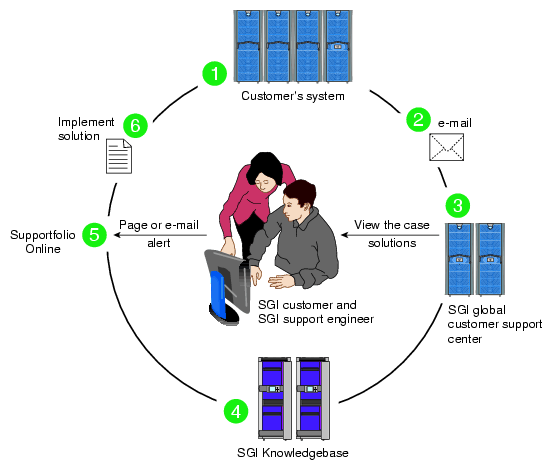
The sequence of events can be described as follows:
Embedded Support Partner (ESP) monitors your system 24 hours a day.
When a specified system event is detected, ESP notifies SGI via e-mail (plain text or encrypted).
Applications that are running at SGI analyze the information, determine whether a support case should be opened, and open a case if necessary. You and SGI support engineers are contacted (via pager or e-mail) with the case ID and problem description.
SGI Knowledgebase searches thousands of tested solutions for possible fixes to the problem. Solutions that are located in SGI Knowledgebase are attached to the service case.
You and the SGI support engineers can view and manage the case by using Supportfolio Online as well as search for additional solutions or schedule maintenance.
Implement the solution.
Most of these actions occur automatically, and you may receive solutions to problems before they affect system availability. You also may be able to return your system to service sooner if it is out of service.
In addition to the event monitoring and problem reporting, SGI Electronic Support monitors both system configuration (to help with asset management) and system availability and performance (to help with capacity planning).
The following three components compose the integrated SGI Electronic Support system:
SGI Embedded Support Partner (ESP) is a set of tools and utilities that are embedded in the SGI Linux ProPack release. ESP can monitor a single system or group of systems for system events, software and hardware failures, availability, performance, and configuration changes, and then perform actions based on those events. ESP can detect system conditions that indicate potential problems, and then alert appropriate personnel by pager, console messages, or e-mail (plain text or encrypted). You also can configure ESP to notify an SGI call center about problems; ESP then sends e-mail to SGI with information about the event.
SGI Knowledgebase is a database of solutions to problems and answers to questions that can be searched by sophisticated knowledge management tools. You can log on to SGI Knowledgebase at any time to describe a problem or ask a question. Knowledgebase searches thousands of possible causes, problem descriptions, fixes, and how-to instructions for the solutions that best match your description or question.
Supportfolio Online is a customer support resource that includes the latest information about patch sets, bug reports, and software releases.
The complete SGI Electronic Support services are available to customers who have a valid SGI Warranty, FullCare, FullExpress, or Mission-Critical support contract. To purchase a support contract that allows you to use the complete SGI Electronic Support services, contact your SGI sales representative. For more information about the various support contracts, see the following Web page:
http://www.sgi.com/support/customerservice.html
For more information about SGI Electronic Support, see the following Web page:
The following sections provide information about customizing the XF86Config file for various special configurations.
This section describes how to configure a system to display stereo images.
Stereo sync is supported only on systems using ImageSync boards.
| Note: Simultaneously running stereo and full scene anti-aliasing can require more graphics-card memory than is available, and thus may not always work correctly. |
| Note: Stereo may be enabled on either channel of a pipe, but may not be enabled on both channels simultaneously. |
Create a copy of the XF86Config file to be customized for stereo:
# cp /etc/X11/XF86Config /etc/X11/XF86Config.Stereo
Edit the XF86Config.Stereo file to include the following line at the end of each “Device” section:
Option "Stereo"           "1"
Option "StereoSyncEnable" "1"
(see the “Example “Device” Section for Stereo”).
Edit the new XF86Config.Stereo file to include the appropriate stereo modes in the “Monitor” section:
Create an appropriate mode (see “Sample Stereo Mode Entries”).
Add that mode to the “Monitor” section of your XF86Config.Stereo file (see the “Example “Monitor” Section for Stereo”).
Note: “Mode” and “Modeline” are two alternative formats used to present the same information.
Ensure that the monitor supports the high horizontal sync rate setting. Refer to the documentation for the monitor to determine the horizontal sync rate. Modify the HorizSync setting in the “Monitor” section of the XF86Config.Stereo file. For example:
HorizSync 22-105
Modify the “Screen” section so that you use the appropriate mode setting. For example:
Modes "1280x1024@96"
(see the “Example “Screen” Section for Stereo”).
Make a backup copy of the default /etc/X11/gdm/gdm.conf file:
# cp /etc/X11/gdm/gdm.conf /etc/X11/gdm/gdm.conf-old
Edit the /etc/X11/gdm/gdm.conf file to use the new XF86Config.Stereo file you created:
Replace the line:
command=/usr/X11R6/bin/X
with:
command=/usr/X11R6/bin/X -xf86config /etc/X11/XF86Config.Stereo
Save the gdm.conf file and reboot the system to restart graphics in stereo mode.
Note that a stereo sync signal will not be present until you run a stereo application. One such application is ivview. If your system has ivview installed, you can use it to test the stereo configuration by running:
ivview /usr/share/data/models/X29.iv
and right click to activate the stereo setting on the preferences panel.
Section "Device"
    Identifier  "SGI SG-0"
    Driver      "fglrx"
    BusId       "PCI:23:0:0"
# === QBS Management ===
    Option "Stereo"           "1"
    Option "StereoSyncEnable" "1"
EndSection
|
Modeline "1024x768@96" 103.5  1024 1050 1154 1336  768 771 774 807
Modeline "1280x1024@96" 163.28  1280 1300 1460 1600  1024 1027 1033 1063
Modeline "1024x768@100" 113.309 1024 1096 1208 1392 768 769 772 814
Modeline "1024x768@120" 139.054 1024 1104 1216 1408 768 769 772 823 +hsync +vsync
Modeline "1280x1024@100" 190.960 1280 1376 1520 1760 1024 1025 1028 1085 +hsync +vsync
Mode "1280x1024_96s_mirage"
    DotClock       152.928
    HTimings       1280 1330 1390 1500
    VTimings       1024 1026 1030 1062
EndMode
|
Section "Monitor"
    Identifier  "Stereo Monitor"
    HorizSync   30-96      # multisync
    VertRefresh 50-160     # multisync
    Modeline "1024x768@96" 103.5  1024 1050 1154 1336  768 771 774 807
EndSection
|
This section describes how to configure a system for global or per-window full scene anti-aliasing.
| Note: Simultaneously running stereo and full scene anti-aliasing can require more graphics-card memory than is available, and thus may not work correctly. |
Create a copy of the XF86Config file to be customized for full scene anti-aliasing:
# cp /etc/X11/XF86Config /etc/X11/XF86Config.AntiAlias
Note: Automatically-generated XF86Config files should contain the customized multi-sample positions shown in “Example “Device” Section for Full Scene Anti-Aliasing”. If these values are not already present, adding them will significantly improve the quality of your output. Edit the new XF86Config.AntiAlias file to include the following line at the end of each “Device” section:
Option "FSAAScale" “X”
where X is 1, 2, 4, or 6 (see the example “Device” section“Example “Device” Section for Full Scene Anti-Aliasing”).
Note: Per-window full scene anti-aliasing is accomplished by setting “FSAAScale” to 1. The anti-aliasing level may then be set by the appropriate selection of visuals.
Global anti-aliasing is accomplished by setting “FSAAScale” to 2, 4, or 6. In this case, the setting will apply to all OpenGL windows, regardless of the visual being displayed.Make a backup copy of the default /etc/X11/gdm/gdm.conf file:
# cp /etc/X11/gdm/gdm.conf /etc/X11/gdm/gdm.conf-old
Edit the /etc/X11/gdm/gdm.conf file to use the new XF86Config.AntiAlias file you created:
Replace the line:
command=/usr/X11R6/bin/X
with:
command=/usr/X11R6/bin/X -xf86config /etc/X11/XF86Config.AntiAlias
Save the gdm.conf file:
Restart graphics:
# <CTRL> <ALT> <BKSPC>
Section "Device"
    Identifier  "SGI SG-0"
    Driver      "fglrx"
    BusId       "PCI:23:0:0"
# === FSAA Management ===
    Option "FSAAScale"                  "1"
    Option "FSAADisableGamma"           "no"
    Option "FSAACustomizeMSPos"         "yes"
    Option "FSAAMSPosX0"                "0.250000"
    Option "FSAAMSPosY0"                "0.416666"
    Option "FSAAMSPosX1"                "0.083333"
    Option "FSAAMSPosY1"                "0.083333"
    Option "FSAAMSPosX2"                "0.416666"
    Option "FSAAMSPosY2"                "0.750000"
    Option "FSAAMSPosX3"                "0.750000"
    Option "FSAAMSPosY3"                "0.916666"
    Option "FSAAMSPosX4"                "0.583333"
    Option "FSAAMSPosY4"                "0.250000"
    Option "FSAAMSPosX5"                "0.916666"
    Option "FSAAMSPosY5"                "0.583333"
EndSection
|
To configure a system for dual-channel operation, follow the steps in this section.
| Note: If any pipes managed by an X server have their second channel enabled, then every pipe managed by that X server must have its second channel enabled. |
| Note: Both channels on a pipe must have the same display resolution. |
Create a copy of the XF86Config file to be customized for dual-channel operation:
# cp /etc/X11/XF86Config /etc/X11/XF86Config.DualChannel
Edit the new XF86Config.DualChannel file to include the following line at the end of each “Device” section:
Option "DesktopSetup" mode
where mode is one of the following:
"0x00000100" [this mode clones the managed area]
"0x00000200" [this mode scales the managed area by 2 horizontally]
"0x00000300" [this mode scales the managed area by 2 vertically]
(see the example “Device” section“Example “Device” Section for Dual Channel”).
Note: All pipes managed by the same X server must be set to the same mode. When using monitors or monitor cables which do not conform to the VESA Display Data Channel (DDC) standard, append the following entry in the “Device” section to enable proper display configuration:
Option "NoDDC" "on"
Make a backup copy of the default /etc/X11/gdm/gdm.conf file:
# cp /etc/X11/gdm/gdm.conf /etc/X11/gdm/gdm.conf-old
Edit the /etc/X11/gdm/gdm.conf file to use the new XF86Config.DualChannel file you created:
Replace the line:
command=/usr/X11R6/bin/X
with:
command=/usr/X11R6/bin/X -xf86config /etc/X11/XF86Config.DualChannel
Save the gdm.conf file:
Restart graphics:
# <CTRL> <ALT> <BKSPC>
To enable overlay planes, follow these steps:
| Note: The option to enable overlay planes only applies to the first channel on the pipe. |
Edit the /etc/X11/XF86Config file to include the following line in each “Device” section for which you want overlay planes enabled:
Option "OpenGLOverlay" "On"
Log out from the desktop, then log back in.
External genlock and framelock may be used on systems with at least one optional ImageSync board.
To configure your system to receive an external genlock or framelock signal you must run the setmon command with the appropriate options.
Before running setmon, use printenv DISPLAY to ensure that the DISPLAY environment variable is set to the local system (for example, :0.0). If it is not, use setenv DISPLAY :0.0 to change it (substituting other numbers for :0.0 if appropriate).
To set the system for genlock, execute the following command:
# setmon -ppipenumber -g graphicsformat |
where pipenumber is the pipe to which this setting should be applied, and
graphicsformat is one of the timings (modes) listed in the “Monitor” section of the /etc/X11/XF86Config file.
To set the system for framelock, execute the following command:
# setmon -ppipenumber -Lvideoformat graphicsformat |
where pipenumber is the pipe to which this setting should be applied,
videoformat is the input video format to be used as a framelock source, and
graphicsformat is one of the framelock-certified timings (modes) listed in the “Monitor” section of the /etc/X11/XF86Config file that is compatible with the chosen input video format (Table 14-6 provides a list of compatible formats).
| Note: The default behavior of setmon is to load the new format for the current session only and to prompt for input to determine if the format should be saved as the default. To save the new format as the default you must be logged in as root. |
For more information about the setmon command, see the setmon man page (man setmon).
| Note: Framelock-certified timings will include an “f” appended to their name (i.e., “1280x1024_5994f” is certified for NTSC (525 line) video timing). |
Table 14-6. Input Video Formats (Framelock)
Input Video Format (Framelock Source) | Format Name | Compatible Graphics Formats |
|---|---|---|
525 line at 59.94Hz (NTSC) | 525 | 1280x1024_5994f |
625 line at 50Hz (PAL) | 625 | 1280x1024_50f |
720-line progressive-scan at 59.94Hz | 720p_5994 | 1920x1154_5994f |
720-line progressive-scan at 60Hz | 720p_60 | 1280x1024_60f |
1080-line progressive-scan at 25Hz | 1080p_25 | 1280x1024_50f |
1080-line interlaced at 25Hz | 1080i_25 | 1280x1024_50f |
1080-line progressive-scan at 29.97Hz | 1080p_2997 | 1920x1154_5994f |
1080-line interlaced at 29.97Hz | 1080i_2997 | 1920x1154_5994f |
1080-line progressive-scan at 30Hz | 1080p_30 | 1280x1024_60f |
1080-line interlaced at 30Hz | 1080i_30 | 1280x1024_60f |
When an X-Server is managing multiple monitors, it needs to know their relative positions in order to properly handle cursor cross-over locations.
The monitor positions are specified in the “ServerLayout” section of the /etc/X11/XF86Config file as follows:
Each screen is listed, followed by a list of the screens above, below, to the left, and to the right of it (in that order). Figure 14-2 and the following subsection show an example of four monitors arranged in a line.
Programs started by clicking on an icon appear on the screen from which you invoked them. Note that once a program has been launched, it is not possible to move it from one screen to another.
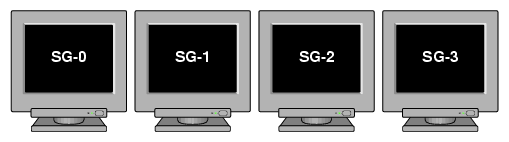
Section "ServerLayout"
    Identifier  "Four-in-a-Line"
    Screen "Screen SG-0"        ""      ""      ""      "Screen SG-1"
    Screen "Screen SG-1"        ""      ""      "Screen SG-0"   "Screen SG-2"
    Screen "Screen SG-2"        ""      ""      "Screen SG-1"   "Screen SG-3"
    Screen "Screen SG-3"        ""      ""      "Screen SG-2"   ""
    InputDevice "Mouse1" "CorePointer"
    InputDevice "Keyboard1" "CoreKeyboard"
EndSection
|
Figure 14-3 and the subsection following it show an example of four monitors arranged in a square.
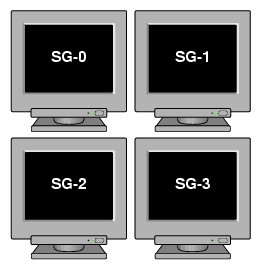
Section "ServerLayout"
    Identifier  "Four-in-a-Square"
    Screen "Screen SG-0"        ""      "Screen SG-2"      ""      "Screen SG-1"
    Screen "Screen SG-1"        ""      "Screen SG-3"      "Screen SG-0"   ""
    Screen "Screen SG-2"        "Screen SG-0"      ""      ""   "Screen SG-3"
    Screen "Screen SG-3"        "Screen SG-1"      ""      "Screen SG-2"   ""
    InputDevice "Mouse1" "CorePointer"
    InputDevice "Keyboard1" "CoreKeyboard"
EndSection
|
The system graphics cards support both analog and digital monitors. The type of monitor connected to each graphics card is specified in the “Device” sections of the /etc/X11/XF86Config file.
Table 14-7 lists the allowable options for the MonitorLayout line. If the line is not present, both channels default to AUTO.
Table 14-7. Options for Monitor Layout
Monitor Type | Meaning |
|---|---|
AUTO | Automatically select monitor type (default) |
TMDS | Digital monitor |
CRT | Analog monitor |
NONE | No monitor |
The format is:
Option "MonitorLayout" "channel1type, channel2type" |
where channel1type is the type (AUTO, TMDS, CRT or NONE) of monitor attached to channel 1 (the left DVI-I connector) for this pipe, and
channel2type is the type (AUTO, TMDS, CRT or NONE) of monitor attached to channel 2 (the right DVI-I connector) for this pipe.
Multiple Xservers allows specific subsets of the keyboards, pointing devices, and monitors attached to a Silicon Graphics Prism system to each be managed by a different Xserver.
| Note: This section only applies to systems with ProPack 3. For systems with ProPack 4, Service Pack 2 or later, use the configuration described in “Configuring a System for Multiple Xservers (ProPack 4, Service Pack 2 or Later)”. (To determine which ProPack version a system is running, look in the /etc/sgi-release file.) |
| Note: The use of multiple Xservers requires ProPack™ 3, Service Pack 4 or a later release of the software. |
This section describes a relatively simple configuration. Much more complex configurations are possible, however, and may be accomplished by extending the instructions provided here.
| Note: When configuring multiple seats, the best method is to first attach all devices (keyboards, pointing devices, and monitors) and configure the system with a single Xserver. Once this is done, the configuration may be modified to assign individual subsets of these devices to be managed by separate Xservers. |
Configuring a system for multi-seat operation involves the following steps, each described in a separate subsection below:
Identify the correct event devices (that is, keyboards and pointing devices) for each seat.
Create and edit an XF86Config.Nserver file for the desired configuration.
Point X to the newly-created XF86Config.Nserver file.
An “event device” is a keyboard or pointing device. All event devices connected to the system are listed at boot time on lines beginning with the string “input.” These boot messages may be displayed at a Linux command prompt using the dmesg command. The output from the dmesg command can be quite long, and therefore is usually filtered with a grep command. For example:
# dmesg | grep ^input input0: USB HID v1.10 Keyboard [NOVATEK Generic USB Keyboard] on usb1:4.0 input1: USB HID v1.00 Mouse [Logitech N43] on usb1:5.0 input2: USB HID v1.00 Mouse [Logitech N43] on usb1:6.0 input3: USB HID v1.10 Keyboard [NOVATEK Generic USB Keyboard] on usb1:7.0 input4: USB HID v1.00 Keyboard [SILITEK USB Keyboard and Mouse] on usb1:9.0 input5: USB HID v1.00 Mouse [SILITEK USB Keyboard and Mouse] on usb1:9.1 input6: USB HID v1.00 Mouse [Logitech N43] on usb1:10.0 |
All input devices detected during boot-up will have device nodes created for them in the /dev/input directory as follows:
Each keyboard will have an associated event* device node.
Each pointing device will have both an associated event* device node and an associated mouse* device node.
The mapping of devices to nodes is by number (that is, input0 maps to event0, input1 maps to event1, and so on). The first input that is a pointing device gets mapped to mouse0, the next input that is a pointing device gets mapped to mouse1, and so on.
The dmesg output shown above would therefore create the following mapping:
input0: event0 input1: event1, mouse0 input2: event2, mouse1 input3: event3 input4: event4 input5: event5, mouse2 input6: event6, mouse3 |
This mapping can then be used to edit the XF86Config.Nserver file, as described in the next subsection, “Creating a Multi-Seat XF86Config File”.
A multiple-Xserver configuration requires a customized XF86Config file containing a separate ServerLayout section for each Xserver you will be running.
| Note: The original ServerLayout section (always identified as “Main Layout”) is typically left unchanged, allowing the system to easily be reconfigured as a single-Xserver system. |
Creating a New XF86Config File
Start out by creating a new XF86Config file. The easiest way to do this is to simply make a copy of the system's regular XF86Config file, as follows:
# cp /etc/X11/XF86Config /etc/X11/XF86Config.Nservers |
(where N is the number of servers you will be configuring).
Configuring the Input Devices
Next, configure the input devices as follows:
Copy the section beginning:
Section "InputDevice"
  Identifier "Keyboard1"
and insert a duplicate copy (or copies) below the existing section, until there is one copy for each keyboard (including the original copy in this count).
Edit all the keyboard InputDevice sections, in each one changing the driver from “keyboard” to “evdev” and adding an Option line identifying the appropriate event device (in this example, “/dev/input/event0”). The resulting InputDevice sections will look something like the following:
Section "InputDevice"
  Identifier "Keyboard1"
  Driver "evdev"
  Option "Device" "/dev/input/event0"
  # ...
EndSection
Note: See “Identifying Event Devices” for instructions on how to determine the appropriate event device for each section. Note: You may assign any number of keyboards to a single Xserver, but no keyboard may be assigned to more than one Xserver. Copy the section beginning:
Section "InputDevice"
  Identifier "Mouse1"
and insert a duplicate copy (or copies) below the existing section, until there is one copy for each pointing device (including the original copy in this count).
Edit all the mouse InputDevice sections, changing the Option “Device” line from the default “/dev/input/mice” to one identifying the appropriate event device (in this example, “/dev/input/mouse0”). The resulting InputDevice sections will look something like the following:
Section "InputDevice"
  Identifier "Mouse1"
  Driver "mouse"
  Option "Device" "/dev/input/mouse0"
  # ...
EndSection
Note: See “Identifying Event Devices” for instructions on how to determine the appropriate event device. Note: You may assign any number of pointing devices to a single Xserver, but no pointing device may be assigned to more than one Xserver.
Configuring the New ServerLayout Sections
In this new XF86Config.Nservers file, perform the following steps:
Copy the section beginning:
Section “ServerLayout”
    Identifier “Main Layout”
and insert a duplicate copy (or copies) below the existing section, until there is one copy for each Xserver you will have (do NOT include the original “Main Layout” copy in this count).
While leaving the original ServerLayout section identified as “MainLayout,” give each new ServerLayout section a new name. For example, the first server might be named “Layout0”:
Identifier “Layout0”
the next “Layout1,” and so on.
Within each new Server Layout section, disable (delete or comment out) every screen that will not be used in that layout:
    Screen "Screen SG-0"        ""      ""      ""      "Screen SG-1"
#    Screen "Screen SG-1"        ""      ""      "Screen SG-0"   ""
Note: You may assign any number of screens to a single Xserver, but no screen may be assigned to more than one Xserver. Edit each Server Layout section to make sure than no remaining uncommented screen lists as adjacent another screen that will be managed by a different Xserver:
    Screen "Screen SG-0"        ""      ""      ""      ""
#    Screen "Screen SG-1"        ""      ""      "Screen SG-0"   ""
Within each Server Layout section, change the input devices to the correct ones for that Xserver. For example, the first Xserver might use:
InputDevice “Mouse1” “CorePointer”
InputDevice “Keyboard1” “CoreKeyboard”
Save the XF86Config.Nservers file.
For an example ServerLayout section from an XF86Config.3server file, see “Example “ServerLayout” Sections for Three Xservers”. In this example, the first two Xservers manage one screen each, while the third Xserver manages two screens.
# **********************************************************************
# ServerLayout sections.
# **********************************************************************

Section "ServerLayout"
    Identifier  "Main Layout"
    Screen "Screen SG-0"        ""      ""      ""      "Screen SG-1"
    Screen "Screen SG-1"        ""      ""      "Screen SG-0"   "Screen SG-2"
    Screen "Screen SG-2"        ""      ""      "Screen SG-1"   "Screen SG-3"
    Screen "Screen SG-3"        ""      ""      "Screen SG-2"   ""
    InputDevice "Mouse1" "CorePointer"
    InputDevice "Keyboard1" "CoreKeyboard"
EndSection

Section "ServerLayout"
    Identifier  "Layout0"
    Screen "Screen SG-0"        ""      ""      ""      ""
    InputDevice "Mouse1" "CorePointer"
    InputDevice "Keyboard1" "CoreKeyboard"
EndSection

Section "ServerLayout"
    Identifier  "Layout1"
    Screen "Screen SG-1"        ""      ""      ""      ""
    InputDevice "Mouse2" "CorePointer"
    InputDevice "Keyboard2" "CoreKeyboard"
EndSection

Section "ServerLayout"
    Identifier  "Layout2"
    Screen "Screen SG-2"        ""      ""      ""      "Screen SG-3"
    Screen "Screen SG-3"        ""      ""      "Screen SG-2"      ""
    InputDevice "Mouse3" "CorePointer"
    InputDevice "Keyboard3" "CoreKeyboard"
EndSection
|
Once you have created the new XF86Config.Nserver file, the last step is to tell X to use the new layouts it contains, rather than the default server layout. To do so, perform the following steps:
Make a backup copy of the default single-server /etc/X11/gdm/gdm.conf file:
# cp /etc/X11/gdm/gdm.conf /etc/X11/gdm/gdm.conf-old
Edit the /etc/X11/gdm/gdm.conf file to use the new server layouts you defined in the XF86Config file:
In the [servers] section, comment out the standard server, then add the new server layouts you will be using:
#0=Standard
0=Layout0
1=Layout1
2=Layout2
Define each new server layout. For example:
[server-Layout0]
name=Layout0 server
command=/usr/X11R6/bin/X :0 -xf86config /etc/X11/XF86Config.3server -layout Layout0
flexible=true
For an example of a multi-Xserver [servers] section, see “Example /etc/X11/gdm/gdm.conf Servers Section for Three Xservers”.
Save the gdm.conf file and reboot the system.
[servers] #0=Standard 0=Layout0 1=Layout1 2=Layout2 [server-Standard] name=Standard server command=/usr/X11R6/bin/X flexible=true [server-Layout0] name=Layout0 server command=/usr/X11R6/bin/X :0 -xf86config /etc/X11/XF86Config.3server -layout Layout0 flexible=true [server-Layout1] name=Layout1 server command=/usr/X11R6/bin/X :1 -xf86config /etc/X11/XF86Config.3server -layout Layout1 flexible=true [server-Layout2] name=Layout2 server command=/usr/X11R6/bin/X :2 -xf86config /etc/X11/XF86Config.3server -layout Layout2 flexible=true |
Multiple Xservers allows specific subsets of the keyboards, pointing devices, and monitors attached to a Silicon Graphics Prism system to each be managed by a different Xserver.
| Note: This section only applies to systems with ProPack 4, Service Pack 2 or later. For systems with ProPack 3, use the configuration described in “Configuring a System for Multiple Xservers (ProPack 3, Service Pack 4 or later)”. (To determine which ProPack version a system is running, look in the /etc/sgi-release file.) |
This section describes a relatively simple configuration. Much more complex configurations are possible, however, and may be accomplished by extending the instructions provided here.
| Note: When configuring multiple seats, the best method is to first attach all devices (keyboards, pointing devices, and monitors) and configure the system with a single Xserver. Once this is done, the configuration may be modified to assign individual subsets of these devices to be managed by separate Xservers. |
Configuring a system for multi-seat operation involves the following steps, each described in a separate subsection below:
Identify the correct event devices (that is, keyboards and pointing devices) for each seat.
Create and edit an XF86Config.Nserver file for the desired configuration.
Point X to the newly-created XF86Config.Nserver file.
This section explains how to uniquely refer to keyboards and pointing devices for later reference in the XF86Config.Nserver file.
Adding USB Device Rules
Some systems will need rules added to the /etc/udev/udev.rules file to ensure that the keyboard and mouse appear in a predictable location at each reboot. Follow these steps to ensure that the rules are present:
Open the /etc/udev/udev.rules file in a text editor.
Search for the following two lines:
KERNEL="event*",BUS="usb",SYSFS{bInterfaceClass}="03",SYSFS{bInterfaceProtocol}="02",NAME="input/%k",SYMLINK="input/evmouse-%b"
KERNEL="event*",BUS="usb",SYSFS{bInterfaceClass}="03",SYSFS{bInterfaceProtocol}="01",NAME="input/%k",SYMLINK="input/evkbd-%b"
If the lines are already present, proceeed to “Creating a Multi-Seat XF86Config File”.
If the lines are not present, insert them before any existing KERNEL="event*" lines.
Finding the Device Names
Follow thse steps to find the device names for the keyboards and mice:
Look in the /dev/input/ directory for files beginning with “evkbd” and “evmouse.” For example:
evkbd-2-1:1.0
evkbd-2-2:1.0
evmouse-1-1:1.0
evmouse-1-2:1.0
Record these device names for use when editing the XF86Config.Nserver file, as described in the next subsection, “Creating a Multi-Seat XF86Config File”.
These device names include the USB path where the device is located. As long as the device remains connected to the same USB port, these device names should remain the same.
A multiple-Xserver configuration requires a customized XF86Config file containing a separate ServerLayout section for each Xserver you will be running.
| Note: The original ServerLayout section (always identified as “Main Layout”) is typically left unchanged, allowing the system to easily be reconfigured as a single-Xserver system. |
Creating a New XF86Config File
Start out by creating a new XF86Config file. The easiest way to do this is to simply make a copy of the system's regular XF86Config file, as follows:
# cp /etc/X11/XF86Config /etc/X11/XF86Config.Nservers |
(where N is the number of servers you will be configuring).
Configuring the Input Devices
Next, configure the input devices as follows:
Copy the section beginning:
Section "InputDevice"
  Identifier "Keyboard1"
and insert a duplicate copy (or copies) below the existing section, until there is one copy for each keyboard (including the original copy in this count).
Give each new section a unique identifier (for example, “Keyboard2,” “Keyboard3,” etc.)
Edit all the keyboard InputDevice sections, in each one changing the driver from “keyboard” to “evdev” and adding an Option line identifying the appropriate device name (in this example, “/dev/input/evkbd-2-1:1.0”). The resulting InputDevice sections will look something like the following:
Section "InputDevice"
  Identifier "Keyboard1"
  Driver "evdev"
  Option "Device" "/dev/input/evkbd-2-1:1.0"
  # ...
EndSection
Note: See “Identifying Keyboards and Pointing Devices” for instructions on how to determine the appropriate device names for each section. Note: You may assign any number of keyboards to a single Xserver, but no keyboard may be assigned to more than one Xserver. Copy the section beginning:
Section "InputDevice"
  Identifier "Mouse1"
and insert a duplicate copy (or copies) below the existing section, until there is one copy for each pointing device (including the original copy in this count).
Give each new section a unique identifier (for example, “Mouse2,” “Mouse3,” etc.)
Edit all the mouse InputDevice sections, in each one changing the driver from “mouse” to “evdev” and changing the Option “Device” line from the default “/dev/input/mice” to one identifying the appropriate device name (in this example, “/dev/input/evmouse-1-1:1.0”). The resulting InputDevice sections will look something like the following:
Section "InputDevice"
  Identifier "Mouse1"
  Driver "evdev"
  Option "Device" "/dev/input/evmouse-1-1:1.0"
  # ...
EndSection
Note: See “Identifying Keyboards and Pointing Devices” for instructions on how to determine the appropriate device names for each section. Note: You may assign any number of pointing devices to a single Xserver, but no pointing device may be assigned to more than one Xserver.
Configuring the New ServerLayout Sections
In this new XF86Config.Nservers file, perform the following steps:
Copy the section beginning:
Section “ServerLayout”
    Identifier “Main Layout”
and insert a duplicate copy (or copies) below the existing section, until there is one copy for each Xserver you will have (do NOT include the original “Main Layout” copy in this count).
While leaving the original ServerLayout section identified as “MainLayout,” give each new ServerLayout section a new name. For example, the first server might be named “Layout0”:
Identifier “Layout0”
the next “Layout1,” and so on.
Within each new Server Layout section, disable (delete or comment out) every screen that will not be used in that layout:
    Screen "Screen SG-0"        ""      ""      ""      "Screen SG-1"
#    Screen "Screen SG-1"        ""      ""      "Screen SG-0"   ""
Note: You may assign any number of screens to a single Xserver, but no screen may be assigned to more than one Xserver. Edit each Server Layout section to make sure than no remaining uncommented screen lists as adjacent another screen that will be managed by a different Xserver:
    Screen "Screen SG-0"        ""      ""      ""      ""
#    Screen "Screen SG-1"        ""      ""      "Screen SG-0"   ""
Within each Server Layout section, change the input devices to the correct ones for that Xserver. For example, the first Xserver might use:
InputDevice “Mouse1” “CorePointer”
InputDevice “Keyboard1” “CoreKeyboard”
Save the XF86Config.Nservers file.
For an example ServerLayout section from an XF86Config.3server file, see “Example “ServerLayout” Sections for Three Xservers”. In this example, the first two Xservers manage one screen each, while the third Xserver manages two screens.
# **********************************************************************
# ServerLayout sections.
# **********************************************************************

Section "ServerLayout"
    Identifier  "Main Layout"
    Screen "Screen SG-0"        ""      ""      ""      "Screen SG-1"
    Screen "Screen SG-1"        ""      ""      "Screen SG-0"   "Screen SG-2"
    Screen "Screen SG-2"        ""      ""      "Screen SG-1"   "Screen SG-3"
    Screen "Screen SG-3"        ""      ""      "Screen SG-2"   ""
    InputDevice "Mouse1" "CorePointer"
    InputDevice "Keyboard1" "CoreKeyboard"
EndSection

Section "ServerLayout"
    Identifier  "Layout0"
    Screen "Screen SG-0"        ""      ""      ""      ""
    InputDevice "Mouse1" "CorePointer"
    InputDevice "Keyboard1" "CoreKeyboard"
EndSection

Section "ServerLayout"
    Identifier  "Layout1"
    Screen "Screen SG-1"        ""      ""      ""      ""
    InputDevice "Mouse2" "CorePointer"
    InputDevice "Keyboard2" "CoreKeyboard"
EndSection

Section "ServerLayout"
    Identifier  "Layout2"
    Screen "Screen SG-2"        ""      ""      ""      "Screen SG-3"
    Screen "Screen SG-3"        ""      ""      "Screen SG-2"      ""
    InputDevice "Mouse3" "CorePointer"
    InputDevice "Keyboard3" "CoreKeyboard"
EndSection
|
Once you have created the new XF86Config.Nserver file, the last step is to tell X to use the new layouts it contains, rather than the default server layout. To do so, perform the following steps:
Make a backup copy of the default single-server /etc/X11/xdm/Xservers file:
# cp /etc/X11/xdm/Xservers /etc/X11/xdm/Xservers-old
Edit the /etc/X11/xdm/Xservers file to reference each of the new server layouts you defined in the XF86Config file. To do this, for each server (i.e., each line):
remove the word “reserve”
append the option “-novtswitches”
append a reference to the appropriate XF86Config file.
For example, a 3-server version might look like this:
:0 local /usr/X11R6/bin/X -nolisten tcp -br vt7 -novtswitches -xf86config /etc/X11/XF86Config.3server -layout Layout0
:1 local /usr/X11R6/bin/X -nolisten tcp -br :1 vt8 -novtswitches -xf86config /etc/X11/XF86Config.3server -layout Layout1
:2 local /usr/X11R6/bin/X -nolisten tcp -br :2 vt9 -novtswitches -xf86config /etc/X11/XF86Config.3server -layout Layout2
:3 local reserve /usr/X11R6/bin/X -nolisten tcp -br :3 vt10
:4 local reserve /usr/X11R6/bin/X -nolisten tcp -br :4 vt11
:5 local reserve /usr/X11R6/bin/X -nolisten tcp -br :5 vt12
Save the Xservers file and reboot the system.
Note: The procedures in this section only apply when the default session manager (KDE) is active. To start Xwindows using the default session manager, use the command init 5.