This chapter provides information about installing or removing components from your SGI system, as follows:
This section describes how to open the system for maintenance and upgrade, protect the components from static damage, and return the system to operation. The following topics are covered:
“Installing or Removing Internal Parts”

Warning: Before performing any maintenance operations on your system, carefully read “Safety Information” in Appendix B.
To prepare the system for maintenance, follow these steps:
If you are logged on to the system, log out.
At your system console, switch to the L1 mode by entering the following command:
$> Ctrl+T
From the L1 prompt (L1>), power off the system with the following command:
L1> power down
Locate the PDU(s) in the rear of the rack and turn off the circuit breaker switches on each PDU.
When you finish installing or removing components, return the system to operation as follows:
Turn each of the circuit breaker switches to the “on” position.
At your system console, enter the following command:
L1> power up
Verify that the LEDs turn on and illuminate green and that your controllers display that the system is powered on for each segment of the procedure, which indicates that the power-on procedure is proceeding properly.
If your system does not boot correctly, see “Troubleshooting Chart” in Chapter 14, for troubleshooting procedures.
 | Caution: The components inside the system are extremely sensitive to static electricity. Always wear a grounding wrist strap when you work with parts inside your system. |
To use the grounding wrist strap, follow these steps:
Unroll the first two folds of the band.
Wrap the exposed adhesive side firmly around your wrist, unroll the rest of the band, and then peel the liner from the copper foil at the opposite end.
Attach the copper foil to an exposed electrical ground, such as a metal part of the chassis.
Caution: Do not attempt to install or remove components that are not listed in Table 13-1. Components not listed must be installed or removed by a qualified SGI field engineer.
Table 12-1 lists the customer-replaceable components and the page on which you can find the instructions for installing or removing the component.
Table 13-1. Customer-replaceable Components and Maintenance Procedures
Component | Procedure |
|---|---|
PCI and PCI-X cards | “Adding or Replacing a PCI or PCI–X Card”
|
IX-brick disk drives | “Installing or Replacing a Disk Drive in the IX-brick”
|
XG2N graphics cards | “Replacing an XG2N Graphics Card”
|
XG2N or CPU Expansion Power Supply | “Removing and Replacing Power Supplies”
|
XG2N or CPU Expansion DIMMs | “Removing and Replacing Memory DIMMs”
|
XG2N or CPU Expansion L1 Controller Display |
|
TP900 drive carrier modules | “Replacing a TP900 Drive Carrier Module”
|
D-brick2 drive carrier modules | “Installing or Replacing a D-brick2 Drive Carrier Module”
|
This section describes maintenance operations on IX-bricks and PX-bricks.
| Warning: Before installing, operating, or servicing any part of this product, read the “Safety Information” in Appendix B. |
This section provides instructions for adding or replacing a PCI or PCI–X card in the IX-brick or PX–brick. To maximize the operating efficiency of your cards, be sure to read all the introductory matter in the “PCI and PCI–X Card Configuration Guidelines” in Chapter 8 before beginning the installation.
| Caution: To protect the PCI cards from ESD damage, SGI recommends that you use a grounding wrist strap while installing a PCI card. |
To add or replace a PCI card, follow these steps:
Shut down the operating system. (See your software guide if you need instructions to do this.)
Power off the I/O brick by following the power-off instructions in the “Powering Off the System” in Chapter 1.
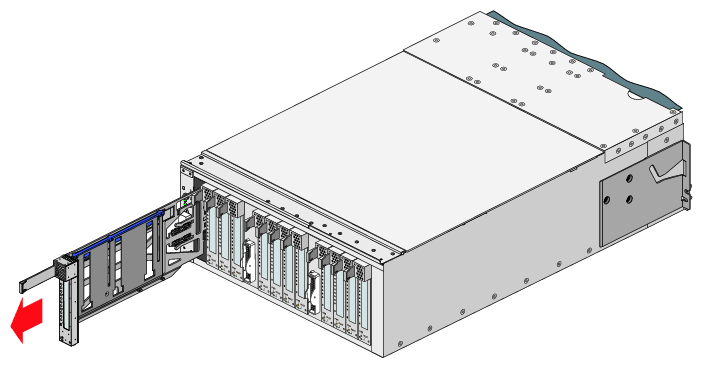
To extract it from the slot, pull the handle on the selected card carrier straight out, as shown in Figure 13-1.
If you are replacing a card, gently remove the existing card from the carrier.
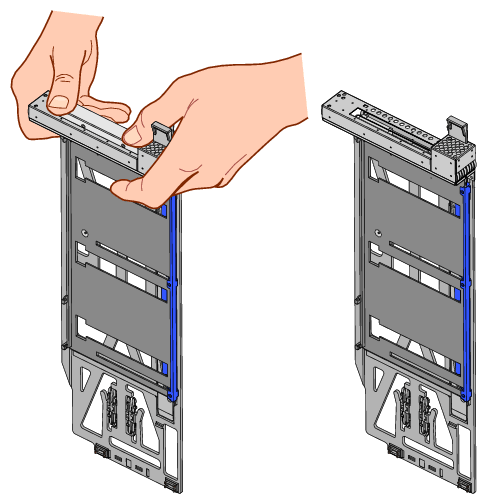
If you are adding a card, extract the carrier metal filler plate by pushing down on it, as shown in Figure 13-2. This filler plate covers the area where your card connectors will protrude out to the rear panel of the I/O brick.

Note: If you are adding or replacing a half-height PCI card, skip step 5 and proceed to step 6. If the full-height card that you want to install does not fit in the carrier, follow these steps:
Loosen the three screws on the guide bar with a Phillips screwdriver (if your carrier uses T8 Torx screws, you will need a Torx screw driver).
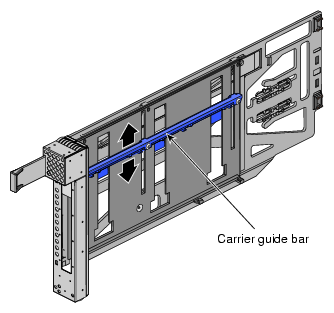
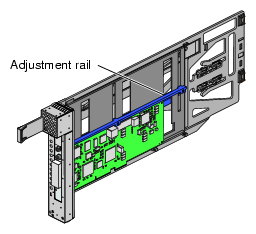
Adjust the carrier guide bar (also known as the alignment rail) up or down as necessary (see Figure 13-3).
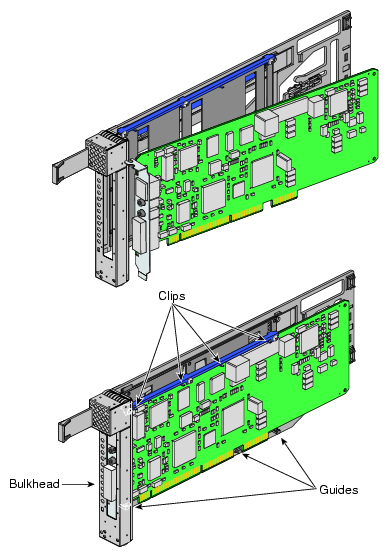
Mount the card in the carrier, as shown in Figure 13-4, so that the following occurs:
– The card connectors protrude through the bulkhead where the metal filler plate was located.
– The edge connectors fit between the bottom guides of the carrier.
– The top of the card fits under the clips on the guide bar.
Tighten the three screws on the guide bar. Then skip step 6 and proceed to
step 7.
To install a half-height PCI card in a carrier, follow these steps:
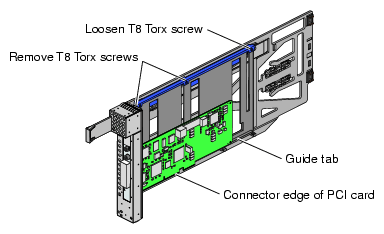
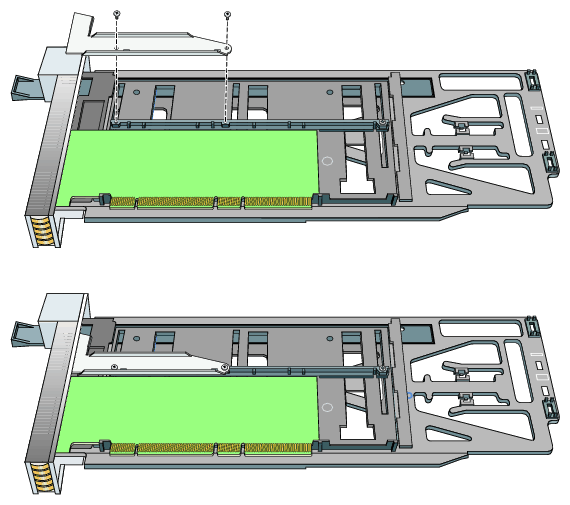
Remove the two screws from the carrier guide bar, as shown in Figure 13-5.
Note: Take care not to lose the threaded inserts in the carrier guide bar. Loosen the third screw of the carrier guide bar.
Place the half-height PCI card in the carrier so that the connector edge of the card rests against the lower guide tab of the carrier (see Figure 13-5).
Move the carrier guide bar (adjustment rail) so that it holds the card firmly in place (see Figure 13-6).
Place the PCI card bracket so that the screw holes of the bracket align with the empty screw holes of the carrier guide bar, as shown in Figure 13-7.
Secure the bracket to the carrier guide bar with two T8 Torx screws.
Tighten the screw that you loosened in step 6b.
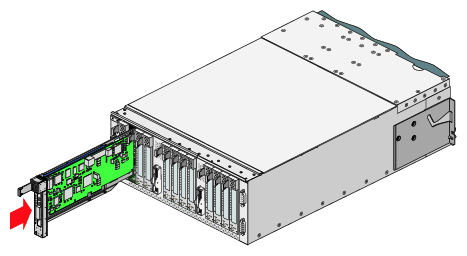
Insert the carrier-mounted PCI card into the vacant slot, using the slot guide, as shown in Figure 13-8.
Push horizontally on the carrier seating bar, as shown in Figure 13-9, to seat the card securely in the slot.
Power on the I/O brick by following the power-on instructions in the “Powering On the System” in Chapter 1.
Boot your operating system software. (See your software operation guide if you need instructions to boot your operating system.)
Run the /sbin/lspci command to verify the installation. This command provides information about the PCI buses in the system and the devices connected to them.
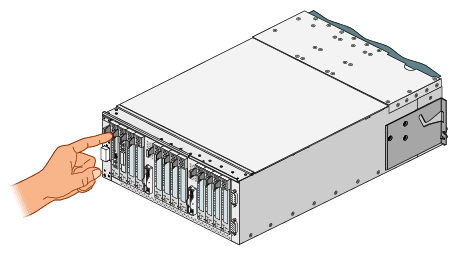
The IX-brick has two system disk drive bays as shown in Figure 13-10. This section describes how to install or remove the drives.

Before you install a disk drive, you must power off the IX-brick according to the instructions in the “Powering Off the System” in Chapter 1.
| Caution: To protect the system from ESD damage, SGI recommends that you use a grounding wrist strap while installing the disk drive. |
To install a disk drive, see Figure 13-11 and follow these steps:
Remove the drive bay cover to access the two disk drive bays (see panel 1 in Figure 13-11).
Note: If you are installing only one disk drive, install it in the right-most bay. Position the drive assembly so that it engages the bay guide rails, and then gently push the drive into the bay. Do not use the locking handle to push the drive into the bay.
Swing the locking handle towards the chassis until the locking handle engages the latch.
Snap on the drive bay cover.
After you finish installing the disk drive, power on the IX-brick according to the instructions in the “Powering On the System” in Chapter 1.

Before you remove a disk drive, you must power off the IX-brick according to the instructions in the “Powering Off the System” in Chapter 1.
To remove a disk drive, follow these steps (see Figure 13-12):
Remove the drive bay cover to access the two disk drive bays, as shown in panel 1 of Figure 13-12.
Remove the disk drive by depressing its handle lock with your thumb and pulling the handle away from the chassis until the handle disengages the disk drive connector from the backplane connector.
Carefully slide the disk drive out of the bay and place it on an ESD-safe surface. Do not use the handle to pull the disk drive out of the bay.
Note: When the IX-brick has only one disk drive installed, it should reside in the right-most bay. Install the drive bay cover.
After you remove the disk drive, power on the IX-brick according to the instructions in the “Powering On the System” in Chapter 1.

This section describes maintenance operations on the XG2N module and the CPU expansion module.
Many of the procedures in this section require the removal of the top cover, a frame rail, or a support bracket in order to access the internal components you are removing or replacing. This section describes how to remove and replace these items.
Use the following steps to open the cover:
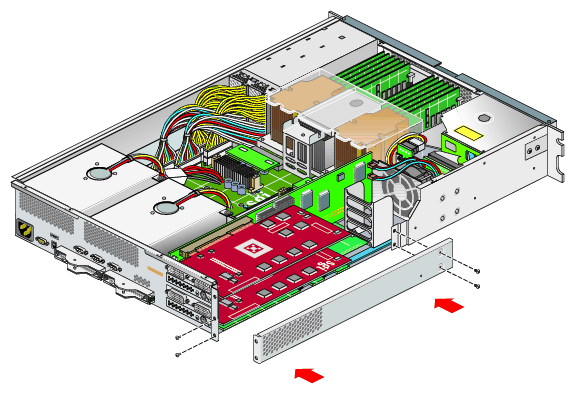
To remove the module's top cover and access the internal system components, remove the ten Phillips screws as shown in Figure 13-13.
Lift the hinged cover into the fully open position.
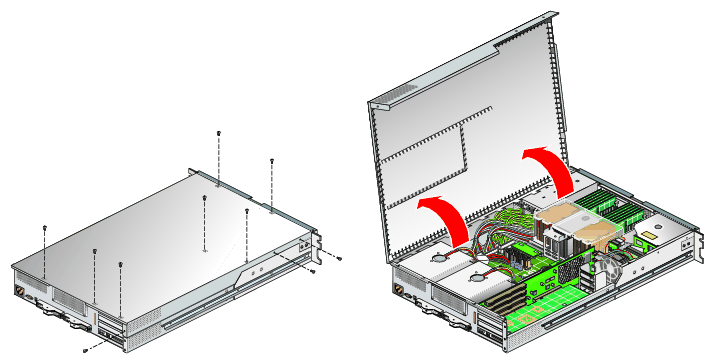
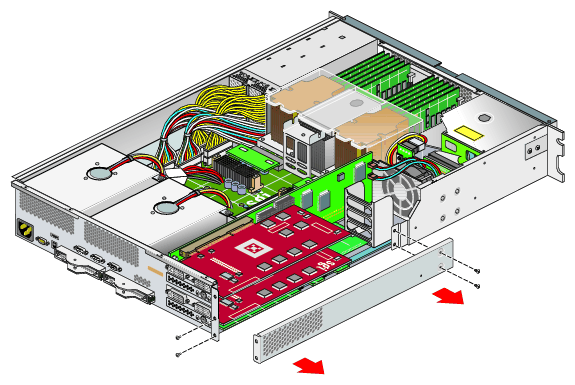
If you are installing a card in the bottom slot of an XG2N module you will need to remove the optional chassis rail. To do this, unscrew the five Phillips screws, as shown in Figure 13-14. (If you are not installing a card into the bottom slot, or your module is not slide-rail mounted, you will not need to perform this step.)
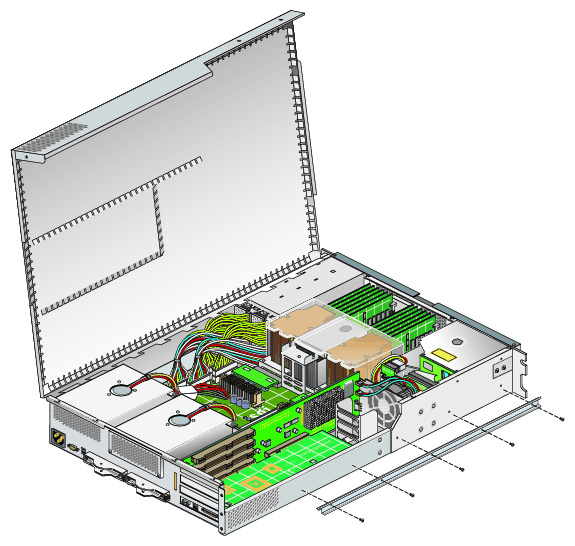
If you are accessing the bottom card in an XG2N module you must remove the lower PCI/PCI–X support bracket that covers this slot. To do this remove the four Phillips screws, as shown in Figure 13-15. (If you are not installing a card into one the bottom slot you will not need to perform this step.)
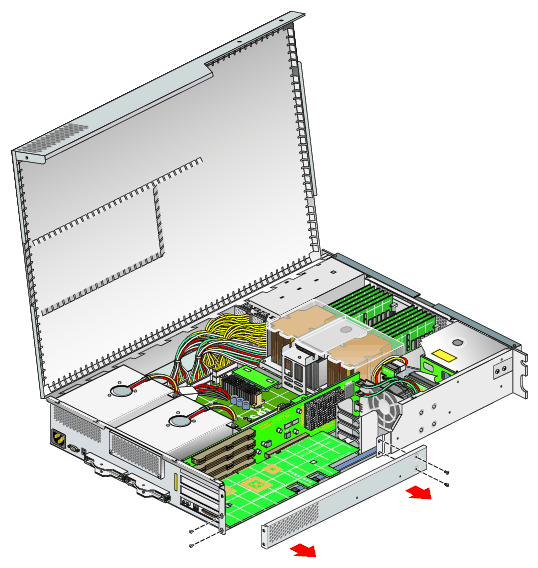
If you removed the PCI/PCI-X support bracket, replace it and screw in the four Phillips screws, as shown in Figure 13-16.
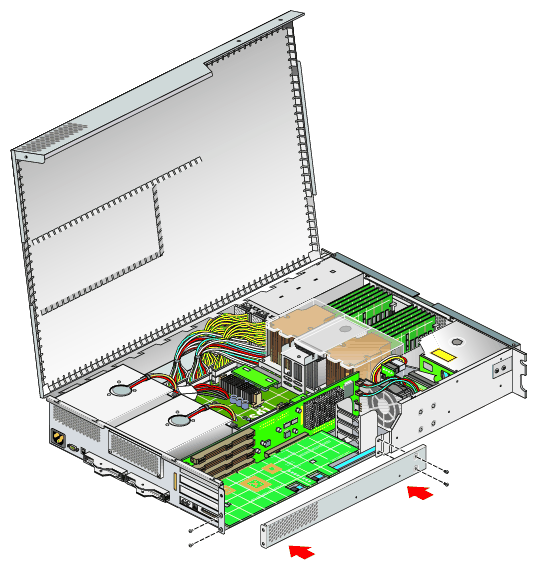
If you removed the optional chassis rail, replace it and screw in the five Phillips screws, as shown in Figure 13-17.
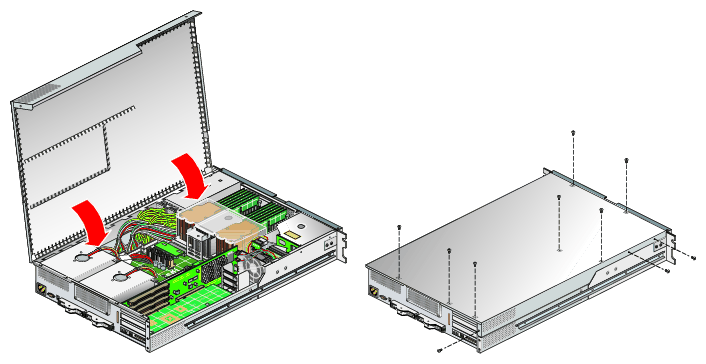
Use the following steps to close the cover:
Close the hinged cover on the system and screw in the ten Phillips screws to secure the cover, as shown in Figure 13-18.
To replace a graphics card in an XG2N module, follow these steps:
Power off the Silicon Graphics Prism platform. For power off instructions, see “Powering Off the System” in Chapter 1.
Disconnect all of the cables at the rear of the module.
Warning: Components may be hot. To avoid injury, allow the components to cool for approximately five minutes before you proceed with these instructions. If your module is rackmounted, remove the two screws that secure the module to the front rails of the rack. If the module is mounted with shelf rails, remove the screws at the rear also. If your module is not rackmounted, proceed to step 6.
If the module is mounted with the optional slide rail kit, pull the module from the rack until it is stopped by the safety latches. Otherwise, two people should lift the unit from the rack and place it on a stable work surface.
Remove the module (using two people) from the optional slide rails by depressing the safety latches and sliding the module outward. Place it on a stable work surface.
Open the top cover as described in “Opening the Cover”.
When removing and replacing a graphics card, you may need to remove an optional chassis rail by unscrewing the five Phillips screws (as described in “Removing the Optional Chassis Rail”).
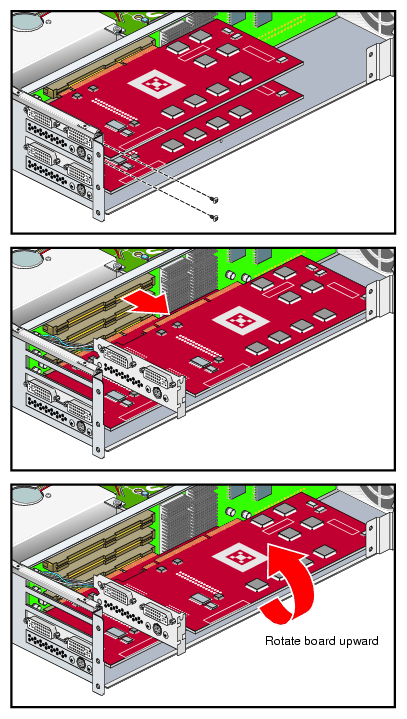
Remove the lower PCI/PCI–X support bracket by unscrewing the four Phillips screws, as shown in Figure 13-19.
If your system uses FireGL X3-256 graphics cards, remove the two graphics card internal power cables, as shown in Figure 13-20 (this step is not required for systems with FireGL X2PRO-256 graphics cards, as they do not use internal power cables).
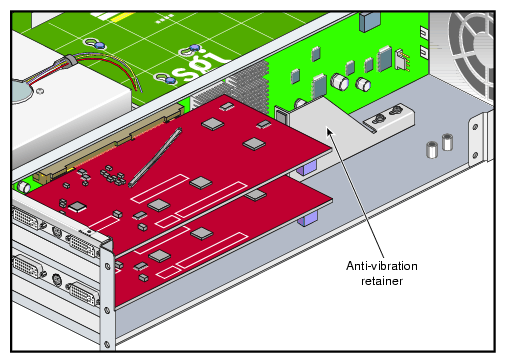
Remove the anti-vibration retainer bracket, shown in Figure 13-21. Depending on which graphics card type is installed in your system, this may be a short bracket, a long bracket (as shown in Figure 13-21), or may not be present at all.
Undo and remove the two screws that hold the card to the back panel, as shown in Figure 13-22.
Caution: Each graphics card has a 7-pin synchronization cable connected from the PCI riser board to the underside of the graphics card. Be careful not to pull the graphics card away from the riser board too far as you remove it. Pull the card gently out of the main connector on the riser board until it is clear of the back panel and main connector.
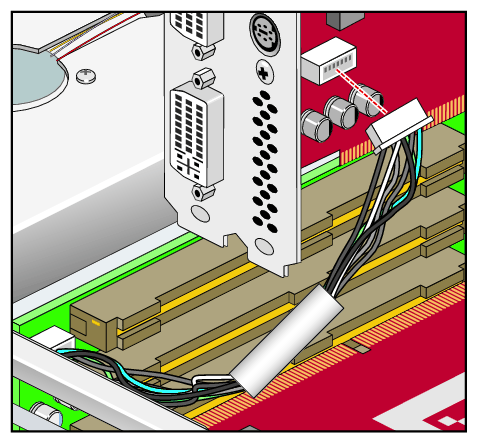
Carefully turn the card over and disconnect the 7-pin keyed synchronization cable from the bottom of the graphics card (it attaches the graphics card assembly to the PCI riser board). See Figure 13-23.
Place the graphics card on an ESD-safe surface or in a protective bag.

To install a new XG2N graphics card, use the following steps:
Place the card close to the graphics connector on the riser board and tilt it up until you can see the connector location for the 7-pin synchronization cable.
Gently insert the 7-pin synchronization cable into the connector on the bottom of the replacement graphics card (see Figure 13-23). The connector is keyed and will only insert in the proper orientation. You should hear or feel a slight snap as the connector is seated.
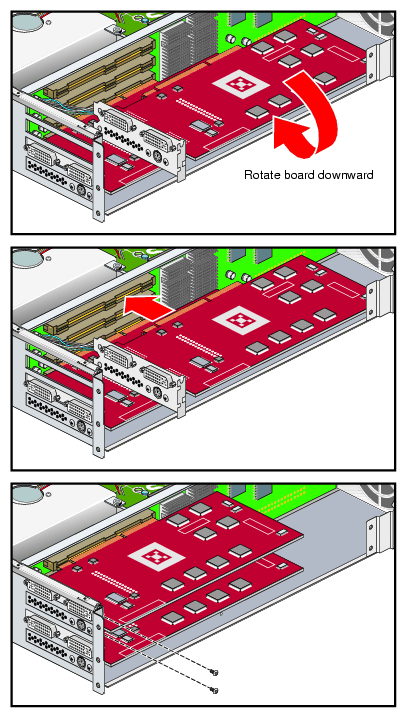
Insert the card into the slot the old graphics card was removed from by pushing the card into the connector until it is properly seated and installing the back panel retaining screws, as shown in Figure 13-24.
Be careful not to snag the 7-pin synchronization cable between the graphics card and the riser board connector when you install the new card.
Install the anti-vibration retainer bracket, shown in Figure 13-25. Depending on which graphics card type is installed in your system, this may be a short bracket, a long bracket (as shown in Figure 13-25), or may not be present at all.
If your system uses FireGL X3-256 graphics cards, install the two graphics card internal power cables, as shown in Figure 13-26 (this step is not required for systems with FireGL X2PRO-256 graphics cards, as they do not use internal power cables).
Caution: Use of an internal power cable other than SGI part number 018-1193-00x may cause irreparable system damage. Note: If the graphics card is being replaced, the replacement kit may come with two types of internal power cables. In this case, use only the cables marked 018-1193-00x. Note: The graphics card internal power cable is in addition to the 7-pin synchronization cable described in the step ??? Replace the lower PCI/PCI–X support bracket and screw in the four Phillips screws, as shown in Figure 13-27.
Replace the optional chassis rail (if applicable) as described in “Reinstalling the Optional Chassis Rail”.
Close the top cover as described in “Closing the Cover”.
If your system uses optional slide rails, follow substeps a-d; otherwise go to step 10.
Fully extend the left and right slide rails from the rack until they lock into place.
This step requires two people. With one person holding each side of the module, align the chassis rails of the module with the slide rails of the rack.
Slide the chassis rails into the slide rails until the chassis rails are stopped by the safety latches.
Press the safety latches on both sides of the module, and slide the module into the rack.
For modules mounted on shelf rails, use two people to slide the unit into the rack.
Install the two screws that secure the module to the front rails of the rack. For shelf mounted units, secure the two screws at the back.
Install all of the cables at the rear of the module.
Power on the Silicon Graphics Prism platform. For powering on instructions, see “Powering On the System” in Chapter 1.
The XG2N and CPU expansion modules in a Silicon Graphics Prism system can contain one or two sled-mounted power supplies (see Figure 13-28). For information on determining the operational status of a power supply, see “XG2N and CPU Expansion Module Power Supply Status LEDs” in Chapter 14.
| Note: The XG2N graphics module always requires two power supplies; no redundant power is available. The system must be shut down prior to power supply replacement. |
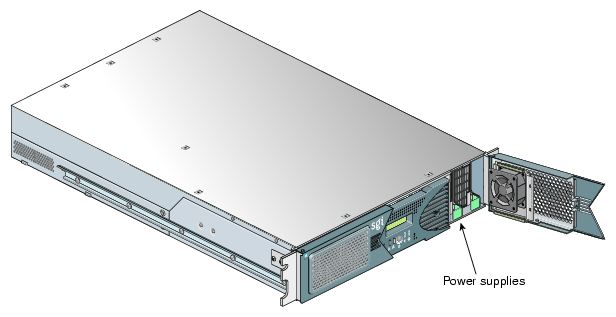
To replace a power supply, follow these steps:
If you are replacing a power supply in an XG2N module, power off the Silicon Graphics Prism platform as described in the section “Powering Off the System” in Chapter 1. The XG2N module always uses two supplies. There is no redundant power supply option available.
Remove the power supply to be replaced, as follows:
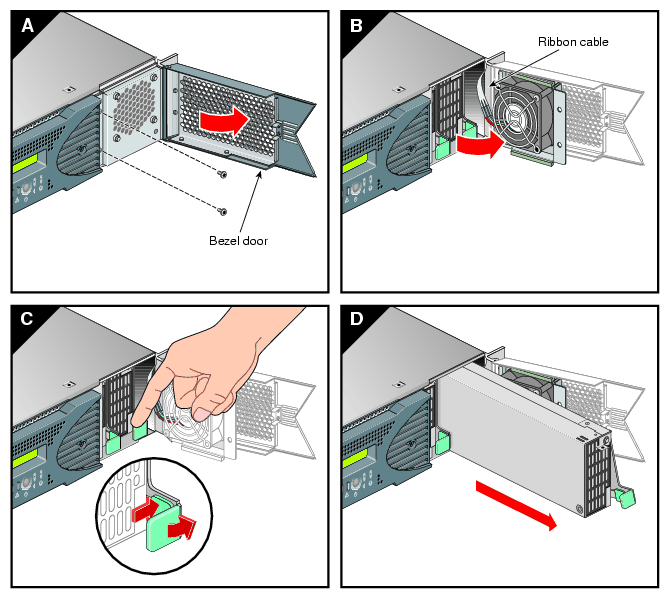
Swing open the bezel door located on the right side of the module front panel. With a Phillips screw driver, unscrew the two screws on the screen cover as shown in Figure 13-29A.
Swing open the screen cover as shown in Figure 13-29B.
Disengage the power supply from the power supply bay by pushing the interior release button to the right and pulling up and out on the green handle lock as shown in Figure 13-29C.
Gently pull out the power supply from the chassis until it clears the power supply bay as shown in Figure 13-29D. Place the power supply on an ESD-safe surface.
Caution: When pulling out the power supply from the chassis, make sure not to disturb the power supply fan's ribbon cable.
Install the replacement power supply, as follows:
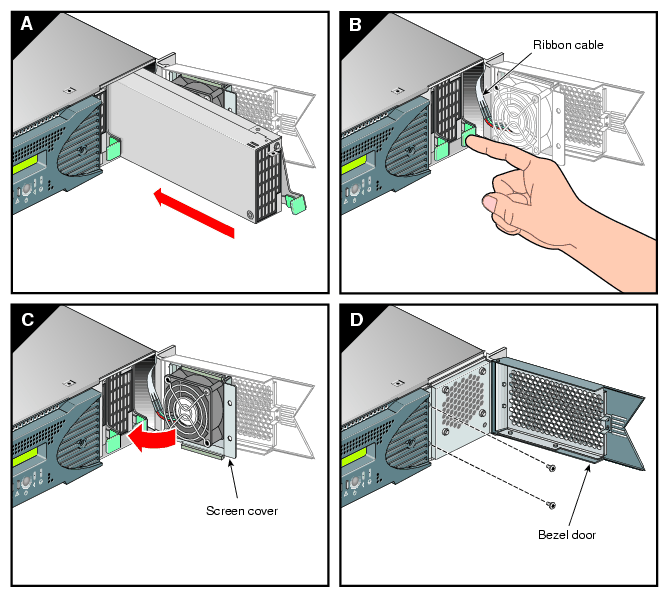
Position the power supply in the slot and with the power supply handle pulled up (fully opened), gently push the power supply into the bay as shown in Figure 13-30A.
Caution: When installing the power supply, make sure that the power supply does not clip or pinch the power supply fan's ribbon cable. Push in and down on the green handle and snap the power supply into place as shown in Figure 13-30B.
After you have installed the power supply, swing the screen cover until it closes as shown in Figure 13-30C.
Caution: When closing the screen cover, make sure that the cover does not clip or pinch the power supply fan's ribbon cable. Screw in the two Phillips screws that you had removed as shown in Figure 13-30D, and close the bezel door.
Power on the Silicon Graphics Prism platform, as described in “Powering On the System” in Chapter 1.
This section provides guidelines for DIMM selection and installation, followed by instructions to install and remove DIMMs.
Memory is contained on cards that are referred to as DIMMs (dual inline memory modules). Each XG2N and CPU expansion module can contain four, eight, or twelve DIMMs installed in DIMM slots located on the module's node board.
These twelve DIMM slots are organized into three groups of four DIMMs each, as shown in Figure 13-31.
DIMMs are installed one per DIMM slot, and must be installed in groups of four.
Follow these guidelines when installing DIMM groups:
Memory is increased or decreased in four-DIMM group increments only.
Each of the four DIMMs that make up a DIMM group must be the same memory size and speed; however, different groups of DIMMs can differ in memory size.
The first four DIMMs (group 0) must be in place for the base compute module to operate properly.
Mixing DIMM groups with different access speeds will cause the memory bus to default to the speed used for the slowest group.
The maximum bus speed for a completely full set of DIMM memory slots (three installed groups), defaults to 100 MHz or 133 MHz, depending on the type of DIMMs installed.
The DIMMs used in the Silicon Graphics Prism platform modules are not compatible with DIMMs used in the Origin 200, Origin 350 series, SGI 3000 series, SGI 2000 series, Onyx systems, Fuel, Octane or Tezro systems.
Caution: Electronic equipment can be irreparably damaged by electrostatic discharge (ESD). Always follow these preventive measures when you handle a system component:
- Remove a component from its antistatic bag only when you are ready to install it.
- If you handle a component before installation, do not place it on surfaces that produce ESD (carpeting, for example) or near devices that create static electricity.
- Attach a static wrist strap to a grounded connection on your system when you install or remove a component.

To install a DIMM group, follow these steps:
Power off the Silicon Graphics Prism platform. For powering off instructions, see “Powering Off the System” in Chapter 1.
Disconnect all of the cables at the rear of the module.
Warning: Components may be hot. To avoid injury, allow the components to cool for approximately five minutes before you proceed with these instructions. Remove the two screws that secure the module to the front rails of the rack. For shelf-mounted modules, remove the two screws at the rear of the unit.
With shelf-mounted rails, use two people to slide the module out and move it to a stable work surface. With optional slide rails, pull the module from the rack until it is stopped by the safety latches.
Open the top cover as described in “Opening the Cover”.
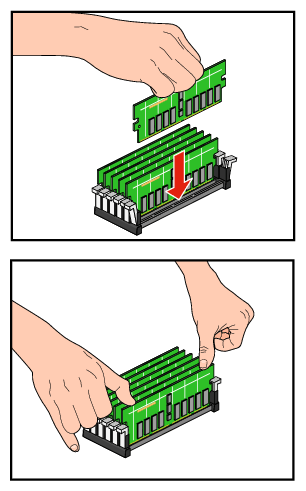
Install the DIMMs, as follows (see Figure 13-32 and Figure 13-33):
Note: If you need to find the correct locations in which to install the DIMMs, make sure to read the introductory material in “Removing and Replacing Memory DIMMs”. Ensure the ejector latches are in the open position (leaning away from the slot).
Hold the DIMM only by its edges and remove it from its antistatic package.
Align the bottom edge of the DIMM with the keyed socket.
Insert the bottom edge of the DIMM into the socket, and then press down evenly on the DIMM until it seats correctly. Use extreme care when you install a DIMM. If you apply too much pressure, you can damage the socket.
When the DIMM is fully seated in the connector, the ejector latches snap into place flush with each end of the DIMM, see Figure 13-33.
Close the top cover as described in “Closing the Cover”.
If using optional slide rails, press the safety latches on both sides of the module and slide the module into the rack. For shelf-mounted units, use two people to slide the module back into the rack.
Install the two screws that secure the module to the front rails of the rack. If shelf rails are used, install the two rear screws.
Install all of the cables at the rear of the module.
Power on the Silicon Graphics Prism platform as described in “Powering On the System” in Chapter 1.
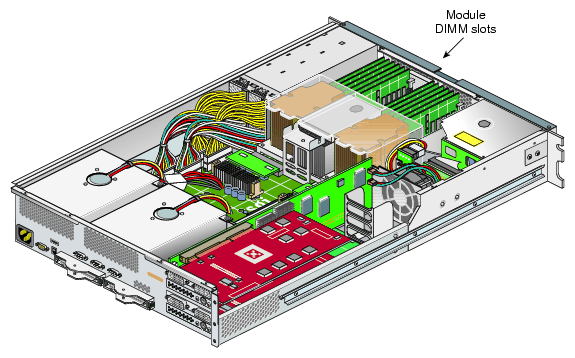
To remove a DIMM, follow these steps:
Power off the Silicon Graphics Prism platform. For powering off instructions, see “Powering Off the System” in Chapter 1.
Disconnect all of the cables at the rear of the module.
Warning: Components may be hot. To avoid injury, allow the components to cool for approximately five minutes before you proceed with these instructions. Remove the two screws that secure the module to the front rails of the rack. For shelf-mounted modules, remove the two screws at the rear of the unit.
With shelf-mounted rails, use two people to slide the module out and move it to a stable work surface. With optional slide rails, pull the module from the rack until it is stopped by the safety latches.
Open the top cover as described in “Opening the Cover”.
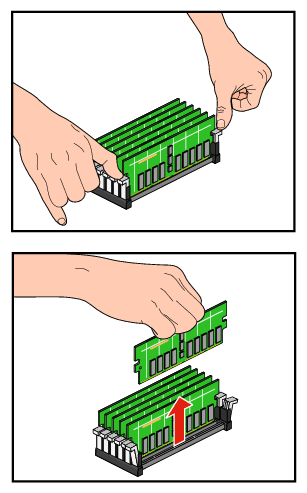
Remove the DIMM, as follows (see Figure 13-32 and Figure 13-34):
Note: For guidelines on removing or replacing the DIMMs, make sure to read the introductory material in “Removing and Replacing Memory DIMMs” and see Figure 13-31. Push out and down on the two ejector latches (located at each end of the DIMM socket) to disengage the DIMM from its connector.
Carefully grasp the DIMM and pull it up and out of the guide rails.
Note: Hold the DIMM only by its edges. Be careful not to touch its components or gold edge connectors. Place the DIMM on an ESD-safe surface.
If you are installing a new DIMM, proceed to “Installing a DIMM Group”. If you are not installing a new DIMM, proceed to the next step.
Close the top cover as described in “Closing the Cover”.
If using optional slide rails, press the safety latches on both sides of the module and slide the module into the rack. For shelf-mounted units, use two people to slide the module back into the rack.
Install the two screws that secure the module to the front rails of the rack. If shelf rails are used, install the two rear screws.
Install all of the cables at the rear of the module.
Power on the Silicon Graphics Prism platform as described in “Powering On the System” in Chapter 1.
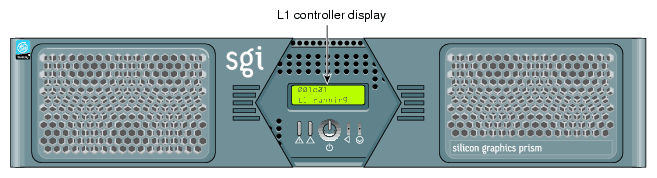
The L1 controller, which is used to monitor and manage the XG2N and CPU expansion modules of the Silicon Graphics Prism platform, has a display located on the front panel as shown in Figure 13-35. Each of these modules is factory- shipped with an L1 controller display.
This section describes how to replace an L1 controller display panel in an XG2N or CPU expansion module.
| Note: The L1 display on other modules, such as the CR-brick, IX-brick, PX-brick, etc., are not user-replaceable. |
To replace an L1 controller display, follow these steps:
Power off the system as described in “Powering Off the System” in Chapter 1.
Disconnect all of the cables at the rear of the module.
Warning: Components may be hot. To avoid injury, allow the components to cool for approximately five minutes before you proceed with these instructions. Remove the two screws that secure the module to the front rails of the rack. For shelf-mounted modules, remove the two screws at the rear of the unit.
With shelf-mounted rails, use two people to slide the module out and move it to a stable work surface. With optional slide rails, pull the module from the rack until it is stopped by the safety latches.
Open the top cover as described in “Opening the Cover”.
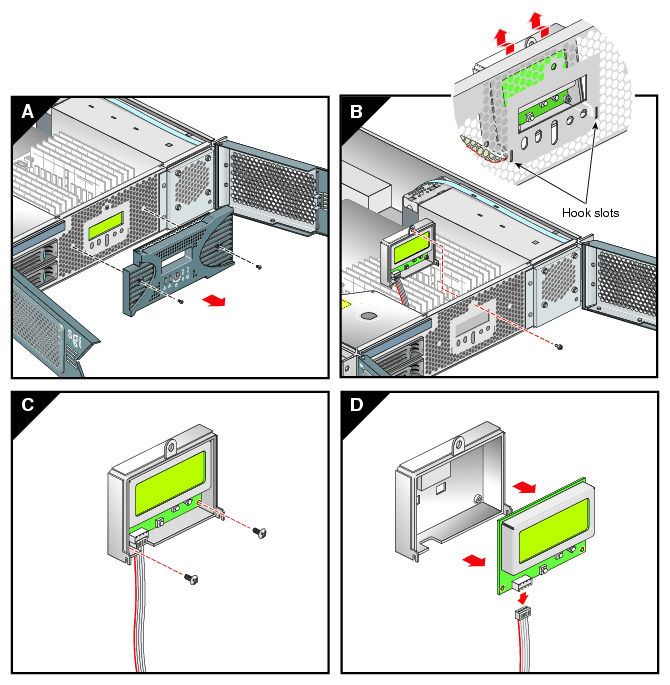
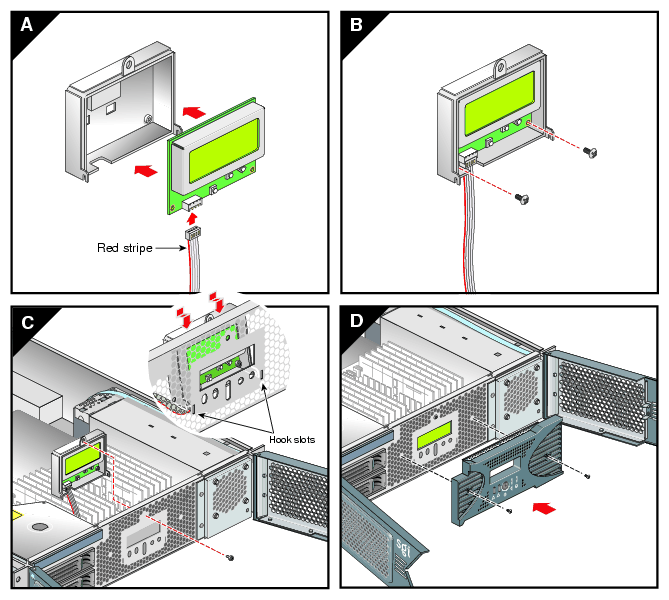
On the front panel of your system, remove the front bezel by unscrewing the two Phillips screws holding the bezel to the chassis, as shown in Figure 13-36A.
Holding the L1 display cover with one hand, unscrew the single Phillips screw holding the L1 display cover to the chassis, as shown in Figure 13-36B. Gently unhook and pull away the L1 display cover from the chassis.
Unscrew the two Phillips screws holding the L1 controller display panel to the L1 display protective cover, as shown in Figure 13-36C.
Gently disconnect the L1 controller cable from the connector on the L1 controller display, as shown in Figure 13-36D.
Connect the L1 controller cable to the connector on the new L1 controller display, making sure that the red stripe is to your left, as shown in Figure 13-37A.
Align the two screw holes on the L1 controller display with the holes on the L1 display protective cover, and screw in the two Phillips screws, as shown in Figure 13-37B.
Hook in the L1 display protective cover onto the slots on the front chassis and, holding the L1 display cover up against the front chassis, screw in the Phillips screw, as shown in Figure 13-37C.
Replace the front bezel onto the front chassis of the system by screwing in the two Phillips screws holding the bezel to the chassis, as shown in Figure 13-37D.
Close the top cover as described in “Closing the Cover”.
If using optional slide rails, press the safety latches on both sides of the module and slide the module into the rack. For shelf-mounted units, use two people to slide the module back into the rack.
Install the two screws that secure the module to the front rails of the rack. If shelf rails are used, install the two rear screws.
Install all of the cables at the rear of the module.
Power on the Silicon Graphics Prism platform as described in “Powering On the System” in Chapter 1.
This section describes operations on the TP900 enclosure.
| Caution: Follow electrostatic discharge (ESD) precautions while replacing the drive carriers. Avoid contact with the backplane components and module connectors. |
To remove and replace a drive carrier module from the SGI TP900 enclosure, follow these steps:
| Caution: Do not remove a drive carrier unless a replacement or a dummy carrier can be immediately added. The system must not be run without all modules in place. Any unused drive bays must be fitted with a dummy carrier module. |
Spin down the drive prior to removal, using the operating system.
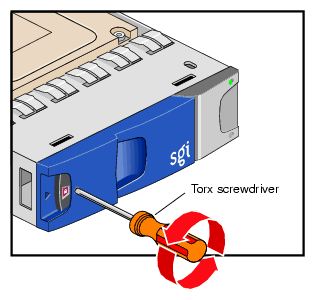
Caution: Damage can occur to a drive if it is removed while still spinning. If you cannot use the operating system to spin down the drives prior to removal, perform all steps of the following procedure to ensure that the drive has stopped prior to removal. Note: The anti-tamper lock must be off. If the drive module is locked, insert the Torx screwdriver (included with the disk drive) into the socket in the lower part of the handle trim. Then turn it 90 degrees counterclockwise until the indicator visible in the center aperture of the handle shows black. See Figure 13-38. Release the carrier handle by pressing the latch in the handle towards the right.
Gently withdraw the drive carrier module approximately 1 inch (25 mm), and then wait 30 seconds for the drive to spin down.
After 30 seconds, withdraw the module from the drive bay.
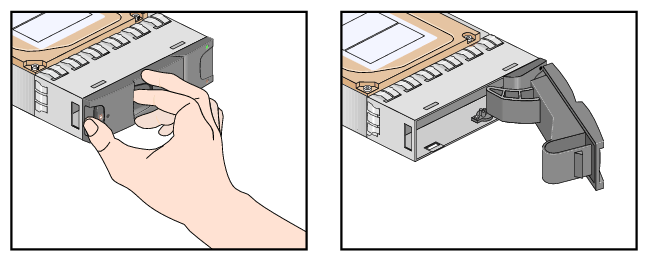
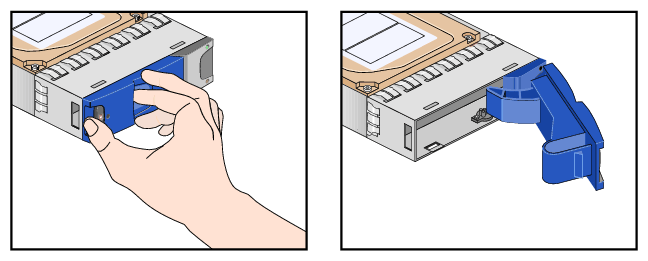
Release the handle of the replacement carrier by pressing the latch in the handle towards the right, as shown in Figure 13-39. Insert the carrier into the enclosure.

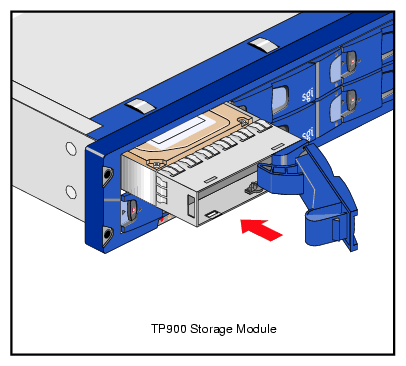
Important: Ensure that the carrier is oriented so that the drive is uppermost and the handle opens from the left. Gently slide the carrier all the way into the enclosure until it is stopped by the camming lever on the right of the carrier, as shown in Figure 13-40.
Push the carrier handle into place—the camming foot on the base of the carrier will engage in a slot in the enclosure. Continue to push firmly until the handle fully engages. You should hear a click as the latch engages and holds the handle closed.
This section describes operations on the D-brick2 storage module.
This section explains how to install or replace a drive carrier in the D-brick2 storage module, as follows:
“Replacing a Drive Carrier Module ”
Caution: Do not remove a drive carrier unless a replacement or dummy carrier can be immediately added. The system must not be run without all modules in place. Any unused drive bays must be fitted with a dummy carrier module.
Note the following:
All disk drive bays must be filled with either a drive carrier module or a dummy drive module; no bay should be left completely empty.
The drives in bays 1/1 and 4/4 of the D-brick2 storage module are required for enclosure management; these bays must always be occupied.
To install a new disk drive module in the storage system, follow these steps:
Ensure that you have enough drive carrier modules and dummy modules to occupy all bays.
Carefully open the bag containing the drive carrier module.
Warning: The disk drive handle might have become unlatched in shipment and might spring open when you open the bag. As you open the bag, keep it a safe distance from your face. Place the drive carrier module on an antistatic work surface and ensure that the anti-tamper lock is disengaged (unlocked). The indicator window is red when the drive is locked. A disk drive module cannot be installed if its anti-tamper lock is activated (locked) outside the enclosure.
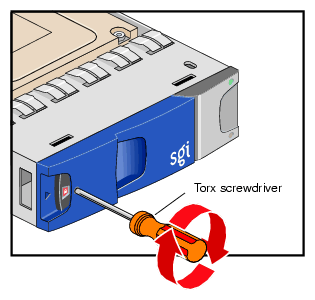
Drives are shipped with their locks set in the unlocked position. However, if a drive is locked, insert the Torx screwdriver (included with the disk drive) into the socket in the lower part of the handle trim and turn it 90 degrees counterclockwise until the indicator visible in the center aperture of the handle shows black. See Figure 13-41.
Open the handle of the replacement carrier by pressing the latch handle towards the right (see Figure 13-42).
Remove the dummy drive carrier module from the target drive bay.
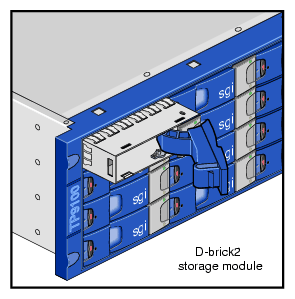
Orient the new drive carrier module so that the hinge of the handle is on the right. Then slide the drive carrier module into the chassis until it is stopped by the camming lever on the right of the module (see Figure 13-43).
Swing the drive handle shut and press it to seat the drive carrier module. The camming lever on the right of the module will engage with a slot in the chassis. Continue to push firmly until the handle fully engages with the module cap. You should hear a click as the latch engages and holds the handle closed.
Repeat steps 2 through 7 for all drive modules to be installed.
When you finish installing the drive carrier module(s), lock the drive carrier module(s) in the chassis by inserting the Torx screwdriver in the drive module and turning it 90 degrees clockwise. The indicator in the drive carrier module turns red when the drive is locked. See Figure 13-44.
Install dummy drive carrier modules in all empty drive bays. The drive handle and camming mechanisms operate the same as those in a standard drive carrier module.
This section explains how to replace a defective drive carrier module.
| Caution: Follow electrostatic discharge (ESD) precautions while replacing the drive carriers. Avoid contact with the backplane components and module connectors. |
| Note: Replace disk drive modules one at a time. |
To remove a drive carrier module from the D-brick2 enclosure, follow these steps:
Make sure that enough disk drives and dummy drives are available to occupy all bays.
Ensure that users are logged off of the affected systems; back up data if necessary.
If the drive module is locked, insert the Torx screwdriver into the anti-tamper lock and turn it 90 degrees counterclockwise. The indicator in the drive carrier module turns black when the drive is unlocked. See Figure 13-45.
Open the handle by pressing the latch on the module handle towards the right. Then gently slide the module out of the enclosure approximately 1 inch (25 mm), and wait 30 seconds for the drive to stop spinning. See Figure 13-46.
Caution: Damage can occur to a drive if it is removed while still spinning. After 30 seconds, withdraw the module from the drive bay. Replace it immediately; follow the instructions in “Installing a Drive Carrier Module ”.