If you have not already done so, go to Chapter 1, and follow the instructions for installing the secondary graphics board before you begin setting up the monitors.
You can place your monitors side by side, or you can set them up in a stacked configuration. Follow the appropriate instructions for your configuration.
Unpack the secondary monitor from its box.
 | Caution: The monitor is very heavy. Have someone help you lift it out of the box. |
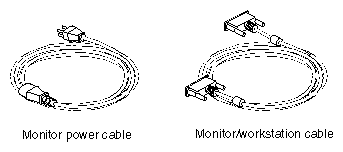
The monitor ships with two cables: a monitor power cable and a monitor/workstation cable.
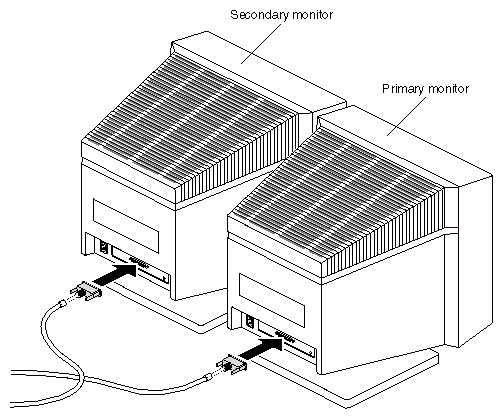
Facing the front of the monitors, place the primary monitor on the left and the secondary monitor on the right. The secondary monitor is the monitor that is part of the dual head shipment.
Connect one end of each monitor/workstation cable to the connector on the back of each monitor. Connect and tighten the thumbscrews on both sides of the connector.
See the following configuration sections to determine where, on the back of the OCTANE workstation, to connect the other end of the primary and secondary monitor cables.
 | Note: It's important that you connect the primary monitor cable to the correct monitor connector on the XIO module of the OCTANE workstation or your cursor movements between monitors will be confusing. |
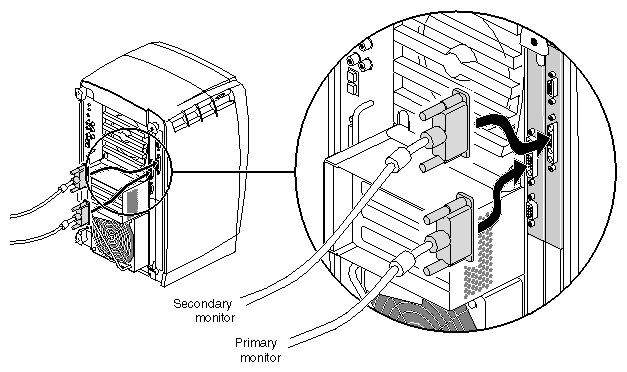
Connect the primary monitor cable to the primary graphics board in slot A, toward the top and interior of the OCTANE workstation.
Connect the secondary monitor cable to the secondary graphics board in slot B, or possibly slot C. For illustration purposes, the secondary graphics board is shown in slot B.
Tighten the thumbscrews on both sides of the connectors.
You are finished connecting the monitor/workstation cables. Go to “Connecting the Power Cables”.
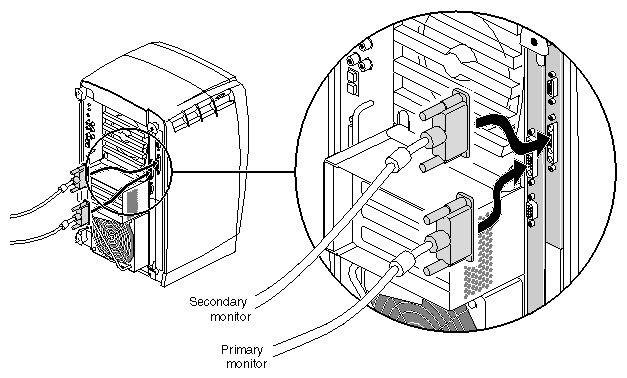
Connect the primary monitor cable to the primary graphics board in slot A (and D), toward the interior of the OCTANE workstation.
Connect the secondary monitor cable to the secondary graphics board in slot B or possibly slot C. For illustration purposes, the secondary graphics board is shown in slot B.
Tighten the thumbscrews on both sides of the connectors.
You are finished connecting the monitor/workstation cables. Go to “Connecting the Power Cables”.
Follow these steps to connect the monitor cables to the monitors and the OCTANE workstation.
| Note: If you use the stacked configuration, you must reconfigure the software. See Chapter 4 for instructions on reconfiguring the software. |
It's important that you connect the primary monitor cable to the correct monitor connector on the OCTANE chassis. If the monitor cables are not connected correctly, your cursor movement between monitors will be confusing.
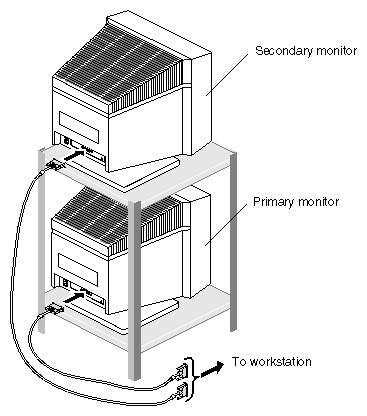
Facing the front of the monitors, place the secondary monitor on a surface above the primary monitor. The secondary monitor is the monitor that is part of the dual head shipment.
Caution: Do not rest the secondary monitor on the primary monitor. Place it instead on a bookshelf or similar type structure above the primary monitor. Connect one end of the each monitor/workstation cable to the connector on the back of each monitor. Connect and tighten the thumbscrews on both sides of the connector.
To connect the cables to the workstation, go to one of the two following sections appropriate for your configuration.
Connect the primary monitor cable to the primary head graphics board, in slot A, toward the interior of the workstation.
Connect the secondary monitor cable to the secondary head graphics board in slot B, or possibly slot C. For illustration purposes, the secondary graphics board is shown in slot B.
You are finished connecting the monitor/workstation cables. Go to “Connecting the Power Cables”.
Connect the primary monitor cable to the primary head graphics board, in slots A and D, toward the interior of the workstation.
Connect the secondary monitor cable to the secondary head graphics board in slot B, or possibly slot C. For illustration purposes, the secondary graphics board is shown in slot B.
You are finished connecting the monitor/workstation cables. Go to “Connecting the Power Cables”.
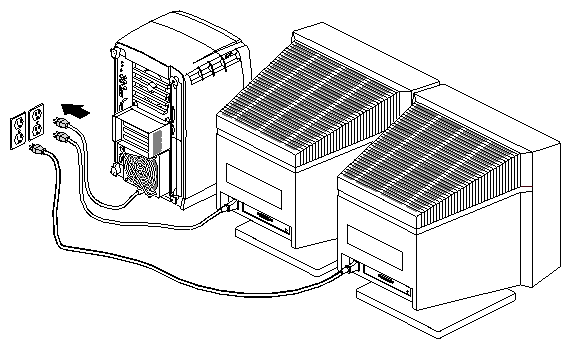
Connect the power cable for each monitor as follows:
Connect the female end of the power cable to the power connector on the back of the monitor.
Plug the male end into a three-prong grounded electrical outlet.
Turn on the primary monitor and then the secondary monitor. The power switch is on the front of the monitor in the lower right corner. The LED on the switch lights up when the monitor is powered on.
Be sure to turn both monitors on before turning on the OCTANE workstation.
Plug the power cord into an electrical outlet.
Push the power button on the front of the OCTANE workstation.
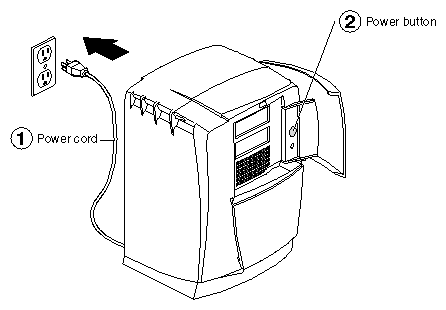
You are finished installing the secondary (board and) monitor and are ready to install the software.
If you have a problem with your system, see Chapter 5, Troubleshooting.