On a PC, applications communicate with external devices such as printers, modems, and data loggers via the COM1: to COM4: serial ports and the LPT1: to LPT3: parallel ports.
This chapter describes how to assign these ports to take advantage of the equivalent capabilities of the Unix workstation.
The following table summarizes the default options for the COM and LPT ports:
Table 5-1. Default Options for the COM and LPT Ports
Option | Description |
|---|---|
File | Output redirected to a specified file* |
Pipe | Output directed to the print spooler for network printing* |
Device | Input/output to a device connected to the workstation's serial port |
None | No device assigned |
*Output must be flushed.
These options are described in greater detail in the following sections.
SoftWindows allows you to print from Windows and MS-DOS applications to either PostScript or non-PostScript printers.
Windows applications give best results when set up for a PostScript printer; refer to Chapter 5, “To set up Windows for a PostScript printer”.
If your Unix network printer does not support PostScript, refer to Chapter 5, “To print from Windows to a non-PostScript printer”.
Most MS-DOS applications give best results when set up for a dot-matrix printer; refer to Chapter 5, “Printing from MS-DOS applications”.
SoftWindows can also drive a PC serial printer connected to a serial port on the Unix workstation so that your application can print directly to it; refer to Chapter 5, “Printing to a serial printer”.
You can also use SoftWindows to print to PC network printers that are not directly accessible to Unix. For more information refer to your PC network documentation.
After outputting from a SoftWindows COM or LPT port to a file or pipe, you need to flush the output to ensure that the last partial buffer of data is sent to the file or pipe.
SoftWindows provides an Auto Flush option, which flushes the buffer automatically at specified interval after the last activity on the port.
Alternatively, you can flush output from a port manually when you know that output has finished.
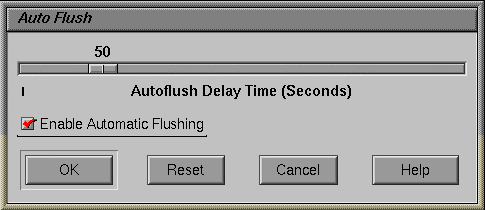
The ideal autoflush delay depends on how quickly the PC application outputs data, and you may need to experiment by starting with a high value, and then reduce it to find the best setting.
You can set flushing for an individual file or pipe by setting the Enable Windows PostScript flushing option in the Printer Ports or Comms Ports dialog box.
When data being sent to a pipe is flushed, the pipe process is stopped and another one is started. If you are piping data to the print spooler, this will stop the current job and start another one.
For pipes the autoflush delay must therefore be set to an interval greater than the time it takes to generate each buffer of data for a particular job; otherwise, unwanted print jobs and incorrect output may be generated.
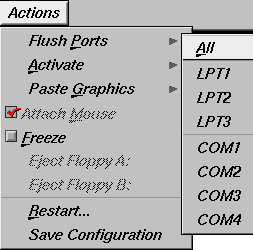
The port should be flushed after outputting to a COM or LPT port from SoftWindows with the Pipe option.
The buffers are also flushed automatically when you quit from SoftWindows.
If your Unix printer is a PostScript printer, you will get the best results by printing PostScript from Windows.
Note that additional information about printing from Windows is provided in the file G:\PRINTERS.WRI.
Choose Printer Ports… from the COM/LPT Ports cascade menu on the Options menu.
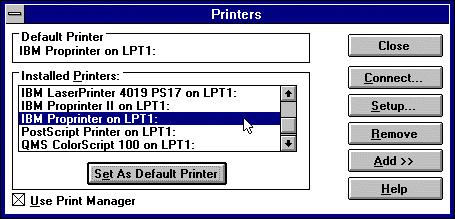
The Printer Ports dialog box appears.
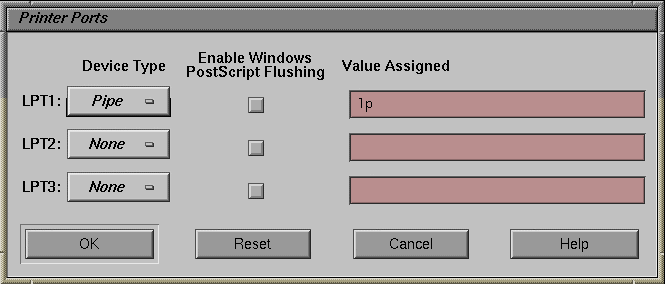
Choose Pipe from the LPT1: popup menu. Check that this is set to the default setting, which sends output to the local print spooler, lp.
Check the "Enable Windows PostScript Flushing" box.
Make sure you have Windows set up for a PostScript printer. See Chapter 5, “To set up Windows for a PostScript printer”.
Double-click the Control Panel icon in the Windows Main program group.
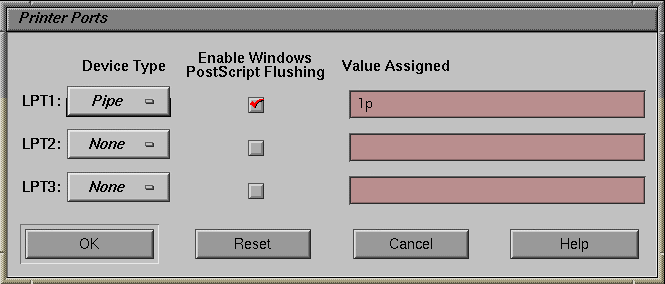
Double-click the Printers control panel icon to display the Printers dialog box.
The currently selected printer is shown in the Default Printer box at the top of the dialog box.
Check that this is set to PostScript Printer on LPT1.
Click Cancel to close the dialog box.
Print from the Windows application; typically, you do this by choosing Print… from the File menu.
If your file does not print, check your Printer Ports settings in SoftWindows. See Chapter 5, “To print PostScript to the Unix printer” for details.

If your Unix printer does not support PostScript, you should set up Windows for the printer you are using.
First set up SoftWindows as described in Chapter 5, “To print from MS-DOS to a non-PostScript printer”.
Double-click the Control Panel icon in the Windows Main program group.
Double-click the Printers control panel icon to display the Printers dialog box.
Select the appropriate option for your Unix printer from the list of Installed Printers, and click Set As Default Printer.
Click Close to close the dialog box.
Print from the Windows application; typically you do this by choosing Print… from the File menu.
Most MS-DOS applications give best results when set up for a dot-matrix printer such as the widely-used LQ-2500.
Choose Printer Ports… from the COM/LPT Ports cascade menu on the Options menu.
The Printer Ports dialog box appears.
Choose Pipe from the LPT1: popup menu. Check that this is set to the default setting, which sends output to the local print spooler, lp.
Choose the appropriate command to print from your MS-DOS application.

You can print from an LPT port to a serial printer with the following fixed communications settings:
9600 baud, no parity, 8 data bits, 1 stop bit, XON/XOFF handshaking.
Connect the printer to the serial port.
Choose Printer Ports… from the COM/LPT Ports cascade menu on the Options menu.
The Printer Ports dialog box appears.
Choose Device from the LPT1: popup menu. By default this sends output to one of the serial ports. You may need to change this depending on which port you are using.

If you need to use different communications settings, set a COM port to Printer and use the MODE command to set the communications parameters. For example:
MODE COM1:9600,N,8,1 |
sets 9600 baud, no parity, 8 data bits, and 1 stop bit, the default setting. XON/XOFF handshaking is supported.
If your application can only print to an LPT port, use the MODE command to direct LPT output to the COM port, for example:
MODE LPT1:=COM1: |
Include the MODE commands in your AUTOEXEC.BAT file if you want to use these settings every time you run SoftWindows.
You can redirect all output from a specified port to a file in the Unix file system.
Redirecting output from SoftWindows to a file is a useful way of debugging problems with printing. The file can then be printed externally to SoftWindows.
Choose Printer Ports… or Comms Ports… from the COM/LPT Ports cascade menu on the Options menu, depending on whether you want to redirect an LPT or COM port.
Choose File from the popup menu next to the port you want to redirect.
The filename defaults to SoftWin.tmp in your home directory. Alternatively, enter the filename you want to use. If the file already exists, the output will be appended to it.
Check that Enable Automatic Flushing is set in the Auto Flush dialog box, so that output is flushed to the file; refer to Chapter 5, “Flushing output to a file or pipe”.
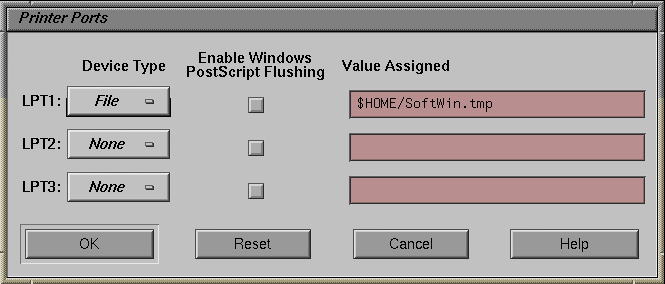
You can pipe the output from a port to a Unix process that will accept text input. One use for this is to print a file which is not PostScript.
Choose Printer Ports… or Comms Ports… from the COM/LPT Ports cascade menu on the Options menu, depending on whether you want to pipe the output from an LPT or COM port.
Choose Pipe from the popup menu next to the port whose output you want to pipe, and enter the name of the process.
Do not include the leading pipe symbol, |, as this is assumed. By default, output is piped to lp, the Unix print spooler.
Check that Enable Automatic Flushing is set in the Auto Flush dialog box, so that output is flushed to the pipe; refer to Chapter 5, “Flushing output to a file or pipe”.
A COM port can be attached to either of the serial ports for input and output, with selectable serial parameters, using the DataComm option.
This option is intended for use by communications packages that provide their own handshaking.
The following serial parameters are supported:
Baud rate: 50, 75, 110, 134.5, 150, 300, 600, 1200, 1800, 2400, 4800, and 9600.
The following combinations are supported:
Table 5-2. Combinations for Serial Input and Output
Data bits | Parity | Stop bits |
|---|---|---|
8 | None | 1 |
7 | Even | 1 |
7 | None | 2 |
7 | Odd | 1 |
By default, COM1: is set up by the following MODE command in the AUTOEXEC.BAT file:
MODE COM1:9600,N,8,1 |
This gives the following communications settings:
9600 baud, no parity, 8 data bits, and 1 stop bit.
This setting can be changed with the MODE command.
Connect the serial device to the workstation's serial port.
Choose Comms Ports… from the COM/LPT Ports cascade menu on the Options menu.
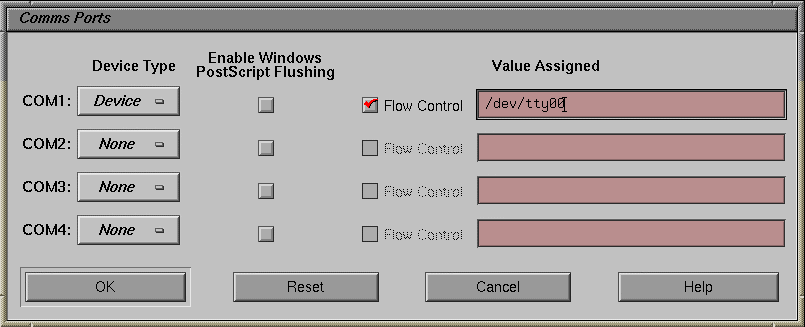
The Comms Ports dialog box appears.
Choose Device from the COM1: popup menu.
You should enter the appropriate device name for the port you want to use. If necessary, ask your system administrator.
SoftWindows uses facilities provided by the Unix terminal device drivers to determine the state of the serial port. As a result, the PC/AT serial port cannot be fully emulated, although most devices and packages designed to operate with it will work equally well on SoftWindows.
The following technical details are provided for users who need specialized help in getting a device or package to work properly or who are developing software which uses the serial ports.
This line is always held high.
The effect is that devices can detect DTR (Data Terminal Ready), but a response from the device via DSR cannot be detected by SoftWindows. Therefore SoftWindows cannot support hardware handshaking, and XON/XOFF software handshaking should be used instead.
The following should be noted if you are choosing a package to run under SoftWindows on the Unix workstation or you are developing software that uses the serial ports for communication.
You should normally use 4800 baud or lower. Higher speeds are likely to be less reliable.
The packet size should be kept small: 512 to 1024 bytes is a suitable size.
Interrupt driven is preferable to polled data transfer. When SoftWindows receives data from an external source with XON/XOFF data flow control, the program running on SoftWindows may have problems. This is due to host buffering of input data preventing the program from responding quickly enough to XOFF signals.