The Netscape Commerce Server uses a protocol called Secure Sockets Layer (SSL) to provide advanced security features for secure data communications. This means the server can send and receive private information across the public Internet to SSL-enabled browsers without the data being compromised during transfer.
This chapter describes some of the concepts behind private and authenticated server communications. It discusses how to secure your server host and how to install security on the server.
 | Note: In contrast to the Commerce Server, the Netscape Communications Server does not support SSL or these advanced security features. If you need these features, contact Silicon Graphics, Inc. for information on migrating from the Communications to the Commerce Server. |
The Internet is a public network that interconnects millions of computers world wide. Few Internet hosts are directly connected to one another. For data to move from one computer to another, it almost always has to travel through several other connections. This is called routing. The routing of sensitive data over the Internet is problematic for two reasons:
It's difficult to maintain privacy between two computers that aren't directly connected.
Third parties can illegally pose as a computer in a conversation or transaction and intrude or eavesdrop on the information.
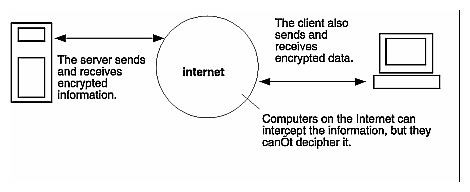
Figure 2-1 illustrates how data can be intercepted by a third party as the data travels through the Internet.

For the server to communicate with the client, various Internet computers must route the data. Without security, all data that passes between server and client can be intercepted by any computer along the data route. These computers can make copies of all the data, or they can pose as the client simply by answering messages sent to the client's network address.
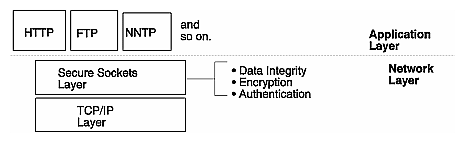
The Netscape Commerce Server uses the Secure Sockets Layer (SSL) protocol for transferring data over the Internet. SSL is a cryptosystem that works at the protocol level. SSL provides the following:
Authentication lets clients make sure they are communicating with the correct server. This prevents any computer from impersonating your server or attempting to appear secure when it isn't.
Encryption scrambles the transferred data so that any eavesdroppers won't understand the information.
Data integrity verifies that the data sent between client and server wasn't altered during transfer. That is, it can tell if anyone has added or removed data.
| Note: Don't confuse SSL authentication with the server's access-control type of user authorization (see “Restricting Access”). |
You need to acquire what is called a digital certificate for your server before the server can use SSL. Only companies called Certification Authorities (CAs) can issue certificates.
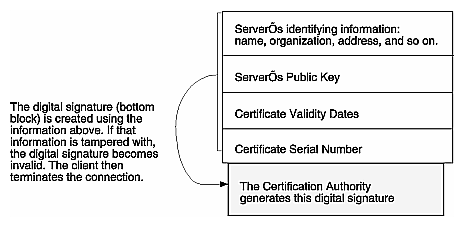
The signed digital certificate contains two groups of information. First is the certificate information itself, including the name of the server, its public key, the certificate's validity dates, and the name of the CA. The second piece is the digital signature. The digital signature cannot be forged. This entire message is digitally signed by a Certification Authority who is known to many servers and who can verify the relationship between a server and its public key.
To obtain a certificate, you generate a public-private keypair, safely store the private key, and then send the public key to a CA with proof of your identity. (See “Generating a Key Pair File” for a definition of public and private keys.) The CA generates a digital signature for the server and sends back a signed digital certificate. The certificate can then be published in a directory or attached to any message being sent across the network. Any other user can then verify the authenticity of the certificate using the digital signature and the public key of the Certification Authority who signed the certificate. Once the certificate is known to be authentic, the information inside the certificate can be trusted.
Before the server can begin a secure connection with a client, the client needs to ensure that it is connected to a secure server. To verify the identity of the server, the client and the Commerce server use authentication. After the server is authenticated, the client and server can encrypt data to each other and ensure the integrity of that data.
 | Warning: The client software must be SSL-enabled to do any secure transactions. |
The authentication process is described as follows:
The client sends a request to connect to the secure server.
Note: The server generates a private and public key before sending the request for a certificate. The server sends a signed digital certificate to the client. The server uses the certificate it acquired from the CA.,
The signed digital certificate contains two groups of information. First is the certificate information itself, including the name of the server, its public key, the certificate's validity dates, and the name of the CA. The second piece is the digital signature. The digital signature cannot be forged. It is encrypted using the CA's private key. See Figure 2-3 for a diagram of a signed digital certificate.
The client authenticates the server by decrypting the digital signature and matching it with the certificate information. If the certificate was tampered with during the transaction, the digital signature won't match. In this case, the client terminates the connection to the server. If the certificate is valid, the server is authenticated.
The client generates a session key and encrypts it using the server's public key from the certificate (this way, only the server's private key can decrypt it). The session key is later used to encrypt data and ensure data integrity. The client sends the encrypted session key to the server.
The server receives the session key, which it uses to encrypt and decrypt the data it can then securely send and receive from the client.
The Netscape Commerce server delivers security by encrypting data sent between client and server. Encryption is the scrambling of information so that only someone with a specific key can decrypt the message.
After the client authenticates the server, the client generates a session key that lets the client and server encrypt and decrypt data, preventing a third party from deciphering their communications.
Figure 2-4 shows how the encrypted data can be intercepted by a third party, but the third party can't read the data because it is encrypted. However, a third party can taint the data by removing or adding unknown data to the transaction. SSL uses data integrity to guard against this type of tampering.
SSL uses Message Authentication Codes (MACs) to ensure the data transferred between client and server hasn't been tampered. For example, someone can intercept the data being sent and add or remove bits. They can't view the data because it's encrypted.
If the integrity is compromised, the client or server terminates the connection.
Certification Authorities (CAs) are trusted third-party companies that can approve requests for signed digital certificates. Certificates are required if you want to use SSL and advanced security features with your server. The certificate is used to authenticate the server to client browsers before they begin a secure transaction.
Note that not everyone who requests a certificate is given one. Also, it can take anywhere from a day to two months or more to approve a certificate. You are responsible for promptly providing all the necessary information to the CA.
When you purchased the Netscape Commerce Server, you received a list of CAs. You must contact a CA to find out what information they require before they issue a certificate. Most CAs require that you prove your identity. For example, they want to verify your company name and who is authorized by the company to administer the Netscape Commerce Server and whether you have the legal right to use the information you provide.
When installing security, you provide the following to the CA:
Common Name is usually the fully-qualified hostname used in DNS lookups, for example, www.sgi.com. However, some CAs might require different information, so it's very important to contact them about this.
E-mail Address is your business e-mail address. This is used for correspondence between you and the CA.
Organization is the official, legal name of your company, educational institution, partnership, and so on. Most CAs require that you verify this information with legal documents (such as a copy of a business license).
Organizational Unit is an optional field that describes an organization within your company. This can also be used to note a less formal company name (without the Inc., Corp., and so on).
Locality is an optional field that usually describes the city, principality, or country for the organization.
State or Province is usually required, but can be optional for some CAs. Most CAs won't accept abbreviations, but check with them to be sure.
Country is a required, 2-character abbreviation of our country name (in ISO format). The country code for the United States is US.
After you contact a CA and gather the information you need, you can submit a request for a certificate (see the following section). While waiting for the CA to approve your request, you might want to work on securing the physical host your server is installed on (see “Securing the Server Host”).
Before you can enable security on your server, you need to choose a Certification Authority, request a certificate, and then install the certificate they send you. You'll also need to physically secure the host and the operating system that your Commerce server resides on.
To have the most secure server, you need to secure the host that the server is installed on. This section gives some guidelines that will help you determine and fix some of the security risks.
Make sure your private key is protected. This is the fundamental security risk for the server.
| Warning: Store the key file in a directory that either only the root user has access to or that the server's user account has access to. |
Keep the password confidential, and never write it down. Choose a password that is a mix of letters, numbers, and valid punctuation marks. It's also important to know if the file is stored on backup tapes or is otherwise available for someone to intercept.
This is probably the simplest security measure and is often forgotten. The server host should be kept in a locked room that only authorized people have access to. This prevents anyone from hacking the server host itself.
You should carefully consider all applications that run on the server host. Disable all unnecessary system daemons and services. For example, the sendmail daemon is difficult to configure securely and it can be programmed to run other possibly detrimental programs on the server host.
Carefully choose the processes started from startup scripts. Don't run telnet or rlogin from the server host. You also shouldn't have rdist on the server host (this can distribute files but it can also be used to update files on the server host).
You should disable any ports not used on the host. Use routers or firewall configurations to prevent incoming connections to anything other than the absolute minimum set of ports. The secure server runs on port 443, so connections to any other port should fail. This means that the only way to get a shell on the host is to physically use the server's host, which should be in a restricted area already.
You should never do remote server administration, especially in an unsecure network. Anyone could intercept your administration password and reconfigure the server. The administration server doesn't use the SSL security like the Commerce server.
Also, you should restrict access to the server administration forms by allowing only local hosts. See “Restricting Access” for information on access control for the administration forms.
Don't keep passwords for long periods and always use proper passwords. Your password should be long and include upper and lowercase characters, numbers, and special characters. You should never use words known in any language. A good password is one you'll remember but others won't guess. For example, MBi12!mo could be remembered as “My Baby is twelve months old!” A bad password would be your child's name or birthdate.
It is also very important to use different passwords for different applications. Your root password should be different from your server administration password and your keyfile password.
The Netscape Commerce Server offers secure connections between the server and the client. It can't control the security of information once the client has it, nor can it control access to the host itself and its directories and files.
Being aware of these limitations helps you know what situations to avoid. For example, you might acquire credit card numbers over a secure connection, but are those numbers stored in a secure file on the server host? What happens to those numbers after the secure connection is terminated? You should be responsible for securing any information that clients send to you through a secure connection.
The procedure for installing security on your Netscape Commerce Server is straightforward:
Make sure you've read the information about Certification Authorities and have prepared all the information before you begin this process!
The following sections correspond to links on the Server Manager page.
Your server needs to generate a key pair file that holds the public and private keys for your server. These keys are used during secure communications. The private key is stored in encrypted form using a password you specify.
A public key is usually used to exchange session keys. It is also used to verify the authenticity of digital signatures. A public key can also be used to encrypt data.
A private key is usually used to decrypt session keys that were encrypted using the matching public key. You always keep your private key private. The Commerce server keyfile password protects this key, but for additional security you shouldn't keep the key file in a directory where people have access to it. The private key is also used to create a digital signature when you first request a certificate.
To generate a key pair file,
Start the Server Manager and click the Security Configuration link called “Generate a key.”
In the form that appears, type a path (relative or absolute) where you want to store the key file. This directory should be safe from other users. For example, use a directory that only you have read and write access to.
Type a password for the key file. Make sure you memorize this password (and don't write it down). The security of your server is only as good as the security of the key file and its password.
Warning: If you must write down the password, make sure you store the written copy in a safe, safety box, or other physically secure place. Any time secure servers are restarted, this password is required to decrypt the key file and extract the public and private keys.
The password must be eight characters in length. It is required that the password have at least one non-alphabetical character (a number or punctuation mark) somewhere in the middle.
You shouldn't administer security using a remote connection. Anyone on your network could potentially intercept your password.
Click the Make These Changes button. The server generates the key pair file and places it in the directory you specified.
You can return to the Server Manager or continue installing security by requesting a certificate.
| Note: You should periodically change your key file password. Use the Security Configuration link called “Change your key file pair password” to change it. If you forget your password, you will have to regenerate your keypair file. This means you must also obtain another certificate (there are usually additional costs to do this). |
Before you can request a certificate, you must choose a Certification Authority (CA) and contact them regarding the specific format of the information they require. See “The Certification Authority” for more information.
To request a security certificate,
From the Server Manager, click the link called “Request or renew a certificate.”
In the form that appears, type the email address for the CA you have chosen.
Specify if this is a new certificate or a renewal. Certificates are generally good for 6 months to a year. Some CAs automatically send you a renewal.
Type the location and password for your key file.
Type the information for your distinguished name. The format of this information varies by CA. For a general description of these fields, see “The Certification Authority”. This usually isn't required for a renewal.
Type your phone number. Be sure to include your area code and any international codes as applicable. The CA uses this to contact you regarding your request for a certificate.
Double-check your work to ensure accuracy. The more accurate the information, the faster your certificate is likely to be approved. Click the Make These Changes button when the information is correct.
The server composes an e-mail message to the CA that includes your information. The e-mail message has a digital signature created with your private key. The digital signature is used by the CA to verify that the email wasn't tampered with during routing from your server host to the CA. In the rare event that the email is tampered with, the CA will usually contact you by phone.
You can't continue installing security until your request for a certificate is approved and a confirmation is sent to you via email. During this time, you should read about securing the server host. See “Securing the Server Host” for information.
When you get an email from the CA that contains your certificate, you need to decode the certificate from the email. You can either save the email somewhere accessible to the server or copy the text of the mail and be ready to paste the text in the form. The information in the email is encrypted, but you should take every protection to prevent unauthorized access to the certificate file.
To install the certificate,
From the Server Manager, click the link called “Install a certificate.”
Either type the full pathname to the saved email, or paste the email text in the space provided.
Specify a destination directory for the certificate. You can enter the name as a relative path or as an absolute path. The default name and location is [ServerRoot]/https-443/ ServerCert.der.
Remember where you put this file! It should not appear in your document root directory or any generally available directory.
Click the Make These Changes button. The server extracts the certificate from the email and saves it to the directory you specified.
You can return to the Server Manager or continue by activating security and specifying ciphers.
Most of the time, you want your server to run with security enabled. You might, at other times, want to disable security. If you temporarily disable security, make sure you enable security before processing transactions that require encryption, authentication, or data integrity. You should also make sure that any private files are removed from public access.
Ciphers define how a document is encrypted. Generally, the more bits used during encryption, the harder it is to decrypt the data.
To activate security and specify ciphers,
From the Server Manager, click the link called “Activate security and specify ciphers.”
Check the radio button to enable security. You can always return to this form and disable security.
Specify a new port number. The standard HTTP port is 80, and the standard secure HTTP port is 443. You should always use 443 with the secure server. You can use other port numbers, but it isn't recommended. (If you do change the port number, you must edit /etc/init.d/netsite_commerce to reflect the change.)
Type the path to the key file. This is used when the server needs to encrypt or decrypt messages and digital signatures.
Type the path for the certificate file. The server uses the certificate to let client browsers verify the servers identity (server authentication).
Activate any ciphers by checking them. These ciphers are used when the client and server try to agree on the encryption method they should use.
You should check all the ciphers and let the browser and server decide the method. However, you might want to uncheck some ciphers to exclude some transactions. For example, some ciphers are only used for data transfer outside of the United States. If you uncheck these, then you're basically restricting access to browsers that use the checked ciphers (for example, US versions of Netscape Navigator).
The ciphers are as follows:
Click the Make These Changes button. You'll need to restart the server before using any secure features.
Once security is enabled, you need to keep a few things in mind for your Netscape Commerce Server to be secure. This section describes what you need to know about running a secure server versus an unsecure server.
Secure URLs are constructed using https instead of simply http. URLs that point to documents on a secure Commerce Server have the format:
https://host.domain.dom/pathname/document |
Once security is installed and enabled on a Netscape Commerce Server, all communications between the server and SSL-enabled browsers (such as Netscape Navigator) are private and authenticated. This means that any document sent to a user with an SSL-enabled browser is automatically encrypted. There is no way around this.
| Note: Browsers not enabled with SSL won't work with a secure Commerce Server because they can't decrypt the data. (They will work if the Commerce Server doesn't enable SSL security.) |
Once security is enabled, a new log, called “secure,” is created in the normal log directory. Entries in the log look like this:
198.93.92.99: [02/Nov/1994:23:51:46 -0800] using keysize 40 |
The IP address is first, followed by the date and time of access, and then the key size. The key size represents a level of security. Generally, the bigger the key size, the higher the level of security. See “Activating Security and Specifying Ciphers” for a list of supported key sizes.
If you want to send documents from a document root that does not have security features (such as the Communications Server), it's highly recommended that you operate the unsecure server on a different host from the secure Commerce Server. If your resources are limited and you must run an unprotected server on the same host as your Netscape Commerce Server, follow these guidelines.
Port Number Assignments—make sure that the secure server and the unprotected server are assigned different port numbers. For example, use 443 for the secure server and 80 for the unsecure one.
Use CHROOT on the document root directory—the unprotected server should have references to its document root redirected using the chroot command.
With a secure server installed, you should know about the following changes to the magnus.conf file (the server's main configuration file). These new directives are briefly described below:
The Security directive tells the server whether security is enabled or disabled.
SYNTAX
Security value |
value specifies if security is on or off. Security on enables security; Security off disables security.
The ServerKey directive tells the server where the key file is located.
SYNTAX
ServerKey keyfile |
keyfile is the server's key file, specified as a relative path from the server root or as an absolute path.
The ServerCert directive specifies where the certificate file is located.
SYNTAX
ServerCert certfile |
certfile is the server's certificate file, specified as a relative path from the server root or as an absolute path.
The following resources can help you begin learning and understanding issues related to general security:
http://home.netscape.com/info/security-doc.html
http://www.rsa.com/
http://www.cis.ohio-state.edu:80/hypertext/faq/usenet/security-faq/faq.html
snews://secnews.netscape.com/netscape.security
http://home.netscape.com/commun/netscape_user_groups.html
Applied Cryptography: Protocols, Algorithms, and Source Code in C. Bruce Schneier. John Wiley & Sons, Inc., 1994.
IRIX Advanced Site and Server Administrator's Guide
Usenet newsgroups that regularly discuss computer security include comp.security.misc, comp.security.unix, and alt.security.