This chapter describes how to cable the compositor connectors to the SGI InfinitePerformance pipes (VPro V12 boards) and display monitors. This chapter includes:
“Cabling the Compositor to the SGI Onyx 350 Compute/Graphics Module”
“Cabling the Compositor to an SGI Onyx 3000 System with InfinitePerformance Graphics”

Warning: Before installing, operating, or servicing any part of this product, read the following section: “Safety Instructions” in Appendix A. 
Caution: Before installing and cabling the compositor, see the cooling, power, physical, and environmental specifications in Chapter 1, “Product Description and Specifications”.
This section describes how to cable the SGI InfinitePerformance pipes, which reside in the Onyx 350 compute/graphics module(s) to the compositor.
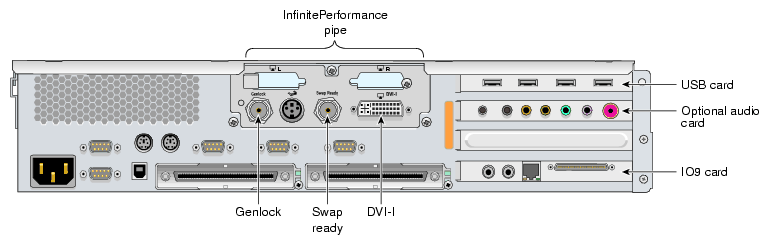
Figure 2-1 shows an Onyx 350 compute/graphics module with one InfinitePerformance pipe. The USB PCI card and IO9 card are standard on the first system module but optional on expansion modules. See Figure 1-3 and Table 1-1 for the locations and functional descriptions of the rear panel connectors when cabling the compositor.
To install the compositor, follow these steps. Although you can connect fewer pipes, it is assumed that you are connecting four InfinitePerformance pipes to the compositor.
Be sure that the compositor power switch on the rear panel is in the OFF (O) position and that it is not connected to a power source.
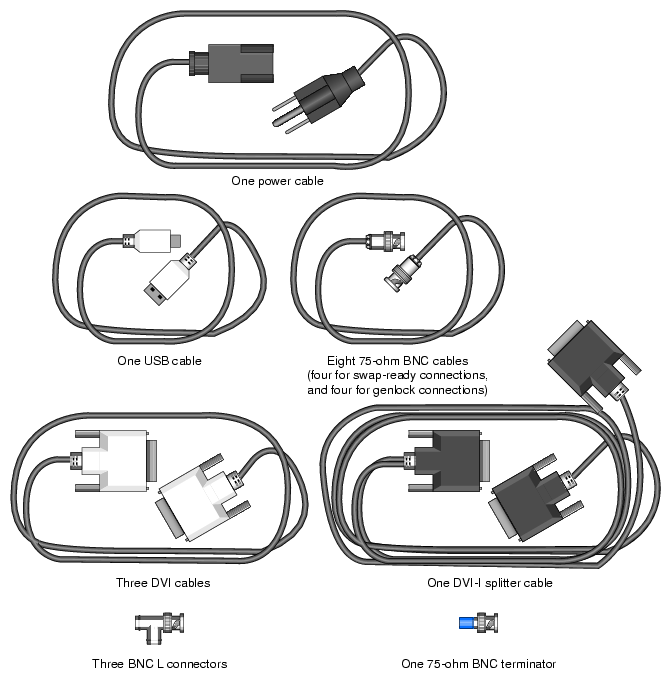
Gather the following cables and other cabling items, most of which are shown in Figure 2-2:
Three DVI single–link cables
One DVI-I splitter cable
Eight 75–ohm BNC cables
Three BNC L connectors
One 75–ohm BNC terminator
One USB cable
Up to four additional USB cables, depending on how many compositors will be connected together
One digital monitor cable (not shown)
One analog monitor cable (not shown)
One power cable for the compositor (appropriate for local power source)
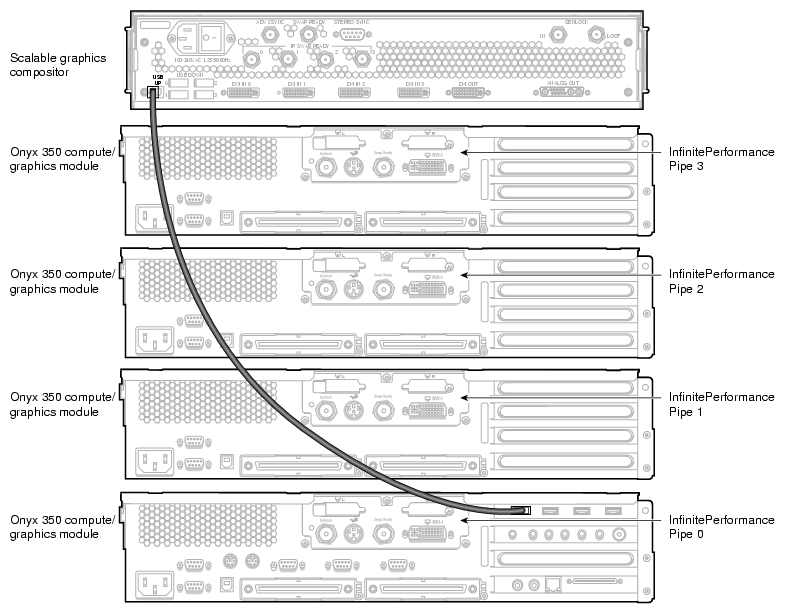
Using a USB cable, connect the USB UP port on the compositor to a USB DOWN port on the Onyx 350 graphics system which contains pipe 0 (as shown in Figure 3-3):

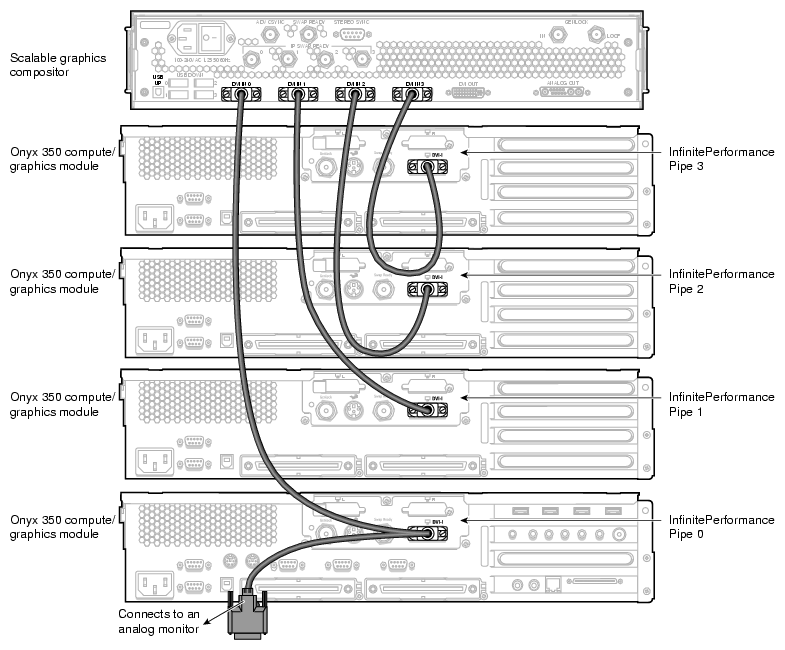
Note: You may connect additional compositors to the compositor shown in Figure 3-3 with USB cables by connecting the UP port(s) of the additional compositor(s) to the DOWN port(s) of the compositor shown. Using the DVI-I splitter cable and DVI single-link cables, connect the DVI connectors of the InfinitePerformance pipes to the compositor DVI connectors in the following order (as shown in Figure 2-4):
Connect the DVI-I splitter cable to the DVI connector on the InfinitePerformance pipe 0. Then connect the digital side of the DVI-I splitter cable to the leftmost DVI IN 0 connector on the compositor. The analog side of the DVI-I splitter cable is used to connect a monitor to pipe 0. See step 8 for the details on how to connect the monitor.
Connect the DVI connector on the InfinitePerformance pipe 1 to the compositor DVI IN 1 connector.
Connect the DVI connector on the InfinitePerformance pipe 2 to the compositor DVI IN 2 connector.
Connect the DVI connector on the InfinitePerformance pipe 3 to the compositor DVI IN 3 connector.
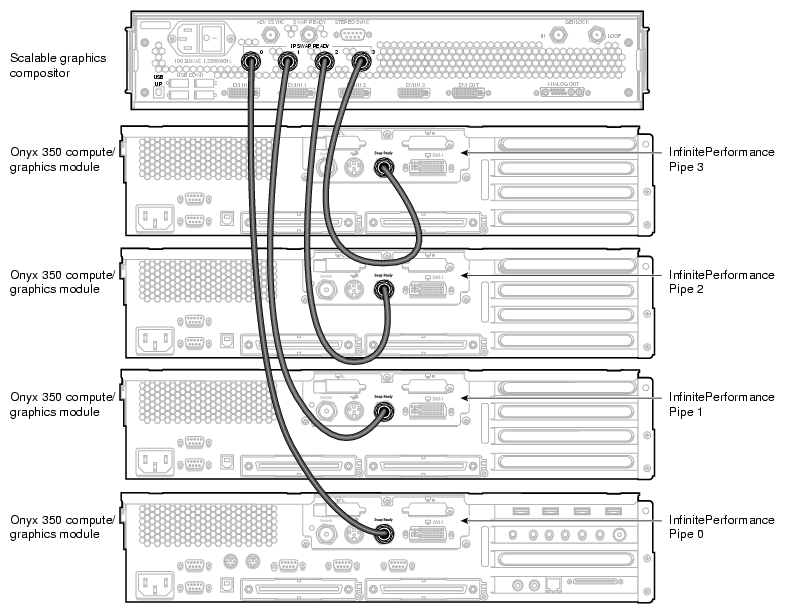
Using the 75-ohm BNC cables, connect the swap ready connectors of the InfinitePerformance pipes to the swap ready connectors on the compositor in the following order (as shown in Figure 2-5): pipe 0 to IP SWAP READY 0, pipe 1 to IP SWAP READY 1, pipe 2 to IP SWAP READY 2, and pipe 3 to IP SWAP READY 3.
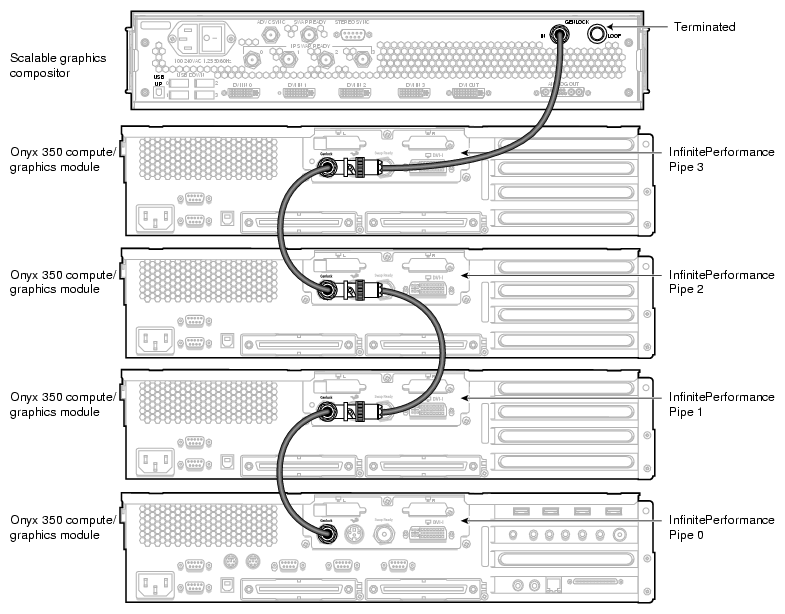
Using the 75-ohm BNC cables and the BNC L connectors, daisy-chain the InfinitePerformance genlock connectors to each other, and then connect the last genlock connector to the GENLOCK IN connector on the compositor in the following order (as shown in Figure 4-6): pipe 0 to pipe 1, pipe1 to pipe 2, pipe 2 to pipe 3, and pipe 3 to the GENLOCK IN connector on the compositor.
Connect the 75-ohm BNC terminator to the GENLOCK LOOP connector shown in Figure 4-6.
As is applicable to your cabling installation, connect the following items to the compositor (as shown in Figure 1-4):
If you are connecting to a digital monitor, first make sure that your digital monitor is powered off and not connected to a power source. Then connect the DVI OUT connector on the compositor to your digital monitor.
If you are connecting to an analog monitor, first make sure that your analog monitor is powered off and not connected to a power source. Then connect the ANALOG OUT connector on the compositor to an analog monitor. You can also connect the ANALOG OUT side of the DVI-I splitter cable, from the InfinitePerformance pipe, to an analog monitor (see Figure 2-4).
If you are connecting stereo glasses to the compositor, connect the glasses to the STEREO SYNC connector on the compositor.
Connect one end of the power cord to the compositor power plug and the other end of the cord to your AC power source.
Connect your monitor(s) to a power source as described in your monitor installation guides.
Press the compositor power switch to the ON (I) position.
Power on your monitors as described in your monitor user guides.
Boot the SGI host system.
Proceed to Chapter 5, “Configuring the Compositor on Linux” for an overview on how to configure the compositor.
This section describes how to cable the SGI InfinitePerformance pipes, which reside in the SGI Onyx 3000 system(s) to the compositor connectors. In an SGI Onyx 3000 system, the InfinitePerformance pipes are installed in the V-brick(s).
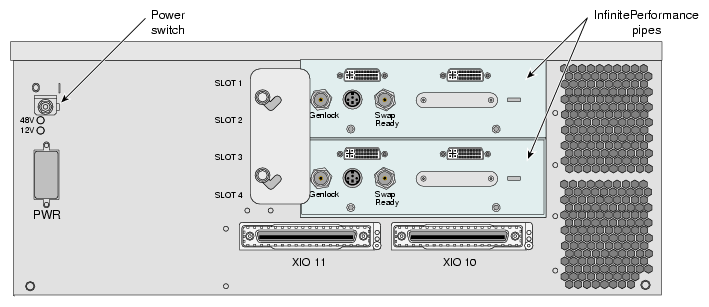
Figure 4-7 shows a V–brick with two InfinitePerformance pipes. See Figure 1-3 and Table 1-1 for the locations and functional descriptions of the rear panel connectors when cabling the compositor.
To install the compositor, follow these steps. Although you can connect fewer pipes, it is assumed that you are connecting four InfinitePerformance pipes to the compositor.
Be sure that the compositor power switch on the rear panel is in the OFF (O) position and that it is not connected to a power source.
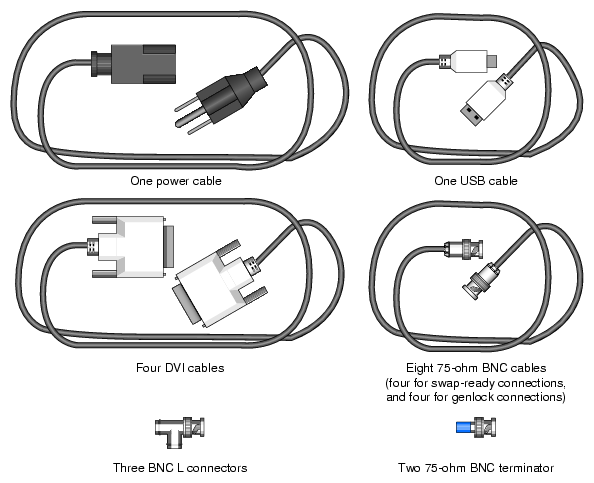
Gather the following cables and other cabling items, most of which are shown in Figure 4-8:
Four DVI single–link cables
Eight 75–ohm BNC cables
Three BNC L connectors
Two 75–ohm BNC terminators
Up to four USB cables, depending on how many compositors will be connected together
One digital monitor cable (not shown)
One analog monitor cable (not shown)
One power cable for the compositor (appropriate for local power source)
If you are connecting multiple compositors together, connect the USB UP port of one compositor to the USB DOWN port of another. You may connect up to four compositors together.
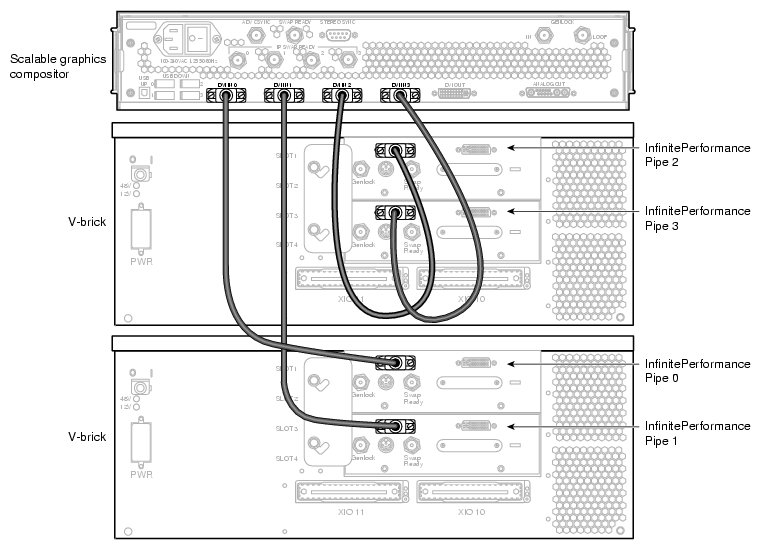
Using DVI single-link cables, connect the leftmost DVI connectors of the InfinitePerformance pipes to the compositor DVI connectors in the following order (as shown in Figure 4-9):
Connect the leftmost DVI connector on the InfinitePerformance pipe 0 to the leftmost DVI IN 0 connector on the compositor.
Connect the leftmost DVI connector on the InfinitePerformance pipe 1 to the compositor DVI IN 1 connector.
Connect the leftmost DVI connector on the InfinitePerformance pipe 2 to the compositor DVI IN 2 connector.
Connect the leftmost DVI connector on the InfinitePerformance pipe 3 to the compositor DVI IN 3 connector.
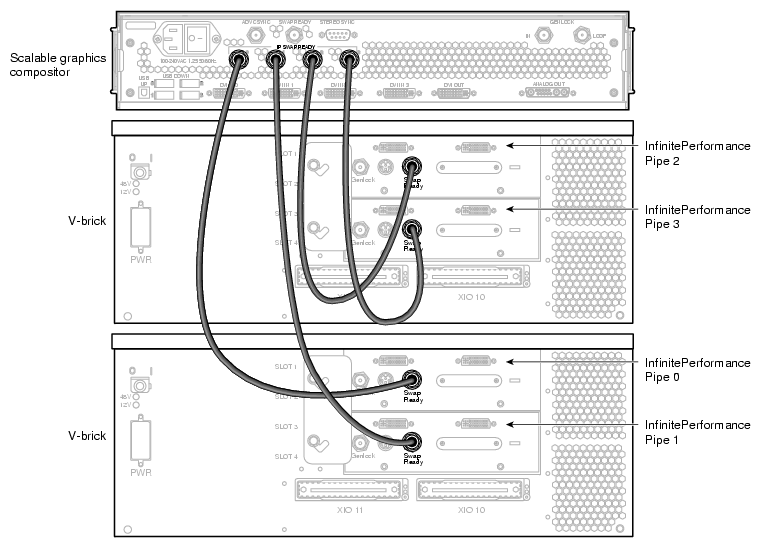
Using the 75–ohm BNC cables, connect the InfinitePerformance swap ready connectors to the swap ready connectors on the compositor in the following order (as shown in Figure 4-10): pipe 0 to IP SWAP READY 0, pipe 1 to IP SWAP READY 1, pipe 2 to IP SWAP–READY 2, and pipe 3 to IP SWAP–READY 3.
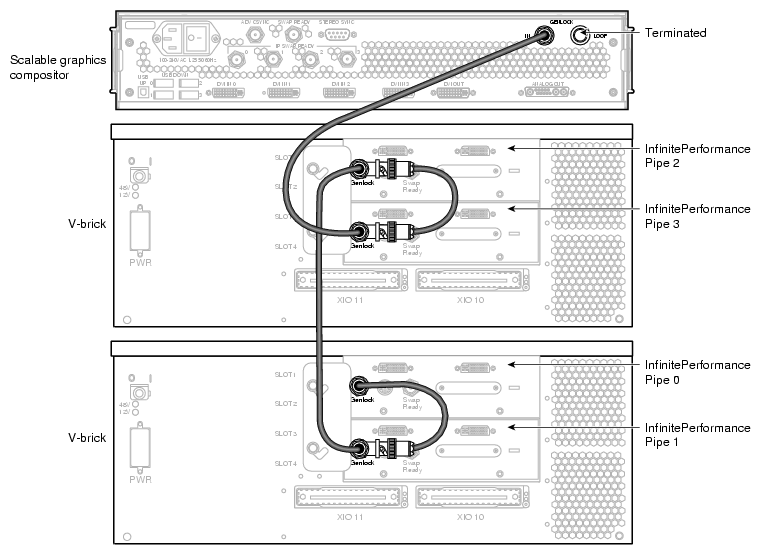
Using the 75–ohm BNC cables and BNC L connectors, daisy-chain the InfinitePerformance genlock connectors to each other in the following order (as shown in Figure 4-11): pipe 0 to pipe 1, pipe 1 to pipe 2, pipe 2 to pipe 3, and pipe 3 to GENLOCK IN.
If you are not going to connect to other compositors, use a 75–ohm BNC terminator to terminate the GENLOCK LOOP connector on the compositor.
As is applicable to your cabling installation, connect the following items to the compositor (as shown in Figure 1-4):
If you are connecting to a digital monitor, first make sure that your digital monitor is powered off and not connected to a power source. Then connect the DVI OUT connector on the compositor to your digital monitor.
If you are connecting to an analog monitor, first make sure that your analog monitor is powered off and not connected to a power source. Then connect the ANALOG OUT connector on the compositor to your analog monitor.
If you are connecting stereo glasses to the compositor, connect the glasses to the STEREO SYNC connector on the compositor.
Connect one end of the power cord to the compositor power plug and the other end of the cord to your AC power source.
Connect your monitor(s) to a power source as described in your monitor installation guides.
Press the compositor power switch to the ON (I) position.
Boot the SGI host system.
Power on your monitors as described in your monitor user guides.
Proceed to Chapter 5, “Configuring the Compositor on Linux” for overview information on how to configure the compositor.