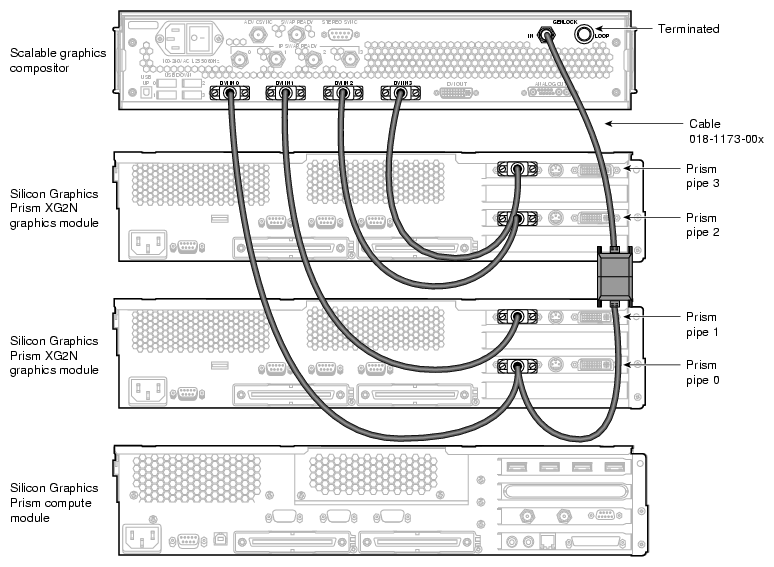
This chapter provides an example of how to cable the Silicon Graphics Prism XG2N Graphics Module to the compositor.
 | Warning: Before installing, operating, or servicing any part of this product, read the following section: “Safety Instructions” in Appendix A. |
 | Caution: Before installing and cabling the Scalable Graphics Compositor, see the cooling, power, physical, and environmental specifications in Chapter 1, “Product Description and Specifications”. |
Figure 2-1 shows an XG2N graphics module with pipes 0 and 1. Refer back to Figure 1-3 and Table 1-1 for the locations and functional descriptions of the rear panel connectors as needed when cabling the compositor.
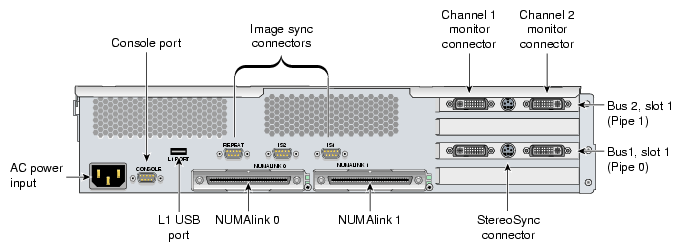
The rear panel of the XG2N graphics module has the following connectors:
AC power input: this connector connects the graphics brick to an AC power outlet.
Console port: this DB-9 serial port (console and diagnostic port) enables you to connect a system console to the L1 controller on the graphics brick.
L1 port (USB type A): This USB connector provides a system control host connection.
Image sync connectors: these connectors are used in conjunction with an image sync card.
NUMAlink 0 and NUMAlink 1 connectors: the NUMAlink connector connects the XG2N-brick to the host system. This connection is made with a NUMAlink cable.
NUMAlink LED: the NUMAlink connector has a yellow LED and a green LED (located to the right of the NUMAlink connector). The yellow LED indicate that both the graphics brick and the host system brick to which it is connected are powered on. The green LED indicates that the host system has established a link to the graphics brick.
DVI-I display connectors: these connectors are used to attach one or more external displays.
Stereo sync connectors: stereo sync is supported only with specific releases and configurations.
To install the compositor, follow these steps:
Be sure that the compositor power switch on the rear panel is in the OFF (O) position and that it is not connected to a power source.
Gather the following cables and other cabling items, most of which are shown in Figure 2-2:
Three DVI single–link cables
One DVI-I splitter cable with 75–ohm BNC cable attachment.
One 75–ohm BNC terminator
One USB cable
One digital monitor cable (not shown)
One analog monitor cable (not shown)
One power cable for the compositor (appropriate for local power source)
Using a USB cable, connect the USB UP port on the compositor to a USB connector port on the USB PCI option card installed in the Silicon Graphics Prism compute module (as shown in Figure 2-3):
Using the DVI splitter cable and DVI single-link cables, connect the DVI connectors on the Silicon Graphics Prism pipes to the compositor DVI connectors in the following order (as shown in Figure 2-4):
Connect the DVI splitter cable to the DVI connector on pipe 0 of the Silicon Graphics Prism graphics card. Then connect the digital side of the DVI splitter cable to the leftmost DVI IN 0 connector on the compositor. The DVI to BNC splitter cable connects to the Genlock In connection on the upper right section of the compositor. Make sure the Genlock Loop connector next to the splitter input is terminated with the 75-Ohm BNC terminator.
Connect the DVI connector on the Silicon Graphics Prism graphics pipe 1 to the compositor DVI IN 1 connector.
Connect the DVI connector on the Silicon Graphics Prism pipe 2 to the compositor DVI IN 2 connector.
Connect the DVI connector on the Silicon Graphics Prism pipe 3 to the compositor DVI IN 3 connector.
Connect the 75-ohm BNC cable to the swap ready connector on the compute module PCI card (leftmost connector), then connect the cable to the Swap Ready connector on the compositor as shown in Figure 2-5.
Connect the first image sync cable from the compute module PCI card (rightmost connector) to the image sync IS1 connector on the nearest XG2N graphics module.
Connect an additional image sync cable from the Repeat connector to the image sync IS1 connector on the next XG2N graphics module.
As is applicable to your cabling installation, connect the following items to the compositor (as shown in Figure 1-4):
If you are connecting to a digital monitor, first make sure that your digital monitor is powered off and not connected to a power source. Then connect the DVI OUT connector on the compositor to your digital monitor.
If you are connecting to an analog monitor, first make sure that your analog monitor is powered off and not connected to a power source. Then connect the ANALOG OUT connector on the compositor to an analog monitor.
If you are connecting stereo glasses to the compositor, connect the glasses to the STEREO SYNC connector on the compositor.
Connect one end of the power cord to the compositor power plug and the other end of the cord to your AC power source.
Connect your monitor(s) to a power source as described in your monitor installation guides.
Press the compositor power switch to the ON (I) position.
Power on your monitors as described in your monitor user guides.
Boot the SGI host system.
Proceed to Chapter 5, “Configuring the Compositor on Linux” for overview information on how to configure the compositor.