This chapter describes the connection of the second keyboard and mouse to the newly installed keyboard and mouse ports on the Duo PCI card in your Silicon Graphics Octane2 workstation.
If you have not already reconnected all the cables you removed from the system module, do so now. These will typically include sound cables, Ethernet cable, and the primary keyboard and mouse cables.
 | Note: The keyboard and mouse ports on the system module are interchangeable. Either port will work for either device. However, you must connect both devices while the system is powered off. |
For a detailed explanation of the ports and cable connections on your Octane2 workstation, refer to your Octane2 Workstation Owner's Guide.
If the monitor cables are not connected, connect them now.
In a typical Dual Head system (that is, one with no display option boards), the upper connector is for the primary head and the lower connector is for the secondary head.
For more information about connecting monitors to Dual Head systems with no display option boards, see the Silicon Graphics Octane2 Dual Head Installation Guide. Refer to “Obtaining Publications” for instructions about how to access this document.
If the system has a single display option board (also called a dual channel board) installed, the upper two DVI connectors are for the two monitors on the primary head.
If the system has two display option boards installed, the lower two DVI connectors are for the two monitors on the secondary head.
For more information about connecting monitors to systems with display option board(s), see the Silicon Graphics Octane2 Workstation Display Option Board Installation Guide. Refer to “Obtaining Publications” for instructions about how to access this document.
Connect the new keyboard and mouse as follows:
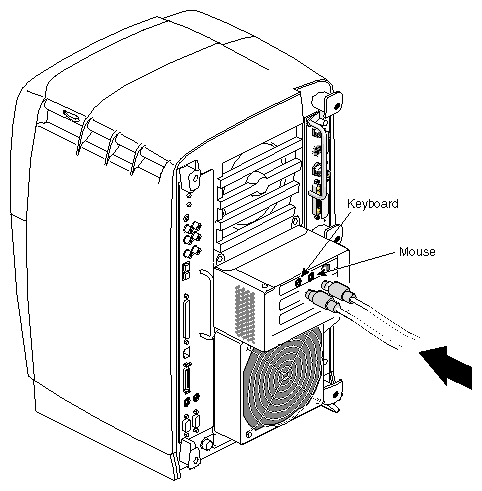
Connect the keyboard and mouse extension cables to the keyboard and mouse ports on the PCI card (see Figure 4-1).
Note: Unlike the keyboard and mouse ports on the system module, the ports on the PCI card are not interchangeable. Be sure to plug the keyboard cable into the keyboard port (toward the left), and the mouse cable into the mouse port (toward the right). 
Tip: When plugging the keyboard and mouse cables into the ports on the PCI board, push them in firmly, as they may be a tight fit. Connect the other ends of the keyboard and mouse extension cables to the keyboard and mouse at the secondary user locations.
Proceed to Chapter 5, “Configuring the System and Verifying Installation” to configure the system and verify the installation.