This chapter describes various tasks you must perform to install and configure Console Manager software. It contains the following sections:
For information on how to install the Console Manager and the rest of SGIconsole software, see SGIconsole 1.0 Start Here.
To start the Console Manager GUI, follow these steps:
Make sure the SGIconsole machine, in which Console Manager resides, the servers and graphics systems supported by SGIconsole, and the Silicon Graphics Ethernet serial port server are cabled as described in the SGIconsole Hardware Connectivity Guide.
Make sure all systems are powered on.
If you are running as root, to set your DISPLAY variable enter the following command:
export DISPLAY=hostname.engr.sgi.com:0.0
If you are not running as root, to set your DISPLAY variable enter the following command:
setenv DISPLAY hostname.engr.sgi.com:0.0
To start the Console Manager graphical user interface (GUI), you can use the SGIconsole web page interface or enter the following command in any window:
%/usr/bin/scmgr

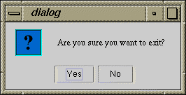
To quit the Console Manager GUI, perform these steps:
From the File pulldown menu, choose Exit, as shown in Figure 2-2.
A confirmation message dialog box appears, as shown in Figure 2-3.
Click the Yes button.

This section provides information on how to install and configure a Console Manager client for systems running the IRIX, Linux, or Windows operating system.
As with all Java applications, the performance of the Console Manager is affected by the performance of the machine you are running it on, as well as the implementation of the Java virtual machine used to run it.
If you run multiple invocations of Console Manager on the SGIconsole server, it can reduce the performance of all Console Managers running on the server and jeopardize all other SGIconsole services because every invocation of Console Manager for each user logged in, requires many instances of java(1) or jre(1) running on a single-processor machine. Running many instances of Java consumes system resources and can result in severely limiting the capacity of the server.
In addition, running Console Manager so that the display appears on a remote X server limits the graphics performance of the Console Manager because the network can become a bottleneck for sending display data to the remote X Server.
Running Console Manager client on machines other than the SGIconsole server itself, provides increased accessibility to the Console Manager GUI.
It is recommended that you run the Console Manager client on machines that are comparable in performance to the SGIconsole server itself, that are not heavily loaded with other processes, and that have ample memory resources.
This section covers the following topics:
This section describes how to start the Console Manager GUI for SGIconsole on a client machine and covers the following topics:
To start the Console Manager GUI for SGIconsole on a client machine instead of on the SGIconsole server machine, use the cmgr script for systems running IRIX or Linux and use the CMGR.BAT batch file for systems running Windows.
To install the Console Manager client software, all that is necessary is that the ConsoleManager-Client directory on this CD be copied to anywhere on the filesystem of the client machine, as long as the directory structure inside the ConsoleManager-Client directory remains intact.
To use the Console Manager on a client machine, the client machine must be as follows:
An SGI workstation running IRIX 6.5 or later, and Java 1.1.8 for IRIX.
a Pentium-based PC running Red Hat Linux 6.2, and IBM's Java 1.1.8 for Red Hat Linux 6.x.
a Pentium-based PC running Windows 95, 98, NT 4.0 or 2000, and Sun Microsystems' Java 1.1.8 for Windows.
Java 1.1.8 must also be installed on the client machine, either via the Java Runtime Environment (JRE) or the Java Development Kit (JDK). All JREs supported for use with SGIconsole are provided on the SGIconsole CD (the IBM Java 1.1.8 RPM can be found in the directory /SGI/RPMS on this CD).
To run the Console Manager on the client machine, enter the following:
% cd ConsoleManager-Client % cmgr & |
ConsoleManager-Client is the directory that has been copied from the SGIconsole CD to start the Java application.
 | Note: You must change directory to where the cmgr or CMGR.BAT scripts exist on your filesystem, otherwise cmgr will not be able to find the required Java jar archives. |
To run the Console Manager using the Windows Explorer, perform the following:
Locate the CMGR.BAT script on your filesystem
Perform this one-time setup, since the working directory needs to be set in the MS-DOS environment in order for CMGR.BAT to find the required Java jar files:
Right-click the CMGR.BAT icon and select Properties in the pop-up menu
Select the Program tab
Enter the same path in the Working field as it exists in the command line field, excluding CMGR.BAT at the end of the field.
Click on the OK button in the dialog box.
Double-click on the icon to run the script in a virtual MS-DOS session.
| Note: For Windows 95, 98, Me systems, it may be necessary to change the amount of environment memory assigned to MS-DOS sessions for CMGR.BAT to function properly (see “Changing the MS-DOS Environment Size”) |
To change the MS-DOS environment size, perform the following steps:
Right-click the CMGR.BAT icon in Windows Explorer and select Properties in the pop-up menu
Select the Memory tab
Select the Initial Environment field's pop-up menu, and select a value of 1024 bytes or more
If the CMGR.BAT file is in deeply nested directories, a larger amount of environment memory may need to be assigned.
If you do not see a Memory tab in the properties window, then Windows manages this memory automatically.
Other properties can be set for CMGR.BAT as desired.
Access controls in SGIcosole prevent users from issuing unauthorized operations to the Console Manager server.
All Console Manager operations that can be operate on nodes can be protected using Console Manager's access control mechanism.
This section describes the following topics:
Console Manager supports the concept of groups. A group is a list of nodes that a user has can access and the list of tasks that a user can apply to any node in the list of nodes. A user can be a member of more than one group, thus providing access to a union of particular named sets of access controls.
If a user is not assigned to any group, the user has access to all nodes configured in Console Manager and can apply any task to any node.
There are some tasks that only root console user can perform. These tasks are specifically for the administration of Console Manager. These tasks are as follows:
Add a Node
Add a New Console User
Modify a Console User
Delete a Console User
Add Console Users
Add a Management Group
Modify a Management Group
Delete a Management Group
The following task can be performed by either a root user or the owner of the user account:
Change a Console User Password
Availability of all other tasks are governed by access controls.
| Note: A Console Manager root user has access to all tasks. If you are the root user, you can never assign any access controls yourself. |
To apply access controls to users, as Console Manager root user, you need to peform the following:
Use the Add a Node task to create nodes, if they do not already exist.
Use the Add a Management Group task to create a new management group
Use the Add a New Console User task to create new users, unless you want to apply access controls to existing users
Use the Modify a Console User task to associate the newly created groups toexisting users.
Use the Set up Console Nodes, Groups, and Users task to be guided through the steps.
The Add a Management Group task dialog is where new management groups are created (see “Adding a Management Group” in Chapter 3).
Console Manager also provides controls to change existing group definitions, delete groups and to disassociate groups from existing users. Console Manager automatically keeps track of user and group associations. If a group is removed, the association of users with that group is also removed. The processes of changing groups and group assignments are easy to understand and execute. Everything required to administer groups is available using the following Management Group set of tasks:
When you log in and access controls are in force, you may notice the following:
The list of available nodes may be reduced in the Nodes view of the Console Manager window.
The list of available tasks may be reduced in the Applicable Tasks list of the Nodes view of the Console Manager window.
Some tasks may return dialog boxes that state the user does not have permissions to apply particular tasks to nodes.
This section describes how to get to a console from a Windows installation that does not have an X Window system server installed.
Microsoft Windows does not provide X Window system services without additional third party software. Normally, the X Window system is required for SGIconsole to be able to make a connection to your display using the xterm(1) client application whenever SGIconsole is instructed to open a console connection to a node.
If you do not have an X Window system server running on your system, you cannot use xterm(1) to connect to your display. However, you can still connect to a console managed by SGIconsole by using the Windows telnet application (TELNET.EXE) to log into the SGIconsole server directly to use the text-based interface to SGIconsole.
In order to gain access to a console from within Windows, run the telnet application, and open a connection to the SGIconsole server using the Remote System... item in the Connect menu. The the login prompt appears as follow:
Red Hat Linux release 6.2 (Zoot) Kernel 2.2.16-4SGI_39 on an i686 login: _ |
After you login the following menu appears:
==============================================================

   Welcome to SGIconsole 1.1

   To learn about the SGIconsole 1.1 release, its new features,
   changes, known problems, and workarounds, read this file:
     /usr/doc/SGIconsole-1.1/README

   If configuring the system for the first time, refer to
   SGIconsole Start Here for guidance.
|
If tscm(1) is configured to start automatically on your system, the following text appears:
Automatically starting SGIconsole (to get to a shell, enter 6 at the command line prompt). |
The text-based console interface follows:
SGIconsole 1.1 Main Menu

1. scons [func] [node]          Connect to System Console
2. ccons [func] [node]          Connect to Controller Console
3. reset [node]                 Hardware Reset
4. nmi [node]                   Generate NMI
5. pwr [func] [node]            Power On or Off
6. shell                        Escape to Shell
7. help [command]               Help
8. quit                         Quit

SGIconsole>
|
You can use the scons and ccons commands to obtain consoles to available nodes, which will appear within the telnet session.
For more information on using the tscm text-based interface to SGIconsole, see “Command Line Interface to Console Manager” in Chapter 1 and the tscm(1) man page.
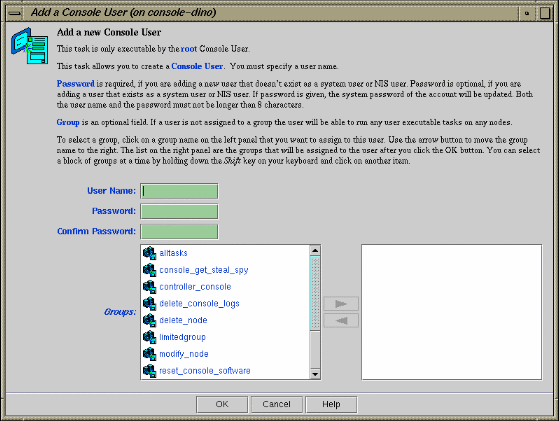
This task allows you to create a console user. This task is only executable by the root console user. You must specify a user name.
If you are adding a new user that does not exist as a system user or NIS user, a password is required.
If you are adding a user that exists as a system user or NIS user, a password is optional.
Both the name and the password must not be longer than 8 characters.
SGIconsole access control is accomplished through groups. A user can belong to 0 to n groups. If no group is assigned, the user has access to all nodes and tasks.
To verify a user's privilege, click on the user on the tree view panel. Group tasks and user tasks (except change user password) are only executable by the root user. If a user attempts to execute a task for which they do not have privilege, a dialog box appears to inform the user they are not authorized to perform the task. A user can only view nodes on which the user has privilege to work.

To create a group, use the Add a Management Group task (see “Adding a Management Group” in Chapter 3).
To add a Console user, follow these steps:
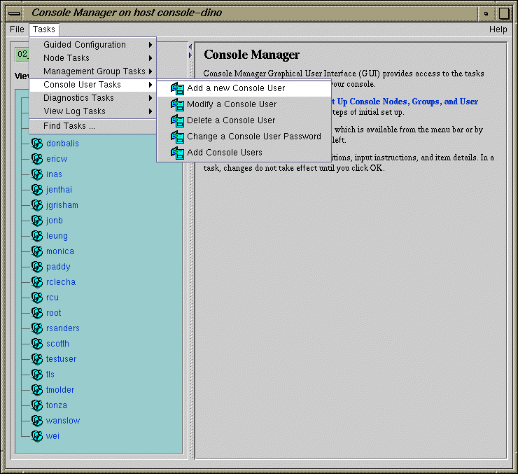
From the Tasks menu, choose the following, as shown in Figure 2-4.
Console Users Tasks -> Add a new Console User
The Add a new Console User dialog box appears, as shown in Figure 2-5.
Note: In every Console Manager task, you can click any blue text to see instructions on how to fill in a field.
Enter the new user's login and password.
Click on the group names in the left field which you want to assign to this user. Use the arrow button to move the group name to the right field.
Note: You can select a block of groups at a time by holding down the Shift key on your keyboard and clicking on another item.
Click the OK button.
You will get an error message if the task fails.
The user icon entry appears on the View panel.
This task allows you to add multiple users at the same time. This task is only executable by the root console user. The new users are modeled after the Template User. The list of new console users are listed in the Console users file residing on either the SGIconsole server on some other machine accessible by the SGIconsole server.
From the Tasks menu, choose the following, as shown in Figure 2-4.
Console Users Tasks -> Add Console Users
The Add Console Users dialog box appears, as shown in Figure 2-6.
In the Template User field, select the template account you wish to use.
The template user field specifies an existing account from which to copy group and password information within SGIconsole's user database. The group list and password are copied to all new accounts specified and accepted in the user list file. It is assumed that this "template" user account has already been created before importing user lists. The root account cannot be used as the template account.
In the Console Users File field, select On SGIconsole server or On Other Machine.
The file format for importing a list of users is a simple list of user names, each name on its own line. Comments are supported, as long as the # character appears as the first character of the line. Empty lines (or lines with only white-space) are ignored. User names longer than 8 characters are not accepted (although it does not terminate processing of the file). An example is as follows:
#  Sample import list file
jack
may
faith
zoe
The option to read user lists from a file on the SGIconsole server requires that the file exists on the filesystem of the SGIconsole server; specifying the FTP server, username and password is not required
In the Path and Filename field, enter the path and name of the file containing the user list.
In the FTP Hostname field, enter the FTP hostname.
In the FTP login name field, enter your login name.
In the FTP Password field, enter your password.
Click the OK button.

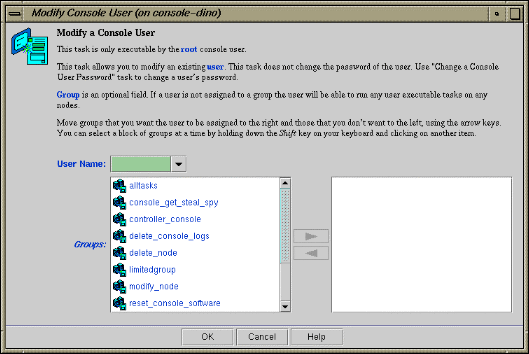
This task allows you to modify a console user. This task is only executable by the root console user. You must specify the user name. You can use this task to change the groups to which a user belongs.
To modify a Console user, follow these steps:
From the Tasks menu, choose the following, as shown in Figure 2-7.
Console Users Tasks -> Modify a Console User
The Modify a Console User dialog box appears, as shown in Figure 2-7.
Enter the user's login name
Click on the group names in the left field which you want to assign to this user. Use the arrow button to move the group name to the right field. Click on the group names in the right field from which you want to remove this user. Use the arrow button to move the group name to the left field.
Note: You can select a block of groups at a time by holding down the Shift key on your keyboard and clicking on another item.
If the user is not assigned to any group, the user has access to all Console Manager tasks (except for administration tasks that only the root user can perform) for every node defined in the system. This provides the same access rules as those originally provided in the SGIconsole 1.0 release.
Note: Removing all group memberships for a user effectively removes all access permissions on selected nodes and tasks for that user.
Click the OK button.
You will get an error message if the task fails.
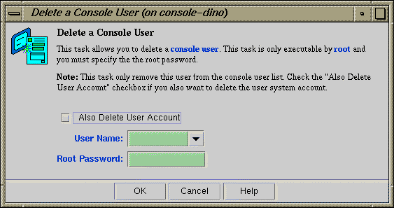
This task allows you to delete a user. The task is executable only by the root console user and you must specify the root password. This task only removes this user from the Console user list. If you select the Also Delete User Account, you also delete the user account.
To delete a Console Manager user, follow these steps:
From the Tasks menu, choose the following:
Console Users Tasks -> Delete a Console User
The Delete a Console User dialog box appears, as shown in Figure 2-8.
Enter the user name.
Click the Also Delete User Account button is you also want to remove the user account
Enter the root password.
Click the OK button.
You will get an error message if the task fails.
The user icon entry is removed from the View panel.
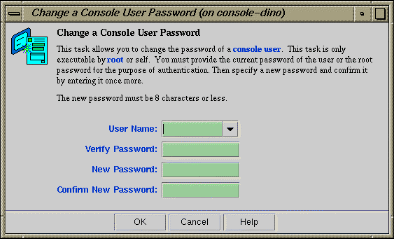
This task allows you to change a console user password. It can be executed by any console user.
To change a console user password, follow these steps:
From the Tasks menu, choose the following:
Console Users Tasks -> Change a Console User Password
The Change a Console User Password dialog box appears, as shown in Figure 2-9.
Enter the your user name, your current password, and your new password.
Click the OK button.
An error message appears if the task fails.