Console Manager is a graphical user interface for the SGIconsole management and monitoring tool used to control multiple nodes. A node can be a server or a partitioned system. Each node is a managed host with a unique name and Internet Protocol (IP) address. An SGI Origin 3000 system can be partitioned to contain multiple nodes. Each partition is a node with a unique hostname and IP address.
You can manage and monitor up to 64 nodes with the Console Manger.
You can use the Console Manager interface to consolidate information about multiple sever nodes in a compact space.
The Console Manager is part of the SGIconsole system, which is used to control and monitor multiple SGI servers. For an overview of SGIconsole, see “SGIconsole Overview”, and the SGIconsole 1.1 Start Here.
This chapter introduces the operational features and capabilities of Console Manager software. This chapter contains the following sections:
SGIconsole, as shown in Figure 1-1, lets you manage multiple SGI servers, SGI partitioned systems, and large, single-system image servers.
It consists of an SGI 1100 platform, a serial multiplexer or Ethernet hub, and a software suite, including the Console Manager/VACM package and Performance Co-Pilot (PCP). SGIconsole provides access to common remote management tools.
You can configure SGIconsole to use a Network Information Services (NIS) password. See the SGIconsole software package README file for instructions on how to configure NIS on your SGIconsole machine.

For location information and procedures for using the SGIconsole user interface to access SGIconsole software, see the SGIconsole 1.1 Start Here.
For information on how to connect the SGIconsole to the SGI servers and graphics systems, see the SGIconsole Hardware Connectivity Guide.
Your SGI machine probably comes with Red Hat 6.2 and the SGIconsole 1.0 software preinstalled. The SGIconsole Software CD document describes how to install the software from the CD if at some time you need to reinstall it.
 | Note: The SGIconsole reinstallation procedure is the same as the installation procedure described in the SGIconsole 1.1 Start Here manual, after you have removed the SGIconsole rpms. |
For information on the L1 and L2 controller commands, see Appendix B of the SGI Origin 3000 Series Owner's Guide.
For information on how to install the SGI Ethernet serial port server (also know as the EL serial port server and as EtherLite, see the EL Serial Port Server Installation Guide and the EL Serial Port Server Installation Guide Errata.
For information on Performance Co-Pilot (PCP) see the following manuals:
Performance Co-Pilot ReadMe First
Performance Co-Pilot IRIX Base Software Administrator's Guide
Performance Co-Pilot Programmer's Guide
Performance Co-Pilot User's and Administrator's Guide
This section contains information about getting Console Manager running on your system and covers the following topics:
This section contains links to information about Console Manager requirements, restrictions, and workarounds described throughout this manual as follows:
For information on remote displays supported, see “Systems Supported”.
When you add new hardware to Console Manager, you must upgrade your sn1sc firmware from the SGI Supportfolio website. For more information, see “SGIconsole Hardware Configuration”.
For information on requirements for running Console Manager on a client machine instead of on the SGI server machine, see “Requirements” in Chapter 2.
The minimum value of a UID assigned to a new user is 500 in Console Manager. For a workaround for NIS users and more information, see “Adding a Console User” in Chapter 2.
For the L1 and MMSC controller types, system and controller console logging should not be activated simultaneously. For more information, see “Enabling and Disabling Console Logging” in Chapter 4.
For information on installing the Console Manager for SGIconsole, see SGIconsole Start Here.
For information on starting Console Manager, see “Starting the Console Manager”, and “Starting the Console Manager Graphical User Interface on the SGIconsole Server” in Chapter 2.
For more information on SGIconsole, see “SGIconsole Overview”.
You can use Console Manager to configure your system to add nodes to your site. You can also use it to add users and groups of users. Console Manager automatically updates the nodes, users, and groups files located in the /var/lib/SGIconsole directory.
| Note: You should not edit the directories under /var/lib/SGIconsole/. These configuration files are generated by Console Manager software. Any changes to these files might be lost during upgrades to future releases of SGIconsole. |
For a list of the systems supported, see the SGIconsole Hardware Connectivity Guide. For more information on server (node) types, see “Adding a Node” in Chapter 3.
| Note: SGIconsole supports remote-displaying to an Indy or O2 workstation running IRIX 6.5.11 (or later) and a Silicon Graphics 230 visual workstation running VWE 3.0. Other displays may work, but are not supported by SGI. |
You can invoke Console Manager from the SGIconsole web page or from the command line on the server itself. The command that invokes the Console Manager GUI follows:
%/usr/bin/scmgr |
For more information about starting Console Manager, see “Starting the Console Manager Graphical User Interface on the SGIconsole Server” in Chapter 2.
The Console Manager Server includes security features that ensure that only authorized administrators can manage or monitor systems. The administrator for the Console Manager server is root. The Console Manager Server password for the root user should be the same as the UNIX password for the root user. Only the root user can create or delete other console users. Non-root users can peform all other Console Manager tasks.
| Note: The Console Manager GUI does not encrypt its communication with the server. The transfer of passwords is visible to other users of your network. Do not use the Console Manager GUI to administer computers over the Internet. |
When you invoke the Console Manager, the window appears, as shown in Figure 1-2.

The Console Manager security window allows you to establish a connection to a server to administer using the Console Manager GUI. To log in perform the following steps:
In the Server field, type the name of the server running Console Manger.
In the Login Name field, type your login ID.
In the Password field, type your password.
Click the Ok button.
If you cannot connect to a node running Console Manager, an error message appears.
For information about using the Console Manager GUI to add a Console Manager user, see “Adding a Console User” in Chapter 2.
For information about the Console Manager access control mechanism, see “Access Controls in Console Manager” in Chapter 2.
The Console Manager graphical user interface (GUI) enables you to set up, administer, and monitor all the nodes in a site from a single point. A node can be an SGI server running the IRIX operating system.
The Console Manager GUI provides these advantages:
You can click any blue text to get more information about that concept or input field. Online help is also provided with the Help button.
The existance of nodes, users, and groups are shown visually.
All inputs are checked for correct syntax before attempting to change the node configuration information. In every task, changes will not take effect until you click OK.
Tasks take you step-by-step through configuration and management operations.
Note: You should not edit the directories under/var/lib/SGIconsole/nodes. These configuration files are generated by Console Manager software. Any changes to these files might be lost during upgrades to future releases of SGIconsole.
The graphical tools can be run on any computer that supports a Java-enabled X window system.
| Note: You can also access Console Manager using a command line interface called tscm(1). For more information, see “Command Line Interface to Console Manager”. |
Figure 1-3, shows the Console Manager. The menu bar shows the following pulldown menus:
File
Tasks
Help

Figure 1-4, shows the File pulldown menu.

The File pulldown menu allows you to perform the following actions:
New Console Manager
Clone this Console Manager
Show SALog
Close
Exit
| Note: The SAlog log shows what command are executed by the GUI and is used for debugging Console Manager software. |
Figure 1-5, shows the Tasks pulldown menu.
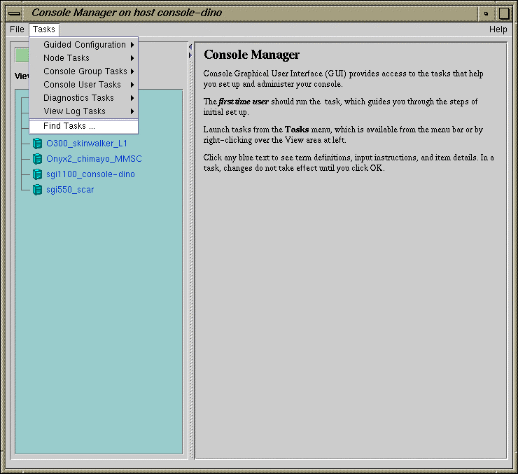
The Tasks pulldown menu allows you to perform the following actions:
Guided Configuration
Node Tasks
Management Group Tasks
Console User Tasks
Diagnostics Tasks
View Log Tasks
Find Tasks
For more information on the tasks accessed from the Tasks pulldown menu, see “Console Manager Tasks and Functions”.
Figure 1-6, shows the Help pulldown menu.

The Help pulldown menu allows you to get:
Console Manager description
Overview of Console Manager tasks
Help for each Console Manager task
The Console Manager provides access to the tasks that help you set up and administer nodes at a site. The Tasks menu contains various pulldown menu tasks. For example, the Console User Tasks menu expands to Add console user, Modify console user, and Delete console user.
The Console Manager has the following functions:
Guided Configuration, which allow you to:
Set up Console Nodes, Groups, and Users
Node Tasks, which allow you to:
Add a Node
Modify a Node Configuration
Delete Nodes
Get/Steal/Spy Console
Reset/NMI/Power Up/Power Down
Connect to a System Controller
Note: If your connection type is L1 or MMSC, you can get either system console or the system controller console for a node at a time. For more information, see “Adding a Node” in Chapter 3. Switch State of Console Logging
Delete Console Log Files
For a view of the Node Tasks pulldown menu and more information on these tasks, see “Adding a Node” in Chapter 3.
Management Group Tasks, which allow you to:
Add a Management Group
Modify a Management Group
Delete a Management Group
For a view of the Console Group Tasks pulldown menu and more information on these tasks, see “Adding a Management Group” in Chapter 3.
Console User Tasks, which allow you to:
Add a new Console User
Modify a Console User
Delete a Console User
Change a Console User Password
Add Console Users
For a view of the Console Users Tasks pulldown menu and more information on these tasks, see “Adding a Console User” in Chapter 2.
Diagnostics Tasks, which allow you to:
Reset Console Backend Software
For a view of the Diagnostics Tasks pulldown menu and more information on these tasks, see “Restarting the Console Manager Daemon” in Chapter 4.
View LogTasks, which allow you to:
View System Log
View System Controller Logs
For a view of the View Log Tasks pulldown menu and more information on these tasks, see “Viewing System Logs” in Chapter 4.
Find Tasks, which lets you use keywords to search for a specific task.
The Console Manager View provides the following capabilities:
Shows the results when a task has been completed. For example, when the Add node task is done, you will see the new node show up in the Console Manager View.
Select to view nodes configured at a site, the Console Manager users, or the Console management groups.
Find and select items in the view panel.
From the Console Manager View, you can click on a node, user, or management group to display key information. When an item is selected, the panel on the right shows the detailed information of the item with a list of applicable tasks. Clicking on a task brings up the task window with the item selected.
Figure 1-7, shows an example of the Console Manager View window.
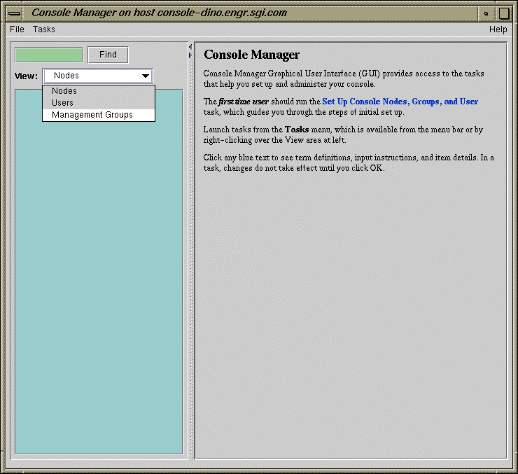
Figure 1-8, shows an example when a node in the View window is selected.

Figure 1-9, shows an example when a user in the View window is selected.

Figure 1-10, shows an example when a group in the View window is selected.

The Find button helps you to find node and user objects quickly. Figure 1-11, shows an example of the Find button selected for Nodes and the O2_mufasa node name is entered in the Find button field to the left.

The SGIconsole system is the SGI 1100 server rack-mountable hardware running several pieces of SGI software to manage and monitor the SGI servers and graphic systems. For detailed information about the SGIconsole hardware configuration, see the SGIconsole Hardware Connectivity Guide.
| Note: SGIconsole ships with the latest sn1sc_firmware version available at release. If you later want to connect any new hardware to SGI console, you have to upgrade your sn1sc firmware from the SGI Supportfolio website. |
tscm(1) is a command line interface to Console Manager. It provides an interactive menu-driven environment for performing console, logging, and power control operations on nodes configured in Console Manager.
SGIconsole automatically invokes the tscm(1) command when you successfully log into the SGIconsole server as follows:
% telnet -e '' sgiconsole_server |
or, if the login service is reenabled, as follows:
% rlogin sgiconsole_server |
| Note: The rlogin(1) service is disabled by the SGIconsole_startup script by changing the /etc/inetd.conf file.
|
If you are logging into an SGIconsole server as root, telnet or rlogin leads you directly to a shell prompt. To run the text-based interface as root, simply type:
[root@sgiconsole_server /root]# tscm |
The following menu appears:
SGIconsole 1.1 Main Menu 1. scons [func] [node] Connect to System Console 2. ccons [func] [node] Connect to Controller Console 3. reset [node] Hardware Reset 4. nmi [node] Generate NMI 5. pwr [func] [node] Power On or Off 6. shell Escape to Shell 7. help [command] Help 8. quit Quit |
When exiting from the Console Manager user interface, the telnet(1) or rlogin(1) session used to log into the SGIconsole server is closed automatically, logging you out of the system.
Commands can be entered as follows:
An ordinal number representing a choice in the menu displayed, for example, 7 for help.
The name of the command itself, in full, for example, scons
The first letter of the command, for example, r for reset.
The tscm(1) command also supports limited recognition of command-line shortcuts as follows:
You can specify a subcommand (func) along with the command on the command line without having tscm(1) interface provide another menu , for example, scons open.
You can specify the node argument of the command along with the command on the command line without having tscm(1)interface provide another menu, for example, pwr up eunice
You can specify the first letter of every command word instead of specifying entire words on the command line, for example, p u eunice
If you use the first letter of command words, you can concatenate the letters together on the command line, for example, pu eunice
If you do not use these shortcuts, the tscm(1) command provides additional menus for the scons and ccons commands as follows:
SGIconsole> scons SGIconsole 1.1 Console Menu 1. open [node] Open a Console Connection 2. view [node] Open a Read-Only Console Connection 3. steal [node] Steal an Open Console Connection 4. log [node] Activate Console Logging 5. nolog [node] De-activate Console Logging 6. return Return to Main Menu |
The tscm(1) command also provides an additional menu for the pwr command as follows:
SGIconsole> pwr

 SGIconsole 1.1 Power Menu

 1. up [node]                    Power Up (On)
 2. down [node]                  Power Down (Off)
 3. return                       Return to Main Menu

Power> |
The command entry specification for the sub-menus are the same as the main menu. The Console Menu is the same for the scons and ccons commands.
The shell command is the only command which does not follow these conventions. It has a special shortcut, sh.
There are additional special shortcuts to the scons open and ccons open commands. The following table shows these special shortcuts.
Special Shortcut | Full command | Standard Shortcut |
|---|---|---|
s | scons open | so |
c | ccons open | co |
sh | shell |
|
When specifying nodes, you can either specify nodes along with commands in the command line, or let the tscm(1) command produce a Node Menu as follows:
Please select from the list of available nodes, or the return option:

 1. liz
 2. surly
 3. snort
 4. grunt
 5. return                       Return to Main Menu

Node> |
The list of nodes produced in this menu is context sensitive to:
The user running tscm(1)
The command that is about to be applied
The tscm(1) command enforces the access controls that are configured by the root user using the Console Manager GUI. If you are not permitted to apply a particular command to a node, the node is not displayed in the Node Menu. Only the nodes for which you can execute a particular command are displayed.
If there is a long list of nodes displayed in the Node Menu, the menu is piped through the more(1) to allow you to see the list of nodes without having to use a scrollable terminal. Press the space bar to see more nodes in the menu, or press q to stop listing the nodes and get to a Node> prompt to specify a node.
The tscm(1) command checks its commands and menu selections to ensure that a node specified is one that you can select. If you attempt to select a node that cannot be a target for a given command, one of the following messages appear:
Node> flip
                                Node "flip" is not selectable; the node is not defined.
Node> |
or
Node> liz
                                Node "liz" is not selectable;
                                you do not have enough privileges
                                to use the command on this node.
Node> |
The tscm(1) command relies on the SGIconsole server to report errors and other status messages. These messages are displayed by tscm(1) when an error condition or other status condition worthy of attention has been detected, but the messages are determined by the SGIconsole server itself, not by the tscm(1) command. Usually, these are the same messages that the Console Manager GUI would produce. Errors may appear because of connection failures to nodes or other connection issues that SGIconsole needs to alert you to.