OpenGL Multipipe allows single-pipe OpenGL application to be run on multipipe environment in a transparent manner. However, OpenGL Multipipe defines some parameters that control the processing pipeline of the OpenGL stream. In order to achieve the best performance, those parameters will need to be changed depending on the application type and geometry data. The tools described in Chapter 4, “Monitoring Performance” can also help you identify areas for optimization.
This chapter describes these parameters and some guidelines for using them in the following sections:
The release notes provide a more technical discussion some of these features.
Applications that draw large polygons with complex texturing or shading procedures are likely to be fill-limited—that is, the rasterization stage of the graphics pipeline is the bottleneck to improving performance. If slower performance results in proportion to an increase in the OpenGL window size, this is an indicator that fill performance could be the problem.
To eliminate the pixel fill bottleneck, polygon rasterization work can be divided among multiple graphics pipes. Using OpenGL Multipipe, this can be accomplished by simply positioning a window so that it spans multiple graphics pipes and each pipe performs an equal fraction of the rasterization work. On each component screen of the logical display, OpenGL Multipipe automatically clips the OpenGL viewport to the physical screen boundaries.
Viewport clipping is enabled by default. It can be disabled with the omprun -novpclip option or with the viewportClippingMode resource.
The fill performance benefits of viewport clipping can be more fully realized by using an SGI Scalable Graphics Compositor and specifying additional parameters to OpenGL Multipipe.
Applications that render large amounts of geometry in display lists can sometimes reach the limit of the polygon processing capabilities of the graphics hardware. Such an application is said to be transform-limited or geometry-limited—that is, the geometry transformation stage of the graphics pipeline is the bottleneck to improving performance. If performance remains the same when lighting or textures are disabled by the application, these are indicators that geometry performance is the limiting factor.
To eliminate the geometry transformation bottleneck, OpenGL Multipipe can divide geometry among multiple pipes. By default, OpenGL Multipipe renders all geometry on each graphics pipe, even if not all of the geometry is visible on a given pipe. When geometry culling is enabled, each OpenGL Multipipe slave process renders only the geometry from display lists, vertex arrays, and immediate mode commands that is visible on its pipe.
It is also possible for OpenGL Multipipe to cull geometry to user-specified OpenGL clip planes. See the culling.cullUserClipPlanes resource in section “Resource Descriptions” in Chapter 3.
Geometry culling is enabled with the omprun -cull command-line option or with the culling resource.
OpenGL Multipipe can cull objects whose screen-space bounding box is less than a threshold number of pixels. You can specify the threshold with the –minpixels command-line option for the omprun script or with the culling.minPixels resource. Geometry culling must be turned on in order for this feature to take effect.
This feature can increase the rendering speed in applications that have many features that are too small to discern and, therefore, may not be of immediate interest—for example, screws in CAD/CAM applications. With a proper minpixels culling threshold, OpenGL Multipipe culls such small features and rendering performance is improved as a result.
When rendering display lists with OpenGL Multipipe's geometry culling option enabled, OpenGL Multipipe culls or renders an entire display list as a unit. When the original display list has a large amount of geometry and spans large areas of the scene, performance scalability can suffer.
OpenGL Multipipe can optionally spatially divide user display lists to break them into smaller ones. After the division, the smaller, more spatially coherent pieces are more friendly to load balancing and display list culling.
This feature is enabled with the omprun -dlsplit command-line option or with the dlSplit resource. Other options related to display list partitioning are described in the section “Resource Descriptions” in Chapter 3.
As cited earlier, the OpenGL proxy layer of OpenGL Multipipe has two components: a master render library that intercepts OpenGL calls made by the application and render slave processes that each receive a stream of OpenGL calls from the master and perform OpenGL rendering on the application's behalf.
The master render library functions as part of the application process (that is, the “master process”) and can have additional responsibilities besides intercepting, packing, and distributing OpenGL calls to the slave processes. The master process may also render directly to a single local pipe in place of a single slave process, or it may use a local pipe only to track OpenGL state while a slave process renders to that pipe.
The omprun –mstrmode option (or the masterMode resource) allows you to specify what functions the master component performs on the single local reference pipe. The master's mode may improve or hinder OpenGL performance depending upon the behavior of a particular application. Therefore, it is important to understand the implications of each mode.
The following master modes are available:
off
track
render

Note: To use the track or render master mode, you must use the omprun command to invoke the application.
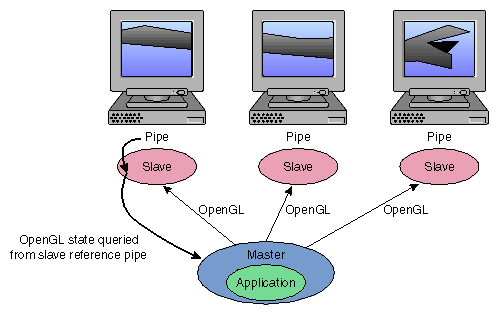
The off master mode is most efficient for applications that do not perform glGetxxx() calls (GL state queries) in every frame, because in this mode querying GL state requires round-trip communication to a slave. The master process does not render; it only packs and distributes GL calls to all slave processes. A slave process renders to each pipe and one of the slaves is designated to track state for any occasional glGetxxx() or glIsxxx() queries. Figure 5-1 illustrates running in off mode.
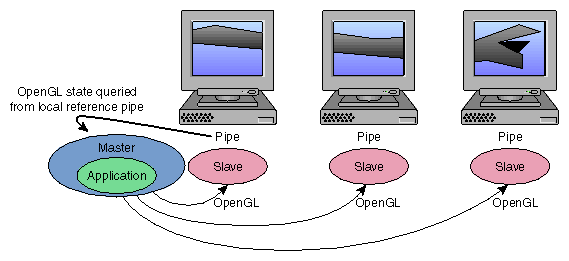
The track master mode is most efficient for applications that frequently query GL state. The master process does not render but, in addition to packing and sending GL calls to all slave processes, it tracks the GL state on a local reference pipe. Slave processes render on all pipes. Figure 5-2 illustrates running in track mode.
| Note: To use the track master mode, you must use the omprun command to invoke the application. |
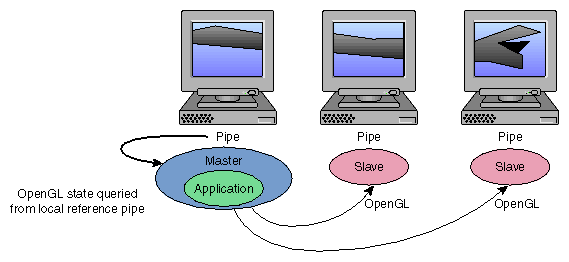
The render master mode may yield slightly better performance for applications that do not use display lists and that run on systems with only two graphics pipes or with a limited number of processors. The master process renders and tracks GL state on a local reference pipe. One less slave process is needed because the application (master) process renders itself. State queries again are made to the master's local reference pipe. Figure 5-3 illustrates running in render mode.
Notes:
OpenGL Multipipe uses a shared memory buffer in between the application and the drawing slaves. This buffer can introduce latency—that is, multiple frames can be buffered to be consumed gradually by the slave. If the application does not call glFinish() by itself, then OpenGL Multipipe allows the number of buffered frames to reach a small preset limit.
The latency helps smooth out application and drawing speed differences, and thereby increase throughput. However, if the amount of latency is beyond what you can accept, it can be limited by using the omprun –latency command-line argument (or the maxFramesLatency resource) to specify the maximum latency in number of frames.
The following command forces the master and slaves to have zero frames of latency between them:
omprun -latency 0 app_name app_args |
The master will wait for the slaves to finish executing enough of the previous frames so that the latency is below the threshold before beginning to pack data into the buffer for the next frame.
Variations in pixel fill, geometry load, and many other factors can lead to an unbalanced load among the graphics pipes. Some pipes will render their parts of the scene faster or more slowly than the rest. Synchronization among the pipes is required to prevent one pipe from rendering faster or slower than another, which in some cases can present visible “tearing” in the output image.
By default, OpenGL Multipipe performs a software synchronization among the slave processes to ensure that they issue their respective swap buffer commands at the same time. The software synchronization approximates a synchronized swap in hardware.
Software swap synchronization is enabled by default. It can be disabled with the omprun -nosync command-line option or with the swapSyncMode resource. Note that this also disables any meaningful sense of frame latency.