This chapter the various LEDs that are on the system. It also describes how to check the power supply.
The status LED on the front panel can display three colors: green, amber, red. Table 8-1 lists the various messages displayed by the status LED.
Table 8-1. Status LED Messages
LED Code | Meaning |
|---|---|
Red briefly, then amber, then green, then off (about 1/2 second per color) | If you have just turned on the master power switch, this indicates the system controller is OK. |
Green, blinking | The system is booting. |
Green on solid | System is on. |
Amber, blinking | Normal power down sequence. |
Amber on solid | One of the fans has failed. |
Red, blinking | A problem with the power supply was detected. Check the power supply using the test method described in “Checking the Power Supply.” |
Red, blinking | Two possible problems: single fan failure combined with over temperature, or multiple fan failure. Use the AUX port to query the module system controller. See “Using the AUX Port and Module System Controller Commands” in Chapter 4. |
Red on solid | Two possible problems: the power supply failed during booting (check the power supply using the test method described in “Checking the Power Supply”), or the system became too hot (see “Using the AUX Port and Module System Controller Commands” in Chapter 4 to check the system temperature). |
The Ethernet 10-Base-T/100-Base-TX port contains two integral LEDs, the transmit LED (green) and the packet detect LED (yellow). Figure 8-1 shows their locations.

The transmit LED (green) flashes whenever the Origin200 is transmitting data through the Ethernet port.
The packet detect LED (yellow) flashes whenever the server detects network traffic, even if the data detected is not destined for the server.
There is a test button and LED located on the base of the power supply, as shown in Figure 8-2.
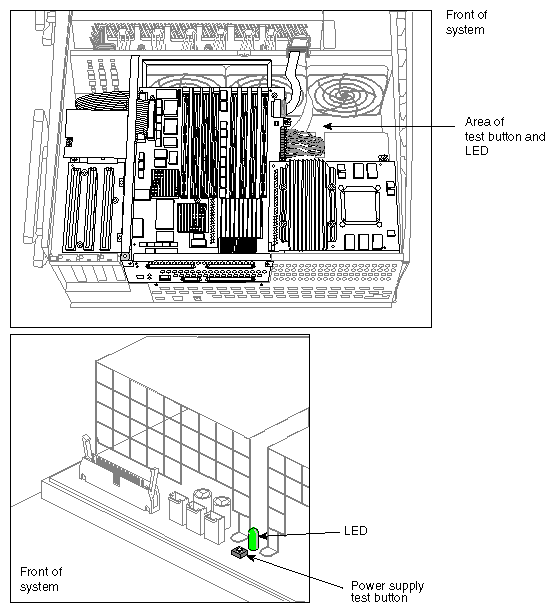
To test the power supply, press the button. If the green LED lights, the power supply is OK. If the green LED fails to light, there may be a problem with the power supply.
The power supply is not customer-replaceable. Contact Silicon Graphics or your local service provider for information about replacing the power supply.