This section includes information about the following:
reading the tape drive's LEDs
selecting data cartridges
setting the write-protect switch on the data cartridge
loading and unloading a data cartridge
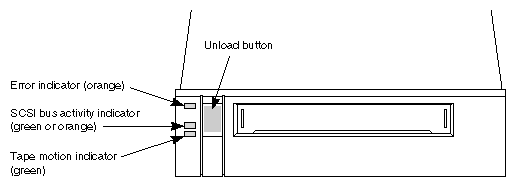
The tape drive uses three LEDs (Figure 2-1) to indicate its operating states. The LEDs indicate the following general conditions:
When the top (orange) LED is flashing, the tape drive has an error or needs cleaning.
When the middle LED is on or flashing, SCSI bus activity is occurring. The middle LED can be orange or green as follows:
Orange The tape loaded in the tape drive is in one of the compression formats (8500c or 8200c). When the tape is 8500c format, the LED is always orange even though compression can be turned off.
Green The tape loaded in the tape drive is in one of the non-compression formats (8500 or 8200).
When the bottom (green) LED is on, a data cartridge is loaded in the tape drive. When this LED is flashing, the tape is moving or the tape drives needs cleaning.
Table 2-1 shows a specific combination of LEDs that may occur during tape drive operation and the tape drive states that they indicate.
 | Note: You may occasionally observe LED combinations and sequences not described in Table 2-1. These other combinations represent special or unusual conditions that are beyond the scope of this table. |
Table 2-1. LED States and Interpretations
LED State | Top LED (errors) | Middle LED (SCSI) | Bottom LED (motion) |
|---|---|---|---|
Self-test start | On | On (green) | On |
Self-test end | On | Flashing (irregularly) | Off |
Self-test fails | Flashing (fast) | Flashing (irregularly) | Off |
Ready (no tape) | Off | Flashing (irregularly) | Off |
Ready (tape) | Off | Flashing (irregularly) | On |
Normal tape motion | Off | Flashing (irregularly) | Flashing (slowly) |
High-speed tape motion | Off | Flashing (irregularly) | Flashing (fast) |
SCSI bus reset | On | Flashing (irregularly) | On |
Error | Flashing (slowly) | Flashing (irregularly) | Off |
Time to clean | Flashing (fast) | Flashing (irregularly) | Flashing (fast) |
| Note: The LEDs flash at different speeds to distinguish between states: |
slow flash = 1 flash/second
fast flash = 4 flashes/second
Irregular flash = rate of flash varies with SCSI bus activity. If the device is not connected to the bus, the LED is off.
Silicon Graphics recommends that you use EXATAPE™ 8-mm data cartridges from Exabyte Corporation.
 | Caution: Always use data-grade media data cartridges. Never use video-grade tape for data storage. Video-grade tape can be less accurate than data-grade tape when recording high-density data. The video-grade tape is also more abrasive to tape-drive recording heads. |
The 8505XL drive supports 15-m, 54-m, 112-m, and 160-m XL tapes (see Table 2-2).
Table 2-2. 8505XL Tape Capacity
Data Cartridge | Capacity |
|---|---|
15 m | 1.2 GB |
54 m | 4.8 GB |
112 m | 10 GB |
160 m XL (see Note) | 14 GB |
| Note: The EXATAPE 160-m XL data cartridges contain a recognition system stripe located on the tape leader for media identification. The 8505XL uses this stripe to distinguish data-quality metal-particle media, such as EXATAPE, from other 160-m media. |
To maintain data integrity, the 8505XL automatically ejects 160-m data cartridges or equivalent length video cartridges that are not equipped with the recognition system stripe.
Before loading a data cartridge in the tape drive, make sure that the write-protect switch on the cartridge is set correctly for the desired operation (see Figure 1-6 in Chapter 1). You can use a ball-point pen or similar instrument to set the write-protect switch, as shown.
To load a data cartridge into the tape drive, follow these steps:
Make sure that the write-protect switch has been set correctly for the desired operation, as explained on “Write-Protecting a Data Cartridge”.
If you have just turned on your system, be sure that the bottom and top LEDs are off, indicating that the tape drive has passed its power-on self-test and is ready to load the data cartridge.
Gently push the data cartridge into the tape drive (see Figure 1-7 in Chapter 1) until the load mechanism pulls the data cartridge into the tape drive.
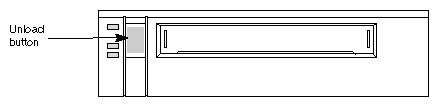
The unload button is the only operating control on the tape drive. It is used to unload the data cartridge from the tape drive (see Figure 2-2).
| Note: You can use the unload button to clear some hardware errors. If a hardware error occurs, press the unload button to reset the tape drive. |
To unload a data cartridge, press the unload button. The tape drive completes the current operation, writes any buffered data to tape, rewinds the tape, unloads the tape from the tape path, and ejects the cartridge.
| Note: If an error occurs before or during the unload procedure, the unload sequence will be suspended and the orange LED will flash. To clear the error, press the unload button again. The unload sequence will be reattempted. However, unwritten data in the buffer will not be written to the tape. The buffer and errors will be cleared. |
Occasionally the tape drive may experience an error that cannot be cleared by pressing the unload button. If this happens, reset the tape drive by turning the power off, then on again.
| Caution: Powering off the tape drive may reset the SCSI bus. To prevent possible loss of data, make sure that any other devices on the SCSI bus are inactive and have completed all requested operations before powering off the tape drive. |