This chapter contains these sections:
Movie Player provides VCR-like controls for watching movies on your Silicon Graphics workstation. Standard controls let you play, stop, reverse, and fast forward through a movie. To open a movie choose “Open” from the File menu. See “Watching Movies,” for more information on how to use Movie Player.
The Frame field displays the number of the frame being played . The Min:Sec:Frm field displays playing time in minutes, seconds, and 30ths of a second. The Movie Player control pad is shown in Figure 6-1.
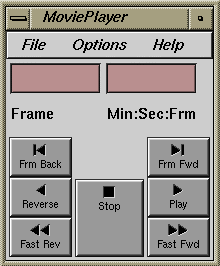
You can open Movie Player in one of several ways:
Double-click the Movie Player icon on the Media Tools page of the Icon Catalog.
Open a shell window, then type the word movieplayer.
Click the words Movie Player to open Movie Player now.
Movies are files that you create and view on your IRIS workstation. To view a movie:
Choose “Open” from the File menu.
A file browser appears. If you don't already have a movie file you want to open, go to the directory /usr/share/data/movies and choose one from there.
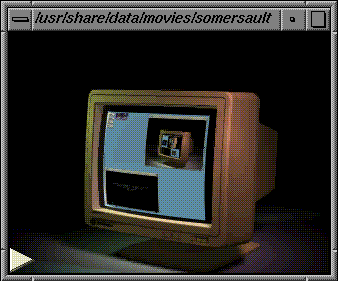
The movie viewing window appears as shown in Figure 6-2.
Use the Movie Player buttons to control the movie—play, stop, reverse, fast forward, and fast reverse it.
A white triangle appears when the movie is stopped. It gives you a general idea how much of the movie has played. You can also drag the white triangle to move to another place in the movie.
 | Tip: You can also use the mouse to control how a movie plays. Press and hold down the right mouse button over the movie viewing area. A mini-control panel appears. Use the controls to rewind, stop, and play. |
While you're viewing a movie, you can adjust the volume by doing either of the following:
Press and hold down the middle mouse button over the viewing area A scroll bar appears. Move the cursor up and down in the scroll bar to control the volume.
Choose “Audio Control” from the Options menu. The Audio Control Panel appears. Use the Speaker sliders to adjust the volume.
You can select one frame in the movie or a portion of the soundtrack and paste that into another application, such as IRIS Showcase. To do so:
Place the cursor over the movie viewing window, then press and hold the <Shift> key.
Press the left mouse button, then drag the cursor to the left or right.
A thin yellow bar appears. It marks the portion of the movie you're selecting. If you do not see the thin yellow bar, try again. Make sure you're pressing the <Shift> key when you press the left mouse button.
Release the mouse button to mark the end of the selection.
Choose “Copy” from the Options menu.
You copy the frame that is showing and the portion of the soundtrack that is selected.
Open another application, such as IRIS Showcase, then choose the “Paste” command.
In this case, you see a dialog that asks you which item you want to paste: the image or the audio track.
| Tip: Instead of using the “Copy” and “Paste” commands, select the portion of the movie you want to copy, open another application, then click the middle mouse button. |
Movie Player has three menus: a File menu, Options menu, and Help menu. The File menu contains the commands for opening files and quitting the program. The Options menu contains commands for copying the selected frame or soundtrack and controlling the volume, speed, and method in which the movie plays. It includes the following commands:
| “Copy” | Copies the selected portion of the movie. See “Copying Selected Frames and Audio” for step-by-step instructions. | |
| “Restore Primary” |
| |
| “Mute” | Silences the audio. | |
| “Audio Control... | “ | |
| “Play Every Frame” |
| |
| “Play Once,” “Loop,” “Swing” |
| |
| “Half Speed,” “Normal Speed,” “Twice Speed” |
| |
| “Zoom Down” | Decreases the size of the window in which the movie plays. | |
| “Zoom Up” | Increases the size of the window in which the movie plays. |
The IRIX command movieplayer provides several command line options.
| movieplayer filename |
| |
| movieplayer -N |
| |
| movieplayer -v filename |
| |
| movieplayer -S |
| |
| movieplayer -W filename |
|
See the movieplayer reference (man) page for a more complete listing of command line options.