This appendix contains a summary of the IRIS HIPPI installation for the different platforms.
Table A-1. HIPPI Hardware Configurations for Various Platforms
Platform | Maximum HIPPI Boards[a] | Maximum IO4 Boards |
|---|---|---|
Challenge L Deskside | 2 | 3 |
Challenge XL Rackmount | 4 | 6 |
Onyx Deskside | 1 | 1 |
Onyx Rackmount | 4 | 4 |
[a] In some situations, it is possible to install more IRIS HIPPI boards and IO4 boards. Contact the SGI sales respresentative for more details. | ||
Table A-2. IRIS HIPPI Board Power Requirements
Average | 75 watts of power ( drawn from its VMEBus slot) |
Maximum | 5 volts at 15 amps, and 12 volts at 1.5 amps |
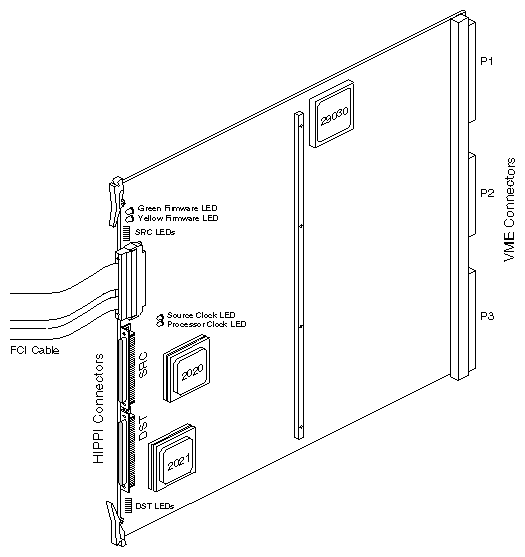
Table A-3. Slots for IRIS HIPPI Installation in CHALLENGE Deskside System
Slots Required | Slots That Can Be Used |
|---|---|
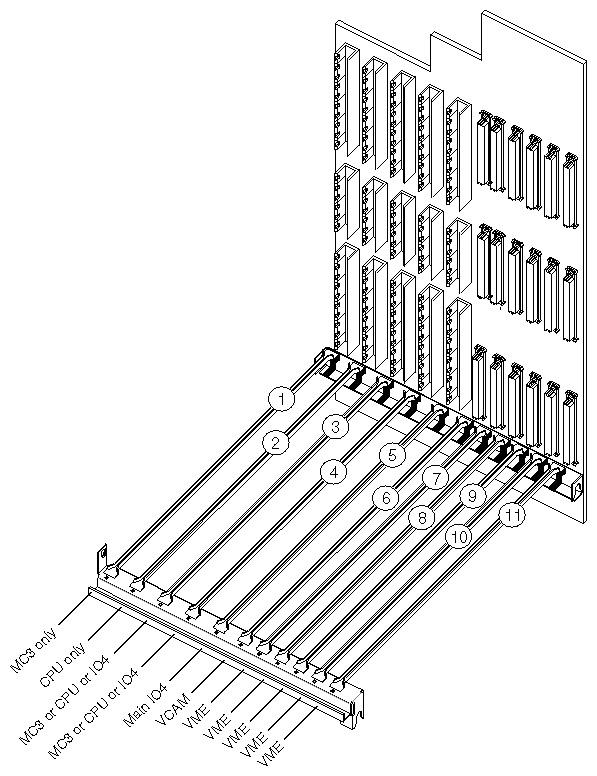
Mezzanine slot | Upper or lower mezzanine slot on an IO4 board in slot 5, 4, or 3 |
VMEBus slot | Slot 7, 8, 9, 10, or 11 |
Table A-4. Slots for IRIS HIPPI Installation in CHALLENGE XL Rackmount System
Slots Required | Slots That Can Be Used |
|---|---|
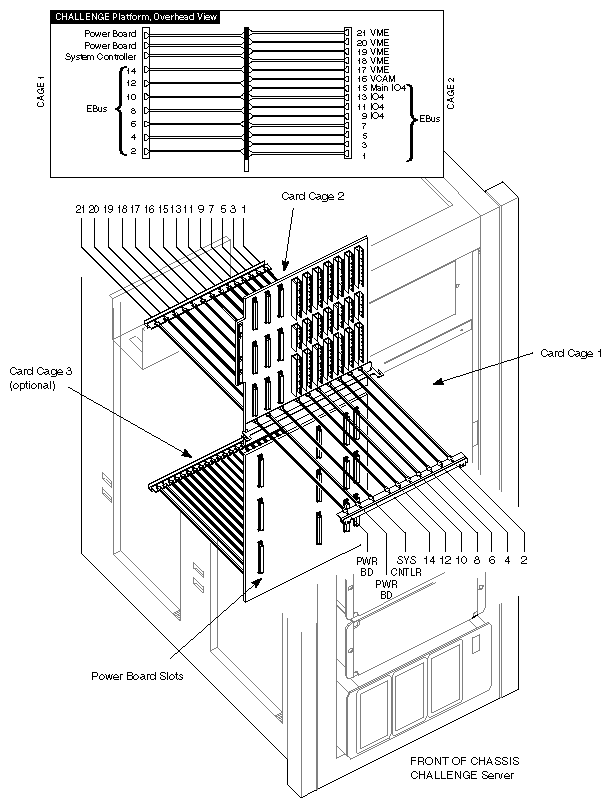
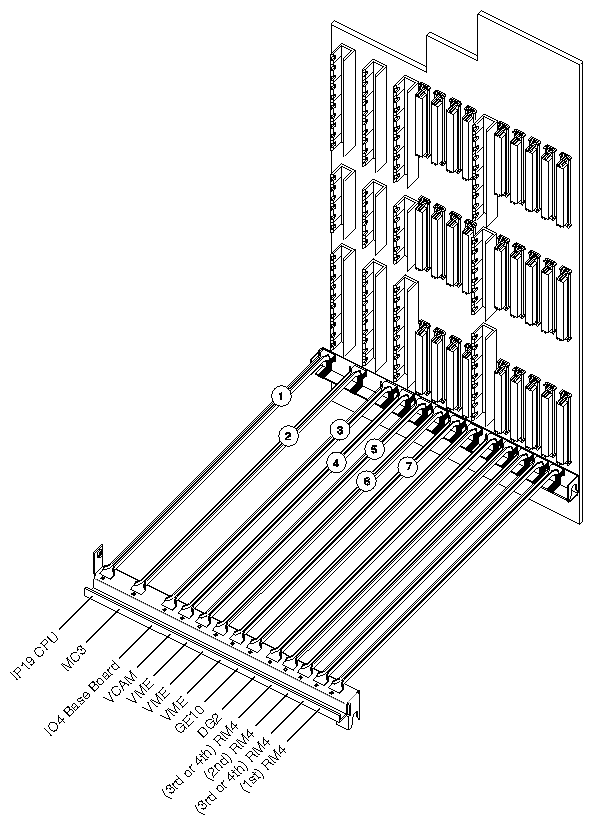
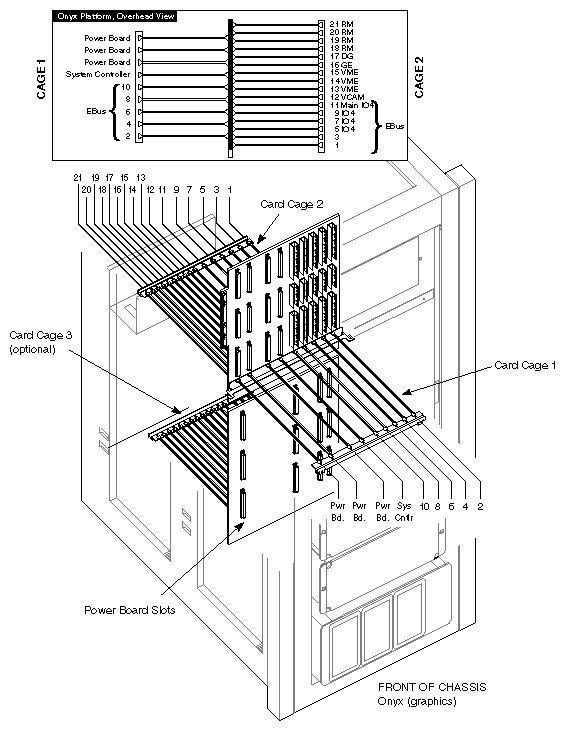
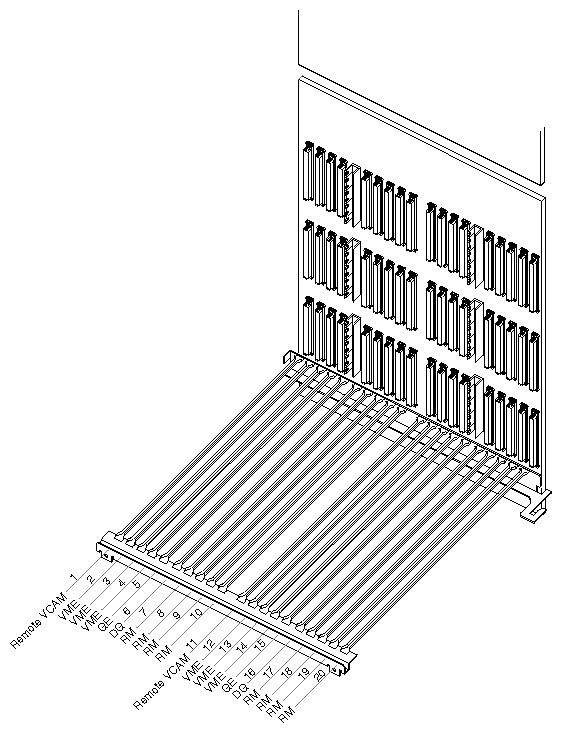
Mezzanine slot | Upper or lower mezzanine slot on an IO4 board in slot 15, 13, 11, 9, 7, or 5 |
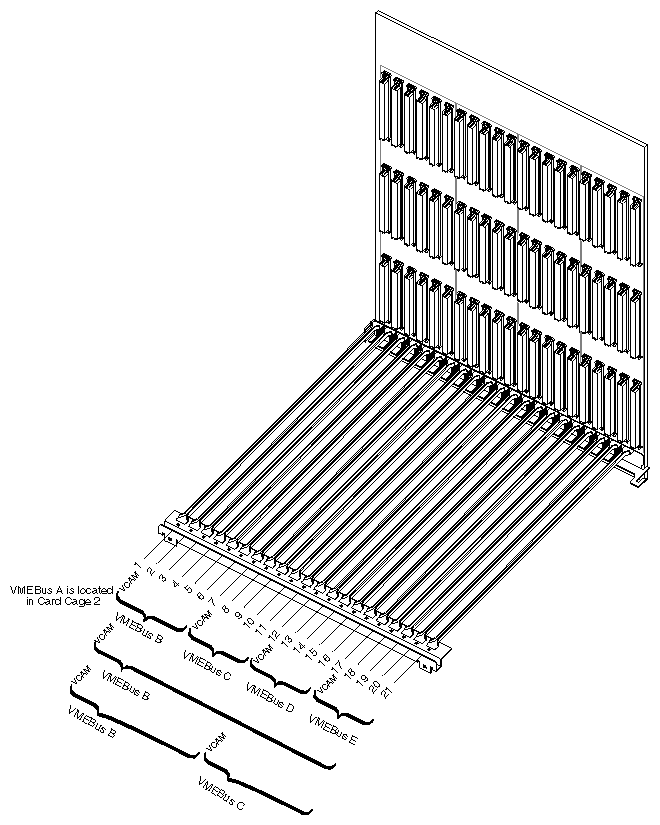
VMEBus slot | Slot 17, 18, 19, 20, or 21 in card cage 2; |
Table A-5. Slots for IRIS HIPPI Installation in Onyx Deskside System
Slots Required | Slots That Can Be Used |
|---|---|
Mezzanine slot | Upper or lower mezzanine slot on IO4 board in slot 3 |
VMEBus slot | Slot 5, 6, or 7 |
Table A-6. Slots for IRIS HIPPI Installation in Onyx Rackmount System
Slots Required | Slots That Can Be Used |
|---|---|
Mezzanine slot | Upper or lower mezzanine slot on an IO4 board in slot 11, 9, 7, or 5 |
VMEBus slot | Slot 13, 14, or 15 in card cage 2; |
This section lists some of the error messages for which SSE troubleshooting procedures are recommended. (A more complete list of error messages is provided in the IRIS HIPPI Administrator's Guide.)
Chapter 3The standard IRIX messages described in this section are displayed on the System Controller display panel located on the front of the CHALLENGE or Onyx chassis. These messages are not unique to IRIS HIPPI and may be caused by other system components.
POKB
Open the card cage I/O panel(s) and look for a board with a red LED. If the red LED occurs on an FMezz board to which an IRIS HIPPI board is attached (via the FCI cable), perform the following steps:
Shut down the system and turn the power off.
Disconnect the FCI cable.
Restart the system.
If the error message is displayed and the LED on the FMezz board is red again, the FMezz board is dysfunctional. Install a new FMezz board or connect the IRIS HIPPI's FCI cable to another installed FMezz board.
If the LED on the FMezz board is green, the problem is with the IRIS HIPPI board. Follow the instructions inChapter 3 to troubleshoot the IRIS HIPPI board, using its LEDs.
The IRIS HIPPI error messages in this section indicate problems that only an SSE can troubleshoot and, in some cases, repair. For error messages that do not appear here, refer to the instructions in the IRIS HIPPI Administrator's Guide.
hippi#: board asleep at iofile:line# with cmd_addr not cmd_addr after cmd_addr at line#
The indicated IRIS HIPPI board (hippi#) controled by the indicated iofile is not responding to commands from the driver. The line# and cmd_addr variables indicate the expected and actual locations in the command queues. Use hipcntl to shut down then startup the IRIS HIPPI board.
If this does not resolve the problem, contact the Silicon Graphics Technical Assistance Center.
hippi#: no board signature!
While the startup software was attempting to initialize the host-to-board interface, the board's initialization firmware did not respond. This may indicate that the FLASH EEPROM does not contain firmware. Use the following command line to manually download new firmware, then restart the system:
%su Password: thepassword #/usr/etc/hipcntl hippi# download #/etc/reboot |
where hippi# identifies the problematic board (for example, hippi0, hippi1).
If this does not resolve the problem, contact the Silicon Graphics Technical Assistance Center.