This chapter explains how to operate your new system in the following sections:
Before operating your system, familiarize yourself with the safety information in the following sections:
 | Caution: Observe all ESD precautions. Failure to do so can result in damage to the equipment. |
Wear an SGI-approved wrist strap when you handle an ESD-sensitive device to eliminate possible ESD damage to equipment. Connect the wrist strap cord directly to earth ground.
 | Warning: Before operating or servicing any part of this product, read the “Safety Information” in Appendix B. |
| Warning: Keep fingers and conductive tools away from high-voltage areas. Failure to follow these precautions will result in serious injury or death. The high-voltage areas of the system are indicated with high-voltage warning labels. |
| Caution: Power off the system only after the system software has been shut down in an orderly manner. If you power off the system before you halt the operating system, data may be corrupted. |
The flat panel console option (see Figure 1-1) has the following listed features:
Slide Release - Move this tab sideways to slide the console out. It locks the drawer closed when the console is not in use and prevents it from accidentally sliding open.
Handle - Used to push and pull the module in and out of the rack.
LCD Display Controls - The LCD controls include On/Off buttons and buttons to control the position and picture settings of the LCD display.
Power LED - Illuminates blue when the unit is receiving power.
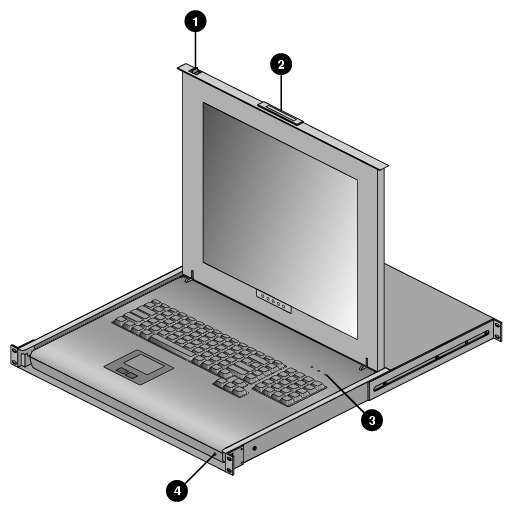
A console is defined as a connection to the system (to the head node) that provides administrative access to the cluster. SGI offers a rackmounted flat panel console option that attaches to the administrative node's video, keyboard and mouse connectors.
A console can also be a LAN-attached personal computer, laptop or workstation (RJ45 Ethernet connection). Serial-over-LAN is enabled by default on the head node server and normal output through the RS-232 port is disabled. In certain limited cases, a dumb (RS-232) terminal could be used to communicate directly with the administrative server. This connection is typically used for service purposes or for system console access in smaller systems, or where an external ethernet connection is not used or available. Check with your service representative if use of an RS-232 terminal is required for your system.
The flat panel rackmount or other optional VGA console connects to the head node's video and keyboard/mouse connectors as shown in the example in Figure 1-2.

This section explains how to power on and power off the Prism XL system, as follows:
Entering commands from a system console, you can power on and power off individual compute enclosures (known as sticks), or the entire system.
When using the SGI cluster manager software, you can monitor and manage your server from a remote location.
To prepare to power on your system, follow these steps:
Check to ensure that the cabling between the rack's power distribution units (PDUs) and the wall power-plug receptacles are secure at both ends.
For each individual stick that you want to power on, make sure that the power cables are plugged into all the stick power supplies correctly, see the example in Figure 1-3. Setting the circuit breakers on the PDUs to the “On” position will apply power to the stick. Note that each stick stays powered on as long as there is power coming into the unit. Turn off the PDU breaker switch that supplies voltage to the stick and/or remove the power supply cable if you want to remove all power from the unit.
If you plan to power on a system that includes optional mass storage enclosures, make sure that the power switch on the rear of each PSU/cooling module (one or two per enclosure) is in the 1 (on) position.
Make sure that all PDU circuit breaker switches (see the examples in Figure 1-4, and Figure 1-5) are turned on to provide power when the system is booted up.

Note: Certain PDU models have multiple circuit breaker switches; ensure that each switch on the PDU that has power cables connected is set to “On” or “Off” as required.
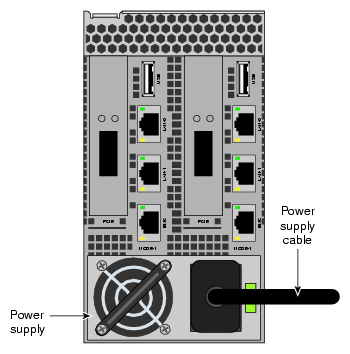

Figure 1-5 shows an example of the three-phase PDU.

The power-on and off procedure varies with your system setup. See the SGI Management Center Quick Start Guide (P/N 007-5672-00x) if you need help working with SGI Management Center.
The SGI Management Center interface (GUI) is a cluster server monitoring and management system. The SGI Management Center provides status metrics on operational aspects for each node (slice) in a system. The interface can also be customized to meet the specific needs of individual systems.
Commands issued from the SGI Management Center interface are typically sent to all connected slices (compute nodes) in the system (up to a maximum 126) depending on set parameters. SGI Management Center services are started and stopped from scripts that exist in
/etc/init.d
SGI Management Center, is commonly installed in /opt/sgi/sgimc, and is controlled by one of these services—this allows you to manage SGI Management Center services using standard Linux tools such as chkconfig and service.
If your SGI Management Center interface is not already running, or you are bringing it up for the first time, use the following steps:
Power on the server (head node) running the SGI Management Center interface.
Open an ssh or other terminal session command line console to the head node server using a remote workstation or local VGA terminal.
Use the information in the section “Preparing to Power On” to ensure that all sticks and any optional system components are supplied with power and ready for bring up.
Log in to the head node server as root (the default password is sgisgi).
On the command line, enter mgrclient and press Enter.
The SGI Management Center Login dialog box is displayed.Enter a user name (root by default) and password (root by default) and click OK.
The SGI Management Center interface is displayed.The power on (green button) and power off (red button) are located in the middle of the SGI Management Center GUI's Tool Bar - icons which provide quick access to common tasks and features.
See the SGI Management Center System Administrator's Guide (P/N 007-5642-00x) for a complete description of system commands.
You can monitor your Prism XL cluster from the following sources:
An optional flat panel rackmounted monitor with PS2 keyboard/mouse can be connected to the “head” server node for basic monitoring and administration of the system. See the section “Console Connections” for more information.
You can attach an optional LAN-connected console via secure shell (ssh) to an Ethernet port adapter on the head node. You will need to connect either a local or remote workstation/PC to the IP address of the head node server to access and monitor the system via IPMI.
See the Console Management section in the SGI Tempo System Administrator's Guide, (P/N 007-4993-00x) for more information on the open source console management package.
These console connections enable you to view the status and error messages generated by your Prism XL cluster system. You can also use these consoles to input commands to manage and monitor your system.
Note: Each system uses a variable number of Ethernet and/or InfiniBand switches to support the number of sticks used and the type of interconnect topology required.