This chapter walks you through steps to use KVM to enable remote console access from the system management node (SMN) to an SGI Altix UV 100 or an SGI Altix UV 1000 system. It covers the following topics:
 | Note: The enabling a remote console feature is currently NOT available. A new BaseIO firmware image will be released in the near future to enable this capability. |
This section describes how to use KVM to enable remote console access.
To enable a remote console to your SGI Altix UV system, perform the following steps:
Establish a network connection to the SMN, as follows:
# ssh -X sysco@uv-system-smn
The password set out of the factory is sysco.From the SMN, launch the Mozilla Firefox web browser, as follows:
sysco@system-smn:~/hw>firefox
Enter the IP address of the BaseIO node baseboard management controller (BMC), similar to the following:
http://192.168.1.200
To determine the IP address of the BaseIO node BMC, see “Determining the IP Address of the BaseIO BMC”.
The BMC login screen appears, as shown in Figure 3-1. Login as root with the password superuser.
The System Information screen appears, as shown in Figure 3-2. Click on the Remote Control tab.
The Remote Control screen appears, as shown in Figure 3-3. Click on the Console Redirection button.
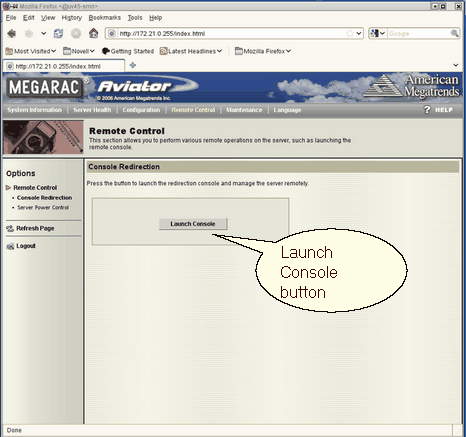
The Console Redirection screen appears, as shown in Figure 3-4. Click on the Launch Console button.
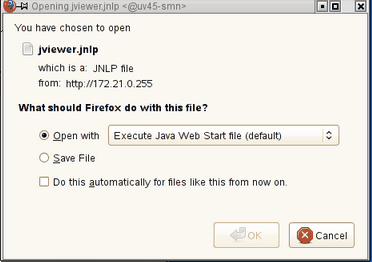
A Java application under Firefox will open. Select Execute Java Web Start file (default) from the pop-up menu, as shown in Figure 3-5. You may need to enable pop-ups for this address for the Firefox browser first.
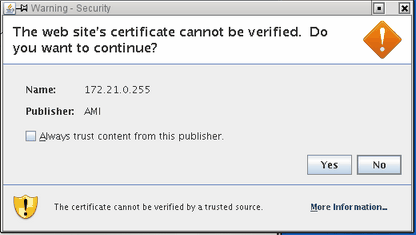
You will then get a screen about The web site's certificate cannot be verified. Do you want to continue? , as shown in Figure 3-6. Click the Yes button to continue. You can also click the checkbox to keep it from showing up later.
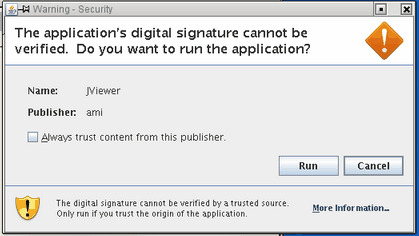
You will then get a screen about The application's digital signature cannot be verified. Do you want to run the application?, as shown in Figure 3-7. Click the Run button to continue. You can also click the checkbox to keep it from showing up later.
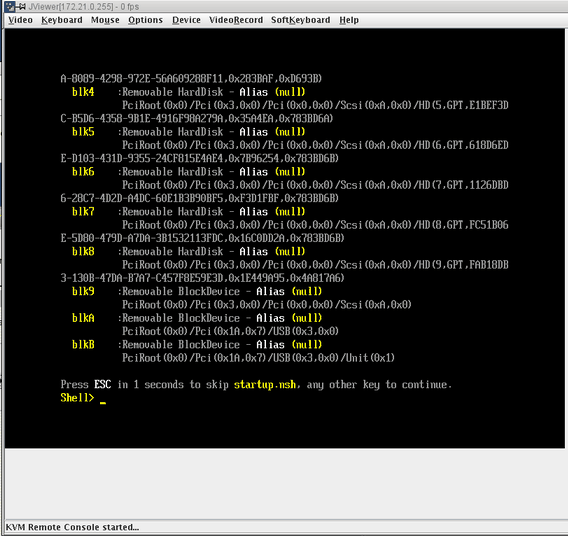
The JViewer KVM redirection window appears with a Shell> prompt, as shown in Figure 3-8.
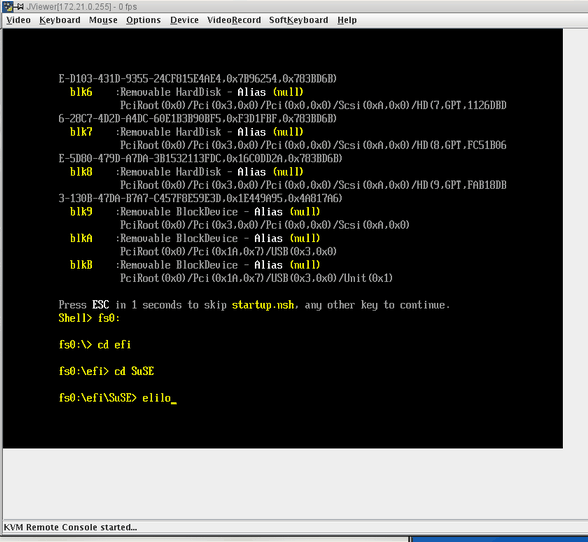
From the Shell> prompt issue the following commands, as shown in Figure 3-9:
Shell>fs0
fs0:\>cd efi
fs0:\efi>cd SuSE
fs0:\efi\SuSe>elilo
Note: This example shows booting SLES11 SP1. Alternatively, you could boot RHEL 6 at the Shell> prompt.
The operating system login screen appears. At the prompt enter init5, as shown in Figure 3-10.
Note: To see the SUSE graphics screen you want system run level 5.
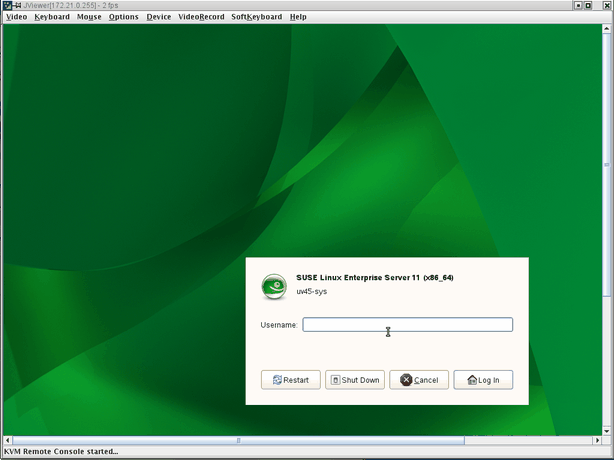
The SUSE Linux Enterprise Server 11 (x86_64) login screen appears, as shown in Figure 3-11. Log in as root user
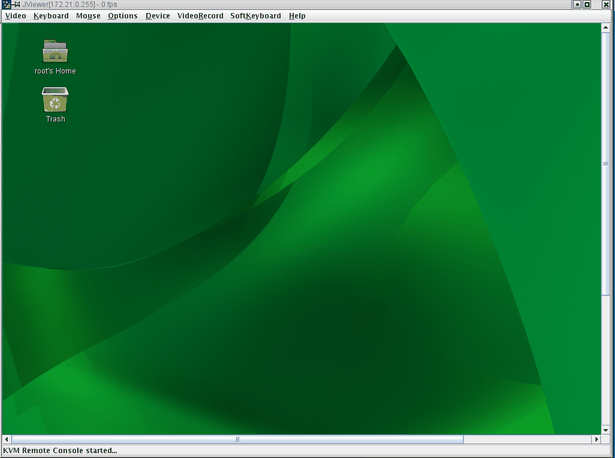
The SUSE Linux Enterprise Server 11 (x86_64) desktop appears, as shown in Figure 3-12.

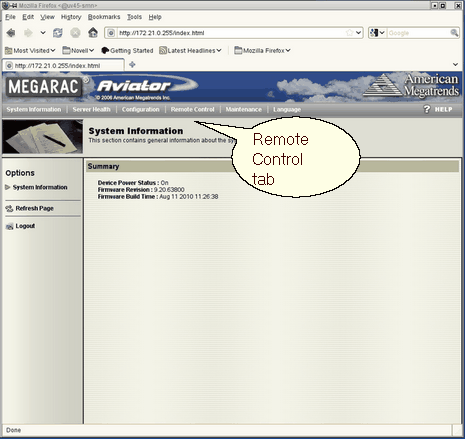


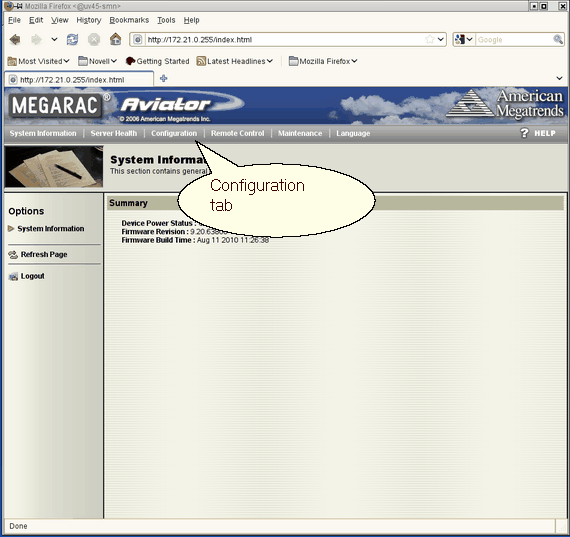
From the Configuration tab shown in Figure 3-13, you can access various configuration setting pages. For example, you can configure fixed network settings under the Network Settings page.
Under the Mouse Mode Settings page, the Absolute setting should be selected for both Linux and Windows operating systems on the host. Older Linux distributions required Relative mouse mode. SGI Altix UV systems use Absolute mouse mode.
The remainder of the configuration pages are security related and may be of use to you if you connect the BaseIO BMC to your house network rather than the system management node.
This section describes how to determine the IP address of the BaseIO BMC.
By default, the external Ethernet port on the BaseIO BMC is configured to use DHCP. In the case that it is connected to an SMN, the SMN will serve it an IP address mapped to a known host name.
To determine the IP address of the BaseIO, perform the following steps:
Login to the CMC, as follows:
ssh root@hostname-cmc
SGI Chassis Manager Controller, Firmware Rev. 1.1.11

CMC:r1i1c>
Run the iodcon command on the CMC to get to the node BMC 'bmc0', as follows:
CMC:r1i1c> iodcon
Starting BaseIO BMC debug console on node BMC 'bmc0'
*** Use CTRL-X to exit this console ***

SGI UV BMC, Firmware Rev. 1.1.11
Log into the console as root, as follows:
r1i1b0i login: root
Password:

SGI UV BMC, Firware Rev. 1.0.0

r1i1b0i>
Run the ifconfig eth1 command to obtain the inet addr, as follows:
r1i1b0i> ifconfig eth1
eth1      Link encap:Ethernet  HWaddr 08:00:69:15:C1:2B
           inet addr:172.20.255.254  Bcast:172.20.255.255  Mask:255.255.0.0
           UP BROADCAST RUNNING MULTICAST  MTU:1500  Metric:1
           RX packets:331167 errors:0 dropped:0 overruns:0 frame:0
           TX packets:596190 errors:0 dropped:0 overruns:0 carrier:0
           collisions:0 txqueuelen:1000
           RX bytes:22075035 (21.0 MiB)  TX bytes:742617052 (708.2 MiB)
           Interrupt:1
Enter CTRL-X to exit the console.
The output also displays the MAC address as the HWaddr. You can use this information to configure a known MAC to IP address/host name mapping in your DHCP server.
To determine the IP address of the BaseIO, perform the following steps:
Establish a network connection to the SMN, as follows:
# ssh -X sysco@uv-system-smn
The password set out of the factory is sysco.Perform the following command to find the IP address of the BaseIO BMC, as follows:
sysco@uv-sys-smn:~/hw> cmclist -a
# File: /var/lib/dhcp/db/dhcpd.leases
# UID              IP Address
d \001\010\000i\025\300\237 172.21.0.255
This section describes how to access the SGI KVM BIOS setup utility software residing on the BaseIO blade.
To access the SGI KVM BIOS setup utility software, perform the following steps:
Perform steps one through 11 in Procedure 3-1.
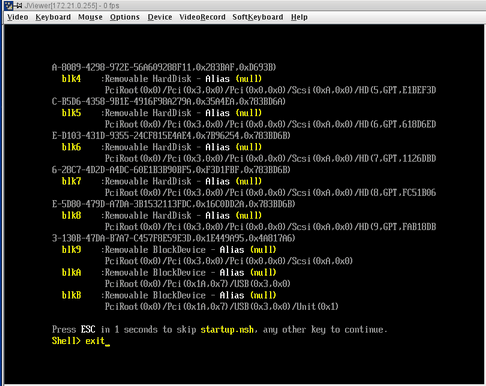
When the Linux Shell> prompt appears enter exit, as shown in Figure 3-14.
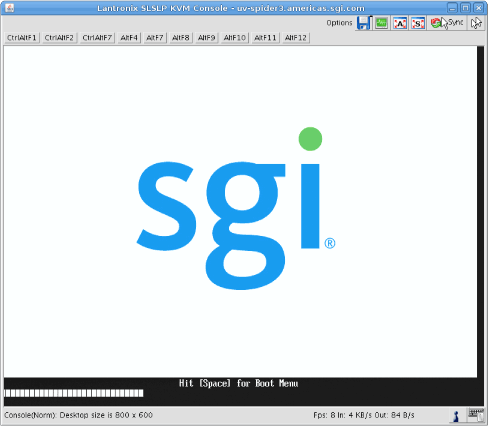
The SGI KVM screen appears, as shown in Figure 3-15.
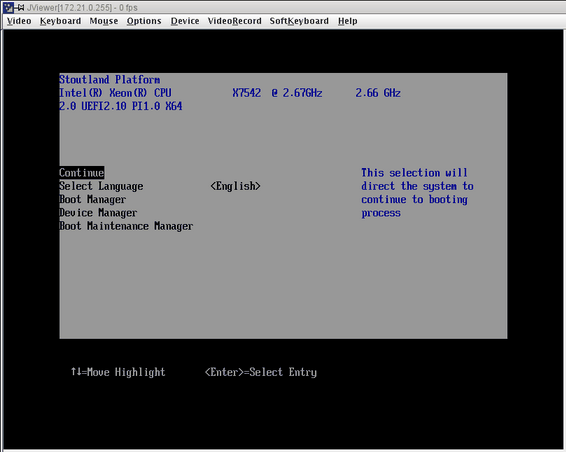
After the SGI KVM Console software completes loading, the BIOS setup utility appears, as shown in Figure 3-16.