This chapter describes how to use SGI Management Center for InfiniteStorage to configure the various components of your system and perform general system administration:
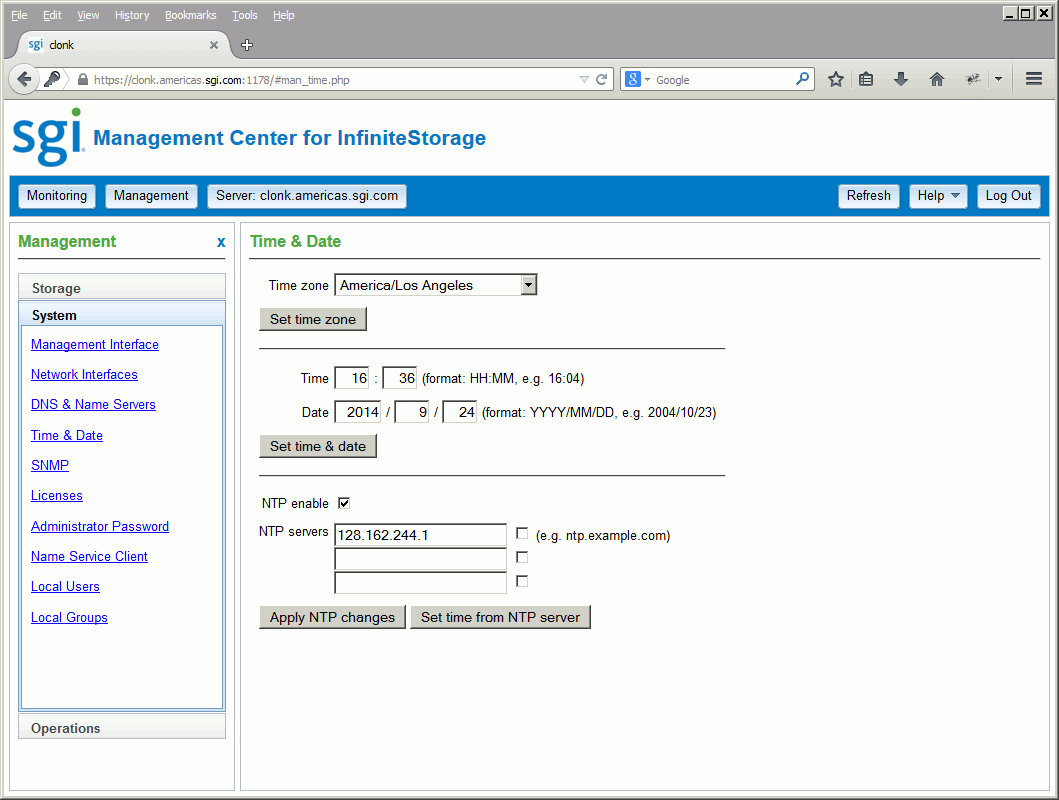
Figure 3-1 shows an example Management feature, the Time & Date page available under the System tab.
The Storage tab in the Management pane lets you manage the following:
To set quotas, see “Quotas” in Chapter 2.
To display a brief description of the available local filesystems, select Filesystems.
Applicable filesystems found in /etc/fstab will be listed along with storage capacity, usage, NFS exports, and CIFS shares.
To unmount a given filesystem, select it and click Unmount selected. To select all available filesystems, click the box at the top of the table.
 | Note: If a directory is currently being exported or shared, then you cannot unmount it. |
Unmounted filesystems are listed separately. Devices that are currently in use as backing stores for iSCSI targets cannot be mounted. To mount a given filesystem, select it and click Mount selected.
This section discusses the following:
Also see “Gather DMF Data”.
The DMF Services page is available from the following selection:
Management -> Storage -> DMF Services
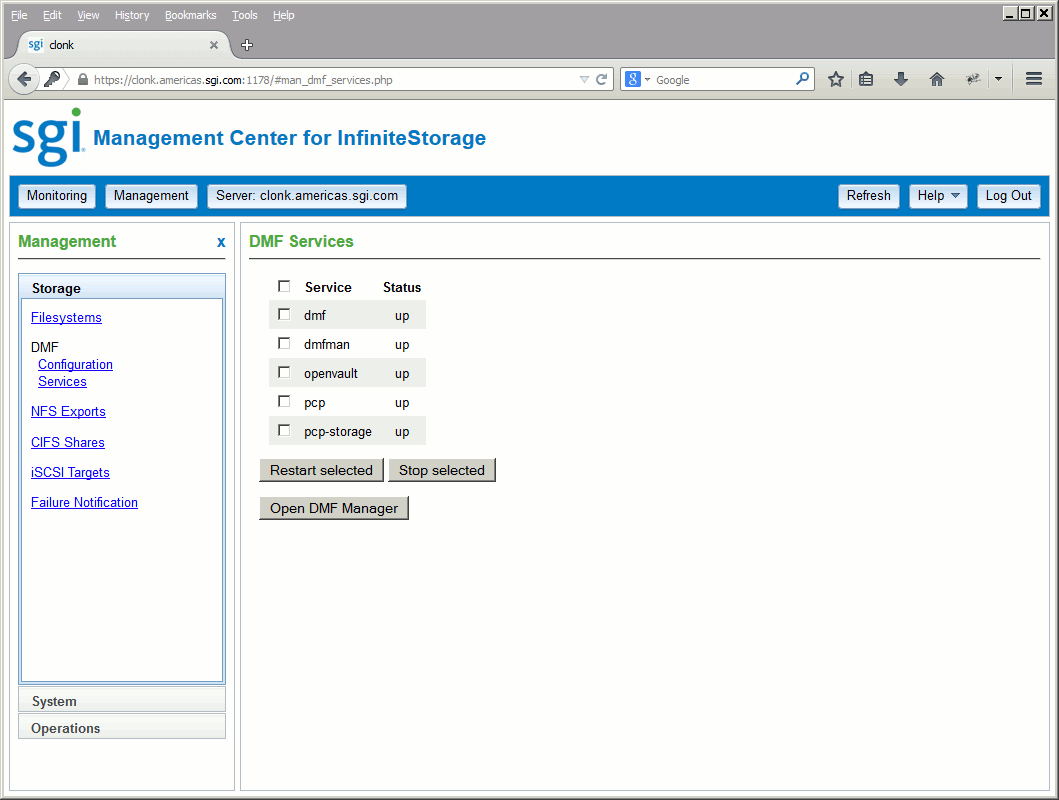
The DMF Services page shown in Figure 3-2 displays the current status and lets you stop or restart the selected services related to DMF:
The DMF Services page also lets you access the DMF Manager graphical user interface, where you can change the DMF admin email and get more details about DMF. To open the GUI, click Open DMF Manager.
DMF Manager lets you configure DMF, install licenses, view the current state of your DMF system, and make operational changes. When you initially open DMF Manager, you will see the Overview panel, which displays a high-level graphical view of the DMF environment and status for each DMF component, as shown in Figure 3-3.
You can also configure DMF from this panel. Each menu bar selection provides access to a DMF Manager panel. To open a panel, click on the panel name in the menu. Right-click on the tab title to see its menu.
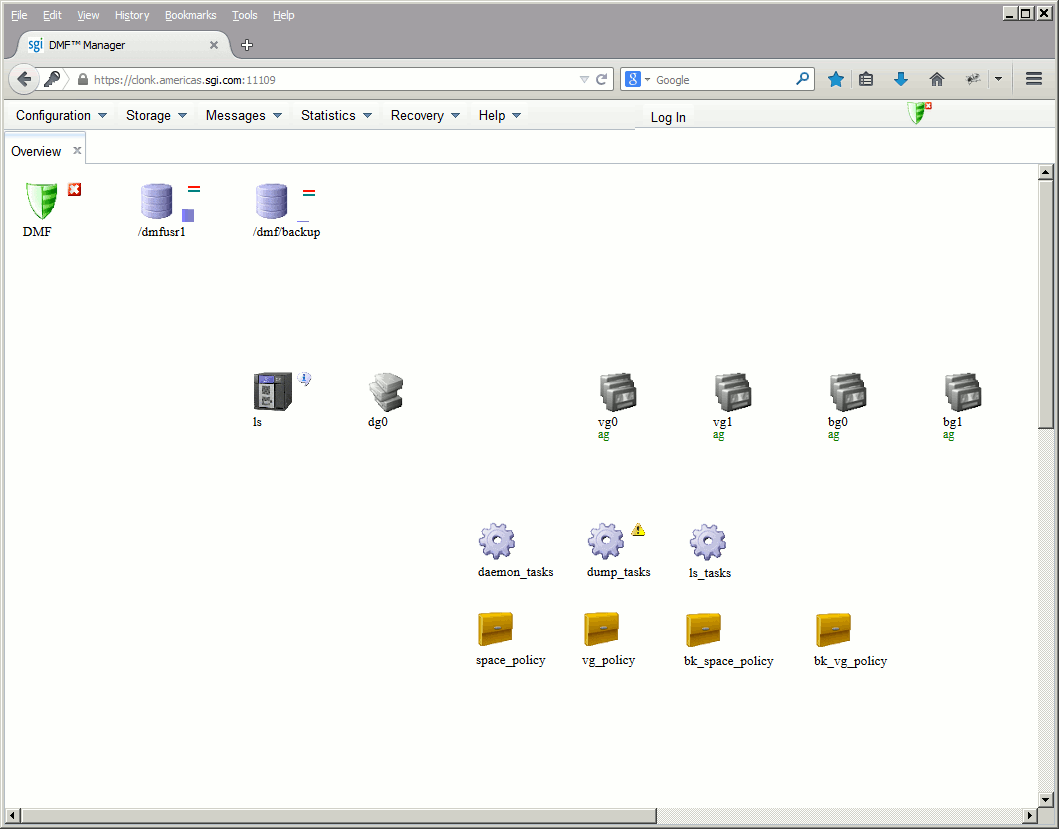
To get more information about any item, right-click on it and select the What is this? option.
For a quick-start to using DMF Manager, select the following from the menu bar:
Help -> Getting Started
For more details, see the DMF Manager chapter in the DMF 6 Administrator Guide. To access the DMF administrator guide, select the following:
Help -> Admin Guide
To configure directories so that they are available for network clients by means of the NFS network protocol, select NFS Exports.
This page lists all of the directories that may be exported through NFS.
To specify NFSv4 options, select the NFSv4 button to display the following fields:
To change the export options, select an individual directory name.
| Note: Reverse lookup for NFS clients must be properly configured in the DNS server. |
To export a directory, click its Export check box. The current export point is shown next to the Directory label. Enter a subdirectory in the text field to specify a new export point and select the desired export options.
If you select Use custom definition, you can enter any NFS export options that are supported in the Linux /etc/exports file.
For example, the following entry gives 192.168.10.1 read-write access, but read-only access to all other IP addresses:
192.168.10.1(rw) *(ro) |
| Note: There cannot be a space between the IP address and the export option. |
For information on the /etc/exports file, see the exports(5) man page. [1]
After specifying the configuration parameters, click Apply changes.
To configure directories so that they are available for network clients by means of the CIFS network protocol, select CIFS Shares.
This page lists all of the directories that may be shared through CIFS. You can also stop/start the corresponding SMB and NMB services.
To share a directory, select it and click the Share box. The current share path is shown next to the Directory label. To share a subdirectory under the share path, enter its path in the text field (a leading “/” may be omitted.)
Specify the following Share Options:
| Share name | Specifies the name under which the directory will appear to a Windows client, as displayed in its Network Neighborhood. | ||||||||
| Comment | Specifies an arbitrary string to describe the share. | ||||||||
| Read-only | Specifies that the client has access to the directory but cannot modify files or create new files. | ||||||||
| Allow guest users | Specifies that users can gain access to the CIFS filesystem without authenticating. Uncheck this option to allow connections only to valid users. By default, the CIFS protocol requires a password for authentication. If configured as an Active Directory client, then the authentication is distributed. See “Active Directory”. | ||||||||
| Always synchronize writes | Ensures that write activity on the client is suspended when a write occurs until all outstanding data has been safely stored onto stable storage. If you do not check this box, data that is written by the client can be buffered on the server before it is written to disk. This allows the client to continue to do other writing as the server continues to write the data to the disk. This is the faster write option and is recommended. | ||||||||
| Allow symbolic linking outside of the share | Specifies that symbolic links made by NFS users that point outside of the Samba share will be followed.
| ||||||||
| All hosts | Allows connections from anywhere on a network. | ||||||||
| Local subnets | Allows connections from the indicated subnet. You can select one subnet in this field and you must choose it from the available interfaces as set in the Network Interfaces page; see “Network Interfaces”. | ||||||||
| Restrict to hosts | Specifies the set of hosts that are permitted to access the CIFS share. You can specify the hosts by name or IP number; separate values by a space or tab. For example, you could restrict access to only the hosts on a Class C subnet by specifying something like the following:
To allow hosts of IP address 150.203.5.* and myhost.mynet.edu.au, specify the following:
You can also specify hosts by network/subnet mask pairs and by netgroup names if the system supports netgroups. You can use the EXCEPT keyword to limit a wildcard list. For example, to allow all IP address in 150.203.*.* except one address (150.203.6.66), you would specify the following:
To allow hosts that match the network/subnet mask of 150.203.15.0/255.255.255.0 , you would specify the following:
To allow two hosts, hostA and hostB , specify the following:
|
After specifying the configuration parameters, select Apply changes.
This section discusses the following:
Internet Small Computer Systems Interface (iSCSI) is a protocol that is used to transport SCSI commands across a TCP/IP network. This allows a system to access storage across a network just as if the system were accessing a local physical disk. To a client accessing the iSCSI storage, the storage appears as a disk drive would appear if the storage were local.
In an iSCSI network, the client accessing the storage is called the initiator and runs iSCSI Initiator software. The remote storage that the client accesses is called the target, which is what appears to the initiator as a disk drive.
A common application of an iSCSI network is to configure an Exchange Server as an iSCSI initiator that uses an iSCSI target as its mail store.
Figure 3-4 illustrates iSCSI storage. Each client (initiator) is configured to connect to a specific iSCSI target (an area allocated in the RAID iSCSI storage pool), and views this target as if it were a local disk. The lines in Figure 3-4 indicate data flow.
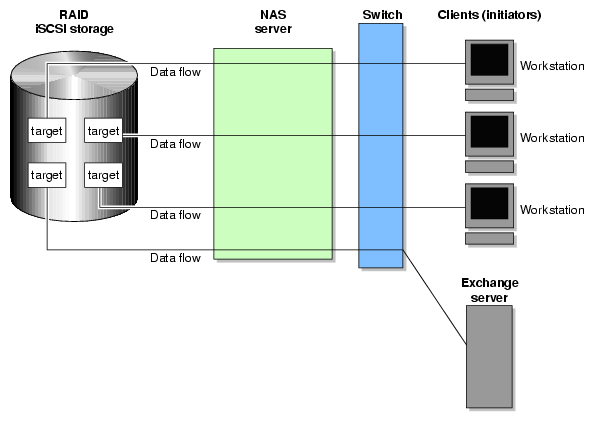
You can use the Management Center to create iSCSI targets on the RAID storage. An iSCSI initiator will be able to connect to the system and access those targets, format them, and use the targets as it would use a disk drive.
You cannot configure the Management Center itself as an initiator, and you cannot re-export iSCSI targets with NFS or CIFS. In addition, you cannot export existing filesystems that you have created with the Management Center as iSCSI targets; you can create filesystems and configure them to be exported by NFS or CIFS, but you must configure iSCSI targets separately on the RAID device.
The Management Center supports the following packages for creating targets:
Red Hat Enterprise Linux (RHEL) 6: scsi-target-utils
SUSE Linux Enterprise Server (SLES) 11: iscsitarget or tgt (these are mutually exclusive; installing tgt removes iscsitarget)
| Note: Due to the nature of iSCSI as a block-level protocol (as distinct from file-level protocols such as NFS and CIFS), particular care must be taken in the event of a system crash, power failure, or extended network outage. See “Power Outage and iSCSI” in Chapter 4. |
Perform the following steps to create an iSCSI target:
Select the iSCSI Targets item from the Storage tab.
Click Create target to access the Create iSCSI Target page, which provides a series of pages.
On the Target Name page, enter the domain and optional identifier for the iSCSI name and the LUNs for the target in the following fields:
Domain Specifies an iSCSI qualified name (which is a unique name that starts with iqn), then a year and month, then an internet domain name in reverse order. A default name appears based on the current system configuration. If in doubt, leave this field as is.
Identifier Specifies a string that will be used to uniquely identify the target. If you create only one target, this is optional. If you create more than one target, each must have a unique identifier. By default, a unique target identifier is provided for you.
LUNs Specifies logical units (LUNs) to be used for the target. Enter the Path to a block device to add to the list. Applicable Block devices and logical volumes will be listed in pulldown menus if they are available. Use the buttons on the right to reorder or remove entries in the list.
Click Next.
On the Target Options page, specify at least one authentication option:
Note: If more than one initiator were to write to the same target at the same time, there is a high risk of data loss. By using one or more authentication options, you ensure that only one client (initiator) can access an individual target at a time. Authentication:
Initiator IP Address Specifies the IP addresses of the initiators that will be allowed access to this target
Challenge Handshake Authentication Protocol (CHAP) authentication, in which the initiator will supply the following information to the target:
Target Username Specifies the username that the initiator must supply to connect to the target using CHAP authentication. (This is not the username with which you logged in to the Management Center; it is specific to the iSCSI target that you are defining.)
Target CHAP Secret Specifies the password that the initiator must supply to connect to the target using CHAP authentication. It must be in the range from 12 through 16 characters. (This is not the password with which you logged in to the Management Center; it is specific to the iSCSI target you are defining.)
Re-enter Target CHAP Secret Verifies the CHAP secret.
Mutual CHAP authentication, in which the target will supply the following information to the initiator:
Mutual Username Specifies the target username for mutual CHAP authentication. With mutual CHAP authentication, after the initiator supplies a username, the target must supply a username and password back to the initiator. If you leave the Mutual Username field blank, it defaults to the target username.
The mutual name is usually ignored by initiators, which only care about the mutual secret. When the client connects to a target, the iSCSI initiator software verifies that the mutual secret specified in the Management Center matches the secret specified in the initiator.
Mutual CHAP Secret Specifies the mutual CHAP secret.
Note: This secret should be different from the target CHAP secret.
Re-enter Mutual CHAP Secret Verifies the mutual CHAP secret.
You must enter the CHAP username and secret specified on this page in the iSCSI initiator software on the client in order for the initiator to be able to authenticate with and connect to the target. For a Windows client, this is the username and secret you enter in the Microsoft™ iSCSI Initiator program.
On the Confirm page, click Next to confirm your choices and create the iSCSI target.
The Finished page indicates that the iSCSI target has been created. Select Done.
To see the initiators and their connected targets, select the iSCSI Targets feature from the Storage tab in the Monitoring pane.
The iSCSI Targets page displays the identifier, path, size, transport mechanism, and client for each configured iSCSI target. To change a given target, click the Modify button, which will invoke a series of pages similar to those described in “Creating iSCSI Targets”. To remove the target, click the Destroy button
The Management Center lets you configure iSCSI targets for use by an iSCSI initiator, such as the Microsoft iSCSI Software Initiator or the iSCSI initiator included with various Linux® and UNIX® distributions.
After you have created an iSCSI target, you must configure the initiator on the client system that will connect to the target. You must specify the following:
Hostname of the storage server
Target identifier
Any CHAP authentication details you configured when creating the target (for specific instructions, see the documentation supplied with your iSCSI initiator)
After the iSCSI initiator has connected to the target, the target will appear as a disk drive on the client system and can then be formatted using the tools supplied with the client operating system.
The following is an example of configuring a Windows client (it assumes that you have already created a target or targets):
Download the iSCSI Initiator from Microsoft's web site (http://www.microsoft.com/ ) and install it on the Windows client.
Open the iSCSI Initiator Control Panel applet.
Add the storage server to the list of Target Portals.
Select the iSCSI target to connect to from the Targets list and click Log On.
Specify CHAP authentication details in the Advanced settings.
Use the following Windows tool to partition and format the target and assign a drive letter:
Start Menu -> Administrative Tools -> Computer Management -> Disk Management
To configure notification of failed devices, select Failure Notification .
For each available platform, enter the interval at which to scan for for device failures (0-59 minutes, 0 to disable), enter one or more email addresses to send notifications to, and check the SNMP trap box to enable that as desired.
Each SNMP trap is sent using the SGI-SSMC-SMI::devstatDriveFailure object identifier. To allow the SNMP monitoring application to fully parse the object, see the procedure in “SNMP”.
For the LSI MegaRAID platform, any drive whose state is Failed, Unconfigured Bad, or Offline is deemed to have failed.
The System tab in the Management pane lets you manage the following:
Use the Management Interface page to set the following system components:
| System name | Specifies the fully qualified domain name (FQDN) for this storage server. The default system name is sgiserver.
| |||
| CIFS workgroup | Specifies the NetBIOS workgroup to which the machine should belong. The default is WORKGROUP. If you are not using CIFS, you can ignore this setting. | |||
| Interface | Specifies the interface to use for management (web access), such as eth0 | |||
| IP address | Specifies the IP address of the management interface. | |||
| Subnet mask | Specifies the subnet mask of the management interface. | |||
| Default gateway | Specifies the IP address of the router that this system should use to communicate with machines that are outside of its subnet. | |||
| Use DHCP | Specifies whether or not to use dynamic host configuration protocol (DHCP). |
You can use the Management Center to modify the network interfaces for the system and create a bonded interface.
When configuring the system, you must consider the difference between the management interface and the remainder of the interfaces in the system. Any Ethernet port named ethN or emN on the server may be designated as the management interface.
You can configure these ports as individual standalone ports or you can group these ports together into a bonded network interface .
Bonding interfaces together gives you the aggregated bandwidth for multiple clients of all of the interfaces that constitute the bonded interface. For most systems, this can significantly increase performance over a system in which all of the interfaces are configured as individual network ports.
For more information, see “Bonded Network Interfaces”.
 | Caution: Ensure that the hardware settings are correct before you configure the network interfaces. For information on hardware setting, see the Quick Start Guide for your system. |
To see the available Ethernet network interfaces and change their parameters, select Network Interfaces.
You can change an interface by clicking the Modify button for the interface on the Network Interfaces page.
| Caution: If you configure an incorrect IP address for the management
interface, you can make the Management Center inaccessible.
The management interface is always configured as an individual network interface and cannot be part of a bonded interface. |
To change an interface, click its Modify button. You can change the following fields:
| Enable | Enables the interface. You cannot disable the management interface. | |||
| Automatic discovery by DHCP | Specifies that dynamic host configuration protocol (DHCP) will be used to configure the Ethernet interface. (Another system must be the DHCP server.) | |||
| Static | Specifies that a particular IP address is required for the network interface. If you select this, you must provide the IP address and subnet mask. | |||
| Dedicated | Specifies the local and remote IP address for a dedicated network connection between the storage server and another host, for example a dedicated VLAN network or single point-to-point network cable. A dedicated network interface is an interface, such as eth2, that has been configured to use a point-to-point connection with a single remote host. All network traffic to and from that server will go via the local dedicated network interface and no other traffic will appear on that interface. Dedicated network interfaces can be useful when there may be a large amount of network traffic to a specific host and you wish to prevent interference with other network traffic to other hosts.
| |||
| Speed | Displays the port speed of the Ethernet card, which is usually Autonegotiate . | |||
| Duplex | Displays the duplex of the Ethernet connection, which is usually Autonegotiate. |
A bonded interface is a virtual network interface that consists of real interfaces working in tandem. You use bonded interfaces on NAS systems to increase bandwidth to NFS and CIFS clients.
A virtual interface can provide the aggregated bandwidth of all of the interfaces that you used to create it.
| Note: Any single client can achieve the bandwidth of only a single interface at a time. A bonded interface increases the aggregate bandwidth for multiple clients. |
For example, if you have three interfaces each with a bandwidth of 10, the aggregate bandwidth is 30. For an individual client, however, the maximum bandwidth remains 10. When additional clients access the bonded interface, the clients are assigned to the subinterfaces, and up to three clients can use a bandwidth of 10 at the same time. Thus multiple clients accessing the system increase the aggregate bandwidth, improving the performance to a maximum bandwidth of 30.
For example, Figure 3-5 shows a configuration in which all clients connect to a single IP address (192.168.0.3 ). The switch is responsible for sharing the load across four bonded interfaces (eth1-eth4). Therefore, four times as many clients can communicate with the same server without a loss in overall performance.
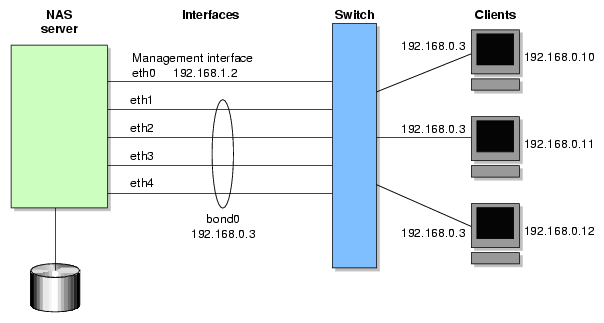
Output load balancing controls how the server chooses which subinterface will send replies. Input load balancing controls how clients are assigned to subinterfaces, and how and when clients are moved from one subinterface to another. Load balancing happens on a per-packet basis. When a client sends a packet, it traverses a switch, which determines at which subinterface the packet arrives. Input load balancing ensures that each client arrives at a different subinterface. The clients see only one interface because the balancing is done by the system.
In addition to configuring a bonded interface in the Management Center, you must configure the ports on the switch so that they use either static trunking or 802.3ad dynamic trunking. For more information, refer to the user manual for your switch.
To create a bonded interface, select Create bonded interface on the Network Interfaces page.
The available interfaces are displayed for selection.
When you configure a bonded interface, you specify the following:
| Interface | Specifies the name of the bonded interface. | |
| Enable | Enables the bonded interface. |
| IP address | Specifies the IP address of the new bonded interface. The IP address for a bonded interface must be configured statically. The Management Center does not support DHCP and dedicated IP addresses for bonded interfaces. |
| Subnet mask | Specifies the subnet mask of the new bonded interface. All configured network interfaces should be on different subnets. |
| Available interfaces | Specifies the interfaces to be used. | |||
| Bonding mode | Selects a bonding mode that governs the relation of the subinterfaces to a switch and defines the protocol that is used for assigning network switch ports to a bonded interface:
Your choice depends upon what your switch supports:
| |||
| Output Load Balancing | Specifies how the server chooses which subinterface will send replies:
| |||
| Maximum Transmission Unit (MTU) | Specifies the size (in bytes) of the largest protocol data unit that can be passed. |
Click Apply changes to create the bond.
You can use the DNS & Name Servers page to specify how to map hostnames to IP addresses for the system. Click Edit local hosts file to access the Hosts page, where you can edit the /etc/hosts file that contains local mappings or import the contents of a file you specify. For information on the /etc/hosts file, see the hosts(5) man page.
You can also specify the DNS servers to map hostnames to IP addresses and to resolve hostnames that are incomplete.
| Domain search |
Specifies the domain name or names of the DNS servers that the system uses to provide hostname-to-IP-address translation. If you have multiple domains, list them in the order you want to use for lookup. This is important in cases where you have two machines with the same name, each on a different domain, to establish the lookup priority. | |
| Nameserver # | Specifies the IP address for a name server. You can specify up to three IP addresses; if an address you specify is down, the system will use the next one. |
Use the Time & Date page to set the following:
| Time zone | Sets the time zone from a drop-down list of options. | |
| Time | Sets the time in hours and minutes, using a 24-hour clock. For example, use 16:04 for 4:04 PM. | |
| Date | Sets the date by year, month, and day. Use four characters for the year, such as 2013. | |
| NTP enable | Enables automatic time synchronization with Network Time Protocol (NTP) using specific NTP servers. The NTP protocol is used to synchronize clocks on computer systems over a network. Select Apply NTP changes keep the system's time in synchronization with an NTP server. If the server has Internet access, see the following website for information about using the public NTP timeserver: | |
| NTP servers | Specify the servers to be used for the NTP service. Select the check box to resolve the hostname in the IPv6 name space. |
The Management Center lets you configure basic Simple Network Management Protocol (SNMP) monitoring support on your storage server. In order to query the SNMP service and receive SNMP traps, you will require an external management station with appropriately configured monitoring software.
The SNMP page lets you specify the following information:
| Enable SNMP | Enables or disables the SNMP service. | |
| Allow SNMP access from | Specifies the IP address of the Network Monitoring Station (NMS) or the network segment that is allowed to access the SNMP service. | |
| Trap destination | Specifies the IP address of your NMS for receiving default SNMP traps. | |
| Community string | Specifies the SNMP community string to use when sending SNMP traps and when querying the SNMP service. The default is public. | |
| System name | Specifies the system name. This field is automatically set by the Management Center to the hostname of the server. However, you may change this to something more appropriate to your environment. | |
| System location | Specifies the physical location of the storage server (optional). | |
| System contact | Specifies the contact details (such as the name and email address) of one or more persons responsible for administration of the server (optional). | |
| System description | Provides addition descriptive information for identifying the server (optional). |
After applying your configuration changes to the SNMP service, you should receive start/stop SNMP v2 traps notifying you that the SNMP service has been restarted.
To allow the SNMP monitoring application to fully parse trap objects, do the following:
On the trap destination system, install the sgi-snmpagent-mibs package from the SGI Foundation Software media.
Copy the following file from the storage server system to the same directory on the trap destination system:
/opt/sgi/snmpagents/mibs/sgi-ssmc-smi.mib
Make the management information bases (MIBs) in /opt/sgi/snmpagents/mibs known to the SNMP monitoring application.
The Licenses page provides information required to request licenses and lets you add and delete licenses.
The Administrator Password page changes the Management Center administrator password, which is required to perform server configuration and management. This password is not required to view the pages available from the Monitoring pane.
The Name Service Client page lets you specify various directory services that manage information associated with the network users, such as mapping user names with user IDs and group names with group IDs.
You can specify whether you are using local files (if you have no sitewide protocol and names and IDs are kept locally on server), Active Directory services, lightweight directory access protocol (LDAP), or the sitewide network information service (NIS).
| Note: When specifying servers on the Name Service Client page, you must use IP addresses rather than hostnames, because the system may require a name service client to determine the IP address from the hostname. |
The directory services are:
The Local Files Only selection specifies that an external name server will not be used. All user and group name to ID mapping will be done using local users and groups. See “Local Users and Local Groups”.
Active Directory is a directory service that implements LDAP in a Windows environment. It provides a hierarchical structure for organizing access to data. CIFS authentication will automatically use the Active Directory service.
| Note: The Active Directory section is disabled if there are no Active Directory DNS servers specified. See “DNS & Name Servers”. |
The following Active Directory components appear:
| Active Directory domain | Specifies the full domain name of the Active Directory.
| |||||
| Domain controller | Specifies a domain controller. | |||||
| Administrative user | Specifies the user with administrator privileges. | |||||
| Allow this user to remotely manage CIFS share permissions | Specifies whether or not the Administrative user shown will be able to use the Windows MMC Computer Management GUI to manipulate CIFS share permissions remotely when you join the Active Directory domain. | |||||
| Password | Specifies the password for the administrator user. For security reasons, the Active Directory password cannot contain the following characters:
| |||||
| Re-enter password | Verifies the password for the administrative user. | |||||
| UID/GID Mapping | Lets you manage UNIX user ID (UID) and group ID (GID) mapping on the Active Directory server, using one of the following:
The default is Automatic assignment based on Windows SID. For best interoperability, SGI recommends that you choose either RFC 2307 (Microsoft Windows Server 2003 R2) or Microsoft Windows Services For UNIX when applicable, as appropriate for your environment. |
| Note: This selection requires that the NSD OpenLDAP module is installed. |
Lightweight directory access protocol (LDAP) is a networking protocol that organizes access to data in a directory tree structure. Each entry in the tree has a unique identifier called the distinguished name.
The default LDAP server IP address is the local host. You will probably need to specify a different IP address.
Fields:
| LDAP server | Specifies the IP address of the LDAP server. | ||
| Base | Specifies the distinguished name of the base of the subtree you will be searching. | ||
| Root binddn | Specifies the distinguished name of the user to whom you are assigning root privileges for administration. This is expressed as a node in the directory tree that refers to a user account. | ||
| Password | Specifies the password that will be required to authenticate against the LDAP server. For security reasons, the LDAP password cannot contain the following characters:
| ||
| Re-enter password | Verifies the password that will be required to authenticate against the LDAP server. |
To use LDAP for CIFS authentication, you must configure the LDAP server to use the RFC2307bis or NIS schema to supply POSIX account information. In addition, you must add a Samba schema to the LDAP database. These schemas specify how the user and group data is organized in the database. The database must be organized using these particular schemas so that the CIFS authentication mechanism is able to extract the data it needs.
For a description of how to add the Samba schema to a Fedora® Directory Server, see:
http://directory.fedora.redhat.com/wiki/Howto:Samba |
For a description of how to add the samba schema to an OpenLDAP® Server, see:
http://www.samba.org/samba/docs/man/Samba-HOWTO-Collection/passdb.html#id327194 |
The following website provides another description of an OpenLDAP configuration:
http://www.unav.es/cti/ldap-smb/ldap-smb-3-howto.html |
For other LDAP servers (such as the Sun Directory Server, Novell's eDirectory, and IBM's Tivoli Directory Server) the above information may be useful; however, please refer to the relevant documentation for your server product for more information.
Network information service (NIS) is a network lookup service that provides a centralized database of information about the network to systems participating in the service. The NIS database is fully replicated on selected systems and can be queried by participating systems on an as-needed basis. Maintenance of the database is performed on a central system.
Specify the following:
| Domain name | Specifies the NIS domain name for this system. | |
| NIS server IP address | Specifies the IP address of the NIS server. If the NIS server is on the same subnet as the Management Center, the interface finds the NIS server IP address and provides it as a default. If you are not on the same subnet, you must enter the address in this field. |
Click Apply changes.You will then be presented with a confirmation page that allows you to verify whether or not you want to commit the changes.
The Management Center can create and add user and group accounts to access the storage server locally. This is a local database only; these users and groups do not interact with the users and groups provided by the name server. If you search the site directory and do not find the user or group data you are looking for, the system searches this local database. The local user accounts will be used for authentication for CIFS shares if you are not using LDAP or Active Directory authentication.
| Caution: If you create a local user and subsequently add that user in the sitewide directory, access problems may result. For example, if you create local user Fred with a UID of 26, Fred will be able to create local files. But if you subsequently add a user Fred on a sitewide name services directory with a different UID, user Fred will be unable to access those local files because the system will use the sitewide name and UID first. |
If you are using LDAP or Active Directory as a name service client, a user must be present in LDAP or Active Directory and you will not be able to authenticate local users and groups. In this case, adding local users and groups may be useful for ID mapping, but authentication does not use the local password files.
When you select the Import option for either Local Users or Local Groups , you can choose among the following actions:
Merge the imported new users or groups with the current list, ignoring any accounts or groups with the same name. (That is, if there is an existing user or group, keep it rather than the new imported user or group.)
Merge the imported new users and groups with the current list, overwriting any exists in accounts or groups of the same name. (That is, if there is an existing user or group, replace it with the new imported user or group.)
Replace all current unrestricted users or groups with the new imported users or groups.
Accounts with a UID or GID of less than 1000 are considered restricted and are not imported or replaced.
If you use a shadow file, which is a file that is protected from all access by non-root users and stores the encrypted passwords, then you can use the Import Users page to import this file as well as the password file itself.
The Operations tab in the Management pane lets you do the following:
The Save/Restore Configuration page page lets you saves the files in the /etc directory or restores those saved files. You may find this useful if you have made an error in the present configuration and you wish to return to a previously configured state.
| Caution: This procedure does not provide a system backup and specifically does not save or restore user data; it provides a snapshot record of the configuration. |
This page lists previously saved configurations, labeled by date. After restoring a configuration, you should restart the system.
If there is a problem with the system, SGI Support may request support data in order to find and resolve the problem. The Gather Support Data page lets you generate an archive containing copies of the storage server's software and hardware configuration and log files.
To collect the data, select Yes, gather information. This process can take more than 30 seconds on large RAID configurations and requires at least 200 MB of free space in /tmp.
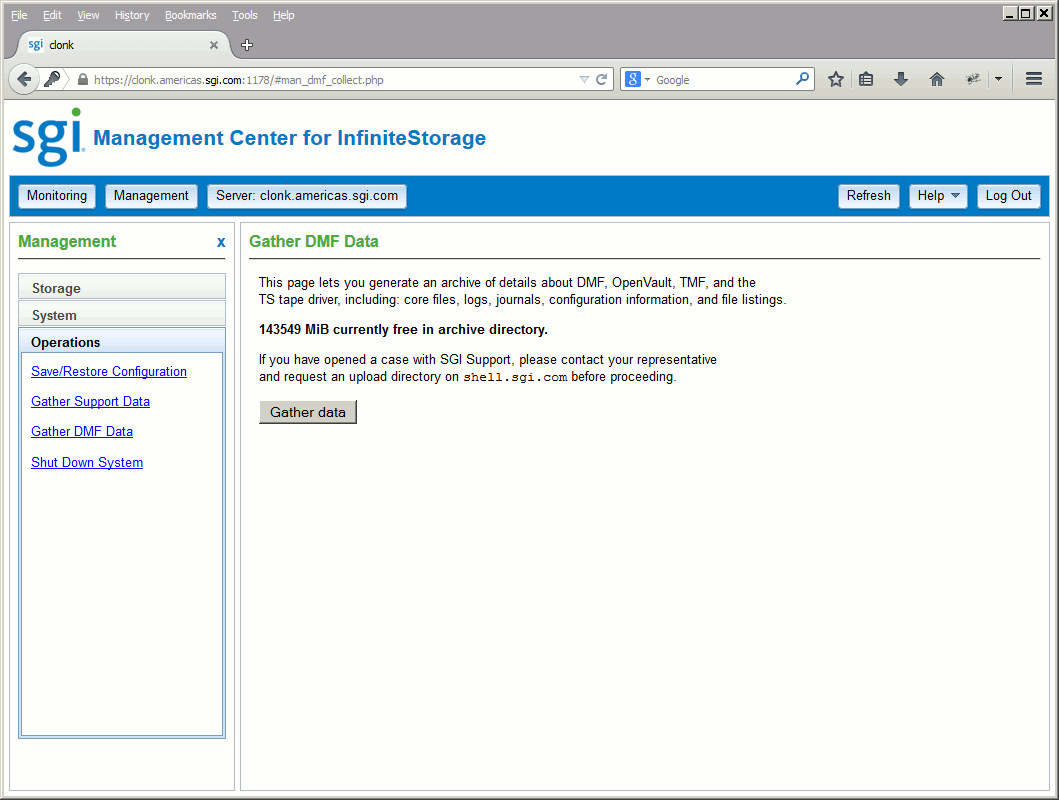
If there is a problem with DMF, SGI Support may request DMF data in order to find and resolve the problem. The Gather DMF Data page lets you collect details about DMF and the OpenVault mounting service, including core files, logs, journal, configuration information, and file listings. Existing archives will be listed with their date and size; you can remove or upload them.
| Note: If you have opened a case with SGI Support, please contact your representative and request an upload directory on shell.sgi.com before proceeding. |
To collect the DMF data, click the Gather data button. Figure 3-6 shows an example.
This section discusses the following:
To receive software updates, you must first set up an update repository according to the instructions in the ISSP release notes, available from the following selection in the Management Center:
Help -> Documentation -> SGI InfiniteStorage Software Platform Release Notes
When updates are available, a notice will be displayed on the
Software Versions page, available from the following selection
in the Management Center:
Monitoring -> System -> Software Versions
Click the updates link to list the updates.