This chapter contains the following topics:
“Accessing the CMC on an SGI UV 2000 System Through a Serial Connection ”
“Accessing the CMC on an SGI UV 1000 System Through a Serial Connection ”
“Accessing the CMC on an SGI UV 100 System Through a Serial Connection ”
“Accessing the Chassis Management Controller (CMC) Through a Network Connection and Logging In”
“Powering On and Booting an SGI UV System From a Complete Power Off”
You can use the procedure in this topic to connect to the CMC on an SGI UV 2000 system if the following conditions exist:
You do not know the address of the CMC and there is no SMN.
The SMN is down or unavailable.
The following procedure explains how to establish a serial connection from a dumb terminal to a CMC in an SGI UV 2000 system.
Procedure 2-1. To establish a serial connection to an SGI UV 2000 system
Locate the CMC on the SGI UV 2000 system.
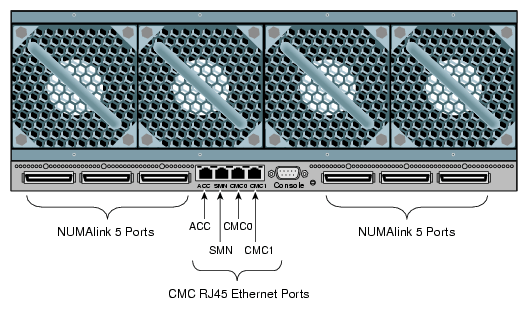
Figure 2-1 shows the location of the CMC.
Use a micro-USB serial cable to connect the terminal to the CONSOLE port connector on the CMC board of the IRU.
Typically, you connect a serial console to the first (bottom) IRU in any single rack configuration. Figure 2-2 shows the CONSOLE port.
Set the terminal to the following functional modes:


You can use the procedure in this topic to connect to the CMC on an SGI UV 1000 system if the following conditions exist:
You do not know the address of the CMC and there is no SMN.
The SMN is down or unavailable.
The following procedure explains how to establish a serial connection from a dumb terminal to a CMC in an SGI UV 1000 system.
Procedure 2-2. To establish a serial connection to an SGI UV 1000 system
Locate the CMC on the SGI UV 1000 system.
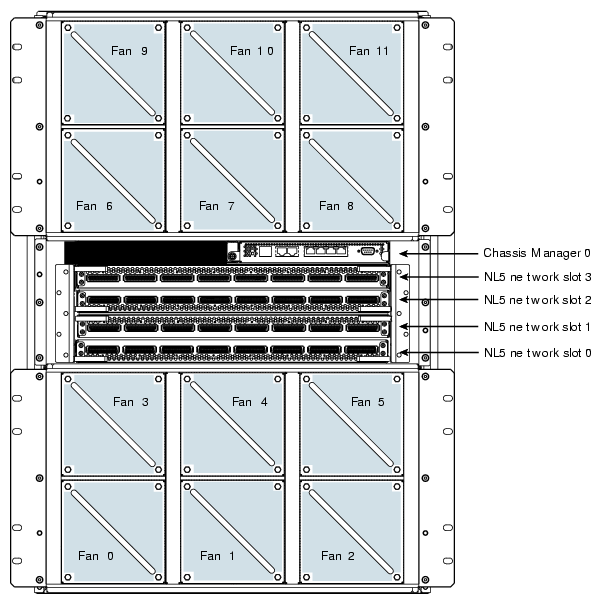
Figure 2-3 shows the location of the CMC.
Use a serial cable to connect the terminal to the (DB-9) RS-232-style console port connector on the CMC.
Typically, you connect a serial console to the first (bottom) IRU in any single rack configuration. Figure 2-4 shows the CONSOLE port.
Set the terminal to the following functional modes:
Baud rate of 115,200
8 data bits
One stop bit, no parity
No hardware flow control (RTS/CTS)

You can use the procedure in this topic to connect to the CMC on an SGI UV 100 system if the following conditions exist:
You do not know the address of the CMC and there is no SMN.
The SMN is down or unavailable.
The following procedure explains how to establish a serial connection from a dumb terminal to a CMC in an SGI UV 100 system.
Procedure 2-3. To establish a serial connection to an SGI UV 100 system
Locate the CMC and the Console port on the SGI UV 100 system.
Figure 2-5 shows the location of the CMC and the port.
Use a serial cable to connect the terminal to the (DB-9) RS-232-style console port connector on the CMC.
Typically, you connect a serial console to the first (bottom) IRU in any single rack configuration.
Set the terminal to the following functional modes:
Baud rate of 115,200
8 data bits
One stop bit, no parity
No hardware flow control (RTS/CTS)
An SGI UV 2000 system or an SGI UV 1000 system can have more than one CMC. If the system includes a system management node (SMN) and there are multiple CMCs, some might be attached to the SMN, and some might not be attached to the SMN. In a troubleshooting situation, your SMN might be down.
If an SMN is present, the CMC is configured to request an IP address from the SMN via dynamic host configuration protocol (DHCP). This is the default behavior.
If an SMN is not present, the CMC might be configured with a static IP address.
The following notes pertain to the procedures in this topic:
If your SGI UV system is configured to use telnet(1), you can use use either ssh(1) or telnet(1) to log in. The procedures and examples generally use only the ssh(1) command.
The CMC password is always root. Do not change this password.
You can log into the CMC by using the CMC's IP address or by using the CMC's hostname. The procedures and examples generally use the IP address.
The following procedures explain how to establish a network connection and log in to a CMC when an SMN is available and when an SMN is not available.
Procedure 2-4. To connect to a CMC from an SMN
Use the ssh(1) command to log in to the SMN as the root user.
Obtain the SMN's address from your system administrator or the network administrator.
For example:
# ssh root@ip_address
Type the cmclist command to retrieve the IP addresses of the CMCs that are attached to this SMN.
The SMN acts as both a DNS and a DHCP server to the CMCs.
For example, the following output shows one CMC, and the CMC's IP address is 172.19.1.1:
[root@uv48-smn]# cmclist
# SYSCO discovered CMC(s)
# Hostname                 IP Address
s UV-00000048:r001i01c     172.19.1.1
(Optional) Type the config -v command to retrieve the identifiers for other CMCs attached to this SMN.
For example, the following output shows 4 CMCs in the SGI UV system, but only one is attached to the SMN:
[root@uv48-smn]# config -v
SSN: UV-00000048

CMCs:           16
	r001i01c UV1000 SMN
	r001i23c UV1000
	r001q42c UVQCR
	r001q43c UVQCR
...
output truncated for inclusion in this manual
The preceding output identifies the CMCs on this system according to rack number and IRU. For example, r001i01c refers to rack 001, IRU 01, and c identifies a CMC.
Use the ssh(1) command to connect to the CMC with the IP address shown in the cmclist output.
For example:
[root@uv48-smn]# ssh 172.19.1.1
The root user is the only user configured on the CMC, so log in as root. Type root for the CMC password.
The following procedure explains how to establish a network connection to a CMC without logging into an SMN first. Use this procedure if there is no SMN, if the SMN is down, or if you want to log into a CMC from another CMC.
Procedure 2-5. To connect to a CMC without an SMN
Determine the IP address of the CMC to which you want to connect.
Use one of the following methods:
Obtain the CMC's address from your system administrator or network administrator.
If you do not have the CMC's address, you need to make a serial connection to the CMC. See one of the following topics:
Use the ssh(1) command to log in to the CMC.
For example:
# ssh ip_address
The root user is the only user configured on the CMC, so log in as root. Type root for the CMC password.
SGI supports your ability to install more than one operating system, or operating system release level, on an SGI UV system. The following procedure explains how to create a boot option so you can boot any operating system.
Procedure 2-6. To create boot options for nondefault operating system boots
Establish a connection to the CMC and log in.
Use one of the following procedures:
“Accessing the CMC on an SGI UV 2000 System Through a Serial Connection ”
“Accessing the CMC on an SGI UV 1000 System Through a Serial Connection ”
“Accessing the CMC on an SGI UV 100 System Through a Serial Connection ”
“Accessing the Chassis Management Controller (CMC) Through a Network Connection and Logging In”
Type the uvcon command, and monitor the power-on process.
Depending upon the size of your system, it can take 5 to 10 minutes for the SGI UV system to power on.
When the power-on process completes, type CTRL-] q to exit the console.
When the Shell> prompt appears, type exit to access the BIOS manager.
Use the arrow keys to select Boot Maintenance Manager , and press Enter.
On the Boot Maintenance Manager screen, select Boot Options.
On the Boot Options screen, select Add Boot Option.
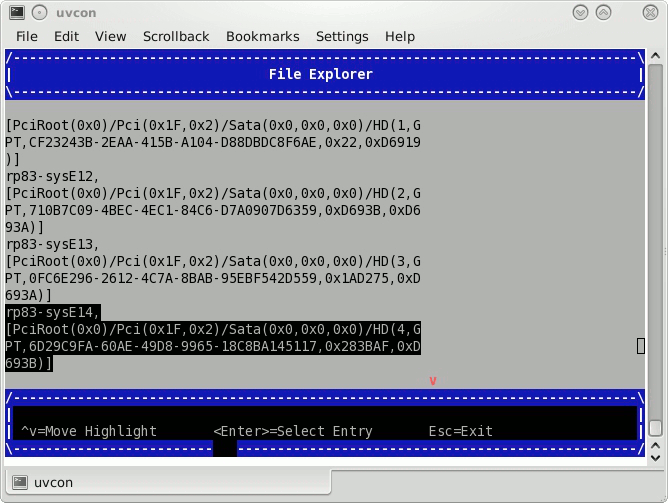
On the File Explorer screen, complete the following steps:
On the Modify Boot Option Description screen, complete the following steps:
In the Please type in your data popup, type a name for this boot option. For example, RHEL 6.4 or SLES11 SP2.
Select Commit Changes and Exit.
On the Boot Maintenance Manager screen, select Boot Options.
On the Boot Options screen, select Change Boot Order.
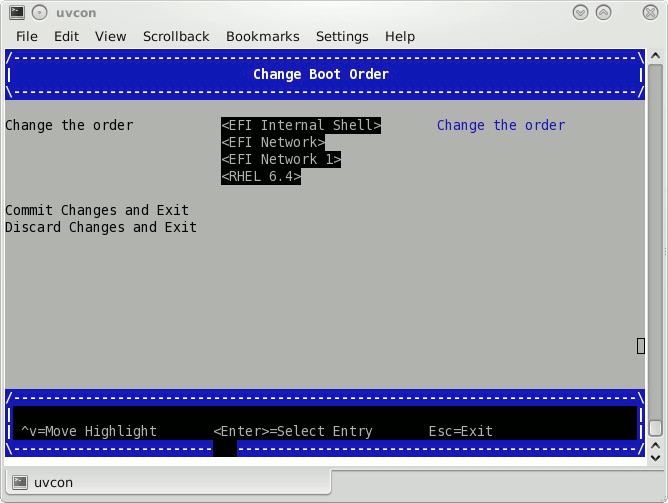
On the Change Boot Order screen, complete the following steps:
Select the boot order entries.
For example:
On the popup that appears, select the boot option you created earlier in this procedure.
Press the + key to move the recently created boot option to the top of the list.
Press Enter to commit this step's changes.
Select Commit Changes and Exit.
Press the space bar to return to the BIOS manager.
Notify all system administrators of the current boot order.
SGI supports the ability to change the default boot order, but some system administration tasks might assume that the default boot option is still EFI Internal Shell. You might need to change the boot order in order to access the EFI shell in the process of performing other tasks that this chapter describes. If you need to change the boot order, complete this procedure again and select one of the other boot options.
The following procedure explains how to power on an SGI UV system from a complete power off.
Procedure 2-7. To power on or boot an SGI UV system
Visually inspect the system and make sure that the power breakers are on.
Establish a connection to the CMC and log in.
Use one of the following procedures:
“Accessing the CMC on an SGI UV 2000 System Through a Serial Connection ”
“Accessing the CMC on an SGI UV 1000 System Through a Serial Connection ”
“Accessing the CMC on an SGI UV 100 System Through a Serial Connection ”
“Accessing the Chassis Management Controller (CMC) Through a Network Connection and Logging In”
Type the power on command to power up the SGI UV system.
Depending upon the size of your system, it can take 5 to 10 minutes for the SGI UV system to power on.
For example:
CMC:r001i01c> power on
(Conditional) Use SMN commands to monitor the boot process.
Complete the following steps only if your SGI UV system includes an SMN:
Type the following command to open a console from which you can monitor the power-on process:
uvcon
Monitor the boot process.
When the power-on process completes, type the following command to close the console:
CTRL-] q
Type the following command to access the EFI shell commands:
CMC:r001i01c> uvcon
When the Shell> prompt appears, type fs0: to access the boot partition.
For example:
Shell> fs0:
Boot the system.
Use one of the following commands:
On Red Hat Enterprise Linux CMCs, type the following command:
fs0:\> EFI\redhat\grub
On SUSE Linux Enterprise Server CMCs, type the following command:
fs0:\> \efi\SuSE\elilo
The following procedure explains how to power off an SGI UV system.
Procedure 2-8. To power off an SGI UV system
Log into the SGI UV system as the root user, and type the following command to stop the operating system:
# halt
On the CMC, type the power off command to power off the SGI UV system.
For example:
CMC:r1i1c> power off
==== r001i01c (PRI) ====
Type the power status command to verify that the system has powered down.
For example:
CMC:r1i1c> power status
==== r001i01c (PRI) ====
on: 0, off: 32, unknown: 0, disabled: 0
The following procedure explains how to send a nonmaskable interrupt (NMI) signal and invoke the kdump crash recovery service.
The following procedure explains how to send a nonmaskable interrupt (NMI) signal and invoke the kdb kernel debugger.
Procedure 2-10. To send an NMI signal and invoke kdb
On the CMC, type the following command:
CMC:r1i1c> power nmi Entering kdb (current=0xffff8aa3fe11c040, pid 0) on processor 7 due to NonMaskable Interrupt @ 0xffffffff8100ad42 r15 = 0x0000000000000000 r14 = 0x0000000000000000 r13 = 0x0000000000000000 r12 = 0x0000000000000000 bp = 0xffffffff81927380 bx = 0xffff8ac1ff11dfd8 r11 = 0xffffffff8101a2c0 r10 = 0xffff88000beefd18 r9 = 0x00000000ffffffff r8 = 0x0000000000000000 ax = 0x0000000000000000 cx = 0x0000000000000000 dx = 0x0000000000000000 si = 0xffff8ac1ff11dfd8 di = 0xffffffff81a2b308 orig_ax = 0xffffffffffffffff ip = 0xffffffff8100ad42 cs = 0x0000000000000010 flags = 0x0000000000000246 sp = 0xffff88000bee7ff0 ss = 0x0000000000000018 ®s = 0xffff88000bee7f58 [7]kdb>
Type kdb commands at the kdb> prompt.
The auto-power capability allows your system to power up automatically when power is applied after a power outage:
To determine if the auto-power capability is enabled on your system, use the autopower command without options. For example, the following output shows that the feature is currently disabled:
uv44-cmc CMC:r001i01c> autopower
==== r001i01c (PRI) ====
auto-power on is disabled
To enable auto-power, use the -e option:
uv44-cmc CMC:r001i01c> autopower -e
==== r001i01c (PRI) ====
auto-power on enabled (120 second delay)
To disable auto-power, use the -d option:
uv44-cmc CMC:r001i01c> autopower -d
==== r001i01c (PRI) ====
auto-power on disabled
The default delay before a power on command is issued after auxiliary power is supplied to CMCs and BMCs is two minutes. This allows for the system controller configuration to stabilize (complete CMC and BMC detection).
Only the lowest numbered (rack and u-position) CMC initiates the power-on sequence. Because this is a CMC-based feature, the maximum size of the supported system configuration supported is 16 or fewer racks.
For more information, see “autopower” in Chapter 3.
You can use the config -v command to view your system configuration. In the command output, r001i01b00 refers to rack 0, IRU 1, and blade 0.
Example 1. The following is configuration information from an SGI UV 2000 system:
CMC:r001i01c> config -v SSN: UV2-00000082 CMCs: 2 r001i01c UV2000 r001i11c UV2000 BMCs: 16 r001i01b00 IP109-BASEIO r001i01b01 IP109 r001i01b02 IP109 r001i01b03 IP109 r001i01b04 IP109 r001i01b05 IP109 r001i01b06 IP109 r001i01b07 IP109 r001i11b00 IP109-BASEIO IORISER-DISABLED r001i11b01 IP109 r001i11b02 IP109 r001i11b03 IP109 r001i11b04 IP109 r001i11b05 IP109 r001i11b06 IP109 r001i11b07 IP109 Partitions: 1 partition000 BMCs: 16 Accessories: 0 |
Example 2. The following is configuration information from an SGI UV 1000 system:
CMC:r1i1c> config -v

CMCs:            2
        r001i01c UV1000
        r001i02c UV1000

BMCs:           32
        r001i01b00 IP93-BASEIO
        r001i01b01 IP93-DISK
        r001i01b02 IP93-EXTPCIE
        r001i01b03 IP93-EXTPCIE
        r001i01b04 IP93
        r001i01b05 IP93
        r001i01b06 IP93
        r001i01b07 IP93
        r001i01b08 IP93
        r001i01b09 IP93
        r001i01b10 IP93
        r001i01b11 IP93
        r001i01b12 IP93
        r001i01b13 IP93
        r001i01b14 IP93
        r001i01b15 IP93
        r001i02b00 IP93-BASEIO
        r001i02b01 IP93-EXTPCIE
        r001i02b02 IP93-DISK
        r001i02b03 IP93-EXTPCIE
        r001i02b04 IP93-EXTPCIE
        r001i02b05 IP93-EXTPCIE
        r001i02b06 IP93-EXTPCIE
        r001i02b07 IP93-EXTPCIE
        r001i02b08 IP93-INTPCIE
        r001i02b09 IP93-INTPCIE
        r001i02b10 IP93-INTPCIE
        r001i02b11 IP93-INTPCIE
        r001i02b12 IP93-INTPCIE
        r001i02b13 IP93-INTPCIE
        r001i02b14 IP93-INTPCIE
        r001i02b15 IP93-INTPCIE

Partitions:      1
partition000 BMCs: 32 |
The hwcfg command lets you view and set hardware configuration overrides. Many of the hardware overrides available on early SGI UV systems are no longer necessary due to firmware enhancements and hardware changes. Most of these overrides are still available but have been suppressed. To expose them, use the -h or --hidden flag.
The following are a series of examples that show hwcfg output:
To see a list of current override settings, use the hwcfg command without options. This shows all overrides set on any blades in the system. If any overrides are set on some blades and not on others, the output shows a count of blades where the override is set. For example:
CMC:r001i01c> hwcfg
DEBUG_SW=0x4
IORISER_DISABLE=yes ........................................ 1/2 BMC(s)
NL6_ENABLE=0x808
To see a list of blades where each override is set, use the -v option. For example:
harp10-cmc CMC:r001i01c> hwcfg -v
DEBUG_SW=0x4
        all targeted BMC(s)
IORISER_DISABLE=yes ........................................ 1/2 BMC(s)
        r001i02b00
NL6_ENABLE=0x808
        all targeted BMC(s)
To see an individual list of blades and their overrides, use the -vv option. For example:
harp10-cmc CMC:r001i01c> hwcfg -vv
==== r001i01b00 ====
DEBUG_SW=0x4
NL6_ENABLE=0x808
==== r001i02b00 ====
IORISER_DISABLE=yes
DEBUG_SW=0x4
NL6_ENABLE=0x808
To set one or more overrides, use the following command:
hwcfg name=value [name=value ...]
For example:
CMC:r001i01c> hwcfg DEBUG_SW=0x4
To clear overrides, use the -c option. For example:
CMC:r001i01c> hwcfg -c
To clear all overrides, including hidden overrides, use both the -c and -a options.
CMC:r001i01c> hwcfg -c -a
To clear one or more specific variables, use the following command:
hwcfg -c name [... name ]
To show a list of hwcfg variables available, use the --list option.
Example for an SGI UV 2000 system:
CMC:r001i01c> hwcfg -l
==== 16/16 BMC(s) ====
SOCKET_DISABLE=yes|no|	Partition number for this blade

MAX_CORES=	Maximum number of cores allowed (per socket)

BLADE_DISABLE=yes|no
	Disable this blade

IORISER_DISABLE=yes|no
	Disable the I/O riser on this blade

DEBUG_SW=<32-bit value>
	Software debug switches  (see "hwcfg --help DEBUG_SW" for details)

BIOS_FILE=Alternate BIOS image file

NL6_ENABLE=yes|no|	Enable NL6 links

ROUTER_TYPE=ordinary|repeater|meta0|meta1|meta2|meta3
	Override the default NL6R Router Type
Example for an SGI UV 1000 system:
CMC:r1i1c> hwcfg --list
==== 4/4 BMC(s) ====
SOCKET_DISABLE=yes|no|<socket bitmask>
        Socket 0 disable

PARTITION=<numeric value 0-65535>
        Partition number for this blade

SMT_ENABLE=yes|no
        SMT (HyperThread) enable

MAX_CORES=<numeric value 0-255, 0=no limit>
        Maximum number of cores allowed (per node)

BLADE_DISABLE=yes|no
        Disable this blade

IORISER_DISABLE=yes|no
        Disable the I/O riser on this blade

ICH_DISABLE=yes|no
        Disable ICH10 on this BaseIO

DEBUG_SW=<32-bit value>
        Software debug switches  (see "hwcfg --help DEBUG_SW" for details)

HUB_CORE_SPEED=320|367|375|383|400
        Clock frequency of the HUB

NL5_ENABLE=yes|no|<NL5 port bitmask>
        Enable NL5 links

NL5_RATE=1.25|2.5|3.125|5.0|6.25
        NL5 transfer rate

NL5_CABLE_ENABLE=yes|no
        Enable cabled NL5 links

NL5_NEAR_LB=yes|no
        Configure NL5 channels in near loopback

NL5_SCRAMBLE=yes|no|<NL5 port bitmask>
        Enable scramble mode on NL5 links

NL5_HUB2_WAR=yes|no
        Enable the NL5 PHY/BIST war for Hub2.0
To show all variables, regardless of state, use the --all option. For example, for an SGI UV 1000 system:
CMC:r1i1c> hwcfg --all
BLADE_DISABLE=no
DEBUG_SW=0x0
HUB_CORE_SPEED=375
ICH_DISABLE=no
IORISER_DISABLE=no
MAX_CORES=0
NL5_CABLE_ENABLE=yes
NL5_ENABLE=yes
NL5_HUB2_WAR=yes
NL5_NEAR_LB=no
NL5_RATE=6.25
NL5_SCRAMBLE=0x0
PARTITION=0
SMT_ENABLE=no
SOCKET_DISABLE=no
To show a list of hidden hardware overrides:
uv44-cmc:~ # hwcfg --hidden --all
For example, for SGI UV 2000:
CMC:r001i01c> hwcfg --hidden --all
BACKPLANE_TYPE=default
BIOS_FILE=/common/bios.fd
BLADE_DISABLE=no
DEBUG_SW=0x4
IORISER_DISABLE=no ......................................... 1/2 BMC(s)
IORISER_DISABLE=yes ........................................ 1/2 BMC(s)
MAX_CORES=0
NL6_ENABLE=0x808
PARTITION=0
ROUTER_TYPE=ordinary
SOCKET_DISABLE=no
{HIDDEN} BIOS_HOLD=no
{HIDDEN} BMCINIT0=
{HIDDEN} BMCINIT1=
{HIDDEN} BMC_RESET_DBG=0x0
{HIDDEN} BOOTMODE=QPI
{HIDDEN} CLOCK_MUX_SPREAD_SPECTRUM=no
{HIDDEN} CONSOLE_TO_DB9=no
{HIDDEN} FORCE_LOCAL_CLOCK=no
{HIDDEN} HARP_MEM_REPAIR_DISABLE=no
{HIDDEN} HARP_RESET_OPTS=
{HIDDEN} HARP_VDD_MARGIN=default
{HIDDEN} HUB_CORE_SPEED=375
{HIDDEN} HUB_DISABLE=no
{HIDDEN} HUB_XDP=no
{HIDDEN} IORISER_FORCE=no
{HIDDEN} IO_XDP=no
{HIDDEN} NL6INIT_OPTS=
{HIDDEN} NL6_8B10B=no
{HIDDEN} NL6_NEAR_LB=no
{HIDDEN} NL6_RATE=12.5
{HIDDEN} NL6_SPICO_FILE=
{HIDDEN} NL6_TUNE_ENABLE=yes
{HIDDEN} NL6_TX_EMPHASIS=0x0
{HIDDEN} QPI_SPEED=8.0
{HIDDEN} QPI_SPICO_FILE=
{HIDDEN} QPI_TUNE_ENABLE=yes
{HIDDEN} SNBCFG_OPTS=
The following platform-specific procedures explain how to flash the system BIOS on SGI systems:
The following procedure explains how to upgrade the compute blade BIOS on an SGI UV 2000 system.
Procedure 2-11. To upgrade the compute blade BIOS on an SGI UV 2000 system
Download a new BIOS file from SGI Supportfolio.
The Supportfolio login page is at the following URL:
Back up your existing BIOS file.
For example:
> cd /work/bmc/common
> mv bios.fd bios.fd.old
Use the following command to copy the new BIOS file to the correct directory on the CMC:
cp sgi-uv2-bios-version.fd /work/bmc/common/bios.fd
For version, specify the version you downloaded.
For example:
> cp sgi-uv2-bios-REL_3.1.04-2014-07-09_14.28.20.fd /work/bmc/common/bios.fd
Type the following command to copy the new BIOS file to all the CMCs:
> cmcpush /common/bios.fd
In another window, log into the SGI UV system as the root user, and type the following command to boot the operating system:
# reboot
On the CMC, type the following command, and wait for Linux to shut down completely:
> uvcon
When Linux has shut down completely, type CTRL-] q to exit the console.
Type the following command to activate the new BIOS:
> power -c reset

Note: The power -c reset command clears the BIOS and EFI settings, such as settings changed in the BIOS menu and the EFI settings set by efibootmgr. If you customized BIOS or EFI settings at your site, make sure to reset these values after you run the power -c reset command.
The following flashing commands are available on the SMN for flashing the firmware on an entire SGI UV system:
| flashcmc |
| flashbmc |
| flashiobmc |
The following procedure explains how to upgrade the compute blade BIOS on an SGI UV 1000 system or an SGI UV 100 system.
Procedure 2-12. To upgrade the BIOS an SGI UV 1000 system or an SGI UV 100 system
Type the following command to display the current PROM level:
CMC:r1i1c> bios
For example, for SGI UV 1000:
CMC:r1i1c> bios
Flashed on Sat May  1 14:14:45 UTC 2010 was bios.latest.fd (20100429_1603)
Contact your SGI representative, and request that they obtain the the newest PROM image for you from Supportfolio™ .
The Supportfolio online website is as follows:
http://support.sgi.com/
Note: Upgrading to SGI UV BIOS 2.00 release (or later) from a pre-2.00 SGI UV BIOS release requires the set-up variables to be cleared using either of the following CMC commands: flashbios -e power -c reset
These commands also clear any site-specific settings, such as M/N values and Extensible Firmware Interface (EFI) boot menu changes. These site-specific settings must be reconfigured on the 2.00 boot menu.Copy the latest BIOS to a directory on the CMC in /work/bmc/common/.
CMC:r1i1c> ls
bios.latest.fd flashbios
Use the flashbios command to rewrite (or flash) the compute blade BIOS.
CMC:r1i1c> flashbios
Using default bios: bios.latest.fd
Checking processor status on all nodes....
Done. System is read for BIOS flash update
Flashing bios bios.lastest.fd (20100429_1603) This will take several minutes.
...
SGI supports the Magma ™ PCI Express® PCIe Expansion chassis. Power control affects only I/O accessories, such as this accessory. When the IRU chassis power is turned on, turned off, or cycled, the accessories are also turned on, turned off, or cycled. If necessary, use the noio option on the CMC power on|off|cycle commands to exclude the I/O accessories from the power operation.
The following procedure explains how to add an accessory to an SGI UV CMC.
Procedure 2-13. To connect an accessory
Use the accessory's documentation to configure the accessory to use DHCP.
When in use, the DHCP server on the CMC assigns an IP address to the accessory.
Connect a cable from the accessory's SNMP port to an open accessory jack on the CMC.
The accessory jacks are labeled as follows:
On an SGI UV 2000 system, the accessory jack is labeled ACC. For a diagram that shows this jack, see the following:
On an SGI UV 1000 system or an SGI UV 100 system, the accessory jacks are labeled EXT0, EXT1, and EXT2. For diagrams that show these jacks, see the following:
If you have more accessories than available jacks, use an external switch.
Type the config -v command to display information about the accessory.
After you attach the accessory, the CMC queries the accessory's SMNP sysName.0 object identifier (OID) to determine the accessory type. The content of the OID identifies the accessory. For example, Magma Chassis is assumed to be a Magma PCIe expansion chassis.
The CMC's DCHP server assigned an IP address to the accessory in the range of 10.rack. upos.100 -- 10.rack .upos.199 range, where rack and upos are the rack and u-position of the CMC. This is the CMC's VACC virtual local area network (VLAN).
For example:
uv14-cmc CMC:r1i1c>  config -v
  CMCs:            1
      r001i01c UV1000
  BMCs:            4
      r001i01b00 IP93-BASEIO
      r001i01b01 IP93-DISK
      r001i01b02 IP93
      r001i01b03 IP93
  Partitions:      1
      partition000 BMCs:    4
  Accessories:     1
      undefined      10.1.1.101 (Magma PCIE Expansion)
Specify the accessory's location.
To specify the location, type the config command in the following format:
config -acc ip_addr@rack.upos
The arguments are as follows:
ip_addr Specify the IP address of the accessory.
rack Specify the rack number.
Racks are numbered sequentially with a three-digit number starting at 001. A rack contains IRU enclosures. In a single compute rack system, the rack number is always 001.
upos For a Magma PCI Express PCIe Expansion chassis, specify the individual rack unit (IRU) position. IRU locations within a rack are identified by the bottom unit in which the IRU resides. For example, in a 42U rack, specify 1 as the upos for an IRU in the range U01 through U10.
For example:
uv14-cmc CMC:r1i1c> config --acc [email protected]
  ==== r001i01c (PRI) ====
  10.1.1.101 (Magma Chassis) configured as r001u30io
Use the config -v command to verify the accessory's location.
For example:
uv14-cmc CMC:r1i1c>  config -v
  CMCs:            1
      r001i01c UV1000
  BMCs:            4
      r001i01b00 IP93-BASEIO
      r001i01b01 IP93-DISK
      r001i01b02 IP93
      r001i01b03 IP93
  Partitions:      1
      partition000 BMCs:    4
  Accessories:     1
      r001u30io        10.1.1.101 (Magma PCIE Expansion)
The preceding output shows r001u30io as the location for the accessory. For a Magma PCIe Expansion chassis, the format is rrackuuposio.
Threading in a software application splits instructions into multiple streams so that multiple processors can act on them.
Intel® Hyper-threading (HT) technology provides thread-level parallelism on each processor, resulting in more efficient use of processor resources, higher processing throughput, and improved performance. One physical CPU can appear as two logical CPUs by having additional registers to overlap two instruction streams or a single processor can have dual-cores executing instructions in parallel.
The following procedures explain how to enable HT on an SGI UV systems. The procedure is the same for SGI UV 1000 and SGI UV 100 systems. The procedure is different for SGI UV 2000 systems.
Procedure 2-14. To enable HT on SGI UV 1000 or SGI UV 100 systems
To enable HT, type the following:
CMC:r001i01c> hwcfg SMT_ENABLE=yes
Procedure 2-15. To disable HT on SGI UV 1000 or SGI UV 100 systems
To disable HT, type the following:
CMC:r001i01c> hwcfg SMT_ENABLE=no
Procedure 2-16. To enable or disable HT on SGI UV 2000 systems
Prepare the system.
This step differs, depending on whether your SGI UV system is powered on or powered off.
If your system is powered off, complete the following procedure: “Powering On and Booting an SGI UV System From a Complete Power Off”
If your system is powered on, complete the following steps:
Establish a connection to the CMC and log in.
Use one of the following procedures:
Type the uvcon command to access the system console.
Log into the system, and reboot.
When the Shell> prompt appears, type exit to access the BIOS manager.
On the BIOS manager's main screen, use the arrow keys to select Continue, and press Enter.
On the Device Manager screen, select Platform Driver Override selection.
On the Advanced screen, select Processor Configuration.
On the Processor Configuration screen, in the Hyper-Threading line, select the current status indicator, which can be either Disable or Enable.
On the popup that appears, select the Hyper-Threading status that you want.
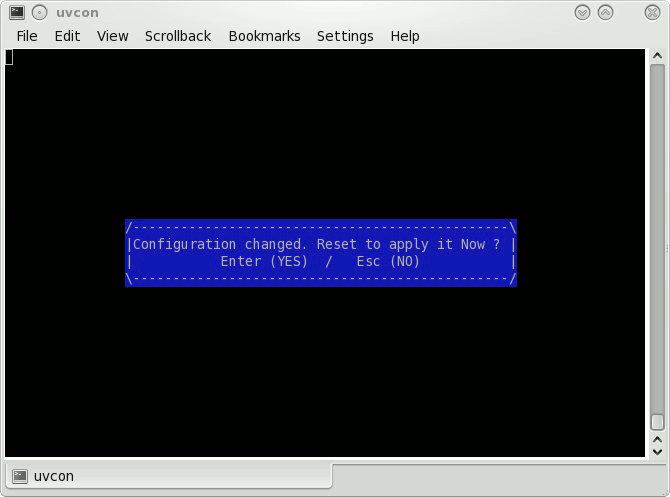
Press the Esc key until the screen shown in Figure 2-8 appears:
Press Enter to confirm your choice, or press Esc to quit without confirming your choice.
Press the space bar to return to the BIOS manager.
For more information about using HT, see the SGI Cpuset Software Guide.
The following procedure explains how to create a message of the day on SGI UV 2000 systems.
Procedure 2-17. To create a message of the day
Type the following command to verify the CMC's firmware version:
> version
Make sure the output indicates that the firmware version is 0.8.0 or higher. Lower firmware versions do not support the ability to create a message of the day.
Type the following command to stop the motd daemon:
> /etc/init.d/S40_gen_motd stop
Type the following command to start the motd daemon:
> /etc/init.d/S40_gen_motd start
Log out of the CMC, and log back in again.
Use a text editor, such as vi(1), to edit file /etc/sysconfig/motd and add the message you want to display.