CXFS supports a client-only node running the Windows operating systems defined in the CXFS Windows release notes. The information in this chapter applies to all of these versions of Windows unless otherwise noted. To perform the procedures in this chapter, you must be logged in as a user with administrator privileges.
This chapter contains the following sections:
This section contains the following information about CXFS on Windows:
In addition to the items listed in “Requirements” in Chapter 1, CXFS requires at least the following, as documented in the CXFS Windows release note:
A supported Windows operating system
One of the following:
An Intel Pentium or compatible processor
Xeon family with Intel Extended Memory 64 Technology (EM64T) processor architecture, or AMD Opteron family, AMD Athlon family, or compatible processor
Minimum RAM requirements (more will improve performance): at least 1 GB of physical RAM
Supported host bus adapter (HBA) and appropriate software

Note: You must install the HBA driver.
The following commands are shipped as part of the CXFS Windows package:
| %windir%\system32\cxfs_client.exe |
| %ProgramFiles%\CXFS\cxfs_info.exe |
| %ProgramFiles%\CXFS\cxfsbmap.exe |
| %ProgramFiles%\CXFS\cxfscp.exe |
| %ProgramFiles%\CXFS\cxfsdump.exe |
| %ProgramFiles%\CXFS\frametest.exe |
| %ProgramFiles%\CXFS\grioadmin.exe |
| %ProgramFiles%\CXFS\griomon.exe |
| %ProgramFiles%\CXFS\grioqos.exe |
| %ProgramFiles%\CXFS\idbg.exe |
| %ProgramFiles%\CXFS\xvm.exe |
Note the following:
A single cxfs_client service and two CXFS filesystem drivers are installed as part of the Windows installation. By default, the cxfs_client service is configured to run the CXFS filesystem drivers automatically when the first user logs into the node.
The command %ProgramFiles%\CXFS\cxfs_info.exe displays the current state of the node in the cluster in a graphical user interface. See “Log Files and Cluster Status for Windows” and “Verifying the Cluster Status” in Chapter 6.
The CXFS software for Windows also includes the grio2lib library.
For information about the GRIO commands, see “Guaranteed-Rate I/O (GRIO) and CXFS” in Chapter 1 and “GRIO on Windows”.
For information about frametest, see the CXFS 7 Administrator Guide for SGI InfiniteStorage.
This section discusses the following:
See also “Tuning the Verbosity of CXFS Messages in the System Event Log for Windows”.
The Windows node will log important events in the system event log. You can view these events by selecting the following:
Start -> Control Panel -> Administrative Tools -> Event Viewer
For information about the log files created on server-capable administration nodes, see the CXFS 7 Administrator Guide for SGI InfiniteStorage. The cxfs_client service will also log important information to the following file:
%ProgramFiles%\CXFS\log\cxfs_client.log |
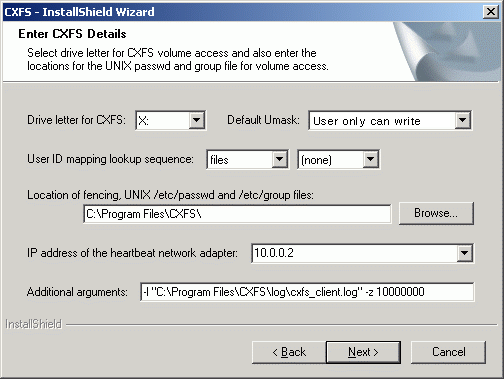
When CXFS is first installed, the log file is automatically rotated when it grows to 10 MB. This is set by the -z option in the cxfs_client service Additional arguments window during installation (see Figure 5-7) and may be adjusted by following the steps described in “Modifying the CXFS Software for Windows”.
You may wish to keep the CXFS Info window open to check the cluster status and view the log file. To open this informational window on any Windows system, select the following:
Start -> Programs -> CXFS -> CXFS Info
The top of CXFS Info window displays the overall state of the cluster environment:
Number of stable nodes
Status of the cms cluster membership daemon
Status of XVM
Status of filesystems
Status of the cluster
Status of the local node
The CXFS Info window provides the following tabs:
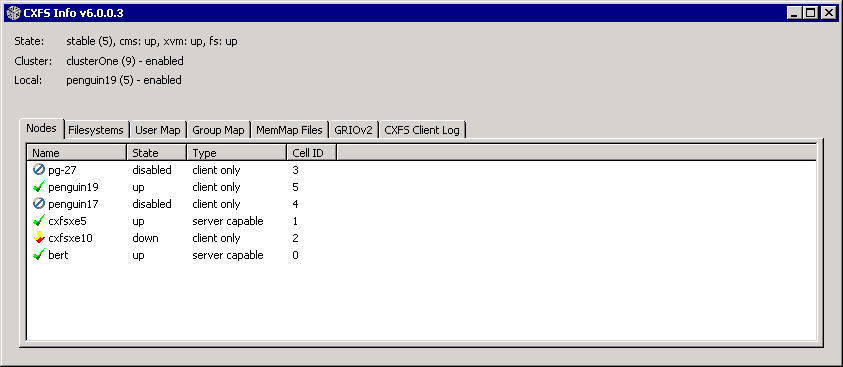
Nodes displays each node in the cluster, its state, and its cell ID number. For more information, see “Verifying the Cluster Status” in Chapter 6.
Figure 5-1 shows an example of the CXFS Info window Nodes tab.
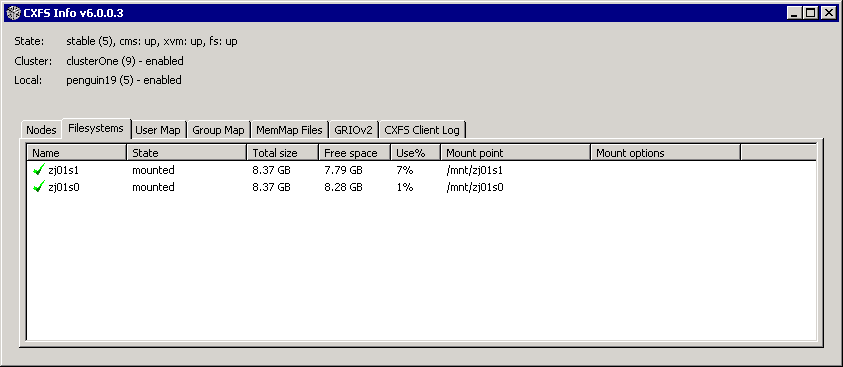
Filesystems displays each CXFS filesystem, its state, size, and other statistics. Figure 5-2 shows an example.
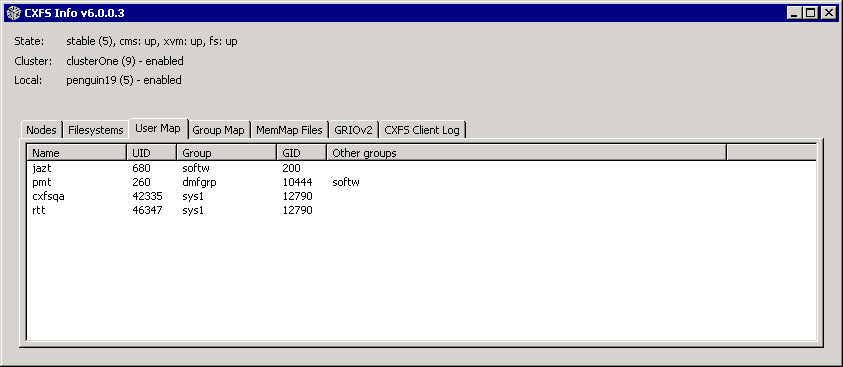
User Map displays the usernames that are mapped to UNIX user identifiers. Figure 5-3 shows an example.
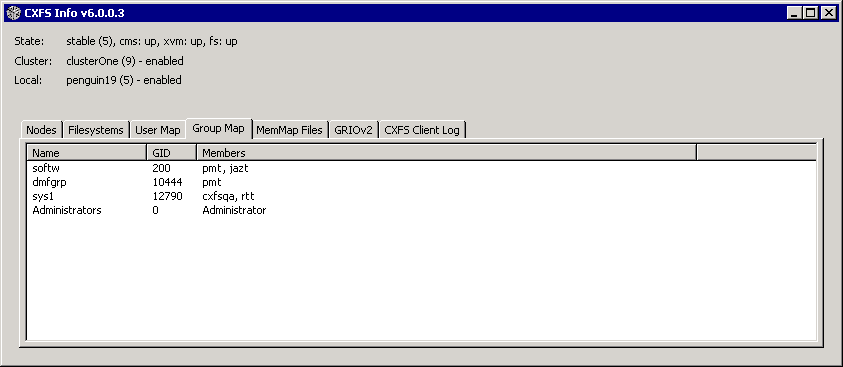
Group Map displays the groups that are mapped to UNIX group identifiers. Figure 5-4 shows an example.
GRIOv2 displays each guaranteed-rate I/O (GRIO) stream, its reservation size, and other statistics. See “GRIO on Windows”.
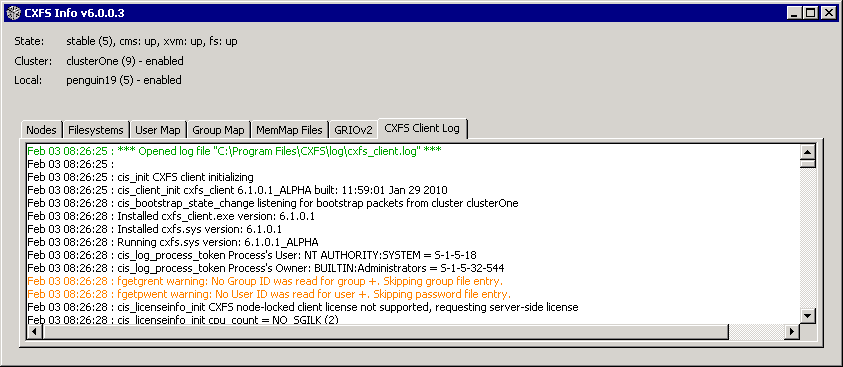
CXFS Client log displays the log since the cxfs_client service last rebooted. It highlights the text in different colors based on the severity of the output:
Red indicates an error, which is a situation that will cause a problem and must be fixed
Orange indicates a warning, which is a situation that might cause a problem and should be examined
Black indicates general log information that can provide a frame of reference
Green indicates good progress in joining membership and mounting filesystems
Figure 5-5 shows an example.
The CXFS Info icon in the task bar will change from green to yellow or red depending on the state of the node in the cluster:
Green indicates that the node is in the membership, everything is fully functional, and all enabled filesystems are mounted
Yellow indicates an in-between state (neither inactive nor stable state)
Red indicates that CXFS is not running (inactive state)
Also see Figure 5-18.
This section contains the following:
See also Appendix B, “Filesystem and Logical Unit Specifications”.
After CXFS is installed on the Windows Vista, Windows Server 2008, or Windows 7 platform, you must not use DiskManager to format the disks that are exported from the RAID.
 | Warning: Using DiskManager to format the disks will destroy the XVM labels and therefore the data on the RAID. To make the XVM volumes functional again, you would have to rebuild the XVM labels. |
This section describes the differences and limitations of a CXFS filesystem on a Windows node from a UNIX perspective:
Windows nodes can support multiple CXFS filesystems mounted under a single drive letter. Only one CXFS drive letter may be configured on a Windows node.
The top-level file structure under the CXFS drive letter consists of an in-memory directory structure that mimics the mount points on the server-capable administration node. The CXFS software creates these directories before mounting the CXFS filesystems. For example, a CXFS filesystem with a mount point of /mnt/cxfs on a CXFS Windows node configured to use drive letter X will create X:\mnt\cxfs during filesystem mount process.
This file structure supports only creating and deleting directories; there is no support for creating and deleting regular files, renaming directories, and so on. Attempts to perform unsupported actions will generally result in an invalid parameter error. You can perform normal filesystem operations on files and directories beneath the mount points, but an application that must write to the directory directly under the CXFS drive letter will fail.
Note: A CXFS mount point or directory beneath a mount point can be mapped to another drive letter by using the subst command from a command shell to which the application can write. See “Application Cannot Create File Under CXFS Drive Letter”. A Windows node can support regular files, directories, and links. However, it does not support other XFS file types.
Symbolic links cannot be distinguished from normal files or directories on a Windows node. Opening a symbolic link will open the target of the link, or will report file not found if it is a dangling link.
By default, copying a symbolic link will result in copying the file or directory that the link refers to, rather than the normal UNIX behavior that copies the link itself. To copy the link itself, you must use the cp -a option.
For example, on a normal Linux platform:
linux# touch file; mkdir dir; ln -sf file file_link; \
ln -sf dir dir_link; cp -a file_link file_link_copy; cp -a dir_link dir_link_copy

linux# file *
dir/:           directory
dir_link:       symbolic link to 'dir'
dir_link_copy:  symbolic link to 'dir'
file:           empty
file_link:      symbolic link to 'file'
file_link_copy: symbolic link to 'file'
On a Windows platform using a cygwin shell:
user@host /cygdrive/x/mnt/lun0
$ touch file; mkdir dir; ln -sf file file_link; ln -sf dir dir_link; \
cp -a file_link file_link_copy; cp -a dir_link dir_link_copy

user@host /cygdrive/x/mnt/lun0
$ file *
dir:                directory
dir_link.lnk:       symbolic link to 'dir'
dir_link_copy.lnk:  MS Windows shortcut
file:               empty
file_link.lnk:      symbolic link to 'file'
file_link_copy.lnk: MS Windows shortcut
This section describes the differences and limitations of a CXFS filesystem on a Windows node in comparison to other Windows filesystems from a Windows perspective:
Avoid using duplicate filenames in the same directory that vary only in case. CXFS is case-sensitive, but some Windows applications may not maintain the case of all filenames, which may result in unexpected behavior.
CXFS software does not export 8.3 alternative filenames. Older Windows applications that only support 8.3 filenames may be unable to open files with longer filenames and may fail with file not found errors.
Avoid using completely uppercase 8.3 filenames. If you use completely uppercase 8.3 filenames, some applications (including Windows Explorer) may incorrectly assume that only 8.3 filenames are supported by the filesystem and will not preserve case.
Install the CXFS software components onto a NTFS partition rather than a FAT partition. The security of the following files cannot be guaranteed if these files are installed onto a FAT filesystem:
%ProgramFiles%\CXFS\passwd
%ProgramFiles%\CXFS\group
There is no recycle bin; deleted files are permanently deleted.
There is no automatic notification of directory changes performed by other nodes in the cluster. Applications (such as Windows Explorer) will not automatically update their display if another node adds or removes files from the directory currently displayed.
A CXFS filesystem cannot be used as the boot partition of a Windows node.
The volume properties window in Windows Explorer for the CXFS drive letter will display the total capacity of all mounted filesystems and the largest free space on any one of those filesystems.
A forced unmount causes all processes that have open files on the specified filesystem to be unconditionally killed and therefore permit the filesystem to be unmounted without delay. SGI recommends that you enable the forced unmount feature on CXFS filesystems. See:
Windows XP and Windows Server 2003 (and therefore CXFS) might not detect any LUNs on a storage device if LUN 0 is not defined on the storage device. This problem may occur when CXFS Info reports that XVM is up, but one or more filesystems are not mounted and CXFS therefore retries the mount continuously. For more information about this issue, see the following (the problem exists for all supported Windows XP and Windows Server 2003 platforms):
You can memory-map a file much larger than 2 GB under Windows, but only up to 2 GB of that file in one or more parts can be mapped into a process at any one time on a 32-bit platform. See the Windows Platform Software Development Kit for more details.
If Norton Ghost is installed on a node, CXFS cannot mount filesystems on the mount-point driver letter. You must uninstall Norton Ghost in order to use CXFS.
Under Windows XP, users may define their own local set of drive letter mappings that can override the global settings for the host. When identifying the filesystem mapped to a drive letter, Windows XP will check the local mappings and may hide CXFS from the user. Users and administrators of CXFS Windows nodes must avoid mapping network and CXFS drives to the same drive letter.
A Windows node running CXFS has the following filesystem limitations:
Does not support shutdown of the cxfs_client service via the device manager. If restarting the cxfs_client service fails to achieve membership, you must reboot the Windows node.
Does not support opportunistic locking, also known as oplocks. Hosts that are using a CXFS Windows node as an SMB server will not be able to cache data locally. The workaround is to use NFS or Samba to export the filesystem on one of the server-capable administration nodes.
Enforces the Windows file sharing options when opening a file on the same node, but does not enforce it on other nodes in the cluster.
Support for unwritten extents is limited on Windows nodes. However, reading and writing unwritten extents will work correctly in the absence of concurrent reading and writing of the same file extent elsewhere in the cluster.
By default, User Account Control is enabled for Windows Vista, Windows Server 2008, and Windows 7, but it is not appropriate for use with CXFS. You must therefore disable user account control. See step 4 in “Client Software Installation for Windows”.
For Windows disks using DDN RAID (versions prior to rm6700), you should set the disk spin-down value so that disks never spin down. (Spinning down a disk could issue a STOP LUN command to the storage.)
On Windows XP and Windows Server 2003, do the following:
Select the following:
Start -> Control Panel -> Power Options
In the Plugged in scheme, select Never for Turn off hard disks .
On Windows Vista and Windows Server 2008, do the following:
Select the following:
Start -> Control Panel -> Power Options
Select the High performance preferred plans.
Click the Change plan settings link.
Click the Change advanced power settings link. This will pop-up the Advanced settings dialog.
Locate the Hard disk entry in the tree and expand it.
Change the Turn off hard disk after : Setting: 20 Minutes setting to Never.
Click OK to save the changes.
On Windows 7, do the following:
Select the following:
Start -> Control Panel -> Power Options
Click the down-arrow on the right side opposite from Show additional plans to reveal the High performance plan.
Select the High performance preferred plans.
Click the Change plan settings link.
Locate the Hard disk entry in the tree and expand it.
Verify that the setting is Turn off hard disk after : Setting: Never.
Click OK to exit and save any changes.
The Windows Time Service is capable of synchronizing with NTP servers, but the default configuration synchronizes only once a week. SGI recommends modifying the default configuration to keep Windows nodes more closely synchronized. See the Microsoft documentation for the Windows Time Service for details, including the following:
When Windows has a file memory mapped, applications such as DMF may hang when trying to access the file because there is no way to force Windows release its file mapping. Using memory-mapped files can be unavoidable because a file can become memory-mapped by many different methods, such as by moving the mouse over the file's icon or viewing the folder that contains the file. Windows does not notify the filesystem that the file is memory-mapped, and Windows will keep a file memory-mapped until it is forced to relinquish the file.
The Windows tuning parameter DisableMemMapCoherency can force Windows to allow the node to return tokens even if the file is memory mapped, but then there is a risk of data corruption. See “Memory-Mapping Coherency for Windows”.
The following are performance considerations on a CXFS Windows node:
Using CIFS to share a CXFS filesystem from a CXFS Windows node to another Windows host is not recommended for the following reasons:
Metadata operations sent to the Windows node must also be sent to the CXFS metadata server causing additional latency
CXFS Windows does not support opportunistic locking, which CIFS uses to improve performance (see “Windows Filesystem Limitations”)
For optimal performance, SGI recommends that you use Samba on the CXFS active metadata server to export CXFS filesystems to other nodes that are not running CXFS.
Windows supplies autonotification APIs for informing applications when files or directories have changed on the local client. With each notification, Windows Explorer will do a full directory lookup. Under CXFS, directory lookups can require multiple RPCs to the server (about 1 per 30 files in the directory), resulting in a linear increase in network traffic. This can grow to megabytes per second for directories with large numbers of files.
For better performance, do one of the following:
Select the destination folder itself
Close the drive tree or mount point folder by clicking on the |+| on the drive icon or mount point folder
If you open the Windows Explorer Properties window on a directory, it will attempt to traverse the filesystem in order to count the number and size of all subdirectories and files; this action is the equivalent of running the UNIX du command. This can be an expensive operation, especially if performed on directories between the drive letter and the mount points, because it will traverse all mounted filesystems.
Virus scanners, Microsoft Find Fast, and similar tools that traverse a filesystem are very expensive on a CXFS filesystem. Such tools should be configured so that they do not automatically traverse the CXFS drive letter.
The mapping from Windows user and group names to UNIX identifiers occurs as the CXFS software starts up. In a Windows domain environment, this process can take a number of seconds per user for usernames that do not have accounts within the domain. If you are using a passwd file for user identification and the file contains a number of unknown users on the Windows node, you should remove users who do not have accounts on the Windows nodes from the passwd file that is installed on the Windows nodes.
This issue has less impact on Windows nodes in a workgroup than on those in a domain because the usernames can be quickly resolved on the node itself, rather than across the network to the domain controller.
With 1-GB fabric to a single RAID controller, it is possible for one 32-bit 33-MHz QLogic card to reach the bandwidth limitations of the fabric, and therefore there will be no benefit from load balancing two HBAs in the same PCI bus. This can be avoided by using 2-GB fabric and/or multiple RAID controllers.
For load balancing of two HBAs to be truly beneficial, the host must have at least one of the following three attributes:
A 64-bit PCI bus
A 66-MHz PCI bus
Multiple PCI buses
Applications running on a Windows node should perform well when their I/O access patterns are similar to those described in the section that discusses when to use CXFS in Chapter 1 of CXFS 7 Administrator Guide for SGI InfiniteStorage.
The maximum I/O size issued by the QLogic HBA to a storage target and the command tag queue length the HBA maintains to each target can be configured in the registry. See “System-Tunable Parameters for Windows”.
The XFS filesystem used by CXFS implements and enforces UNIX mode bits and POSIX access control lists (ACLs), which are quite different from Windows file attributes and access control lists. The CXFS software attempts to map Windows access controls to the UNIX access controls for display and manipulation, but there are a number of features that are not supported (or may result in unexpected behavior) that are described here.
This section contains the following:
The CXFS software supports several user identification mechanisms, which are described in “User Identification Mapping Methods for Windows”. Only Windows user and group names that exactly match entries in the configured user list will be mapped to those user IDs (UIDs) and group IDs (GIDs). Windows users and groups that do not have a match in the mapping list will be mapped to nobody. Users and groups in the mapping list that do not match a Windows user or group are ignored. To avoid confusion and improve performance, you should remove unused users and groups from the mapping list.
The following additional mappings are automatically applied:
User Administrator is mapped to root (UID = 0)
Group Administrators is mapped to sys (GID = 0)
A user's default UNIX GID is the default GID in the passwd listing for the user and is not based on a Windows group mapped to a UNIX group name.
You can display the users and groups that have been successfully mapped by looking at the tables for the User Map and Group Map tabs in the CXFS Info window.
The following sections assume that a CXFS Windows node was configured with the following passwd and group files:
C:\> type %ProgramFiles%\CXFS\passwd root::0:0:Super-User:/root:/bin/tcsh guest::998:998:Guest Account:/usr/people/guest:/bin/csh fred::1040:402:Fred Costello:/users/fred:/bin/tcsh diane::1052:402:Diane Green:/users/diane:/bin/tcsh C:\> type %ProgramFiles%\CXFS\group sys::0:root,bin,sys,adm root::0:root guest:*:998: video::402:fred,diane audio::403:fred |
User identification can be performed by choosing one of the following methods for the User ID mapping lookup sequence item of the Enter CXFS Details window:
files: /etc/passwd and /etc/group files from the metadata server copied onto the clients. The format of the passwd and group files for CXFS Windows is the same as on the metadata server. In the passwd file, only the user name, uid and gid fields are used. In the group file, only the group name, gid, and member list are used. Other fields may be removed to make the file more readable. If you select this method, you must install the passwd and group files immediately after installing the CXFS software, as described in “Performing User Configuration for Windows”.
ldap_activedir: Windows Active Directory server with Services for UNIX (SFU) installed, which uses lightweight directory access protocol (LDAP).
The ldap_activedir method configures the CXFS Windows software to communicate with the Active Directory for the CXFS node's domain. With the Windows Services for UNIX (SFU) extensions, the Active Directory User Manager lets you define UNIX identifiers for each user and export these identifiers as an LDAP database.
Permissions on the Active Directory server must allow Authenticated Users to read the SFU attributes from the server. Depending on the installation and configuration of the server, LDAP clients may or may not be able to access the SFU attributes. For more information, see“cxfs_client Service Cannot Map Users other than Administrator for Windows”.
This configuration requires a domain controller that is installed with the following:
Windows Server 2003 with Active Directory.
Windows Services for UNIX (SFU) version 2 or later with the NFS server component installed. SGI recommends SFU version 3.5.
Note: The domain controller does not have to be a CXFS node. ldap_generic: Generic LDAP lookup for UNIX users and groups from another LDAP server.
The ldap_generic method configures the CXFS software to communicate with an LDAP database that maps user names and group names to UNIX identifiers.
Following is an example of a user record:
# ldap2, people, example.com
dn: uid=ldap2,ou=people,dc=example,dc=com
cn: Ldap Tu User
givenName: Ldap
homeDirectory: /home/ldap2
loginShell: /bin/bash
objectClass: top
objectClass: posixAccount
objectClass: inetOrgPerson
sn: User
uid: ldap2
uidNumber: 1102
gidNumber: 1100
Following is an example of a group record:
# ldapgroup, group, example.com
dn: cn=ldapgroup,ou=group,dc=example,dc=com
cn: ldapgroup
gidNumber: 1100
memberUid: ldap1,ldap2
objectClass: top
objectClass: posixGroup
objectClass: groupOfNames
Note: For the group mapping, you must use memberUid, not member. You should also use the simple uid (such as myname) rather than Descriptive Notation (uid=myname,ou=people,dc=mycompany,dc=com).
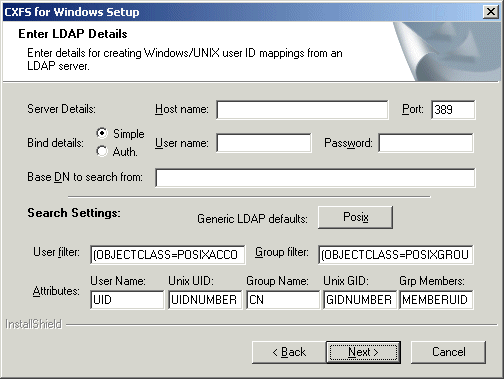
For an example of the window, see Figure 5-7.
You must select one of these as the primary mapping method during installation, but you can change the method at a later time, as described in “Modifying the CXFS Software for Windows”.
Optionally, you can select a secondary mapping method that will be applied to users that are not covered by the first method. If you choose a primary and a secondary mapping method, one of them must be files.
For example, suppose the user has selected ldap_generic as the primary method and files as the secondary method. A user mapping will be created for all suitable ldap_generic users and this mapping will be extended with any additional users found in the secondary method (files). The primary method will be used to resolve any duplicate entries.
Suppose the primary method (ldap_generic) has users for UIDs 1, 2 and 3, and the secondary method (files ) has users for UIDs 2 and 4. The username for UIDs 1, 2 and 3 will be determined by the ldap_generic method and the username for UID 4 will be determined by the files method. If the LDAP lookup failed (such as if the LDAP server was down), a user mapping for UIDs 2 and 4 would be generated using the files method.
The default behavior is to use the files method to map Windows usernames to UNIX UIDs and GIDs, with no secondary method selected.
Regardless of the method used, the consistent mapping of usernames is a requirement to ensure consistent behavior on all CXFS nodes. Most platforms can be configured to use an LDAP database for user identification.
If a file (or a component of the path to the file) has an owner or group that does not exist on the Windows node, Windows may assume that there is a significant security vulnerability and may not allow access to the file or path. This may be true even if the file and every component of the path is world readable/writable.
To avoid this problem, do the following:
Create Windows Users and Groups for every user and group likely to be found on the CXFS filesystems.
Configure CXFS user and group mapping so that the above Windows Users and Groups are mapped to the CXFS users and groups.
Access controls are enforced on the CXFS metadata server by using the mapped UID and GID of the user attempting to access the file. Therefore, a user can expect the same access on a Windows node as any other node in the cluster when mounting a given filesystem. Access is determined using the file's ACL (if one is defined) or by using the file's mode bits.
ACLs that are set on any files or directories are also enforced as they would be on any Linux node. The presentation of ACLs is customized to the interfaces of Windows Explorer, so the enforcement of the ACL may vary from an NTFS ACL that is presented in the same way. A new file will inherit the parent directory default ACL, if one is defined.
The user Administrator has read and write access to all files on a CXFS filesystem, in the same way that root has superuser privileges on a UNIX node.
The following example is a directory listing on the metadata server:
MDS# ls -l drwxr-x--- 2 fred video 6 Nov 20 13:33 dir1 -rw-r----- 1 fred audio 0 Nov 20 12:59 file1 -rw-rw-r-- 1 fred video 0 Nov 20 12:59 file2 |
Users will have the following access to the contents of this directory:
dir1 will be readable, writable, and searchable by user fred and Administrator . It will be readable and searchable by other users in group video, and not accessible by all other users.
file1 will be readable and writable to user fred and Administrator on a CXFS Windows node. It can also be read by other users in group audio. No other users, including diane and guest, will be able to access this file.
file2 will be readable by all users, and writable by user fred, diane (because she is in group video), and Administrator .
File permissions may be viewed and manipulated in two different ways when using Windows Explorer:
By displaying the list of attributes in a detailed directory listing; this is the most limited approach
By selecting properties on a file
The only file attribute that is supported by CXFS is the read-only attribute; other attributes will not be set by CXFS and changes to those attributes will be ignored.
If the user is not permitted to write to the file, the read-only attribute will be set. The owner of the file may change this attribute and modify the mode bits. Other users, including the user Administrator , will receive an error message if they attempt to change this attribute.
Marking a file read-only will remove the write bit from the user, group, and other mode bits on the file. Unsetting the read-only attribute will make the file writable by the owner only.
For example, selecting file properties on file1 using Windows Explorer on a CXFS Windows node will display the read-only attribute unset if logged in as Administrator or fred, and it will be set for diane and guest.
Only user fred will be able to change the attribute on these files, which will change the files under UNIX to the following:
-r--r----- 1 fred audio 0 Nov 20 12:59 file1 -r--r--r-- 1 fred video 0 Nov 20 12:59 file2 |
If fred then unset these flags, only he could write to both files:
-rw-r----- 1 fred audio 0 Nov 20 12:59 file1 -rw-r--r-- 1 fred video 0 Nov 20 12:59 file2 |
By selecting the Security tab in the File Properties window of a file, a user may view and change a file's permissions with a high level of granularity.
Windows Explorer will list the permissions of the file's owner and the file's group. The Everyone group, which represents the mode bits for other users, will also be displayed if other users have any access to the file. Not all Windows permission flags are supported.
The permissions on file1 are displayed as follows:
audio (cxfs1\audio) Allow: Read Fred Costello (cxfs1\fred) Allow: Read, Write |
Using the Advanced button, file1 is displayed as follows:
Allow Fred Costello (cxfs1\fred) Special Allow audio (cxfs1\audio) Read |
User fred is listed as having Special access because the permission flags in the next example do not exactly match the standard Windows permissions for read and write access to a file. Select Fred Costello and then click View/Edit to display the permission flags listed in Table 5-1. (The table displays the permissions in the order in which they appear in the View/Edit window). You can choose to allow or deny each flag, but some flags will be ignored as described in Table 5-1.
Table 5-1. Permission Flags that May Be Edited
Permission | Description |
|---|---|
Traverse Folder / Execute File | Used to display and change the execute mode bit on the file or directory |
List Folder / Read Data | Used to display and change the read mode bit on the file or directory |
Read Attributes | Set if the read mode bit is set; changing this flag has no effect |
Read Extended Attributes | Set if the read mode bit is set; changing this flag has no effect |
Create Files / Write Data | Used to display and change the write mode bit on the file or directory |
Create Folders / Append Data | Set if the write mode bit is set; changing this flag has no effect |
Write Attributes | Set if the write mode bit is set; changing this flag has no effect |
Write Extended Attributes | Set if the write mode bit is set; changing this flag has no effect |
Delete Subfolders and Files | Set for directories if you have write and execute permission on the directory; changing this flag has no effect |
Delete | Never set (because delete depends on the parent directory permissions); changing the flag has no effect |
Read Permissions | Always set; changing the flag has no effect |
Change Permissions | Always set for the owner of the file and the user Administrator; changing this flag has no effect |
Take Ownership | Always set for the owner of the file and the user Administrator; changing this flag has no effect |
The permissions for file2 are displayed as follows:
Everyone Allow: Read video (cxfs1\video) Allow: Read, Write Fred Costello (cxfs1\fred) Allow: Read, Write |
The permissions for dir1 are displayed as follows:
Fred Costello (cxfs1\fred) Allow: Video (cxfs1\video) Allow: |
| Note: In this example, the permission flags for directories do not match any of the standard permission sets, therefore no Allow flags are set. |
In general, you must click the Advanced button to see the actual permissions of directories. For example:
Allow Fred Costello Special This folder only Allow video Read & Execute This folder only |
The dir1 directory does not have a default ACL, so none of these permissions are inherited, as indicated by the This folder only tag, when a new subdirectory or file is created.
If the file or directory has an ACL, the list may include other users and groups, and the CXFS ACL Mask group that represents the Linux ACL mask. See the chacl(1)man page on the server-capable administration node for an explanation of Linux ACLs and the mask bits. The effective permissions of all entries except for the owner will be the intersection of the listed permissions for that user or group and the mask permissions. Therefore, changing the CXFS ACL Mask permissions will set the maximum permissions that other listed users and groups may have. Their access may be further constrained in the specific entries for those users and groups.
By default, files and directories do not have an ACL, only mode bits, but an ACL will be created if changes to the permissions require an ACL to be defined. For example, granting or denying permissions to another user or group will force an ACL to be created. Once an ACL has been created for a file, the file will continue to have an ACL even if the permissions are reduced back to only the owner or group of the file. The chacl(1) command under Linux can be used to remove an ACL from a file.
For example, fred grants diane read access to file1 by adding user diane using the file properties dialogs, and then deselecting Read & Execute so that only Read is selected. The access list now appears as follows:
audio (cxfs1\audio) Allow: Read Diane Green (cxfs1\diane) Allow: Read Fred Costello (cxfs1\fred) Allow: Read, Write |
After clicking OK, the properties for file1 will also include the CXFS ACL Mask displayed as follows:
audio (cxfs1\audio) Allow: Read CXFS ACL Mask (cxfs1\CXFS...) Allow: Read Diane Green (cxfs1\diane) Allow: Read Fred Costello (cxfs1\fred) Allow: Read, Write |
| Note: You should select and deselect entries in the Allow column only, because UNIX ACLs do not have the concept of Deny. Using the Deny column will result in an ACL that allows everything that is not denied, even if it is not specifically selected in the Allow column, which is usually not what the user intended. |
The effective access of user diane and group audio is read-only. Granting write access to user diane as in the following example does not give diane write access because the mask remains read-only. However, because user fred is the owner of the file, the mask does not apply to his access to file1.
For example:
audio (cxfs1\audio) Allow: Read CXFS ACL Mask (cxfs1\CXFS...) Allow: Read Diane Green (cxfs1\diane) Allow: Read, Write Fred Costello (cxfs1\fred) Allow: Read, Write |
If the users and groups listed in a file's permissions (whether mode bits and/or ACL entries) cannot be mapped to users and groups on the Windows node, attempts to display the file permissions in a file properties window will fail with an unknown user or group error. This prevents the display of an incomplete view, which could be misleading.
The owner of the file and users with administrator privileges may change the permissions of a file or directory using Windows Explorer. All other users will get a permission denied error message.
| Note: A user must use a node that is not running Windows to change the ownership of a file because a Windows user takes ownership of a file with Windows Explorer, rather than the owner giving ownership to another user (which is supported by the UNIX access controls). |
When a new file or directory is created, normally the mode bits are set using a umask of 022. Therefore, a new file has a mode of 644 and a new directory of 755, which means that only the user has write access to the file or directory.
You can change this umask during CXFS installation or later by modifying the installation. For more information, see “Client Software Installation for Windows” and “Inheritance and Default ACLs for Windows”.
The four umask options available during installation or modification correspond to the following umask values:
| 000 | Everyone can write |
| 002 | User and group can write |
| 022 | User only can write (default) |
| 222 | Read only (no one can write) |
Therefore, creating a file on a UNIX CXFS client results in a mode of 644 for a umask of 022:
admin% ls -lda . drwxr-xr-x 3 fred video 41 Nov 21 18:01 ./ admin% umask 0022 admin% touch file3 admin% ls -l file3 -rw-r--r-- 1 fred video 0 Nov 21 18:23 file3 |
For more information, see the umask man page on the server-capable administration node.
Creating a file in Windows Explorer on a Windows node will have the same result.
A Linux directory ACL may include a default ACL that is inherited by new files and directories, instead of applying the umask. Default ACLs are displayed in the Windows Explorer file permission window if they have been set on a directory. Unlike a Windows inheritable ACL on an NTFS filesystem, a Linux default ACL applies to both new files and subdirectories; there is no support for an inheritable ACL for new files and another ACL for new subdirectories.
The following example applies an ACL and a default ACL to dir1 and then creates a file and a directory in dir1 :
admin% chacl -b "u::rwx,g::r-x,u:diane:r-x,o::---,m::r-x" \
           "u::rwx,g::r-x,u:diane:rwx,o::---,m::rwx" dir1
admin% touch dir1/newfile
admin% mkdir dir1/newdir
admin% ls -D dir1
newdir [u::rwx,g::r-x,u:diane:rwx,o::---,m::r-x/
        u::rwx,g::r-x,u:diane:rwx,o::---,m::rwx]
newfile [u::rw-,g::r-x,u:diane:rwx,o::---,m::r--] |
The permissions for dir1 will be as follows:
CXFS ACL Mask (cxfs1\CXFS...) Allow: Diane Green (cxfs1\diane) Allow: Fred Costello (cxfs1\fred) Allow: Read & Exec, List, Read, Write Video (cxfs1\video) Allow: Read & Exec, List, Read |
After clicking on Advanced, the permissions displayed are as follows:,
Allow Fred Costello Special This folder, subfolders and files Allow video Read & Execute This folder, subfolders and files Allow Diane Green Read, Write & Exec Subfolders and files Allow CXFS ACL Mask Read, Write & Exec Subfolders and files Allow Diane Green Read & Exec This folder only Allow CXFS ACL Mask Read & Exec This folder only |
If an ACL entry is the same in the default ACL, a single entry is generated for the This folder, subfolders and files entry. Any entries that are different will have both Subfolders and files and This folder only entries.
Adding the first inheritable entry to a directory will cause CXFS to generate any missing ACL entries like the owner, group, and other users. The mode bits for these entries will be generated from the umask.
Adding different Subfolders Only and Files Only entries will result in only the first entry being used because a Linux ACL cannot differentiate between the two.
| Note: SGI recommends that you use XVM failover V2 and disable any failover capability provided by Windows or the HBA. See “Configuring the failover2.conf File for Windows ”. |
The Fibre Channel HBA should be installed according to the HBA vendor's hardware and driver installation instructions.
For information regarding large logical unit (LUN) support under Windows, see the HBA vendor's documentation and Microsoft's support database:
| http://support.microsoft.com/default.aspx?scid=kb;en-us;Q310072 |
| http://support.microsoft.com/default.aspx?scid=kb;en-us;Q245637 |
To confirm that the HBA and driver are correctly installed, select the following to display all of the LUNs visible to the HBA and listed within the Device Manager:
Start -> Control Panel -> Administrative Tools -> Computer Management -> Device Manager -> View -> Devices by connection
The Windows Device Manager hardware tree will differ from one configuration to another, so the actual location of the HBA within the Device Manager may differ. After it is located, any LUNs attached will be listed beneath it.
This section provides an overview of the steps that you or a qualified Windows service representative will perform on your Windows nodes prior to installing the CXFS software. It contains the following:
A private network is required for use with CXFS. See “Use a Private Network” in Chapter 2.
You can confirm that the previous procedures to add private networks were performed correctly by using the ipconfig command in a DOS command shell.
Create a DOS command shell with the following sequence:
Start -> Programs -> Accessories -> Command Prompt
In the following example, the 10 network is the private network and the 192.168.0 network is the public network on a Windows system:
C:\> ipconfig /all
Windows IP Configuration

        Host Name . . . . . . . . . . . . : cxfs1
        Primary Dns Suffix  . . . . . . . : cxfs-domain.sgi.com
        Node Type . . . . . . . . . . . . : Unknown
        IP Routing Enabled. . . . . . . . : No
        WINS Proxy Enabled. . . . . . . . : No
        DNS Suffix Search List. . . . . . : cxfs-domain.sgi.com
                                            sgi.com

Ethernet adapter Public:

        Connection-specific DNS Suffix  . : cxfs-domain.sgi.com
        Description . . . . . . . . . . . : 3Com EtherLink PCI
        Physical Address. . . . . . . . . : 00-01-03-46-2E-09
        Dhcp Enabled. . . . . . . . . . . : No
        IP Address. . . . . . . . . . . . : 192.168.0.101
        Subnet Mask . . . . . . . . . . . : 255.255.255.0
        Default Gateway . . . . . . . . . : 192.168.0.1
        DNS Servers . . . . . . . . . . . : 192.168.0.x

Ethernet adapter Private:

        Connection-specific DNS Suffix  . :
        Description . . . . . . . . . . . : 3Com EtherLink PCI
        Physical Address. . . . . . . . . : 00-B0-D0-31-22-7C
        Dhcp Enabled. . . . . . . . . . . : No
        IP Address. . . . . . . . . . . . : 10.0.0.101
        Subnet Mask . . . . . . . . . . . : 255.255.255.0
Default Gateway . . . . . . . . . : |
The Windows firewall will prevent a CXFS Windows node from achieving membership unless several ports are opened using the following applet:
Start -> Control Panel -> Windows Firewall
In the Exceptions tab, add the following Ports:
| UDP on port 5449 |
| TCP on port 5450 |
| TCP on port 5451 |
| UDP on port 5453 |
Windows copy, Windows Explorer drag-and-drop, and other applications that use small I/O have a high ratio of metadata transfer and can cause the filesystem to become fragmented quickly. Heavy I/O traffic and fragmentation can degrade performance.
To improve the performance of these applications, you can use the xfs_io extsize command after you create a new directory that will contain files written with small I/O; the extsize command causes the filesystem to preallocate the specified disk space when writing files.
For more information, see the section about preallocating space for directories in the “CXFS Best Practices” chapter of the CXFS 7 Administrator Guide for SGI InfiniteStorage and the xfs_io(8) man page.
To install the CXFS client software on a Windows node, do the following:
Read the SGI InfiniteStorage Software Platform release notes CXFS release notes in the /docs directory on the ISSP DVD and any late-breaking caveats on the download page.
Log onto the Windows node as a user with administrator privileges.
Verify that the node has been updated to the correct service pack:
Start -> Programs -> Accessories -> System Tools -> System Information
Note: If you must reinstall the operating system, disconnect the system from the fabric first. (Windows Vista and later) Disable User Account Control (requires administrator privileges). By default, User Account Control is enabled for Windows Vista and later, but it is not appropriate for use with CXFS. Do the following to disable it, according to OS type:
Windows Vista or Windows Server 2008:
Using the User Accounts control panel, click the Turn User Account Control on or off link.
Uncheck the Use User Account Control (UAC) to help protect your computer check box. Press the OK button to confirm your selection.
Reboot the system to apply the changes.
Other Windows operating systems:
Using the User Accounts control panel, select Change User Account Control Settings.
In the User Account Control Settings window, move the slider to the bottom Never notify setting. Click OK.
Reboot the system to apply the changes
Transfer the client software that was downloaded onto a server-capable administration node during its installation procedure using ftp, rcp, or scp . The location of the Windows installation program on the server will be as follows:
/usr/cluster/client-dist/CXFS_VERSION/windows/all/noarch/setup.exe
Double-click the setup.exe installation program to execute it.
Acknowledge the software license agreement when prompted and read the CXFS Windows release notes, which may contain corrections to this guide.
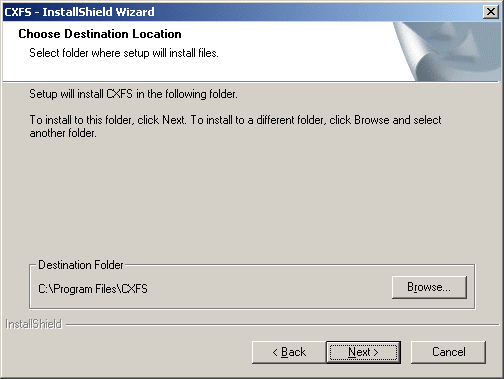
Install the CXFS software, as shown in Figure 5-6. If the software is to be installed in a nondefault directory, click Browse to select another directory. Click Next when finished.
Enter details for the following fields as shown in Figure 5-7 and click Next when finished:
Drive letter for CXFS: specify the drive letter under which all CXFS filesystems will be mounted. You cannot select a drive letter that is currently in use.
Default Umask: choose the default umask. For more information on the umask, see “Inheritance and Default ACLs for Windows”.
User ID mapping lookup sequence: choose the appropriate primary and (optionally) secondary method. See “User Identification Mapping Methods for Windows”.
Location of fencing, UNIX /etc/passwd and /etc/group files: specify the path where the configuration files will be installed and accessed by the CXFS software if required. The default is the same location as the software under %ProgramFiles%\CXFS .
IP address of the heartbeat network adapter: specify the IP address of the private network adapter on the Windows node.
Additional arguments: contains parameters that are used by the cxfs_client service when it starts up. For most configurations, this should be left alone. To get a list of options, type cxfs_client -h in a command shell (cmd) window.
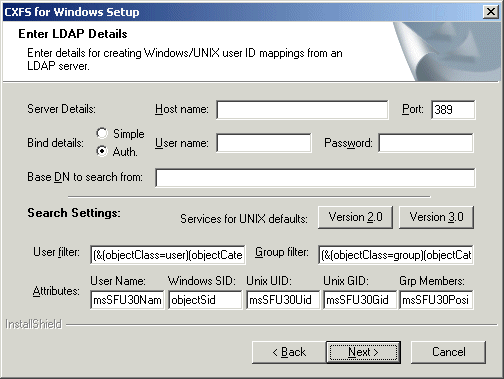
If you select ldap_activedir as the user ID mapping method, the dialog in Figure 5-8 is displayed after you click Next.
If you have a standard Active Directory configuration with Windows Services for UNIX (SFU), you need only to select the version of SFU and Auth (authenticated) for Bind details; doing so will then define the correct Active Directory defaults. The other server details can normally remain blank.
If you select ldap_generic as the user ID mapping method, the dialog in Figure 5-9 is displayed after you click Next . You must provide entries for the Host name and the Base DN to search from fields. For a standard OpenLDAP server, you can select a simple anonymous bind (default settings with the User name and Password fields left blank) and select the standard search settings by clicking Posix.
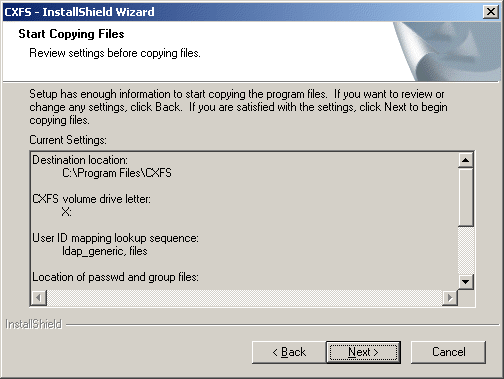
Review the settings, as shown in Figure 5-10. If they appear as you intended, click Next. If you need to make corrections, click Back.
After you click Next, the CXFS software will be installed.
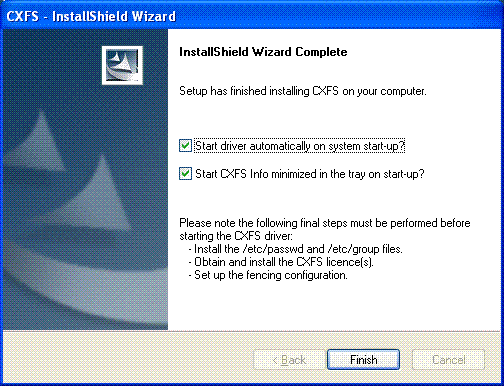
You will be given the option to start the driver at system start-up, as shown in Figure 5-11. By checking the boxes, you will start the driver automatically when the system starts up and invoke the CXFS Info window minimized to an icon. If you choose not to start the cxfs_client service automatically, you must start it manually through the Services control panel before you can access CXFS filesystems. To manually start the CXFS Info window, select the following:
Start -> Programs -> CXFS -> CXFS Info
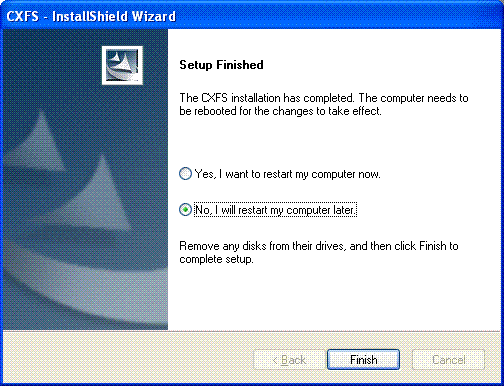
Choose to restart your computer later if you need to install passwd and group files or set up fencing; see “Postinstallation Steps for Windows”. Otherwise, choose to restart your computer now. The default is to restart later, as shown in Figure 5-12. (CXFS will not run until a restart has occurred.)
This section discusses the configuration steps that you should perform after installing CXFS software but before rebooting a Windows node.
The following postinstallation steps are required to ensure the correct operation of the CXFS software:
The permissions on the passwd and group files must restrict access so that only the system administrator can modify these files. This can be done by right-clicking on the filenames in Windows Explorer and selecting the following:
Properties -> Security
Verify that the permissions are Read for Everyone and Full Control for Administrators .
 | Caution: Failure to set permissions on the passwd and group files would allow users to change their UID/GID at will and even gain superuser access to the files on the CXFS filesystem. |
If the user mapping is not correctly configured, all filesystem operations will be as user nobody.
If you selected the passwd and group files user ID mapping method, you must install the passwd and group files. The default passwd and group files that are installed are invalid files containing comments; these invalid files will cause the cxfs_client service to generate warnings in its log file and users may not be correctly configured. You must remove the comments in these files when you install the passwd and group files.
After installing the CXFS software onto the Windows node but before rebooting it, you must install the /etc/passwd and /etc/group files from the metadata server to the location on the Windows node specified during installation.
The defaults are as follows:
/etc/passwd as %ProgramFiles%\CXFS\passwd
/etc/group as %ProgramFiles%\CXFS\group
Do the following:
Verify that permissions are set as described in “Checking Permissions on the Password and Group Files for Windows ”.
If you selected the Active Directory method, you must specify the UNIX identifiers for all users of the CXFS node. On the domain controller, run the following to specify the UNIX UID and GID of a given user:
Start -> Program Files -> Administrative Tools -> Active Directory Users and Computers -> Users
Select a user and then select:
Properties -> UNIX Attributes
The CXFS software will check for changes to the LDAP database every 5 minutes.
After the CXFS software has started, you can use CXFS Info to confirm the user configuration, regardless of the user ID mapping method chosen. See “User Identification for Windows”.
If only the Administrator user is mapped, see “cxfs_client Service Cannot Map Users other than Administrator for Windows”.
This section discusses the following methods for configuring the %ProgramFiles%\CXFS\failover2.conf file for Windows, depending upon the RAID type (of which FC RAID will support persistent device names in XVM):
| Note: This procedure applies only to Fibre Channel RAID, for which XVM can provide persistent device names consisting of the World Wide Port Names (WWPNs) of the HBA and RAID controller and the LUN number. |
To configure the failover2.conf file for Fibre Channel RAID, do the following:
Ensure that the other nodes in the CXFS cluster all have a correct /etc/failover2.conf file.
Note: If there is any doubt that the /etc/failover2.conf is correct on the other nodes, ensure there is no I/O from those nodes while performing this procedure (which could move the paths). After completing the procedure, you must fix the files on the other nodes so that paths have the correct affinity Display the available paths between the Windows client and each LUN by running the following command on the Windows client:
C:\> xvm show -v phys | find "affinity"
For example, paring down the output to just that for LUN 49 ( 49):
C:\> xvm show -v phys  | find "affinity"
21000024FF2468EF-200C00A0B813DF30-49 <dev 3811> affinity=0
21000024FF2468EF-200D00A0B813DF30-49 <dev 2736> affinity=0
21000024FF2468EE-200C00A0B813DF30-49 <dev 1321> affinity=0
21000024FF2468EE-200D00A0B813DF30-49 <dev 246> affinity=0 <current path>
The output has the following format:
clientHBAcontroller-RAIDcontroller-LUNnumber
Therefore, the above shows the following (highlighting the differences):
The local HBA controllers for the Windows client are:
21000024FF2468EF
21000024FF2468EE
The RAID controllers are:
200C00A0B813DF30
200D00A0B813DF30
The LUN is 49
Display the available paths between the CXFS metadata server and each LUN by running the following command on the metadata server:
MDS# xvm show -v phys | find "affinity"
For example, paring down the output to just that for LUN 49:
/dev/disk/by-path/pci-0001:00:02.1-fc-0x200d00a0b813df30-lun-49 <sdjf 8:400> affinity=none <current>
/dev/disk/by-path/pci-0001:00:02.1-fc-0x200c00a0b813df30-lun-49 <sdax 67:16> affinity=none
In this case, the metadata server has just one HBA with only one port:
pci-0001:00:02.1 identifies the HBA port that is on the metadata server.
0x200d00a0b813df30 identifies the WWPN of the RAID controller.
The RAID controllers are 200C 00A0B813DF30 and 200D 00A0B813DF30
Match up the RAID controllers for the Windows client and the metadata server for each LUN.
Note: The metadata server output will use lowercase and the prefix 0x, while the Windows client output will not include the prefix and will use uppercase. For example, for LUN 49, the metadata server RAID controller output of 0x200d00a0b813df30 matches the Windows RAID controller output of 200D00A0B813DF30 seen on the Windows client output.
Generate a preliminary failover2.conf file. As as shortcut, you can use the output from the following command:
C:\> xvm show -v phys | find "affinity" > failover2.conf
Modify the preliminary failover2.conf file you generated in step5 as follows:
For example, using affinity=1 for the “ C” controller:
21000024FF2468EF/200C00A0B813DF30/49 <dev 3811> affinity=1
21000024FF2468EF/200D00A0B813DF30/49 <dev 2736> affinity=2
21000024FF2468EE/200C00A0B813DF30/49 <dev 1321> affinity=1 preferred
21000024FF2468EE/200D00A0B813DF30/49 <dev 246> affinity=2
Copy the failover2.conf file to the CXFS folder (%ProgramFiles%\CXFS\ ).
Run the following xvm commands to read in the new configuration and change to the preferred path:
C:\> xvm foconfig -init
C:\> xvm foswitch -preferred phys
This procedure applies to the following specific RAID platforms and does not use persistent device naming:
| Note: To use persistent device naming in XVM for any of the following that are Fibre Channel RAID, see “FC RAID (Persistent XVM Device Names using WWPNs)”. |
| SGI InfiniteStorage 5500 |
| SGI InfiniteStorage 5000 |
| SGI InfiniteStorage 4600 |
| SGI InfiniteStorage 4500 |
| SGI InfiniteStorage 4100 |
| SGI InfiniteStorage 4000 |
| SGI InfiniteStorage 220 |
| SGI TP9700 |
| SGI TP9500S |
| SGI TP9500 |
| SGI TP9400 |
| SGI TP9300S |
| SGI TP9300 |
| SGI S330 |
To configure the failover2.conf file for the above RAID, do the following:
Ensure that the other nodes in the CXFS cluster all have a correct /etc/failover2.conf file.
Note: If there is any doubt that the /etc/failover2.conf is correct on the other nodes, ensure there is no I/O from those nodes while performing this procedure (which could move the paths). After completing the procedure, you must fix the files on the other nodes so that paths have the correct affinity (QLogic HBA only) If you have a QLogic HBA, do the following:
Run the SanSurfer utility and set the persistent binding to bind the target (node and port's WWN) to the target ID. For more information, see “Mapping XVM Volumes to Storage Targets on Windows”.
Note: You must enable persistent bindings in the QLogic HBA driver for all targets prior to creating the failover2.conf file on the Windows system.
Reboot the Windows node.
On the CXFS metadata server, ensure that each RAID is using the preferred path for the primary controller by running the following command:
MDS# smeecli -n {RAIDnames} -c "reset storagearray volumedistribution;"
Download the Windows build of sg_utils from the following location:
Use the sg_scan.exe command to get the list of disk devices, where PD# is the disk number. For example:
C:\> sg_scan.exe
PD0     [C]     SEAGATE   ST3300657SS       0008  6SJ27FJP0000N147BU83
PD1             SEAGATE   ST3300657SS       0008  6SJ23QGS0000N1477GAT
PD2             SGI       IS400             0770  SV04608276
PD3             SGI       IS400             0770  SV04608276
PD4             SGI       Universal Xport   0770  SV04608276
PD5             SGI       IS400             0770  SV04603232
PD6             SGI       IS400             0770  SV04603232
For example, the above output shows that disks 2, 3, 5, and 6 ( PD2, PD3, PD5, and PD6) are all associated with an SGI RAID product ( IS400). This indicates that there are four paths to two physical volumes.
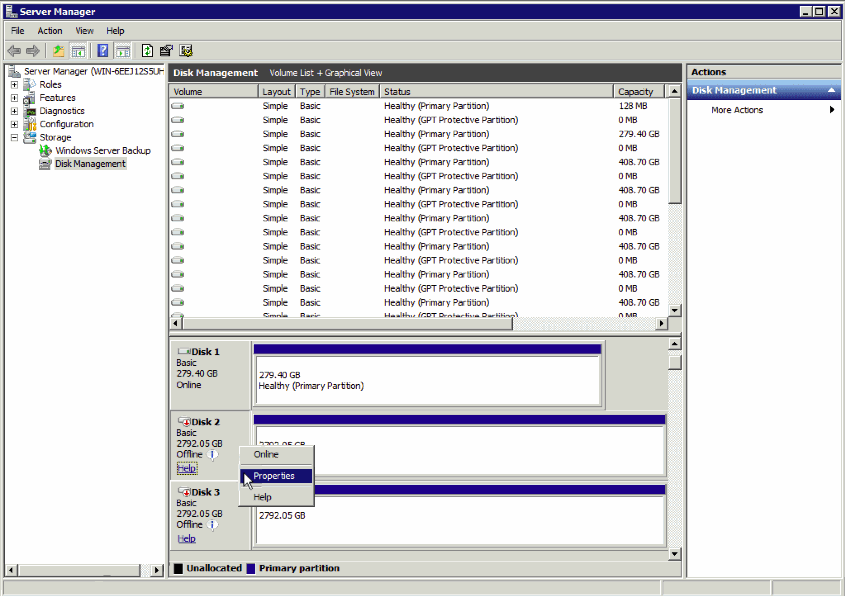
Use the Windows Server Manager to determine the disk properties. Do the following:
Open the Disk Management menu:
Server Manager -> Storage -> Disk Management
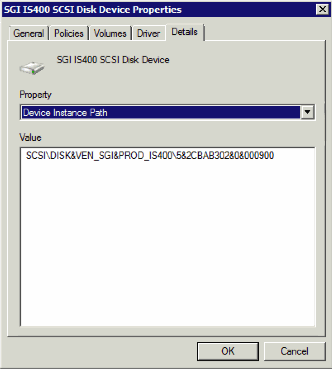
Do the following for each disk that is associated with SGI RAID:
Click Properties. Figure 5-13 shows an example.
Click the Details tab and select the Device Instance Path property, as shown in Figure 5-14.
For example, Figure 5-14 shows that the value for Disk 2 (PD2) is: SCSI\DISK&VEN_SGI&PROD_IS400\5&2CBAB302&0&000900
For the purposes of illustration in steps below, suppose the following additional values:
Disk 3 (PD3): SCSI\DISK&VEN_SGI&PROD_IS400\5&2CBAB302&0&000800 Disk 5 (PD5): SCSI\DISK&VEN_SGI&PROD_IS400\000009 Disk 6 (PD6): SCSI\DISK&VEN_SGI&PROD_IS400\000008
Determine which paths apply for each XVM physical volume (physvol) by using the following command and examining the available paths output:
C:\> xvm show -v phys
For example, highlighting the key lines below available paths:
C:\> xvm show -v phys
XVM physvol phys/is5500-2_zsf9
=========================
size: 3512172544 blocks  sectorsize: 512 bytes  state:
online,cluster,accessible
uuid: 9fd3a466-06c8-4314-aada-9b801fb22aba
system physvol:  no
physical drive:  SCSI\DISK&VEN_SGI&PROD_IS400\5&2CBAB302&0&000900 on host cxfs-uv10
available paths:
                 SCSI\DISK&VEN_SGI&PROD_IS400\5&2CBAB302&0&000900 <dev 106> affinity=0 <current path>
                 SCSI\DISK&VEN_SGI&PROD_IS400\000009 <dev 46> affinity=0
Disk has the following XVM label:
  Clusterid:  0
  Host Name:  myhost
  Disk Name:  is5500-2_zsf9
  Magic:  0x786c6162 (xlab)    Version 2
  Uuid: 9fd3a466-06c8-4314-aada-9b801fb22aba
  last update:    Thu Aug 09 21:33:42 2012
  state: 0xa1<online,cluster,accessible> flags: 0x0<idle>
  secbytes:  512
  label area:  8157 blocks starting at disk block 35 (10 used)
  user area:   3512172544 blocks starting at disk block 8192

Physvol Usage:
Start        Length       Name
---------------------------------------------------
0            3512172544   slice/is5500-2_zsf9s0

XVM physvol phys/is5500-2_zsf10
=========================
size: 3512172544 blocks  sectorsize: 512 bytes  state:
online,cluster,accessible
uuid: 0255793a-b8a4-448a-9ce3-aeb2677a8e37
system physvol:  no
physical drive:  SCSI\DISK&VEN_SGI&PROD_IS400\5&2CBAB302&0&000800 on host cxfs-uv10
available paths:
                 SCSI\DISK&VEN_SGI&PROD_IS400\5&2CBAB302&0&000800 <dev 41> affinity=0 <current path>
                 SCSI\DISK&VEN_SGI&PROD_IS400\000008 <dev 66> affinity=0
Disk has the following XVM label:
  Clusterid:  0
  Host Name:  myhost
  Disk Name:  is5500-2_zsf10
  Magic:  0x786c6162 (xlab)    Version 2
  Uuid: 0255793a-b8a4-448a-9ce3-aeb2677a8e37
  last update:    Thu Aug 09 21:33:42 2012
  state: 0xa1<online,cluster,accessible> flags: 0x0<idle>
  secbytes:  512
  label area:  8157 blocks starting at disk block 35 (10 used)
  user area:   3512172544 blocks starting at disk block 8192

Physvol Usage:
Start        Length       Name
---------------------------------------------------
0            3512172544   slice/is5500-2_zsf10s0
The above output shows that the paths apply as follows:
For physvol is5500-2_zsf9:
SCSI\DISK&VEN_SGI&PROD_IS400\5&2CBAB302&0&000900
SCSI\DISK&VEN_SGI&PROD_IS400\000009
For physvol is5500-2_zsf10:
SCSI\DISK&VEN_SGI&PROD_IS400\5&2CBAB302&0&000800
SCSI\DISK&VEN_SGI&PROD_IS400\000008
Note: By default, XVM assigns a value of affinity=0 to all paths. In the steps below, you will reassign the values so that paths are grouped appropriately. The path labeled as the <current path> is not necessarily the preferred path. For more information, see the sections about affinity and the /etc/failover2.conf file in CXFS 7 Administrator Guide for SGI InfiniteStorage.
Compare the output from steps 6 and 7 to determine which paths correspond to which disks.
For example, the information from the preceding steps shows the following:
Physvol is5500-2_zsf9 uses the paths to disks 2 and 5:
SCSI\DISK&VEN_SGI&PROD_IS400\5&2CBAB302&0&000900
SCSI\DISK&VEN_SGI&PROD_IS400\000009
Physvol is5500-2_zsf10 uses the paths to disks 3 and 6:
SCSI\DISK&VEN_SGI&PROD_IS400\5&2CBAB302&0&000800
SCSI\DISK&VEN_SGI&PROD_IS400\000008
Determine which disk is the primary controller:
Display the available vital product data (VPD) pages and note the number of the volume access control page value for the disk:
C:\> sg_inq.exe -p 0 PD#
For example, the following shows that the volume access control page value for disk 2 (PD2) is 0xc9:
# sg_inq -p 0 PD2
 Only hex output supported. sg_vpd decodes more pages.
VPD INQUIRY, page code=0x00:
   [PQual=0  Peripheral device type: disk]
   Supported VPD pages:
     0x0    Supported VPD pages
     0x80    Unit serial number
     0x83    Device identification
     0x85    Management network addresses
     0x86    Extended INQUIRY data
     0x87    Mode page policy
     0xb1    Block device characteristics (sbc3)
     0xc0    vendor: Firmware numbers (seagate); Unit path report (EMC)
     0xc1    vendor: Date code (seagate)
     0xc2    vendor: Jumper settings (seagate); Software version (RDAC)
     0xc3    vendor: Device behavior (seagate)
     0xc4
     0xc8
     0xc9    Volume Access Control (RDAC)
     0xca
     0xd0
     0xe0
Query the path priority, using the volume access control page value you determined in step 9a:
C:\> sg_inq.exe -p volume_access_control_page PD#
For example, for disks 2, 3, 5, and 6:
C:\> sg_inq.exe -p 0xc9 PD2
VPD INQUIRY: Volume Access Control (RDAC)
  AVT: Enabled
  Volume Access via: primary controller
  Path priority: 1 (preferred path)
C:\> sg_inq.exe -p 0xc9 PD3
VPD INQUIRY: Volume Access Control (RDAC)
  AVT: Enabled
  Volume Access via: primary controller
  Path priority: 1 (preferred path)
C:\> sg_inq.exe -p 0xc9 PD5
VPD INQUIRY: Volume Access Control (RDAC)
  AVT: Enabled
  Volume Access via: alternate controller
  Path priority: 2 (secondary path)
C:\> sg_inq.exe -p 0xc9 PD6
VPD INQUIRY: Volume Access Control (RDAC)
  AVT: Enabled
  Volume Access via: alternate controller
  Path priority: 2 (secondary path)
For example, the preceding steps indicate the following:
Physvol is5500-2_zsf9:
Disk 2 (SCSI\DISK&VEN_SGI&PROD_IS400\5&2CBAB302&0&000900 ) is the primary controller and the preferred path
Disk 5 (SCSI\DISK&VEN_SGI&PROD_IS400\000009 ) is the alternate controller
Physvol is5500-2_zsf10:
Disk 3 (SCSI\DISK&VEN_SGI&PROD_IS400\5&2CBAB302&0&000800 ) is the primary controller and the preferred path
Disk 6 (SCSI\DISK&VEN_SGI&PROD_IS400\000008 ) is the alternate controller
Generate a preliminary failover2.conf file. As as shortcut, you can use the output from the following command:
C:\> xvm show -v phys | find "affinity" > failover2.conf
Modify the failover2.conf file you generated in step 10 as follows according to the results of step 9:
For example:
SCSI\DISK&VEN_SGI&PROD_IS400\5&2CBAB302&0&000900 <dev 106> affinity=1 preferred
SCSI\DISK&VEN_SGI&PROD_IS400\000009 <dev 46> affinity=2
SCSI\DISK&VEN_SGI&PROD_IS400\5&2CBAB302&0&000800  <dev 41> affinity=1 preferred
SCSI\DISK&VEN_SGI&PROD_IS400\000008 <dev 66> affinity=2
Copy the failover2.conf file to the CXFS folder (%ProgramFiles%\CXFS\ ).
Run the following xvm commands to read in the new configuration and change to the preferred path:
C:\> xvm foconfig -init
C:\> xvm foswitch -preferred phys
For more information, see:
The comments in the failover2.conf file
CXFS 7 Administrator Guide for SGI InfiniteStorage
XVM Volume Manager Administrator Guide
| Note: XVM device names will persist for QLogic HBAs only. You can also use this method for ATTO and LSI HBAs, but you may have to modify the failover2.conf file after rebooting. |
Do the following for QLogic HBAs, ATTO HBAs, and LSI HBAs:
Run the SanSurfer utility and set the persistent binding to bind the target (node and port's WWN) to the target ID. For more information, see “Mapping XVM Volumes to Storage Targets on Windows”.
Note: For the failover2.conf file to work properly, persistent bindings must be enabled in the QLogic HBA driver.
Find the WWN of the corresponding port and node (controller) on the storage array. As a result, a target ID corresponds to a controller and a port on the controller.
Note: You must make sure that the failover2.conf setting is consistent across the cluster. In the persistent binding, there are normally the following fields:
Type
Target's node WWN (the controller's WWN)
Target's port WWN (the port on the controller)
A configurable target ID
Note the controller and port to which the target ID corresponds.
Reboot the Windows node.
For example, assume there are two controllers in a storage array. Controller A has a WWN of 200400a0b82925e2; it has two ports connecting to the host or the fabric. Port 1 has a WWN of 201400A0B82925E2, port 2 has a WWN of 202400A0B82925E2 . Controller B has a WWN of 200500a0b82925e2; it also has two ports with WWNs of 201500A0B82925E2 and 202500A0B82925E2, respectively. There are therefore four paths to LUN 0.
The metadata server in this cluster would have entries like the following in its failover2.conf file (where information within angle brackets is an embedded comment):
/dev/xscsi/pci08.03.1/node200500a0b82925e2/port2/lun0/disc affinity=2 /dev/xscsi/pci08.03.1/node200500a0b82925e2/port1/lun0/disc affinity=2 /dev/xscsi/pci08.03.1/node200400a0b82925e2/port2/lun0/disc affinity=1 /dev/xscsi/pci08.03.1/node200400a0b82925e2/port1/lun0/disc affinity=1 preferred <current path> |
In this configuration, controller A (node200400a0b82925e2 ) has an affinity of 1, controller B has an affinity of 2. Controller A's port 1 is the preferred path.
To create the corresponding failover2.conf file on the Windows node, you must first define the persistent-binding targets. Use SANSurfer (for Qlogic HBA) or LSIUtil (for LSI HBA) to define four possible targets:
Binding type World Wide Node Name World Wide port Name Target ID WWN 200500a0b82925e2 202500A0B82925E2 0 WWN 200500a0b82925e2 201500A0B82925E2 1 WWN 200400a0b82925e2 202400A0B82925E2 2 WWN 200400a0b82925e2 201400A0B82925E2 3 |
As a result, target 0 corresponds to the first path on the metadata server. Targets 1, 2 , and 3 correspond to the 2nd, 3rd, and 4th path, respectively. To be consistent, target 2 or 3 (on controller A) should be the preferred path on Windows.
Then you would run the following command:
C:\> xvm show -v phys | find "affinity" > failover2.conf |
Assuming that there are two HBA ports on the Windows node, you would end up with eight paths for the two HBA ports. The failover2.conf file would contain something like the examples shown in the following sections (the format varies by the Windows OS version):
Windows XP SP 2 and Windows Server 2003 R2 SP1 failover2.conf example:
SCSI\DISK&VEN_SGI&PROD_TP9700&REV_0619\5&67032E4&0&030 <dev 321> affinity=0 SCSI\DISK&VEN_SGI&PROD_TP9700&REV_0619\5&67032E4&0&020 <dev 301> affinity=0 SCSI\DISK&VEN_SGI&PROD_TP9700&REV_0619\5&67032E4&0&010 <dev 281> affinity=0 SCSI\DISK&VEN_SGI&PROD_TP9700&REV_0619\5&67032E4&0&000 <dev 261> affinity=0 SCSI\DISK&VEN_SGI&PROD_TP9700&REV_0619\5&1F095A8E&0&030 <dev 236> affinity=0 SCSI\DISK&VEN_SGI&PROD_TP9700&REV_0619\5&1F095A8E&0&020 <dev 216> affinity=0 SCSI\DISK&VEN_SGI&PROD_TP9700&REV_0619\5&1F095A8E&0&010 <dev 196> affinity=0 SCSI\DISK&VEN_SGI&PROD_TP9700&REV_0619\5&1F095A8E&0&000 <dev 176> affinity=0 # # Where # SCSI\DISK&VEN_SGI&PROD_TP9700&REV_0619\5&67032E4&0&030 <dev 321> affinity=0 # ^^^^^^^ ^^^ # | |||-- Lun = 0 # | ||--- Target = 1 (1-2 hex digits) # | |---- Bus ID = 0 # |----------- Host HBA port ID = 67032E4 |
You would set the proper affinity values and add the preferred tag to target 2 or 3:
SCSI\DISK&VEN_SGI&PROD_TP9700&REV_0619\5&67032E4&0&030 <dev 321> affinity=1 preferred SCSI\DISK&VEN_SGI&PROD_TP9700&REV_0619\5&67032E4&0&020 <dev 301> affinity=1 SCSI\DISK&VEN_SGI&PROD_TP9700&REV_0619\5&67032E4&0&010 <dev 281> affinity=2 SCSI\DISK&VEN_SGI&PROD_TP9700&REV_0619\5&67032E4&0&000 <dev 261> affinity=2 SCSI\DISK&VEN_SGI&PROD_TP9700&REV_0619\5&1F095A8E&0&030 <dev 236> affinity=1 SCSI\DISK&VEN_SGI&PROD_TP9700&REV_0619\5&1F095A8E&0&020 <dev 216> affinity=1 preferred SCSI\DISK&VEN_SGI&PROD_TP9700&REV_0619\5&1F095A8E&0&010 <dev 196> affinity=2 SCSI\DISK&VEN_SGI&PROD_TP9700&REV_0619\5&1F095A8E&0&000 <dev 176> affinity=2 |
In this setting, the access to LUN 0 from one HBA (with its ID of 67032E4) goes to controller A, port 1. From another HBA (with ID of 1F095A8E), it goes to controller A, port 2. Controller A (to which targets 2 and 3 belong) has an affinity of 1; controller B has an affinity of 2.
Windows Server 2003 R2 SP2, Windows Vista, and Windows Server 2008 failover2 example:
SCSI\DISK&VEN_SGI&PROD_TP9700&REV_0619\5&67032E4&0&000300 <dev 321> affinity=0 SCSI\DISK&VEN_SGI&PROD_TP9700&REV_0619\5&67032E4&0&000200 <dev 301> affinity=0 SCSI\DISK&VEN_SGI&PROD_TP9700&REV_0619\5&67032E4&0&000100 <dev 281> affinity=0 SCSI\DISK&VEN_SGI&PROD_TP9700&REV_0619\5&67032E4&0&000000 <dev 261> affinity=0 SCSI\DISK&VEN_SGI&PROD_TP9700&REV_0619\5&1F095A8E&0&000300 <dev 236> affinity=0 SCSI\DISK&VEN_SGI&PROD_TP9700&REV_0619\5&1F095A8E&0&000200 <dev 216> affinity=0 SCSI\DISK&VEN_SGI&PROD_TP9700&REV_0619\5&1F095A8E&0&000100 <dev 196> affinity=0 SCSI\DISK&VEN_SGI&PROD_TP9700&REV_0619\5&1F095A8E&0&000000 <dev 176> affinity=0 # # Where # SCSI\DISK&VEN_SGI&PROD_TP9700&REV_0619\5&67032E4&0&00300 <dev 321> affinity=0 # ^^^^^^^ ^^^^^ # | || |- Lun = 0 (2 hex digits) # | ||--- Target = 3 (2 hex digits) # | |---- Bus ID = 0 # |----------- Host HBA port ID = 67032E4 |
You would set the proper affinity values and add the preferred tag to target 2 or 3:
SCSI\DISK&VEN_SGI&PROD_TP9700&REV_0619\5&67032E4&0&000300 <dev 321> affinity=1 preferred SCSI\DISK&VEN_SGI&PROD_TP9700&REV_0619\5&67032E4&0&000200 <dev 301> affinity=1 SCSI\DISK&VEN_SGI&PROD_TP9700&REV_0619\5&67032E4&0&000100 <dev 281> affinity=2 SCSI\DISK&VEN_SGI&PROD_TP9700&REV_0619\5&67032E4&0&000000 <dev 261> affinity=2 SCSI\DISK&VEN_SGI&PROD_TP9700&REV_0619\5&1F095A8E&0&000300 <dev 236> affinity=1 SCSI\DISK&VEN_SGI&PROD_TP9700&REV_0619\5&1F095A8E&0&000200 <dev 216> affinity=1 preferred SCSI\DISK&VEN_SGI&PROD_TP9700&REV_0619\5&1F095A8E&0&000100 <dev 196> affinity=2 SCSI\DISK&VEN_SGI&PROD_TP9700&REV_0619\5&1F095A8E&0&000000 <dev 176> affinity=2 |
In this setting, the access to LUN 0 from one HBA (with its ID of 67032E4) goes to controller A, port 1. From another HBA (with ID of 1F095A8E), it goes to controller A, port 2. Controller A (to which targets 2 and 3 belong) has an affinity of 1; controller B has an affinity of 2.
To convert an existing failover2.conf for Fibre Channel RAID to use persistent pathnames, do the following:
Ensure that the current configuration is loaded into the kernel and uses the preferred physvols:
C:\> xvm foconfig -init
C:\> xvm foswitch -preferred phys
Copy the existing failover2.conf to a new location as a safety measure in case you want to restore it.
Create a new failover2.conf file:
C:\> xvm show -v phys | find "affinity" > failover2.conf
I/O fencing is required on Windows nodes in order to protect data integrity of the filesystems in the cluster. The CXFS client software automatically detects the worldwide port names (WWPNs) of any supported FC HBAs for Windows nodes that are connected to a switch that is configured in the cluster database. These HBAs are available for fencing.
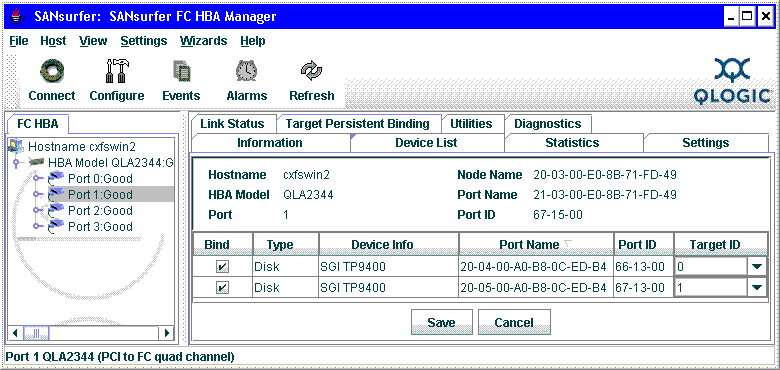
You must configure the HBA on each node to use persistent bindings for all ports used for CXFS filesystems. The method for configuration varies depending on your HBA vendor. For more information, see the following:
Information about binding target devices is in the QLogic SANsurfer help. You must select a port number and then select Bind and the appropriate Target ID for each disk. For example, see Figure 5-15.
Information about persistent bindings is in the LSI Logic MPT Configuration Utility (LSIUtil.exe). LSIUtil is a command line tool. It has a submenu for displaying and changing persistent mapping. Do the following:
Choose the HBA port.
Select e to enable expert mode.
Select 15 to manipulate persistent binding.
Choose one of the following:
2 to automatically add persistent mappings for all targets
3 to automatically add persistent mappings for some targets
6 to manually add persistent mappings
| Note: You should disable any failover functionality provided by the HBA. |
By default, the cxfs_client service is automatically started when a Windows node is rebooted, and it starts the CXFS filesystem drivers. SGI recommends that you do not change this default for a production system.
However, if for testing purposes you want to manually start/stop the service, do the following:
Select the following:
Start -> Control Panel -> Administrative Tools -> Services
Change CXFS Client to manual.
You can then manually start/stop CXFS by using the same selection sequence.
This section contains the following:
Permissions for folders do not appear directly in the Security tab under Permissions for username because permissions are inheritable by default in NTFS but not in CXFS. The following sections discuss how to modify CXFS folder permissions:
For Windows 8, 8.1, Windows Server 2012, and Windows Server 2012 R2, do the following to modify CXFS folder permissions from a Windows client:
Right-click on a folder in Explorer and select Properties.
Navigate to the Security tab.
Click the Advanced button.
In the Permission entries box of the Advanced Security Settings for foldername dialog that appears, select the Principal for which permissions should be changed. Click the Edit button.
In the Permission Entry for foldername dialog that appears, check or uncheck the permissions as desired.
Click OK in the Permission Entry for foldername dialog, the Advanced Security Settings for foldername dialog, and the Properties dialog.
For Windows 7, Windows Vista, Windows 2008, and Windows 2008 R2 do the following to modify CXFS folder permissions from a Windows client:
Right-click on a folder in Explorer and select Properties.
Navigate to the Security tab.
Click the Advanced button.
In the Permission entries box of the Advanced Security Settings for foldername dialog that appears, select the Name for which permissions should be changed. Click the following:
Windows 7 or Windows 2008 R2:
Change -> Edit
Windows Vista and Windows 2008:
Edit -> Edit
In the Permission Entry for foldername dialog that appears, check or uncheck the permissions as desired.
Click OK in the Permission Entry for foldername dialog, the Advanced Security Settings for foldername dialog, and the Properties dialog.
For Windows XP, Windows Server 2003, and Windows Server 2003 R2, do the following to modify CXFS folder permissions from a Windows client:
Right-click on a folder in Explorer and select Properties.
Navigate to the Security tab.
Click the Advanced button.
In the Permission entries box of the Advanced Security Settings for foldername dialog that appears, select the Name for which permissions should be changed. Click the Edit button.
In the Permission Entry for foldername dialog that appears, check or uncheck the permissions as desired.
Click OK in the Permission Entry for foldername dialog, the Advanced Security Settings for foldername dialog, and the Properties dialog.
To change the location of the software and other configuration settings that were requested in “Client Software Installation for Windows”, perform the following steps:
Select the following:
Windows XP and Windows 2003:
Start -> Control Panel -> Add or Remove Programs -> CXFS -> Add/Remove -> Modify
Windows Vista, Windows Server 2008, and Windows 7:
Start -> Control Panel -> Programs and Features -> CXFS -> Change
Figure 5-16 shows the screen that lets you modify the software.
Make the necessary configuration changes.
You can display the list of possible command line arguments supported by the cxfs_client service by running the service from a command line as follows:
C:\> %SystemRoot%\system32\cxfs_client.exe -h
Reboot the system to apply the changes.
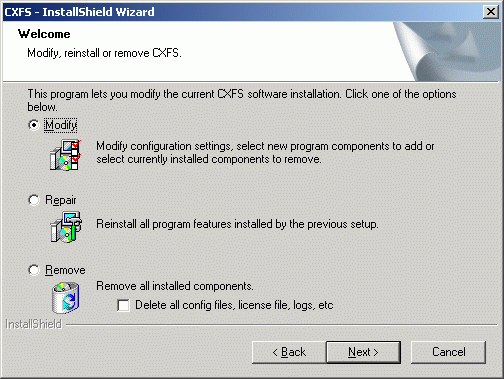
To upgrade the CXFS for Windows software, perform the following steps:
Obtain the CXFS update software according to the directions in the CXFS 7 Administrator Guide for SGI InfiniteStorage and the SGI InfiniteStorage Software Platform release notes.
Transfer the client software (which was downloaded onto a server-capable administration node during its installation procedure) using ftp, rcp, or scp . The location of the Windows installation program will be as follows:
/usr/cluster/client-dist/CXFS_VERSION/windows/all/noarch/setup.exe
Double-click the setup.exe installation program to execute it.
A welcome screen will appear that displays the version you are upgrading from and the version you are upgrading to. Figure 5-17 shows an example of the screen that appears when you are upgrading the software (the actual versions displayed by your system will vary based upon the release that is currently installed and the release that will be installed. All the configuration options are available to update as discussed in “Client Software Installation for Windows”.
Reboot the system to apply the changes.
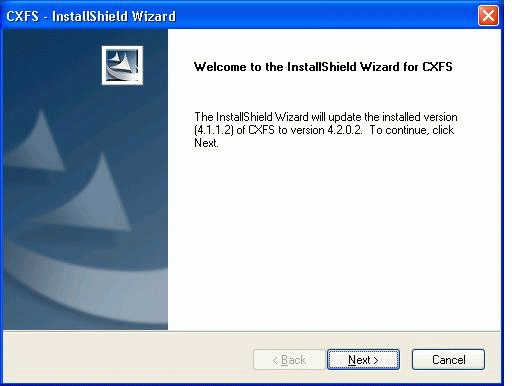
To remove the CXFS for Windows software, do the following:
Ensure that no applications on this node are accessing files on a CXFS filesystem.
Select the following sequence to remove all installed files and registry entries:
Windows XP and Windows 2003:
Start -> Control Panel -> Add or Remove Programs -> CXFS -> Add/Remove -> Remove
Windows Vista, Windows Server 2008, and Windows 7:
Start -> Control Panel -> Programs and Features -> CXFS -> Remove
Figure 5-16 shows the screen that lets you remove the software.
Note: By default, the passwd, group , and log files will not be removed. To remove these other files, check the following box:
Delete all config files, license file, logs, etc
Then click Next.Reboot the system to apply the changes.
To downgrade the CXFS software, do the following:
Back up the configuration file.
Note: The removal process may remove the configuration file. You should back up the configuration file before removing the CXFS software so that you can easily restore it after installing the downgrade. Follow the instructions to remove the software in “Removing the CXFS Software for Windows”.
Install the older version of the software as directed in “Client Software Installation for Windows”.
CXFS supports guaranteed-rate I/O (GRIO) version 2 on the Windows platform if GRIO is enabled on the server-capable administration node.
Figure 5-18 shows an example of the CXFS Info display for GRIO.
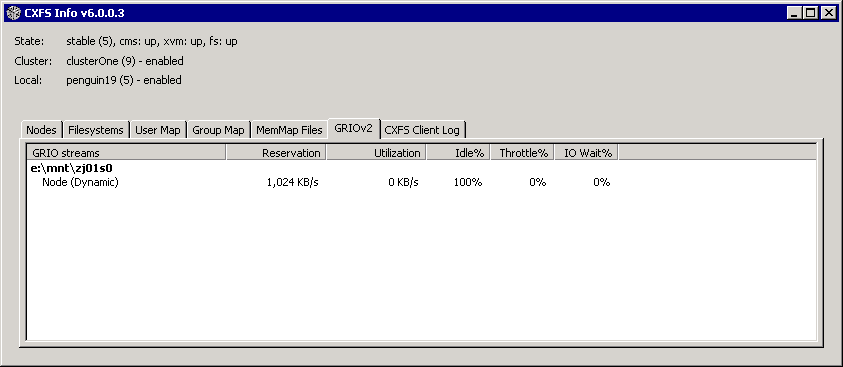
A Windows node can mount a GRIO-managed filesystem and supports application- and node-level reservations. A Windows node will interoperate with the dynamic bandwidth allocator for all I/O outside of any reservation.
For more information, see “Guaranteed-Rate I/O (GRIO) and CXFS” in Chapter 1 and the Guaranteed-Rate I/O Version 2 for Linux Guide.
SGI recommends that you use the same settings for kernel system tunable parameters on all applicable nodes in the cluster.
| Caution: You should only change system tunable parameters if you are fully aware of their consequences or if directed to do so by SGI Support. |
This section discusses the following topics:
| Note: These system tunables are removed when the software is removed. They may need to be reset when downgrading the CXFS for Windows software. |
In order to configure system tuning settings, you must modify the registry using the regedit.exe program to add registry settings. Do the following:
Back up the registry before making any changes.
Open the regedit.exe program.
Add or modify the registry setting with the desired value.
Reboot the system to apply the changes.
| Caution: Only the entries documented here may be changed to modify the behavior of CXFS. All other registry entries for CXFS must not be modified or else the software may no longer function. |
You can specify the level of verbosity for CXFS messages that are logged to the System Event log by changing the following DWORD in the registry to a value that specifies the desired level of verbosity:
HKEY_LOCAL_MACHINE\SYSTEM\CurrentControlSet\Services\CXFS\Parameters\LogVerbosity |
By default, it is set to 4, which is fairly verbose. The higher the number, the more messages that are logged. You can reset the value to one of the following, as appropriate for your site:
| Value | Events Logged |
| 0 | None (disables the logging of all events from the cxfs_client service) |
| 1 | Panic events only |
| 2 | Alert and panic events |
| 3 | Warning, alert, and panic events |
| 4 | Notice, warning, alert, and panic events (default) |
| 5 | Informational, notice, warning, alert, and panic events |
| 6 | Debug, informational, notice, warning, alert, and panic events events |
| Note: If you enter a value that is not in the range 0 through 6, it will be rejected and the cxfs_client service will then use the default value of 4 instead. |
The default umask that is set up during installation can be configured to a value not supported by the installer. Edit the following DWORD in the registry to an appropriate umask:
HKEY_LOCAL_MACHINE\SYSTEM\CurrentControlSet\Services\CXFS\Parameters\DefaultUmask |
| Note: This value specifies the umask in hexadecimal or decimal, not its normal octal representation used on UNIX platforms. |
For more information on the umask, see “Inheritance and Default ACLs for Windows”.
By default, CXFS for Windows breaks down large direct I/O requests into requests no larger than 16 MB. You can change the size of these requests by adding the following DWORD to the registry with a value that specifies the maximum I/O request size in bytes:
HKEY_LOCAL_MACHINE\SYSTEM\CurrentControlSet\Services\CXFS\Parameters\MaxDMASize |
By default, a CXFS Windows node enforces memory-mapping coherency by preventing other clients and the CXFS metadata server access to the file while it is mapped. This can cause problems for some applications that do not expect this behavior.
Microsoft Office applications and Notepad.exe use memory-mapped I/O to read and write files, but use byte-range locks to prevent two people from accessing the same file at the same time. The CXFS behavior causes the second Office application to hang until the file is closed by the first application, without displaying a dialog that the file is in use.
Backup applications that search the filesystem for modified files will stall when they attempt to back up a file that has been memory-mapped on a CXFS Windows node.
You can change the following DWORD in the registry from 0 to 1 to avoid these problems:
HKEY_LOCAL_MACHINE\SYSTEM\CurrentControlSet\Services\CXFS\Parameters\DisableMemMapCoherency |
| Caution: However, if you set DisableMemMapCoherency to 1, CXFS can no longer ensure data coherency if two applications memory-map the same file at the same time on different nodes in the cluster. Use this option with extreme caution with multiple clients concurrently accessing the same files. |
Also see “DMF and Memory-Mapped Files on Windows”.
The Directory Name Lookup Cache (DNLC) in a CXFS Windows node allows repetitive lookups to be performed without going to the metadata server for each component in a file path. This can provide a significant performance boost for applications that perform several opens in a deep directory structure.
The DnlcSize parameter is set to 4096 by default. You can change it to a value from 0 (which disables the DNLC) to 100000 (values outside this range will be reset to 4096). Edit the following DWORD registry value:
HKEY_LOCAL_MACHINE\SYSTEM\CurrentControlSet\Services\CXFS\Parameters\DnlcSize |
| Note: Increasing the DNLC size can have a significant memory impact on the Windows node and the metadata server because they maintain data structures for every actively opened file on the CXFS clients. You should monitor the memory usage on these nodes before and after changing this parameter because placing nodes under memory pressure is counter-productive to increasing the DNLC size. |
By default, byte-range locks across the cluster are advisory locks, which do not prevent a rogue application from reading and writing to locked regions of a file.
| Note: Windows filesystems (NTFS and FAT) implement a mandatory locking system that prevents applications from reading and writing to locked regions of a file. Mandatory locks are enabled within a Windows node. |
To enable mandatory byte-range locks across the cluster, set the following DWORD value to 1:
HKEY_LOCAL_MACHINE\SYSTEM\CurrentControlSet\Services\CXFS\Parameters\ForceMandatoryLocks |
| Note: Setting this parameter will adversely affect performance of applications using these locks. |
User identification maps are updated automatically by the following triggers:
An unmapped user logs into the system
The passwd and/or group file is modified when the primary mapping method is files
An LDAP database change is detected when the primary mapping method is ldap_activedir or ldap_generic
The most common trigger in a typical environment is when an unmapped user logs into the system; the other two triggers are generally static in nature.
Updating the map can be a resource-intensive operation in a domain environment. Therefore, by default, an update is triggered only when an unmapped user logs in and not more often than every 5 minutes.
To configure the minimum update interval, add the following DWORD to the registry with a value that is the minimum time between updates in minutes (minimum allowed time is 1 minute):
HKEY_LOCAL_MACHINE\SYSTEM\CurrentControlSet\Services\CXFS_Client\Parameters\MinMapGenTime |
The maximum size of I/O issued by the QLogic HBA defaults to only 256 KB. Many applications are capable of generating much larger requests, so you may want to increase this I/O size to the HBA's maximum of 1 MB.
To increase the size of the I/O, change the setting of the Device parameter to a value from 16 through 255 (0x10 hexadecimal to 0xFF). A value of 255 (0xFF) enables the maximum 1-MB transfer size. Setting a value higher than 255 results in 64-KB transfers. The default value is 33 (0x21). Edit the following DWORD registry value:
HKEY_LOCAL_MACHINE\SYSTEM\CurrentControlSet\Services\ql2xxx\Parameters\Device |
Command Tag Queueing (CTQ) is used by HBAs to manage the number of outstanding requests each adapter port has to each target. Adjusting this value (up or down) can improve the performance of applications, depending on the number of clients in the cluster and the number of I/O requests they require to meet the required quality of service.
You should only modify this setting for HBA ports that are to be used by CXFS. Do not modify ports used for local storage.
While it is possible to change this value with the volume mounted, I/O will halt momentarily and there may be problems if the node is under a heavy load.
| Note: The Windows HBA may not recognize the CTQ setting placed on the disk by Linux nodes. |
To configure the CTQ, use the management tool provided by the HBA. You may also be able to set the execution throttle in the HBA BIOS during boot-up by pressing a key combination when you see the HBA's BIOS message. You should use an execution throttle value (that is, how many commands will be queued by the HBA) in the range 1 through 256. For more information, see the HBA card and driver documentation.
| Note: Unlike CTQ, you cannot have separate depths per LUN. Execution throttle limits the number of simultaneous requests for all targets in the specified port. |
To change the heartbeat period on the Windows node, set the heartbeat period to the desired value (in seconds). You should only change this value at the recommendation of SGI support. The same value must be used on all nodes in the cluster. Edit the following DWORD registry value:
HKEY_LOCAL_MACHINE\SYSTEM\CurrentControlSet\Services\CXFS\Parameters\HeartBeatPeriod |
For more information, see the section about mtcp_hb_period in the CXFS 7 Administrator Guide for SGI InfiniteStorage.
For Windows Vista and later, you can delay the automatic start of the CXFS client. To enable the delay (assuming that the Start value in the same key is already set to 2, which is the default), add the following DWORD to the registry with a value of 1:
HKEY_LOCAL_MACHINE\SYSTEM\CurrentControlSet\Services\CXFS_Client\DelayedAutoStart |
To disable the delay, set the value to 0 (the default).
To enable the delay using the UI, do the following:
Run services.msc or open the following:
Start -> Control Panel -> System
Maintenance -> Administrative Tools -> Services
Double-click CXFS Client
In the Startup type drop-down, select Automatic (Delayed Start)
Click OK or Apply.
To adjust the time interval before CXFS starts (and any other services with a start type of DelayedAutoStart), add the following DWORD to the registry using a value set to the desired number of seconds (the default is 120):
HKEY_LOCAL_MACHINE\SYSTEM\CurrentControlSet\Control\AutoStartDelay |
This section discusses the following:
Also see:
The Windows cxfsdump documentation located at %ProgramFiles%\CXFS\cxfsdump.html
To verify that the cxfs_client service has started, select the following:
Start -> Control Panel -> Administrative Tools -> Services
If CXFS Info reports that cms is up but XVM or the filesystem is in another state, then one or more mounts is still in the process of mounting or has failed to mount.
The CXFS node might not mount filesystems for many reasons, including the following:
The metadata server is unable to mount the filesystem. In this case, no clients will be able to mount the filesystem.
The metadata server is processing a recovery or relocation that is not progressing. In this case, clients cannot mount the filesystem until that state is cleared. Clearing the state may require you to take action on one or more of the other nodes in the cluster.
The node may not be able to see all the LUNs. This is usually caused by misconfiguration of the HBA or the SAN fabric:
Check that the ports on the Fibre Channel switch connected to the HBA are active. Physically look at the switch to confirm the light next to the port is green, or remotely check by using the switchShow command.
Check that the HBA configuration is correct.
Check that the HBA can see all the LUNs for the filesystems it is mounting.
Check that the operating system kernel can see all the LUN devices. For example:
Start -> Control Panel -> Administrative Tools -> ComputerManagement -> Device Manager -> View -> Devices by connection
Use debugview to monitor the cxfs_client service when it probes the disk devices. You should see it successfully probe each of the LUN devices.
If the RAID device has more than one LUN mapped to different controllers, ensure the node has a Fibre Channel path to all relevant controllers.
The cxfs_client service may not be running. To verify that it is running, open the Task Manager by pressing the Ctrl+Shift+Esc, or right-mouse click an empty area of the taskbar and select Task Manager from the popup menu. In the Processes tab, search for cxfs_client.exe in the Image Name column. You can sort the processes by name by clicking the heading of the column.
The filesystem may have an unsupported mount option. Check the cxfs_client.log for mount option errors or any other errors that are reported when attempting to mount the filesystem.
The cluster membership (cms), XVM, or the filesystems may not be up on the node. Use CXFS Info to determine the current state of cms, XVM, and the filesystems. Do the following:
If cms is not up, check the following:
Is the node is configured on the server-capable administration node with the correct hostname or IP address?
Has the node been added to the cluster and enabled? See “Verifying the Cluster Status” in Chapter 6.
If XVM is not up, check that the HBA is active and can see the LUNs.
If the filesystem is not up, check that one or more filesystems are configured to be mounted on this node and check the CXFS Client Log tab in CXFS Info for mount errors. They will be highlighted.
The LUN may be too large. Windows XP does not support LUNs greater than 2 TB in size. Filesystem corruption will occur if you attempt to write to the LUN above the 2-TB boundary. On a Windows XP node, CXFS will not allow a filesystem to be mounted if any part of it resides on a LUN that is greater than 2-TB in size.
Also, check the CXFS Client Log tab in CXFS Info for mount errors.
If an application reports an access-denied error, do the following:
Check the list of users and groups that CXFS Info has mapped to a UNIX UID and GID. If the current user is not listed as one of those users, check that the user mapping method that was selected is configured correctly, that there is an LDAP server running (if you are using LDAP), and that the user is correctly configured.
Increase the verbosity of output from the cxfs_client service so that it shows each user as it is parsed and mapped.
Use Process Monitor to monitor the application and verify that there is no file that has been created below a mount point under the CXFS drive letter. An error may be caused by attempting to create a file below the drive letter but above the mount point. For more information, see:
http://technet.microsoft.com/en-us/sysinternals/bb896642.aspx
The Windows filesystem APIs are far more extensive than the UNIX POSIX APIs and there are some limitations in mapping the native APIs to POSIX APIs (see “Functional Limitations and Considerations for Windows”). Sometimes these limitations may affect applications, other times the applications that have only ever been tested on NTFS make assumptions about the underlying filesystem without querying the filesystem first.
If an application does not behave as expected, and retrying the same actions on an NTFS filesystem causes it to behave as was expected, then third-party tools like Process Monitor can be used to capture a log of the application when using both NTFS and CXFS. Look for differences in the output and try to determine the action and/or result that is different. Using the same filenames in both places will make this easier. For more information about Process Monitor, see:
http://technet.microsoft.com/en-us/sysinternals/bb896642.aspx
| Note: There are some problems that may not be visible in a Process Monitor log. For example, some older applications use only a 32-bit number when computing filesystem or file size. Such applications may report out of disk space errors when trying to save a file to a large (greater than 1 TB) filesystem. |
A delayed-write error is generated by the Windows kernel when it attempts to write file data that is in the cache and has been written to disk, but the I/O failed. The write call made by the application that wrote the data may have completed successfully some time ago (the application may have even exited by now), so there is no way for the Windows kernel to notify the application that the I/O failed.
This error can occur on a CXFS filesystem if CXFS has lost access to the disk due to the following:
Loss of membership resulting in the Windows node being fenced and the filesystem being unmounted. Check that the Windows node is still in membership and that there are no unmount messages in the cxfs_client.log file.
Loss of Fibre Channel connection to the Fibre Channel switch or RAID. Check the Fibre Channel connections and use the SanManager tool to verify that the HBA can still see all of the LUNs. Make sure the filesystems are still mounted.
The metadata server returned an I/O error. Check the system log on the metadata server for any I/O errors on the filesystem and take corrective action on the server if required.
The following error may be seen when the cxfs_client service attempts to start:
Error 10038: An operation was attempted on something that is not a socket. |
Check the CXFS Client Log in CXFS Info for information on why the CXFS node failed to start.
If the cxfs_client service cannot map any users other than Administrator and there are no LDAP errors in the cxfs_client log file (and you are using LDAP), you must change the configuration to allow reading of the attributes.
Do the following:
Select the following:
Start -> Control Panel -> Administrative Tools -> Active Directory Users and Computers
Select the following:
View -> Advanced Features
Right-mouse click the Users folder under the domain controller you are using and select the following:
Properties -> Security -> Advanced -> Add
Select Authenticated Users from the list and click OK.
Select Child Objects Only from the Apply onto drop-down list and check Read All Properties from the list of permissions.
Click OK to complete the operation.
If the above configuration is too broad security-wise, you can enable the individual attributes for each user to be mapped.
If the CXFS drive letter is visible in Windows Explorer but no filesystems are mounted, do the following:
Run %ProgramFiles%\CXFS\cxfs_info to ensure that the filesystems have been configured for this node.
Verify the filesystems that should be mounted. For more information, see “Mounting Filesystems” in Chapter 6.
Ensure that the CXFS metadata server is up and that the Windows node is in the cluster membership; see “Verifying the Cluster Status” in Chapter 6.
Check that the cxfs_client service has started. See “Start/Stop the cxfs_client Service for Windows ” and “Verification that the CXFS Software is Running Correctly for Windows”.
Check the CXFS Client Log in CXFS Info for warnings and errors regarding mounting filesystems.
Check the cluster configuration to ensure that this node is configured to mount one or more filesystems.
The cxfs_client service creates the following log file:
%ProgramFiles%\CXFS\log\cxfs_client.log
On an upgraded system, this log file may become quite large over a period of time if the verbosity level is increased. (New installations perform automatic log rotation when the file grows to 10 MB.)
To verify that log rotation is enabled, check the Addition arguments by modifying the installation (see “Modifying the CXFS Software for Windows”) and append the following if the -z option is not present:
-z 10000000 |
You must restart the cxfs_client service for the new settings to take effect. See “Start/Stop the cxfs_client Service for Windows ”.
If the CXFS Windows node fails to start and terminates in a blue screen, reboot your computer and select the backup hardware profile with CXFS disabled. Alternatively, pressing L at the Hardware Profile menu will select the last configuration that was successfully started and shut down. If the node has only one hardware profile, press the spacebar after selecting the boot partition to get to the Hardware Profile menu.
A Windows problem may affect Windows CXFS nodes that are performing large asynchronous I/O operations. If the Windows node crashes with a NO_MORE_SYSTEM_PTES message, following these steps may help:
| Caution: You should only try this if you are familiar with editing the registry and the risks involved in making these modifications. Doing so without proper experience may cause damage to your system. The value of SystemPages should only be increased above 110000 after consulting with a Microsoft Technical Support Engineer. |
Edit the following DWORD registry values
Reboot the system to apply the changes.
If an application requires that it be able to create files and/or directories in the root of the CXFS drive, you must create a virtual drive for the system that maps to a mounted filesystem directory.
This can be performed using the subst command from the command prompt. For example, to use the CXFS filesystem X:\mnt\tp9500_0 to the free drive letter V, you would enter the following:
C:\> subst V: X:\mnt\tp9500_0 |
To remove the mapping, run:
C:\> subst V: /D |
Some installation programs are known to use old Windows APIs for file operations so that they work on older versions of Windows. These APIs use 8.3 filenames rather then the full filename, so the installation may fail with file not found or similar errors. In general, SGI recommends that you install software to a local disk and use CXFS filesystems primarily for data storage.
If no WWPNs are detected, there will be messages about loading the HBA/SNIA library logged to the %ProgramFiles%\CXFS\log\cxfs_client.log file.
If no WWPNs are detected, you must manually specify the WWPNs in the fencing file.
| Note: This method does not work if the WWPNs are partially discovered. |
The %ProgramFiles%\CXFS\fencing.conf file enumerates the WWPN for all of the HBAs that will be used to mount a CXFS filesystem. There must be a line for the HBA WWPN as a 64-bit hexadecimal number.
| Note: The WWPN is that of the HBA itself, not any of the devices that are visible to that HBA in the fabric. |
If used, %ProgramFiles%\CXFS\fencing.conf must contain a simple list of WWPNs, one per line. You must update it whenever the HBA configuration changes, including the replacement of an HBA.
This section discusses the following:
Do the following to determine the WWPN for a QLogic switch:
Set up the switch and HBA. See the release notes for supported hardware.
Connect to the switch and log in as user admin. (The password is password by default).
Enter the show topology command to retrieve the WWPN numbers.
For example:
SANbox #> show topology

  Unique ID Key
  -------------
  A = ALPA,  D = Domain ID,  P = Port ID

  Port    Loc   Local                   Rem  Remote                  Unique
  Number  Type  PortWWN                 Type NodeWWN                 ID
  ------  ----  -------                 ---- -------                 ------
  0       F     20:00:00:c0:dd:06:ff:7f N    20:00:00:01:ff:03:05:b2 020000   P
  2       F     20:02:00:c0:dd:06:ff:7f N    20:01:00:e0:8b:32:ba:14 020200   P
  4       F     20:04:00:c0:dd:06:ff:7f N    20:00:00:01:ff:03:05:b2 020400   P
  5       F     20:05:00:c0:dd:06:ff:7f N    20:00:00:e0:8b:0b:81:24 020500   P
  6       F     20:06:00:c0:dd:06:ff:7f N    20:01:00:e0:8b:32:06:c8 020600   P
  8       F     20:08:00:c0:dd:06:ff:7f N    20:00:00:01:ff:03:05:b2 020800   P
  12      F     20:0c:00:c0:dd:06:ff:7f N    20:00:00:01:ff:03:05:b2 020c00   P
  15      F     20:0f:00:c0:dd:06:ff:7f N    20:00:00:e0:8b:10:04:13 020f00   P
  17      E     20:11:00:c0:dd:06:ff:7f E    10:00:00:c0:dd:06:fb:04 1(0x1) D
  19      E     20:13:00:c0:dd:06:ff:7f E    10:00:00:c0:dd:06:fb:04 1(0x1) D
The WWPN is the hexadecimal string in the Remote NodeWWN column are the numbers that you copy for the fencing.conf file. For example, the WWPN for port 0 is 20000001ff0305b2 (you must remove the colons from the WWPN reported in the show topology output in order to produce the string to be used in the fencing file).
Edit or create %ProgramFiles%\CXFS\fencing.conf and add the WWPN for the port. (Comment lines begin with #.)
For dual-ported HBAs, you must include the WWPNs of any ports that are used to access cluster disks. This may result in multiple WWPNs per HBA in the file; the numbers will probably differ by a single digit.
For example, if you determined that port 0 is the port connected to the switch, your fencing file should contain the following:
# WWPN of the HBA installed on this system
#
2000000173002c0b
To enable fencing, see the CXFS 7 Administrator Guide for SGI InfiniteStorage.
Do the following to determine the WWPN for a Brocade switch:
Set up the switch and HBA. See the release notes for supported hardware.
Use the telnet command to connect to the switch and log in as user admin. (The password is password by default).
Execute the switchshow command to display the switches and their WWPN numbers.
For example:
brocade04:admin> switchshow
switchName:     brocade04
switchType:     2.4
switchState:    Online
switchRole:     Principal
switchDomain:   6
switchId:       fffc06
switchWwn:      10:00:00:60:69:12:11:9e
switchBeacon:   OFF
port  0: sw  Online        F-Port  20:00:00:01:73:00:2c:0b
port  1: cu  Online        F-Port  21:00:00:e0:8b:02:36:49
port  2: cu  Online        F-Port  21:00:00:e0:8b:02:12:49
port  3: sw  Online        F-Port  20:00:00:01:73:00:2d:3e
port  4: cu  Online        F-Port  21:00:00:e0:8b:02:18:96
port  5: cu  Online        F-Port  21:00:00:e0:8b:00:90:8e
port  6: sw  Online        F-Port  20:00:00:01:73:00:3b:5f
port  7: sw  Online        F-Port  20:00:00:01:73:00:33:76
port  8: sw  Online        F-Port  21:00:00:e0:8b:01:d2:57
port  9: sw  Online        F-Port  21:00:00:e0:8b:01:0c:57
port 10: sw  Online        F-Port  20:08:00:a0:b8:0c:13:c9
port 11: sw  Online        F-Port  20:0a:00:a0:b8:0c:04:5a
port 12: sw  Online        F-Port  20:0c:00:a0:b8:0c:24:76
port 13: sw  Online        L-Port  1 public
port 14: sw  No_Light
port 15: cu  Online        F-Port  21:00:00:e0:8b:00:42:d8
The WWPN is the hexadecimal string to the right of the port number. For example, the WWPN for port 0 is 2000000173002c0b (you must remove the colons from the WWPN reported in the switchshow output in order to produce the string to be used in the fencing file).
Edit or create %ProgramFiles%\CXFS\fencing.conf and add the WWPN for the port. (Comment lines begin with #.)
For dual-ported HBAs, you must include the WWPNs of any ports that are used to access cluster disks. This may result in multiple WWPNs per HBA in the file; the numbers will probably differ by a single digit.
For example, if you determined that port 0 is the port connected to the switch, your fencing file should contain the following:
# WWPN of the HBA installed on this system
#
2000000173002c0b
To enable fencing, see the CXFS 7 Administrator Guide for SGI InfiniteStorage.
| Note: You may be able to use an HBA vendor-provided utility to determine the WWPN. |
If the Windows client is unable to join the multicast group, it may be that the CXFS client is starting before the network interface has been brought up. In this case, you can delay the automatic start of the CXFS client. See “Delay Automatic Start of the CXFS Client (Windows Vista and Later) ”.
This section discusses problems specific to Windows Vista and Windows Server 2008:
If the Windows Vista, Windows Server 2008, or Windows 7 node hibernates, it will lose membership in the CXFS cluster. Hibernation is turned on by default for Windows Vista, Windows Server 2008, and Windows 7 and must be modified.
Do the following:
Select the following:
Start -> Control Panel -> Power Options
Verify that Put the computer to sleep is set to Never.
Alternatively, you can use the following command:
C:\> powercfg -S SCHEME_MIN |
If the Windows Vista, Windows Server 2008, or Windows 7 node appears to be in membership when the cxfs_info command is run from the node but is not in membership according to administration tools run on a server-capable administration node, it may be that User Account Control is still enabled (it is enabled by default).
User Account Control is not appropriate for use with CXFS, and you must disable it. See step 4 in “Client Software Installation for Windows”.
If you are unable to use the cd command on a Windows Vista, Windows Server 2008, or Windows 7 node for a filesystem that appears to be mounted, it may be that User Account Control is still enabled (it is enabled by default). For example, using a cygwin shell:
user@host /home/user $ cd /cygdrive/x/mnt/stripefs -bash: cd: /cygdrive/x/mnt/stripefs: Input/Output error** |
User Account Control is not appropriate for use with CXFS, and you must disable it. See step 4 in “Client Software Installation for Windows”.
If the installation of the Windows Vista, Windows Server 2008, or Windows 7 operating system seems to take a long time or does not complete, it may be caused by the HBAs or SAN fabric.
To resolve this problem, do the following:
Disconnect the system from the SAN fabric.
Remove the HBAs from the system or disable them in the BIOS.
Install the operating system.
Reinstall or reenable the HBA.
Install CXFS.
Reconnect the SAN fabric.
This section discusses the following:
To report problems about a Windows node, you should retain platform-specific information and save crash dumps.
When reporting a problem about a CXFS Windows node to SGI, run the following:
Start -> Program Files -> CXFS -> CXFS Dump
This will collect the following information:
System information
CXFS registry settings
CXFS client logs
CXFS version information
Network settings
Event log
(optionally) Windows crash dump, as described in “Saving Crash Dumps for Windows”
In the dialog window, you will specify the location of the folder in which the cxfsdump output will be placed. The output will be placed beneath this folder, in a new folder whose name is of the form CxfsDump_date_time , where date is the numeric date (such as 20080925 for September 25, 2008) and time is in military notation to the nearest second (such as 214456 for 9:44pm, 56 seconds).
Inside the CxfsDump_date_ time folder will be a collection of log and txt files. You should compress the folder and files (using zip or tar) and send them to SGI.
The cxfsdump /? command displays a help message.
You should also obtain information about the entire cluster by running the cxfsdump utility on a server-capable administration node. See the information in the CXFS 7 Administrator Guide for SGI InfiniteStorage.
If you are experiencing crashes or if the Windows node hangs, you should configure the Windows node to save crash dumps to a filesystem that is not a CXFS filesystem. This crash dump can then be analyzed by SGI.
Do the following:
Click the right mouse button on the My Computer icon and select the following:
Properties -> Advanced -> Startup and Recovery -> Write debugging information to
Enter a path on a filesystem other than a CXFS filesystem. You may also select a Kernel Memory Dump, which is a smaller dump that typically contains enough information regarding CXFS problems.
Reboot the system to apply the changes.
When a user space application crashes, it will remain in the TaskManager. In the dialog pop up that appears, detailing the crash information, you should right-click the application that caused the crash and select the crash dump option. This will save the dump to the current User directory so that the dump can then be analyzed.
| Note: If you close the dialog without saving, the process will be removed from the TaskManager and the dump information will be lost. |
For more information, see the following Microsoft article:
If user applications on a Windows node are no longer responsive and cannot be killed, you should attempt to generate a crash dump by forcing the node to crash. After configuring the crash dump location (see “Saving Crash Dumps for Windows”), you can modify the registry so that a combination of key strokes will cause the Windows node to crash.
To generate a crash dump, add the following new DWORD to the registry with a value of 1:
USB keyboard:
HKEY_LOCAL_MACHINE\SYSTEM\CurrentControlSet\Services\kbdhid\Parameters\CrashOnCtrlScroll
PS/2 keyboard:
HKEY_LOCAL_MACHINE\SYSTEM\CurrentControlSet\Services\i8042prt\Parameters\CrashOnCtrlScroll
Reboot the system to apply the changes.
To generate a crash on the node after applying these changes, hold the right CTRL key and press SCROLL LOCK twice. See the following for more information: