This chapter contains the following sections:
Figure 7-1 and Figure 7-2 describe an example process of failing over an CXFS NFS edge-serving HA service in a two-node HA cluster using active/active mode.
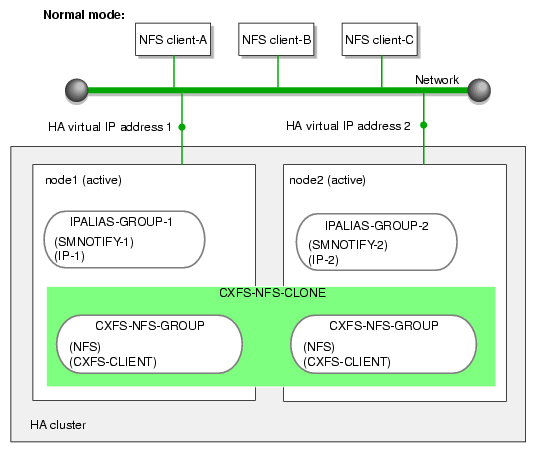
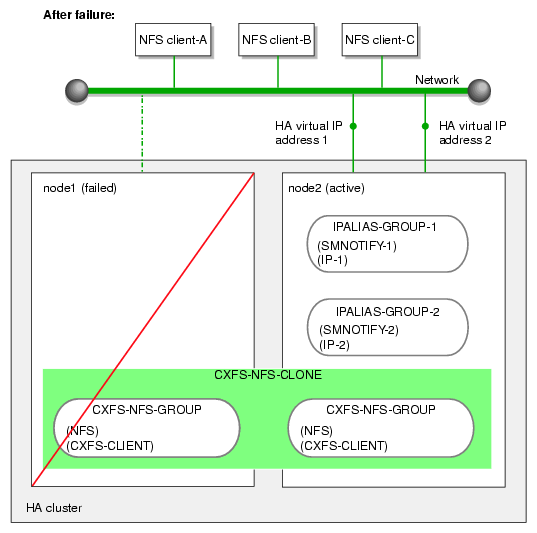
 | Note: In this configuration, each CXFS filesystem is a single point of failure for the HA cluster. Therefore, you may want to consider using a separate HA cluster for each filesystem in order to reduce the possibility of cluster failure while maintaining filesystem bandwidth scalability. However, this also introduces more complexity. |
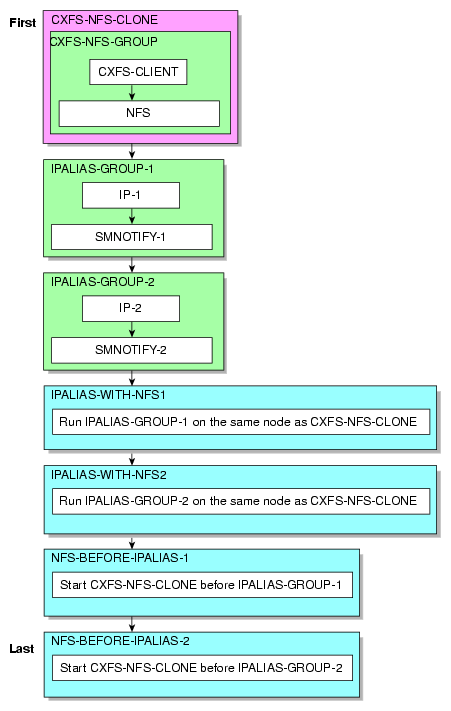
Figure 7-3 shows a map of an example configuration process for CXFS NFS edge-serving in an active/active HA cluster, using the suggested default IDs found in the templates. This map also describes the start/stop order for resources.
| Note: Ensure that you have set up the HA cluster as instructed in Chapter 6, “Create the Base HA Cluster”. |
This section discusses the following steps:
On both RHEL nodes, ensure that NFS lock services are started at boot time:
rhel# chkconfig nfslock on |
Copy the /etc/exports entries that you would like to make highly available from node1 to the /etc/exports file on node2.
| Note: Be sure to include the fsid=uniquenumber export option in order to prevent stale file handles after failover. All matching exports should have the same fsid=uniquenumber value on all CXFS NFS edge-serving nodes. |
Use the templates in /usr/share/doc/sgi-ha/templates as building blocks. The instructions in this chapter assume that you use the instance names provided in the templates (such as IP instance name for the IPaddr2 resource type), except as noted; see “Conventions for Resource Instance IDs” in Chapter 2.
Do the following:
Copy the contents of the cxfs-nfs-clone template into a new partial configuration file (referred to as workfile). See “cxfs-nfs-clone Template” in Chapter 11.
Copy the primitive text from the cxfs-client template into workfile and replace the site-specific variables as directed in the template comments or in “cxfs-client Template” in Chapter 11.
Copy the primitive text from the cxfs-client-nfsserver template into workfile and replace the site-specific variables as directed in the template comments or in “cxfs-client-nfsserver Template” in Chapter 11.
Verify that the timeout values are appropriate for your site.
Verify that there are no comments in workfile.
Save workfile.
Update the database:
node1# crm configure load update workfile
Note: As a best practice, you should also run the following command to verify changes you make to the CIB node1# crm_verify -LV
For simplicity, this step is not included in the following procedures but is recommended. For more information, see “Use the crm_verify Command to Verify Configuration ” in Chapter 2.
Do the following to test the clone:
Start the clone. For example:
node1# crm resource start CXFS-NFS-CLONE
Confirm that the clone has started. For example:
View the status of the cluster on node1. For example (truncated):
node1# crm status
...
2 Nodes configured, 2 expected votes
4 Resources configured.

Online: [ node1 node2 ]

 Clone Set: CXFS-NFS-CLONE [CXFS-NFS-GROUP]
     Started: [ node1 node2 ]
Verify that the cxfs_client process is running on node1:
node1# ps -ef | grep cxfs_client
root  11575     1  0 10:32 ?      00:00:00 /usr/cluster/bin/cxfs_client -p /var/run/cxfs_client.pid -i TEST
root  12237  7593  0 10:34 pts/1  00:00:00 grep --color -d skip cxfs_client
Also execute the command on node2.
View the status of the NFS daemons on node1.
RHEL:
NFS v3 and NFS v4:
node1# service nfs status
rpc.svcgssd is stopped
rpc.mountd is stopped
nfsd is stopped
rpc.rquotad is stopped
Note: The pid numbers vary with each restart. For NFS v4, the idmapd services is also started (but is not reported in the output).
SLES:
NFS v3:
node1# service nfsserver status
Checking for kernel based NFS server: mountd running
  statd running
  nfsd running
NFS v4:
node1# service nfsserver status
Checking for kernel based NFS server: idmapd running
  mountd running
  statd running
  nfsd running
Note: Although the mountd and statd daemons only apply to SLES NFS v3, they are started on SLES NFS v4 as well.
Also execute the command on node2.
Set node2 to standby state to ensure that the resources remain on node1 :
node1# crm node standby node2
Confirm that node2 is offline and that the resources are off:
View the status of the cluster on node1, which should show that node2 is in standby state:
node1# crm status
...
2 Nodes configured, 2 expected votes
4 Resources configured.

Node node2: standby
Online: [ node1 ]

  Clone Set: CXFS-NFS-CLONE [CXFS-NFS-GROUP]
      Started: [ node1 ]
      Stopped: [ CXFS-NFS-GROUP:1 ]
Verify that the cxfs_client process is not running on node2 by executing the ps(1) command on node2 (there should be no output):
node2# ps -ef | grep cxfs_client
node2#
(SLES only) View the status of the NFS daemons on node2, which should show for SLES that statd is dead and nfsd is unused:
SLES NFS v3:
node2# service nfsserver status
Checking for kernel based NFS server: mountd     unused
 statd                                           dead
 nfsd                                            unused
SLES NFS v4:
node2# service nfsserver status
Checking for kernel based NFS server: idmapd     running
 mountd                                          unused
 statd                                           dead
 nfsd                                            unused
Note: Although the mountd and statd daemons only apply only to SLES NFS v3, they are started on SLES NFS v4 as well.
Return node2 to online status:
node1# crm node online node2
Confirm that the clone has returned to normal status, as described in step 2.
Do the following:
Create a group resource in another workfile for the first set of IPaddr2 and cxfs-client-smnotify resources:
group IPALIAS-GROUP-1 IP-1 SMNOTIFY-1 \
        meta target-role="Stopped"

colocation IPALIAS-WITH-NFS-1 inf: IPALIAS-GROUP-1 CXFS-NFS-CLONE
order NFS-BEFORE-IPALIAS-1 inf: CXFS-NFS-CLONE IPALIAS-GROUP-1
For more information, see “ipalias-group Template” in Chapter 11.
Copy the primitive text from the IPaddr2 template into workfile and replace the site-specific variables as directed in the template comments or in “IPaddr2 Template” in Chapter 11. Use a unique primitive ID, such as IP-1.
Copy the primitive text from the cxfs-client-smnotify template into workfile and replace the site-specific variables as directed in the template comments or in “cxfs-client-smnotify Template” in Chapter 11. Use a unique primitive ID, such as SMNOTIFY-1 .
Save workfile.
Update the database:
node1# crm configure load update workfile
Create a second group resource in another workfile for the second set of IPaddr2 and cxfs-client-smnotify resources:
group IPALIAS-GROUP-2 IP-2 SMNOTIFY-2 \
        meta target-role="Stopped"

colocation IPALIAS-WITH-NFS-2 inf: IPALIAS-GROUP-2 CXFS-NFS-CLONE
order NFS-BEFORE-IPALIAS-2 inf: CXFS-NFS-CLONE IPALIAS-GROUP-2
Copy the primitive text from the IPaddr2 template into workfile and replace the site-specific variables as directed in the template comments or in “IPaddr2 Template” in Chapter 11. Use a unique primitive ID, such as IP-2.
Copy the primitive text from the cxfs-client-smnotify template into workfile and replace the site-specific variables as directed in the template comments or in “cxfs-client-smnotify Template” in Chapter 11. Use a unique primitive ID, such as SMNOTIFY-2.
Verify that the timeout values are appropriate for your site.
Verify that there are no comments in workfile.
Save workfile.
Update the database:
node1# crm configure load update workfile
To test each IP address alias group, do the following:
Start the group. For example, to start IPALIAS-GROUP-1:
node1# crm resource start IPALIAS-GROUP-1
Test the IP address alias resource within the group:
Verify that the IP address is configured correctly on node1:
node1# ip -o addr show | grep 128.162.244.240
4: eth2    inet 128.162.244.240/24 brd 128.162.244.255 scope global secondary eth2
Verify that node2 does not accept the IP address packets. For example, run the following command on node2 (the output should be 0):
node2# ip -o addr show | grep -c 128.162.244.240
0
Connect to the virtual address using ssh or telnet and verify that the IP address is being served by the correct system. For example, for the IP address 128.162.244.240 and the machine named node1:
nfsclient# ssh [email protected]
Last login: Mon Jul 14 10:34:58 2008 from mynode.mycompany.com
node1# uname -n
node1
Move the resource group containing the IPaddr2 resource from node1 to node2:
node1# crm resource move IPALIAS-GROUP-1 node2
Verify the status:
node1# crm status
...
2 Nodes configured, 2 expected votes
8 Resources configured.

Online: [ node1 node2 ]

  Clone Set: CXFS-NFS-CLONE [CXFS-NFS-GROUP]
      Started: [ node1 node2 ]
  Resource Group: IPALIAS-GROUP-1
      IP-1    (ocf::heartbeat:IPaddr2):       Started node2
      SMNOTIFY-1      (ocf::sgi:cxfs-client-smnotify):        Started node2
Verify that the IP address is configured correctly on node2:
node2# ip -o addr show | grep 128.162.244.240
4: eth2    inet 128.162.244.240/24 brd 128.162.244.255 scope global secondary eth2
Verify that node1 does not accept the IP address packets by running the following command on node1 (the output should be 0):
node1# ip -o addr show | grep -c 128.162.244.240
0
Connect to the virtual address using ssh or telnet and verify that the IP address is being served by the correct system. For example, for the IP address 128.162.244.240 and the machine named node2:
nfsclient# ssh [email protected]
Last login: Mon Jul 14 10:34:58 2008 from mynode.mycompany.com

node2# uname -n
node2
Move the resource group containing the IPaddr2 resource back to node1 :
node1# crm resource move IPALIAS-GROUP-1 node1
Verify the status:
node1# crm status
...
2 Nodes configured, 2 expected votes
8 Resources configured.

Online: [ node1 node2 ]

  Clone Set: CXFS-NFS-CLONE [CXFS-NFS-GROUP]
      Started: [ node1 node2 ]
  Resource Group: IPALIAS-GROUP-1
      IP-1    (ocf::heartbeat:IPaddr2):       Started node1
      SMNOTIFY-1      (ocf::sgi:cxfs-client-smnotify):        Started node1
Remove the implicit location constraints imposed by the administrative move command above:
node1# crm resource unmove IPALIAS-GROUP-1
Repeat steps 1 and 2 for the other group, such as IPALIAS-GROUP-2.
Test a Linux NFS client NSM notification resource within the group:
Note: The procedures to test a Mac OS X or Windows CXFS NFS will be different. On a system that is outside the HA cluster (for example, a system namednfsclient), mount the filesystem via the IP address alias hostname values specified in the cxfs-client-smnotify resources (such as hostalias1 and hostalias2, which are not the physical hostnames). For example:
nfsclient:~ # mount hostalias1://mnt/nfsexportedfilesystem /hostalias1
nfsclient:~ # mount hostalias2://mnt/nfsexportedfilesystem /hostalias2
For more information, see “cxfs-client-smnotify Template” in Chapter 11
Turn on Network Lock Manager debugging on the NFS client:
nfsclient:~ # echo 65534 > /proc/sys/sunrpc/nlm_debug
Acquire locks:
nfsclient:/ipalias1 # touch file
nfsclient:/ipalias1 # flock -x file -c "sleep 1000000" &
nfsclient:/ipalias2 # touch file2
nfsclient:/ipalias2 # flock -x file2 -c "sleep 1000000" &
(NFSv3 only) Check in the shared sm-notify statedir directory on the NFS server for resources node1 and node2 to ensure that a file has been created by statd . The name should be the hostname of the node on which you have taken the locks.
If the file is not present, it indicates a misconfiguration of name resolution. Ensure that fully qualified domain name entries for each NFS client are present in /etc/hosts on each NFS server. (If the /etc/hosts file is not present, NSM reboot notification will not be sent to the client and locks will not be reclaimed.)
On the NFS clients, ensure that the /var/lib/nfs/sm file contains the fully qualified domain name of each server from which you have requested locks. If this file is not present, NSM reboot notification will be rejected by the client. (The client must mount the node that uses the IP address specified by the ipalias value, such as node1, by hostname and not by the IP address in order for this to work.)
Put node1 into standby state:
node1# crm node standby node1
Verify that both of the IP address aliases are now on node2:
node2# ip addr
(NFS v3 only) Verify that the log files (see “Examine Log Files” in Chapter 2) on the NFS client (nfsclient) contains a message about reclaiming locks for the hostname for every ipalias value on which you have taken locks via NFS. (The two statd processes for the HA cluster share the same state directory, specified by the statedir parameter. NSM reboot notification will be sent to clients for all IP address aliases in the cluster, so you will see messages for all IP address aliases that have been mounted by the client.) For example:
Jul 30 13:40:46 nfsclient kernel: NLM: done reclaiming locks for host node2
Jul 30 13:40:49 nfsclient kernel: NLM: done reclaiming locks for host node1
Make node1 active again:
node1# crm node online node1
Test the other group.
Use the status command to confirm the resulting HA cluster:
node1# crm status
...
2 Nodes configured, 2 expected votes
10 Resources configured.

Online: [ node1 node2 ]

  Clone Set: CXFS-NFS-CLONE [CXFS-NFS-GROUP]
      Started: [ node1 node2 ]
  Resource Group: IPALIAS-GROUP-1
      IP-1      (ocf::heartbeat:IPaddr2):       Started node1
      SMNOTIFY-1        (ocf::sgi:cxfs-client-smnotify):        Started node1
  Resource Group: IPALIAS-GROUP-2
      IP-2      (ocf::heartbeat:IPaddr2):       Started node2
      SMNOTIFY-2        (ocf::sgi:cxfs-client-smnotify):        Started node2
  STONITH-NODE1 (stonith:external/ipmi):        Started node2
STONITH-NODE2 (stonith:external/ipmi): Started node1 |
| Note: It does not matter whether IPALIAS-GROUP-1 runs on node1 or node2. The important thing is that during normal operation (before failover), IPALIAS-GROUP-1 and IPALIAS-GROUP-2 run on different nodes |
See Chapter 10, “Put the HA Cluster Into Production Mode” to complete the process.