This chapter provides an overview of SGI® DMF tiered-storage virtualization software. It discusses the following:
DMF software transparently moves file data from high-performance but expensive disk to levels of decreased-performance but inexpensive media known as secondary storage. This lets you cost-effectively maintain a seemingly infinite amount of data without sacrificing accessibility for users.
This section discusses the following features of DMF software:
A managed filesystem is an XFS or CXFS filesystem mounted with the Data Management Application Programming Interface (DMAPI) enabled and for which DMF software can migrate and/or recall migrated data. DMF software continuously monitors managed filesystems on high-performance disk so that it can maintain a certain amount of free space in those filesystems. This free space permits the creation of new files and the recall of previously migrated files. Figure 1-1 describes the concept of the DMF migration cycle between the managed filesystem and the secondary storage.
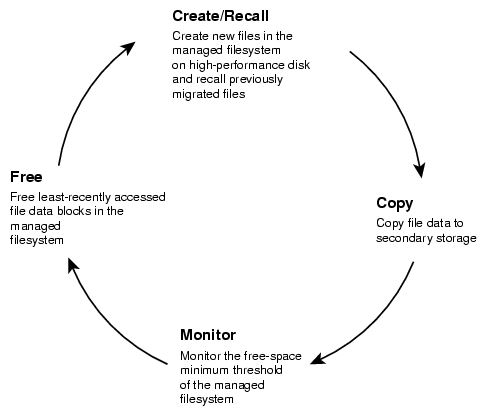
DMF software automatically detects a drop below the free-space threshold. DMF software then transparently moves file data from the managed filesystem to the secondary storage by freeing the data blocks of files that have already been migrated. File migration occurs in two stages:
Stage One: A file's data is copied (migrated ) to secondary storage.
Stage Two: After the copy is secure, the file is eligible to have its data blocks released. This occurs only after a minimum free-space threshold is reached or when a manual request to free a file's disk blocks is made via the dmput -r command. DMF software choses file data to free according to site-defined policies involving size and access time.
For example, Figure 1-2 shows a configuration where DMF software will free the data blocks of less-recently accessed files (such as represented by the letter “A”) to empty the managed filesystem well below the threshold as new files are added or as previously migrated files (such as represented by the letters “B” and “E”) are recalled. Despite the movement of data, all content is accessible all of the time.
 | Note: When configured according to best practices, DMF software makes two copies of migrated data for safety reasons. Data will be recalled from a second copy only if necessary. For simplicity, Figure 1-2 does not show the second copy of file data. |
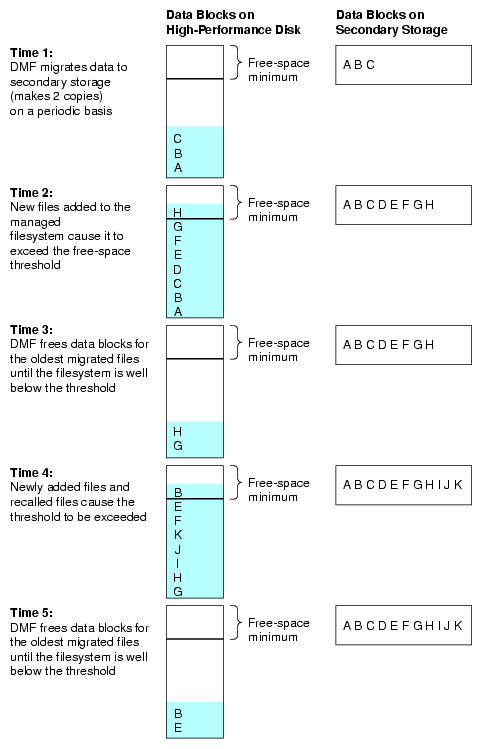
In general, only the most timely data resides on the higher-performance disk; DMF software automatically migrates less timely data to secondary storage. However, all of the data always appears to be online to users and applications using normal access methods, regardless of the data's actual location.
Although DMF software moves file data, it leaves file metadata in place so that users can access files without knowing the actual location of the data. Metadata consists of items such as index nodes (inodes) and directory structure. Migrated files appear as normal files to users and are always easily accessible via high-performance network connections.
Because migrated files remain cataloged in their original directories, users and applications never need to know where the data actually resides; they can access any migrated file using normal processes. In fact, when drilling into directories or listing their contents using standard POSIX-compliant commands, a user cannot determine the location of file data within the storage tier; determining the data's actual residence requires special commands or command options.
A file whose data blocks have been freed is considered from the DMF software perspective to be offline and its data blocks are therefore available for new active data, either new files or recalled files. However, from the user perspective , the file always appears to be online because the inodes and directories remain in the managed filesystem, allowing users to access the file by normal means.
The only difference users might notice when accessing a file whose data blocks have been freed is a delay in response time, because the data must be retrieved from secondary storage. From the user's perspective, all data always appears to be available online, regardless of its actual location.
Managed files can have multiple distinct file regions with different residency states. A region is a contiguous range of bytes that have the same residency state. A file that has more than one region is called a partial-state file. A file that is in a static state (that is, not currently being migrated or unmigrated) can have one region that is online in the managed filesystem for immediate access and another region that is offline and must be recalled in order to be accessed.
Partial-state files provide the following capabilities:
Accelerated access to first byte, which allows you to access the beginning of an offline file before the entire file has been recalled.
Partial-state file online retention, which allows you to keep a specific region of a file online while freeing the rest of it (for example, if you wanted to keep just the beginning of a file online). See “ranges Clause” in Chapter 7.
Partial-state file recall, which allows you to recall a specific region of a file without recalling the entire file. For more information, see the dmput(1) and dmget(1) man pages.
For additional details, see:
DMF software transports large volumes of data on behalf of many users and has evolved to satisfy customer requirements for scalability and the safety of data:
When you configure the DMF environment using best practices, DMF software creates at least two secondary-storage copies of the data in order to prevent file data loss in the event that a migrated copy is lost. See “Ensuring Data Integrity”.
Because system interrupts and occasional storage device failures cannot be avoided, it is essential that the integrity of data be verifiable. Therefore, DMF software also provides tools necessary to validate your storage environment. See “Commands Overview”.
DMF with the Parallel Data-Mover Option (referred to as Parallel DMF) lets you scale the DMF I/O capacity in cost-effective increments. A data mover is a node running processes that migrate and recall data to secondary storage. In the basic DMF product, the DMF server incorporates the functionality of an integrated data-mover node. Parallel DMF allows the DMF system to reside on a single server and minimizes the cost of a DMF implementation. For users with higher throughput requirements, this option allows multiple data movers to operate in parallel, increasing data throughput and enhancing resiliency. The parallel data-mover node's dedicated function is to move data to and from secondary storage. See “Parallel DMF Overview”.
As a DMF administrator, you determine how disk space capacity is handled by doing the following:
Selecting the filesystems that DMF software will manage
Specifying the amount of free space that will be maintained on each filesystem
Ranking file-selection criteria, such as file size and file age
DMF software selects files for migration and frees data blocks of already migrated files based on site-defined criteria that are specified in a migration policy. For example, a migration policy does the following:
Makes the specified number of copies of migrated data. DMF software places those copies on separate secondary-storage targets. SGI strongly recommends that you create at least two secondary-storage copies in order to prevent file data loss in the event that one copy is damaged.
Migrates the data at the times specified or when the specified free-space minimum threshold is exceeded.
Optionally keeps a small amount of data in the managed filesystem for each file, even after migration (for use by file managers, in order to avoid unnecessary recall of a file due to directory browsing).
Maintains a specified percentage of the managed filesystem free for new data (either new files or recalled files). When the filesystem reaches this threshold, DMF software will free the already-migrated data blocks until the specified percentage of the filesystem is free, normally selecting files by size and last-access time.
DMF software can migrate data to the following media:
Cloud storage
Fibre Channel tapes and tape libraries that are supported by the OpenVault or TMF mounting services
SCSI low-voltage differential (LVD) tapes and tape libraries
Disk
-
COPAN massive array of idle disks (MAID)
SGI 400 virtual tape library (VTL)
Another server (via NFS or FTP)
You can also use disk or COPAN RAID sets as a cache in conjunction with another migration target to provide multiple levels of migration; see “Multiple Storage Tiers”.
DMF software supports a range of storage-management applications. In some environments, DMF software is used strictly to manage highly stressed online disk resources. In other environments, it is also used as an organizational tool for safely managing large amounts of data. In all environments, DMF software scales to the storage application and to the characteristics of the available storage devices.
DMF software interoperates with the following:
By combining these services with DMF software, you can configure an SGI system as a high-performance fileserver.
DMF software provides a set of graphical and command-line tools to help you configure, monitor, and manage the DMF system. DMF Manager is a web-based tool you can use to do the following:
Configure the DMF environment
Install DMF licenses
Display status of the DMF environment
Display reports about internal DMF processing queues, allowing you to cancel and reprioritize specific requests
Start and stop DMF processes
Deal with day-to-day DMF operational issues
Display performance metrics, including filesystem throughput and volume usage
Create custom statistics reports
Accommodate tape volumes that are physically not in the tape library
Show SGI Linear Tape File System (LTFS) information, configure LTFS, and mount/unmount LTFS tapes
Restore filesystems and filesystem components
For details, see:
Also see:
DMF Manager is useful for all DMF customers from enterprise to high-performance computing and is available via the Firefox® and Internet Explorer® web browsers.
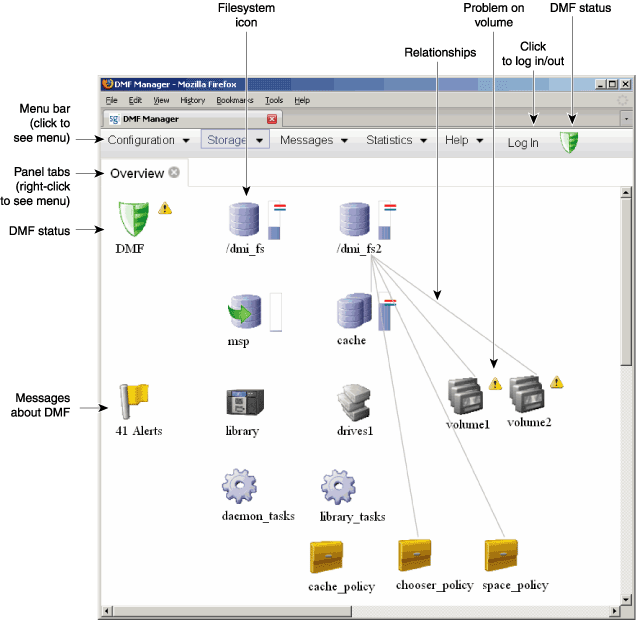
At a glance, you can see if the DMF environment is operating properly. An icon in the upper-right corner indicates if the DMF environment is up (green) or down (upside down and red). If something requires, DMF Manager makes actions available to identify and resolve problems. The tool volunteers information and provides context-sensitive online help. DMF Manager also displays performance statistics, allowing you to monitor DMF activity, filesystems, and hardware.
Figure 1-3 is an example of the Overview panel. It shows status of the DMF environment, including the following:
The DMF environment is up (green icon)
There are some warnings that may require action (yellow icon)
The /dmi_fs2 filesystem is related to the volume1 and volume2 volume groups (VGs)
This section discusses the following:
The DMF client for Windows systems lets users and administrators control DMF via file shares configured on the Samba server. The Samba server must have SGI enhanced Samba installed, and may be either the DMF server or a CXFS client-only node.
Using Windows Explorer, you can do the following for files on which you have the appropriate permission, depending upon site-specific configuration:
See DMF 6 Client Guide for Windows Systems.
Several DMF user commands are available natively on DMF clients running any of the following operating systems (see the DMF release notes for the specific versions that are supported):
For more details, see “User Commands”.
You can run DMF software in a high-availability (HA) cluster.
 | Caution: This will require some configuration requirements and administrative procedures (such as starting/stopping DMF services) that differ from the information in this DMF guide. For more information about DMF and HA, see High Availability Guide for SGI InfiniteStorage. |
DMF software provides access to a subset of the DMF client functions via the DMF Simple Object Access Protocol (SOAP) web service. For more information, see Chapter 16, “DMF SOAP Server”.
You can use the direct archiving feature to manually copy file data between a POSIX filesystem (such as a Lustre™ filesystem) directly to DMF secondary storage by configuring the POSIX filesystem for archive use in the DMF configuration file and using the dmarchive(1) command. The POSIX filesystem cannot be DMAPI-enabled (that is, it cannot be mounted with the dmi mount option) and is known as an archive filesystem. When using this feature, DMF software copies the file data to DMF secondary storage while placing the metadata in a filesystem that is managed by DMF. See “Use dmarchive to Copy Archive File Data to Secondary Storage” in Chapter 3.
When you purchase DMF software, you also receive the following mounting services:
OpenVault storage library management facility, applicable to SLES or RHEL. See OpenVault Administrator Guide for SGI InfiniteStorage.
Tape Management Facility (TMF), applicable to SLES only. See TMF 6 Administrator Guide for SGI InfiniteStorage.
When OpenVault is the mounting service, DMF software will try to retrieve data from an in-library volume before requesting that an out-of-library tape be imported. See “Using Out-of-Library Tapes” in Chapter 5.
This section discusses the following:
DMF software uses the following terminology with regard to the state of a file in a managed filesystem:
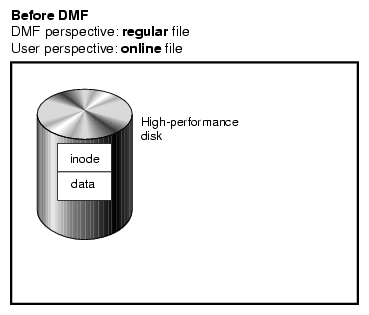
Regular file (REG) is a file residing only on the high-performance disk in the managed filesystem.
Migrating file (MIG) is a file whose copies on secondary storage are in progress.
Migrated file is a file that has one or more complete copies on secondary storage and no pending or incomplete offline copies. A migrated file is one of the following from the perspective of DMF software:
Dual-state file (DUL) is a file whose data resides both on the high-performance disk and on secondary storage
Offline file ( OFL) is a file whose data is no longer on the high-performance disk (the data is offline from the DMF perspective, but from the user perspective the data always appears to be available online)
Unmigrating file (UNM) is a previously offline file in the process of being recalled to the high-performance disk
Partial-state file (PAR) is a file with some combination of dual-state, offline, and/or unmigrating regions
When a file is first migrated, DMF software copies the data to secondary storage but may not immediately free the data in the managed filesystem on the high-performance disk. During this period, the file is considered to be dual-state because it resides in both locations. Like a regular file, a migrated file has an inode. An offline file or a partial-state file requires the intervention of the DMF daemon to access its offline data; a dual-state file is accessed directly from the original that still exists in the managed filesystem.
The operating system informs the DMF daemon when a migrated file is modified. If anything is written to a migrated file, the offline copy is no longer valid, and the file becomes a regular file until it is migrated again.
If you are using DMF direct archiving to copy files from a filesystem that is not managed, archiving files are files where the original resides on an archive filesystem (one not managed by DMF software, such as Lustre) and whose offline copies are in progress. When the process completes, the files are offline files.
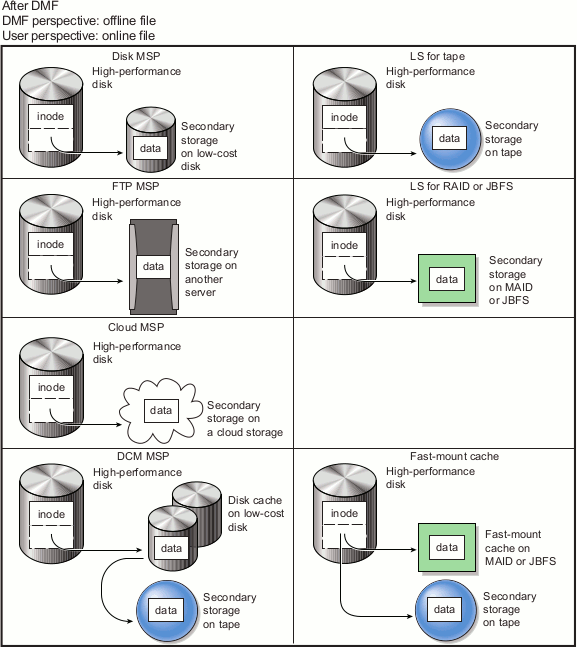
The migration process is managed by a daemon-like component called a library server (LS) or media-specific process (MSP):
LS (dmatls) transfers data to and from the following types of volumes:
Magnetic tape in a tape library (also known as a robotic library or silo)
RAID sets in a COPAN MAID system[1]
Virtual tapes in an SGI 400 VTL system
JBFS configurations
Cloud MSP (dmcloudmsp ) transfers data to and from a cloud storage system accessible via a network (local or Internet).
FTP MSP (dmftpmsp ) uses the File Transfer Protocol to transfer data to and from disks of another system on the network.
Disk MSP (dmdskmsp ) uses a filesystem mounted on the DMF server itself as the location on which to store/recall file data. See “Use an Appropriate Filesystem for a Disk MSP” in Chapter 3.
Disk cache manager (DCM) MSP is the disk MSP configured for n-tier capability by using a dedicated filesystem as a cache. DMF software can manage the disk MSP's storage filesystem and further migrate it to secondary storage, thereby using a slower and less-expensive dedicated filesystem as a cache to improve the performance when recalling files. DCM MSP configuration generally first migrates data to cache on (for example) serial ATA (SATA) disk and then at a later time migrates the data from the SATA disk to secondary-storage on physical tape. The filesystem used by the DCM MSP must be a local XFS or CXFS filesystem.
Fast-mount cache configuration is a special configuration of an LS volume group that simultaneously migrates data to a copy on the cache target (such as COPAN MAID or JBFS configurations) with rapid mount and positioning characteristics and to secondary-storage copies on the other targets (such as physical tape). This configuration provides similar functionality to a DCM MSP but does not downwardly migrate data from the cache tier; in this configuration, an entire volume on the cache can be freed immediately when the fullness threshold is reached. See “Fast-Mount Cache Configuration Overview”.
A site can use any combination of DMF methods.
Figure 1-4 and Figure 1-5 summarize these concepts and “Multiple Storage Tiers” provides more details and illustrations.
The various DMF methods provide multiple storage tiers:
The figures in the following subsections show the use of multiple tiers and the concepts of DMF data migration (in which file data is copied from the managed filesystem to the secondary storage, but the inode remains in place in the managed filesystem) and data recall.
| Note: For simplicity, the figures in this chapter do not address a second copy of secondary storage. Data will be recalled from a second copy only if necessary. |
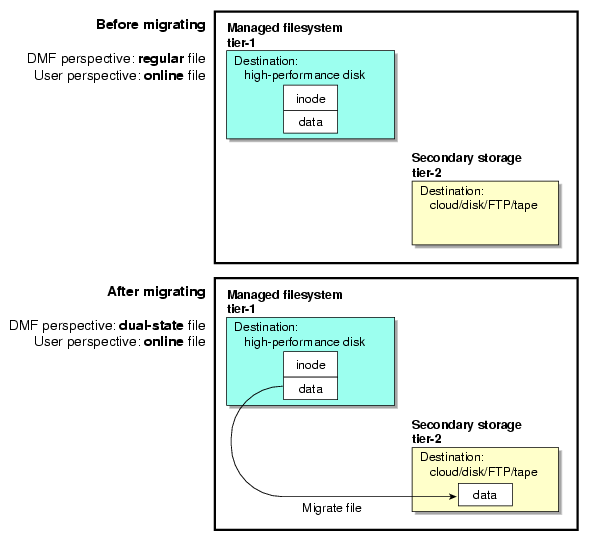
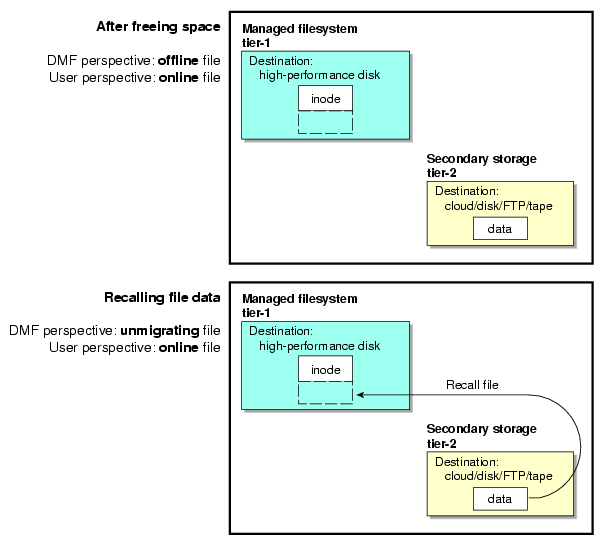
LS and non-cache MSPs (cloud MSP, disk MSP, or FTP MSP) provide two tiers of storage media:
Tier-1: Managed filesystem on high-performance disk
Tier-2: Secondary storage on cloud storage, disk (including COPAN MAID, COPAN VTL, and JBFS configurations), FTP server, or tape
Figure 1-6 and Figure 1-7 show an example of the process using two tiers.
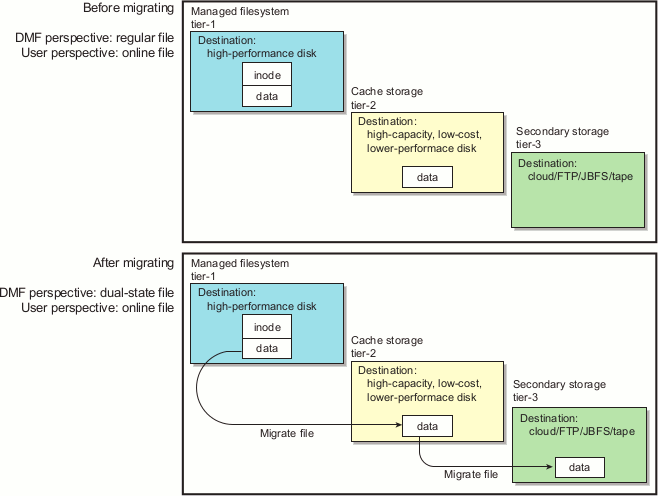
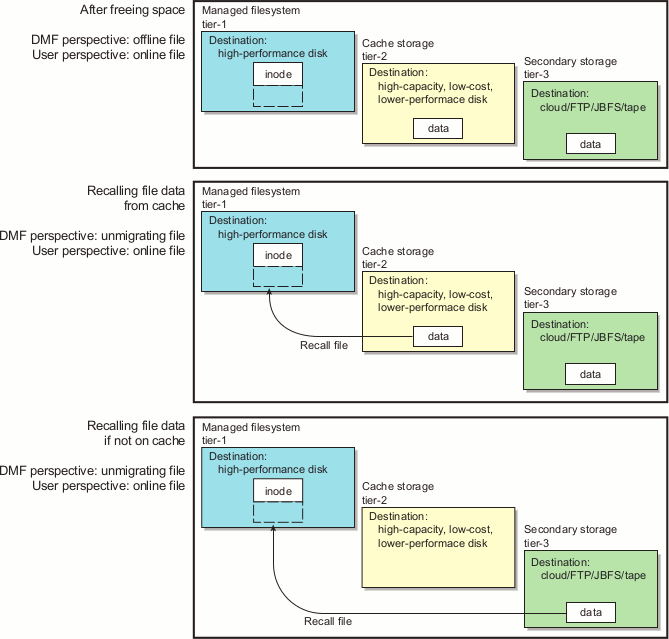
Adding a DCM MSP provides three tiers of storage media:
Tier-1: Managed filesystem on high-performance disk
Tier-2: Cache on high-capacity, low-cost disk that will downwardly migrate and free data on a file basis
Tier-3: Secondary storage on cloud storage, FTP server, or tape
Figure 1-8 and Figure 1-9 show an example of the process using three tiers of storage with a DCM MSP, where data moves first to a cache on lower-performance but less-expensive disk, then to inexpensive storage. The file will be recalled from disk cache as long as it resides there because it is faster than recalling from the third tier.
Adding a fast-mount cache provides three tiers of storage media:
Tier-1: Managed filesystem on high-performance disk
Tier-2: Fast-mount cache (such as COPAN MAID or JBFS configurations) that will be freed on a volume basis (no downward migration)
Tier-3: Secondary storage on cloud storage, FTP server, JBFS configurations, and tape
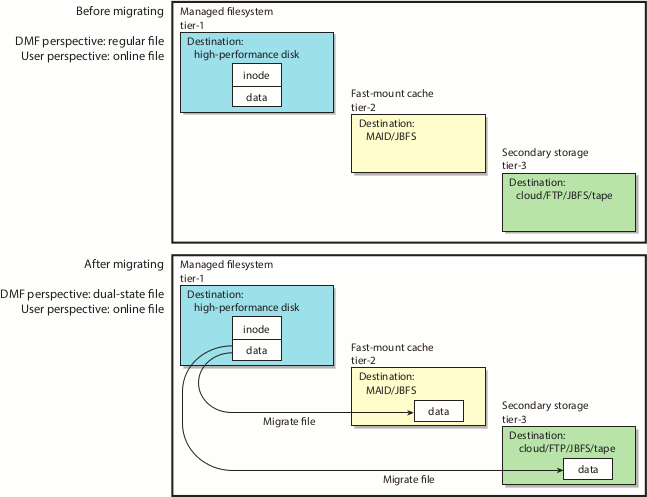
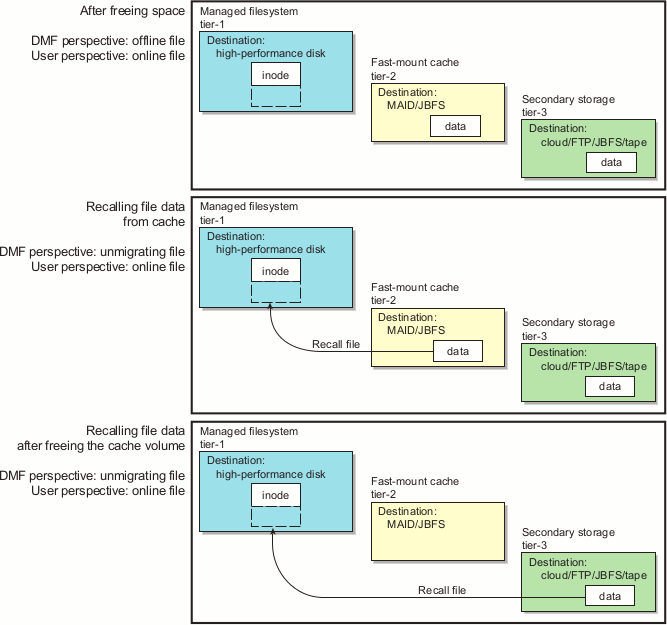
Figure 1-10 and Figure 1-11 show an example of the process using three tiers of storage, where a copy of the data is simultaneously placed in tier-2 fast-mount cache (such as COPAN MAID or JBFS configurations) and in tier-3 secondary storage (such as tape). The file will be recalled from the cache as long as it resides there because it is faster than recalling from tier-3 storage.
| Note: Unlike the DCM MSP, this method does not migrate data from the cache to tier-3; therefore, volumes on the cache can be freed immediately when the fullness threshold is reached. |
For more information, see “Fast-Mount Cache Configuration Overview”.
You choose both the percentage of the filesystem to migrate and the amount of free space. You as the administrator can manually trigger file migration or file owners can issue manual migration requests.
A file is migrated when the automated space-management controller dmfsfree(8) selects the file or when an owner requests that the file be migrated by using the dmput(1) command.
When the daemon receives a request to migrate a file, it does the following:
Adjusts the state of the file.
Ensures that the necessary MSPs/VGs are active.
Sends a request to the MSPs/VGs, who in turn copy data to the secondary storage media.
When the MSPs/VGs have completed the offline copies, the daemon marks the file as migrated in its database and changes the file to dual-state. If the user specifies the dmput -r option, or if dmfsfree requests that the file's space be released, the daemon releases the data blocks and changes the file state to offline. For more information, see the dmput(1) man page.
This section discusses the following:
Data is provided to the user from the appropriate location:
If a user accesses a dual-state file, the data comes directly from the high-performance disk as normal, providing the fastest access.
After the data blocks on the managed filesystem are freed, DMF software automatically recalls the file's data from the secondary storage when the user accesses the file, placing the data back on the managed filesystem; at this point, the file once again becomes a dual-state file. (If the user then changes the file, it returns to being a regular file.)
When a migrated file must be recalled, a request is made to the DMF daemon. The daemon selects an MSP/VG from its internal list and sends that MSP/VG a request to recall a copy of the file. If more than one MSP/VG has a copy, the first one in the list is used. The list is created from the configuration file.
For illustration purposes, suppose that the DMF configuration file contains the following definitions for an environment using a single library server with two drive groups that each have two volume groups to specify the location of file copies:
The dmdaemon object contains the following parameter to identify the library server:
LS_NAMES myls
The libraryserver object defined for myls contains the following parameter to identify the drive groups and their order of selection:
DRIVE_GROUPS fruits veggies
The drivegroup objects defined for fruits and vegetables identify their respective volume groups and their order of selection:
For fruits:
VOLUME_GROUPS oranges apples
For veggies:
VOLUME_GROUPS carrots peas
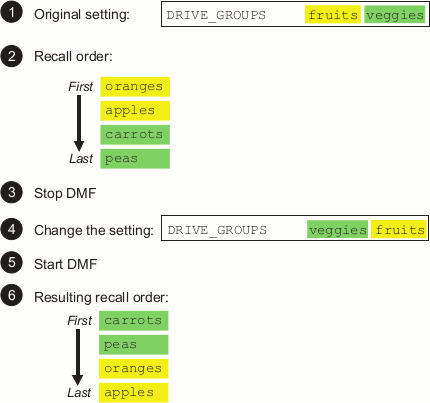
The order in which volumes are chosen for recall is decided by the order in which drive groups and then volume groups are listed in their respective definitions. Given the above, oranges will be tried first and peas will be tried last. If you stopped DMF, reordered the list in DRIVE_GROUPS, and restarted DMF, then carrots would be tried first and apples be tried last, as shown in Figure 1-12.
| Note: You must not change these parameters while DMF is running. |
For more details, see Chapter 7, “DMF Configuration File”, specifically:
If you recall more files than the managed filesystem can currently contain, DMF software migrates other files and will free the data blocks of already-migrated files (according to site-specific policies) until the filesystem is once again well below the free-space minimum threshold.
| Note: A file's data blocks on the managed filesystem can only be freed after the data has been copied to secondary storage. |
This section discusses the following:
You can use a cache migration target with rapid mount and positioning characteristics in conjunction with other secondary-storage targets in a fast-mount cache configuration. For example, consider the following:
COPAN MAID and JBFS configurations are faster than physical tapes, but their storage size is finite
A physical tape library has an effectively unlimited storage capacity because you can eject full tapes and replace them with empty tapes, but recalling data from tape is slower than recalling data from COPAN MAID or JBFS configurations
The combination of these two targets in a fast-mount cache configuration results in faster recall performance for recently created offline files while also providing secure long-term storage.
A fast-mount cache is similar to a DCM MSP in that both provide fast recall of migrated files in the cache tier (tier-2). However, they have following important differences:
DCM MSP:
Can be configured to downwardly migrate data from tier-2 to tier-3 as the data ages
Only requires that one initial copy be made, although two copies are recommended to prevent data loss (the copy in cache can be downwardly migrated to secondary storage on tier-3)
Deletes data from tier-2 on an individual file basis
Data on tier-2 may not be immediately recoverable when space is needed if the data does not already have a copy in tier-3 (causing a delay if space is needed quickly)
Fast-mount cache:
Does not downwardly migrate data from tier-2 to tier-3
Always requires that at least two initial copies be made (a copy to the cache and a copy to the secondary storage on tier-3)
Deletes data from tier-2 on a volume basis (that is, all files in the volume are deleted at the same time)
Tier-2 can be freed immediately when the free-space threshold is reached, without further operational effort
| Note: SGI strongly recommends that you migrate at least two copies to secondary-storage targets in order to prevent file data loss in the event that a migrated copy is damaged. When using a fast-mount cache, SGI therefore recommends that you migrate at least three copies (one copy to the cache on tier-2 and two copies to secondary-storage targets at the tier-3 level). |
To implement a fast-mount cache, you must configure the DMF environment to make all secondary-storage copies of the data (tier-3 storage on other MSPs/VGs) at the same time as the cache copy (tier-2 storage on the MGs/VGs in the fast-mount cache).
You must also configure a task to empty the fast-mount cache when it reaches the configurable free-space threshold. DMF software immediately empties the oldest full volumes, defined as those with the oldest write dates. Because at least one copy of the data exists elsewhere (most likely on a physical tape), there is no need to wait for the data in the disk cache to migrate to a lower tier (unlike a DCM MSP). Therefore, the freeing of space on the fast-mount cache is very fast because it requires no movement of data.
Figure 1-10 and Figure 1-11 summarize the concepts of migrating and recalling file data in a fast-mount cache configuration using COPAN MAID as an example.
The fast-mount cache configuration is most appropriate for sites that have a high turnover of often-accessed data, where the most recently migrated files are also the most likely to be recalled.
All files on a volume being freed are deleted without regard to their size or last access time. That might mean that a file that is still being actively recalled on a fairly regular basis must be recalled from a VG with slower mount and position characteristics. You can minimize this issue by setting optional configuration parameters so that recently accessed files are copied to another volume within the fast-mount cache before any volumes are freed, using a separate scratch directory, but there may be an associated performance impact.
The DMF server always provides the following services:
DMF administration (see “Administration Tasks”)
Backups
All I/O for data transfer to and from disks that is associated with cloud, FTP, disk, or DCM MSPs (see “How DMF Software Works”)
By default, a portion of I/O for data transfer to and from secondary storage (using its integrated data-mover functionality)
The individual processes that migrate and recall data are known as data-mover processes. Nodes that run data-mover processes are data movers; this may include the DMF server node if it is configured to use the integrated data-mover functionality and, if you have purchased the Parallel Data-Mover Option, the parallel data-mover nodes. The DMF server and the parallel data-mover nodes can each run multiple data-mover processes.
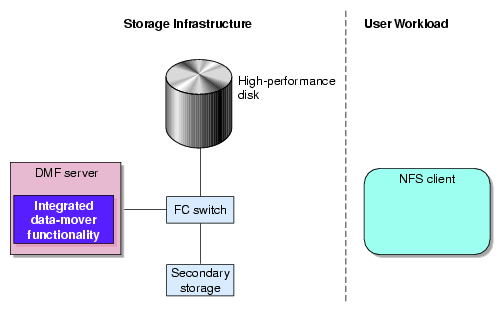
As shown in Figure 1-13, the basic DMF product (that is, without the Parallel Data-Mover Option) runs data-mover processes on the DMF server. This allows the DMF control system to reside on a single server and minimizes the cost of a DMF implementation. Additional nodes can be installed with DMF client software (see “DMF Control from Client Platforms”).
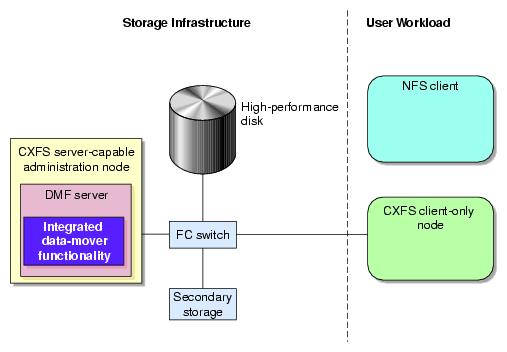
Figure 1-14 shows the DMF product in a CXFS clustered filesystem environment.
| Note: All nodes connect to a network. For simplicity, the network and DMF clients are not shown in the following figures. |
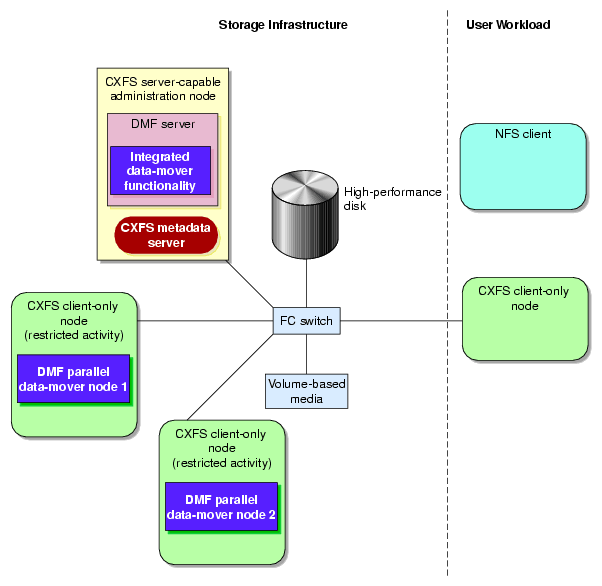
For users with higher throughput requirements, Parallel DMF allows additional data movers to operate in parallel with the integrated data-mover functionality on the DMF server, increasing data throughput and enhancing resiliency.
The parallel data-mover node's dedicated function is to move data from the managed filesystem to volume-based media (COPAN MAID, COPAN VTL, JBFS configurations, or tape) back into the managed filesystem, using an LS. Offloading the majority of I/O from the integrated data-mover functionality on the DMF server improves I/O throughput performance.
Because multiple parallel data-mover nodes can be used to move data, DMF software can scale its I/O throughput capabilities. When one parallel data-mover node hits its peak throughput capabilities, you can add more parallel data-mover nodes to the configuration as needed to improve I/O performance. Each parallel data-mover node can improve overall DMF performance by up to its maximum performance. For example, if you have parallel data-mover nodes that each provide up to a 2-GB/s increase, then having a configuration with three of these parallel data-mover nodes would provide a net increase of up to 6 GB/s. Additional drives and filesystem bandwidth may be required to realize the benefit from additional parallel data-mover nodes.
The basic DMF product can run in an environment with or without CXFS. If DMF software is managing a CXFS filesystem, DMF software will ensure that the filesystem's CXFS metadata server is on the same machine as the DMF server and will use metadata server relocation if necessary to achieve that configuration (see “Configure DMF Appropriately with CXFS™” in Chapter 3). Parallel DMF must always run in a CXFS environment. The parallel data-mover nodes are SGI x86_64 machines that are installed with the SGI DMF Parallel Data Mover software package, which includes the required underlying CXFS software.
The parallel data-mover node has specific hardware requirements and must access volume-based media on a port that is not used by CXFS. See “SAN Switch Zoning or Separate SAN Fabric Requirement”.
If you choose the Parallel DMF, you must use OpenVault for those drive groups (DGs) that contain drives on parallel data-mover nodes.
Figure 1-15 shows the concept of the DMF product using parallel data-mover nodes in a CXFS cluster with only one server-capable administration node. The parallel data-mover nodes only write data to secondary storage on volume-based media in an LS.
In a configuration with Parallel DMF, the DMF server still provides the services listed in “DMF Server Functions”.
For more information, see Chapter 8, “Parallel DMF Configuration”.
The DMF daemon keeps track of migrated files in the daemon database. The key to each file is its bit-file identifier (BFID). For each migrated file, the daemon assigns a BFID that is stored in the file's inode. There is a daemon database record for each copy of a migrated file.
The daemon database also contains information such as the following:
The MSP/VG name
The MSP/VG key for each copy of a migrated file
When you use an MSP, the daemon database contains all of the information required to track a migrated file.
If you use an LS, there is also the LS database, which contains two tables of records:
Catalog (CAT) records track the location of migrated data on volumes. There is one CAT record for each migrated copy of a file. If a migrated copy is divided between multiple volumes, there will be a CAT record for each portion or chunk.
Volume (VOL) records contain information about the volumes. There is one VOL record for each volume.
Detailed information about the daemon and LS databases and their associated utilities is provided in “CAT Records” in Chapter 14 and “VOL Records” in Chapter 14.
| Note: The databases consist of multiple files. However, these are not text files and cannot be updated by standard utility programs. See “Database Backups” in Chapter 19. |
There are also databases for DMF Manager performance records and alerts.
For information about the OpenVault database, see OpenVault Administrator Guide for SGI InfiniteStorage.
DMF software provides capabilities to ensure the integrity of offline data. For example, you can have multiple MSPs/VGs with each managing its own pool of volumes. Therefore, you can configure the DMF environment to copy filesystem data to multiple offline locations.
DMF software stores data that originates in a CXFS or XFS filesystem. Each object stored corresponds to a file in the native filesystem. When a user deletes a file, the inode for that file is removed from the filesystem. Deleting a file that has been migrated begins the process of invalidating the offline image of that file. In the LS, this eventually creates a gap in the volume. To ensure effective use of media, the LS provides a mechanism for reclaiming space lost to invalid data. This process is called volume merging.
Much of the work done by DMF software involves transaction processing that is recorded in databases. The DMF databases provide for full transaction journaling and employ two-phase commit technology. The combination of these two features ensures that DMF software applies only whole transactions to its databases. Additionally, in the event of an unscheduled system interrupt, it is always possible to replay the database journals in order to restore consistency between the DMF databases and the filesystem. DMF utilities also allow you to verify the general integrity of the DMF databases themselves. See “Administration Tasks” for more information.
DMF software consists of the DMF daemon and one or more MSPs or LSs. The DMF daemon accepts requests to migrate filesystem data from the DMF administrator or from users. It also communicates with the operating system kernel to maintain a file's migration state in that file's inode.
The DMF daemon is responsible for dispensing a unique bit-file identifier (BFID) for each file that is migrated. The daemon also determines the destination of migration data and forms requests to the appropriate MSP/LS to make offline copies.
The MSP/LS accepts requests from the DMF daemon. For outbound data, the LS accrues requests until the amount of data justifies a volume mount. Requests for data retrieval are satisfied as they arrive. When multiple retrieval requests involve the same volume, all file data is retrieved in a single pass across the volume.
DMF software uses the DMAPI kernel interface defined by the Data Management Interface Group (DMIG). DMAPI is also supported by X/Open, where it is known as the XDSM standard.
Figure 1-16 illustrates the basic DMF architecture. Figure 1-17 shows the architecture of the LS.
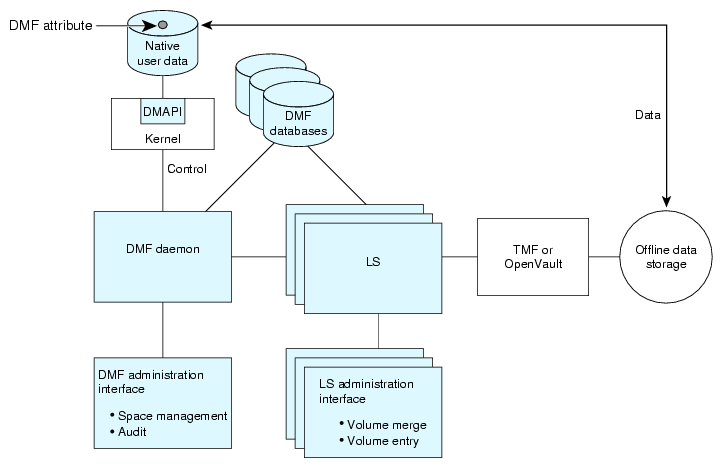
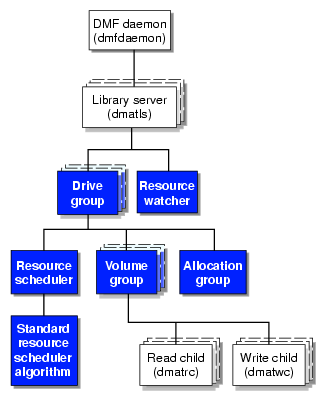
There is one LS process (dmatls) per library, which maintains a database that all of its components share. The entities in the shaded boxes in Figure 1-17 are internal components of the dmatls process. Their functions are as follows:
The dmatrc and dmatwc processes are called the read children and write children. They are created by VGs to perform the actual reading and writing of volumes. Unlike most of the other DMF processes that run indefinitely, these processes are created as needed, and are terminated when their specific work has been completed.
Media transports and robotic automounters are also key components of all DMF installations. Generally, DMF software can be used with any transport and automounter that is supported by either OpenVault or TMF. Additionally, DMF software supports absolute block positioning , a media transport capability that allows rapid positioning to an absolute block address on the volume. When this capability is provided by the transport, positioning speed is often three times faster than that obtained when reading the volume to the specified position.
A migrate group (MG) is a logical collection of MSPs and VGs that you combine into a set in order to have a single destination for a migrate request. A migration request to the MG will result in the copying of the file to exactly one MSP/VG that is a member of the MG.
You define an MG by adding the migrategroup object to the DMF configuration file. You can use the defined name of the MG in DMF policies and commands, similar to the way in which you use the names of VGs/MSPs. See:
The capacity of the DMF environment is measured in several ways, as follows:
Total number of files. The daemon database can contain approximately 4 billion entries, and there is one database entry for each copy of a file that DMF software manages. Therefore, if there are two copies of each managed file, DMF software can theoretically manage approximately 2 billion files. The number of files that can be supported with best performance will vary depending upon the workload.
Total amount of data. The capacity is limited only by the amount of secondary storage available to DMF software.
Total amount of data moved between online and offline media. The number of drives configured for the DMF environment, the number of tape channels, and the number of disk channels all figure highly in the effective bandwidth. In general, DMF software provides full-channel performance to both tape and disk.
File size. DMF software can support any file that can be created on the CXFS or XFS filesystem being managed.
DMF software has evolved in production-oriented, customer environments. It is designed to make full use of parallel and asynchronous operations, and to consume minimal system overhead while it executes, even in busy environments in which files are constantly moving online or offline. Exceptions to this rule will occasionally occur during infrequent maintenance operations when a full scan of filesystems or databases is performed.
For information about the DMF capacity license, see Chapter 2, “DMF Licensing”.
| Note: See the InfiniteStorage Software Platform (ISSP) release note and the DMF release note for the supported kernels, update levels, service pack levels, software versions, libraries, and tape devices. |
This section discusses the following:
The DMF server uses the DMF administrative and store directories to store its databases, log files, journal files, and temporary files. Table 1-1 summaries the configuration parameters used to define these directories, the variable that represents the value of the parameter in this guide, and the purpose of the directories. For configuration details, see Chapter 7, “DMF Configuration File”.
Table 1-1. DMF Administrative and Store Directories
For more information about DMF administrative directories, see “DMF Administrative and Store Directories”.
The PostgreSQL database is required by DMF for various purposes, including the queue-viewing tools:
DMF requires the 9.3.X version of PostgreSQL. See “Apply Appropriate PostgreSQL Updates” in Chapter 3.
The PostgreSQL database server is the DMF server
The PostgreSQL database server depends upon the ident service. See “Overview of the Installation and Configuration Steps” in Chapter 5.
-
The PostgreSQL database server runs as the postgres user. The postgres user must have at least 711 permission to the following directories:
The firewall must allow access to port 5432 for localhost
SLES: The postgres user must be set to use a shell in /etc/password. (By default, the postgres user's shell is set to /bin/false.)
For configuration parameters specific to Postgres, see “base Object Parameters” in Chapter 7.
For more information about DMF administrative directories, see “DMF Administrative and Store Directories”.
DMF parallel data-mover nodes require the following:
SGI x86_64 hardware
Same operating system as the DMF server and CXFS metadata server
DMF parallel data-mover node software (which includes the required underlying CXFS client-only software)
If you use Parallel DMF, you must use OpenVault for those DGs that contain drives on parallel data-mover nodes. See “Parallel DMF Overview”.
DMF software is licensed. See Chapter 2, “DMF Licensing”.
For filesystems to be managed by DMF software, they must be mounted with the DMAPI interface enabled. See “Install DMAPI” in Chapter 3.
Drives must be visible only from the active DMF server, the passive DMF server (if applicable), and the parallel data-mover nodes. The drives must not be visible to any other nodes. You must use one of the following:
Independent switches (in a separate SAN fabric)
Independent switch zones for CXFS/XVM volume paths and DMF drive paths
 | Warning: If the drives are visible to any other nodes, such as CXFS client-only nodes (other than those that are dedicated to being parallel data-mover nodes), data can become corrupted or overwritten. |
DMF software requires independent paths to drives so that they are not fenced by CXFS. The ports for the drive paths on the switch must be masked from fencing in a CXFS configuration.
XVM must not fail over CXFS filesystem I/O to the paths visible through the tape/disk HBA ports when Fibre Channel port fencing occurs.
DMF Manager has the following requirements:
The DMF Manager software is installed on the DMF server node.
One of the following web browsers:
Note: DMF Manager might also work other browsers, but its functionality is not tested. Before saving or applying configuration changes, you must make and mount the filesystems used for the DMF administrative directories. See “Configure Filesystems and Directories Appropriately for DMF” in Chapter 3.
DMF direct archiving has the following requirements:
The archive filesystem must be visible and mounted in the same location on the DMF server and any DMF parallel data-mover nodes. (The DMF server need not be the server of the archive filesystem; for example, the DMF server need not be the Lustre server.)
The archive filesystem must be visible to DMF clients from which you want to run the dmarchive(1) command, but may have the filesystem mounted on a different mount point.
The archive filesystem must be mounted on the DMF server and any DMF parallel data-mover nodes so that the root user is able to access the filesystem with root privileges (that is, with root squashing disabled).
The archive filesystem must be fast enough to permit efficient streaming to/from secondary storage. If this is not the case, the speed could be so slow as to render DMF software useless; in that situation, copying the file to a managed filesystem via cp(1) and migrating the file may be a better option.
If a filesystem does not meet these requirements, do not add it to the DMF configuration file as an archive filesystem.
The fast-mount cache feature requires the following at a minimum:
Migrating at least two copies simultaneously, one copy to the cache (such as COPAN MAID) and at least one copy to a secondary-storage target (such as physical tape).
Configuring a task to empty the cache.
However, SGI always recommends that you migrate at least two copies to secondary-storage targets in order to prevent file data loss in the event that a migrated copy is damaged. When using a fast-mount cache, SGI therefore recommends that you migrate at least three copies (one to the cache and two to secondary-storage targets).
DMF software supports the following cloud systems as secondary storage:
Scality RING private cloud
Amazon Simple Storage Service (S3) public cloud
Note: Amazon Glacier is not supported. Other products that present a service interface that is compatible with S3, in a private cloud
SGI strongly recommends that you migrate at least two copies to secondary-storage targets in order to prevent file data loss in the event that a migrated copy is damaged. A given cloud can be a single point of failure, therefore redundant copies within one cloud do not sufficiently protect against data loss. SGI therefore highly recommends that you migrate data to a second location (to another cloud instance, tape, or disk).
This section discusses the following aspects of DMF administration:
DMF software manages two primary resources:
Free space on managed filesystems
Pools of secondary-storage media
You can configure those resources in a variety of environments, including the following:
Evaluate the environment in which DMF software will run.
Plan for a certain capacity, both in the number of files and in the amount of data
Estimate the rate at which you will be moving data between the DMF store of data and the native filesystem
Select autoloaders and media transports that are suitable for the data volume and delivery rates you anticipate
You will install the DMF server software (which includes the software for TMF and OpenVault) from the ISSP media.
To configure the DMF environment, you must define a set of parameters in the DMF configuration file, typically by using a sample file as a starting point. See:
To make site-specific modifications, see “Customizing DMF” in Chapter 5.
For a detailed example of configuring using COPAN cabinets, see:
COPAN MAID for DMF Quick Start Guide
SGI 400 VTL for DMF Quick Start Guide
DMF software requires that you perform recurring administrative duties in the following areas:
| Note: You can use tasks that automate these duties. A task is a process initiated on a time schedule that you determine, similar to a cron(1) job. Tasks are defined with configuration file parameters and are described in detail in “taskgroup Object” in Chapter 7 and “LS Tasks” in Chapter 7. |
You must decide how much free space to maintain on each managed filesystem. DMF software has the ability to monitor filesystem capacity and to initiate file migration and the freeing of space when free space falls below the prescribed thresholds. See Chapter 11, “Automated Space Management”.
You must decide which files are most important as migration candidates. When DMF software migrates and frees files, it selects files based on criteria you chose. The ordered list of files is called the candidate list. Whenever DMF software responds to a critical space threshold, it builds a new migration candidate list for the filesystem that reached the threshold. See “Generating the Candidate List” in Chapter 11.
DMF software offers the ability to migrate data to multiple locations. Each location is managed by a separate MSP/VG and is usually constrained to a specific type of medium.
Complex strategies are possible when using multiple MSPs, LSs, or VGs. For example, short files can be migrated to a device with rapid mount times, while long files can be routed to a device with extremely high density.
You can describe criteria for MSP/VG selection. When setting up a VG, you assign a pool of volumes for use by that VG. The dmvoladm(8) utility provides management of the VG media pools.
You can configure DMF software to automatically merge volumes that are becoming sparse. With this configuration (using the run_merge_tapes.sh task for either disk or tape), the media pool is merged on a regular basis in order to reclaim unusable space.
Recording media eventually becomes unreliable. Sometimes, media transports become misaligned so that a volume written on one cannot be read from another. The following utilities support management of failing media:
dmatread(8) recovers data
dmatsnf(8) verifies LS volume integrity
Additionally, the volume merge process built into the LS is capable of effectively recovering data from failed media.
Chapter 14, “Library Servers and Media-Specific Processes”, provides more information on administration.
This section discusses the following things that you must do maintain the integrity and reliability of data managed by DMF software:
DMF software moves only the data associated with files, not the file inodes or directories, so you must still run filesystem backups in order to preserve the metadata associated with migrated files and their directories. You can configure DMF software to automatically run backups of your managed filesystems. See “Back Up Migrated Filesystems and DMF Databases” in Chapter 3.
The xfsdump(8) and xfsrestore(8) utilities are aware of migrated files. The xfsdump utility can be configured to dump the data blocks for a file only if it has not yet been migrated. Files that are dual-state, partial-state, or offline have only their inodes backed up.
You can establish a policy of migrating 100% of the files in the managed filesystems before starting a backup, thereby leaving only a small amount of data that must be dumped. This practice can greatly increase the availability of the machine on which DMF software is running because, generally, backup commands must be executed in a quiet environment.
You can configure the run_full_dump.sh and run_partial_dump.sh tasks to ensure that all files have been migrated. These tasks can be configured to run when the environment is quiet.
Configure DMF software to automatically run dmaudit to examine the consistency and integrity of the databases it uses. DMF databases record all information about stored data. The DMF databases must be synchronized with the filesystems that DMF software manages. Much of the work done by DMF software ensures that the DMF databases remain aligned with the filesystems.
You can configure DMF software to periodically copy the databases to other devices on the system to protect them from loss (using the run_copy_databases.sh task). This task also uses the dmdbcheck utility to ensure the integrity of the databases before saving them.
DMF software uses journal files to record database transactions. Journals can be replayed in the event of an unscheduled system interrupt that causes database corruption. You must ensure that journals are retained in a safe place until a full backup of the DMF databases can be performed.
You can configure the run_remove_logs.sh and run_remove_journals.sh tasks to automatically remove old logs and journals, which will prevent the DMF SPOOL_DIR and JOURNAL_DIR directories from overflowing.
You can configure the run_hard_deletes.sh task to automatically remove database entries whose files will never be restored from backup media. See “Cleaning Up Obsolete Database Entries” in Chapter 15.
The DMF administrator has access to a wide variety of commands for controlling the DMF environment. This section discusses the following:
| Note: The functionality of some of these commands can be affected by site-defined policies; see “Customizing DMF” in Chapter 5. |
The FTP MSP uses no special commands, utilities, or databases.
End users can run the following commands on DMF clients to affect the manual storing and retrieval of their data:
| Command | Description |
| dmarchive(1) | Directly copies data between DMF secondary storage and a POSIX filesystem that is not managed by DMF software, such as Lustre. It is intended to streamline a work flow in which users work in an archive filesystem and later want to archive a copy of their data via DMF software. For more information about the MIN_ARCHIVE_SIZE parameter, see “filesystem Object Parameters” in Chapter 7. |
| dmattr(1) | Displays whether files are migrated or not by returning a specified set of DMF attributes (for use in shell scripts). |
| dmcapacity(1) | Displays an estimate of the remaining storage capacity for each VG in each LS. You can optionally choose to report the data formatted into XML or HTML. |
| dmcopy(1) | Copies all or part of the data from a migrated file to an online file. |
| dmdu(1) | Displays the number of blocks contained in specified files and directories on a managed filesystem. |
| dmfind(1) | Displays whether files are migrated or not by searching through files in a directory hierarchy. |
| dmget(1) | |
| dmls(1) | Displays whether files are migrated or not by listing the contents of a directory. |
| dmoper(1) | |
| dmput(1) | |
| dmtag(1) | Allows a site-assigned 32-bit integer to be associated with a specific file (which can be tested in the when clause of particular configuration parameters and in site-defined policies). |
| dmversion(1) | Displays the version number of the currently installed DMF software. |
The DMF libdmfusr.so user library lets you write your own site-defined DMF user commands that use the same application program interface (API) as the above DMF user commands. See Appendix B, “DMF User Library libdmfusr.so”.
Also see Chapter 16, “DMF SOAP Server”.
The DMF configuration file (/etc/dmf/dmf.conf ) contains configuration objects and associated configuration parameters that control the way DMF software operates. By changing the values associated with these objects and parameters, you can control the behavior of DMF software. To modify the configuration file, you can use DMF manager. For information about configuration, see:
The following man pages are also related to the configuration file:
| Man page | Description |
| dmf.conf(5) | Describes the DMF configuration objects and parameters in detail. |
| dmconfig(8) |
For detailed examples of configuring using COPAN cabinets, see:
COPAN MAID for DMF Quick Start Guide
SGI 400 VTL for DMF Quick Start Guide
The DMF daemon, dmfdaemon(8), communicates with the kernel through a device driver and receives backup and recall requests from users through a socket. The daemon activates the appropriate MSPs and LSs for file migration and recall, maintaining communication with them through unnamed pipes. It also changes the state of inodes as they pass through each phase of the migration and recall process. In addition, the daemon maintains a database containing entries for every migrated file on the system. Updates to database entries are logged in a journal file for recovery. See Chapter 12, “The DMF Daemon”, for a detailed description of the DMF daemon.
| Caution: If used improperly, commands that make changes to the daemon database can cause data to be lost. |
The following administrator commands are related to dmfdaemon and the daemon database:
| Command | Description | ||
| dmaudit(8) | Reports discrepancies between filesystems and the daemon database. This command is executed automatically if you configure the run_audit.sh task. | ||
| dmcheck(8) | Checks the DMF installation and configuration and reports any problems. | ||
| dmdadm(8) | Performs daemon database administrative functions, such as viewing individual database records. | ||
| dmdbcheck(8) | Checks the consistency of a database by validating the location and key values associated with each record and key in the data and key files (also an LS command). If you configure the run_copy_database.sh task, this command is executed automatically as part of the task. The consistency check is completed before the DMF databases are saved. | ||
| dmdbrecover(8) | Applies journal records to a restored backup copy of the daemon database or LS database in order to create an up-to-date sane database. | ||
| dmdidle(8) | Causes files in pending requests to be flushed to secondary storage, even if this means forcing only a small amount of data to a volume. | ||
| dmdstat(8) | |||
| dmdstop(8) | Stops the DMF daemon without consideration for related services.
| ||
| dmfdaemon(8) | Starts the DMF daemon without consideration for related services.
| ||
| dmhdelete(8) | Deletes expired daemon database entries and releases corresponding MSP/VG space, resulting in logically less active data. This command is executed automatically if you configure the run_hard_deletes.sh task. | ||
| dmmigrate(8) | Migrates regular files that match specified criteria in the specified filesystems, leaving them as dual-state. This utility is often used to migrate files before running backups of a filesystem, hence minimizing the size of the backup image. It may also be used in a DCM MSP environment to force cache files to be copied to secondary storage if necessary. | ||
| dmsnap(8) | Copies the daemon database and the LS database to a specified location. If you configure the run_copy_database.sh task, this command is executed automatically as part of the task. |
The following commands are associated with automated space management, which allows DMF software to maintain a specified level of free space on a filesystem through automatic file migration:
See Chapter 11, “Automated Space Management”, for details.
The following commands manage the CAT and VOL records for the LS:
Most data transfers to and from secondary storage are performed by components internal to the LS. However, the following commands can read LS volumes directly:
| Command | Description |
| dmatread(8) | |
| dmatsnf(8) |
The following commands check for inconsistencies in the LS database:
The following commands are also available:
[1] For historical reasons, these volumes are sometimes referred to as tapes in command output and documentation.