This chapter discusses the following:
The Linux Trace Toolkit Next Generation (LTTng) generates traces for kernel and userspace events such as interrupt handling, scheduling, and system calls. You can use LTTng to record and view trace events and analyze how kernel behavior impacts the execution of applications.
This section discusses the following:
To see the list of packages included in the SGI-REACT-ltt pattern for RHEL and then install the pattern, do the following:
rhel# yum -y groupinfo "SGI REACT LTT" rhel# yum -y groupinstall "SGI REACT LTT" |
For more information, see the yum(8) man page.
To trace kernel events on RHEL, do the following:
Add a mount point to the filesystems table where you want to place debugging information. For example, to add the debugfs mount point:
rhel# echo "debugfs /mnt/debugfs debugfs rw 0 0" >> /etc/fstab
Make and mount the debugging filesystem. For example:
rhel# mkdir /mnt/debugfs
rhel# mount /mnt/debugfs
Increase the number of allowed open file descriptors in this shell to 6000:
rhel# ulimit -n 6000

Note: The number of files opened by the LTTng commands exceed most default user limits. Edit the /etc/modprobe.d/unsupported-modules file and change the setting for allow_unsupported_modules to 1, which enables the loading of unsupported modules:
allow_unsupported_modules 1
Insert the desired trace modules, such as any of the following:
rhel# modprobe block-trace
rhel# modprobe fs-trace
rhel# modprobe ipc-trace
rhel# modprobe kernel-trace
rhel# modprobe lockdep-trace
rhel# modprobe ltt-filter
rhel# modprobe ltt-kprobes
rhel# modprobe ltt-statedump
rhel# modprobe ltt-userspace-event
rhel# modprobe mm-trace
rhel# modprobe net-extended-trace
rhel# modprobe net-trace
rhel# modprobe pm-trace
rhel# modprobe rcu-trace
rhel# modprobe syscall-trace
rhel# modprobe trap-trace
Arm all of the tracepoints by using the ltt-armall(1) command:
rhel# /usr/bin/ltt-armall
You could also manually enable individual markers. For example, to enable just the network_ip_interface marker of the net-trace module:
rhel# echo 1 > /mnt/debugfs/ltt/markers/netif_state/network_ip_interface/enable
Start the graphical LTTV tool to control tracing and analyze traces:
rhel# /usr/local/bin/lttv-gui
Click on the Trace Control traffic light icon
Enter the root password
Enter the name of the trace directory and the trace file.
Note: You cannot overwrite an existing trace file. The names of the trace directory and trace file must be unique for each trace. You must use unique names or delete old trace files and directories. Click start
In most cases, you want to use the default Trace Mode of Normal, which will write data until you manually stop the trace. Flight Recorder mode uses a circular buffer, in which data will be written to a fixed size buffer; after the buffer is full, data will be overwritten and lost.
To end the tracing, click stop.
Answer Yes to see the trace.
If you prefer, you can use the lttctl(1) command to create a trace (in the same shell where you increased the number of allowed files in step 3 above):
rhel# /usr/local/bin/lttctl -C --channel_root channel -w tracedir \ -o channel.all.overwrite=timer -n threads tracename |
For example, to create a trace named trace6 using the channel /mnt/debugfs/ltt (from which the kernel exports its trace information) and the trace directory /tmp/trace6 using normal trace mode (0) and a single thread, enter the following:
rhel# /usr/local/bin/lttctl -C --channel_root /mnt/debugfs/ltt -w /tmp/trace6 \ -o channel.all.overwrite=0 -n 1 trace6 |
To stop the tracing:
rhel# /usr/local/bin/lttctl -D tracefile |
For example, to stop trace6:
rhel# /usr/local/bin/lttctl -D trace6 |
To use the command line to view the trace, enter the following:
rhel# lttv -m format -t tracefile | less |
For example, to view the trace6 trace as text:
rhel# lttv -m textDump -t /tmp/trace6 | less |
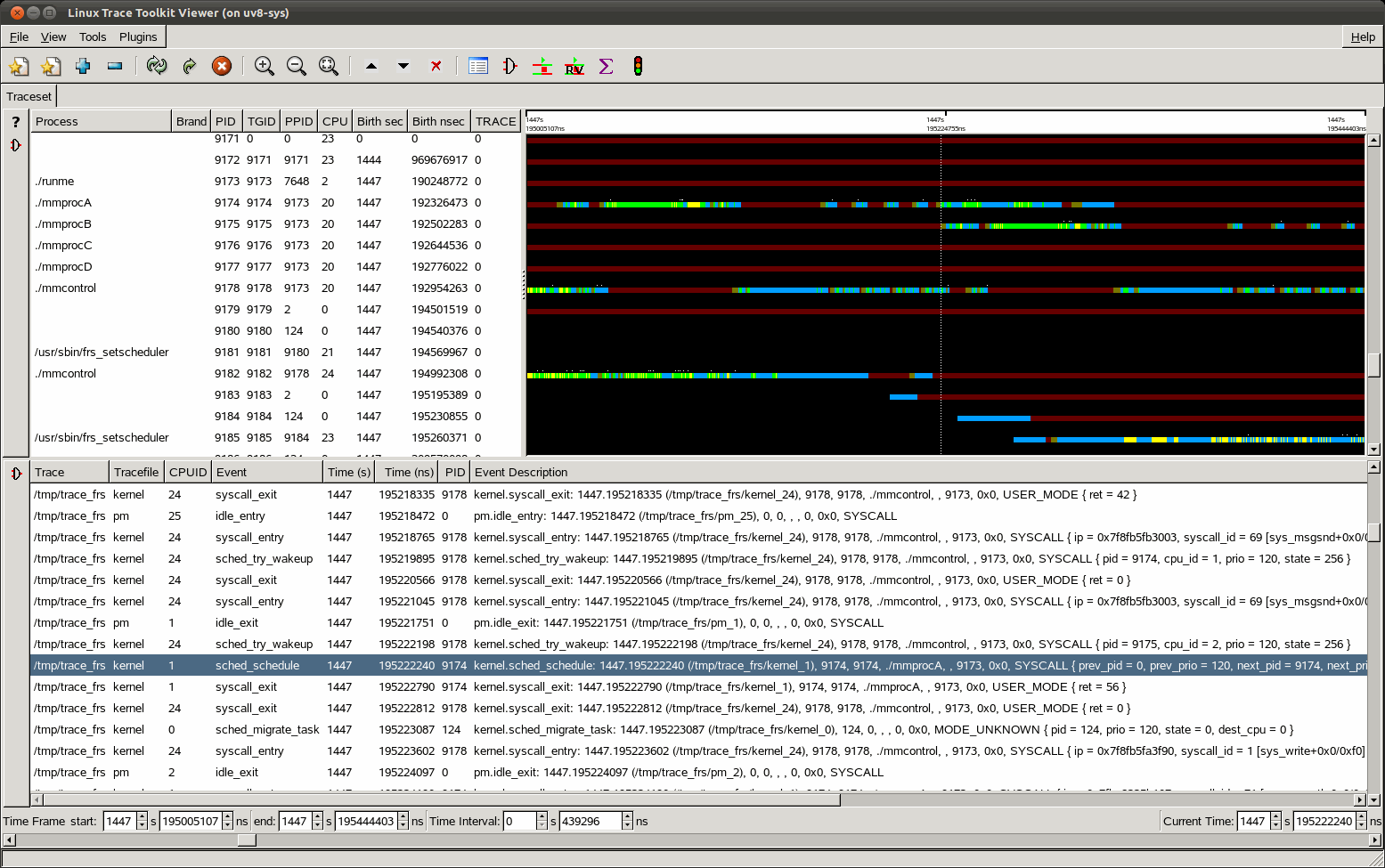
Figure 11-1 shows an example trace of the frame rate scheduler sample program multimprogs at a time fairly early in the process startup.
To use the Userspace Tracer (UST) to trace userspace events on RHEL, do the following:
Start the UST consumer daemon:
rhel# ust-consumerd -d
Run your program while recording a trace (see step 8 of “Tracing Kernel Events for RHEL”).
Add a userspace directory to current trace. You could do this in the GUI by clicking the “+” icon and choosing /tmp/usttrace.
This section discusses the following:
To see the list of packages included in the SGI-REACT-ltt pattern for SLES and then install the pattern, do the following:
sles# zypper pattern-info SGI-REACT-ltt sles# zypper install -t pattern SGI-REACT-ltt |
For more information, see the zypper(8) man page.
For more information about LTTng for SLES, see:
| http://lttng.org/quickstart |
| http://lttng.org/documentation |
For information about tracing kernel and userspace events for SLES, see the following:
| https://bugs.lttng.org/projects/lttng-tools/wiki |