This chapter describes several tools that you can use to monitor system performance. The tools are divided into two general categories: system monitoring tools and nonuniform memory access (NUMA) tools.
System monitoring tools include the hinv(1) command, topology(1) command, and other operating system commands that can help you determine where system resources are being spent.
NUMA tools include the dlook(1) and dplace(1) commands that you can use to improve the performance of processes running on your SGI Altix NUMA machine.
You can use system utilities to better understand the usage and limits of your system. These utilities allow you to observe both overall system performance and single-performance execution characteristics.
The hinv(1) command displays the contents of the system's hardware inventory. The information displayed includes brick configuration, processor type, main memory size, and disk drive information, as follows:
[user1@profit user1]# hinv 1 Ix-Brick 4 R-Brick 8 C-Brick 32 1500 MHz Itanium 2 Rev. 5 Processor Main memory size: 121.75 Gb Broadcom Corporation NetXtreme BCM5701 Gigabit Ethernet (rev 21). on pci01.04.0 Integral SCSI controller pci01.03.0: QLogic 12160 Dual Channel Ultra3 SCSI (Rev 6) pci01.03.0 Disk Drive: unit 1 lun 0 on SCSI controller pci01.03.0 0 Disk Drive: unit 2 lun 0 on SCSI controller pci01.03.0 0 Disk Drive: unit 1 lun 0 on SCSI controller pci01.03.0 0 Disk Drive: unit 2 lun 0 on SCSI controller pci01.03.0 0 SCSI storage controller: QLogic Corp. QLA2200 (rev 5). pci03.01.0 Disk Drive: unit 10 lun 0 on SCSI controller pci03.01.0 0 Disk Drive: unit 11 lun 0 on SCSI controller pci03.01.0 0 Disk Drive: unit 12 lun 0 on SCSI controller pci03.01.0 0 Disk Drive: unit 13 lun 0 on SCSI controller pci03.01.0 0 Disk Drive: unit 14 lun 0 on SCSI controller pci03.01.0 0 Disk Drive: unit 15 lun 0 on SCSI controller pci03.01.0 0 Disk Drive: unit 16 lun 0 on SCSI controller pci03.01.0 0 Disk Drive: unit 17 lun 0 on SCSI controller pci03.01.0 0 Disk Drive: unit 18 lun 0 on SCSI controller pci03.01.0 0 Disk Drive: unit 19 lun 0 on SCSI controller pci03.01.0 0 Co-processor: Silicon Graphics, Inc. IOC4 I/O controller (rev 79). on pci01.01.0 CD-ROM MATSHITADVD-ROM SR-8588 7Z20 on pci01.01.0 target0/lun0 |
The topology (1) command provides topology information about your system. Topology information is extracted from information in the/dev/hw directory. Unlike the IRIX operating system, in Linux the hardware topology information is implemented on a devfs filesystem rather than on a hwgraph filesystem. The devfs filesystem represents the collection of all significant hardware connected to a system, such as CPUs, memory nodes, routers, repeater routers, disk drives, disk partitions, serial ports, Ethernet ports, and so on. The devfs filesystem is maintained by system software and is mounted at /hw by the Linux kernel at system boot.
Applications programmers can use the topology command to help optimize execution layout for their applications. For more information, see the topology(1) man page.
Output from the topology command is similar to the following: (Note that the following output has been abbreviated.)
% topology
Machine parrot.americas.sgi.com has:
64 cpu's
32 memory nodes
8 routers
8 repeaterrouters

The cpus are:
cpu 0 is /dev/hw/module/001c07/slab/0/node/cpubus/0/a
cpu 1 is /dev/hw/module/001c07/slab/0/node/cpubus/0/c
cpu 2 is /dev/hw/module/001c07/slab/1/node/cpubus/0/a
cpu 3 is /dev/hw/module/001c07/slab/1/node/cpubus/0/c
cpu 4 is /dev/hw/module/001c10/slab/0/node/cpubus/0/a
                         ...
The nodes are:
node 0 is /dev/hw/module/001c07/slab/0/node
node 1 is /dev/hw/module/001c07/slab/1/node
node 2 is /dev/hw/module/001c10/slab/0/node
node 3 is /dev/hw/module/001c10/slab/1/node
node 4 is /dev/hw/module/001c17/slab/0/node
                        ...
The routers are:
/dev/hw/module/002r15/slab/0/router
/dev/hw/module/002r17/slab/0/router
/dev/hw/module/002r19/slab/0/router
/dev/hw/module/002r21/slab/0/router
                        ...
The repeaterrouters are:
/dev/hw/module/001r13/slab/0/repeaterrouter
/dev/hw/module/001r15/slab/0/repeaterrouter
/dev/hw/module/001r29/slab/0/repeaterrouter
/dev/hw/module/001r31/slab/0/repeaterrouter
                       ...
The topology is defined by:
/dev/hw/module/001c07/slab/0/node/link/1 is /dev/hw/module/001c07/slab/1/node
/dev/hw/module/001c07/slab/0/node/link/2 is /dev/hw/module/001r13/slab/0/repeaterrouter
/dev/hw/module/001c07/slab/1/node/link/1 is /dev/hw/module/001c07/slab/0/node
/dev/hw/module/001c07/slab/1/node/link/2 is /dev/hw/module/001r13/slab/0/repeaterrouter
/dev/hw/module/001c10/slab/0/node/link/1 is /dev/hw/module/001c10/slab/1/node
/dev/hw/module/001c10/slab/0/node/link/2 is /dev/hw/module/001r13/slab/0/repeaterrouter |
Several commands can be used to determine user load, system usage, and active processes.
To determine the system load, use the uptime (1) command, as follows:
[user@profit user]# uptime 1:56pm up 11:07, 10 users, load average: 16.00, 18.14, 21.31 |
The output displays time of day, time since the last reboot, number of users on the system, and the average number of processes waiting to run.
To determine who is using the system and for what purpose, use the w(1) command, as follows:
[user@profit user]# w 1:53pm up 11:04, 10 users, load average: 16.09, 20.12, 22.55 USER TTY FROM LOGIN@ IDLE JCPU PCPU WHAT user1 pts/0 purzel.geneva.sg 2:52am 4:40m 0.23s 0.23s -tcsh user1 pts/1 purzel.geneva.sg 2:52am 4:29m 0.34s 0.34s -tcsh user2 pts/2 faddeev.sgi.co.j 6:03am 1:18m 20:43m 0.02s mpirun -np 16 dplace -s1 -c0-15 /tmp/ggg/GSC_TEST/cyana-2.0.17 user3 pts/3 whitecity.readin 4:04am 9:48m 0.02s 0.02s -csh user2 pts/4 faddeev.sgi.co.j 10:38am 2:00m 0.04s 0.04s -tcsh user2 pts/5 faddeev.sgi.co.j 6:27am 7:19m 0.36s 0.32s tail -f log user2 pts/6 faddeev.sgi.co.j 7:57am 1:22m 25.95s 25.89s top user1 pts/7 mtv-vpn-hw-richt 11:46am 39:21 11.20s 11.04s top user1 pts/8 mtv-vpn-hw-richt 11:46am 33:32 0.22s 0.22s -tcsh user pts/9 machine007.americas 1:52pm 0.00s 0.03s 0.01s w |
The output from this command shows who is on the system, the duration of user sessions, processor usage by user, and currently executing user commands.
To determine active processes, use the ps(1) command, which displays a snapshot of the process table. The ps -A command selects all the processes currently running on a system as follows:
[user@profit user]# ps -A
  PID TTY          TIME CMD
    1 ?        00:00:06 init
    2 ?        00:00:00 migration/0
    3 ?        00:00:00 migration/1
    4 ?        00:00:00 migration/2
    5 ?        00:00:00 migration/3
    6 ?        00:00:00 migration/4
                    ...
 1086 ?        00:00:00 sshd
 1120 ?        00:00:00 xinetd
 1138 ?        00:00:05 ntpd
 1171 ?        00:00:00 arrayd
 1363 ?        00:00:01 amd
 1420 ?        00:00:00 crond
 1490 ?        00:00:00 xfs
 1505 ?        00:00:00 sesdaemon
 1535 ?        00:00:01 sesdaemon
 1536 ?        00:00:00 sesdaemon
 1538 ?        00:00:00 sesdaemon
|
To monitor running processes, use the top(1) command. This command displays a sorted list of top CPU utilization processes as shown in Figure 4-1.
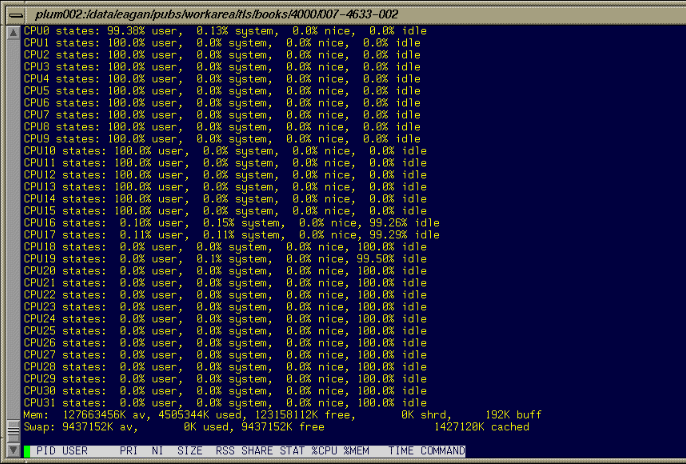
To monitor memory use, use the gtop(1) command. This produces a memory chart that shows how memory is used by the various procceses that are present as shown in

This sectoin describes the NUMA tools dlook (1) and dplace(1).
You can use dlook(1) to find out where in memory the operating system is placing your application's pages and how much system and user CPU time it is consuming.
You can use the dplace(1) command to bind a related set of processes to specific CPUs or nodes to prevent process migration. This can improve the performance of your application since it increases the percentage of memory accesses that are local.
The dlook(1) command allows you to display the memory map and CPU usage for a specified process as follows:
dlook [-a] [-c] [-h] [-l] [-o outfile] [-s secs] command [command-args] dlook [-a] [-c] [-h] [-l] [-o outfile] [-s secs] pid |
For each page in the virtual address space of the process, dlook(1) prints the following information:
The object that owns the page, such as a file, SYSV shared memory, a device driver, and so on.
The type of page, such as random access memory (RAM), FETCHOP, IOSPACE, and so on.
If the page type is RAM memory, the following information is displayed:
Memory attributes, such as, SHARED, DIRTY, and so on
The node on which the page is located
The physical address of the page (optional)
Optionally, the dlook(1) command also prints the amount of elapsed CPU time that the process has executed on each physical CPU in the system.
Two forms of the dlook(1) command are provided. In one form, dlook prints information about an existing process that is identified by a process ID (PID). To use this form of the command, you must be the owner of the process or be running with root privilege. In the other form, you use dlook on a command you are launching and thus are the owner.
The dlook(1) command accepts the following options:
-a: Shows the physical addresses of each page in the address space.
-c: Shows the elapsed CPU time, that is, how long the process has executed on each CPU.
-h: Explicitly lists holes in the address space.
-l: Shows libraries.
-o: Outputs the file name. If not specified, output is written to stdout.
-s: Specifies a sample interval in seconds. Information about the process is displayed every second (secs) of CPU usage by the process.
An example for the sleep process with a PID of 4702 is as follows:
 | Note: The output has been abbreviated to shorten the example and bold headings added for easier reading. |
dlook 4702 Peek: sleep Pid: 4702 Thu Aug 22 10:45:34 2002 Cputime by cpu (in seconds): user system TOTAL 0.002 0.033 cpu1 0.002 0.033 Process memory map: 2000000000000000-2000000000030000 r-xp 0000000000000000 04:03 4479 /lib/ld-2.2.4.so [2000000000000000-200000000002c000] 11 pages on node 1 MEMORY|SHARED 2000000000030000-200000000003c000 rw-p 0000000000000000 00:00 0 [2000000000030000-200000000003c000] 3 pages on node 0 MEMORY|DIRTY ... 2000000000128000-2000000000370000 r-xp 0000000000000000 04:03 4672 /lib/libc-2.2.4.so [2000000000128000-2000000000164000] 15 pages on node 1 MEMORY|SHARED [2000000000174000-2000000000188000] 5 pages on node 2 MEMORY|SHARED [2000000000188000-2000000000190000] 2 pages on node 1 MEMORY|SHARED [200000000019c000-20000000001a8000] 3 pages on node 1 MEMORY|SHARED [20000000001c8000-20000000001d0000] 2 pages on node 1 MEMORY|SHARED [20000000001fc000-2000000000204000] 2 pages on node 1 MEMORY|SHARED [200000000020c000-2000000000230000] 9 pages on node 1 MEMORY|SHARED [200000000026c000-2000000000270000] 1 page on node 1 MEMORY|SHARED [2000000000284000-2000000000288000] 1 page on node 1 MEMORY|SHARED [20000000002b4000-20000000002b8000] 1 page on node 1 MEMORY|SHARED [20000000002c4000-20000000002c8000] 1 page on node 1 MEMORY|SHARED [20000000002d0000-20000000002d8000] 2 pages on node 1 MEMORY|SHARED [20000000002dc000-20000000002e0000] 1 page on node 1 MEMORY|SHARED [2000000000340000-2000000000344000] 1 page on node 1 MEMORY|SHARED [200000000034c000-2000000000358000] 3 pages on node 2 MEMORY|SHARED .... 20000000003c8000-20000000003d0000 rw-p 0000000000000000 00:00 0 [20000000003c8000-20000000003d0000] 2 pages on node 0 MEMORY|DIRTY |
The dlook command gives the name of the process ( Peek: sleep), the process ID, and time and date it was invoked. It provides total user and system CPU time in seconds for the process.
Under the heading Process memory map, the dlook command prints information about a process from the /proc/pid/cpu and /proc/ pid/maps files. On the left, it shows the memory segment with the offsets below in decimal. In the middle of the output page, it shows the type of access, time of execution, the PID, and the object that owns the memory (in this case, /lib/ld-2.2.4.so). The characters s or p indicate whether the page is mapped as sharable (s) with other processes or is private ( p). The right side of the output page shows the number of pages of memory consumed and on which nodes the pages reside. Dirty memory means that the memory has been modified by a user.
In the second form of the dlook command, you specify a command and optional command arguments. The dlook command issues an exec call on the command and passes the command arguments. When the process terminates, dlook prints information about the process, as shown in the following example:
dlook date

Thu Aug 22 10:39:20 CDT 2002
_______________________________________________________________________________
Exit:  date
Pid: 4680       Thu Aug 22 10:39:20 2002


Process memory map:
  2000000000030000-200000000003c000 rw-p 0000000000000000 00:00 0
        [2000000000030000-200000000003c000]         3 pages on node   3  MEMORY|DIRTY

  20000000002dc000-20000000002e4000 rw-p 0000000000000000 00:00 0
        [20000000002dc000-20000000002e4000]         2 pages on node   3  MEMORY|DIRTY

  2000000000324000-2000000000334000 rw-p 0000000000000000 00:00 0
        [2000000000324000-2000000000328000]         1 page  on node   3  MEMORY|DIRTY

  4000000000000000-400000000000c000 r-xp 0000000000000000 04:03 9657220    /bin/date
        [4000000000000000-400000000000c000]         3 pages on node   1  MEMORY|SHARED

  6000000000008000-6000000000010000 rw-p 0000000000008000 04:03 9657220    /bin/date
        [600000000000c000-6000000000010000]         1 page  on node   3  MEMORY|DIRTY

  6000000000010000-6000000000014000 rwxp 0000000000000000 00:00 0
        [6000000000010000-6000000000014000]         1 page  on node   3  MEMORY|DIRTY

  60000fff80000000-60000fff80004000 rw-p 0000000000000000 00:00 0
        [60000fff80000000-60000fff80004000]         1 page  on node   3  MEMORY|DIRTY

  60000fffffff4000-60000fffffffc000 rwxp ffffffffffffc000 00:00 0
[60000fffffff4000-60000fffffffc000] 2 pages on node 3 MEMORY|DIRTY |
If you use the dlook command with the -s secs option, the information is sampled at regular internals. The output for the command dlook -s 5 sleep 50 is as follows:
Exit:  sleep
Pid: 5617       Thu Aug 22 11:16:05 2002


Process memory map:
  2000000000030000-200000000003c000 rw-p 0000000000000000 00:00 0
        [2000000000030000-200000000003c000]            3 pages on node   3  MEMORY|DIRTY

  2000000000134000-2000000000140000 rw-p 0000000000000000 00:00 0

  20000000003a4000-20000000003a8000 rw-p 0000000000000000 00:00 0
        [20000000003a4000-20000000003a8000]            1 page  on node   3  MEMORY|DIRTY

  20000000003e0000-20000000003ec000 rw-p 0000000000000000 00:00 0
        [20000000003e0000-20000000003ec000]            3 pages on node   3  MEMORY|DIRTY

  4000000000000000-4000000000008000 r-xp 0000000000000000 04:03 9657225    /bin/sleep
        [4000000000000000-4000000000008000]            2 pages on node   3  MEMORY|SHARED

  6000000000004000-6000000000008000 rw-p 0000000000004000 04:03 9657225    /bin/sleep
        [6000000000004000-6000000000008000]            1 page  on node   3  MEMORY|DIRTY

  6000000000008000-600000000000c000 rwxp 0000000000000000 00:00 0
        [6000000000008000-600000000000c000]            1 page  on node   3  MEMORY|DIRTY

  60000fff80000000-60000fff80004000 rw-p 0000000000000000 00:00 0
        [60000fff80000000-60000fff80004000]            1 page  on node   3  MEMORY|DIRTY

  60000fffffff4000-60000fffffffc000 rwxp ffffffffffffc000 00:00 0
[60000fffffff4000-60000fffffffc000] 2 pages on node 3 MEMORY|DIRTY |
You can run a Message Passing iInterface (MPI) job using the mpirun command and print the memory map for each thread, or redirect the ouput to a file, as follows:
| Note: The output has been abbreviated to shorten the example and bold headings added for easier reading. |
mpirun -np 8 dlook -o dlook.out ft.C.8 Contents of dlook.out: _______________________________________________________________________________ Exit: ft.C.8 Pid: 2306 Fri Aug 30 14:33:37 2002 Process memory map: 2000000000030000-200000000003c000 rw-p 0000000000000000 00:00 0 [2000000000030000-2000000000034000] 1 page on node 21 MEMORY|DIRTY [2000000000034000-200000000003c000] 2 pages on node 12 MEMORY|DIRTY|SHARED 2000000000044000-2000000000060000 rw-p 0000000000000000 00:00 0 [2000000000044000-2000000000050000] 3 pages on node 12 MEMORY|DIRTY|SHARED ... _______________________________________________________________________________ _______________________________________________________________________________ Exit: ft.C.8 Pid: 2310 Fri Aug 30 14:33:37 2002 Process memory map: 2000000000030000-200000000003c000 rw-p 0000000000000000 00:00 0 [2000000000030000-2000000000034000] 1 page on node 25 MEMORY|DIRTY [2000000000034000-200000000003c000] 2 pages on node 12 MEMORY|DIRTY|SHARED 2000000000044000-2000000000060000 rw-p 0000000000000000 00:00 0 [2000000000044000-2000000000050000] 3 pages on node 12 MEMORY|DIRTY|SHARED [2000000000050000-2000000000054000] 1 page on node 25 MEMORY|DIRTY ... _______________________________________________________________________________ _______________________________________________________________________________ Exit: ft.C.8 Pid: 2307 Fri Aug 30 14:33:37 2002 Process memory map: 2000000000030000-200000000003c000 rw-p 0000000000000000 00:00 0 [2000000000030000-2000000000034000] 1 page on node 30 MEMORY|DIRTY [2000000000034000-200000000003c000] 2 pages on node 12 MEMORY|DIRTY|SHARED 2000000000044000-2000000000060000 rw-p 0000000000000000 00:00 0 [2000000000044000-2000000000050000] 3 pages on node 12 MEMORY|DIRTY|SHARED [2000000000050000-2000000000054000] 1 page on node 30 MEMORY|DIRTY ... _______________________________________________________________________________ _______________________________________________________________________________ Exit: ft.C.8 Pid: 2308 Fri Aug 30 14:33:37 2002 Process memory map: 2000000000030000-200000000003c000 rw-p 0000000000000000 00:00 0 [2000000000030000-2000000000034000] 1 page on node 0 MEMORY|DIRTY [2000000000034000-200000000003c000] 2 pages on node 12 MEMORY|DIRTY|SHARED 2000000000044000-2000000000060000 rw-p 0000000000000000 00:00 0 [2000000000044000-2000000000050000] 3 pages on node 12 MEMORY|DIRTY|SHARED [2000000000050000-2000000000054000] 1 page on node 0 MEMORY|DIRTY ... |
For more information on the dlook command, see the dlook man page.
The dplace command allows you to control the placement of a process onto specified CPUs as follows:
dplace [-c cpu_numbers] [-s skip_count] [-n process_name] [-x skip_mask] [-p placement_file] command [command-args] dplace -q |
Scheduling and memory placement policies for the process are set up according to dplace command line arguments.
By default, memory is allocated to a process on the node on which the process is executing. If a process moves from node to node while it running, a higher percentage of memory references are made to remote nodes. Because remote accesses typically have higher access times, process performance can be diminished.
You can use the dplace command to bind a related set of processes to specific CPUs or nodes to prevent process migrations. In some cases, this improves performance since a higher percentage of memory accesses are made to local nodes.
Processes always execute within a CpuMemSet. The CpuMemSet specifies the CPUs on which a process can execute. By default, processes usually execute in a CpuMemSet that contains all the CPUs in the system (for detailed information on CpusMemSets, see the Linux Resource Administration Guide).
The dplace command invokes a kernel hook (that is, a process aggregate or PAGG) to create a placement container consisting of all the CPUs (or a or a subset of CPUs) of the CpuMemSet. The dplace process is placed in this container and by default is bound to the first CPU of the CpuMemSet associated with the container. Then dplace invokes exec to execute the command.
The command executes within this placement container and remains bound to the first CPU of the container. As the command forks child processes, they inherit the container and are bound to the next available CPU of the container.
If you do not specify a placement file, dplace binds processes sequentially in a round-robin fashion to CPUs of the placement container. For example, if the current CpuMemSet consists of physical CPUs 2, 3, 8, and 9, the first process launched by dplace is bound to CPU 2. The first child process forked by this process is bound to CPU 3, the next process (regardless of whether it is forked by parent or child) to 8, and so on. If more processes are forked than there are CPUs in the CpuMemSet, binding starts over with the first CPU in the CpuMemSet.
For more information on dplace(1) and examples of how to use the command, see the dplace (1) man page.
The dplace(1) command accepts the following options:
-c cpu_numbers: The cpu_numbers variable specifies a list of CPU ranges, for example: "-c1", "-c2-4", "-c1, 4-8, 3". CPU numbers are not physical CPU numbers. They are logical CPU numbers that are relative to the CPUs that are in the set of allowed CPUs as specified by the current CpuMemSet or runon(1) command. CPU numbers start at 0. If this option is not specified, all CPUs of the current CpuMemSet are available. Note that a previous runon command may be used to restrict the available CPUs.
-s skip_count: Skips the first skip_count processes before starting to place processes onto CPUs. This option is useful if the first skip_count processes are “shepherd" processes that are used only for launching the application. If skip_count is not specified, a default value of 0 is used.
-n process_name: Only processes named process_name are placed. Other processes are ignored and are not explicitly bound to CPUs.
The process_name argument is the basename of the executable.
-x skip_mask: Provides the ability to skip placement of processes. The skip_mask argument is a bitmask. If bit N of skip_mask is set, then the N+1th process that is forked is not placed. For example, setting the mask to 6 prevents the second and third processes from being placed. The first process (the process named by the command) will be assigned to the first CPU. The second and third processes are not placed. The fourth process is assigned to the second CPU, and so on. This option is useful for certain classes of threaded applications that spawn a few helper processes that typically do not use much CPU time.
Note: OpenMP with Intel applications currently should be placed using the -x option with a skip_mask of 6 (-x6). This could change in future versions of OpenMP.
-p placement_file: Specifies a placement file that contains additional directives that are used to control process placement. (Not yet implemented).
command [command-args]: Specifies the command you want to place and its arguments.
-q: Lists the global count of the number of active processes that have been placed (by dplace) on each CPU in the current cpuset. Note that CPU numbers are logical CPU numbers within the cpuset, not physical CPU numbers.
Example 4-1. Using the dplace command with MPI Programs
You can use the dplace command to improve placement of MPI programs on NUMA systems and verify placement of certain data structures of a long running MPI program by running a command such as the following:
mpirun -np 64 /usr/bin/dplace -s1 -c 0-63 ./a.out |
You can then use the dlook(1) command to verify placement of certain data structures of a long running MPI program by using the dlook command in another window on one of the slave thread PIDs to verify placement. For more information on using the dlook command, see “dlook” and the dlook(1) man page.
Example 4-2. Using dplace command with OpenMP Programs
To run an OpenMP program on logical CPUs 4 through 7 within the current CpuMemSet, perform the following:
%efc -o prog -openmp -O3 program.f %setenv OMP_NUM_THREADS 4 %dplace -x6 -c4-7 ./prog |
The dplace(1) command has a static load balancing feature so that you do not necessarily have to supply a CPU list. To place prog1 on logical CPUs 0 through 3 and prog2 on logical CPUs 4 through 7, perform the following:
%setenv OMP_NUM_THREADS 4 %dplace -x6 ./prog1 & %dplace -x6 ./prog2 & |
You can use the dplace -q command to display the static load information.
Example 4-3. Using the dplace command with Linux commands
The following examples assume that the command is executed from a shell running in a CpuMemSet consisting of physical CPUs 8 through 15.
| Command | Run Location | |
| dplace -c2 date | Runs the date command on physical CPU 10. | |
| dplace make linux | Runs gcc and related processes on physical CPUs 8 through 15. | |
| dplace -c0-4,6 make linux | Runs gcc and related processes on physical CPUs 8 through 12 or 14. | |
| runon 4-7 dplace app | The runon command restricts execution to physical CPUs 12 through 15. The dplace command sequentially binds processes to CPUs 12 through 15. |
To use the dlook(1), dplace(1), and topology(1) commands, you must load the numatools kernel module. Perform the following steps:
To configure numatools kernel module to be started automatically during system startup, use the chkconfig(8) command as follows:
chkconfig --add numatools
To turn on numatools, enter the following command:
/etc/rc.d/init.d/numatools start
This step will be done automatically for subsequent system reboots when numatools are configured on by using the chkconfig(8) utility.
The following steps are required to disable numatools:
To turn off numatools, enter the following:
/etc/rc.d/init.d/numatools stop
To stop numatools from initiating after a system reboot, use the chkconfig(8) command as follows:
chkconfig --del numatools