This chapter describes how to use SGI ImageSync 1.0. The following sections describe the pertinent tasks:
-

Note: You can only use SGI ImageSync from the master node of the cluster.
You must register all cluster nodes for the cluster. There are separate registration procedures for Windows NT and Linux, as described in the following subsections.
On Windows NT, you must configure SGI ImageSync on both the master and the channel nodes.
On the master node, you must add the IP addresses of each channel node to the registry. You add these values to the parameter DiagTest1, which is found under the registry key HKEY_LOCAL_MANAGER. Use the following path to access DiagTest1:
HKEY_LOCAL_MANAGER —> System —> CurrentControlSet —> Services —> ImageSync —> Parameters.
The first string of DiagTest1 is res. Do not alter it. Make the second string the IP address of the first channel node, make the third string the IP address of the second channel node, and so on.
On each channel node, you must add the IP address of the master node to the registry. You add this value to the parameter MASTER_ADDR, which is found under the registry key HKEY_LOCAL_MANAGER. Use the following path to access MASTER_ADDR:
HKEY_LOCAL_MANAGER —> System —> CurrentControlSet —> Services —> ImageSync —> Parameters.
On Linux systems, you need to add an SGI ImageSync configuration file to the master node with the name /etc/channel_list. Make this file a simple text file with the following format and contents:
number-of-channels
channel0-address
channel1-address
channel2-address
      .
      .
      .
channeln-address
|
The variables represent the following:
| number-of-channels | Number of channel nodes in the cluster | |
| channeli-address | IP address or host name of channeli | |
On Linux systems, you enter the following to start the control application:
# /usr/share/ImageSync/bin/imagesync |
On Windows NT systems, you can use one of the following two methods:
Use the following menu path Start —> Program interface.
Execute the following file:
C:\System32\ImageSync\ImageSync.exe
When your system is configured and started, you should have an SGI ImageSync Control Window on the monitor of the master node, as shown in Figure 2-1.
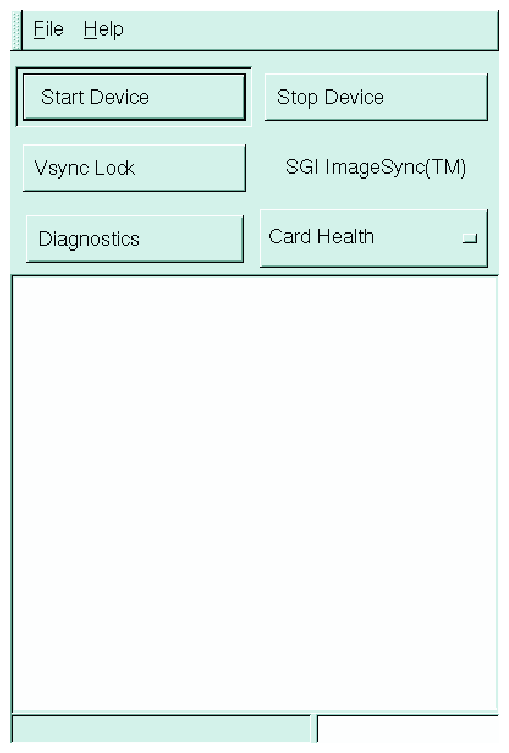
To enable video lock (also called frame lock), click the Vsync Lock button from this panel. The text panel will show a message indicating that the video locking was initiated. After a second or so, take a look at the status bar in the bottom left corner of the window. The status bar will indicate the status of the program. Upon success, you should see the following message in the status bar:
Video timing locked |
| Note: On Linux systems, the imagesync command has a -v command-line option, which you can use in a script to start the application and lock video. |
This section describes how you run diagnostics on the SGI ImageSync cards and then describes the types of problems the diagnostics are likely to identify.
To run the diagnostics, do the following:
Ensure that SGI ImageSync is configured and started as described earlier in this chapter.
In the SGI ImageSync Control Window, ensure that the Card Health option is selected for Diagnostics.
Click the Diagnostics button.
In the text panel, the system will print the results of the following tests for component channels:
Success/failure to connect
SGI ImageSync card status
Cable connectivity
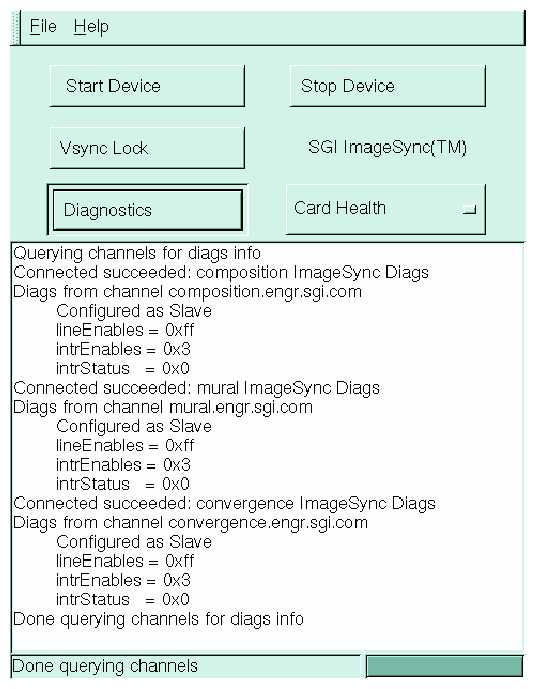
Figure 2-2 shows sample output from a diagnostics run.
The output printed into the text panel has the following six lines for each channel node if the system is healthy:
A Connected message
Diags from channel channel-name
A clkSource value ( Configured as Slave/Master)
A hex lineEnables value
A hex intrEnables value
A hex intrStatus value
If the system fails to get a response from all the channel nodes defined by you during SGI ImageSync configuration, then it reports the following message:
Error on one or more channels
The diagnostics are likely to identify problems in the following three areas:
Networking
SGI ImageSync driver functionality and PCI interface
SGI ImageSync card and connectivity
The diagnostics program uses a special service to gather information about all the SGI ImageSync cards in the cluster. Therefore the first thing tested is network connectivity, which will be reported by either a Connected succeeded message or an OS-dependent system failure code that indicates a network layer connect failure.
The diagnostics program queries the PCI registers of the SGI ImageSync cards. The message Diags from channel channel-name indicates that the drivers are active and the cards have working PCI interfaces.
The diagnostics application reports the cable connectivity status of all the channels in the system. If a cable is disconnected or misconnected in the system, then the diagnostics show the channel connected downstream to be “configured as a master”. In this event, check the cable of the channel node incorrectly reported as the “master”.
This section describes how to stop and restart SGI ImageSync as well as miscellaneous problems you might encounter and what to do to solve them.
You can start and stop SGI ImageSync from the master node or from one of the channel nodes.
On the master node, use the Start and Stop buttons on the control panel.
To stop SGI ImageSync from a channel node, do the following:
(on Windows NT systems)
Using the Services interface, stop the SGI ImageSync service.
(on Linux systems)
Enter the following:
# pconsole.sh channel0 channel1 ... channeln /sbin/rmmod imagesync
<term></term><listitem># pconsole.sh channel0 channel1 ... channeln /sbin/rmmod windrvr
</listitem> <listitem>To start SGI ImageSync from a channel node, enter the following:
(on Windows NT systems)
Using the Services interface, start the SGI ImageSync service.
(on Linux systems)
Enter the following:
# pconsole.sh channel0 channel1 ... channeln /sbin/insmod windrvr
# pconsole.sh channel0 channel1 ... channeln /sbin/insmod imagesync
</listitem>
One scenario that might cause displays not to be in sync is for an application to change its operating monitor resolution. Video synchronization will not be maintained if an application tries to change its operating monitor resolution while an application using SGI ImageSync is still running. After any change in resolution in the master or any of the channel nodes, perform a complete restart of SGI ImageSync (including the video lock operation).
In general, if you get this symptom, ensure that video lock is enabled by following the procedure described earlier in “Controlling Video Lock from the Master Node”.
If you get the message Failed to lock video timing when you try to enable video lock, do the following:
Ensure that you have SGI ImageSync configured correctly.
See the section “Configuring SGI ImageSync”.
Retry the video lock procedure.
See the section “Controlling Video Lock from the Master Node”.
If video lock is still disabled, run diagnostics by clicking the Diagnostics button from the SGI ImageSync Control Window.
In the case of a cable error, it is possible to get a false positive on the video locking procedure. If you are not sure, run the diagnostics program and it will tell you which node has the problem.
If a diagnostics run incorrectly reports a channel node as the master, do the following:
Check the cable coming into the channel node reported incorrectly as a master.
Reseat the boards.