This publication provides information about the similarities and differences between IRISconsole and the SGIconsole Console Manager graphical user interface. It is written for system administrators who are responsible for the configuration and operation of multiple SGI servers; SGI partitioned systems; and large, single-system servers.
This chapter contains the following sections:
This section provides a brief overview of IRISconsole and SGIconsole.
The IRISconsole software for a Silicon Graphics Octane, Silicon Graphics O2, or Indy workstation allows it to control Origin 200, Origin 2000, Challenge, Silicon Graphics Onyx2, and Silicon Graphics Onyx systems. IRISconsole does not support the SGI Origin 300 or SGI Origin 3000 series of servers, the SGI Altix 3000 family of servers and superclusters or the Silicon Graphics Onyx 3000 graphic systems. The IRISconsole software is included in the base IRISconsole option, which includes any one of the following IRISconsole multiplexers: ST-1600, ST-1616, ST-1620, ST-1032, EL-8, EL-16, or EL-32. Serial cables, which are specific to the type of system controlled, are provided by additional IRISconsole options and complete the IRISconsole package.
The IRISconsole graphical user interface (GUI) enables you to set up and administer sites. A site is a group of workstations, servers, clusters, or other systems that are administered through IRISconsole. A site consists of a number of systems monitored and controlled by IRISconsole.
The Octane, O2, or Indy workstation communicates with the servers through the multiplexer, to which each Origin, Challenge, or Onyx system is connected via a pair of serial cables. Each multiplexer has ports for eight or more Origin, Challenge, and Onyx systems; additional sets of serial cables are available from SGI. Optionally, an additional multiplexer can be connected to the workstation to monitor additional servers.
The IRISconsole software affects only systems that are physically attached to the multiplexer connected to the Octane, O2, or Indy workstation on which the IRISconsole software is running. The IRISconsole software cannot communicate with another system running IRISconsole to share access to attached systems. IRISconsole is a single, self-contained software module. IRISconsole is proprietary software.
The ictelnet command is a telnet based facility to connect to a known port of a remote IRISconsole(1C) host. You can use the ictelnet command to access the IRISconsole test-based menu from another system.
For detailed information on IRISconsole, see the IRISconsole Administrator's Guide.
SGIconsole lets you manage multiple SGI servers; SGI partitioned systems; and large, single-system image servers. It consists of a software suite that provide access to common remote management tools.
 | Note: SGIconsole 2.0 is a software-only product. It requires a hardware platform and may require a serial multiplexer or Ethernet hub. For a list of recommended hardware to use with SGIconsole, see the SGIconsole Hardware Connectivity Guide. |
SGIconsole supports SGI systems running both the IRIX and Linux operating systems. For the list of systems supported by the SGIconsole, see the SGIconsole Hardware Connectivity Guide.
SGIconsole 2.0 software includes the following software packages: Console Manager, Performance Co-Pilot, and L1 and L2 system controller commands. SGIconsole provides a web interface that allows access to this suite of tools, as shown in Figure 1-1.

IRISconsole and SGIconsole provide similar features. While IRISconsole is a single tool, SGIconsole is a collection of tools to provide a remote management solution, including hardware monitoring and system-level performance management, as shown in Table 1-1.
Tool | Description |
|---|---|
Console Manager | A graphical user interface for SGIconsole |
Performance Co-Pilot | Monitors and manages system-level performance |
L1 and L2 controller commands | Enables a site to use SGI Origin 3000 server L1 and L2 controller commands to manage and monitor a server |
On SGI Origin 300, SGI Origin 3000, and SGI Altix 3000 systems, the L1 controllers monitor the activities of their bricks.
The L2 controllers displays the status and error messages generated by the L1 controllers and generates and displays the status and error messages for the power bay and rack chassis. You can enter L1 and L2 commands to control activity in your server system from a console invoked through Console Manager. For information on the L1 and L2 commands, see the SGI L1 and L2 Controller Software User's Guide, SGI Origin 300 User's Guide, SGI Origin 3000 Series Owner's Guide, and the SGI Altix 3000 User's Guide, respectively.
Performance Co-Pilot provides a range of services that may be used to monitor and manage system performance. These services are distributed and scalable to accommodate the most complex system configurations and performance problems.
Performance Co-Pilot is targeted at the performance analyst, benchmarker, capacity planner, developer, database administrator, or system administrator with an interest in overall system performance and a need to quickly isolate and understand performance behavior, resource utilization, activity levels, and bottlenecks in complex systems. Platforms that can benefit from this level of performance analysis include large servers, server clusters, or multiserver sites delivering database management systems (DBMS), compute, Web, file, or video services.
The services offered by Performance Co-Pilot are especially attractive for administrators tackling harder, system-level performance problems. For example, this may involve a transient performance degradation, or correlating end-user quality of service with platform activity, or diagnosing some complex interaction between resource demands on a single system, or management of performance on large systems.
The distributed Performance Co-Pilot architecture makes it especially useful for centralized monitoring of distributed processing (that is, in a cluster or webserver farm environment), especially where a large number nodes (hosts) are involved.
For more information on Performance Co-Pilot, see the Performance Co-Pilot for IRIX User's and Administrator's Guide.
For procedures for using the SGIconsole user interface to access SGIconsole software, see the SGIconsole Start Here.
Console Manager is a graphical user interface (GUI) for the SGIconsole scalable management and monitoring tools used to control a single node or multiple nodes. A node can be a server, a partitioned system, or a large, single-system image server. The Console Manager GUI consolidates information about multiple nodes in a very compact space. Console Manager can run on SGI Linux platforms.
An IRISconsole system is equivalent to an SGIconsole node.
tscm(1) is a command line interface to SGIconsole. It provides an interactive menu-driven environment for performing console, logging, and power control operations on nodes configured in SGIconsole.
For more informatiom, see the SGIconsole Hardware Connectivity Guide and the Console Manager for SGIconsole Administrator's Guide.
The following table lists the hardware platforms supported by IRISconsole and SGIconsole.
| IRISconsole | SGIconsole |
| Indy, O2, Octane, SGI Origin200 and SGI Origin2000 series of servers, Silicon Graphics Onyx2, and Silicon Graphics Onyx systems | SGI Origin 200, SGI Origin 2000, SGI Origin 300, SGI Origin 3000 series of servers, SGI Altix 3000 family of servers and superclusters, Silicon Graphics Onyx2, SGI Onyx 300 and SGI Onyx 3000 series of graphics systems |
|
This section compares the IRISconsole GUI to the new SGIconsole Console Manager GUI.
Figure 1-2, shows the IRISconsole graphical user interface (GUI). The IRISconsole GUI enables you to set up and administer sites. A site is a group of workstations, servers, clusters, or other systems that are administered through IRISconsole.
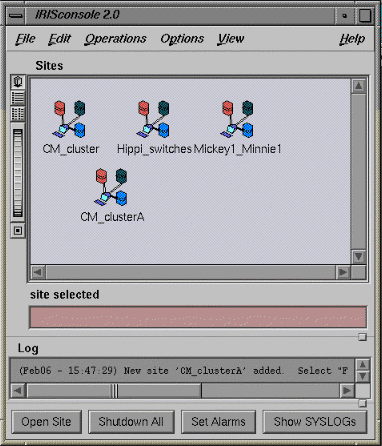
The IRISconsole GUI main window enables you to set up a site, configure a site, edit a site configuration, add a system to a site, or delete a site configuration.
The bottom of the IRISconsole main window, as shown in Figure 1-2, has four buttons that allow you to perform the following operations:
Open a site
Shut down all systems in a site
Set system alarms
Show the system logs for all systems in a site
To see the characteristics for a site, double-click its name in the scrolling list of sites in the IRISconsole main window. Alternatively, you can select a site and then choose Open Site from the IRISconsole main window Operations menu.
Figure 1-3 shows an IRISconsole Site window with four systems.
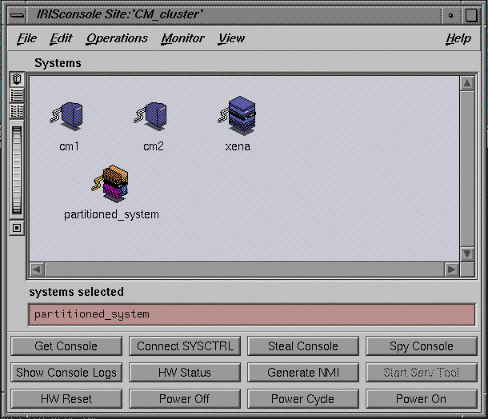
You can use the buttons in the IRISconsole Site window for the following system administration tasks:
| Get Console | Get the system console | |
| Connect SYSCTRL | Connect to system control | |
| Steal Console | Steal the system console | |
| Spy Console | Spy the system console | |
| Show Console Logs | Show the console logs | |
| HW Status | Get hardware status | |
| Generate NMI | Generate a nonmaskable interrupt | |
| Start Serv Tool | Start the service tool | |
| HW Reset | Reset hardware | |
| Power Off | Power off the selected system | |
| Power Cycle | Power cycle the selected system | |
| Power On | Power on the selected system |
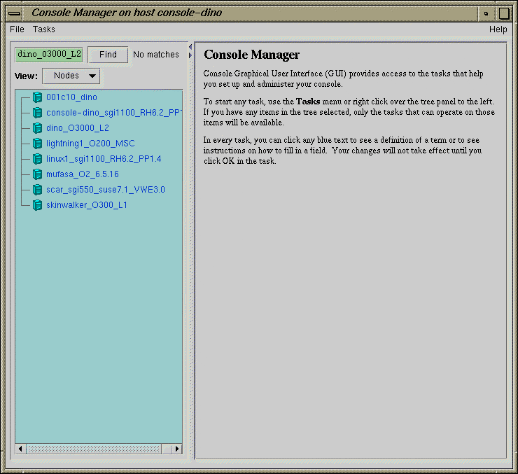
Figure 1-4, shows the Console Manager GUI.

The Console Manager View panel provides the following capabilities:
Shows the results when a task has been completed. For example, when the Add a Node task is done, you will see the new node show up in the Console Manager View panel.
Shows the nodes configured at a site and the Console Manager users.
Gives access to help information.
From the Console Manager View panel, you can click on a node to display key information. Figure 1-5, shows an example of the Console Manager View panel.
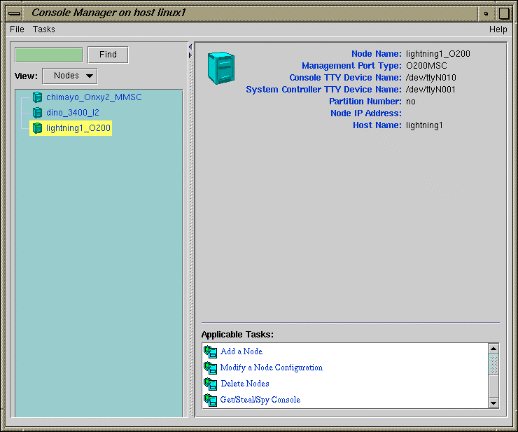
The Console Manager provides access to the tasks that help you set up and administer a single node or all the nodes at a site.
The Console Manager has the following categories:
Overview, which introduces the tool, how to use it, and some suggestions for first time users.
The File pulldown menu (see Figure 1-6) allows you to perform the following actions:
New Console Manager
Clone this Console Manager
Show SALog
Close
Exit
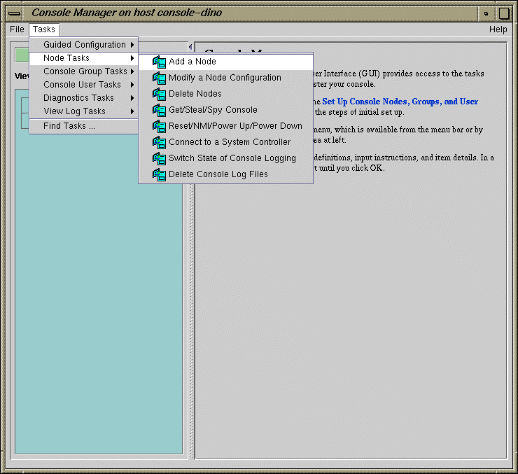
The Task pulldown menu (see Figure 1-7) allows you to perform the following actions:
Guided Configuration, which allows you to:
Set up Console Nodes, Groups, and Users
Node Tasks, which allow you to:
Add a Node
Modify a Node Configuration
Delete Nodes
Get/Steal/Spy Console
Reset/NMI/Power Up/Power Down
Connect to a System Controller
Delete Console Log Files
Management Group Tasks, which allow you to:
Add a new Management Group
Modify a Management Group
Delete a Management Group
Console User Tasks, which allow you to:
Add a new Console User
Modify a Console User
Delete a Console User
Change a Console User Password
Add Console Users
Diagnostic Tasks, which allow you to:
Reset Console Backend Software
View LogTasks, which allow you to:
View System Log
View System Controller Logs
Find Tasks, which lets you use keywords to search for a specific task.
Figure 1-6 shows the File Pulldown
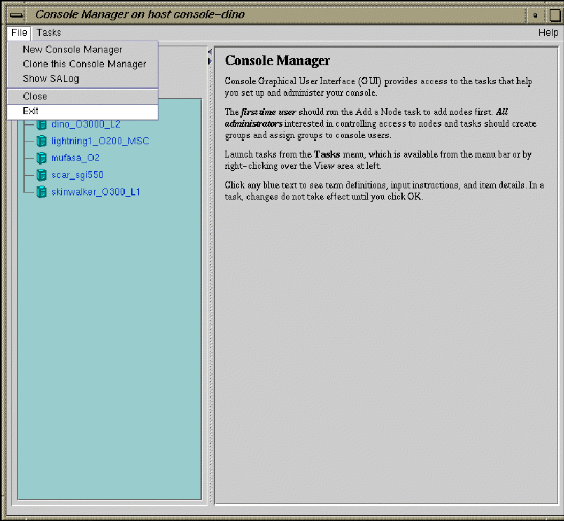
Figure 1-7 shows the Tasks pull-down menu.
You can use the Console Manager interface to consolidate information about multiple nodes and multiple users in a very compact space. Unlike the IRISconsole GUI, the Console Manager interface contains one window organized into two main panels. The panel on the left contains information about the nodes being managed and monitored and the users logged into Console manager. It also provides a view of all the nodes being controlled and monitored by Console Manager. The panel on the right contains configuration information about each node configured and the applicable tasks (see Figure 1-4). The right mouse menus allow you to launch tasks faster in the Console Manager GUI. The Find button text field helps you to find node and user objects more quickly, as shown in Figure 1-8.
Console Manager can be used in a heterogeneous system environment. It can monitor and control systems running either the IRIX or Linux operating systems.
Unlike IRISconsole, Console Manager provides continuous system connection without the console window active. Console Manager also provides numerous connections to any one system.
The client/server architecture of Console Manager/SGIconsole is very robust. The modular nature of the architecture allows new technology to be easily integrated into the software suite, for example, new SGIconsole plugins can be added to support new node types without having to rewrite all of the Console Manager/SGIconsole code.
The following section compares the functional capabilities of IRISconsole versus SGIconsole.
Table 1-2, shows a comparison between IRISconsole and SGIconsole for single-system functions.
Console Functions | IRISconsole | SGIconsole |
|---|---|---|
Console window with logging | Yes | Yes |
User access control | Yes | Yes |
Power cycle (from GUI) | Yes | No |
Power down (from GUI) | Yes | Yes |
Power up (from GUI) | Yes | Yes |
System reset (from GUI) | Yes | Yes |
System nonmaskable interrupt (NMI) | Yes | Yes |
Hardware inventory | Yes | No |
Users logged in display | Yes | No |
SYSLOG collection monitoring | Yes | No, but ESP provides equivalent functionality |
Hardware graphs showing tempeatures, fan speeds, and voltages | Yes (Challenge systems only) | No |
Get console | Yes | Yes |
Spy console | Yes | Yes |
Steal console | Yes | Yes |
Show console logs | Yes | Yes |
Get system logs | Yes | Yes |
Get system controller logs | Yes | Yes |
Start service tool (for field personnel) | Yes | No in Console Manager, but provided by Embedded Support Partner (ESP). See the esp(5) man page. |
Generate availmon report | Yes | No, but ESP provides equivalent functionality |
Continuous system connection without console window active | No | Yes |
Numerous connections to any one system | No | Yes |
Desktop icon for high-level resource usage monitoring on one or more nodes | No | Yes, Performance Co-Pilot |
Time-series (strip charts) for CPU utilization, disk activity, filesystem fullness, network traffic, NFS activity, paging, system calls and an overview | No | Yes, in Performance Co-Pilot |
3-D performance visualizations for CPU utilization, disk activity, Origin 2000 and Origin 3000 CPU and router activity, overview across a group of nodes | No | Yes, in Performance Co-Pilot |
Text-based interface | Yes | Yes |
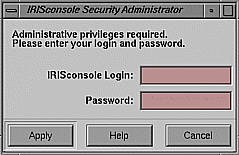
IRISconsole includes security features that use local password protection to assist administrators in securing IRISconsole and its managed systems from unauthorized access. Administrative functions like adding a new user to IRISconsole require an IRISconsole login ID and password. Figure 1-9, shows the IRIS console security window.
When IRISconsole security is turned on (the default), access to certain operations is controlled. Some of these operations are represented by buttons in the site window or selections on pulldown menus of the IRISconsole GUI, such as adding or deleting sites and systems in the sites (using the Edit pulldown menu).
The Console Manager GUI also includes security features that use local password protection to assist administrators in securing Console Manager and its managed systems from unauthorized access (see Figure 1-10).
In the Red Hat Linux 8.0 or 9.0 releases, sshd(1) is installed as part of the server installation and begins running when the system is booted. You can use the ssh(1) command on a workstation to initiate a connection to it. The ssh(1) command needs to be started at one endpoint of the secure communications session; the other endpoint is at the sshd(8) daemon running on the SGIconsole server itself.
To use ssh(1) security services, see “SGIconsole and Security Under OpenSSH” in the Console Manager for SGIconsole Administrator's Guide.
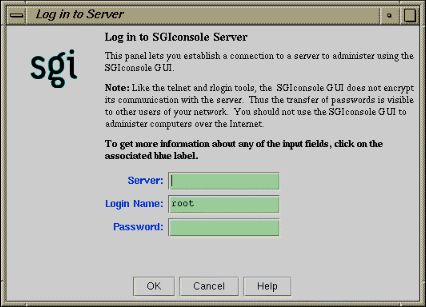
The administrator for Console Manager is root. Only a root user can add or delete other users, add nodes, and view logs. Normal users can perform all other GUI operations.
SGIconsole 2.0 assumes your SGIconsole machine and remote display for viewing and running SGI application are behind a secure firewall. The SGIconsole 2.0 startup script helps you improve security on your SGIconsole system. It removes the piranha RPMs, disables services via checkconfig(8), and comments out entries in the /etc/inetd.conf file. These actions address common concerns, but are not intended to eliminate all security risks.
Access controls in SGIconsole prevent users from issuing unauthorized operations to the SGIconsole server.
All SGIconsole operations that can be operated on nodes can be protected using SGIconsole's access control mechanism.
SGIconsole supports the concept of groups. A group is a list of nodes that a user can access and the list of tasks that a user can apply to any node in a list of nodes. A user can be a member of more than one group, thus providing access to a union of particular named sets of access controls.
If a user is not assigned to any group, the user has access to all nodes configured in SGIconsole and can apply any task to any node.
This section describes the configuration files used by IRISconsole and SGIconsole and how the respective GUIs can be used to update these files.
Figure 1-11, shows the dialog box used to change an IRISconsole site configuration.
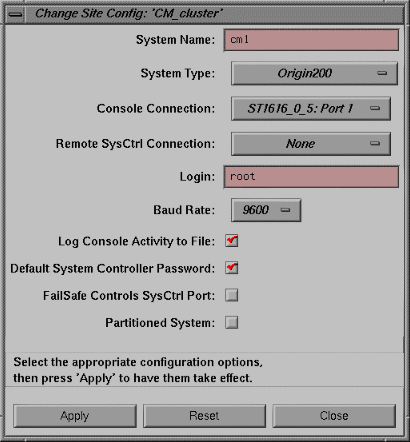
When you use this dialog box to change the configuration of a site, the IRISconsole data base located in the /var/IRISconsole/2.0/.IC/IRIScon1 directory is updated. Each system in a site has an ASCII file in this site directory that contains the configuration information for the system. The ASCII file for the site being updated in Figure 1-11, would appear similar to following:
cm1 ORIGIN_200 ST1616_0_5_1 None root 9600 yes yes no no |
The ASCII file entries are mapped to the appropriate dialog box, as shown in the following list:
| File Entry | Dialog Box Field or Button Description |
| cm1 | System Name |
| ORIGIN_200 | System Type |
| ST1616_0_5_1 | Console Connection |
| None | Remote SysCtrl Connection |
| root | Login |
| 9600 | Baud Rate |
| yes | Log Console Activity to File |
| yes | Default System Controller Password |
| no | FailSafe Controls SysCtrl Port |
| no | Partitioned System |
Figure 1-12, shows the dialog box used to add a new site to IRISconsole. Each site added to an IRISconsole configuration has an entry in the /var/IRISconsole/2.0/.IC/site directory
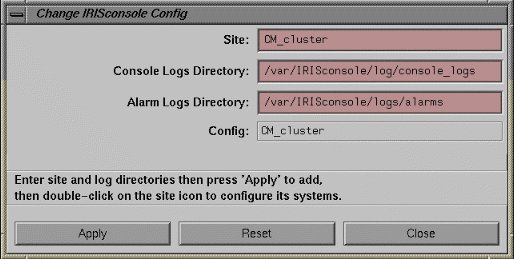
When you add or modify a node, user, or group using Console Manager, a configuration file under the /var/lib/SGIconsole/ directory is either created or modified. For information on SGIconsole configuration using Console Manager, see Console Manager for SGIconsole Administrator's Guide.