After the you have used the installace utility to install the gm package (individually or as part of the myrinet set of packages), you must manually install the driver into the kernel modules directory and start the driver. Thereafter, the driver will automatically be restarted after each boot. Some steps must be completed on all nodes, others on only the head node.
 | Note: If you are not, you must rebuild the drivers to match the your kernel. See Chapter 5, “Rebuilding the Kernel when using Myrinet without SGI ProPack”. |
Do the following on each node:
Log in as root.
Install the gm package according to the directions in Chapter 4, “Installing ACE Software”.
Change to the /usr/local/gm directory:
# cd /usr/local/gm
Run the GM_INSTALL utility. For example:
# ./GM_INSTALL
Making device files in /dev.
ifconfig myri0 down - in case it was up
myri0: unknown interface: No such device
Removing any existing gm driver.
rmmod: module gm not loaded
Adding new GM driver.

tail /var/log/messages
Dec 10 10:02:39 node01 kernel: GM:Using MCP: 'L4 4K' m:524288 l:453328
v:401-403 pl:4096 cl:64
Dec 10 10:02:40 node01 kernel: GM:Allocated IRQ18
Dec 10 10:02:40 node01 kernel: GM:Initialized network driver myri0
Dec 10 10:02:40 node01 kernel: GM:gm: driver loaded, 1 unit initialized

Done
Do the following:
Log in to the head node as root.
Change to the /usr/local/gm/sbin directory:
# cd /usr/local/gm/sbin
Start the Myrinet GM mapper(8) process with the active.args argument, and redirect the standard output and standard error to a file. For example:
# ./mapper active.args > /dev/null 2>&1 &
To test whether the board is up and running, change to the /usr/local/gm/bin directory and run the .gm_board_info command. The following shows example output:
# cd /usr/local/gm/bin
# ./gm_board_info
GM build ID is "1.1.1 root@node01 Fri Dec 10 11:25:36 CST 1999."


Board number 0:
  lanai_clockval    = 0x90479047
  lanai_cpu_version = 0x0403
  lanai_board_id    = 00:60:dd:7f:ec:0d
  lanai_sram_size   = 0x00100000 (1024K bytes)
  fpga_version      = "Mon Aug 10 11:46:37 1998"
  more_version      = ""
  board_type        = 0x0001 (GM_MYRINET_BOARD_TYPE_1MEG_SRAM)
  bus_type          = 0x0002 (GM_MYRINET_BUS_PCI)
  product_code      = 0x0025
  serial_number     = 20375
    (should be labeled: "M2F-PCI32c-20375")
LANai time is 0x0e0775ce5 ticks, or about 28 minutes since reset.
This is node 1 (node01).
Board has 8 ports and has space for 4657 nodes/routes.
Route table for this node follows:
gmID MAC Address                               Hostname Route
---- ----------------- -------------------------------- ---------------------
   1 00:60:dd:7f:ec:0d                            node01 80 (this node) (mapper)
   2 00:60:dd:7f:de:4c                             node02 b8
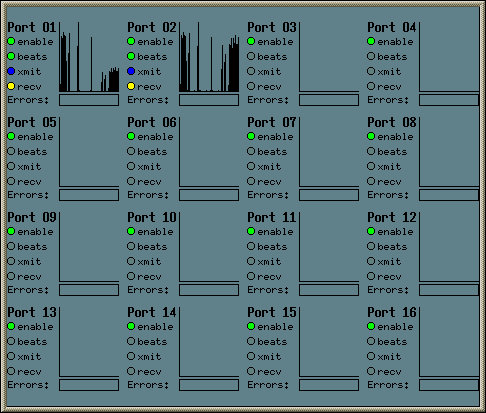
If you have a 16-port Myrinet switch, you can monitor Myrinet packet traffic on the switch using the myrinetmon(1) tool, which is part of the pcp-ace package in Performance Co-Pilot. (The 4-port Myrinet switch does not have an ethernet port, which means that it cannot be monitored via SNMP and therefore it cannot be monitored with the myrimon tool.)
The/var/pcp/pmdas/myrinet/README file and the myrinetmon(1) and pmdamyrinet(1) man pages provide detailed instructions that tell you how to configure the switch to allow monitoring and how to set up the necessary PCP agents.
Figure 6-1 shows an the myrinetmon tool monitoring a 16 port switch (of which only two ports are connected).