This chapter gives information on the basic features of the SGI Total Performance (TP) 9100 fibre channel storage system, in these sections:
The storage system is available in the formats described in these subsections:
The storage system can be connected to one or two fibre channel boards (host bus adapters, or HBAs) in a supported SGI server separately or in combination (loop).
The basic unit of the SGI TP 9100 storage system is the enclosure, which contains a minimum of 5 and maximum of 12 disk drives and the component modules that handle RAID control, I/O, power and cooling, and operations. Figure 1-1 shows the front of the enclosure, with the full complement of 12 disk drive modules.

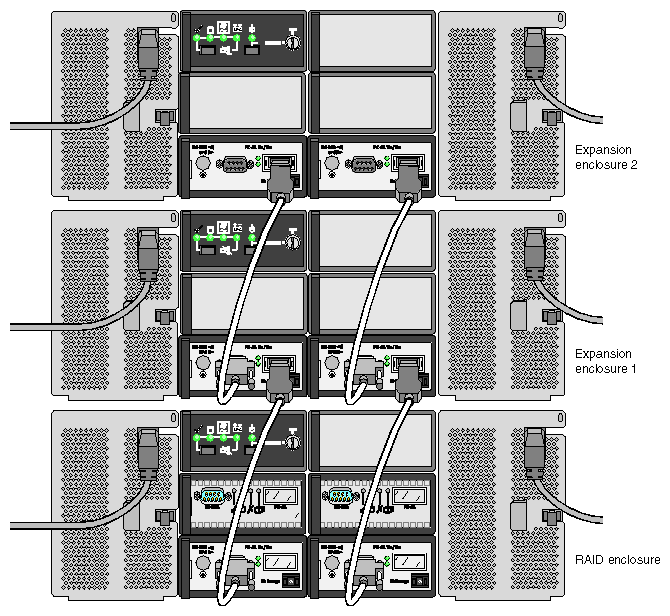
The enclosure is available with or without single or dual RAID modules. An enclosure with single or dual RAID modules is a RAID (base) enclosure. An enclosure without a RAID module is an expansion enclosure; The expansion enclosure must be cabled to a RAID enclosure and provides additional disk modules. The RAID controller can address up to 32 disk drives; thus, two expansion enclosures can be cabled to it.
Figure 1-2 shows the back of a rackmountable RAID enclosure with a single RAID controller (RAID controller 0) and points out the component modules.

Figure 1-3 shows the back of a rackmountable RAID enclosure with dual RAID controllers (RAID controller 0 and RAID controller 1) and points out the component modules.
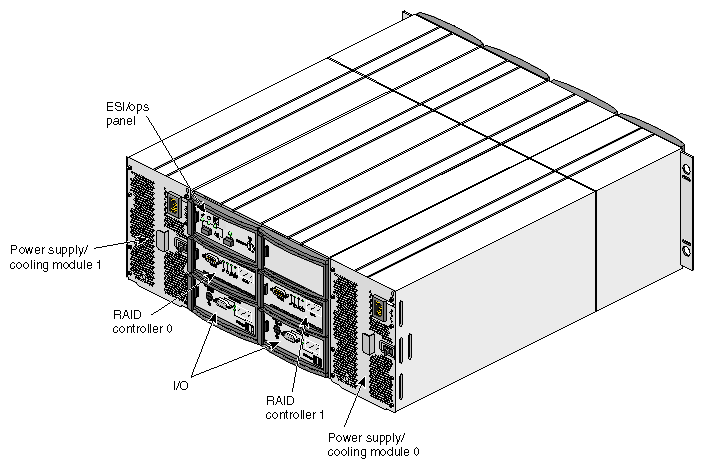
Dummy modules occupy unoccupied empty bays and must be in place for proper operation and to ensure correct airflow. The component modules are discussed in detail in “Modules in the Storage System”.
The RAID enclosure can be housed in a standalone tower or in an SGI TP 9100 rack (or in a standard 19-inch rack). Each enclosure occupies 4U (4 EIA units) of rack space.
Figure 1-4 shows the front of an SGI TP 9100 rack with two enclosures.

Figure 1-5 is a rear view of an SGI TP 9100 rack with three RAID enclosures.

For instructions on opening the rear door of the rack, see “Opening and Closing the Rack Door”.
The SGI TP 9100 rack ships with at least two enclosures: either two RAID enclosures or one RAID enclosure and one expansion enclosure. At the front of the rack, filler panels cover unoccupied bays; these must be in place for proper operation and to ensure correct airflow.
The SGI 9100 rack is 38U high, with ten bays. The power distribution units (PDUs) at the sides of the rack provide power for the bays. All sockets in the PDUs are rated at 200 to 240 VAC, with a maximum load per bank of outlet sockets of 8 A, and are labeled as such. The bays and sockets accommodate the following:
Socket 1 at the top of each PDU is for the 2U bay at the top of the rack, which accommodates the SGI Fibre Channel Hub or one or more fibre channel switches.
If this bay is unoccupied, a 2U filler panel provides correct airflow.
Sockets 2 through 10 on each PDU are for the nine 4U bays, which accommodate SGI TP 9100 enclosures.
All nine bays can be occupied by independent RAID enclosures, or by any combination of a RAID enclosure and one or two expansion enclosures cabled to each RAID enclosure. For unoccupied bays, a 4U filler panel provides proper operation and correct airflow.

Caution: Equipment installed in the bays must be only as described above. 
Warning: The power distribution units (PDUs) at the sides in the rear of the rack contain hazardous voltages. Do not open the PDUs under any circumstances.
Figure 1-6 shows cabling between a RAID (base) enclosure and two expansion enclosures. Enclosures are cabled at the factory, or by an SGI System Support Engineer (SSE).
The tower ( deskside) version of the storage system houses one RAID enclosure. Figure 1-7 shows the front of the tower.
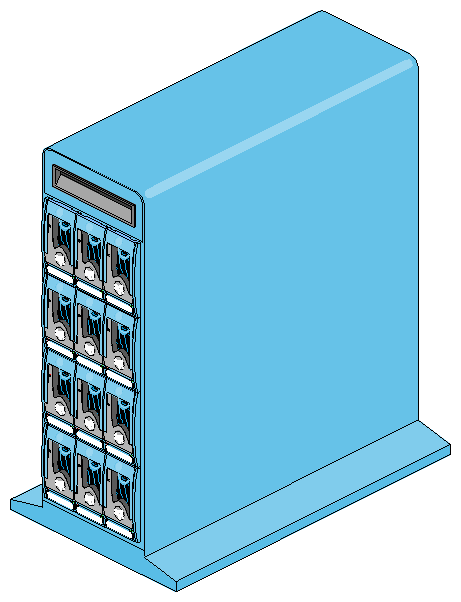
Figure 1-8 is a rear view of the tower.

Dummy modules occupy empty bays and must be in place for proper operation and to ensure correct airflow. The component modules are discussed in detail in “Modules in the Storage System”.
The enclosure in the tower can be adapted for rackmounting; contact your service provider if you wish this done.
The enclosure chassis consists of two segmented aluminum assemblies with a midplane PCB between them. Each chassis assembly contains 12 bays; a bay is defined as the space required to house a single 3.5-inch disk drive (1.6 inches high, or 1 inch high with a foam filler) in its carrier module. Larger modules—the power supplies—are accommodated in multiple bay spaces. The midplane PCB provides logic level signal and low-voltage power distribution paths.
Component modules in the storage system are
Two power supply/cooling modules
Enclosure system interface/operator panel (ESI/ops)
One or two RAID controller modules with FC-AL input/output
Two loop resiliency circuit (LRC) I/O modules
FC-AL disk drive carrier modules:
RAID enclosure: 5 to 12
expansion enclosure: 2 to 12
The modules are described in separate sections in this chapter:
This chapter also includes a section explaining chassis bay numbering: “Storage System Bay Numbering”.
Two 550-watt power supply/cooling modules are mounted in the rear of the storage system. Figure 1-9 shows a module. Each module contains two fans as well as the power supply and its associated electronics. The fans derive power from the chassis midplane, not from the power supply itself.
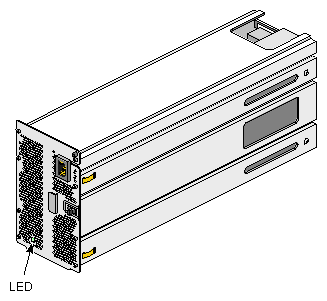
Power supply voltage operating ranges are nominally 115V or 230V, selected automatically.
An LED on the front panel of the power supply/cooling module indicates the status of the power supply and the fan.
The modules operate together; if one fails, the other maintains the power supply and cooling while the faulty unit is replaced. The faulty module, however, still provides proper airflow for the storage system.
Power cords are included with the storage systems; they are described in “Connecting the Power Cord and Powering On the SGI TP 9100 Tower ” in Chapter 2 and “Powering Off” in Chapter 2 in Chapter 2, “Connecting to a Host and Powering On and Off”. Specifications for the cables and for the power supply are in Table A-7 in Appendix A, “Technical Specifications”.
The ESI/ops panel module provides the storage system with a microcontroller for monitoring and controlling all elements of the storage system. Each element (power, cooling, temperature, device status) is interfaced to the processor using an I2C (I square C) bus.
Figure 1-10 shows the location of the ESI/ops panel in a rackmountable enclosure.

Figure 1-8 shows its location in the tower.
Figure 1-11 shows details of the panel in a rackmounted enclosure.
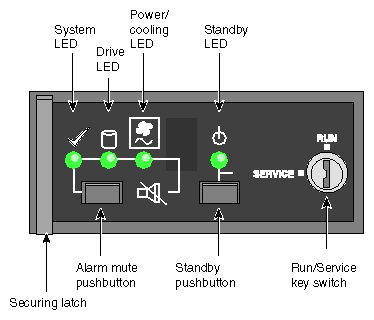
Figure 1-12 shows details of the panel in a tower.
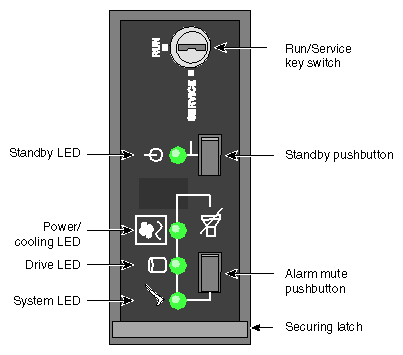
The ESI/ops panel shows a consolidated status for all modules. Table 1-1 summarizes the function of the LEDs on the ESI/ops panel, as well as those on other modules in the storage system.
Table 1-1. Storage System LED Indications
LED | Meaning |
|---|---|
Green, steady | Positive condition |
Green, flashing | Disk drives: data activity |
Alternating green and amber, flashing | Noncritical condition |
Amber, steady | Fault |
In addition to the indicators on the ESI/ops panel, each module type has its own status LED(s). Using the LEDs for troubleshooting is explained in “Using Storage System LEDs for Troubleshooting ” in Chapter 5 in Chapter 5, “Troubleshooting”.
Other features of the ESI/ops panel are as follows:
Key switch: activates run or service mode, as explained in “Key Switch for Starting the Storage System ”.
Standby pushbutton: activates standby mode when the key switch is in the Service position; see “Powering On the Rack ” in Chapter 2 and “Powering On the SGI TP 9100 Tower ” in Chapter 2 in Chapter 2, “Connecting to a Host and Powering On and Off”.
Alarm mute pushbutton: mutes the alarm; see “Audible Alarm”.
The ESI/ops panel module firmware includes SCSI Enclosure Services ( SES), which monitors the modules in the storage system and controls the ESI/ops panel LEDs. The ESI/ops panel requires two disk drives in specific drive bays to serve as conduits for information from the storage system to the ESI/ops panel module. SES is also required for the RAID controller module(s); see “SCSI Enclosure Services ( SES) and Disk Drive Control” in Chapter 3 in Chapter 3, “Features of the RAID Controller Module” for more information.
For general use, the storage system is started by turning the key switch on the far right (top) of the ESI/ops panel to the RUN position; the storage system ships with the key in this position. For specific instructions on starting and stopping the storage system, see “Powering On the Rack ” in Chapter 2 and “Powering On the SGI TP 9100 Tower ” in Chapter 2 in Chapter 2, “Connecting to a Host and Powering On and Off”.
The audible alarm on the ESI/ops panel sounds when a fault state is present. Pressing the alarm mute pushbutton reduces the volume of the alarm, but leaves a beep at approximately 10-second intervals to indicate that a fault state is still present. The mute pushbutton is beneath the indicators on the ESI/ops panel (see Figure 1-11 and Figure 1-12).
“Using the Alarm for Troubleshooting ” in Chapter 5 in Chapter 5, “Troubleshooting” explains alarm function.
Each storage system contains one or two RAID controllers, which bring RAID functionality and high-speed fibre data transfer performance for connection to a fibre channel host bus adapter (HBA) installed in a host system. Figure 1-13 shows an enclosure with dual RAID controllers. The enclosure can also accommodate a single RAID controller. Each RAID controller has a GBIC port that can accommodate SGI supported GBIC modules.
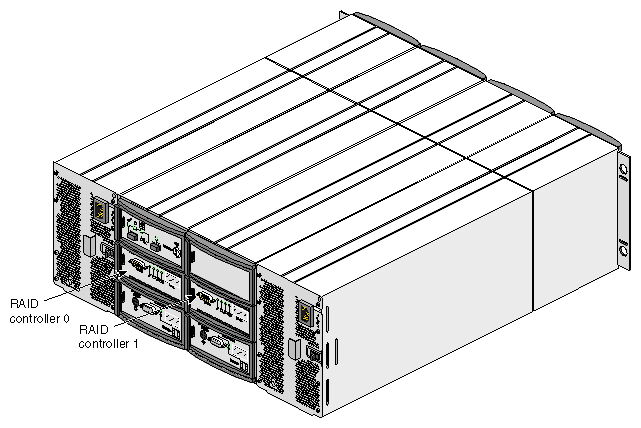
The first controller (RAID controller 0) must be installed in bay 3/2 and the second in bay 2/2 (see “Storage System Bay Numbering” for details on bay numbering). When the controllers are configured in a dual-active configuration, they provide continuous access to data, even if one of them fails. An installation with a single controller is known as a simplex system; an installation with two controllers is known as a dual-active system.
The intelligent caching controller supports industry-standard RAID levels (0, 1, 3, 5, and 0+1) for multiple-drive arrays, and JBOD for single-drive control functionality. The controller also supports RAID 10, 30, and 50 in spanned disk arrays. (“RAID Levels ” in Chapter 4 in Chapter 4, “Using the RAID Controller” has information on supported RAID levels.)
The RAID controller is shipped with the cache backup battery disconnected. Before the RAID controller is installed in the enclosure, connect the battery, then use the GAM or WAM utility to fast charge the battery.
LEDs on the controller panel give information on controller activity; see Figure 1-14 (tower) and Figure 1-15 (rackmount enclosure). The fault/controller not ready LED is amber; the other three LEDs are green.
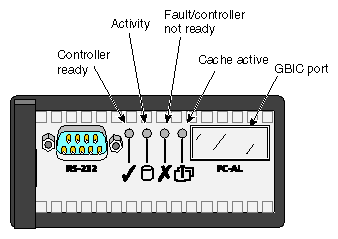
The RAID controller's activity LED flashes every time the Global Array Management (GAM) server issues a poll. The default interval is 7 seconds; to reset the interval, see the documentation for the GAM software.
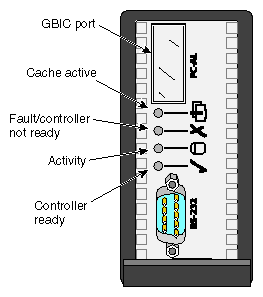
A fibre channel device, such as a host bus adapter in a server, is cabled to the FC-AL (GBIC) port on the RAID controller.
For more information on the controller, see Chapter 3, “Features of the RAID Controller Module” and Chapter 4, “Using the RAID Controller”.
The storage system is shipped with two FC-AL loop resiliency circuit (LRC) I/O modules, which make dual (redundant) data paths possible. Each module provides connection between the RAID controller and one loop of up to 12 drives.
Cables between I/O modules must have a male DB9 connector on one end to plug into the mating DB9 connector on the left side of the I/O module and an HDSSC connector on the other end to plug into the GBIC connector on the right side of the I/O module.
Figure 1-16 shows the location of the I/O modules in the enclosure.
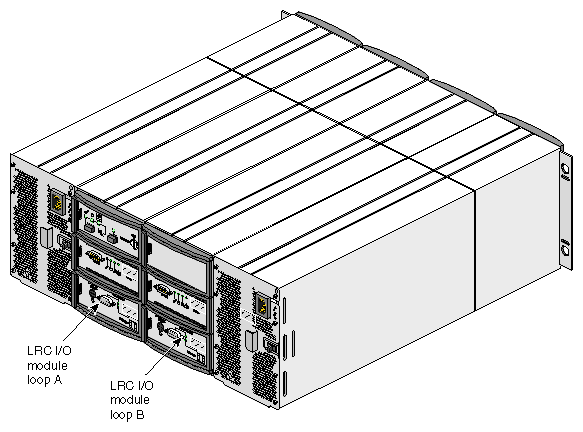
Figure 1-17 shows features of the I/O module panel in the enclosure.
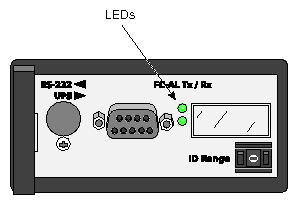
Each port on the I/O module panel has an LED indicating its status.
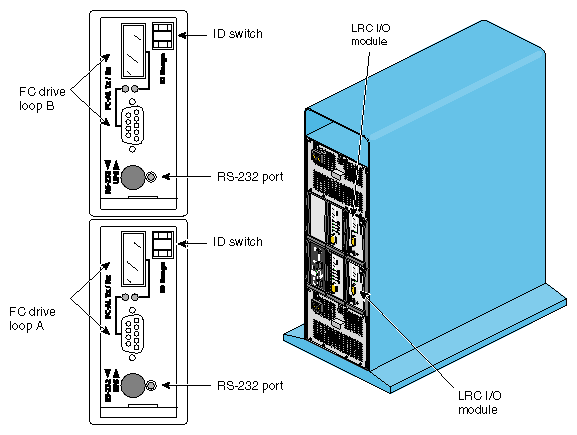
Each I/O module has an ID selector switch for the system ID, which is set to 0 on both modules at the factory. Disk drive IDs are based on this ID.
At initial startup, each I/O module controls a separate loop of six drives; see “Loop Configuration” in Chapter 4 in Chapter 4, “Using the RAID Controller” for details.
Figure 1-18 shows features and location of the I/O module panel in a tower.
A disk drive module (FC-AL) consists of a hard disk mounted in a carrier. Each drive bay in the front of the storage system houses a single 1.6-inch high, 3.5-inch disk drive in its carrier, or a 1-inch high drive, which has a foam filler. Figure 1-19 shows the disk drive module.
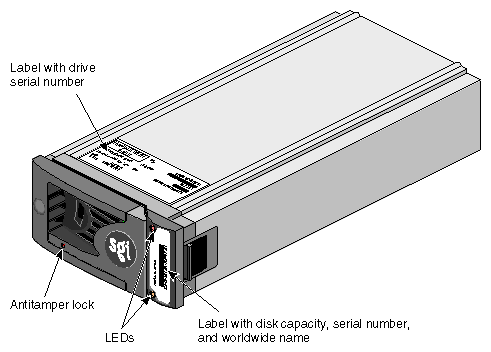
The label on the front of the drive has the drive capacity (for example, FCAL 9.17GB), the serial number, and worldwide name . The serial number of the drive is also on a label on the top of the carrier.
The SGI TP 9100 storage system uses disk technology that allows you to replace a disk while the system continues to run. This “hot swapping” must be done only under controlled circumstances; “Replacing a Disk Drive Module ” in Chapter 6 in Chapter 6, “Installing and Replacing Disk Drive Modules” has more information.
The drives in certain bays (left top and left bottom bays of the tower; bottom far left and far right of the rackmount enclosure) are required for storage system management; see “Required Drives ” and “Storage System Bay Numbering” for specific information on their location.
The drives are dual-ported and can be configured as two separate loops; see “Loop Configuration” in Chapter 4 in Chapter 4, “Using the RAID Controller”.
The extruded aluminum carrier (canister) provides thermal conduction and radio frequency and electromagnetic induction protection, and affords the drive maximum physical protection.
The drive module cap has an ergonomic handle that provides the following functions:
Camming of the carrier into and out of the drive bays
Positive spring loading of the drive/backplane connector
Each drive carrier has two LEDs, an upper (green) and lower (amber). In normal operation, the green LED is on and flickers as the drive operates. The amber LED illuminates when the drive is faulty.
The drive carrier has an antitamper lock that disables the normal latch action of the handle; it is fitted in the drive carrier handle, as shown in Figure 1-19. The lock is set through the hole in the lower part of the handle trim. An indicator shows the setting:
When the drive is locked, a red indicator is visible in the center rectangular aperture in the handle.
When the drive is unlocked, a black indicator is visible.
The antitamper lock setting is changed with a key through the small round cutout in the lower part of the handle trim piece. (A key is included with each tower.) Changing the setting is explained in “Adding a Disk Drive Module ” in Chapter 6 and in “Replacing a Disk Drive Module ” in Chapter 6 in Chapter 6, “Installing and Replacing Disk Drive Modules”.
Drive fillers or dummy drives (front dummy fascias) are provided for all unused drive bays and are required to maintain a balanced airflow.
Figure 1-20 shows the location of the drives required by the ESI/ops panel and the RAID controller(s), namely drive bays 1/3 and 4/3. “Storage System Bay Numbering” has full details of bay numbering.
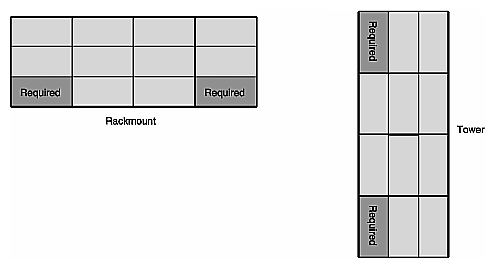
Figure 1-21 shows the correct positions of the modules and the enclosure bay numbering convention for the rackmount enclosure. A bay is defined as the space required to house a single 3.5-inch disk drive in its carrier module.
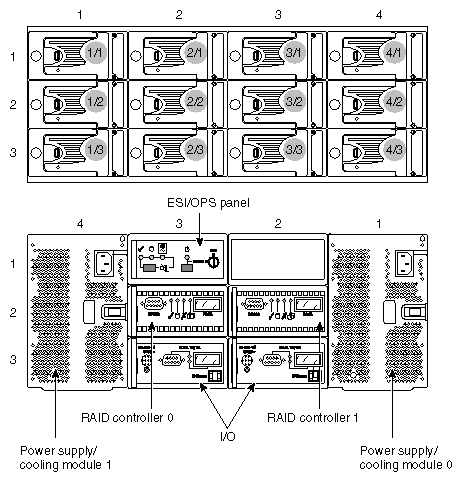
The rackmount enclosure is 4 x 3, that is, 4 bays wide by 3 bays high.
The disk drive bays, located in front, are numbered 1 to 4 from left to right and 1 to 3 from top to bottom. Drives in bays 1/3 and 4/3 are required for storage system management; these bays must always be occupied.
The rear bays are numbered 1 to 4 from right to left and 1 to 3 from top to bottom.
Module locations are identified by combining the column and row numbers (top and side numbers in Figure 1-22). For example, the ESI/ops panel on the rackmountable enclosure is in rear bay 3/1 (third column from right, top row).
Figure 1-22 shows the correct positions of the modules and the enclosure bay numbering convention for the tower.
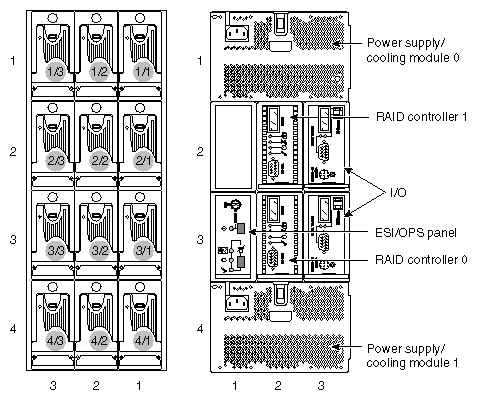
The tower is 3 x 4, that is, 3 bays wide by 4 bays high.
The disk drive bays, located in front, are numbered 1 to 3 from right to left and 1 to 4 from top to bottom. Drives in bays 1/3 and 4/3 are required for storage system management; these bays must always be occupied.
The rear bays are numbered 1 to 3 from left to right and 1 to 4 from top to bottom.
Module locations are identified by combining the column and row numbers (top and side numbers in Figure 1-22). For example, the ESI/ops panel on the tower is in rear bay 3/1 (leftmost column, third row).
To open the rack rear door, follow these steps:
Locate the latch on the rack rear door.
Push up the top part of the latch, as shown in the second panel of Figure 1-23.
Press the button, as shown in the third panel of Figure 1-23. This action releases the door lever.
Pull the door lever up and to the right, to approximately the 2 o'clock position, as shown in the fourth panel of Figure 1-23. The door opens.
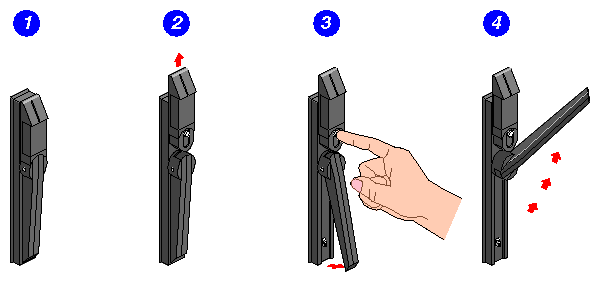
To close the door, lift the locking brace at the bottom.