These instructions explain how to upgrade your Silicon Graphics O2 R5000 class system or RM7000 class system with a newer CPU. The instructions for installing the processor module upgrade are different depending on which version of the operating system you are using. The following topics are covered:
“Installing the Upgrade on IRIX 6.5 Systems”

Note: The RM7000 CPU upgrade requires IRIX 6.5.12, or later. If your shipment includes an RM7000 CPU upgrade, you must install the IRIX 6.5.12, or later, operating system prior to installing the CPU upgrade.
Follow these installation instructions in the order in which they are given. First install the operating system software if needed, then install the software patches, and then install the hardware.
Before upgrading your CPU, determine your workstation's IRIX operating system version. From the Toolchest, select Desktop > UNIX Shell. At the prompt, enter:
uname -R |
Note the following:
If you see 6.3 O2 R10000 or 6.3 O2, check your shipment (see “Checking Your Shipment”), see “Installing the Upgrade on IRIX 6.3 Systems”, and follow the instructions for your workstation's specific IRIX 6.3.
Note: The IRIX 6.3 operating system does not support the RM7000 CPU. If you see 6.5.x O2 and you are installing an R5000 class CPU upgrade, check your shipment (see “Checking Your Shipment”) and then see “Installing the Upgrade on IRIX 6.5 Systems”.
If you see 6.5.x O2 (where x is less than 12) and you are installing the RM7000 class CPU upgrade, you must upgrade your workstation to the IRIX 6.5.12, or later, operating system before installing the hardware. Confirm your shipment (see “Checking Your Shipment”) and then see “Installing the Upgrade on IRIX 6.5 Systems”.
The following items are included in this shipment:
CD entitled “IRIX 6.3 for O2 Including R10000”
CD entitled “IRIX 6.3 Recommended/Required Patches 6/99”
IRIX 6.5.x Overlay CDs. Overlay software is labeled “IRIX 6.5.x,” with “x” referring to the current numbered version of the software (for example, 6.5.10). Base software is referred to as IRIX 6.5.
Wrist strap
Reversible screwdriver
R5000 class (RM5271) or RM7000 class CPU processor module
Upgrade label
Follow the upgrade instructions in this section if your system is running IRIX 6.3. This section covers the following topics:
To upgrade your CPU, verify that you are running the correct version of IRIX 6.3 and, if not, upgrade to the required version. Then install the CD entitled “IRIX 6.3 Recommended/Required Patches 6/99” and install the processor module upgrade.
To locate and install relevant documentation, see “Viewing the Guide from the IRIS InSight Library”.
Install the software before installing the hardware.
For the O2 R5000 class CPU upgrade, you need the version of the IRIX operating system software called “IRIX 6.3 for O2 Including R10000.” To make sure your system is running the correct version before installing the patches and beginning the hardware upgrade, follow these steps:
Check your workstation's IRIX version. In a shell window, enter:
uname -R
Note the following:
If you see 6.3 O2 R10000, you have the correct IRIX version. See “Installing the Patches CD”.
If you see 6.3 O2, you must upgrade your workstation to the correct operating system before installing the patches and the hardware. The CD entitled “IRIX 6.3 for O2 Including R10000” is included in this shipment. Read the Caution below, and then proceed to step 2. Otherwise, see “Installing the Patches CD”.

Caution: Do not install the patches CD that contains the recommended patches now. You do this later, after installing the IRIX and Applications CDs and then rebooting the workstation. If you install the patches without rebooting, the flash PROM environment variables may become corrupt.
Install the CD entitled “IRIX 6.3 for O2 Including R10000.” Read any letters or instructions that came with the CD. The CD booklet explains how to read the release notes.
After installing this CD, you must reboot the system before installing the patches CD. From the toolchest, select Restart System. Log in as usual when you see the Login screen.
You are ready to install the patches.
| Note: Now that the system is running the correct version of IRIX, if you ever need to boot from a CD (the miniroot), you must use the CD entitled “IRIX 6.3 Recommended/Required Patches 6/99,” not an operating system CD. The new hardware (CPU) is not compatible with the original IRIX 6.3 operating system CD. |
To install the CD entitled “IRIX 6.3 Recommended /Required Patches 6/99,” follow these steps:
| Caution: If you just installed the CD entitled “IRIX 6.3 for O2 Including R10000,” but you have not rebooted your system, reboot before installing the CD entitled “IRIX 6.3 Recommended/Required Patches 6/99.” |
Insert the CD entitled “IRIX 6.3 Recommended/Required Patches 6/99” in the CD-ROM drive and double-click the CD-ROM drive icon on the desktop. If you have a root password set, enter it as prompted.
Read the Installation Startup message that displays, and click Dismiss.
In the Software Manager window, select /CDROM/dist/, and click Open.
Read the Installation Startup script and follow the instructions.
In the Software Manager window, follow the instructions to install the patches. Click Start to begin installation. When a message in the Open Additional Distribution window asks if you want to install additional software, click Done.
Follow the installation instructions that are displayed in the Software Manager. When the installation is complete, select Exit from the File menu.
From the Toolchest, select System > Restart System.
To install the processor module upgrade in your workstation, see the installation instructions in O2 Workstation Owner's Guide (printed) that came with your O2 workstation, or the online O2 Workstation Hardware Reference Guide. In the printed guide, find the section “Replacing the R5000 CPU Module” and follow the instructions.
To locate the online O2 Workstation Hardware Reference Guide, see “Locating Online Processor Module Upgrade Instructions”. To install the guide from the CD, see “Installing the Guide from a CD”.
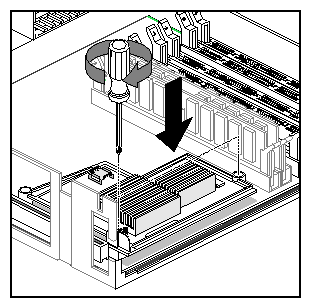
You may be removing a processor module that has one of two form factors, L-shaped or rectangular–shaped. The processor module you receive with this upgrade is L-shaped.
Figure 1-1, Figure 1-2, and Figure 1-3 provide additional information to the instructions found in O2 Workstation Owner's Guide and O2 Workstation Hardware Reference Guide.
| Note: Attach the O2 upgrade label near the system label on the bottom of the workstation. |
Figure 1-1 shows the removal of the rectangular-shaped processor module.
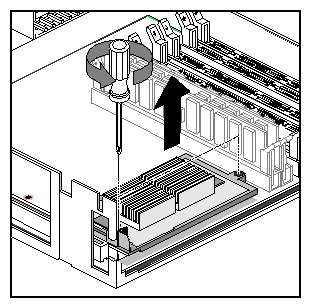
Figure 1-2 shows the removal of the L-shaped processor module.

Figure 1-3 shows the installation of the L–shaped processor module upgrade.
If your workstation does not boot after installing the processor module, read the processor module installation instructions carefully to make sure the new processor module is correctly seated. Be sure to install the software before installing the hardware.
Check that the system is running the correct version of IRIX. See “Verifying and Installing the Operating System”.
If necessary, remove the new hardware, reinstall the old hardware, install the operating system software, remove the old hardware, and install the new hardware.
If you installed “IRIX 6.3 for O2 Including R10000,” then O2 Workstation Hardware Reference Guide was installed by default on your system disk. See the next section, “Viewing the Guide from the IRIS InSight Library” If the book was removed from the system disk, see “Installing the Guide from a CD”. To access the guide on the web, see “Viewing the Guide on the Web”.
To locate the online book, follow these steps:
From the Toolchest on your desktop, select Help > Online Books > SGI End User > O2 Workstation Hardware Reference Guide.
Select “Ordering, Removing, and Installing Replacement Parts.”
Search for “Replacing the R5000 CPU Module.”
You can view the book online, or print the information you need. To print, select Print from the Books menu in IRIS InSight.
If the online manual has been removed from your system disk, you can reinstall it from the O2 IRIX operating system CD that came with your upgrade. Follow these steps:
Insert the CD entitled “IRIX 6.3 for O2 Including R10000” in the CD-ROM drive and double-click the CD-ROM icon on your desktop. The Software Manager window appears. Click the Dismiss button.
Click Customize Installation.
When the Open Additional Distribution dialog box appears, click Done.
From the Selected menu, select Unmark All.
From the Selected menu, select Find.
When the dialog box appears, enter Hardware Reference Guide, and click Search. The Software Manager highlights O2 Workstation Hardware Reference Guide in its Software Inventory window.
Click the Install check box to select the book for installation, and click Start to begin the installation. When the installation is complete, you see this message: “Installation and removals were successful. You may continue with installation or quit now.” Click OK.
To exit the Software Manager, select Exit from the File menu.
To locate the online books from the Toolchest, select Help > Online Books > SGI End User > O2 Workstation Hardware Reference Guide.
If the book does not appear on the End User Bookshelf, you may have to update the IRIS InSight database. To become a super-user, enter the following in a shell window:
su
Also enter the root password if you are prompted for it.
To update the IRIS InSight database, enter:
/usr/lib/infosearch/bin/booksAdmin -full -hwdi \ /usr/share/Insight/library/SGI_bookshelves
Follow the upgrade instructions in this section if your system is running IRIX 6.5.
To upgrade to the R5000 class CPU, install the IRIX 6.5.x Overlay software and install the processor module. To upgrade to the RM7000 class CPU, install the IRIX 6.5.12 (or later), and then install the processor module.
This section covers the following topics:
Install the software before installing the hardware, as follows:
For the R5000 class processor module upgrade, you need to install the IRIX 6.5.x Overlay software that came with this shipment. Your system must have the IRIX 6.5 base software installed.
For the RM7000 class processor module upgrade, you need to install the IRIX 6.5.12 (or later) software that came with this shipment. You must have the IRIX 6.5 base software installed.
Note: The IRIX 6.5 base operating system software does not ship with the processor module upgrade. Contact your local sales representative to order the base operating system. Install the base operating system software, and then install the IRIX 6.5.x Overlay CDs before installing the processor module.
To check your workstation's IRIX version, select Desktop > UNIX Shell from the Toolchest. At the prompt, enter:
uname -aR |
See the Installation Instructions booklet that comes with your IRIX 6.5.x Overlay CDs to install the operating system software.
As stated previously, you install the software before installing the hardware.
For instructions on installing the processor module upgrade, see the “Replacing the R5000 CPU Module” section of Chapter 5 of O2 Workstation Owner's Guide. This information is also found in the online O2 Workstation Hardware Reference Guide. To locate the online O2 Workstation Hardware Reference Guide, see “Locating Online Processor Module Upgrade Instructions”.
| Note: The instructions to install the O2 Workstation Hardware Reference Guide from a CD are identical whether you are installing the upgrade on IRIX 6.3 or IRIX 6.5 systems. See “Installing the Guide from a CD” on page 8, for instructions. |
| Note: Attach the O2 upgrade label near the system label on the bottom of the workstation. |
If your workstation does not boot after you install the processor module, read the instructions carefully to make sure the new processor module is correctly seated. Be sure you installed the software before installing the hardware.
If necessary, remove the new hardware, reinstall the old hardware, install the software, remove the old hardware, and install the new hardware.
Check that the system is running IRIX 6.5. To check your workstation's IRIX version, select Desktop > Unix Shell from the Toolchest. At the prompt, enter:
uname -aR |
To locate the online O2 Workstation Hardware Reference Guide from the Toolchest, select Help > InfoSearch. Type the title of the guide and it appears in your browser window.
To install the online O2 Workstation Hardware Reference Guide, see the Installation Instructions booklet that came with your base operating system CDs.
If you have access to the Internet, you can view the O2 Workstation Hardware Reference Guide in the SGI Technical Publications Library at http://techpubs.sgi.com/library/.
Search by the title, then search for the “Replacing the R5000 CPU Module” section.