This tutorial is designed to give an overview of various TMF capabilities. It introduces the following aspects of TMF usage and provides examples:
-
Using tapes generally consists of four parts. You reserve a tape device, mount a tape, manipulate the tape in some way, and lastly release the tape device.
Additional detail is provided through basic usage examples, a description of how to specify block size with the tmmnt command, and an overview of OpenVault usage.
Obtaining tape status and information
You can obtain status information about your tape usage from various commands and files. You can also send messages to the operator.
Using standard commands
You can manipulate tapes with standard commands like cp(1), dd(1m), tar(1), cpio(1), and tmmnt(1).

Note: Details concerning the commands and parameters used in this chapter are described in the individual man pages. To see an online description of a particular command or routine, use the man(1) command.
Procedure 3-1 provides an overview of the steps involved in using TMF. The examples in the following sections illustrate these steps.
Procedure 3-1. Basic TMF Tape Usage
To use a TMF tape, you follow four basic steps:
Reserve tape resources by using the tmrsv(1) command.
The tmrsv(1) command allows you to reserve a device for your specific need. Reserving a device does not guarantee you immediate access to the drive; it simply alerts TMF that you will eventually request a tape.
Request a tape mount for a tape file by using the tmmnt(1) command.
The tmmnt(1) command allows you to specify the various aspects of the tape, such as the VSN (volume serial number), FID (file identifier), and block size.
Process the tape file information by using whatever commands or programs you need to accomplish what you want to do.
Once the tape is physically mounted on the drive, you can then manipulate it by referring to the path (-p) parameter that was used in the tmmnt(1) command. There are many ways to manipulate the tape including the cp(1), dd(1m), tar(1), and cpio(1) commands as well as through a C language program.
Section 3.2, contains examples showing various ways to manipulate tapes. Chapter 4, “Writing C Applications Using Tapes”, describes the ways in which you may work with tapes from within C programs.
Release the tape resources reserved by using the tmrls(1) command.
After you are done using the tape, you should use the tmrls(1) command to physically disassociate the tape from the tape drive. You can include parameters on the tmrls(1) command that allow you to continue using the tape drive with another tape or to release the tape drive from your control.
Note: Under TMF, your tape stays mounted unless you specifically issue a tmrls(1) command. If you neglect to release a tape explicitly, a user with root permission must issue a tmfrls(8) command to unload the tape.
The following series of examples illustrates the four steps. Example 3-1 shows how you request that a tape to be mounted. Example 3-2, shows how you mount an exiting tape and read it. Example 3-3, shows how you add a new tape file. For additional information about the commands and descriptions of the parameters, see the individual man pages.
This tape has an IBM standard label with a volume serial number (VSN) of 000001 and a file name of tf. The contents of the disk file named data is copied to tf. After the tape file is created, the tape is unloaded and the allocated tape drive is released.
$ tmrsv CART $ tmmnt -l sl -v 000001 -P tf -n -g CART $ cp data tf $ tmrls -a |
Example 3-2. Reading an Existing Tape File
This example shows how you mount the previous tape, indicating that it is an old tape, and read the data from the tape into a disk file named old.data.
$ tmrsv CART $ tmmnt -l sl -v 000001 -P tf -o -g CART $ cp tf old.data $ tmrls -a |
Example 3-3. Adding a New File to an Existing Tape
This example shows how to add a new tape file (file sequence 2) to the tape 000001 and then copy the disk file named new.data into the new tape file.
$ tmrsv CART $ tmmnt -l sl -v 000001 -q 2 -P tf2 -n -g CART $ cp new.data tf2 $ tmrls -a |
Under TMF, you must specify the same block size on a command that you do on the tmmnt(1) command. Thus, if you enter a tmmnt(1) command with the -b option set to 32768 and, then, read or write the tape with a dd(1m) command, the bs parameter must be set to 32768. Since a block size cannot be specified on a cat(1) or cp(1) command, you cannot use either command in this situation.
When you dump files to tape using the -d option of xfsdump(1m), it uses 262144 as the block size. As a result, you must issue the tmmnt(1) command with the -v option set to the number of volumes needed and the -b option set to 262144, which is 2^18.
| Note: The administration command, xfsdump(1m), is documented in the TMF Administrator's Guide. |
When TMF requests OpenVault to mount or unmount a cartridge (physical tape), TMF uses the OpenVault physical cartridge label (PCL) as the external volume identifier for the -v option in the tmmnt(1) command.
For OpenVault users, a volume is an application's view of a partition on a cartridge. A cartridge has at most one volume on a partition. Each volume has a volume name.
If you omit the external volume identifier in the -v option of a tmmnt(1) command, TMF assumes the external volume identifier (the OpenVault PCL) is the same as the internal volume identifier (OpenVault volume name). Figure 3-1 shows this terminology.
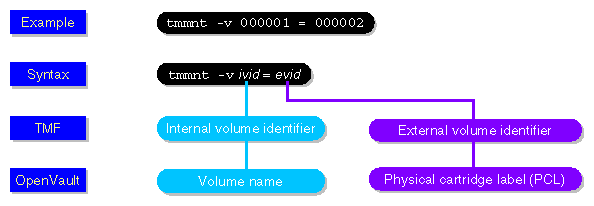
Example 3-4 uses the same tmmnt(1) command as used in Example 3-2; however, this example is for a specific OpenVault environment instead of general tape usage.
Example 3-4. Reading an Existing OpenVault Tape File
In this tmmnt(1) command, CART is a drive group of OpenVault drives and a device group in TMF, and 000001 is the OpenVault volume name that TMF uses as the internal volume identifier in the -v option:
$tmrsv CART $tmmnt -l -v 000001 -P tf -o -g CART |
TMF is assuming -v 000001 = 000001; that is, the external volume identifier is the same as the internal volume identifier (000001). TMF then sends OpenVault a message that requests OpenVault to mount the PCL called 000001.
You can use the commands and files described in this section to obtain tape status and to send messages to the operator.
Users can check reserve status of tape devices by using the tmrst(1) command. For example, enter the tmrst(1) command to display the reserved-tape status resource name, number of reserved devices, number of used devices, and number of devices available for use as shown in Example 3-5.
Example 3-5. tmrst Status Display
One CART and two DLT devices have been reserved, and one DLT device is currently in use:
$ tmrst Resource w rsv used avail CART 1 0 1 DLT 2 1 1 SD3 0 0 0 3590 0 0 0 |
The tmstat(1) command allows users to check the status of various tape devices. You can display the user identifier, session identifier of the user, device group name, device status, device name, stream ordinal, VSN, and other values by using the tmstat(1) command as shown in Example 3-6.
Example 3-6. tmstat Status Display
Two STK9490 devices, s9490s1 and s9490s3, and two CART devices, tape100 and tape200, are idle and available for use. One STK9490 device, s9490s2, is assigned to user edh, session identifier402, with a volume identifier of 004014. It is on tape block 4.
One CART device, cart200, is in a cnfp (configuration pending) state, which generally means that the drive is waiting on a response from a front-end controlled media loader before it can be configured completely up. All other devices are down and unavailable.
tmstat

user     sess   group   a stat device   stm rl ivsn   evsn   blks  NQSid
                STK9490 - idle s9490s1
edh      402    STK9490 - assn s9490s2    2 o  004014 004014    4
                STK9490 - idle s9490s3
                STK9490 - down s9490s4
                STK9490 - down s9490s5
                STK9490 - down s9490s6
                CART    - down cart100
                CART    - cnfp cart200
                CART    + idle tape100
CART + idle tape200 |
| Note: The resource names are displayed in the group column. The system administrator specifies the name of each tape resource in the TMF configuration file. |
When you issue a tmrsv(1) command, a log file called tape.msg is created in your current working directory. This log file keeps track of messages TMF issues concerning your tape job. Example 3-7 is a tape message log file.
All informative and error messages are appended to this file.
Sep 23 12:48:41.733795 TM000 - Tape resource(s) have been reserved for you Sep 23 12:48:48.170742 TM048 - Tape stream `/ptmp/ptc/tmp/x' assigned to device dlt2 Sep 23 12:48:48.339957 TM046 - Mount volume DLT100(sl) ring-in, on device dlt2 for ptc (23896) (null) or reply cancel / device name Sep 23 12:50:43.564636 TM049 - /ptmp/ptc/tmp/x : DLT100(sl) : open : blocks = 0 Sep 23 12:50:52.514214 TM049 - /ptmp/ptc/tmp/x : DLT100(sl) : bov : write : blocks = 0 Sep 23 12:50:52.515612 TM049 - /ptmp/ptc/tmp/x : DLT100(sl) : bof : write : blocks = 0 Sep 23 12:51:01.547197 TM049 - /ptmp/ptc/tmp/x : DLT100(sl) : eot : write : blocks = 449 Sep 23 12:51:01.572432 TM049 - /ptmp/ptc/tmp/x : DLT100(sl) : close : blocks = 449 Sep 23 12:51:13.325245 TM050 - Tape device dlt2 has been released Sep 23 12:51:13.328480 TM029 - All tape resources have been released |
The msgr(1) command lets you send messages to the operator. For example, the following command line sends an informative message to the operator:
msgr "Is tape ABC on the system?" & |
You should always put messages to the operator in the background as a command will wait for an operator response before completing.
This section describes some of the ways in which you may work with TMF by using standard commands.
Before you can issue commands to TMF for tape file processing, you must reserve the required number of tape drives for each device type needed. After you have reserved the tape drives, you may specify the tape volume in which the files to be processed are located. After you have the volumes mounted, you can begin processing the tape files. When processing is complete, release the reserved tape drives.
The procedures in this section describes how you can copy a file from disk to tape (Procedure 3-2), copy a disk file to tape (Procedure 3-3), read and write to tape using the tar(1) command (Procedure 3-4), read and write to tape using the cpio(1) command (see Procedure 3-5), and read files to and write files from a multifile tape (Procedure 3-6).
Procedure 3-2. Using the cp(1) Command
To copy a file from disk to tape, use the cp(1) command:
Reserve a tape by using the tmrsv(1) command. In this example, the device group name is CART, and the number of devices requested is 1:
tmrsv CART 1
Request a tape mount by using the tmmnt(1) command. In this example, the tape has IBM standard labels, a volume identifier of MYTAPE, and a path name of /tmp/tapefile.
You must create a path name. Do not remove, rename, or move this file:
tmmnt -v MYTAPE -l sl -p /tmp/tapefile -g CART -b 32768 -n -r in
Copy file myfile by using the cp(1) command-line syntax, as follows:
cp myfile /tmp/tapefile
The cp(1) command copies bytes of data from the disk file to the tape file. It does not format any data, but blocks it into tape records of size 32768 bytes for IBM compatibles devices.
Release the reserved tape. The code in this example releases all resources. The tape device is allocated to you until you issue the tmrls(1) command with the -a, -d, or -p option. When you issue the tmrls(1) command, TMF deletes the associated file, /tmp/tapefile.
tmrls -a
Procedure 3-3. Using the dd(1m) Command
Use the dd(1m) command to copy a disk file to tape.
tmrsv CART 1
Request a tape mount by using the tmmnt(1) command. In this example, the tape has an IBM standard label, the volume identifier is MYFILE, it is a new file, and writing is permitted to the tape via the use of the -r in parameter:
tmmnt -b 4096 -l sl -v MYFILE -p /tmp/tapefile -n -r in -g CART
Use the dd(1m) command to copy file mydisk to tape, specifying a block size of 4096 bytes:
dd if=mydisk of=/tmp/tapefile bs=4096
You can also use the dd(1m) command to read the tape file back into file newfile:
dd if=/tmp/tapefile of=newfile bs=4096
Release the tape resources:
tmrls -a
Procedure 3-4. Using the tar(1) Command
The examples in this procedure show you how to read or write to tape by using the tar(1) command. You must select the -f option of the tar(1) command and specify the device path name you used in the tmmnt(1) command.
Use the tar(1) command to write to tape.
Reserve a tape using the default values of the tmrsv(1) command:
tmrsv CART 1
Request a tape mount by using the tmmnt(1) command:
tmmnt -l sl -p /tmp/tapefile -b 4096 -v MYFILE -n -r in -g CART
Copy the subtree to tape, starting at the current working directory:
tar -cvfb /tmp/tapefile 8 *
Change to a new directory:
cd /tmp/newdir
To read the tape back in, copy the tar subtree back from tape to your current working directory:
tar -xvfb /tmp/tapefile 8
-
tmrls -a
Read a tape that was created in the first part of Procedure 3-4, or on another UNIX system. In this example, the contents of the tape are read into your current working directory.
Procedure 3-5. Using the cpio(1) Command
Use the cpio(1) command to read and write to a tape. In this example, data is written to tape; then the cpio(1) command is used to read the data from tape:
Reserve a tape with a device group name of CART:
tmrsv CART 1
Request a tape mount using the tmmnt(1) command:
tmmnt -l sl -v MYTAPE -p /tmp/tapefile -g CART -n -r in
Copy the subtree to tape, starting with the current working directory:
find . -print | cpio -Bcov > /tmp/tapefile
Change to a new directory:
cd /tmp/newdir
To read the tape back in, copy the cpio(1) subtree into your current working directory:
cpio -civd < /tmp/tapefile
Release the reserved resources:
tmrls -a
Procedure 3-6. Using the tmmnt(1) Command
Multifile volume allocation allows you to read or write different files on a tape without the need for the tape volume to be unloaded and remounted. To accomplish this you must use the same VSN (-v parameter) on the tmmnt(1) command for each file you wish to process. After the first tmmnt(1) command is processed, subsequent tmmnt(1) commands with the same VSN do not get sent to the operator.
When using multifile volume allocation, you can use only one file on a tape at a time; that is, you must open a specified file, process the file, and then close it before you can open another file on the same multifile tape volume. You must also reserve a device for each multifile volume tape requested. For example, if the tape files reside on several volumes, you can have files on different volumes opened at the same time; however, you must have reserved enough devices to hold all of the volumes.
The following procedures show you how to use the -v parameter of the tmmnt(1) command for multifile volume allocation.
Read three files from the same tape without having the operator mount the tape three times.
Reserve a tape:
tmrsv CART 1
Request a tape mount using the tmmnt(1) command. In this example, the tape has an ANSI standard label, the volume identifier is MYFILE, and the path names are one, two, and three, with file sequence numbers of the files to be processed as 1, 2, and 3:
tmmnt -l al -v MYFILE -p one -q 1 -r in -g CART
tmmnt -l al -v MYFILE -p two -q 2 -r in -g CART
tmmnt -l al -v MYFILE -p three -q 3 -r in -g CART
Read the accessed tape files into disk files:
cat one > firstfile
cat two > scndfile
cat three > thrdfile
tmrls -a
Use a multifile tape to write three files to the same tape:
Reserve a tape:
tmrsv CART 1
Request a tape mount using the tmmnt(1) command. In this example, the tape has an ANSI standard label, the volume identifier is MYFILE, and the path names are one, two, and three, with file sequence numbers of the files to be processed as 1, 2, and 3. The -u option is specified so that the tape will not be unloaded when the process terminates. This option is useful when a tape is used repeatedly, and it minimizes operator time spent mounting tapes:
tmmnt -u -l al -v MYFILE -p one -q 1 -n -g CART
tmmnt -u -l al -v MYFILE -p two -q 2 -n -g CART
tmmnt -u -l al -v MYFILE -p three -q 3 -n -g CART
Write the disk files to the specified tape files:
cat file1 > one
cat file2 > two
cat file3 > three
Release the reserved tape:
tmrls -a