This chapter leads you through some simple procedures to get NetWorker started doing scheduled backups. The test drive includes the following tasks:
starting NetWorker
changing the device name
using preconfigured settings
labeling and mounting a backup volume
manual backup and recover
viewing the backup schedules
viewing the client information
enabling scheduled backups in the Groups window
starting a scheduled backup now
verifying the backup
If you have an evaluation copy of the NetWorker software, it is valid for 30 days from the time you install it. This provides time to learn about NetWorker features and to decide which NetWorker configuration best benefits your network environment.
To start the NetWorker Administrator program, enter the nwadmin command at the system prompt, or click the NetWorker Administrator icon, if visible.
# nwadmin -s server_name & |
If you do not specify a server when you start nwadmin and you have more than one server on the network, NetWorker attempts to find the server that backs up the current directory, or a NetWorker server on the local subnet, or hostname nsrhost. For more information on automatic server detection, see the nsr(1M) reference page.
 | Tip: To avoid problems when starting NetWorker graphical user interfaces, make sure the desktop_eoe.sw product image is installed, that the X Window System is running, and that your DISPLAY environment variable is set correctly. |
The NetWorker window appears, as shown in Figure 2-1. The hostname of the system where you started nwadmin appears after the at-sign (@).
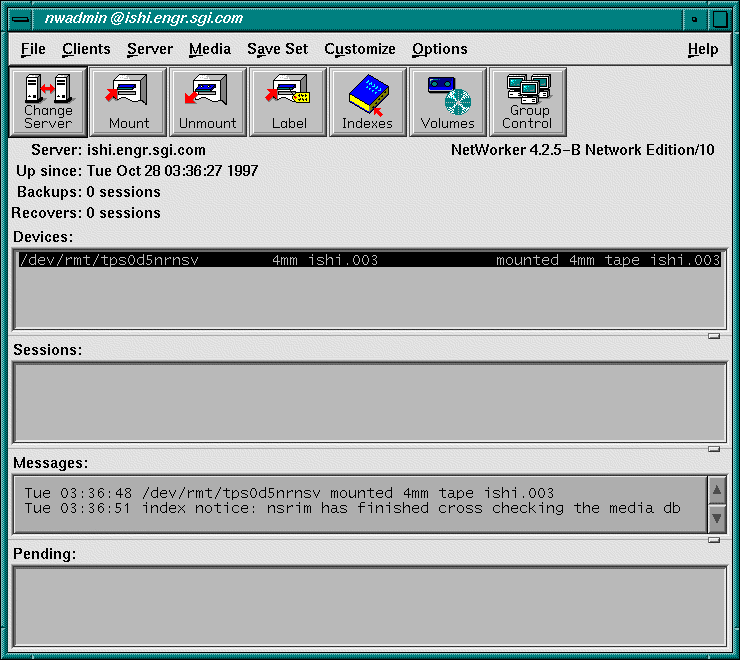
Use the nwadmin window to administer, monitor, and configure backups. Refer to the IRIX NetWorker Administrator's Guide for a complete description of this window and its menu choices.
NetWorker does not automatically detect and configure non-robotic devices. If your backup device is not /dev/rmt/tps1d6nrnsv, you need to inform NetWorker of the correct device name. (If you used jbm_enabler to autoconfigure jukebox devices, as described in “Enabling Autochangers”, it is not necessary to modify any device names.) To change the backup device, choose Devices from the Media menu. The Devices window appears, as shown in Figure 2-2.
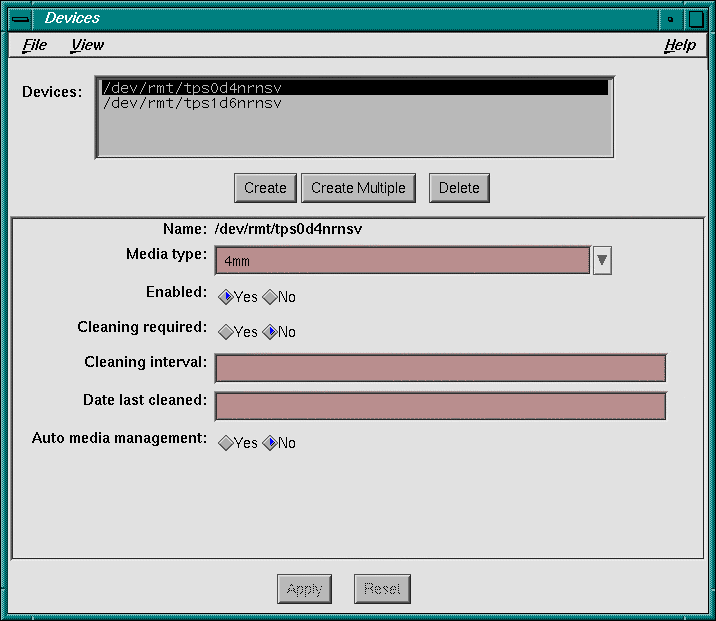
Click the Create button, and in the Name field, enter the pathname of an nrnsv (no-rewind non-byte-swapping variable-blocksize) device listed in /dev/rmt. Click the Apply button, and the new name appears in the Devices list. Set options as required. To remove the old preconfigured device, select it in the Devices list and click the Delete button.
| Tip: To enable hardware compression by the tape drive, select the nrnsvc device—the final c indicates compression. In some cases the compression drive includes a number such as nrnsv.4000c or nrnsv.7000c for DLT 4000 and DLT 7000 drives. |
When making estimates of tape capacity for display in the Volumes window, NetWorker bases its calculations on the smallest possible tape for a device. For example, with 4mm devices, NetWorker assumes 60 meter tape with a 1.3 GB capacity. If your installation deploys higher capacity tapes, or if you have enabled hardware compression, increase volume capacity before labeling any tapes.
To increase volume capacity, choose Details from the View menu, entering expert mode. Type the higher limit into the Volume default capacity field, as shown in Figure 2-3.
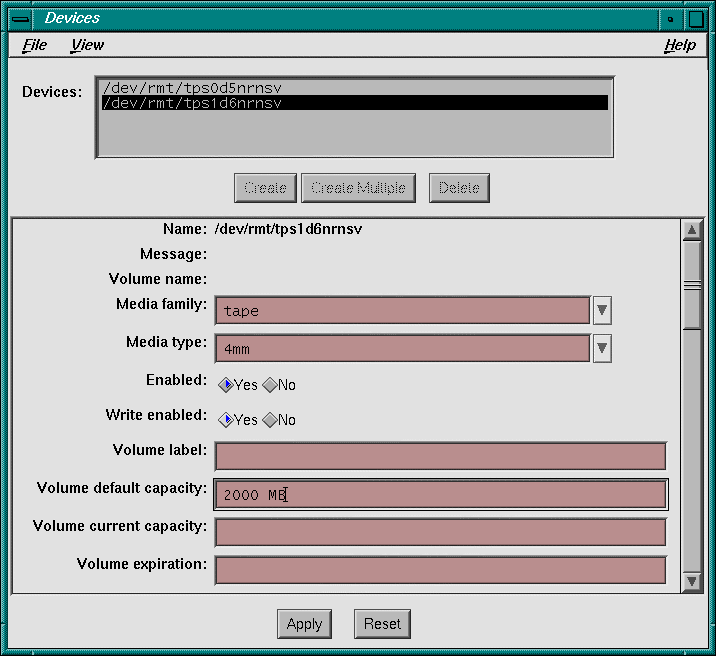
To get explanations of resource attributes, choose On Window from the Help menu. The attributes that appear only in the Details view are explained in “expert” help topics.
 | Note: If you label a tape before setting volume capacity, the % used field in the Volumes window shows incorrect numbers, although NetWorker can continue writing until the volume is filled to capacity. |
NetWorker is shipped with a complete set of preconfigured settings, which are the default options for backing up clients on a network. There are preconfigured settings for the following:
groups for organizing clients into save sessions starting at a specific time
schedules for controlling when and how client files get backed up
policies for managing the file and media indexes
directives for customizing the way NetWorker backs up data
label templates for labeling backup volumes consistently and automatically
notifications to inform you of NetWorker activity by e-mail and hardcopy
pools for sorting data to preselected backup volumes
You can use these preconfigured defaults to back up your client data immediately after installing NetWorker. You may change the preconfigured settings or create your own. In many cases, especially at first, it is not necessary to change most NetWorker defaults.
Once you enable the Default group in the Groups window, NetWorker backs up the server as a client of itself using the preconfigured defaults.
Backup volumes must be magnetically labeled before NetWorker can employ them for backing up files. NetWorker reads magnetic labels to track and identify the contents of backup tapes. Unless your backup device supports bar codes, always place a physical label on tapes corresponding with the magnetic label (if a bar code reader is available, NetWorker supplies magnetic labels automatically).
When you start recovery, NetWorker determines the necessary volume(s) and requests them by label name. This gives the operator time to locate and mount recovery volumes. In a jukebox, NetWorker locates recovery volumes automatically.
You must label and mount volumes before NetWorker can perform a backup. With a jukebox, NetWorker automatically labels a range of volumes, and mounts the first one.
Follow these steps to label and mount backup volumes:
Locate blank media that can be used for writing backups, and load the media into a NetWorker backup device.
Highlight that device in the Devices display in the nwadmin window.
Click the Label speedbar button.
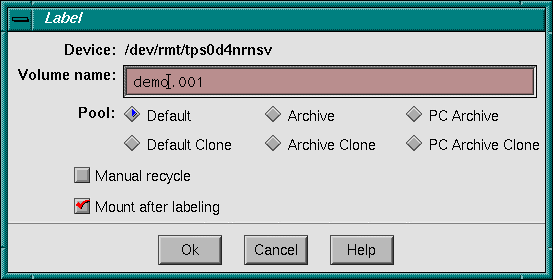
The Label dialog box appears, as shown in Figure 2-4, with a field for entering the name of the volume.
Enter a name, such as “demo.001” into the Volume name or Starting with field. Many administrators use the hostname of the NetWorker server instead of “demo.”
You do not need to select a pool because the Default pool is already selected.
Click the Mount after labeling box (not necessary for jukebox volume labeling).
Click the Ok button to label and mount the backup volume.
A dialog box might appear, asking you to confirm the request. If NetWorker detects an existing label, it asks for confirmation to recycle, since existing data on that volume would be lost. Click OK to confirm the labeling request or Cancel to quit.
Note: NetWorker does not ask for confirmation to overwrite tapes created by other programs, such as tar, dd, dump, or xfsdump. The name of the mounted volume appears next to the device name in the Devices display in the nwadmin window.
Refer to the IRIX NetWorker Administrator's Guide for information about the labeling and mounting features that NetWorker provides for autochangers (jukeboxes).
| Note: NetWorker uses the slot numbering scheme provided by the autochanger, which may or may not correspond to the physical slot layout. |
Typically, NetWorker operates by automatically performing daily scheduled backups. You can also use the NetWorker Backup program (nwbackup) to initiate manual backup of selected files, and the NetWorker Recover program (nwrecover) to recover files, either those backed up manually, or during a scheduled backup.
Refer to the “Quick Tour” section in Chapter 2 of the IRIX NetWorker User's Guide for a description of how to initiate manual backups and recovers. All users with access to NetWorker client software can perform backup and recovery as needed. This is one of the big advantages of NetWorker, for users and system administrators alike.
Thanks to the online file and media indexes, users can browse their backed-up files and quickly identify files for recovery. NetWorker automatically identifies which backup volumes contain the files needed for recovery. Adding a jukebox to your server allows you to automate backups and recoveries—data protection and recovery then require very little administrative intervention.
NetWorker offers many features to help you recover files in addition to those introduced in the “Quick Tour” section. Refer to the IRIX NetWorker User's Guide for a complete description of the user-level backup and recover interfaces.
Most backup activity occurs unattended, thanks to the NetWorker scheduling features. It is common procedure to set the backup schedule for a client without modifying the Schedules window itself, as shown by procedures in the section “Changing the Client Setup”.
The NetWorker backup server is considered a client of itself. Once the Default group is enabled in Autostart field of the Groups window, NetWorker backs up the server using the preconfigured Default schedule. The Default group is disabled at first, to give you a chance to configure devices and prepare backup media.
Open the Schedules window by choosing Schedules from the Customize menu in the main window. The Schedules window appears, as shown in Figure 2-5.
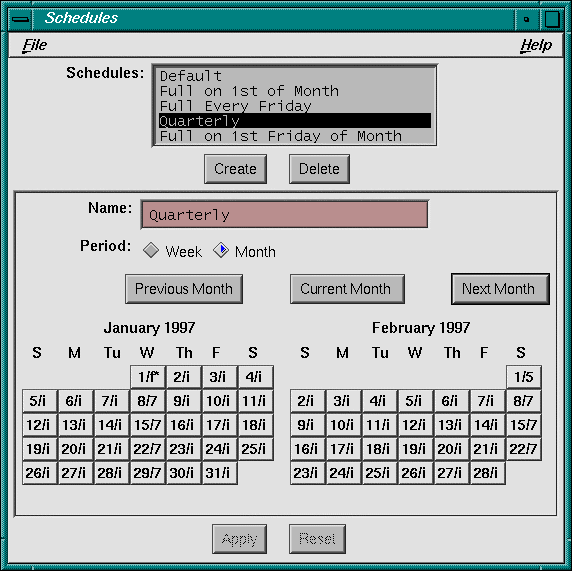
The Schedules window provides a calendar for setting up custom backup schedules. Notice that each calendar day displays an “f” or an “i” next to the day: “f” represents a full backup, and “i” represents an incremental backup.
The schedule named Default calls for a full backup every Sunday, followed by incremental backups every other day. This minimizes the number of tapes required for recovery, but consumes tape space relatively quickly because of weekly full backups.
In the Schedules list, select the Quarterly backup schedule. The quarterly schedule calls for a full backup on the first day of each quarter, level 5 backups on the first day of following months, level 7 backups weekly, and incremental daily backups. The quarterly schedule is a good compromise between ease of recovery and moderate tape use. Refer to the IRIX NetWorker Administrator's Guide for more information about schedules.
| Note: Regardless of the selections in the preconfigured schedules, NetWorker always performs a full backup the first time it backs up your files. |
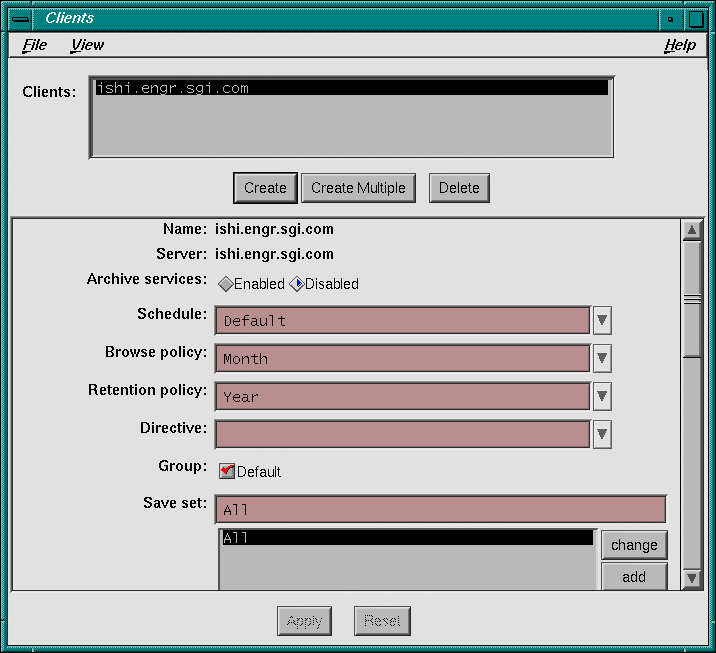
Open the Clients window by choosing Client Setup from the Clients menu. This window controls backup of networked clients.
To back up client machines across the network, install the networker4.sw.client subsystem on the clients, as described in the section “Installing Client Software”, then use the Clients window to create these clients in some group. You will probably want to create custom backup groups according to client data backup requirements and network topology. Different backup groups usually start at different times.
After you enable the Default group in the Groups window, the server backs up itself, using settings in the Clients window. Preconfigured client settings are shown in Figure 2-6.
To change from weekly full backups to the quarterly schedule, select Quarterly from the drop-down list in the Schedule field. In the Aliases field, make sure the simple hostname is listed in addition to the fully-qualified domain name (FQDN). NetWorker supplies the correct alias automatically for clients, but not for the server.
| Tip: For this NetWorker test drive, change the Save set field to specify a single filesystem or limited directory hierarchy instead of All. This will allow the test backup to complete more quickly. For example, change the save set to just the /home directory. |
Refer to the IRIX NetWorker Administrator's Guide for more information about creating new groups and assigning clients to them.
NetWorker backs up networked clients and different server filesystems in parallel. The Save set field can initiate multistream saves of one filesystem. For example, suppose the /bigfs filesystem takes six hours to back up. To back it up using four devices in parallel, thereby reducing /bigfs backup time to under two hours, create this save set:
[4]/bigfs |
Refer to the IRIX NetWorker Release Notes for more information about multistream saves.
After you configure devices and label backup media, you can enable the Default group. At first, the only client in the Default group is the NetWorker server. As you add network clients, you can put them in the Default group, or create specialized groups as needed.
Open the Groups window by choosing Groups from the Customize menu. The Groups window appears, as shown in Figure 2-7.
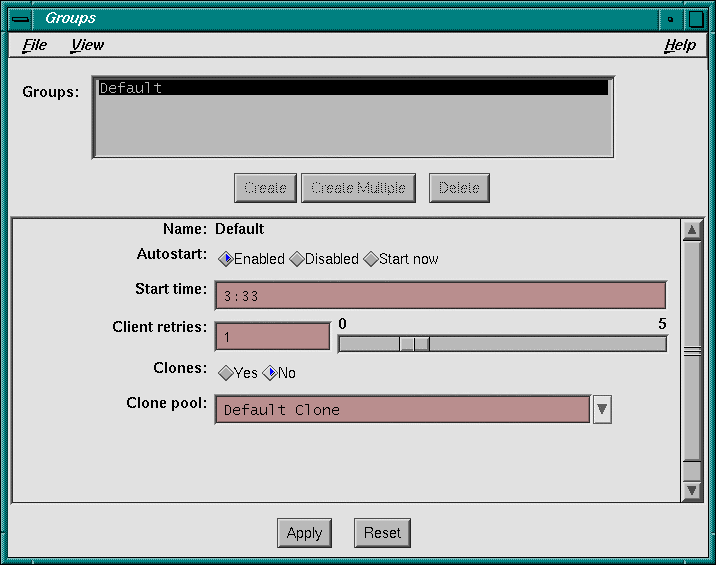
Notice that the Start time is 3:33 AM and the preselected value for the Autostart choices is Disabled. If you want to change the time NetWorker starts backing up this group, enter a new start time.
To enable the Default group, follow these steps.
Now the NetWorker server, as part of the Default group, will start backing itself up at 3:33 AM every night. To get started, the first night always involves a full backup.
The Client retries field controls the number of times NetWorker restarts failed backups. Increasing this number improves backup reliability, but may slow down total save time so that backups fail to complete in a reasonable time.
In the Groups window, choose Details from the View menu. New options appear. Scroll down to the Inactivity timeout field. This value controls the time NetWorker waits before abandoning a network save. For large clients, change this from 30 to 60 minutes.
Volume cloning is a good way of creating redundant volumes that can be stored offsite to improve disaster preparedness. To make cloning work efficiently, it is best to have multiple backup devices attached to the NetWorker server. Refer to the IRIX NetWorker Administrator's Guide for more information about cloning and the Groups window.
Now that you have enabled its Default group, NetWorker is ready to back up the server.
There are two ways to begin a backup immediately. In the Groups window, you could select the Start now choice in the Autostart field and click Apply before exiting the window. The easier way is to click the Start button in the Group Control window.
This example demonstrates how to start a backup in the Group Control window, where buttons can also stop, restart, and monitor the progress of a backup.
To start a scheduled backup immediately from Group Control window, follow these steps:
Click the Group Control speedbar button or choose Group Control from the Server menu. The Group Control window appears, as shown in Figure 2-8.
If necessary, select the Default group in the Groups list.
Click the Start button on the right. A confirmation dialog box appears, as shown in Figure 2-9. Click OK or Cancel.
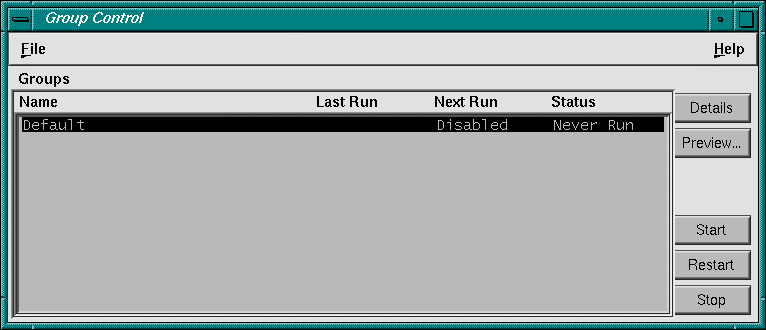
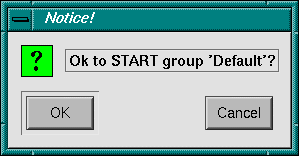
NetWorker begins a backup of clients in the Default group and displays “running” in the Status column of the Group Control window. The Default group uses the Default schedule to back up data, unless you changed the schedule in the Clients window. However, the first time NetWorker backs up any client, it performs a full backup for all of its data, regardless of the schedule assigned.
Starting a backup now does not eliminate the regularly scheduled backup. If the group is enabled, it will back up again as scheduled. In this case, NetWorker will back up the Default group again at 3:33 AM as directed, though not with a full backup if one was already initiated and completed.
After clicking the Start button, keep the Group Control window open to verify and monitor the progress of your backup. Once NetWorker has successfully backed up your files, the Finished message appears in the Status field.
If you want more detailed information about the files being backed up, click the Details button in the Group Control window. The Group Control Details window appears, as shown in Figure 2-10.
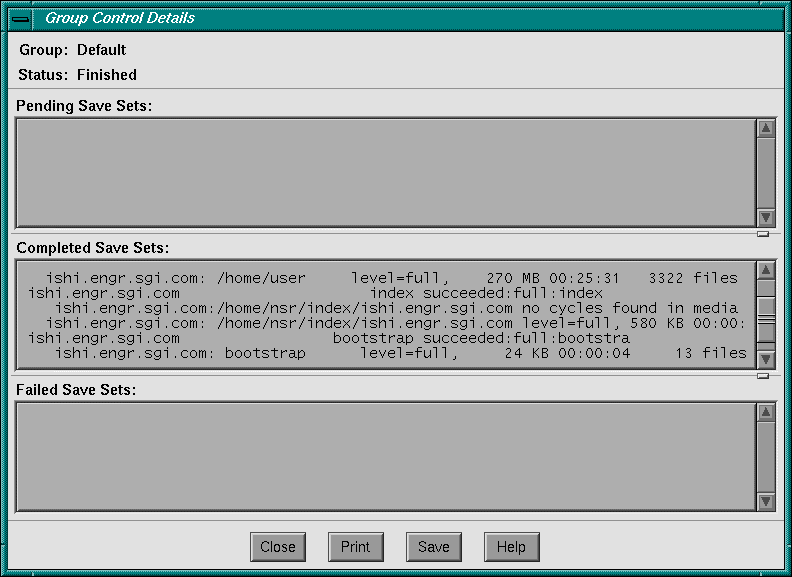
For more information about the Group Control and the Group Control Details windows, refer to the IRIX NetWorker Administrator's Guide.
You might be curious how much space is left on the backup volume. An estimate of this information is available in the media index. To see it, click the Volumes speedbar button, or choose Volumes from the Media menu. The Volume Management window appears, as shown in Figure 2-11.
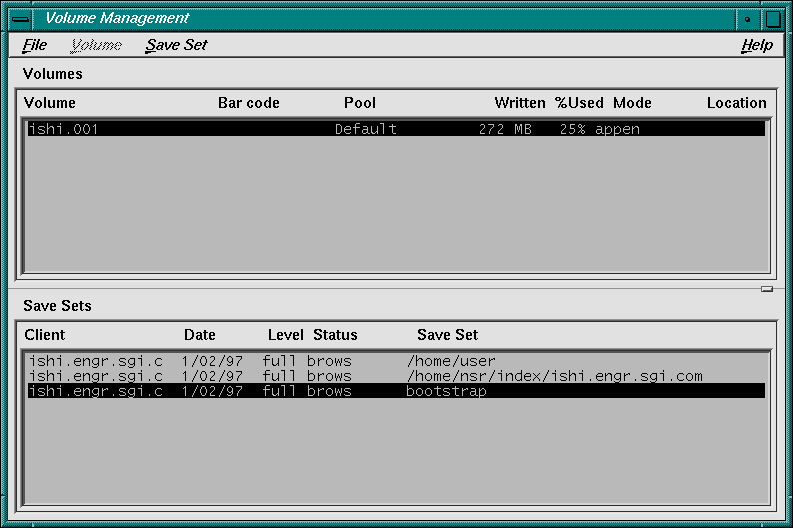
In this example, NetWorker estimates that volume ishi.001 is 25% full, and remains appen(dable). Increased media length, hardware compression, and tape blocking factors can cause inaccuracies in these estimates. It is wise to be prepared with an alternate backup volume for the inevitable day when the first volume fills up.
| Tip: If a volume is near capacity shortly before a full backup is scheduled, unmount and eject it, then label and mount a fresh volume so as to avoid having to change a tape in the middle of the scheduled full backup. |
To verify that data was correctly written to tape, try recovering a single file from the backup you just performed. The NetWorker save set recover feature makes this possible.
In the nwadmin window, choose Recover from the Save Set menu. The Save Set Recover window appears, as shown in Figure 2-12.
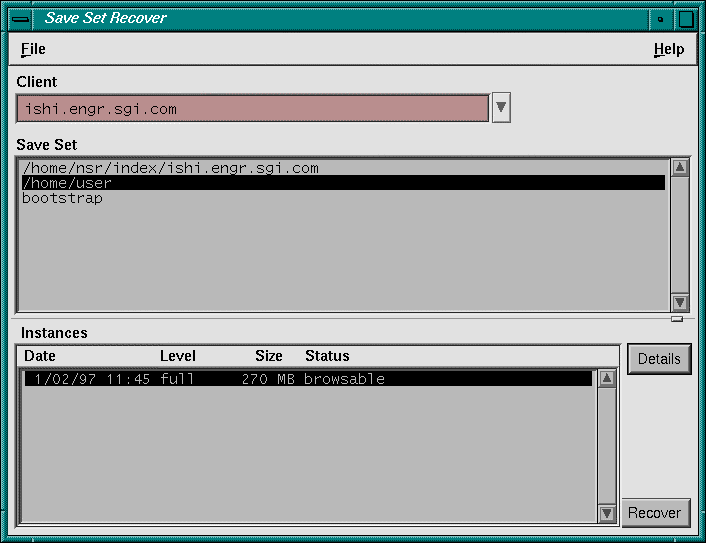
In the Save Set field, select the backup data, in this case /home/user, instead of the index and bootstrap. Then click the Recover button in the lower right. The Save Set Recover Status window appears, as shown in Figure 2-13.
In the Paths to recover text field, enter the name of a text file, in this example tips. After you press the [Enter] key, the full pathname of the file appears in the Paths to recover area. Remember the [Enter] key! Click the Start button at the bottom to begin recovery.
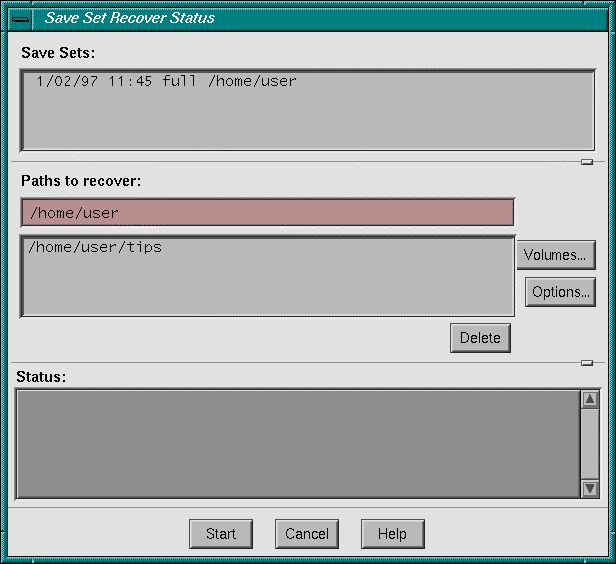
Soon the Save Set Recover File Conflict window appears, as shown in Figure 2-14.
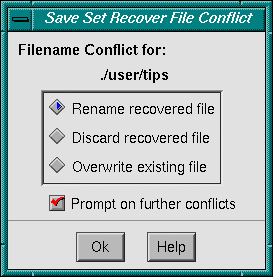
Click Ok to rename the recovered file. After a message appears in the Status field of the Save Set Recover Status window indicating that the file was renamed, click Cancel to avoid further searching. Run a diff command as follows to compare the original file with the recovered file—there should be no output from diff.
$ diff /home/user/tips* |
Whenever NetWorker runs save, it sends e-mail to root describing the backup. The first time involves a full save and looks something like this:
ishi:/home/user no cycles found in media db; doing full save ishi: /home/user level=full, 232 MB 00:22:09 2846 files ishi: /nsr/index/ishi no cycles found in media db; doing full save ishi: /nsr/index/ishi level=full, 500 KB 00:00:05 6 files ishi: bootstrap level=full, 24 KB 00:00:03 13 files |
NetWorker also prints out bootstrap information to assist during disaster recovery. This appears in printed form, since e-mail might be unavailable after a system crash:
August 14 03:33 1997 ishi's bootstrap information Page 1 date time level ssid file record volume 7/29/97 3:38:58 7 26141 166 0 ishi.001 |
Save the bootstrap information in a file folder, organized chronologically, in case you need it for disaster recovery someday.
Listed below are suggestions for further configuration exercises.
Add clients to the Default group and enable the group for an overnight backup. In the morning, check the results of the scheduled backup in your e-mail.
Create several groups containing clients grouped logically by department. For instance, create a Marketing group whose clients back up their files at 12:00 AM, and an Engineering group whose clients back up their files at 2:00 AM.