Welcome to the Netscape Commerce and Communications Servers for Silicon Graphics, Inc. systems. These servers let people and companies exchange information and conduct commerce over the Internet and other global networks.
The Netscape Commerce and Communications Servers Administrator's Guide is intended for system and network administrators who install, configure, and manage the Netscape server(s) at your site. An administrator's knowledge of IRIX is assumed. This guide documents both the Commerce and the Communications servers. The Communications server operates without security; everything else is the same for both servers.
This manual explains how to configure the Netscape Commerce and Communications Servers. Refer to your software release notes for information on how to use inst(1M) to install the software if it is not already installed. After you configure your server, you can use this manual to help you maintain your server.
The Netscape Servers Programmer's Guide contains information about programming functions and CGI scripts for use with your server.
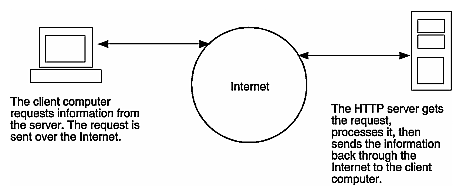
A HyperText Transport Protocol (HTTP) server is an application that sends documents and data from the computer host it's installed on to HTTP-compatible client applications such as Netscape Navigator. HTTP runs on any TCP/IP network, including the Internet. The Netscape Commerce Server can send the information securely by using the Secure Sockets Layer (SSL) protocol. The Netscape Communications Server does not support the SSL protocol.
The following figure shows a client application requesting information from your HTTP server, which in turn sends the information back to the client. Note that with an unsecure server, anyone on the Internet could potentially intercept and view the information.
The following features are a partial list of what the Netscape Commerce and Communications Servers offer:
Remote server administration. You can start, stop, configure, and manage the server from any host that has Internet access.
Reliability. You can configure the server to restart itself after a network crash, power interruption, or other event that stops the server. However, this doesn't work with a secure server because someone must enter a password when starting or stopping the secure server.
Flexible access control. You can configure the server to restrict access based on a hostname, the document requested, or both. You can also hide URLs from any user based on the user's hostname.
Customized access logging. You can track all the users who access your server, or you can configure access logging on a file, directory, or template basis. It provides high-level logging of client transactions, including client hostnames or IP addresses, access dates and times, accessed URLs, byte counts of all the transferred data, and success codes per transaction.
Performance and extensibility. The server handles very high numbers of incoming requests with a relatively low impact on the server host.
If you're new to the Internet and World Wide Web (the Web or WWW), you should familiarize yourself with navigating through information. The Internet is a vast collection of computers working together to share information. There is no single company or person in charge of running the Internet. Because of this design, the information available through the Internet changes constantly and new computers are continually added to the network, which provides you with a growing source of information.
Like the Internet, the World Wide Web also contains information, but it adds multimedia access—graphics, sound, movies, and more. Because the Web is graphical (not text-based), you can access it only with a graphical application such as the Netscape Navigator.
To get information from the Internet and the Web, you need to know the address of the information. Addresses are called Uniform Resource Locators (URLs).
Internet and World Wide Web addresses are slightly different. A simple Internet address is username@domainname where username can be your name, and domainname is the name of your service provider (for example, [email protected] could be an address for Jane Doe at Silicon Graphics, Inc.).
Domain names can be quite long and usually refer to subgroups or departments in an organization. Typically, a domain is classified into one of the following categories:
Web addresses are hypertext links to documents where each page has a URL in the format protocol://host/directory/file. Each Web address begins with a protocol for the link, typically http (hypertext transport protocol) or https (secure HTTP); but also file, gopher, ftp (file transfer protocol), telnet, and news (Usenet news).
The second part of the URL (after the //) is the host (computer) address, a directory path for the host, and a filename (.html or .htm extensions mean the document is a hypertext markup language document that might contains jumps to other pages). For example, the Netscape home page is http://home.netscape.com/home/welcome.html, which means the page is a hypertext (.html) document in the home directory on the home.netscape.com host.
All hosts on the Internet have a 32-bit Internet Protocol (IP) address that identifies them. IP addresses have four parts (8 bits each) separated by periods (called dots). IP addresses range from 0.0.0.0 to 255.255.255.255.
IP address are organized into three classes. The Internet Network Information Center (NIC) assigns these based on the number of hosts the organization or company needs (the first 8-bit number tells you the class and size of the organization):
Class A (0-127) is used for the largest organizations—usually only Internet service providers and very large companies. You won't find many addresses in this range. This class allows over 16.5 million hosts.
Class B (128-191) is for large companies and organizations and can have just over 65,000 hosts.
Class C (192-223) is for smaller organizations that can have up to 254 hosts.
 | Note: There are classes D and E, but they have special uses not relevant to this discussion. |
Because most people have a hard time remembering numbers, the Internet allows hostnames as a type of alias for the IP address. For example, the IP address 192.82.208.8 has the hostname www.sgi.com.
As described in the previous section, hostnames consist of a hostname, a domain name, and a domain identifier. The hostname www.sgi.com is a host named www for a domain called sgi in the domain group for companies (.com). The domain name and identifier are usually grouped together and called simply the domain.
These type conventions and symbols are used in this guide:
Bold—Literal command-line arguments (options/flags).
Italics—Executable names, filenames, URLs, glossary entries (online, these show up as underlined), IRIX commands, manual/book titles, onscreen button names, program variables, and variables to be supplied by the user in examples.
Fixed-width type—Error messages, prompts, and onscreen text.
Bold fixed-width type—User input, including keyboard keys (printing and nonprinting); literals supplied by the user in examples.
ALL CAPS—Environment variables, defined constants, boolean operators.
““ (Double quotation marks) —Onscreen menu items and references in text to document section titles.
() (Parentheses)—Following IRIX commands surround reference page (man page) section number.
[] (Brackets)—Surrounding optional syntax statement arguments.
<>—(Angle brackets) Surrounding nonprinting keyboard keys, for example, <Esc>, <Ctrl-D>.
#—IRIX shell prompt for the superuser (root).
%—IRIX shell prompt for users other than superuser
Warnings mark important information. Make sure you read the information before continuing with a task.