While there is a wealth of valuable information available on the Internet, not all of it is appropriate at all times and for all purposes. With the Gauntlet Firewall, you have the option of explicitly blocking or allowing specific URLs, and you can also use the Cyber Patrol filtering software from The Learning Company to block access to objectionable material.
The following sections explain the concepts behind URL filtering and Cyber Patrol, describe how they work, and tell you how to configure them.
URL filtering works in two ways:
Both kinds of URL filtering are configured using the URL Filtering window of the HTTP proxy.
Using the URL Filter Configuration window, you can specify that certain URLs be denied to your users. If a user attempts to access a denied URL, they will receive a message indicating that access to this URL is denied. You can use this feature to deny access to any URL whether or not you are using Cyber Patrol.
If you are using Cyber Patrol, these denied sites are in addition to the sites denied by Cyber Patrol. You can also use the URL Filter Configuration window to allow access to URLs that would otherwise be blocked by Cyber Patrol.
 | Note: Any URL you permit or deny access to using URL filtering takes precedence over Cyber Patrol settings. |
Configuring URL filtering for your Gauntlet Firewall involves planning, configuring the settings, and enabling the new settings.
When planning for URL filtering:
Determine which URLs you for which you wish to deny your users access, and which sites blocked by Cyber Patrol you wish to allow your users to access (if you are using Cyber Patrol).
Decide what xurl-encoded characters you wish to filter out of outgoing URL headers.
To configure URL filtering settings:
From within the Gauntlet Firewall Manager, select Services.
Click the HTTP tab.
The HTTP window displays.
Click the Add button.
The Add HTTP Services window displays.
Click the URL Filtering button.
The URL Filtering window displays.

To enter a URL to be denied or permitted:
Enter an entire URL or a substring of a URL in the URL field. For example:
.jpg matches all URLs with .jpg somewhere in the URL.
yoyodyne.com matches all URLs with yoyodyne.com in the URL.
Select Permit or Deny from the Permission options.
Click Add.
The specified URL displays on the list of permitted or denied URLs.
To change the settings of a denied or permitted URL:
Select the URL whose settings you wish to change from the list of URLs.
Make the desired changes.
Click Modify.
To delete a permitted or denied URL:
Select the URL you want to delete from the list of URLs.
Click Delete.
The URL disappears from the list of URLs.
To enter disallowed xurl-encoded characters:
Click in the Disallowed URL Characters field.
Enter an xurl-encoded string of characters.
Cyber Patrol is filtering software from The Learning Company that blocks access to sites on the Internet. The CyberNOT database, a listing of Web sites, is divided into content categories (for example, Violence/Profanity, Intolerance, and so on).
If a category is active, your users will be denied access to all Web sites (URLs) that are part of that category—unless a specific URL that is part of the category is specifically designated as permitted using the URL Filter Configuration window.
You can make a different set of categories active for work time hours and leisure time hours. This allows you to make categories such as Sports & Entertainment or Search Engines available to your users during leisure time hours.
You can download and automatically install the most current version of the CyberNOT database at any time during the 30-day trial period or after you have obtained a valid Cyber Patrol license.
| Note: To purchase a Cyber Patrol license, contact your local Network Associates sales representative or dealer, or call 1-888-FIREWALL. |
The Cyber Patrol categories are:
Violence/Profanity—Pictures or text exposing extreme cruelty, or physical or emotional acts against any animal or person that are primarily intended to hurt or inflict pain. It includes obscene words, phrases, and profanity, defined as text that uses, but is not limited to, George Carlin's seven censored words more often than once every 50 messages (newsgroups) or once a page (Web sites).
Partial Nudity & Art—Pictures exposing the female breast or full exposure of either male or female buttocks except when exposing genitalia. Excludes all swimsuits, including thongs.
Full Nudity—Pictures exposing any or all portions of the human genitalia. Excluded from the Partial Nudity and Full Nudity categories are sites containing nudity or partial nudity of a wholesome nature; for example, Web sites containing publications such as National Geographic or Smithsonian Magazine; or sites hosted by museums such as the Guggenheim, the Louvre, or the Museum of Modern Art.
Sexual Acts/Text—Pictures or text exposing anyone or anything involved in explicit sexual acts and/or lewd and lascivious behavior, including masturbation, copulation, pedophilia, and intimacy involving nude or partially nude people in heterosexual, bisexual, lesbian, or homosexual encounters. Also includes phone sex ads, dating services, adult personals, CD-ROMs, and videos.
Gross Depictions/Text—Pictures or descriptive text of anyone or anything that are crudely vulgar or grossly deficient in civility or behavior or that show scatological impropriety. Includes such depictions as maiming, bloody figures, or indecent depiction of bodily functions.
Intolerance—Pictures or text advocating prejudice or discrimination against any race, color, national origin, religion, disability or handicap, gender, or sexual orientation. Any picture or text that elevates one group over another. Also includes intolerant jokes or slurs.
Satanic or Cult—Pictures or text advocating devil worship, an affinity for evil, or wickedness, or the advocacy to join a cult. A cult is defined as a closed society headed by a single individual where loyalty is demanded and leaving is punishable.
Drugs & Drug Culture—Pictures or text advocating the illegal use of drugs for entertainment. Includes substances used for other than their primary purpose to alter the individual's state of mind, such as glue sniffing. Does not include currently illegal drugs legally prescribed for medicinal purposes (for example, drugs used to treat glaucoma or cancer).
Militant/Extremist—Pictures or text advocating extremely aggressive and combative behaviors or advocacy of unlawful political measures. Topics include groups that advocate violence as a means to achieve their goals. Includes “how to” information on weapons making, ammunition making, or the making or use of pyrotechnics materials. Also includes the use of weapons for unlawful reasons.
Sex Education—Pictures or text advocating the proper use of contraceptives. This topic would include condom use, the correct way to wear a condom, and how to put a condom in place. Also included are sites relating to discussion about the use of the Pill, IUDs, and other types of contraceptives. Also includes discussion sites on how to talk to your partner about diseases, pregnancy, and respecting boundaries. Excluded from this category are commercial sites wishing to sell sexual paraphernalia.
Gambling/Questionable/Illegal—Pictures or text advocating materials or activities of a dubious nature that may be illegal in any or all jurisdictions, such as illegal business schemes, chain letters, copyright infringement, computer hacking, phreaking (using someone's phone lines without permission), and software piracy. Also includes text advocating gambling relating to lotteries, casinos, betting, numbers games, online sports, or financial betting, including non-monetary dares.
Sports & Entertainment—Internet resources considered appropriate for a leisure setting, but which may be deemed irrelevant, unproductive, or inappropriate to a work environment. Includes content in the following categories: automotive, entertainment (television and radio stations and schedules, and music information such as bands, record companies, and concert schedules), finance (stock reports, investment companies, college financial aid), interactive games, software companies, hobbies (collecting, gardening), newspapers and magazines, real estate and apartment guides, shopping, sports, theater and movies, and vacation planning.
Alcohol, Beer, Wine & Tobacco—Pictures or text advocating the sale, consumption, or production of alcoholic beverages and tobacco products.
Search Engines—Commercial Web sites used primarily as Internet search engines (Yahoo, Lycos, Alta Vista, and Excite, for example). Like the Sports/Leisure category, these sites may be deemed irrelevant, unproductive, or inappropriate to a work environment.
| Note: Any online content with more than three instances in 100 messages or any easily accessible pages with graphics or text that fall within the definition of a category puts the source into the category. The categories do not pertain to sites containing opinion or educational material, such as the historical use of marijuana or the circumstances surrounding 1940s anti-Semitic Germany. |
Configuring Cyber Patrol for your Gauntlet Firewall involves planning, configuring the settings, and enabling the new settings.
When planning your Cyber Patrol setup:
Determine whether you wish to use Cyber Patrol filtering.
Decide which CyberNOT categories you wish to be active and inactive.
Consider how you would like to define work time hours and leisure time hours.
Decide whether you want to purchase a Cyber Patrol license.
Determine whether or not you have the latest CyberNOT database (they are updated weekly).
To configure Cyber Patrol settings:
From within the Gauntlet Firewall Manager, select Services.
Click the HTTP tab.
The HTTP window displays.
Click Add.
The Add HTTP Services window displays.
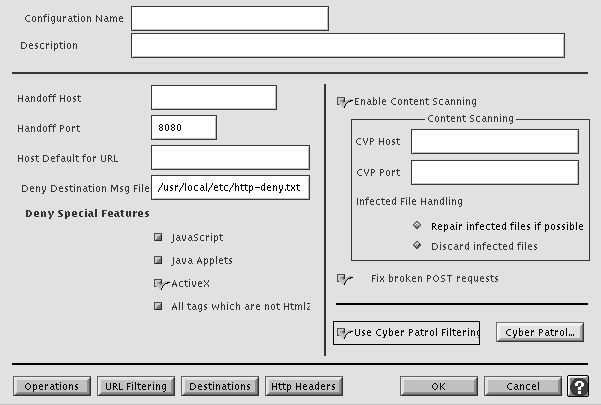
Make sure there is a check mark in the Use Cyber Patrol Filtering box.
Click the Cyber Patrol button.
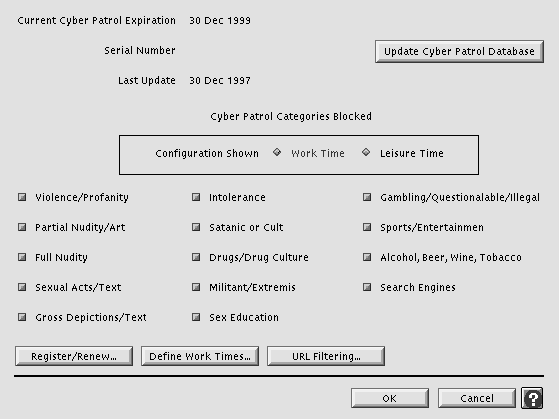
The Cyber Patrol Configuration window displays.
To make CyberNOT categories active or inactive for Work or Leisure Time hours:
From the Configuration Shown options, click Work Time or Leisure Time.
Put a check mark next to the names of those categories you wish to be blocked for your users; remove the check mark from those categories you wish to be available to your users.
| Note: You do not need to register your 30-day trial subscription; just start using it. |
To register or renew your Cyber Patrol license:
On the Cyber Patrol Configuration window, click Register/Renew.
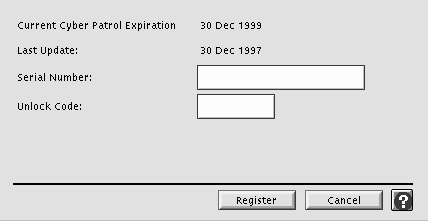
The Cyber Patrol Renewal/Registration window displays.
To register your Cyber Patrol license, enter your serial number in the Serial Number field and click Register.
The registration information at the top of the window displays the updated information.
To renew your Cyber Patrol license, enter your unlock code in the Unlock Code field and click Renew.
Note: If your original serial number isn't in the Serial Number field, you must re-enter it. A new CyberNOT database is automatically downloaded and installed, and the Cyber Patrol Configuration window displays.
To define work and leisure time hours:
In the Cyber Patrol Configuration window, click Define Work Times.
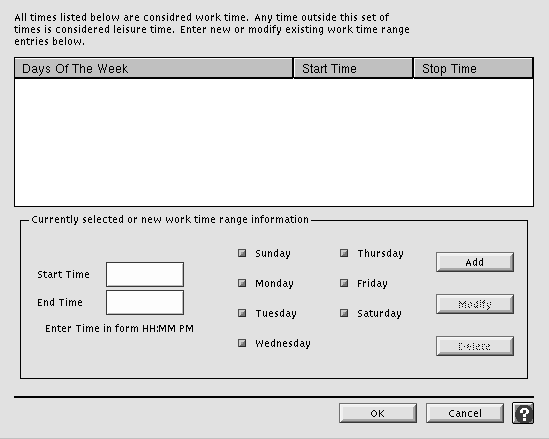
The Work Time Range Configuration window displays.
Establish work time hours by entering start and end times, selecting the appropriate days, and clicking Add.
The time frame you established displays in the list. You do not need to configure leisure time hours; all hours outside of work time hours are considered leisure time hours.
Click OK.
The Cyber Patrol Configuration window redisplays.
To update the CyberNOT database with the current version:
In the Cyber Patrol Configuration window, click Update Cyber Patrol Database.
The current CyberNOT database is automatically downloaded and installed.