Several 3D graphical tools are provided with Performance Co-Pilot to assist you in visualizing performance on monitored systems. These tools are implemented with and require Inventor, a 3D graphics facility. Each tool is completely described by its own man page, accessible through the man command. For example, the man page for the pmview tool can be viewed by giving the following command:
man pmview |
The following major sections are covered in this chapter:
“Overview of Visualization Tools”, provides background motivation and places the current chapter in the context of other PCP tools.
“The dkvis Disk Visualization Tool”, describes the graphical disk activity visualization tool, dkvis.
“The mpvis Processor Visualization Tool”, describes the graphical multiprocessor visualization and comparison tool, mpvis.
“The osvis System Visualization Tool”, describes the operating system activity visualization tool, osvis.
“The oview Origin Visualization Tool”, describes the Origin visualization tool, oview.
“The nfsvis NFS Activity Visualization Tool”, describes the graphical NFS activity visualization tool, nfsvis.
“The pmview Tool”, describes the graphical performance visualization tool, pmview, on which the other visualization tools are based.
Other PCP visualization tools, such as nodevis, routervis, txmonvis, and xbowvis, are not described in this chapter. See the nodevis(1), routervis(1), txmonvis(1), and xbowvis(1) man pages for information about these pmview based tools.
For the most interesting and complex problems in performance management, the volume of available information is daunting. One approach to dealing with the volume and complexity of the information is to employ automated reasoning. Refer to Chapter 6, “Performance Metrics Inference Engine”, for a complete description of the pmie tool that provides this capability. Another approach is to harness the considerable potential for human visual processing to absorb, analyze, and classify large amounts of information.
Performance Co-Pilot has been developed with an assumption that being able to draw three-dimension pictures of system performance is a critical monitoring requirement, and one that offers vast potential for increased insight and understanding for the person charged with some aspect of performance monitoring and management.
Building on SGI technologies of high-performance 3D graphics at the workstation, OpenGL and Open Inventor, PCP delivers a range of utilities, services, and toolkits that are designed both to provide basic visualization tools and to foster the local customization of value-added tools to meet the needs of end-user application and operational environments.
Key components to this performance visualization strategy are as follows:
Time-series strip charts with pmchart (described in Chapter 4, “Monitoring System Performance”) that allow performance metrics from multiple hosts and multiple Performance Metric Domains to be concurrently displayed on a single correlated time axis.
Predefined chart configurations for common performance scenarios are provided.
Basic three-dimension models for the following:
Per-processor CPU utilization with mpvis
Per-disk spindle activity with dkvis
NFS request traffic with nfsvis
Additional scenes provided with the optional PCP add-on products
A generalized, three-dimension performance model viewer, pmview, that can easily be configured to draw scenes animated by the values of arbitrarily selected performance metrics. Tools like mpvis, dkvis, and nfsvis are front-ends that create scene descriptions to be displayed and animated with pmview.
Icon-sized stripcharts, meters, and indicator LEDs that may be combined into a desktop control and indicator panel using pmgadgets; see “The pmgadgets Command” in Chapter 4.
The pmgsys command provides a standard layout for important IRIX performance metrics using pmgadgets. The color or height of each gadget is modulated by user-selected performance metrics from one or more PCP sources.
opsview, a sample multilevel performance visualization for Oracle parallel server configurations, supports drill-down navigation and links several different visualization paradigms.
When combined with the VCR and archive services of Performance Co-Pilot, these visualization tools provide both real-time and retrospective analysis of system performance at many different levels of detail.
The dkvis tool is a graphical disk device utilization viewer, displaying a bar chart showing disk activity. When you give the dkvis command, you see a bar chart displaying activity on each disk on the monitored system. You see a Total Disk I/O Rate for Host host window similar to the one shown in Figure 5-1.

Each row of blocks on the base plane represents the group of disks connected to a single disk controller (or host adaptor or SCSI bus). The label for each row is generated from the characters common to the names of all of the disks on the controller. For example, in Figure 5-1, the disks in the row labeled dks56 (the same row as the selected block for dks56d2) are dks56d1, dks56d2, dks56d3, and dks56d4.
The dkvis implementation uses the generalized 3D performance viewer pmview as described in “The pmview Tool”. Hence, the command line options for dkvis include the common ones for pmview.
dkvis normally displays the total number of I/O operations per second (IOPS). The -r option may be used to restrict the display to just the read operations or -w may be specified for just the writes.
The dkvis command expresses the utilizations in the information window as percentages of some maximum expected rate (clipped to 100%). The -m flag allows you to override the default maximum value. This is useful if all of the utilizations are small compared to the maximum. In such a situation, specifying a smaller maximum has the effect of magnifying the differences between the blocks. Similarly, if some of the blocks are almost always at full height, there is a good chance that they are being clipped.
A suitable value for the -m option can be determined by clicking the blocks in question, observing the values displayed in the information window for a while, and adding about 10% to the highest value observed. Interactive adjustment of the block height is available via the scale thumb wheel in the pmview viewer.
Complete information on the dkvis command is available in the dkvis(1) man page. The PCP Tutorial contains additional examples on the use of dkvis.
The mpvis tool is a graphical multiprocessor activity viewer, displaying a bar chart that shows processor activity. When you enter the mpvis command, you see a bar chart displaying activity on each processor on the monitored system. You see a CPU Utilization for Host host window similar to the one shown in Figure 5-2.

This figure shows mpvis monitoring a machine with four CPUs. CPU is spending 80% of its time processing user code and about 20% of its time executing system code. Another CPU is executing user code for close to 90% of the time. The remaining two CPUs are idle.
The display contains five labeled rows of blocks, which represent the breakdown of the activity of a single CPU into five states. There is one column of five blocks for each CPU on the system being monitored. These five states are as follows:
| idle | No activity | |
| wait | Like idle but waiting for I/O | |
| intr | Processing an interrupt | |
| sys | Executing in the IRIX kernel | |
| user | Executing user code |
The mpvis implementation uses the generalized 3D performance viewer pmview as described in “The pmview Tool”. Hence, the command line options for mpvis include the common ones for pmview.
Complete information on the mpvis command is available in the mpvis(1) man page. The PCP Tutorial contains additional examples on the use of mpvis.
The osvis tool displays a high-level overview of performance statistics collected from the PCP infrastructure. The display is modulated by the values of performance metrics retrieved from the target host or from the PCP archive log identified with the -a option. Figure 5-3 shows a sample osvis High-Level Activity for Host host display.

As in all pmview scenes, when the mouse is moved over one of the bars, the current value and metric information for that bar are shown in the text box near the top of the display. The height and color of the bars is proportional to the performance metric values relative to the maximum expected activity.
The bars in the osvis scene represent the following information:
| Disk | The first stack is the rate of disk read and write operations aggregated over all disk spindles. The second bar is the average time the disks are busy, which approximates average time utilization of all disks. | |
| Load | The three bars represent average load for the past 1, 5, and 15 minutes, normalized by twice the number of CPUs on the machine. | |
| Mem | The stack shows memory utilization by breaking down real memory into kernel, file system, and user usage. The memory utilization metrics (mem.util) may not be available on all hosts, so this may only show the amount of free memory as a single bar on some hosts. | |
| CPU | This bar shows CPU utilization, aggregated over all CPUs. | |
| Disk Controllers | The average time the disks were busy on each disk controller, which approximates the average time utilization of all disks on each controller. | |
| Network Input | The first two rows of bars show the input byte rate and the input packet rate for each network interface, except loopback and slip interfaces. | |
| Network Output | The first two rows of bars show the output byte rate and the packet rate for each network interface, except loopback and slip interfaces. |
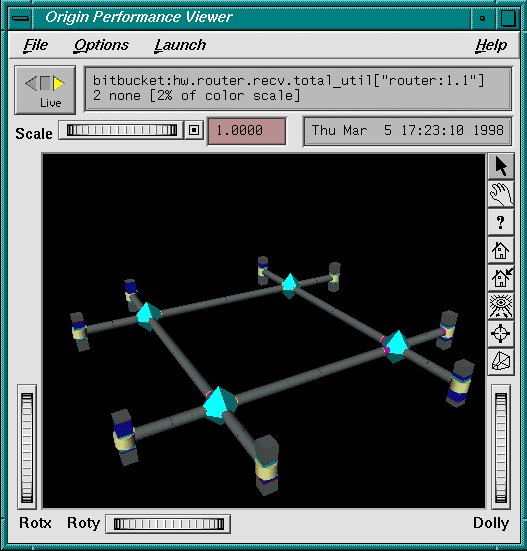
The oview tool displays a dynamic display of Origin system topology and performance, as shown in Figure 5-4. It displays performance information about CPUs, nodes, and routers in Origin systems connected in various configurations; see the oview(1) man page for details.
The nfsvis tool is a graphical NFS (Network File System) activity viewer, displaying a bar chart that shows NFS request activity on the monitored system. NFS is optional software, and may not be present on all systems or at all sites.
When you run the nfsvis command, you see a bar chart displaying NFS load on the monitored system. You see a NFS Client V2 & Server V2 Request Traffic for host host window similar to the one shown in Figure 5-5.
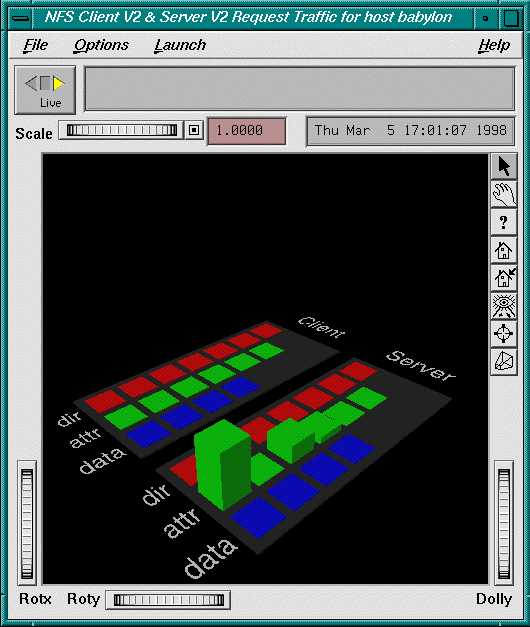
The statistics are broken into two groups:
| Client | Requests made by the monitored machine to NFS servers on other machines | |
| Server | Requests from other machines for the NFS server on the machine being monitored |
Requests relating to data within files
Requests for directory operations (for example, to rename a file)
Requests involving other attributes of files
The nfsvis implementation uses the generalized 3D performance viewer pmview as described in “The pmview Tool”. Hence, the command line options for nfsvis include the common ones for pmview.
Complete information on the nfsvis command is available in the nfsvis(1) man page. The PCP Tutorial contains additional examples on the use of nfsvis.
The pmview tool is a generalized three-dimension Open Inventor application that supports dynamic displays of clusters of related performance metrics as utilization blocks (or towers) on a common base plane. The pmview tool is the basis for dkvis, mpvis, osvis, and nfsvis, all discussed above, as well as nodevis, routervis, txmonvis, and xbowvis. It is also used by a range of related tools that are specific to PCP add-on products. The pmview tool may also be used to construct customized 3D performance displays.
Open Inventor is an object-oriented toolkit that simplifies and abstracts the task of writing graphics applications into a set of easy-to-use objects. Inventor run-time support is distributed with IRIX system software in the inventor_eoe.sw product image.
The pmview command displays performance metrics as colored blocks arranged in a grid on a grey base plane. The height of each block changes as the value of its corresponding metric (or metric instance) changes. Labels may be added to the scene to help identify groups of metrics, as shown in Figure 5-1, Figure 5-2, Figure 5-3, and Figure 5-5.
A configuration file is used to specify the position, color, and scale of metrics and metric instances in the scene. Metric values that exceed the associated scaling factor are displayed at the maximum height and change color to white. If a metric is unavailable, the bar height is minimized, and the bar color changes to grey.
Normally, pmview operates in live mode where performance metrics are fetched in real time. The user can view metrics from other accessible Internet hosts that are running the PCP collector daemon, pmcd. The pmview tool can also replay archives of performance metrics collected by pmlogger.
All metrics in the PMNS with numeric value semantics from multiple hosts or archives may be visualized. The pmview tool examines the semantics of the metrics and, where sensible, converts the fetched metric values to a rate before scaling.
The pmview tool window contains a menu bar, time and scale controls, metric and time values, and an examiner window; see the ivview command, which displays the 3D scene.
The left, right, and bottom edges of the examiner viewer window contain a variety of thumb wheels and buttons that allow the user to adjust the visualization of the 3D scene. The Rotx and Roty thumb wheels allow the user to rotate the scene about the X and Y axes, respectively. The Dolly thumb wheel moves the virtual camera closer to or further from the scene, allowing the user to examine specific parts in detail or view the entire scene.
On the right edge of the viewer are eight buttons that affect the way the user can interact with the scene:
The pointer button changes the cursor to a pointer that allows blocks in the scene to be selected. The Esc key can also be used to toggle between the pointer and hand cursors.
The hand button changes the cursor to a hand that can be used to rotate, translate, and examine the scene via Dolly, using a combination of mouse buttons and movement.
The left mouse button can be used to rotate the scene in the direction of the mouse. Releasing the mouse button before the mouse has stopped moving causes the scene to continue rotating until a mouse button is pressed again.
The middle mouse button can be used to pan the scene. By pressing both left and middle buttons, the mouse can be used as a virtual camera.
The question mark button displays SGI Help for the examiner viewer. To install online help, use inst to install the inventor_eoe.sw.help package from your IRIX system software distribution. See the Performance Co-Pilot release notes for more information on prerequisite subsystems.
The home button changes the scene back to its original position, or the position set by the home pointer button.
The home pointer button sets the new home position of the scene to be the scene currently in view.
The eye button resizes the scene so that it completely fits into the 3D viewing area.
The cross-hairs button moves the scene so that the object under the cursor is in the center of the viewing area. Change the hand cursor and press the cross-hairs button. The cursor changes to a target. Select the block to be centered and the scene rotates and translates appropriately.
The perspective box button switches between perspective and orthogonal projections.
Pressing the right mouse button within the scene displays a menu of options that affect how the 3D scene is drawn. The options include drawing the blocks as wireframes and turning on stereo viewing.
When the pointer cursor is active, more information about the 3D scene can be obtained. Text describing the metric represented by the block beneath the cursor displays in the top text box of the pmview window. This text displays the source, name, and instance of the performance metric, and the value, units, and percentage of the expected minimum the value represents.
Clicking the left mouse button on a block highlights the block with a red wireframe, as shown in Figure 5-6. The metric description text box is now fixed on that metric and the values continue to be updated as new metrics are fetched. This allows other actions to be performed with the mouse while examining a single metric in detail at the same time. Click the left mouse button on the space surrounding the scene to remove the selection.

Multiple blocks may also be selected by either Shift clicking with the left mouse button or by clicking on a base plane. Shift clicking toggles the selection status of a particular block and leaves the selection status of other blocks unaltered. Clicking on the base plane selects all blocks belonging to the base plane. Whenever multiple blocks are selected, no accompanying text is displayed in the text box. However, multiple block selection affects the launching of other tools because all metrics on the base plane are considered to be selected as a group.
There are four menus in pmview tools:
| File | Records, saves, and prints scenes | |
| Options | Accesses the time controls | |
| Launch | Starts other tools | |
| Help | Obtains online help |
The Launch menu consists of a list of tools that operate on the current selection of metrics. How the tool is invoked depends on the type of tool. Tools that operate on any metric (such as pmchart, pmval, and pmdumptext) use the metrics selected directly as input. Thus pmchart displays all the selected metrics in a chart, pmval is invoked within winterm for each metric, and pmdumptext displays multiple metrics in one winterm. Other tools use what metrics are pertinent. If no metric is pertinent or selected, only the source of the metrics is used, that is, the monitored host or archive. For each Launch menu item there is an associated launch script. The launch scripts generally know the relationship between routers, nodes, and CPUs. Thus if CPUs are selected in mpvis and if nodevis is launched, only the nodes that have the selected CPUs attached are displayed.
Some launchable tools are listed below:
| dkvis, mpvis, nfsvis, and osvis | pmview-based tools for visualizing disk activity, CPUs, NFS, and the OS (operating system). | |
| pcp | Brings up a window that summarizes the PCP installation. | |
| pmdumptext | Brings up a window that shows the performance metrics as text. | |
| pmchart | A tool for graphically displaying and correlating time-series trends of performance metrics. See “The pmchart Tool” in Chapter 4, for details. | |
| pmgsys | A miniature IRIX performance metrics viewer, available only in live mode, not in archive mode. | |
| pmkstat | A text-based tool that displays, at intervals, a high-level summary of system performance. | |
| pmval | A tool that displays the values of performance metrics textually. Only one metric (with one or more instances) may be selected to successfully launch this tool. See “The pmval Command” in Chapter 4, for details. |
In addition to the menu options for time controls, the current direction and mode of the time controls is shown in a button in the top-left corner of the pmview window (refer to “Time Duration and Control” in Chapter 3 for a complete description of the time control services). Pressing this button displays the time control dialog.
Below this button is a thumb wheel and an editable text box to specify a scale multiplier that is applied to all values in the scene. Spinning the thumb wheel to the right, or incrementing the value in the text field, increases the scaling and raises the height of the bars. Conversely, spinning the thumb wheel to the left or decrementing the text field decreases the scaling and lowers the height of the bars.
The button beside the thumb wheel resets the scale to one. This is especially useful when the scale specified in the configuration file reduces the usefulness of the visualization as a consequence of the bars being either too low or beyond the maximum scale height.
At startup time, a configuration file is read that specifies the following:
Geometry for the scene to be displayed by pmview
Associations between the visual appearance of “blocks” and performance metrics
The scene is based on a grid that can contain a variety of objects and can resize itself to accommodate objects of varying sizes. To distinguish this configuration file format from an earlier (still supported) format, configuration files must begin with the following line:
pmview Version 2.1 |
All lines beginning with a # character are treated as comments and ignored. Spaces, tabs, and newlines are treated as white space to allow multiple statements on the same line. The simplest configuration file consists of a single object that may represent one or more metrics and metric instances.
The configuration file consists of two sections: global parameters and color lists, and the object definitions. The global parameters control the size of the objects in the scene. For example, a scaling factor of 1.2 can be applied to all objects with the following line:
_scale 1.2 |
Groups of colors may be associated with a name and referenced later in the file. Colors may be X(1 color names, X(1) numerical colors, or three real values representing the saturation of red, green, and blue, respectively. The following color list contains three identical colors:
_colorlist cpu ( red rgbi:1.0/0.0/0.0 1.0 0.0 0.0 ) |
The mpvis configuration file (which can be generated with the -V option) looks like Example 5-1:
Example 5-1. mpvis Configuration File
pmview Version 2.1
#
# mpvis
#
_gridSpace 120
_colorlist cpu ( green2 cyan2 yellow2 red2 blue2 )
_grid 0 0 _hide ( # outer grid
            _baseLabel “CPU Utilization for Host wired\ncpu0 only”
            _bar _groupByInst (
               _metrics (
                   kernel.percpu.cpu.idle[cpu0]        1000 “idle”
                   kernel.percpu.cpu.wait.total[cpu0]  1000 “wait”
                   kernel.percpu.cpu.intr[cpu0]        1000 “intr”
                   kernel.percpu.cpu.sys[cpu0]         1000 “sys”
                   kernel.percpu.cpu.user[cpu0]        1000 “user”
               )
               _colorlist cpu
               _baseLabel “CPU Utilization for Host wired\ncpu0 only”
           )
) |
Multiple objects can be visualized using a _grid object, which may contain multiple objects (including more _grid objects). The _grid object resizes columns and rows to accommodate the largest contained object. Objects can occupy multiple grid squares and can be aligned with a particular edge or corner of a grid square. The _bar object has a single bar for each metric instance and labels for each metric. The scale height for each metric instance is 1000 in the units of the metric (milliseconds utilization per second).
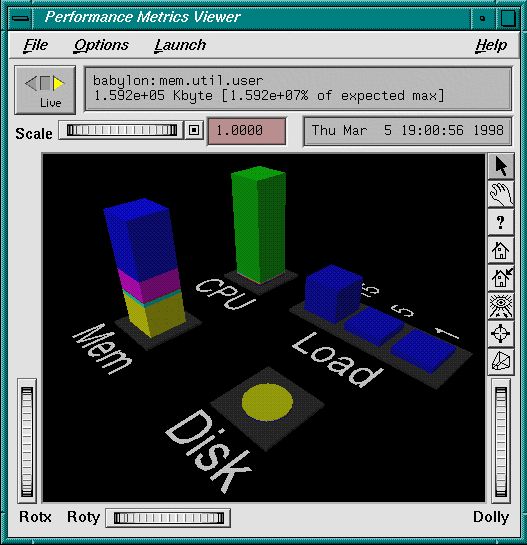
The specification file shown in Example 5-2, produces a scene like the one shown in Figure 5-7. The file has a grid, labels, bars, and a stack utilization object.
Example 5-2. Specification File for pmview
pmview Version 2.1
_colorlist cpu_colors ( blue2 red2 yellow2 cyan2 green2 )
_colorlist disk_colors ( purple2 yellow2 )
_colorlist memory_colors ( rgbi:1.0/1.0/0.0 rgbi:0.0/1.0/1.0 rgbi:1.0/0.0/0.0
                              rgbi:1.0/0.0/1.0 rgbi:0.0/0.0/1.0 rgbi:0.0/1.0/0.0 )
_grid hide (
_label 3 1 _west _down _large “CPU”
       _stack 4 1 _west _utilmod (
             _metrics (
               kernel.all.cpu.user        1000
               kernel.all.cpu.sys         1000
               kernel.all.cpu.intr        1000
               kernel.all.cpu.wait.total  1000
               kernel.all.cpu.idle        1000
           )
           _colorlist cpu_colors
           _baseLabel “CPU Utilization”
       )
_label 3 3 _west _down _large “Load”
       _bar 4 3 2 1 _west (
           _metrics (
               kernel.all.load[15]    2
               kernel.all.load[5]     2
               kernel.all.load[1]     2
           )
           _metriclabels _away ( “15” “5” “1” )
           _colorlist ( blue2 blue2 blue2 )
_baseLabel “Average System Load over last 1, 5 and 15 minutes\nNormalized to 2”
       )
_label 0 1 _west _down _large “Mem”
         _stack 1 1 _west _utilmod (
           _metrics (
               mem.util.kernel        1
               mem.util.fs_ctl        1
               mem.util.fs_dirty      1
               mem.util.fs_clean      1
               mem.util.user          1
           )
           _colorlist memory_colors
           _baseLabel “Physical Memory Utilization”
       )
       _label 0 3 _down _large “Disk”
       _stack 1 3 _west _cylinder (
           _metrics (
               disk.all.read          100
               disk.all.write         100
           )
           _colorlist disk_colors
           _baseLabel “Disk Operations\nNormalized to 100 I/Os per second”
        )
) |
To assist in the creation of front-end tools, a file containing shell procedures for generating usage information and parsing pmview command line options is located at /var/pcp/lib/pmview-args. The dkvis, mpvis, nfsvis, and osvis tools are all shell scripts that use these shell procedures to generate a configuration file for pmview.